

Whether you’re managing a Linux server, troubleshooting connectivity issues, or learning system administration, understanding Linux network configuration commands is essential. These tools help you inspect network interfaces, test connectivity, diagnose DNS problems, manage routes, and monitor network activity directly from the terminal.
Some of these commands have been available in Linux for decades, while others represent newer tools that have become the preferred choice in modern distributions. Even so, many of the classic utilities remain widely used in production environments and troubleshooting scenarios.
This guide covers the most important Linux network configuration commands and explains when and how to use them.
Why Linux Networking Commands Matter
A properly functioning network is critical for almost every Linux system. When something goes wrong, administrators often rely on command-line tools to quickly identify and resolve issues.
These commands can help you:
- View interface details and IP addresses
- Verify network connectivity
- Troubleshoot DNS resolution problems
- Analyze routing paths
- Monitor network connections
- Configure wired and wireless interfaces
- Manage network settings through NetworkManager
Let’s look at the commands that every Linux administrator should know.
1. ifconfig Command
The ifconfig (Interface Configurator) command is one of the oldest networking tools available in Linux. It is used to view and configure network interfaces, assign IP addresses, check MAC addresses, and modify interface settings.
Although modern Linux distributions recommend using the ip command, ifconfig is still commonly encountered on older systems and in many tutorials.
Display All Active Network Interfaces
ifconfig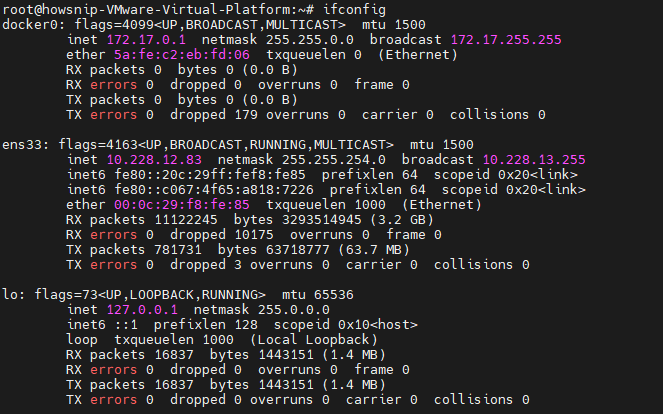
This command displays information about all active network interfaces, including IP addresses, MAC addresses, packet statistics, and MTU values.
View a Specific Network Interface
ifconfig ens33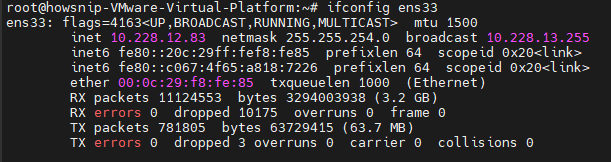
It shows detailed information for the specified interface only, making it easier to troubleshoot a particular network adapter.
Assign an IP Address
ifconfig ens33 192.168.50.5 netmask 255.255.255.0
The above command temporarily assigns the IP address 192.168.50.5 and subnet mask 255.255.255.0 to the ens33 interface. The configuration disappears after a reboot unless saved permanently.
Enable a Network Interface
ifup ens33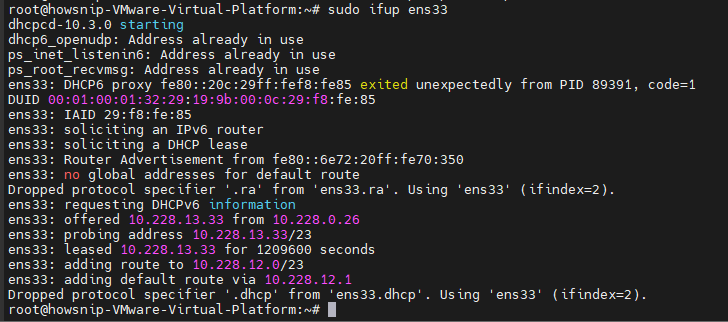
It brings the network interface online so it can send and receive traffic.
Disable a Network Interface
ifdown ens33
It takes the interface offline and stops network communication through that adapter.
Change MTU Size
ifconfig ens33 mtu XXXX
This command changes the Maximum Transmission Unit (MTU) size for the interface. Replace XXXX with the desired MTU value.
Enable Promiscuous Mode
ifconfig ens33 promisc
It allows the interface to receive all packets on the network segment, which is useful when capturing traffic for network analysis.
Note: The ifconfig utility has been replaced by the ip command in most modern Linux distributions.
2. Ping Command
The ping command is one of the first tools administrators use when checking network connectivity. It uses ICMP (Internet Control Message Protocol) requests to determine whether a remote host is reachable and how long communication takes.
Ping an IP Address
ping 4.2.2.2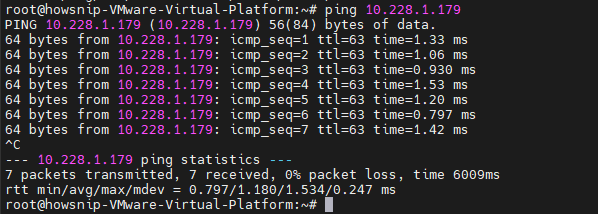
This command sends ICMP requests to the target IP address and reports whether responses are received successfully.
Ping a Hostname
ping howsnip.com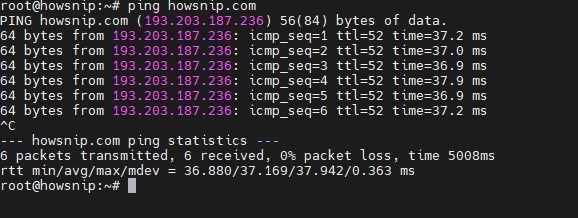
This command tests both DNS resolution and network connectivity by sending ping requests to a domain name.
Send a Fixed Number of Requests
ping -c 5 howsnip.com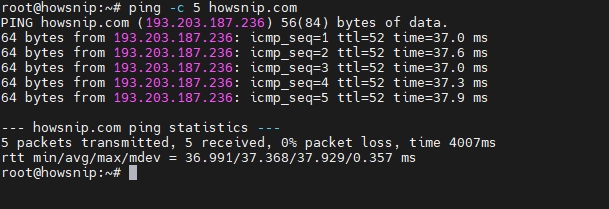
It sends exactly five ping requests and exits automatically after receiving the responses.
3. Traceroute Command
The traceroute command helps identify the path that packets take between your system and a destination host. This command is especially useful when diagnosing routing issues, latency problems, or unreachable destinations.
Trace the Route to a Host
traceroute 4.2.2.2
It displays every network hop between your system and the destination, along with response times for each hop.
4. Netstat Command
The netstat (Network Statistics) command provides information about network connections, routing tables, listening services, and interface statistics. Although largely replaced by the ss command, it remains a valuable troubleshooting tool.
View the Routing Table
netstat -r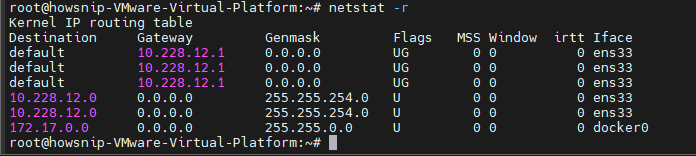
It displays the system’s routing table, including routes and default gateway information.
Note: Most modern Linux distributions recommend using the ss command as a replacement for netstat.
5. Dig Command
The dig (Domain Information Groper) command is a powerful DNS diagnostic utility used by Linux administrators and network engineers. It can query various DNS record types, including:
- A Records
- MX Records
- CNAME Records
- NS Records
- TXT Records
Query DNS Records
dig howsnip.com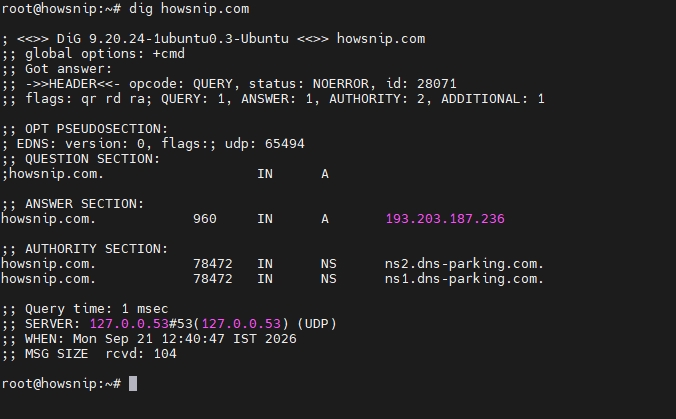
This command performs a DNS lookup and returns detailed information about the domain, including resolved IP addresses and DNS server responses.
6. Nslookup Command
The nslookup command is another widely used utility for DNS troubleshooting and name resolution testing.
Lookup a Domain Name
nslookup howsnip.com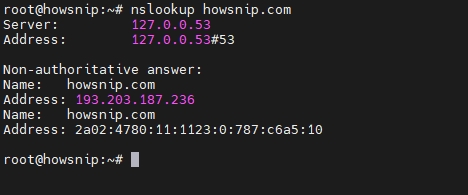
It queries DNS servers and displays the IP address associated with the specified domain.
7. Route Command
The route command is used to view and manage the Linux kernel routing table. Administrators use it to add, remove, and inspect network routes.
Display the Current Routing Table
route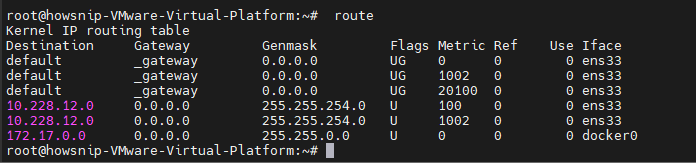
It shows all active routes configured on the system, including the default gateway.
Add a Static Route
route add -net 10.10.10.0/24 gw 192.168.0.1
It adds a route directing traffic destined for the 10.10.10.0/24 network through the specified gateway.
Delete a Static Route
route del -net 10.10.10.0/24 gw 192.168.0.1
It removes the specified route from the routing table.
Add a Default Gateway
route add default gw 192.168.0.1
This command configures a default gateway that handles traffic destined for networks outside the local subnet.
8. Host Command
The host command is a simple yet useful DNS lookup utility that can resolve hostnames and query specific DNS record types.
Resolve a Domain Name
host google.com
It returns the IP address information associated with the specified domain name.
Query a Specific DNS Record Type
host -t CNAME www.redhat.com 8.8.8.8
The above command requests a CNAME record from the DNS server 8.8.8.8, helping administrators verify DNS configurations.
9. ARP Command
The ARP (Address Resolution Protocol) command allows administrators to view and manage ARP cache entries stored by the Linux kernel.
Display the ARP Table
arp -e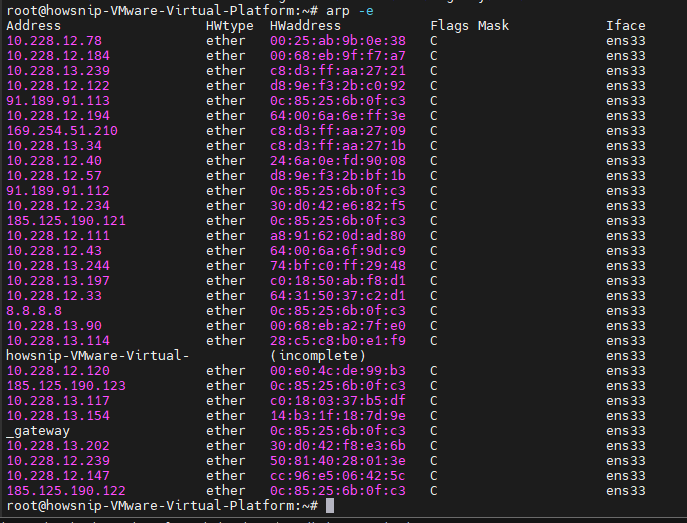
It shows the mapping between IP addresses and MAC addresses currently stored in the ARP cache.
10. Ethtool Command
The ethtool utility provides detailed information about Ethernet network interfaces and their operational settings. It is commonly used to verify link speed, duplex mode, and driver information.
View Ethernet Adapter Information
ethtool ens33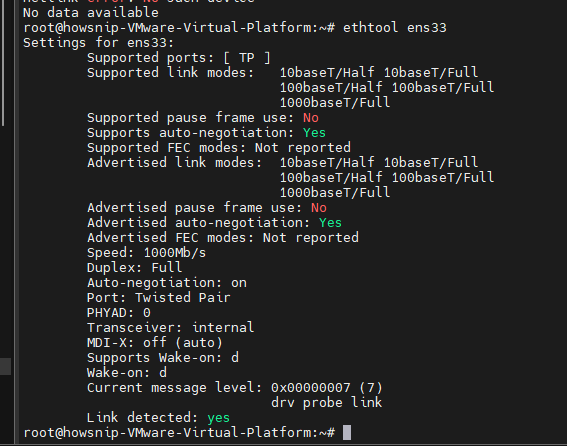
It displays NIC information such as speed, duplex status, auto-negotiation settings, and driver details.
11. Iwconfig Command
The iwconfig command is designed specifically for wireless network interfaces. It can display or modify wireless settings such as SSID, frequency, channel, and encryption parameters.
View Wireless Interface Information
iwconfig wlan0It displays wireless configuration details, including network name, signal quality, frequency, and operating mode.
Running iwconfig on an Ethernet Interface
iwconfig ens33The above command attempts to display wireless information for the ens33 interface. For Ethernet-related information, tools such as ip addr, ip link, and ifconfig are more appropriate.
12. Hostname Command
Every Linux machine is identified on a network by its hostname. The hostname command displays the current hostname configured on the system.
Check the System Hostname
hostname
It shows the hostname currently assigned to the machine. In traditional Linux environments, the hostname can be configured permanently through system configuration files and may require a reboot for changes to take effect.
13. Nmcli and Nmtui Tools
Modern Linux distributions commonly use NetworkManager to control network settings. Two tools provided by NetworkManager are nmcli and nmtui.
These utilities allow administrators to:
- Create network connections
- Modify existing configurations
- Enable or disable interfaces
- Manage Wi-Fi and Ethernet connections
- Troubleshoot network settings
Nmcli Command
nmcli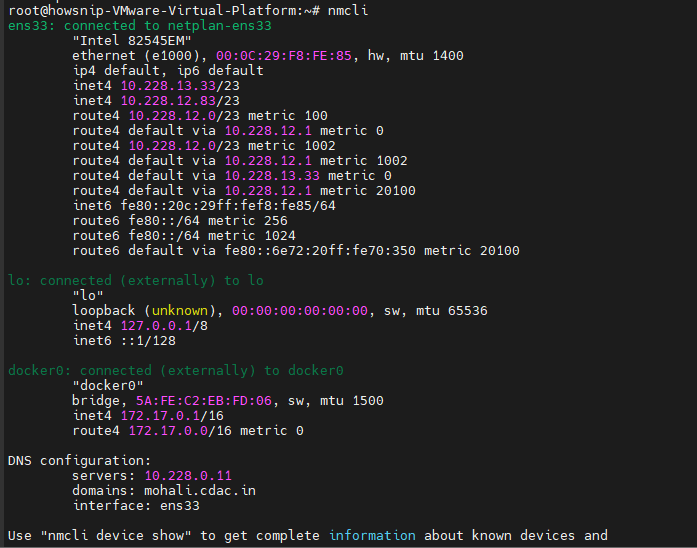
It displays NetworkManager information and provides a command-line interface for managing network devices and connections.
Nmtui Command
nmtui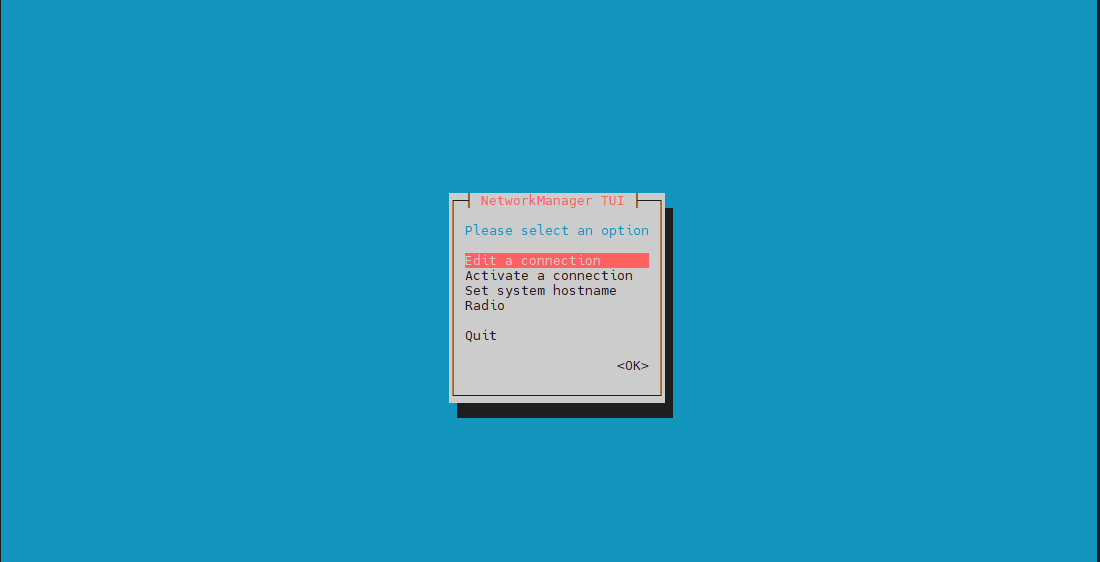
This command launches a text-based graphical interface that simplifies network configuration without requiring complex command-line syntax.
Conclusion
Learning Linux network configuration commands is a fundamental skill for system administrators, DevOps engineers, and anyone responsible for managing Linux systems. From checking interface settings with ifconfig to testing connectivity with ping and troubleshooting DNS with dig, these tools provide the visibility needed to diagnose and resolve network issues efficiently.
While some commands covered here have modern replacements, understanding both traditional and current networking utilities remains valuable because many production environments still rely on a mix of old and new Linux networking tools.