

Claude Code is Anthropic’s AI-powered coding assistant that runs directly in your terminal. Instead of switching between your editor and an AI chat interface, you can launch Claude Code inside a project directory and interact with your codebase using natural language. It can read files, make code changes, explain project structures, and execute commands as part of your workflow.
This tutorial walks you through the different ways to install Claude Code on Linux, including the recommended native installer, Linux package managers, and npm. You’ll also learn how to verify the installation, sign in, update the tool, and uninstall it if needed.
Prerequisites
Before installing Claude Code, ensure you have:
- A supported Linux distribution
- Internet access
- Terminal access
- A Claude.ai account or Anthropic Console account for authentication
- Node.js 22 or later (only required for the npm installation method)
Option 1: Install Claude Code Using the Native Installer (Recommended)
The native installer is the recommended method because it works across supported Linux distributions and automatically keeps Claude Code updated in the background.
Install the Latest Release
Run the following command in your terminal:
curl -fsSL https://claude.ai/install.sh | bash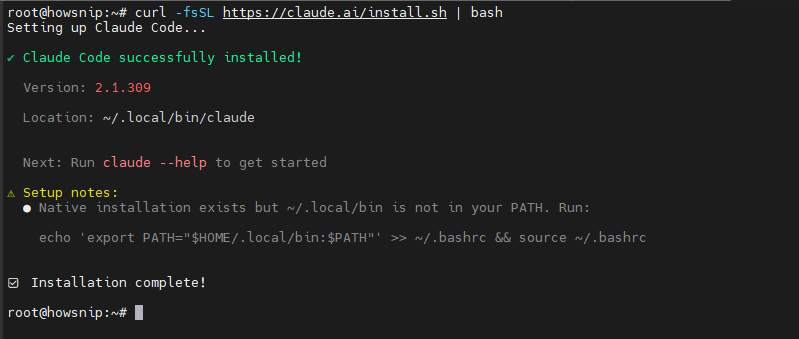
This command downloads Anthropic’s installation script and executes it immediately.
What This Does
- Downloads the official installer script
- Installs the claude executable in: ~/.local/bin
- Stores version data in: ~/.local/share/claude
- Does not require root or sudo privileges
Important: As with any piped installer, you may download and inspect the script before running it if your organization’s security policies require script verification.
Install the Stable Release Channel
By default, the installer uses the latest release channel. If you prefer the stable channel, which generally lags behind by about a week and avoids releases with major regressions, run:
curl -fsSL https://claude.ai/install.sh | bash -s stable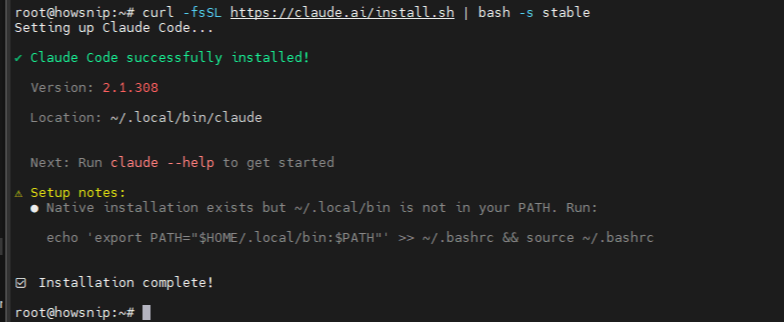
This installs the stable version of Claude Code instead of the latest release.
Alpine Linux Requirements
If you’re using Alpine Linux or another musl-based distribution, install the required dependencies first:
apk add libgcc libstdc++ ripgrepAfterwards, set the following value in Claude Code’s settings.json:
{
"USE_BUILTIN_RIPGREP": 0
}
This configures Claude Code to use the system-installed version of ripgrep.
Option 2: Install Claude Code Using Linux Package Managers
Package-manager installations are useful in managed environments where software updates are controlled through the operating system.
Note: Unlike the native installer, package-manager installations do not update automatically.
Install Claude Code on Ubuntu, Debian, and Derivatives
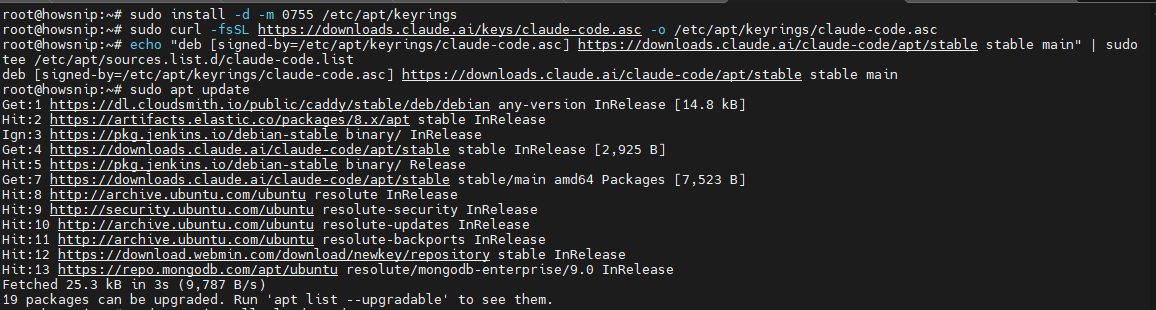
Step 1: Create the Keyring Directory
sudo install -d -m 0755 /etc/apt/keyringsThis creates the directory used to store repository signing keys.
Step 2: Download the Repository Signing Key
sudo curl -fsSL https://downloads.claude.ai/keys/claude-code.asc -o /etc/apt/keyrings/claude-code.ascThe signing key allows your system to verify package authenticity.
Step 3: Add the Claude Code Repository
echo "deb [signed-by=/etc/apt/keyrings/claude-code.asc] https://downloads.claude.ai/claude-code/apt/stable stable main" | sudo tee /etc/apt/sources.list.d/claude-code.listThis registers the official Claude Code repository with APT.
Step 4: Update Package Information
sudo apt updateAPT will retrieve package metadata from the newly added repository.
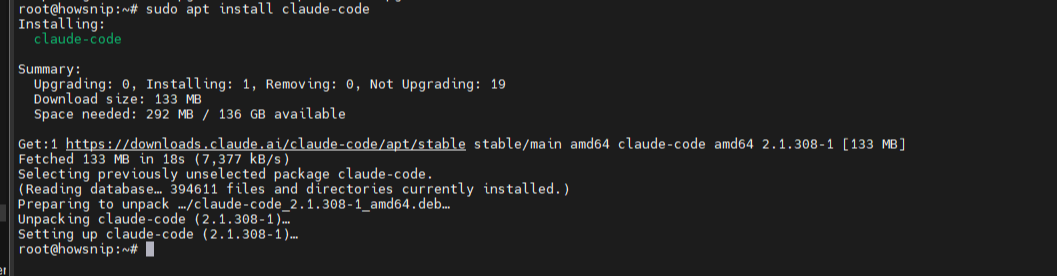
Step 5: Install Claude Code
sudo apt install claude-codeThis installs Claude Code from the official repository.
Verify the Signing Key Fingerprint
Before trusting the repository, verify the key fingerprint:
gpg --show-keys /etc/apt/keyrings/claude-code.asc
The fingerprint should match:
31DD DE24 DDFA B679 F42D 7BD2 BAA9 29FF 1A7E CACE
Install Claude Code on Fedora, RHEL, and Derivatives
Step 1: Create the Repository Configuration
sudo tee /etc/yum.repos.d/claude-code.repo <<'EOF'
[claude-code]
name=Claude Code
baseurl=https://downloads.claude.ai/claude-code/rpm/stable
enabled=1
gpgcheck=1
gpgkey=https://downloads.claude.ai/keys/claude-code.asc
EOF
This creates a DNF repository configuration file.
Step 2: Install Claude Code
sudo dnf install claude-codeDuring installation, DNF will prompt you to trust the repository signing key.
Verify the fingerprint matches:
31DD DE24 DDFA B679 F42D 7BD2 BAA9 29FF 1A7E CACE
Upgrade Later
sudo dnf upgrade claude-codeThis updates Claude Code to the latest version available in the repository.
Install Claude Code on Alpine Linux
Step 1: Download the Repository Key
wget -O /etc/apk/keys/claude-code.rsa.pub https://downloads.claude.ai/keys/claude-code.rsa.pubStep 2: Add the Repository
echo "https://downloads.claude.ai/claude-code/apk/stable" >> /etc/apk/repositoriesThis adds the official Claude Code package source.
Step 3: Install Claude Code
apk add claude-codeVerify the Repository Key
Confirm the downloaded key checksum:
sha256sum /etc/apk/keys/claude-code.rsa.pubThe checksum should be:
395759c1f7449ef4cdef305a42e820f3c766d6090d142634ebdb049f113168b6
Upgrade Later
apk update && apk upgrade claude-codeOption 3: Install Claude Code Using npm
If you already manage development tools with npm, Claude Code can also be installed globally through Node.js.
Requirement
You must have Node.js 22 or later installed.
Install Claude Code
npm install -g @anthropic-ai/claude-codeThis downloads and installs Claude Code globally.
Important Note
Do not use:
sudo npm install -g @anthropic-ai/claude-code
Using sudo with global npm packages can create root-owned files and cause permission problems during future updates. If you encounter permission errors, configure npm to use a user-writable global directory instead.
Update npm Installation
npm install -g @anthropic-ai/claude-code@latest
Verify the Installation
After installation, confirm that Claude Code is available from your terminal.
Check the Installed Version
claude --version
This displays the installed version number.
Run a Health Check
claude doctor
The health check provides information such as:
- Installation type
- Configuration status
- Auto-update status
- System diagnostics
First Run and Sign In
Claude Code should be started from the project directory where you want it to work.
Navigate to a Project
cd ~/projects/my-app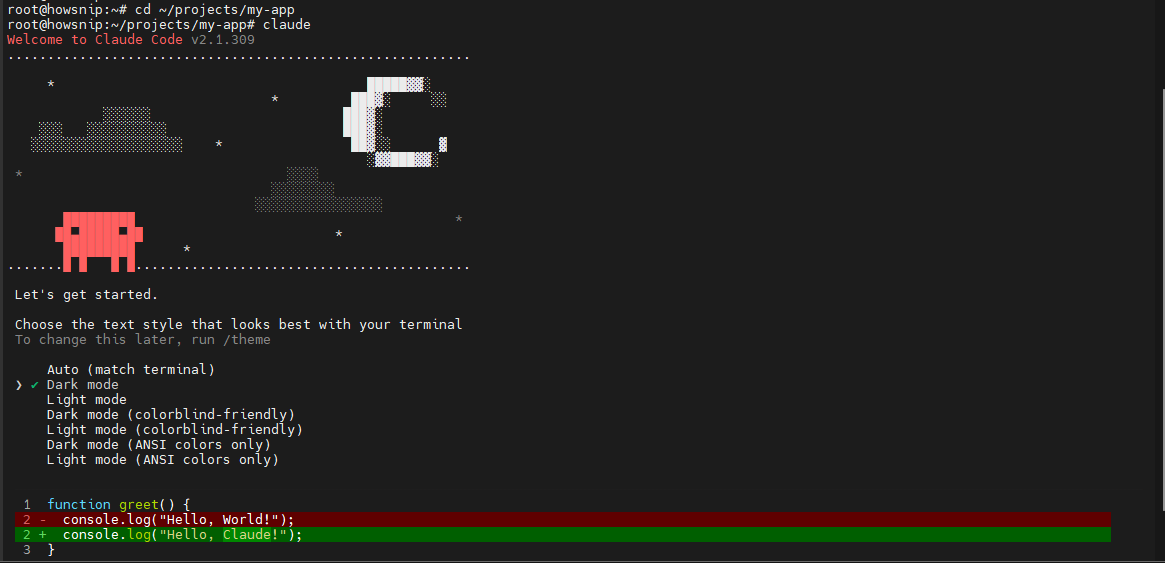
Replace the path with your own project directory.
Launch Claude Code
claudeOn the first launch:
- A browser window opens automatically.
- Sign in with your Claude.ai account or Anthropic Console account.
- Complete authentication.
- Return to the terminal.
Once authenticated, Claude Code saves the session and typically won’t require repeated sign-ins.
You can then begin with simple prompts such as:
- Explain this project.
- Summarize what app.js does.
- Describe the application architecture.
How to Update Claude Code
The update process depends on how Claude Code was installed.
Native Installer
Native installations update automatically in the background.
To force an update immediately:
claude update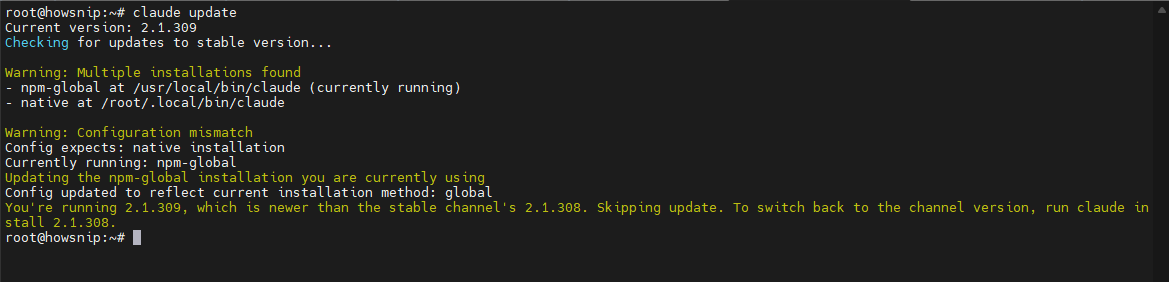
APT Installations
sudo apt update && sudo apt upgrade claude-codeDNF Installations
sudo dnf upgrade claude-codeAPK Installations
apk update && apk upgrade claude-codenpm Installations
npm install -g @anthropic-ai/claude-code@latestHow to Uninstall Claude Code
Remove a Native Installation
rm -f ~/.local/bin/claude
rm -rf ~/.local/share/claude
This removes the executable and stored version data.
Remove an APT Installation
sudo apt remove claude-code
sudo rm /etc/apt/sources.list.d/claude-code.list /etc/apt/keyrings/claude-code.asc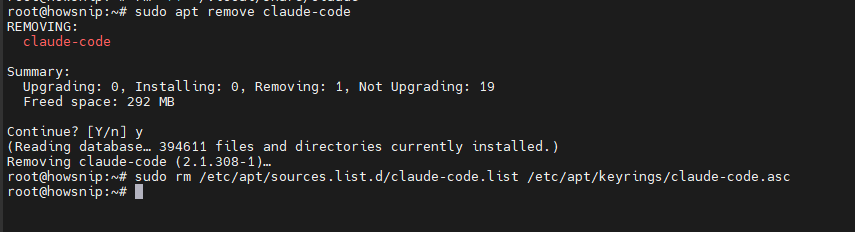
This removes both the package and repository configuration.
Remove a DNF Installation
sudo dnf remove claude-code
sudo rm /etc/yum.repos.d/claude-code.repo
Remove an APK Installation
apk del claude-code
sed -i '\|downloads.claude.ai/claude-code/apk|d' /etc/apk/repositories
rm /etc/apk/keys/claude-code.rsa.pub
Remove an npm Installation
npm uninstall -g @anthropic-ai/claude-codeRemove User Data (Optional)
Claude Code stores user-level settings and session information in:
~/.claude
~/.claude.json
Delete these files only if you want to completely remove your personal settings and authentication data.
Claude Code may also create .claude and .mcp.json inside project directories. Remove them only when you no longer need the saved project-specific configuration.
Conclusion
Installing Claude Code on Linux is straightforward, whether you use the recommended native installer, your distribution’s package manager, or npm. For most users, the native installer is the easiest option because it handles updates automatically and doesn’t require root access.
After installation, verify the setup, sign in to your account, and start using Claude Code directly inside your project directories to streamline coding, debugging, and code exploration tasks.