

Managing virtual mail users directly from a database can quickly become complicated and error-prone. PostfixAdmin provides a user-friendly web interface that simplifies the administration of domains, mailboxes, and email aliases for Postfix-based mail servers.
In this tutorial, you’ll learn how to install and configure PostfixAdmin on Ubuntu 26.04. We’ll cover DNS requirements, create the virtual mail user, install Nginx, PHP, MySQL, secure the installation with a free Let’s Encrypt SSL certificate, and complete the PostfixAdmin setup process.
Note: Although this guide is written for Ubuntu 26.04, the same steps should work with minor adjustments on newer Ubuntu releases.
Prerequisites
Before you begin, ensure you have:
- An Ubuntu 26.04 server.
- A fully qualified domain name (FQDN) configured as the server hostname. In this example, we use mail.example.com.
- A user account with sudo privileges.
Configure DNS Records
Proper DNS configuration is essential for a functioning mail server.
a) Create an A Record
The A record maps your mail server hostname to its IPv4 address.
mail.example.com. 3600 IN A 1.2.3.4This record tells DNS resolvers that mail.example.com points to the specified IP address.
b) Create an MX Record
The MX (Mail Exchange) record tells other mail servers where to deliver email for your domain.
example.com. 3600 IN MX 0 mail.example.com.
All email sent to addresses ending in @example.com will be delivered to mail.example.com.
c) Create an SPF Record
An SPF record specifies which servers are authorized to send email for your domain.
example.com. 3600 IN TXT “v=spf1 mx ~all”
What this does
- mx authorizes the mail servers listed in the MX records.
- ~all creates a soft fail for unauthorized senders.
Replace the example domain and IP address with your actual values.
d) Configure Reverse DNS (PTR)
Reverse DNS maps an IP address back to a hostname. Many mail providers verify this record before accepting email. In most hosting environments, PTR records are managed through your hosting provider’s control panel. If you don’t see the option, contact your provider’s support team.
To verify the PTR record:
dig -x 1.2.3.4Expected output:
1.2.3.4.in-addr.arpa domain name pointer mail.example.com.
This command performs a reverse DNS lookup for the IP address and confirms that it resolves back to your mail server hostname.
Create the Virtual Mail User
Since virtual users won’t exist as local system accounts, create a dedicated system user that owns all mailbox data.
a) Create the Group
sudo groupadd -g 5000 vmailCreates a new group named vmail.
b) Create the User
sudo useradd -u 5000 -g vmail -s /usr/sbin/nologin -d /var/mail/vmail -m vmailThis creates a mail user with:
- User ID 5000
- Group vmail
- No login shell
- Home directory /var/mail/vmail
c) Set Directory Permissions
sudo chmod 770 /var/mail/vmailThis gives the owner and group full access while restricting access for others.

d) Mailbox Location
All virtual mailboxes will be stored in /var/mail/vmail
Install Nginx, PHP, MySQL, and Required Packages
PostfixAdmin is a PHP-based application and requires a web server and database backend.
a) Install Required Packages
sudo apt update
sudo apt install -y nginx mysql-server php-fpm php-cli php-mysql php-mbstring php-xml php-curl php-zip php-intl php-gd php-bcmath php-readline php-sqlite3 git
What this installs
- Nginx web server
- MySQL database server
- PHP-FPM
- Required PHP extensions
- Git
b) Verify PHP-FPM
Check the installed PHP version:
php -v
List available PHP-FPM services:
systemctl list-units 'php*-fpm.service'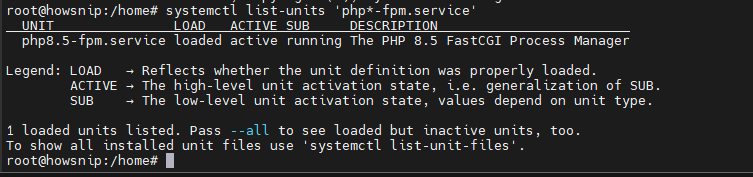
Check the PHP socket path:
ls -l /run/php/

The PHP-FPM socket will later be referenced in the Nginx configuration.
c) Install Composer
PostfixAdmin 4.x uses Composer to manage PHP dependencies.
sudo apt install -y composer
If Composer is unavailable:
sudo apt install -y software-properties-common
sudo add-apt-repository -y universe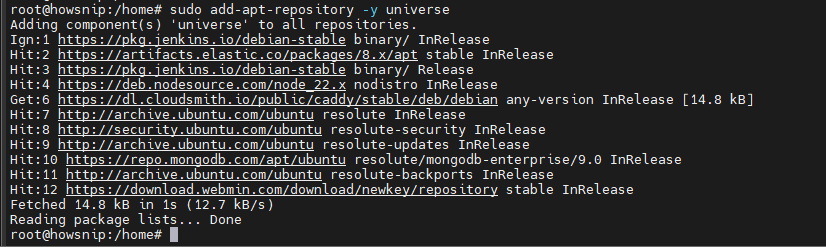
sudo apt update
sudo apt install -y composer
Download and Configure PostfixAdmin
a) Download the Release
cd /tmp
wget https://github.com/postfixadmin/postfixadmin/archive/refs/tags/v4.0.5.tar.gz -O postfixadmin-4.0.5.tar.gz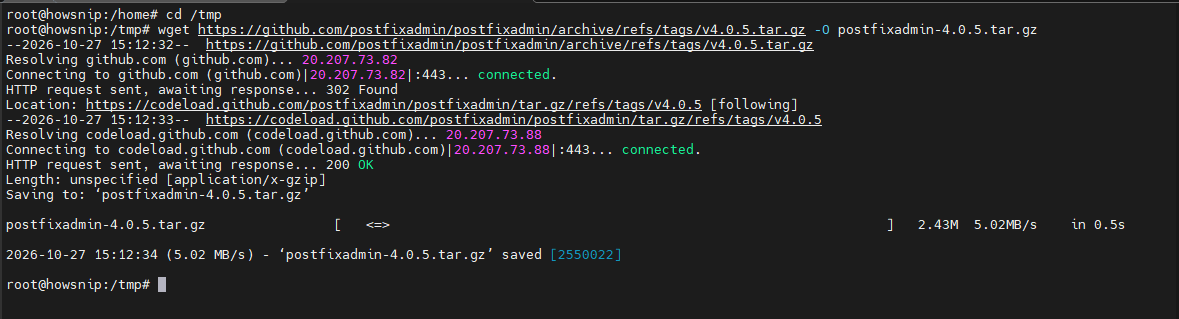
This downloads PostfixAdmin version 4.0.5.
b) Extract the Archive
tar xzf postfixadmin-4.0.5.tar.gz
sudo mv postfixadmin-4.0.5 /var/www/postfixadmin
cd /var/www/postfixadmin
c) Install Dependencies
Give your current user ownership before running the installation helper:
sudo chown -R "$(id -un):$(id -gn)" /var/www/postfixadmin
/bin/bash install.sh
The script installs Composer dependencies and creates required directories.
d) Set Correct Permissions
sudo chown -R www-data:www-data /var/www/postfixadmin
sudo find /var/www/postfixadmin -type d -exec chmod 755 {} \;
sudo find /var/www/postfixadmin -type f -exec chmod 644 {} \;
sudo chmod 750 /var/www/postfixadmin/templates_c
If Composer reports that ext-sqlite3 is missing, install php-sqlite3 and rerun the installation script.
e) Create the MySQL Database
Open the MySQL Shell
sudo mysqlf) Create the Database and User
CREATE DATABASE postfixadmin CHARACTER SET utf8mb4;

CREATE USER 'postfixadmin'@'localhost'
IDENTIFIED BY 'postfixadmin_db_password';

GRANT ALL PRIVILEGES ON postfixadmin.* TO 'postfixadmin'@'localhost';

FLUSH PRIVILEGES;

EXIT;
What this does
- Creates a dedicated database.
- Creates a database user.
- Grants full access to that database only.
Important: Replace postfixadmin_db_password with a strong, unique password.
Configure PostfixAdmin
a) Create a Local Configuration File
sudo cp /var/www/postfixadmin/config.inc.php /var/www/postfixadmin/config.local.phpThis preserves the default file and keeps custom settings separate.
b) Generate a Setup Password Hash
php -r 'echo password_hash("replace-with-setup-password", PASSWORD_DEFAULT), PHP_EOL;'
Copy the generated hash for the next step.
c) Edit the Configuration File
sudo nano /var/www/postfixadmin/config.local.php

Add or verify the following settings:
<?php

$CONF['configured'] = true;

$CONF['database_type'] = 'mysqli';
$CONF['database_host'] = 'localhost';
$CONF['database_user'] = 'postfixadmin';
$CONF['database_password'] = 'postfixadmin_db_password';
$CONF['database_name'] = 'postfixadmin';

$CONF['setup_password'] = 'paste-generated-hash-here';

$CONF['admin_email'] = 'Support <admin@example.com>';

$CONF['default_aliases'] = array(
'abuse' => 'admin@example.com',
'hostmaster' => 'admin@example.com',
'postmaster' => 'admin@example.com',
'webmaster' => 'admin@example.com'
);

$CONF['encrypt'] = 'ARGON2I';
$CONF['dovecotpw'] = "/usr/bin/doveadm pw";
$CONF['domain_path'] = 'YES';
$CONF['domain_in_mailbox'] = 'NO';

?>
Important Settings
- setup_password protects the setup page.
- ARGON2I stores passwords using Dovecot-compatible hashes.
- Default aliases are automatically created for new domains.
Configure Nginx for PostfixAdmin
a) Create an Nginx Server Block
sudo nano /etc/nginx/sites-available/mail.example.com
Paste the following configuration:
server {
listen 80;
server_name mail.example.com;

root /var/www/postfixadmin/public;

index index.php index.html;

location / {
try_files $uri $uri/ /index.php;
}

location ~ \.php$ {
include snippets/fastcgi-php.conf;
fastcgi_pass unix:/run/php/php-fpm.sock;
}

location ~ /\. {
deny all;
}
}
If /run/php/php-fpm.sock does not exist on your system, use the versioned socket path shown earlier.
b) Enable the Site
sudo ln -s /etc/nginx/sites-available/mail.example.com /etc/nginx/sites-enabled/c) Test Nginx Configuration
sudo nginx -t
d) Reload Nginx
sudo systemctl reload nginxInstall a Free Let’s Encrypt SSL Certificate
Securing PostfixAdmin with HTTPS is highly recommended and will also be useful for future Postfix and Dovecot SSL/TLS configuration.
a) Install Certbot
sudo apt install -y certbot python3-certbot-nginx
b) Request the SSL Certificate
sudo certbot --nginx -d mail.example.com
Certbot will automatically obtain and configure the certificate in Nginx.
c) Verify the Certificate
sudo nginx -t
curl -I https://mail.example.com/
sudo certbot certificates
What these commands do
- Validate Nginx configuration.
- Confirm HTTPS is working.
- Display installed certificates.
d) Run the PostfixAdmin Setup Wizard
Open the following URL in your browser:
http://mail.example.com/The setup page will:
- Verify application requirements.
- Check database connectivity.
- Create or update database tables.
Once all checks pass, log in using the plain-text setup password used when generating the hash.
Create the First Super Administrator
Use the web interface to create the initial administrator account.
Alternatively, create it from the command line:
cd /var/www/postfixadmin

sudo -u www-data php scripts/postfixadmin-cli admin add \
admin@example.com \
--superadmin 1 \
--active 1 \
--password 'replace-with-long-password' \
--password2 'replace-with-long-password'
This command creates a super-admin account capable of managing:
- Domains
- Mailboxes
- Aliases
- Additional administrators
Use a strong random password for the administrator account.

Access PostfixAdmin
After completing the setup, log in at:
https://mail.example.com/
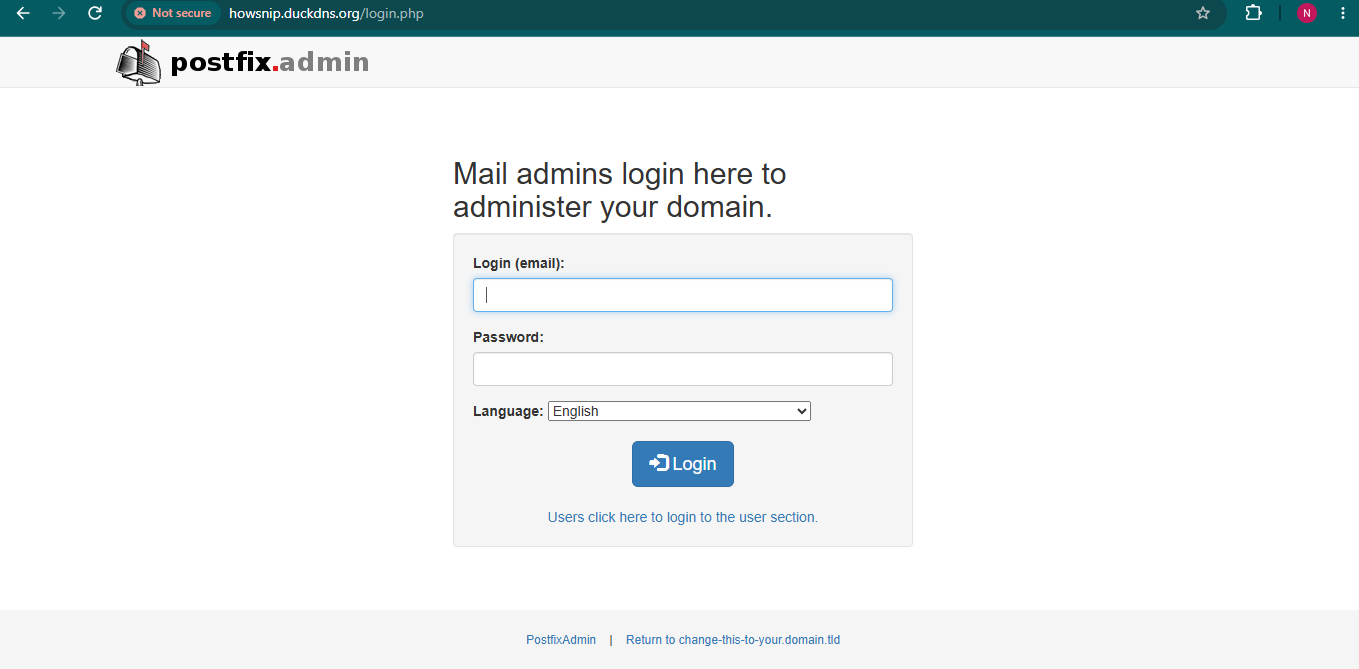
Using your super-admin account, you can:
- Add virtual domains
- Create mailboxes
- Configure aliases
- Manage email users
Conclusion
You have successfully installed and configured PostfixAdmin on Ubuntu 26.04. The server is now prepared with the required DNS records, MySQL database, PHP environment, Nginx web server, and HTTPS protection through Let’s Encrypt.
With PostfixAdmin operational, you can start managing virtual mail domains, mailboxes, and aliases through a convenient web interface and continue building a complete mail server environment.