
Podman is a modern, daemonless container engine that allows you to run OCI-compatible containers without requiring a long-running root daemon. Unlike Docker, Podman starts containers as regular user-owned processes, making it a popular choice for users who want a more secure and lightweight container runtime.
In this tutorial, you’ll learn how to install Podman on Ubuntu, verify rootless container support, run your first container, build custom images, create pods, and even configure containers to start automatically with systemd.
Prerequisites
- A supported Ubuntu system
- A user account with sudo privileges
- Internet access to download packages and container images
Install Podman on Ubuntu
Podman is available directly from Ubuntu’s Universe repository, so no additional PPAs are required.
Step 1: Update Your Package Index
First, refresh the package list to ensure you are installing the latest available package from your configured repositories.
sudo apt update
Step 2: Install Podman
Install Podman using APT:
sudo apt install podman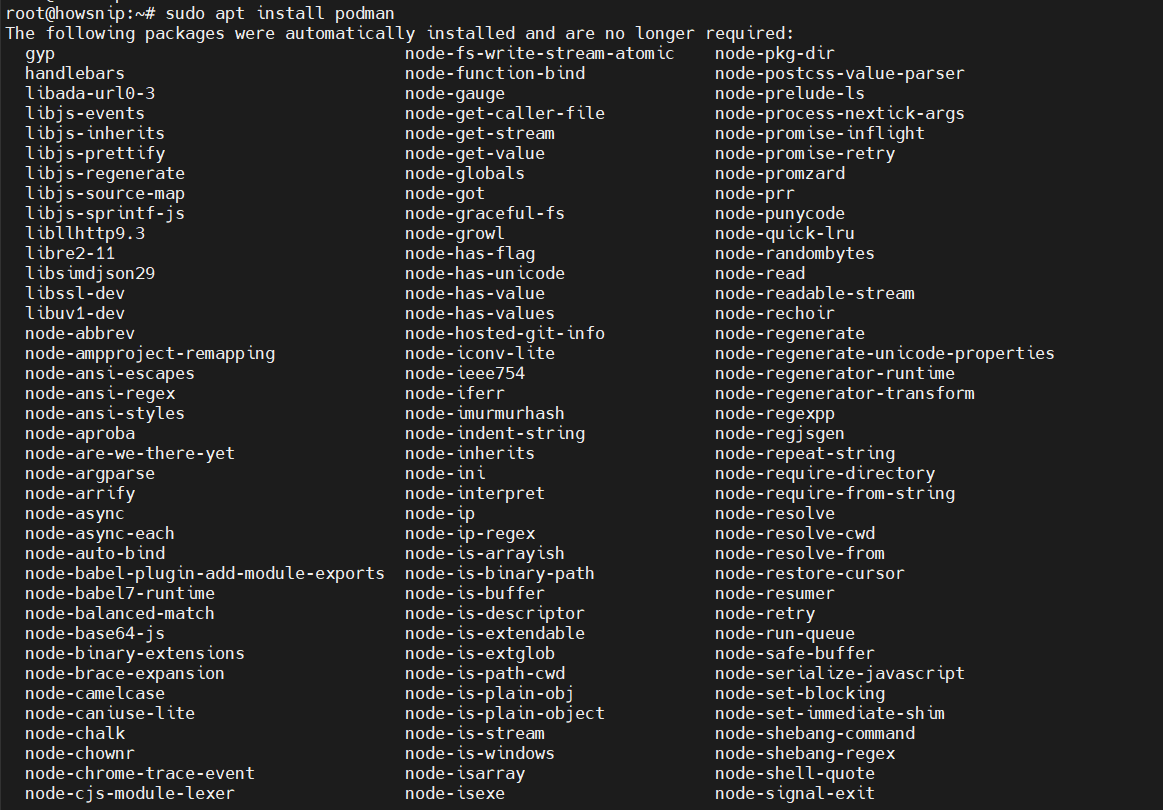
This command downloads and installs Podman along with any required dependencies.
Step 3: Verify the Installation
Check whether Podman was installed successfully:
podman --version
The output displays the installed Podman version. The exact version depends on your Ubuntu release.
Verify the Rootless Configuration
One of Podman’s biggest advantages is its ability to run containers without requiring root privileges.
Check Rootless Mode
Run:
podman info | head -20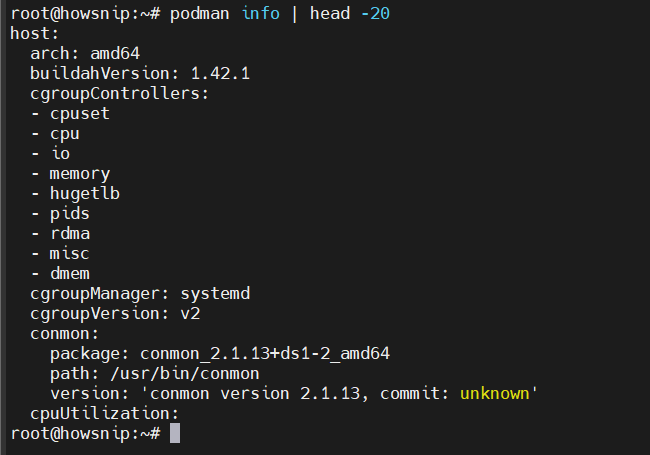
This command displays the first part of Podman’s configuration information.
Verify Subordinate UID and GID Mappings
Rootless containers rely on subordinate user and group ID mappings.
Check the configuration files:
cat /etc/subuid /etc/subgid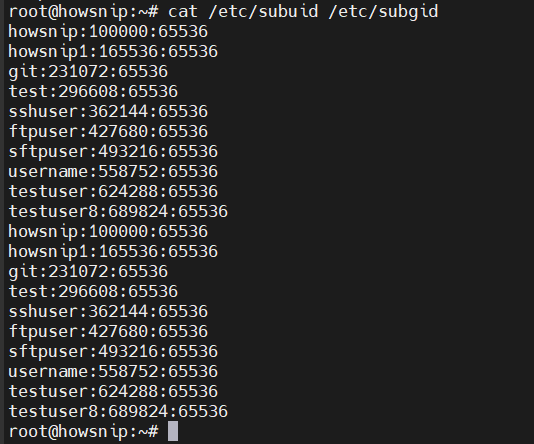
Each user should have an assigned range of subordinate UIDs and GIDs that Podman uses internally for container isolation.
If Your User Entry Is Missing
Add subordinate IDs for your user:
sudo usermod --add-subuids 100000-165535 --add-subgids 100000-165535 howsnipThen apply the changes:
podman system migrateImportant: Replace howsnip with your actual username.
Run Your First Podman Container
Let’s verify that Podman can pull and run containers successfully.
Start an Nginx Container
Run the following command:
podman run -d --name web -p 8081:80 nginx
Verify the Container Is Running
List active containers:
podman ps
You should see the web container in the output.
Test the Application
Send a request to the container:
curl -I http://localhost:8081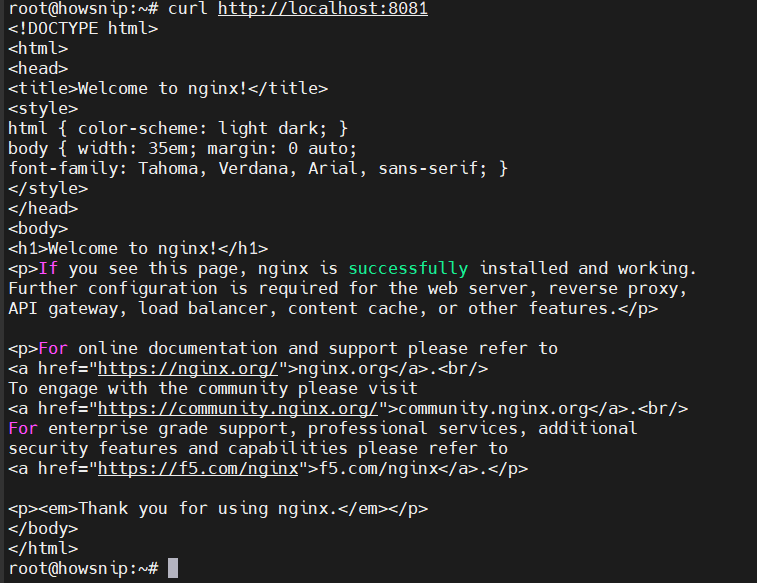
A successful HTTP response confirms that traffic is reaching the Nginx server inside the container.
Remove the Container
When you’re finished testing:
podman rm -f web
This command forcefully stops and removes the container.
Configure Container Registries
Podman searches configured registries when pulling container images without a registry prefix.
Open the Registry Configuration File
sudo nano /etc/containers/registries.conf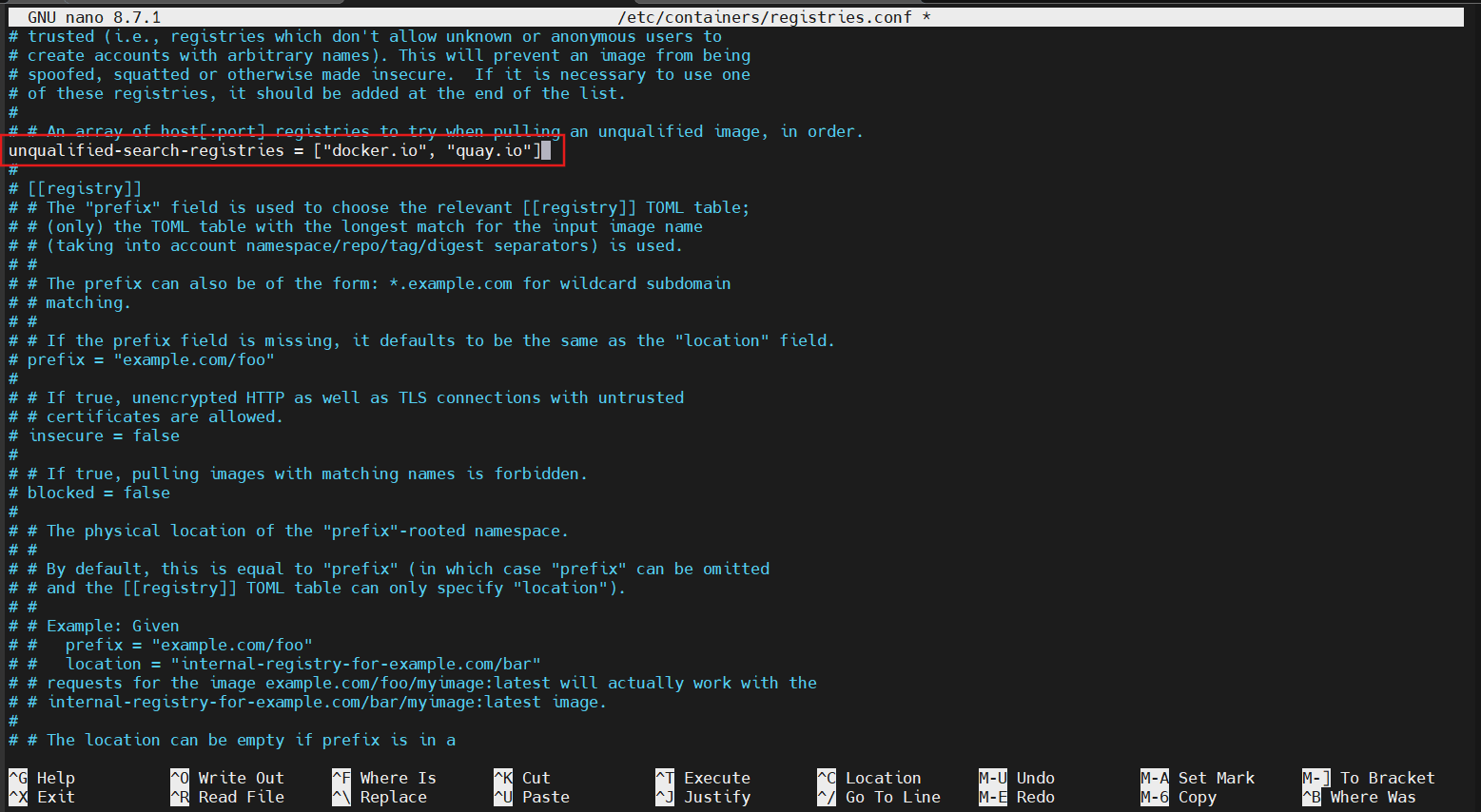
Configure Search Registries
Add or update the following configuration:
unqualified-search-registries = [“docker.io”, “quay.io”]
This allows Podman to automatically search Docker Hub and Quay when image references don’t specify a registry.
For example:
podman pull alpine
can automatically resolve to:
docker.io/library/alpine:latest
Best Practice: Use fully qualified image references in scripts and CI/CD pipelines to avoid unexpected image sources.
Example:
podman pull docker.io/library/alpine
Use Podman as a Docker Replacement
If existing scripts or workflows use Docker commands, Podman can act as a drop-in replacement.
Install Docker Compatibility Support
sudo apt install podman-docker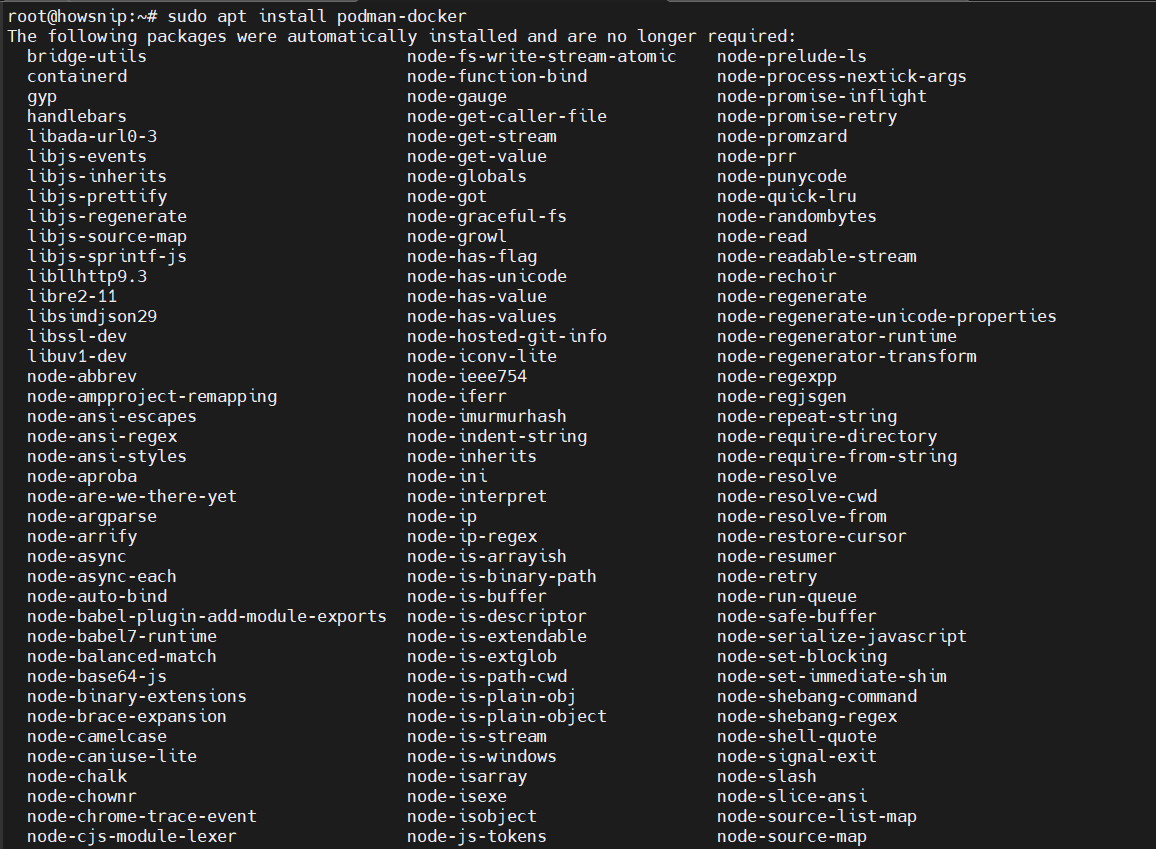
This package provides a Docker-compatible command that redirects requests to Podman.
Test Docker Compatibility
docker run --rm hello-world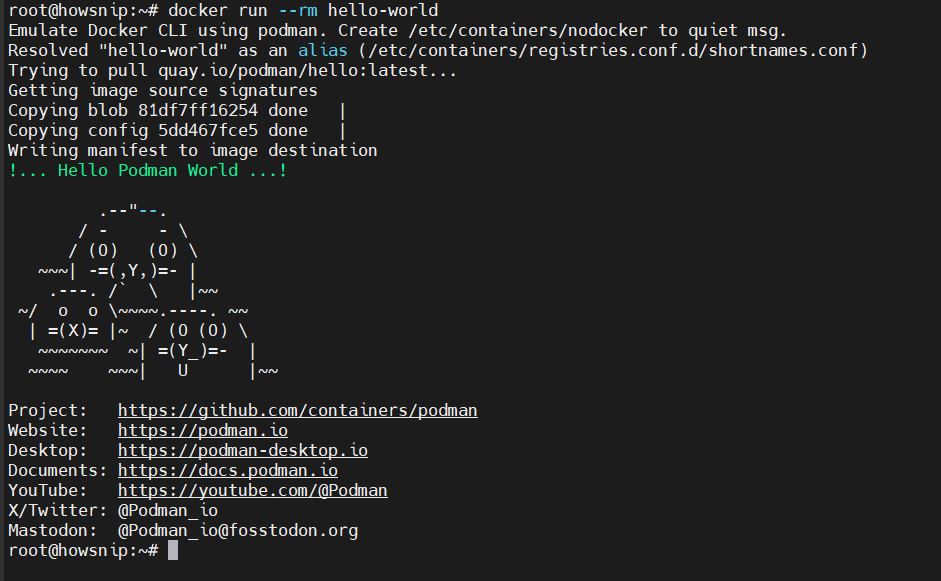
Although the command uses docker, Podman executes it behind the scenes. Most commonly used commands work the same way, including:
- docker build
- docker pull
- docker push
- docker images
- docker ps
- docker logs
- docker exec
Build a Container Image with a Dockerfile
Podman can build OCI-compliant images using standard Dockerfiles.
Step 1: Create a Project Directory
mkdir hello-podman && cd hello-podman
Step 2: Create the Flask Application
Create the application file:
nano app.py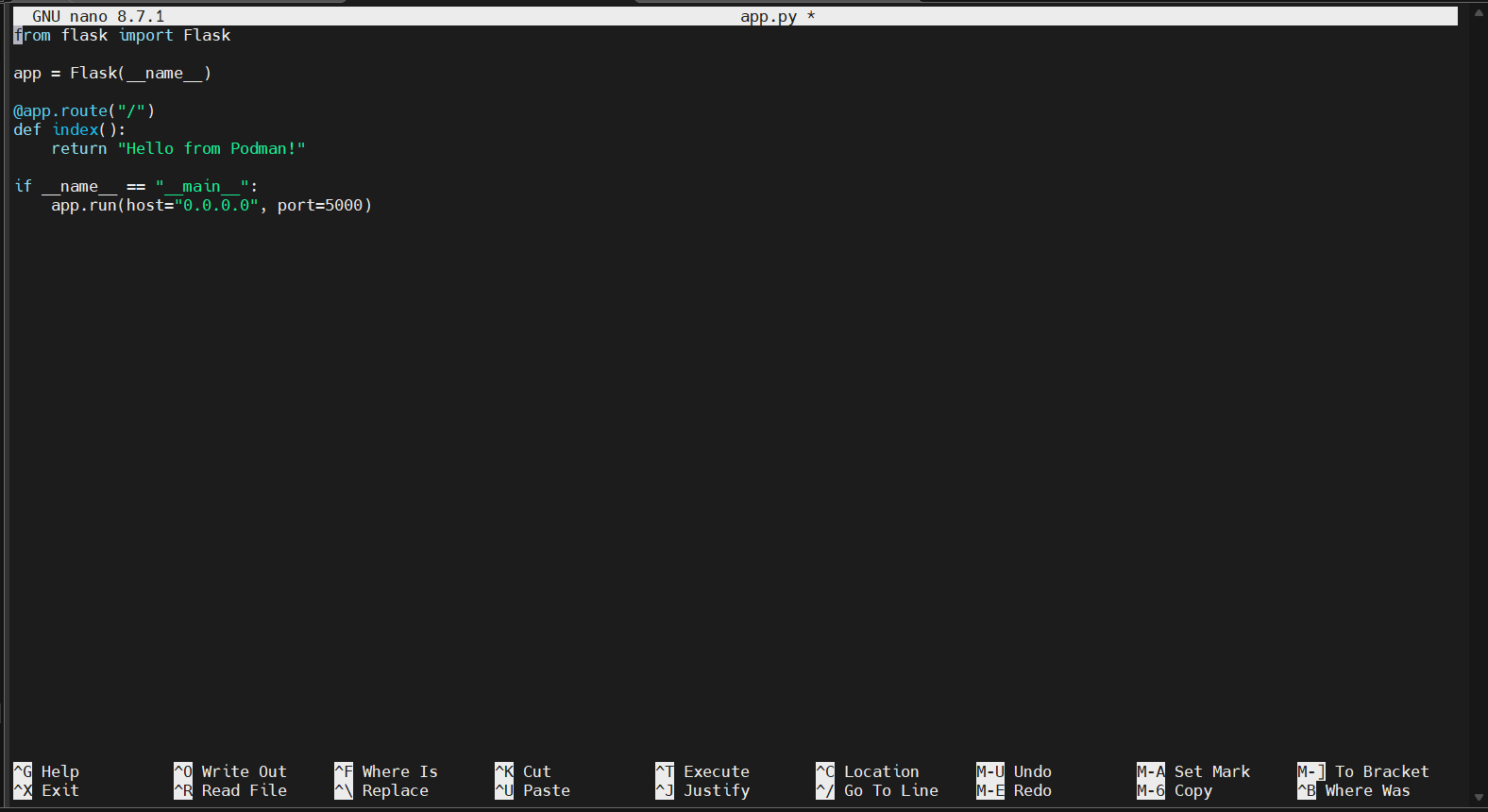
Add the following code:
from flask import Flask

app = Flask(__name__)

@app.route("/")
def index():
return "Hello from Podman!"

if __name__ == "__main__":
app.run(host="0.0.0.0", port=5000)
This simple Flask application returns a message when accessed in a browser.
Step 3: Create the Dockerfile
Create a file named Dockerfile and add:
FROM docker.io/library/python:3.12-slim

WORKDIR /app

RUN pip install --no-cache-dir flask

COPY app.py .

EXPOSE 5000

CMD ["python", "app.py"]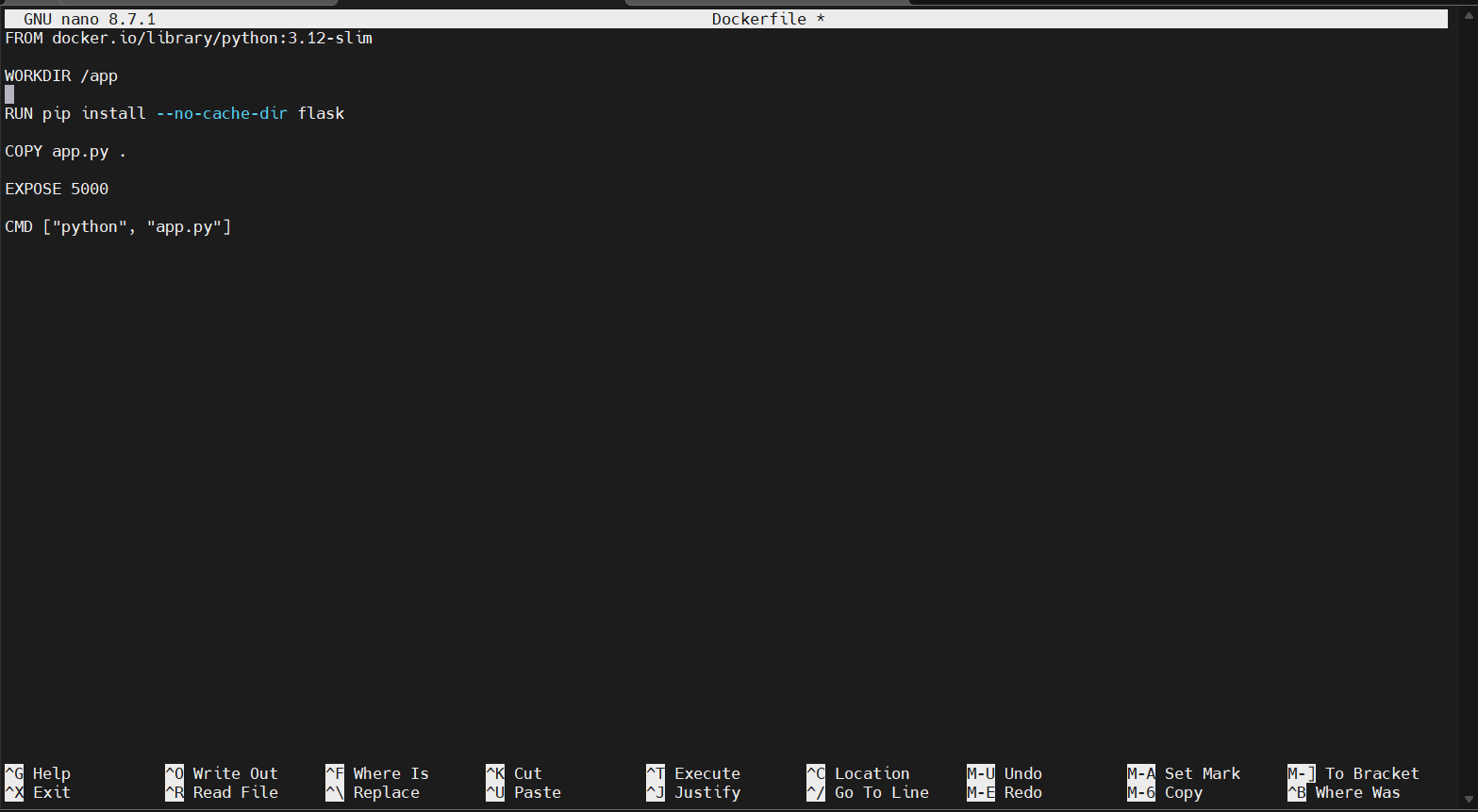
Step 4: Build the Image
podman build -t hello-podman .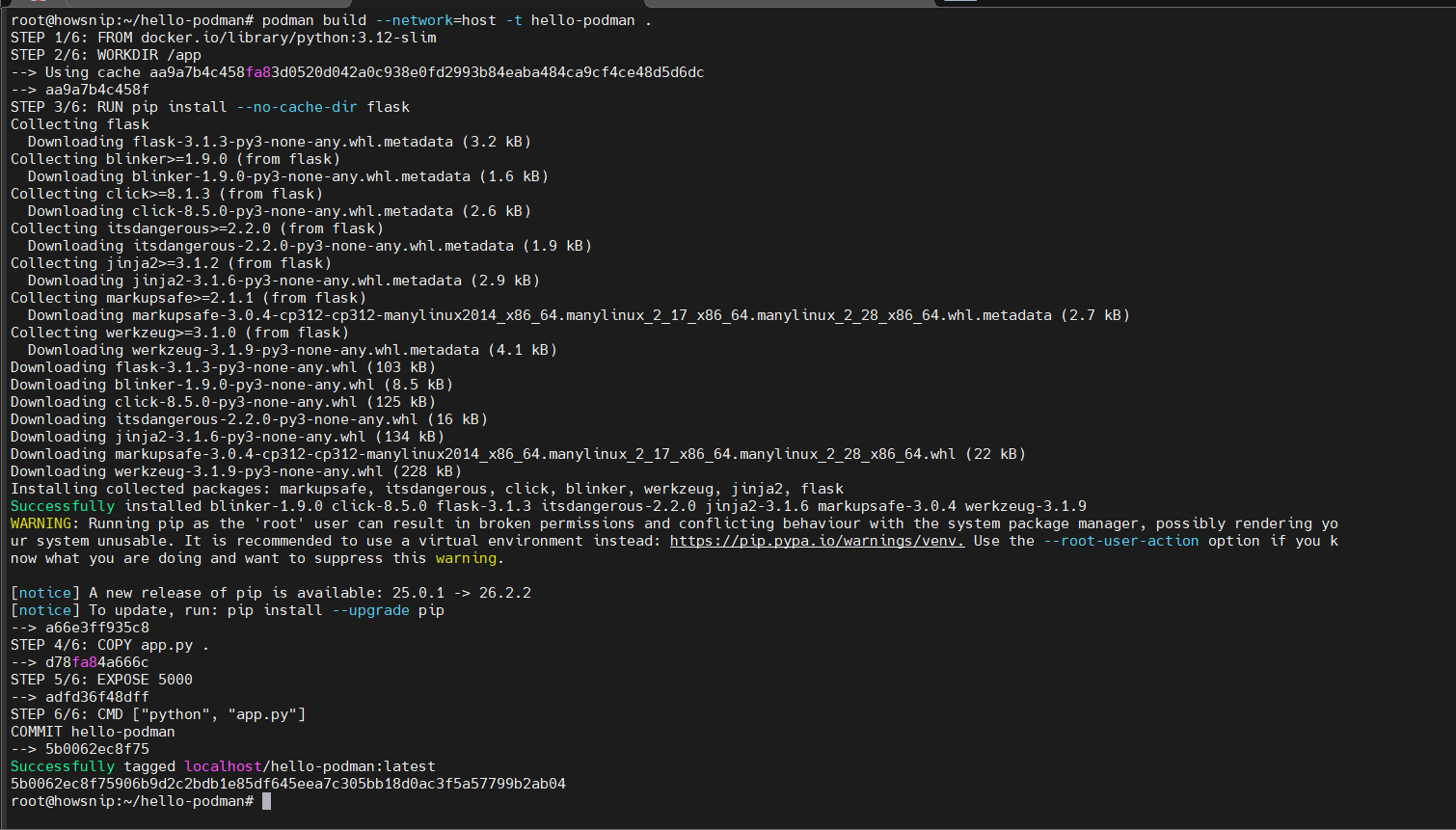
A successful build tags the image as:
localhost/hello-podman:latest
Step 5: Run the Image
podman run -d --name hello -p 5000:5000 hello-podman
Step 6: Test the Application
curl http://localhost:5000
Expected output:
Hello from Podman!
Note: In rootless mode, images and containers are stored in the user’s home directory, typically under ~/.local/share/containers.
Create and Run a Pod
Podman supports Kubernetes-style pods that allow multiple containers to share networking and other resources.
Create a New Pod
podman pod create --name webapp -p 8082:80This creates a pod named webapp and publishes port 8082.
Add a Redis Container
podman run -d --pod webapp --name redis redis:7
Add an Nginx Container
podman run -d --pod webapp --name nginx nginx
Because both containers share the same network namespace, they can communicate using localhost.
List Existing Pods
podman pod ps
The output includes an additional infrastructure (infra) container that manages the shared pod resources.
Run Podman Containers as systemd Services
If you want containers to start automatically at login or boot, Podman’s Quadlet integration provides a clean systemd-based approach.
Step 1: Create the Quadlet Directory
mkdir -p ~/.config/containers/systemdStep 2: Create a Container Definition
nano ~/.config/containers/systemd/web.container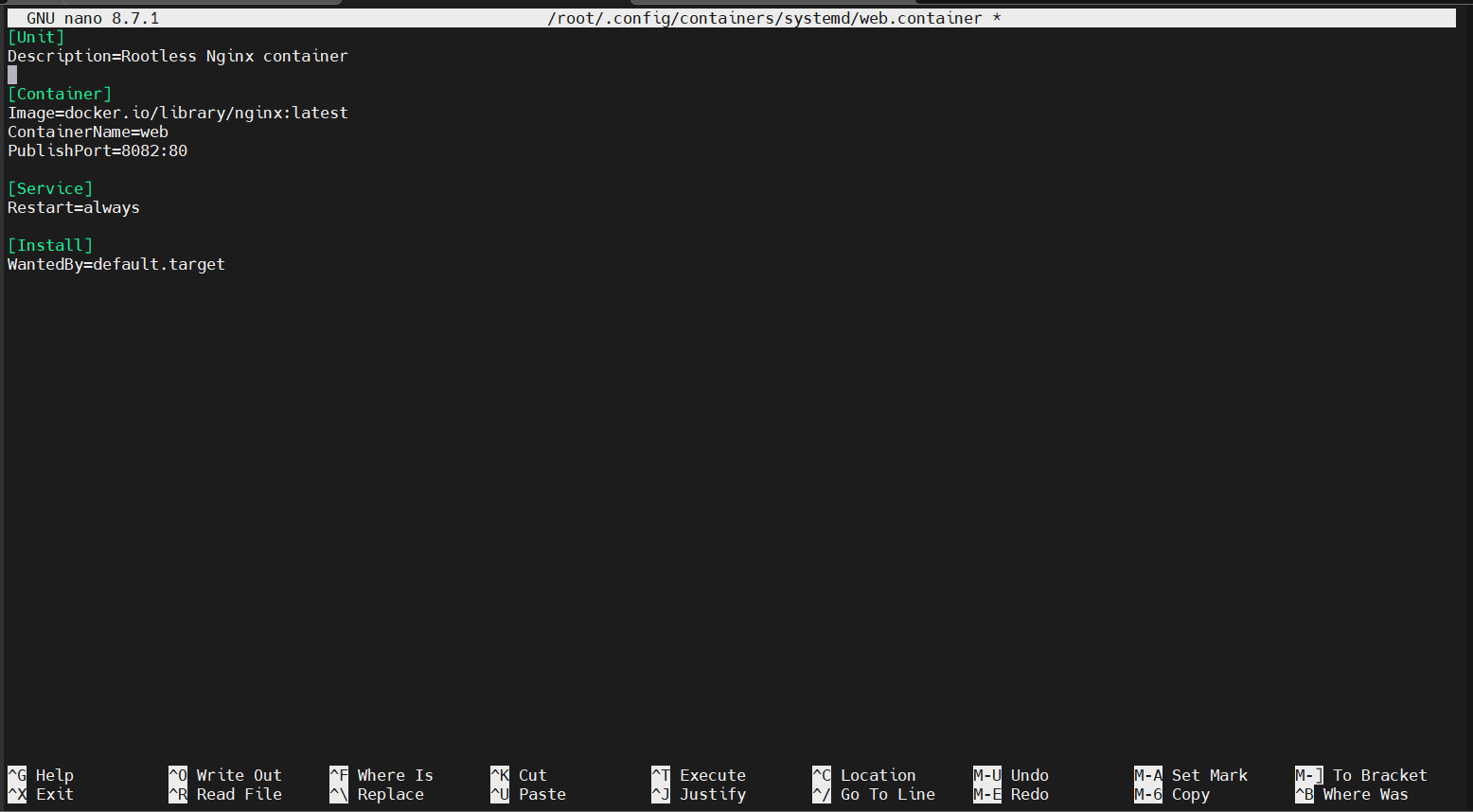
Add the following content:
[Unit]
Description=Rootless Nginx container

[Container]
Image=docker.io/library/nginx:latest
ContainerName=web
PublishPort=8082:80

[Service]
Restart=always

[Install]
WantedBy=default.target
This file defines how Podman should generate and manage the systemd service.
Step 3: Reload systemd
systemctl --user daemon-reloadThis tells systemd to load the newly created configuration.
Step 4: Start the Service
systemctl --user start web.serviceStep 5: Enable User Service Persistence
sudo loginctl enable-linger howsnip
Important: Replace howsnip with your username.
Enabling lingering allows user services to continue running even after logout.
Quick Reference Commands
Install Podman
sudo apt install podman
Run a container
podman run -d –name web -p 8080:80 nginx
List containers
podman ps -a
Build an image
podman build -t myimage .
List images
podman images
Pull an image
podman pull alpine:latest
Remove a container
podman rm -f web
View Podman information
podman info
Conclusion
Podman provides a secure and lightweight alternative to Docker by eliminating the need for a privileged daemon and supporting rootless containers by default.
After installing Podman on Ubuntu, you can pull images, run containers, build applications from Dockerfiles, organize workloads into pods, and manage containers with systemd services. Because its command syntax closely matches Docker, transitioning existing workflows is typically straightforward while benefiting from improved security and flexibility.