
Learning Kali Linux commands is one of the fastest ways to become comfortable working in the Linux terminal. Whether you’re managing files, navigating directories, or looking up command documentation, understanding the basics can make everyday tasks much easier.
The terminal is an important part of working with Kali Linux because many administrative, networking, and cybersecurity tasks can be performed directly from the command line. Building a strong foundation with basic Linux commands will also make it easier to learn more advanced security tools later.
This guide covers essential Kali Linux commands, explains what each one does, and includes practical examples to help you get started.
- Navigating the File System
- Managing the Terminal Environment
- Finding Help and Command Information
- Locating Programs and Files
- Working with Command History
- Creating and Editing Files
- Creating and Managing Directories
- Removing Files and Directories
- Copying Files
- Moving and Renaming Files
1. Navigating the File System
Before working with files and security tools, it is important to understand how to move around the Linux filesystem. The following commands help you identify your current location, view directory contents, and move between folders.
a) pwd
The pwd (Present Working Directory) command shows the complete path of the directory you are currently working in. This is one of the simplest but most useful commands for beginners because it immediately tells you where you are in the filesystem.
pwd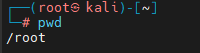
This is helpful when you’re unsure where you are within the directory structure, especially after navigating through multiple folders.
b) ls
The ls command displays the files and directories available in your current location. It is one of the commands you will use most frequently while working in the terminal.
ls
For more detailed information, use:
ls -l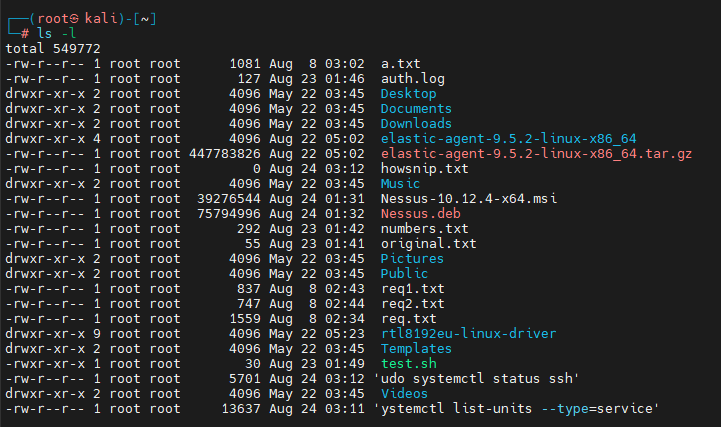
This shows details such as:
- File permissions
- Owner information
- File size
- Modification date
To include hidden files and folders, use:
ls -la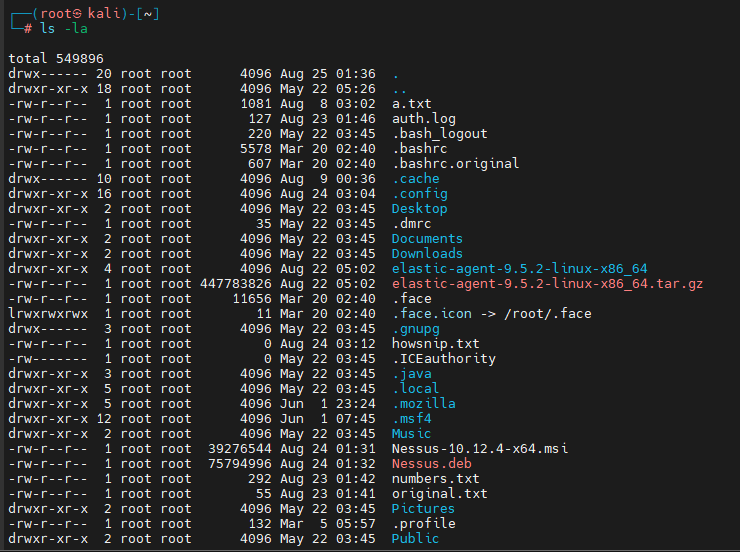
The -a option displays all files, including those that begin with a dot (.), which are normally hidden. The -l option provides detailed information about each item.
c) cd
The cd command allows you to move from one directory to another. Understanding cd is essential because most terminal tasks require you to work inside a specific directory.
cd Downloads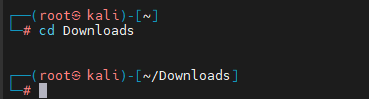
Verify your location:
pwd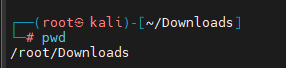
To move up one directory level:
cd ..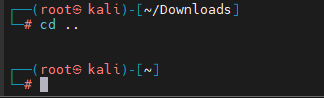
- For example, if you’re in: /home/kali/Downloads
- After running: cd ..
- You’ll be in: /home/kali
- You can also use: cd ~ to return to your home directory.
2. Managing the Terminal Environment
The terminal is your primary workspace when using command-line tools in Kali Linux. These simple commands help you keep the terminal organized and identify which user account is currently active.
a) clear
The clear command removes the visible output from the terminal window without deleting your previously executed commands.
clear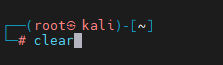
This does not delete command history. It only clears what is displayed on the screen, making it easier to focus on the next task.
b) whoami
The whoami command displays the username of the account currently being used in the terminal.
whoami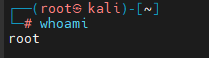
This command is particularly useful before running operations that require elevated privileges. It helps you quickly confirm whether you are working as a normal user or as root.
3. Finding Help and Command Information
Linux provides extensive built-in documentation for commands and applications. Instead of searching the internet every time you encounter an unfamiliar command, you can often use the terminal itself to find useful information.
a) man
The man command opens the manual page for a command. Manual pages typically contain information about the command’s purpose, syntax, options, and usage.
man ls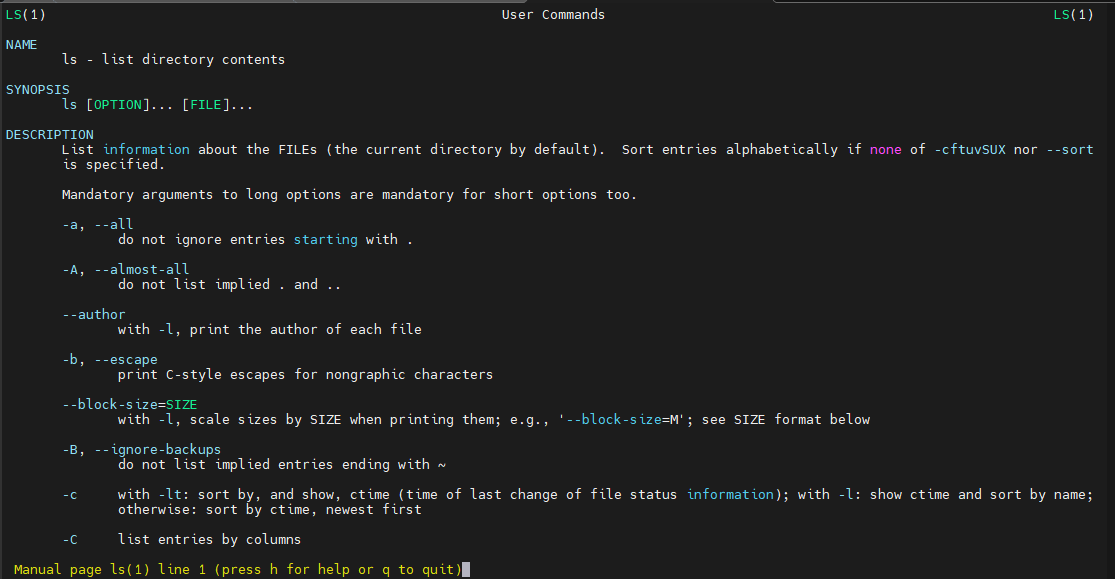
You can also view documentation for applications installed on your system, such as:
man hydra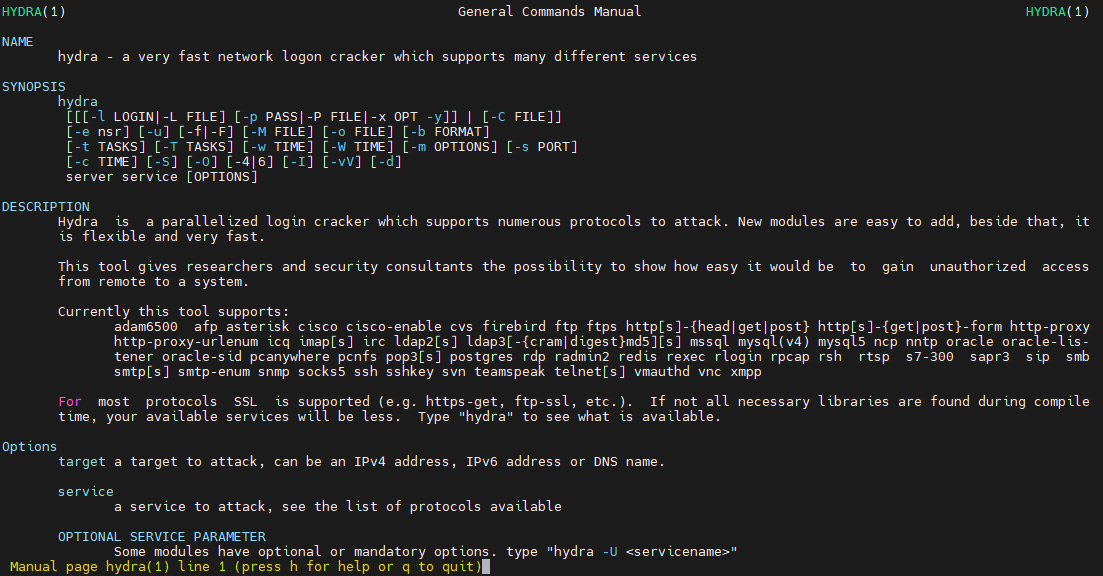
The man command is particularly useful when you want to understand exactly what an option does before using it.
b) whatis
The whatis command provides a short, one-line description of a command. It is useful when you only need a quick explanation instead of reading an entire manual page.
whatis ls
Another example:
whatis chmod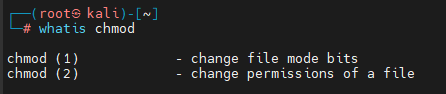
This command provides concise descriptions without opening a full manual page, making it convenient when you’re quickly checking unfamiliar commands.
4. Locating Programs and Files
As you install more applications and tools in Kali Linux, it can become difficult to remember where their files and executables are stored. Commands such as locate, whereis, and which provide different ways to find files and programs.
a) locate
The locate command searches a database of file paths and can quickly find files matching a particular name.
locate hydra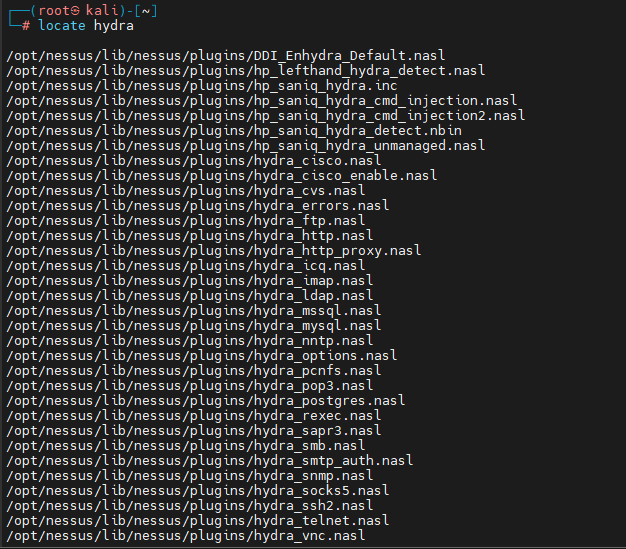
This is useful when trying to find installed files quickly without manually checking multiple directories. Keep in mind that locate relies on an indexed database, so very recently created files may not always appear immediately.
b) whereis
The whereis command searches for common locations associated with a program, including its executable, manual pages, and sometimes source files.
whereis hydra
It can identify:
- Executable binaries
- Manual pages
- Source files
This makes whereis useful when you want a broader view of where a program’s related files are located.
c) which
The which command shows the path of the executable that will be used when you enter a particular command.
which hydra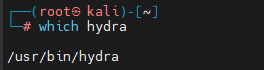
Another example:
which ls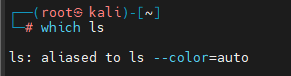
This is useful when multiple versions of a program may exist on a system. It helps you determine exactly which executable is being selected through your system’s PATH.
5. Working with Command History
When working in the terminal, you may need to repeat a command you used earlier or check how a previous task was performed. The `history` command makes this easier by displaying previously executed commands.
a) history
Display a list of past terminal commands:
history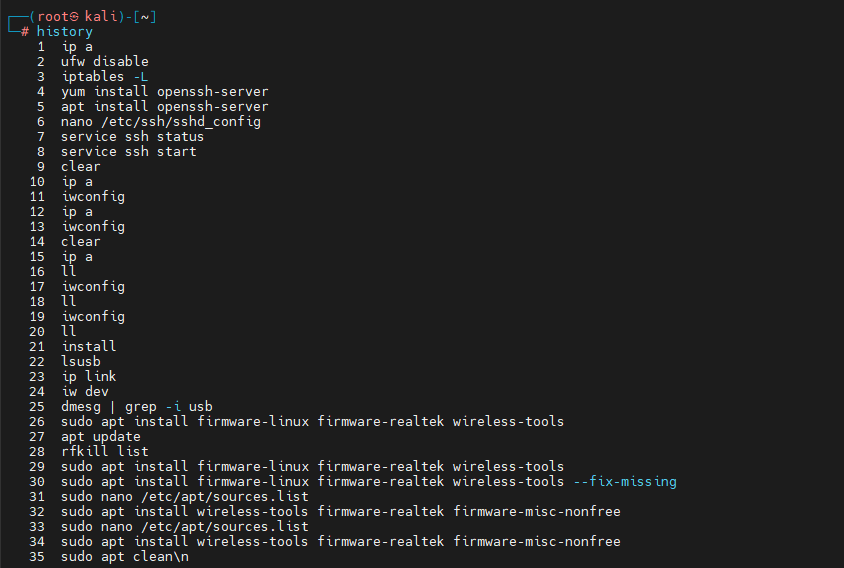
To filter results, combine it with grep.
history | grep nmap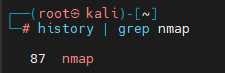
This helps locate previous commands containing the word nmap. Command history can be particularly useful during troubleshooting because it allows you to review the commands you previously executed.
6. Creating and Editing Files
Linux provides several simple command-line utilities for creating and viewing files. The `cat` and `touch` commands are useful starting points for learning basic file management.
a) cat
The cat command is commonly used to display file contents, but it can also be used to create files and append text to existing files.
Create a New File
cat > hackingskills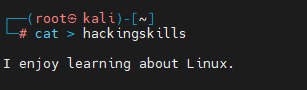
Display the file:
cat hackingskills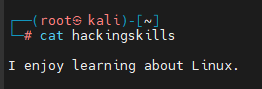
Append Content to a File
To add new content without removing the existing content:
cat >> hackingskills
View the updated file:
cat hackingskills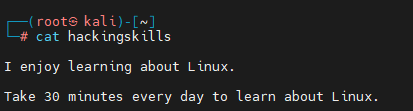
Understanding the difference between `>` and `>>` is important because using the wrong operator can unintentionally overwrite information.
b) touch
The touch command is commonly used to create a new empty file. It can also update the modification timestamp of an existing file.
To create an empty file:
touch newfile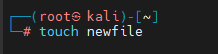
Confirm its creation:
ls -l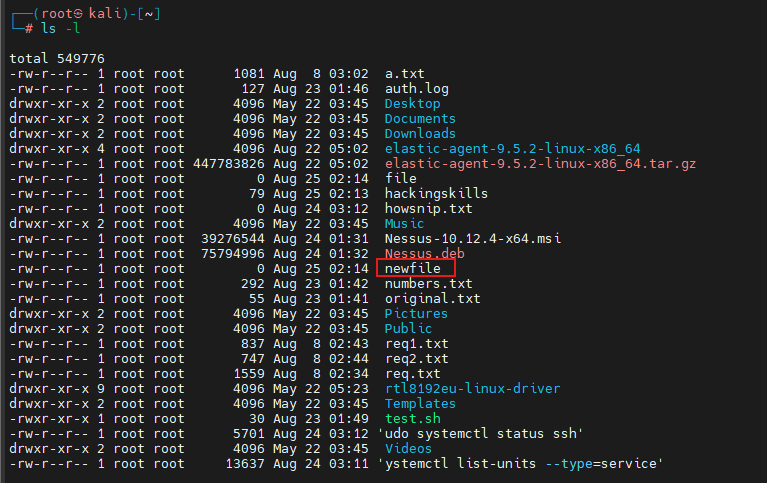
The command is particularly convenient when you need to quickly create placeholder files for testing or practice.
7. Creating and Managing Directories
Directories help organize files and applications within the Linux filesystem. Kali Linux provides simple commands for creating, entering, and removing directories.
a) mkdir
The mkdir command creates one or more new directories.
Create a new directory:
mkdir practice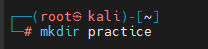
Check that it exists:
ls
Move into it:
cd practice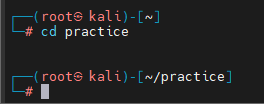
Verify your location:
pwd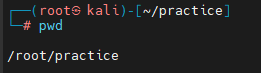
You can create multiple directories at once:
mkdir one two threeThis creates three separate directories in the current location.
b) rmdir
The rmdir command is specifically designed to remove directories that contain no files or subdirectories.
Move back one level:
cd ..
Remove the empty directory:
rmdir practice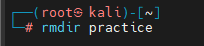
Verify the result:
ls
Important Limitation
The rmdir command only works on empty directories. If files or subdirectories exist inside, the command will fail. This limitation can actually be useful because it provides an extra safeguard against accidentally deleting a directory containing important data.
8. Removing Files and Directories
Deleting files from the command line should be done carefully because Linux generally does not provide the same recycle-bin protection you may be familiar with from a graphical desktop environment.
a) rm
The rm command removes files and, with the appropriate option, directories.
Remove a file:
rm newfile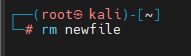
Verify:
ls
Remove a Directory and Its Contents
Create a test directory:
mkdir testdir
touch testdir/file.txt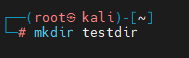
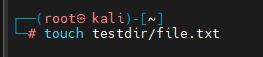
Delete it recursively:
rm -r testdir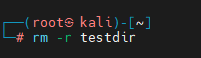
The -r option stands for recursive removal and allows rm to delete the directory along with its contents. The -f option forces removal and suppresses many prompts or errors. Deleted files are typically not sent to a recycle bin, so always double-check the path before executing destructive commands.
9. Copying Files
Copying files is a common task when creating backups, working with configuration files, or preparing test copies of data.
a) cp
The `cp` command creates a copy of a file or directory.
Create a sample file:
echo "Linux practice" > newfile
Copy it:
cp newfile newfile-copy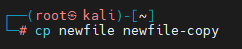
Verify:
ls
You can also copy files to another directory:
cp newfile Desktop/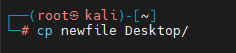
Check the destination:
ls Desktop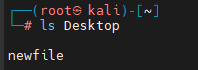
The original file remains in its original location after using cp.
10. Moving and Renaming Files
The mv command is used both to move files and to rename them. This makes it an important command for everyday file management.
a) mv
The mv command serves two purposes: renaming files and moving them between directories.
Rename a File
Create a file:
touch newfileRename it:
mv newfile newfile2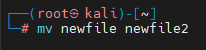
Verify:
ls
The original filename no longer exists because it has been replaced with the new name.
Move a File to Another Directory
mv newfile2 Desktop/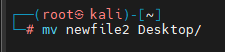
Conclusion
Once these basics become familiar, you can gradually move on to more advanced Linux topics such as file permissions, process management, networking, package management, text processing, and cybersecurity tools.