

PHP is one of the most widely used server-side scripting languages for web development. If you’re setting up a web server or preparing an environment for a PHP-based application, installing the correct PHP version is an important first step.
In this tutorial, you’ll learn how to install PHP 8.1 on Ubuntu, verify the installation, create a test page to confirm PHP is working correctly, and optionally install additional PHP extensions.
Note: PHP 8.1 was released as part of the PHP 8 series and introduced new features and improvements. This guide focuses specifically on installing and verifying PHP 8.1 on Ubuntu systems.
Prerequisites
Before you begin, make sure you have:
- An Ubuntu system
- A user account with sudo privileges
- Internet access to download packages
Step 1: Update the Package Index
Start by logging in to your Ubuntu server and updating the package repository information.
sudo apt update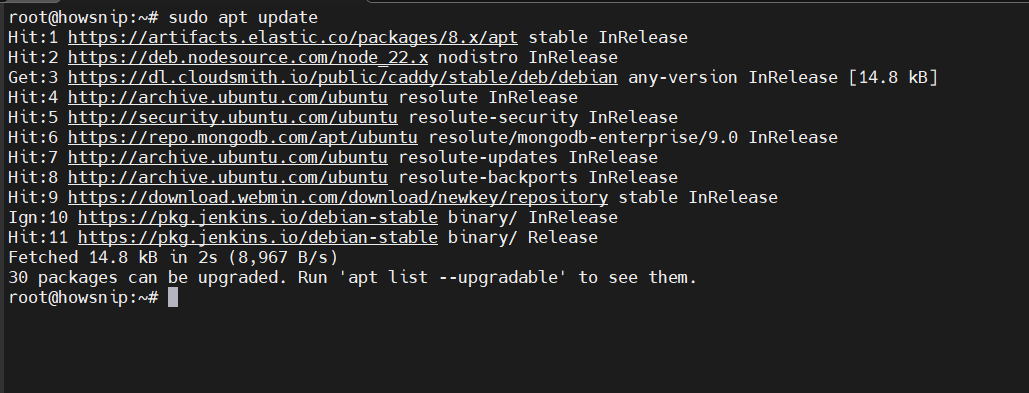
This command refreshes the local package index and ensures Ubuntu retrieves the latest package information before installation.
Check Whether PHP Is Already Installed
You can verify if PHP is already available on your system by running:
php -vIf PHP is installed, the command displays the current version.

If PHP is not installed, Ubuntu may return a message indicating that the php command could not be found and may suggest available installation options.
Step 2: Install Required Prerequisites
Before installing PHP 8.1, install the required packages below:
sudo apt install ca-certificates apt-transport-https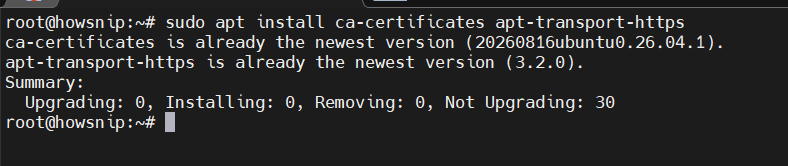
What These Packages Do
- ca-certificates: Provides SSL certificates used to securely communicate with package repositories.
- apt-transport-https: Enables the APT package manager to access repositories over HTTPS.
Allow the installation to complete before moving to the next step.
Step 3: Install PHP 8.1
Once the prerequisites are in place, install PHP 8.1 using the APT package manager.
sudo apt install php8.1 -y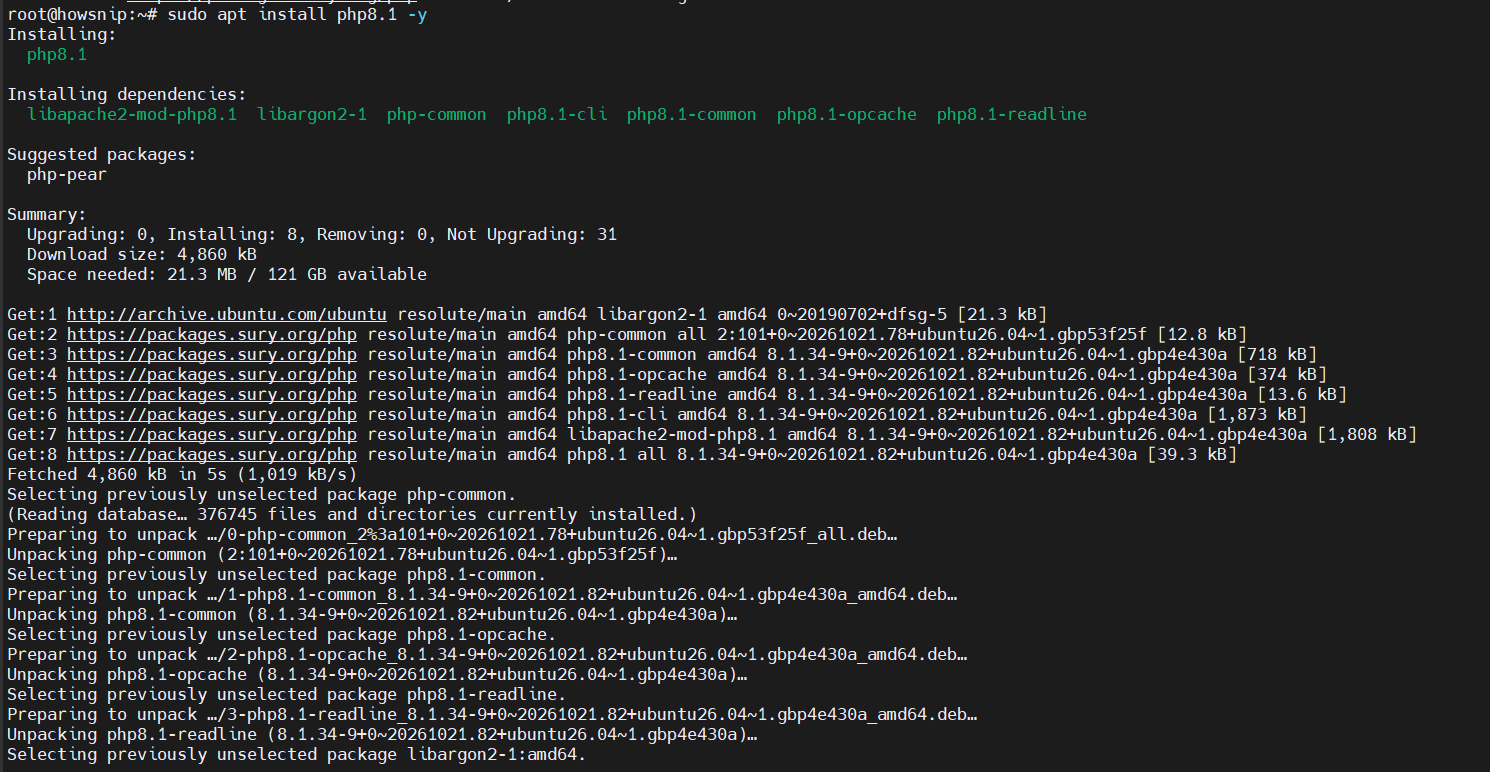
Command Explanation
- apt install installs software packages.
- php8.1 specifies the PHP version to install.
- -y automatically confirms installation prompts.
During the installation process, Ubuntu may also install additional dependencies required for PHP to run properly.
Verify the PHP Installation
After the installation finishes, check the installed PHP version:
php -vIf the installation was successful, the output will display PHP 8.1 version details.
Alternative Verification Using a PHP Info Page
Another way to confirm PHP is working correctly is by creating a PHP information page.
Create a Test PHP File
Open a new file inside the web server’s document root:
sudo nano /var/www/html/info.phpAdd the following PHP code:
<?php
phpinfo();
?>
Save the file and exit the editor.
The phpinfo() function displays detailed information about:
- Installed PHP version
- Loaded modules and extensions
- PHP configuration settings
- Server environment details
Restart Apache
After creating the PHP file, restart Apache so any changes take effect:
sudo systemctl restart apache2Verify Apache Status
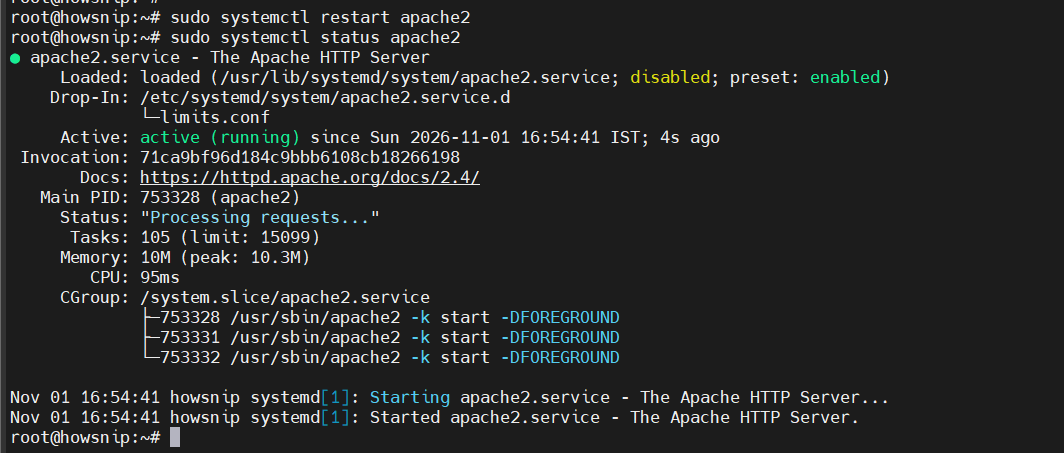
Use the following command to confirm that Apache is running correctly:
sudo systemctl status apache2You should see an active (running) status.
Open the PHP Info Page
In your web browser, visit:
http://server-ip/info.phpReplace server-ip with your server’s actual IP address.
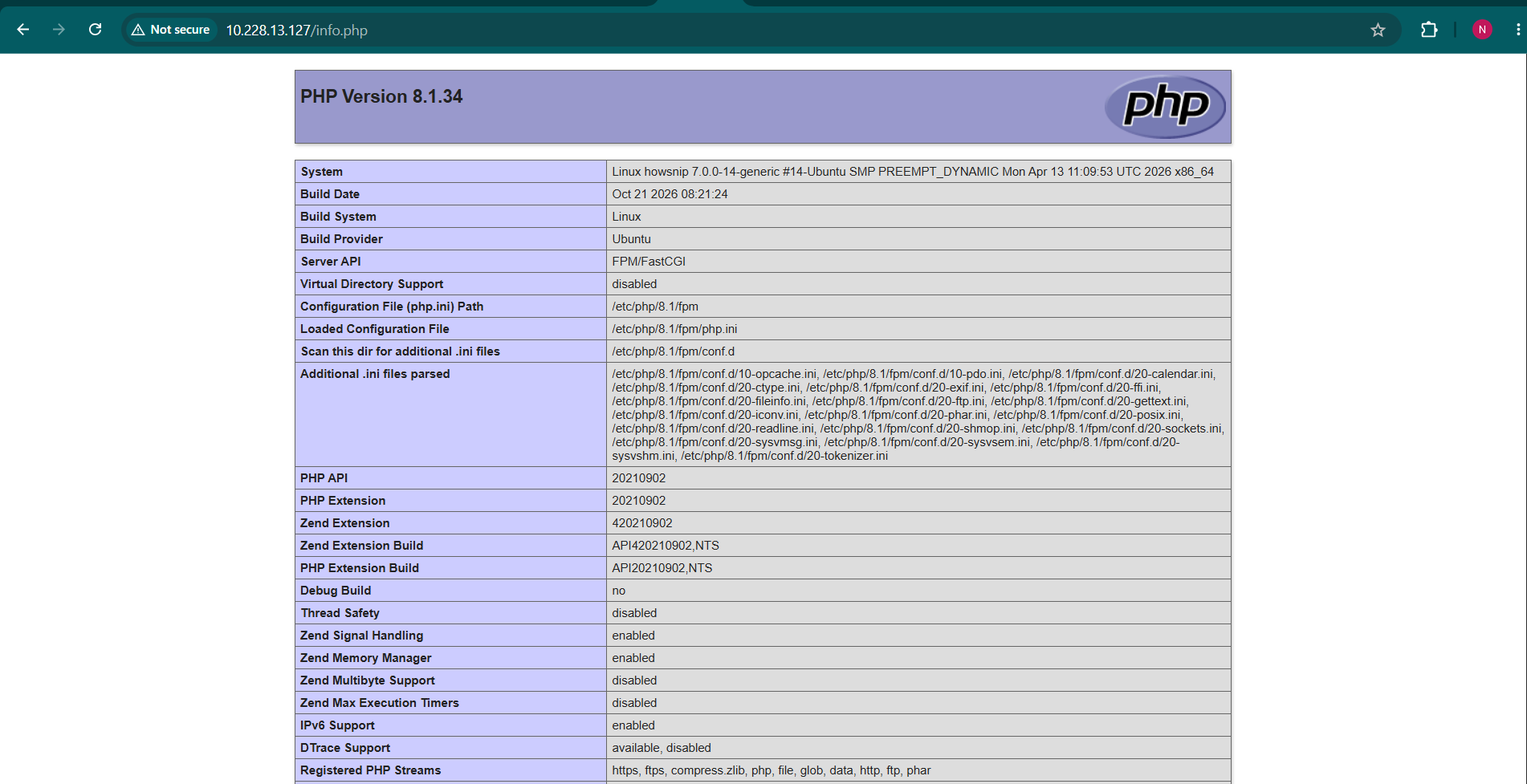
If everything is configured correctly, the page will display detailed PHP information, including the installed PHP version. This confirms that PHP 8.1 is installed and functioning properly through the web server.
Important: The info.php file exposes detailed server configuration information. For security reasons, consider removing it after testing:
sudo rm /var/www/html/info.phpStep 4: Install PHP Extensions (Optional)
PHP extensions add extra functionality that many web applications require. To install a set of commonly used PHP 8.1 extensions, run:
sudo apt install php8.1-{gd,zip,mysql,oauth,yaml,fpm,mbstring,memcache}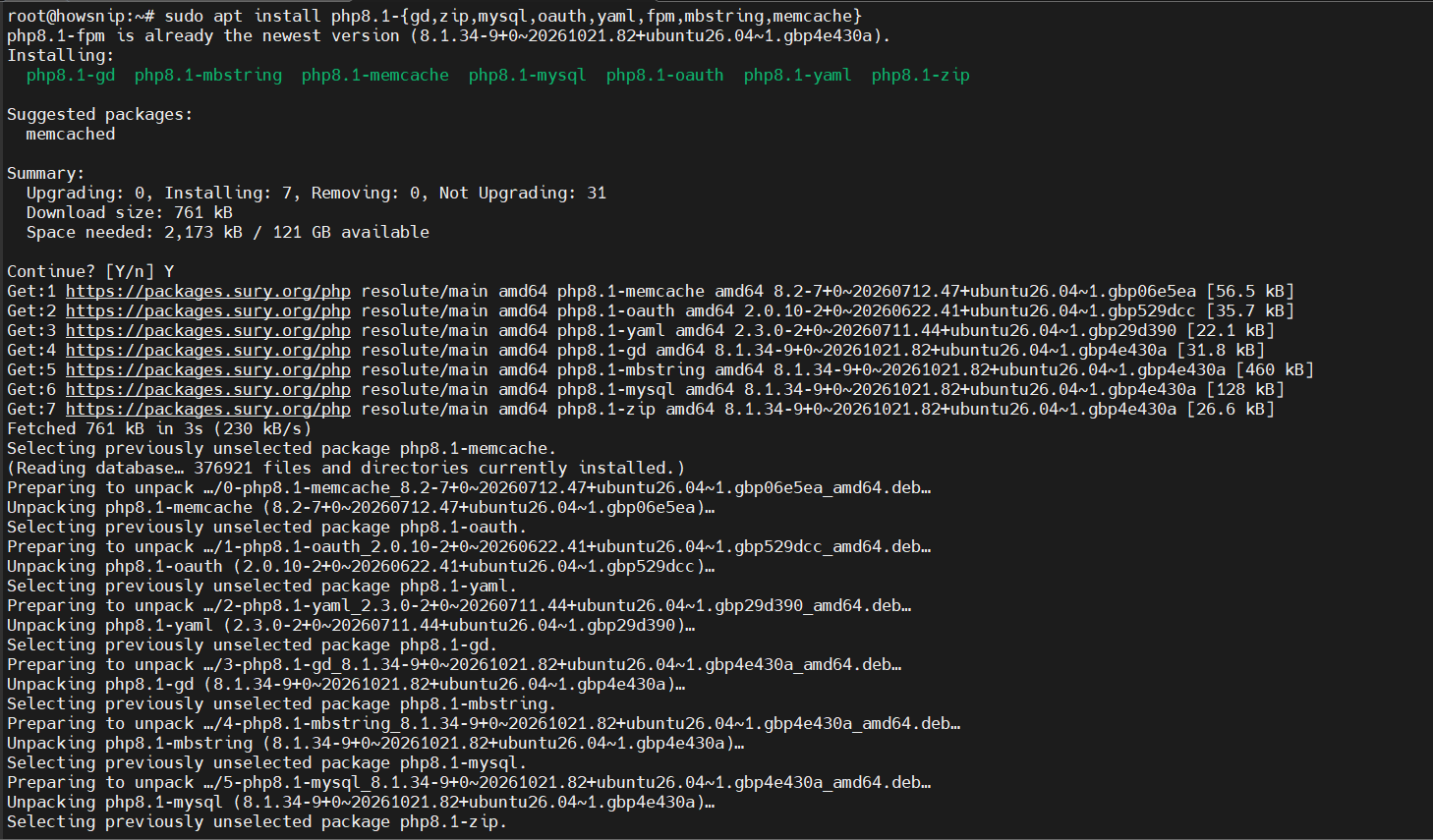
View Loaded PHP Modules
To see all enabled PHP modules on your system, run:
php --modules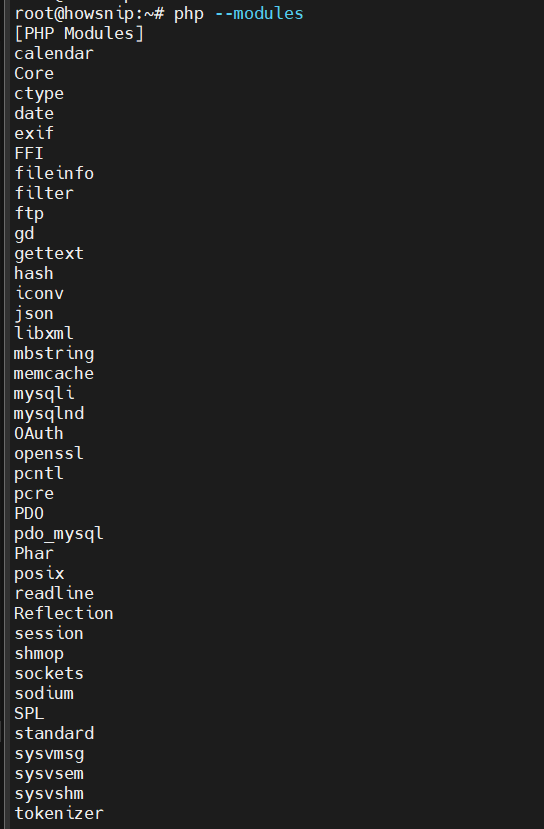
This command lists every currently loaded PHP extension and module.
Conclusion
You have successfully installed PHP 8.1 on Ubuntu. After verifying the installation using the command line and a PHP information page, you can optionally extend PHP’s functionality by installing additional modules.
This setup provides a solid foundation for hosting PHP-based websites and applications on your Ubuntu server.