
Deploying a Node.js application to a production server involves more than simply running node app.js. A production deployment should keep the application running after crashes, automatically start after server reboots, and securely serve traffic over HTTPS.
In this guide, you’ll learn how to deploy a Node.js application on Ubuntu 26.04 using:
- Node.js as the application runtime
- PM2 for process management and automatic restarts
- Nginx as a reverse proxy
- Let’s Encrypt (Certbot) for free SSL certificates
By the end of this tutorial, you’ll have a secure and production-ready Node.js deployment.
Prerequisites
Before getting started, ensure you have:
- An Ubuntu 26.04 server
- A user account with sudo privileges
- A domain name pointing to your server’s public IP address
- Ports 80 (HTTP) and 443 (HTTPS) open in your firewall
In the examples below:
- Domain: example.com
- Application port: 3000
Replace these values with your own domain and application settings.
Step 1: Install Node.js
Ubuntu repositories include Node.js packages, but using the NodeSource repository makes it easier to install a specific LTS release.
a) Update the package repository
sudo apt update
This refreshes package information before installing new software.
b) Install required packages
sudo apt install -y ca-certificates curl gnupg
These packages are needed to securely add the NodeSource repository.
c) Import the NodeSource signing key
sudo mkdir -p /etc/apt/keyrings
curl -fsSL https://deb.nodesource.com/gpgkey/nodesource-repo.gpg.key | \
sudo gpg --dearmor --yes -o /etc/apt/keyrings/nodesource.gpg
The signing key allows Ubuntu to verify packages downloaded from NodeSource.
d) Add the Node.js 24.x repository
NODE_MAJOR=24
echo "deb [signed-by=/etc/apt/keyrings/nodesource.gpg] https://deb.nodesource.com/node_$NODE_MAJOR.x nodistro main" | \
sudo tee /etc/apt/sources.list.d/nodesource.list
This configures the package manager to install Node.js 24.x.
e) Install Node.js
sudo apt update
sudo apt install -y nodejs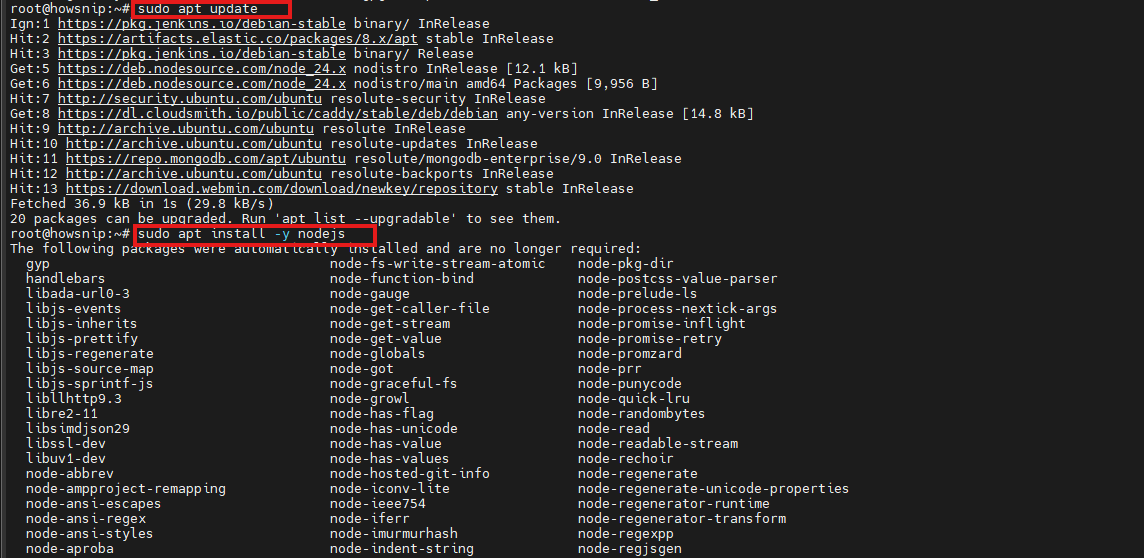
f) Verify the installation
node --version
npm --version
You should see installed versions for both Node.js and npm.
Step 2: Create a Dedicated Deployment User
For security reasons, production applications should not run as the root user.
a) Create a system user
sudo adduser --system --group --home /var/www/app --shell /bin/bash appThis creates a dedicated service account named app.
b) Create the application directory
sudo mkdir -p /var/www/app
sudo chown -R app:app /var/www/app
This directory will store your application’s code and files.
Step 3: Upload or Clone the Application
Most deployments pull application code directly from a Git repository.
a) Install Git
sudo apt install -y git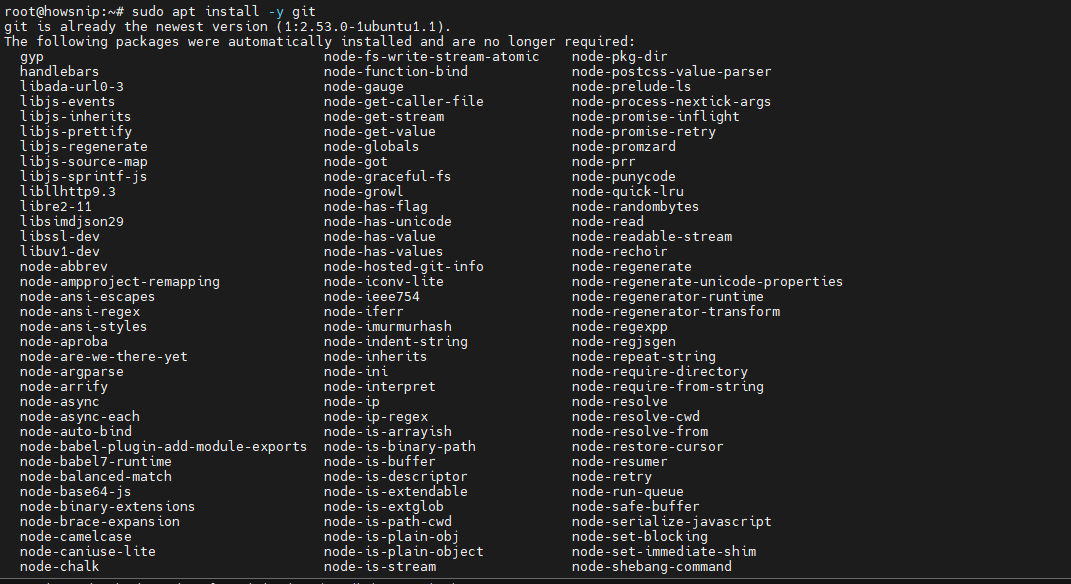
b) Clone your repository
sudo -H -u app git clone https://github.com/example/myapp.git /var/www/appReplace the repository URL with your own project repository.
c) Install production dependencies
sudo -H -u app bash -c 'cd /var/www/app && npm ci --omit=dev'
Why use npm ci?
- Uses the exact versions from package-lock.json
- Provides consistent deployments
- Fails if lock files are out of sync
- Installs dependencies faster than npm install
d) Projects That Require a Build Step
If your project requires development dependencies during the build process:
sudo -H -u app bash -c 'cd /var/www/app && npm ci && npm prune --omit=dev'
This installs all dependencies, performs the build, and then removes development-only packages.
Important: Never store repository credentials, access tokens, or SSH keys inside your application directory.
Optional: Create a Simple Test Application
If you don’t yet have an application repository available, you can create a basic Express.js application.
a) Initialize a project and install Express
sudo -H -u app bash -c 'cd /var/www/app && npm init -y && npm install express'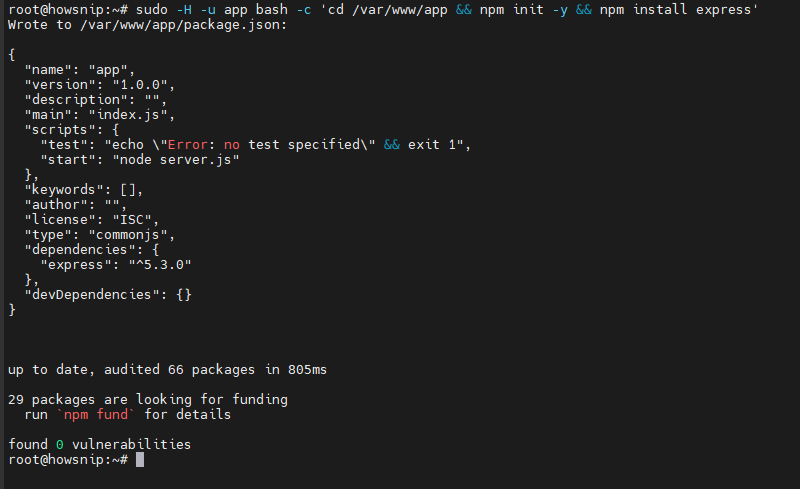
b) Create the application file
sudo -H -u app nano /var/www/app/server.js
Add the following code:
const express = require("express");

const app = express();
const port = 3000;

app.get("/", (req, res) => {
res.send("Hello from Node.js on Ubuntu 26.04");
});

app.listen(port, "127.0.0.1", () => {
console.log(`App listening on http://127.0.0.1:${port}`);
});
The application listens only on localhost, preventing direct access from the internet. Nginx will handle public traffic and forward requests securely to the application.
Step 4: Install PM2 and Run the Application
PM2 is a process manager for Node.js that keeps applications running, restarts them after failures, and starts them automatically after system reboots.
a) Install PM2 globally
sudo npm install -g pm2
b) Start the application
sudo -H -u app pm2 start /var/www/app/server.js --name myapp --time
Here:
- –name myapp assigns a friendly process name
- –time adds timestamps to logs
c) Verify the application
curl http://127.0.0.1:3000
You should receive the application’s response.
d) Configure PM2 to Start on Boot
Generate a systemd startup configuration:
sudo env PATH=$PATH:/usr/bin pm2 startup systemd -u app --hp /var/www/app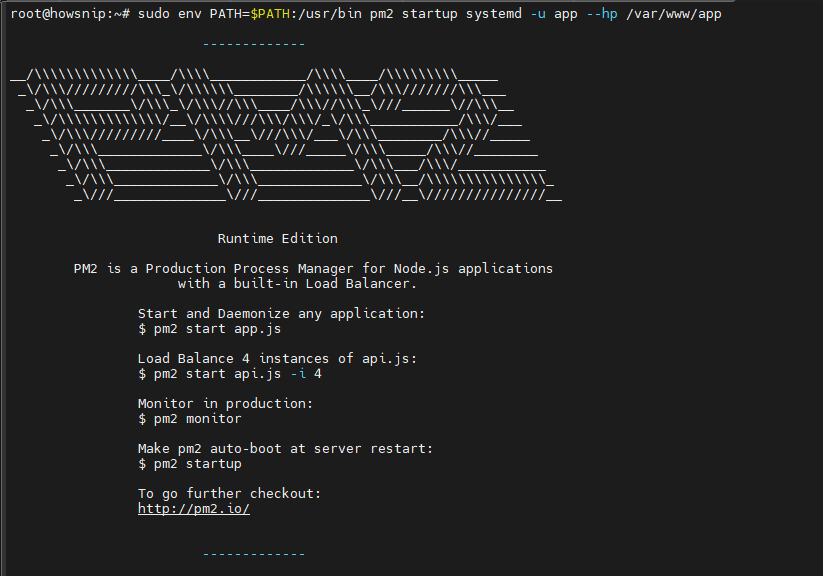

Save the current PM2 process list:
sudo -H -u app pm2 save
Verify that the service is enabled:
sudo systemctl status pm2-app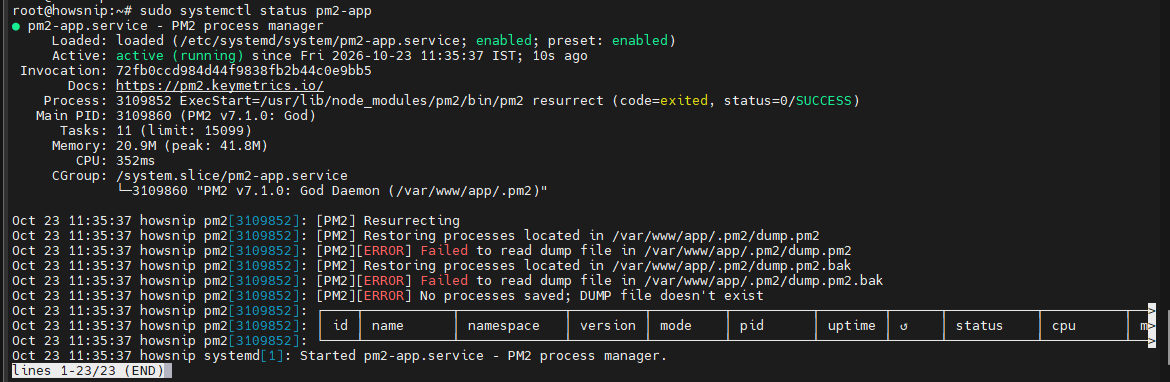
This ensures your application automatically starts after server reboots.
Step 5: Install and Configure Nginx
Nginx accepts requests from visitors and forwards them to your Node.js application.
a) Install Nginx
sudo apt install nginx
b) Create an Nginx server block
sudo nano /etc/nginx/sites-available/example.com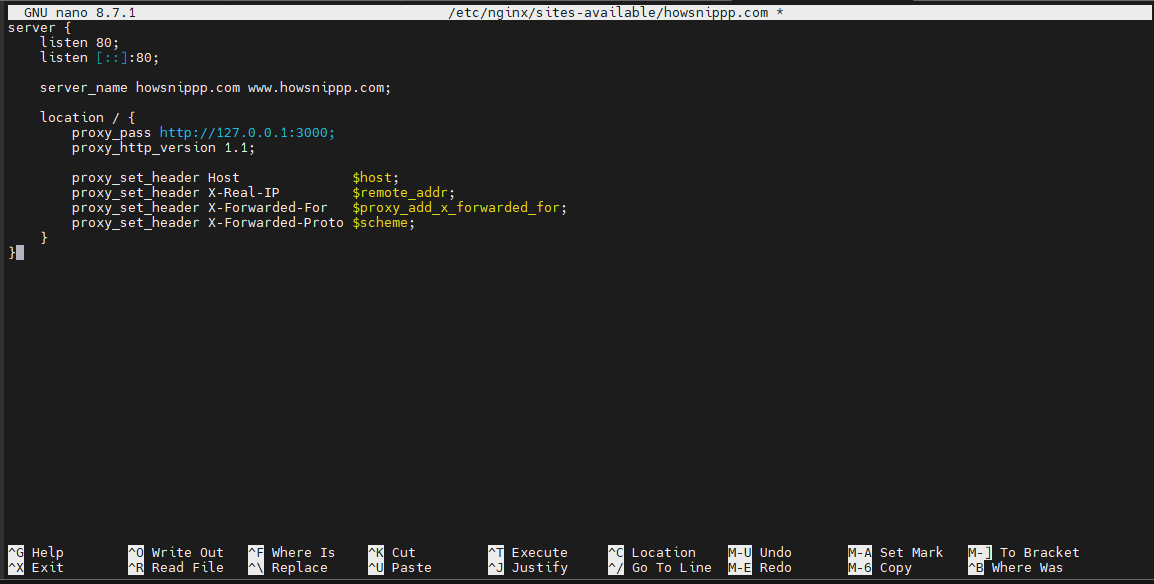
Add the following configuration:
server {
listen 80;
listen [::]:80;

server_name example.com www.example.com;

location / {
proxy_pass http://127.0.0.1:3000;

proxy_set_header Host $host;
proxy_set_header X-Real-IP $remote_addr;
proxy_set_header X-Forwarded-For $proxy_add_x_forwarded_for;
proxy_set_header X-Forwarded-Proto $scheme;
}
}
What do these headers do?
These headers allow your application to receive:
- The original domain name
- The visitor’s real IP address
- Proxy forwarding information
- The original protocol (HTTP or HTTPS)
c) Enable the configuration
sudo ln -s /etc/nginx/sites-available/example.com /etc/nginx/sites-enabled/
d) Test the configuration
sudo nginx -tIf no errors appear, reload Nginx:
sudo systemctl reload nginxe) Allow Web Traffic Through the Firewall
sudo ufw allow 'Nginx Full'This opens ports 80 and 443.
Now visit:
http://example.comYou should see your Node.js application loading through Nginx.
Step 6: Secure the Site with HTTPS
Using HTTPS encrypts traffic between visitors and your server.
a) Install Certbot and the Nginx plugin
sudo apt install certbot python3-certbot-nginx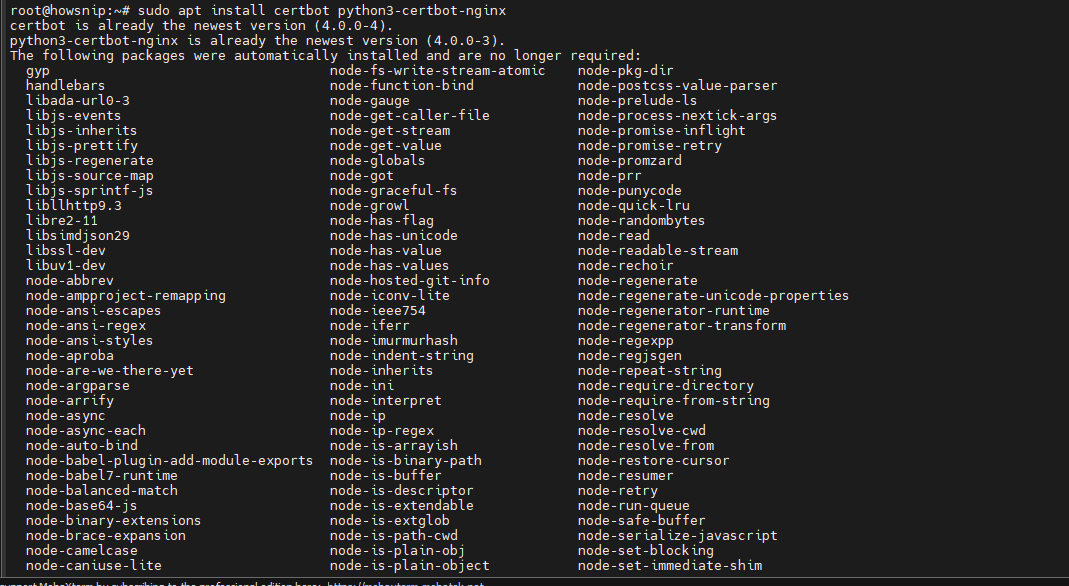
b) Request an SSL certificate
sudo certbot --nginx -d example.com -d www.example.comCertbot will:
- Obtain a free SSL certificate
- Configure Nginx automatically
- Create HTTP-to-HTTPS redirects
- Set up certificate renewal
c) Verify HTTPS
curl -I https://example.com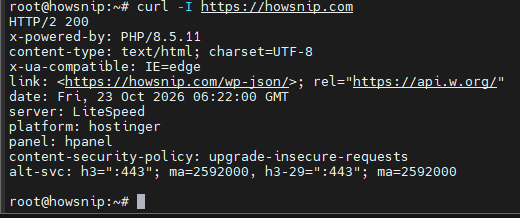
d) Test automatic renewal
sudo certbot renew --dry-runIf the dry run succeeds, certificate renewals should work correctly.
Step 7: Manage Your Application with PM2
Once your deployment is live, PM2 becomes your primary management tool.
a) View running applications
sudo -H -u app pm2 ls
b) View logs
sudo -H -u app pm2 logs myapp
c) Restart the application
sudo -H -u app pm2 restart myapp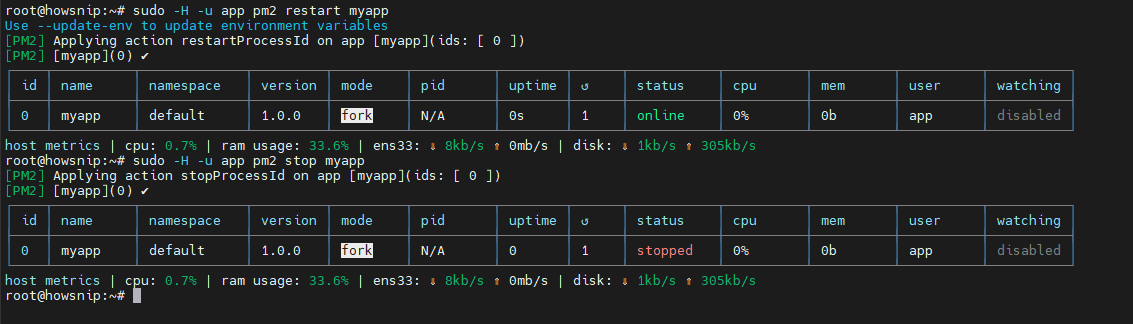
d) Stop the application
sudo -H -u app pm2 stop myappConfigure Log Rotation
Without log rotation, log files can grow indefinitely.
a) Install the PM2 log rotation module
sudo -H -u app pm2 install pm2-logrotate
b) Set maximum log size
sudo -H -u app pm2 set pm2-logrotate:max_size 10M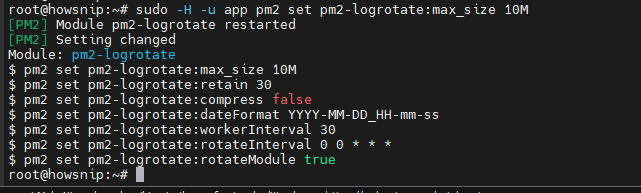
c) Keep seven archived logs
sudo -H -u app pm2 set pm2-logrotate:retain 7
PM2 stores logs in:
/var/www/app/.pm2/logs
Deploy Application Updates
When releasing a new version, update the code and dependencies.
a) Pull the latest changes
sudo -H -u app bash -c \
'cd /var/www/app && git pull --ff-only && npm ci --omit=dev'
b) Restart the application
sudo -H -u app pm2 restart myapp --update-env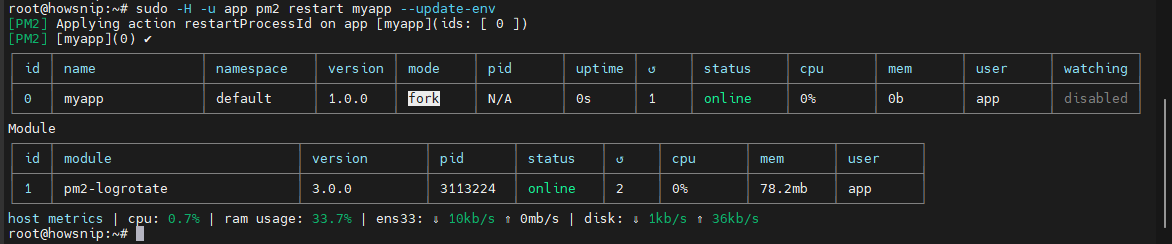
c) Save the updated process list
sudo -H -u app pm2 save
Optional: Enable Zero-Downtime Reloads
The default PM2 configuration uses a single process. Restarting it briefly interrupts traffic. For zero-downtime deployments, switch to PM2 cluster mode.
a) Remove the existing process
sudo -H -u app pm2 delete myapp
b) Start multiple instances
sudo -H -u app pm2 start /var/www/app/server.js --name myapp -i 2 --time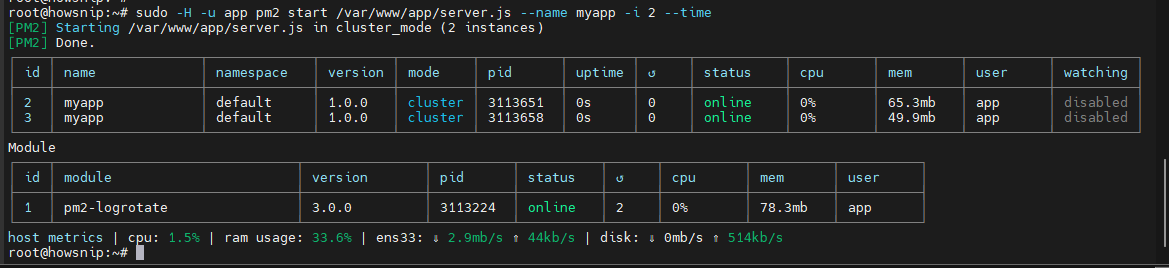
c) Save the configuration
sudo -H -u app pm2 save
d) Reload without downtime
sudo -H -u app pm2 reload myapp
Note: Cluster mode works best for stateless applications. If your application stores sessions, WebSocket state, or scheduled task data in memory, you’ll need external storage or additional coordination before running multiple instances.
Conclusion
Deploying a Node.js application on Ubuntu involves three key components: Node.js for running the application, PM2 for process management, and Nginx for handling incoming traffic. By adding Let’s Encrypt SSL certificates, you can also secure your application with HTTPS.
Following this setup gives you a production-ready environment where your application automatically restarts after crashes, survives system reboots, supports secure connections, and is easier to manage as your project grows.