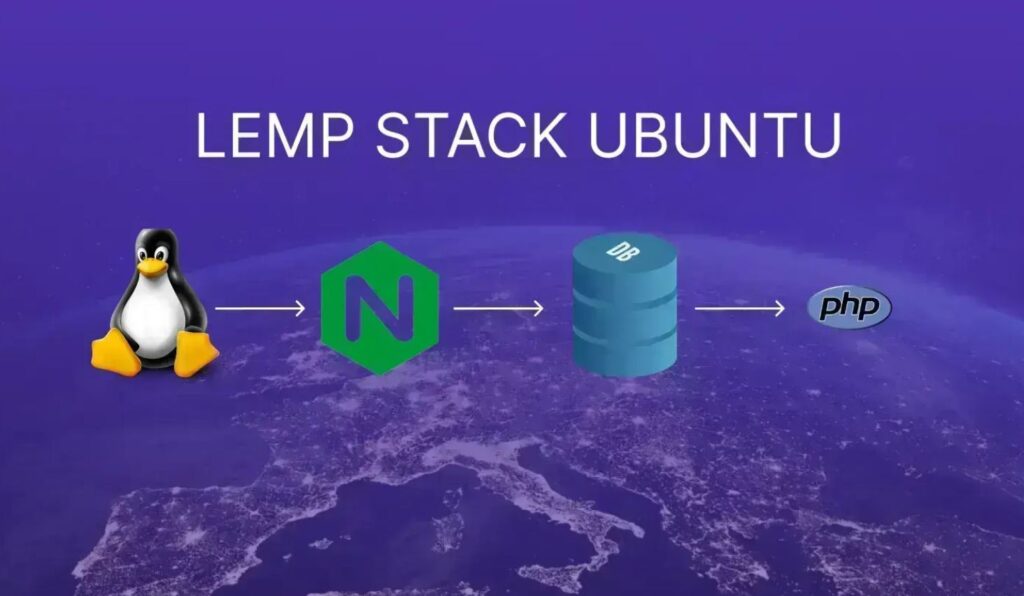

Setting up a web server is one of the first tasks when deploying PHP applications such as WordPress, Laravel, Magento, or custom PHP projects. A popular choice is the LEMP stack, which combines Linux, Nginx, MySQL, and PHP to deliver dynamic websites efficiently.
In this tutorial, you’ll learn how to install and configure a complete LEMP stack on Ubuntu. By the end, you’ll have:
- Nginx serving web requests
- MySQL 8.4 handling database operations
- PHP 8.5 processing PHP applications through PHP-FPM
- A working PHP and MySQL connection test
Quick Reference
Useful commands you’ll use throughout this guide:
- sudo apt update – Update the package index.
- sudo apt install nginx – Install Nginx.
- sudo apt install mysql-server – Install MySQL Server.
- sudo apt install php-fpm php-mysql – Install PHP-FPM and the MySQL extension.
- sudo mysql_secure_installation – Run MySQL security hardening.
- sudo systemctl restart php8.5-fpm – Restart PHP-FPM.
- sudo systemctl reload nginx – Reload Nginx configuration.
- sudo nginx -t – Test Nginx configuration syntax.
- sudo ufw allow ‘Nginx Full’ – Allow HTTP and HTTPS traffic through the firewall.
- /run/php/php8.5-fpm.sock – PHP-FPM Socket Location
Prerequisites
Before you begin, make sure you have:
- An Ubuntu server.
- A user account with sudo privileges.
- UFW (Uncomplicated Firewall) enabled and configured.
Note: If you’re working on a production server, it’s recommended to apply system updates before installing any new software.
Step 1: Install Nginx
Nginx is the web server component of the LEMP stack. It handles incoming HTTP and HTTPS requests and serves website content.
a) Update Package Information
Refresh the local package list:
sudo apt update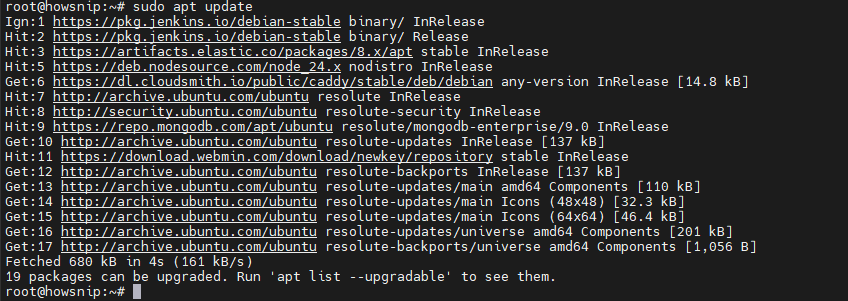
This ensures Ubuntu downloads the latest available packages.
b) Install Nginx
Install the Nginx package:
sudo apt install nginx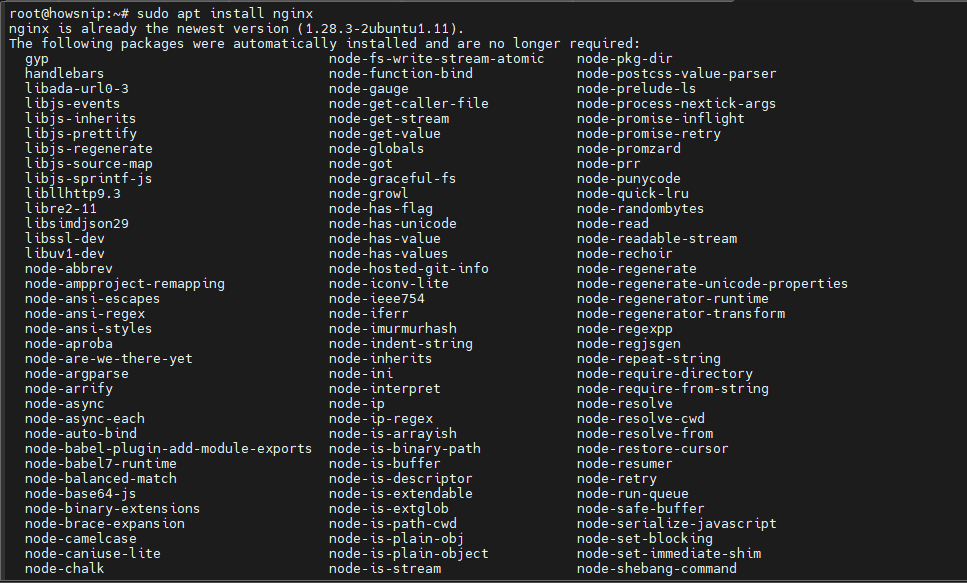
Once installation finishes, Nginx should start automatically.
c) Verify Nginx Status
Check that the service is running:
sudo systemctl status nginx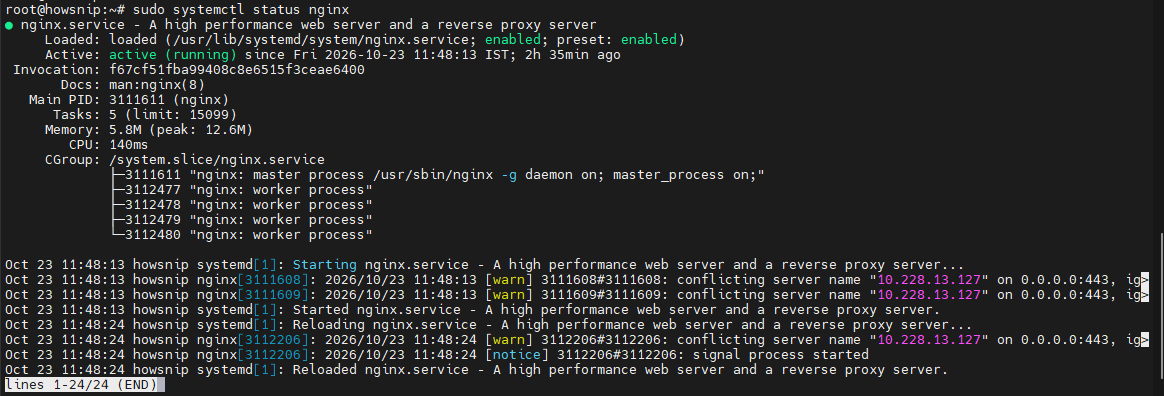
Look for:
active (running)
This confirms the web server is operational.
d) Allow Web Traffic Through the Firewall
If UFW is enabled, allow HTTP and HTTPS traffic:
sudo ufw allow 'Nginx Full'This creates firewall rules for both ports 80 and 443.
e) Test Nginx
Open the following URL in your browser:
http://your_server_ip
You should see the default Nginx welcome page.
Step 2: Install MySQL
MySQL provides the database backend used by most PHP websites and web applications.
a) Install MySQL Server
Run:
sudo apt install mysql-server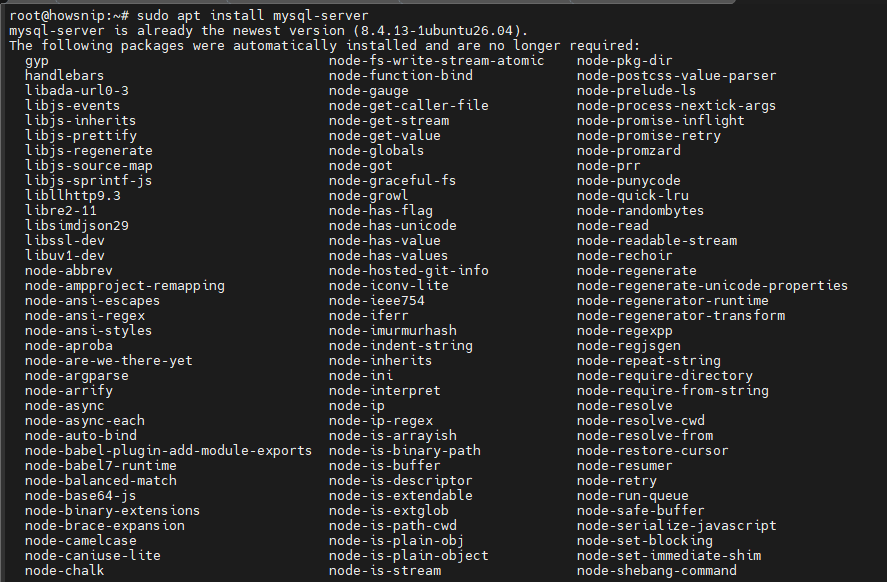
The installation may take a few minutes depending on your server and network connection.
b) Secure the MySQL Installation
Execute the built-in security script:
sudo mysql_secure_installation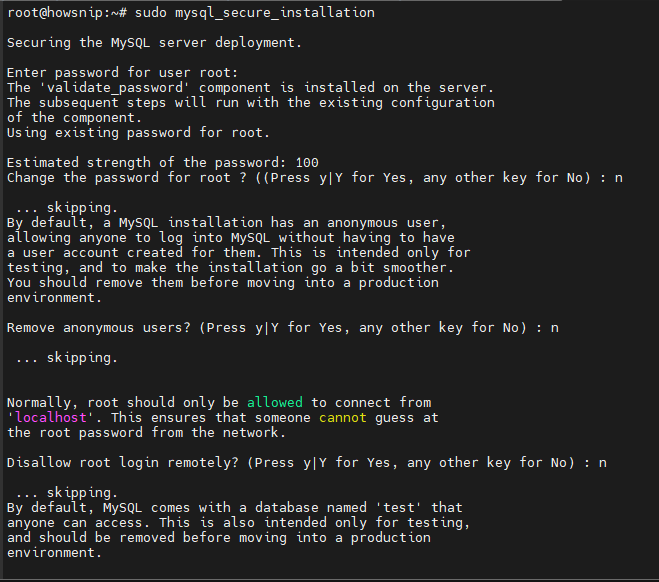
This utility helps improve the security of your database server by:
- Removing anonymous users
- Disabling remote root logins
- Deleting the default test database
c) Applying additional security settings
When prompted, answer Y to the hardening recommendations.
Note: The Validate Password component is optional. You can disable it if you prefer to manage password policies yourself.
d) Confirm MySQL Is Running
Check the service status:
sudo systemctl status mysql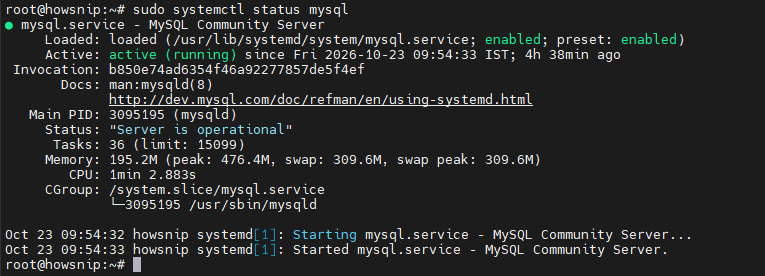
The output should indicate that MySQL is active and running.
Step 3: Install PHP and PHP-FPM
Nginx does not process PHP code directly. Instead, it forwards PHP requests to PHP-FPM (FastCGI Process Manager), which executes the PHP scripts.
a) Install PHP-FPM and MySQL Support
Update package information and install PHP:
sudo apt update
sudo apt install php-fpm php-mysql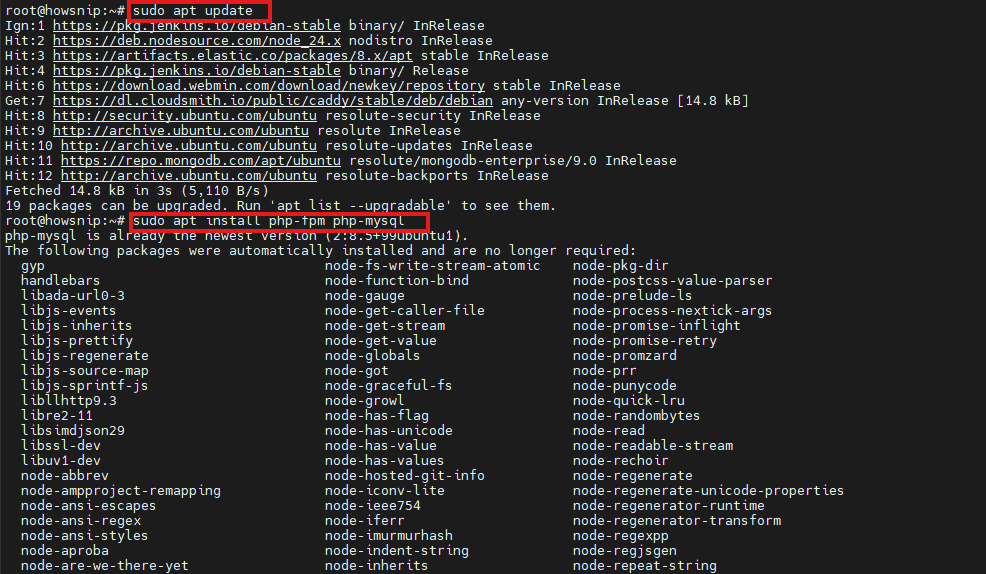
This installs PHP 8.5 together with the MySQL extension.
b) Verify the PHP Version
Check the installed version:
php -v
You should see output beginning with:
PHP 8.5.x
c) Verify PHP-FPM Status
Confirm the PHP-FPM service is running:
sudo systemctl status php8.5-fpm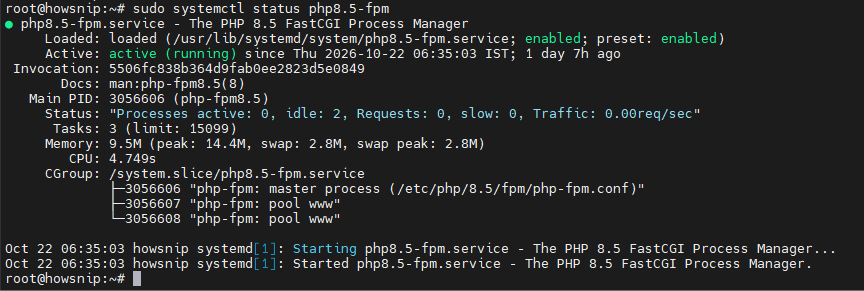
PHP-FPM listens on the following Unix socket:
/run/php/php8.5-fpm.sock
d) Install Additional PHP Extensions (Optional)
Many PHP applications require additional modules.
Install commonly used extensions:
sudo apt install php-curl php-gd php-mbstring php-xml php-zip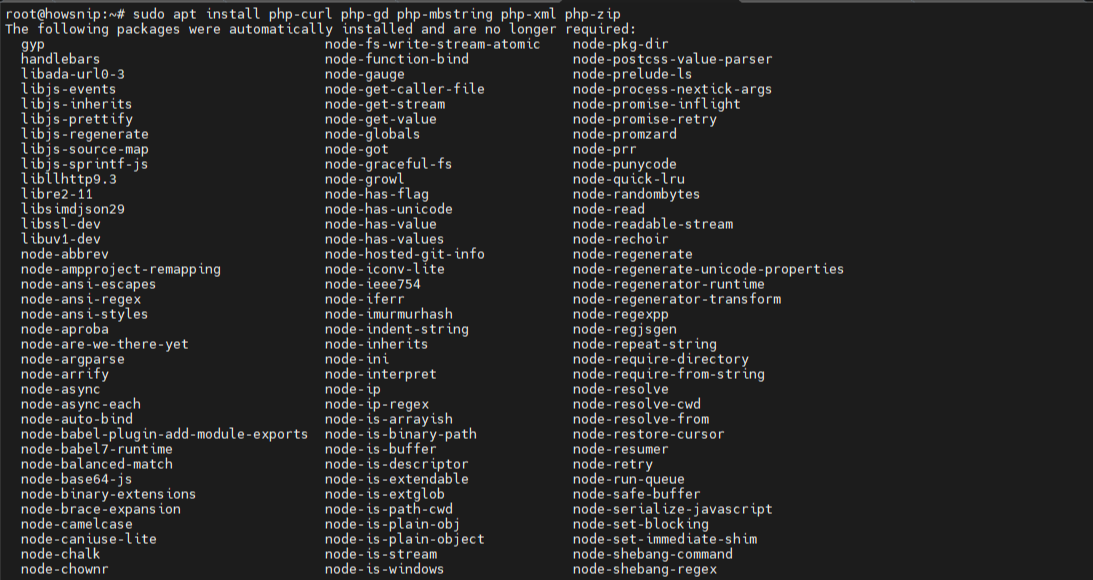
These extensions provide functionality such as image processing, XML handling, string manipulation, and ZIP archive support.
Step 4: Configure Nginx to Process PHP Files
With Nginx and PHP-FPM installed, the next step is configuring Nginx to send PHP requests to PHP-FPM.
a) Create a Website Directory
Create the document root:
sudo mkdir -p /var/www/example.comAssign ownership to your user account:
sudo chown -R $USER:$USER /var/www/example.com
Replace example.com with your actual domain if available.
b) Create a New Server Block
Create a configuration file:
sudo nano /etc/nginx/sites-available/example.com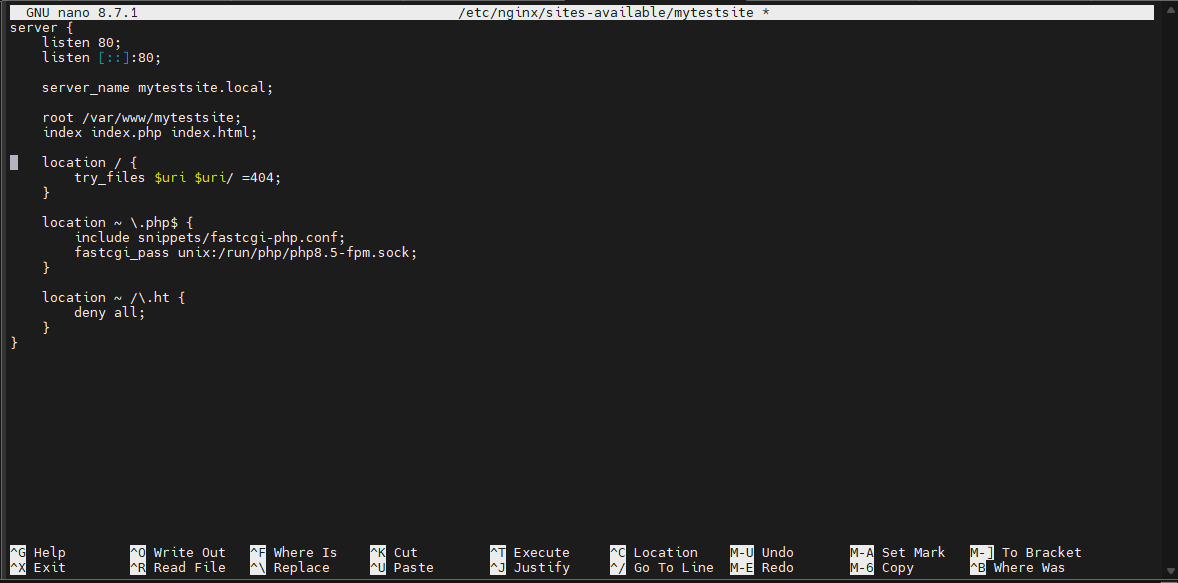
Add the following configuration:
server {
listen 80;
listen [::]:80;

server_name example.com www.example.com;

root /var/www/example.com;
index index.php index.html;

location / {
try_files $uri $uri/ =404;
}

location ~ \.php$ {
include snippets/fastcgi-php.conf;
fastcgi_pass unix:/run/php/php8.5-fpm.sock;
}

location ~ /\.ht {
deny all;
}
}
Understanding the Configuration
- server_name defines the domain name served by this site.
- root specifies the website files location.
- index index.php index.html sets the default files.
- try_files checks whether the requested file exists before returning a 404 error.
- location ~ \.php$ forwards PHP requests to PHP-FPM.
- location ~ /\.ht blocks access to .htaccess files.
c) Enable the Site
Create a symbolic link:
sudo ln -s /etc/nginx/sites-available/example.com /etc/nginx/sites-enabled/d) Disable the Default Site (Optional)
If the default site is still enabled:
sudo unlink /etc/nginx/sites-enabled/defaultThis prevents conflicts with your new configuration.
e) Test the Configuration
Validate the Nginx configuration before applying it:
sudo nginx -t
Successful output ends with:
syntax is ok
test is successful
f) Reload Nginx
Apply the configuration:
sudo systemctl reload nginxStep 5: Verify PHP Processing
Before deploying applications, verify that Nginx is correctly processing PHP files.
a) Create a PHP Test File
Run:
echo "<?php phpinfo();" | sudo tee /var/www/example.com/info.php
This creates a simple PHP file that displays PHP configuration details.
b) Open the Test Page
Visit:
http://example.com/info.phpor
http://your_server_ip/info.php
If everything is configured correctly, you’ll see the PHP information page.
Troubleshooting: If the browser displays the PHP code as plain text instead of executing it, review the location ~ \.php$ section in your Nginx configuration.
c) Remove the Test File
After verification, delete the file:
sudo rm /var/www/example.com/info.phpWarning: The phpinfo() page exposes system and PHP configuration details and should never remain publicly accessible.
Step 6: Test MySQL Connectivity from PHP
The final test confirms that PHP can connect to MySQL successfully.
a) Create a Test Database and User
Open the MySQL console:
sudo mysqlRun the following SQL commands:
CREATE DATABASE lemp_test;
CREATE USER 'lemp_user'@'localhost' IDENTIFIED BY 'changeme';
GRANT ALL PRIVILEGES ON lemp_test.* TO 'lemp_user'@'localhost';
FLUSH PRIVILEGES;
EXIT;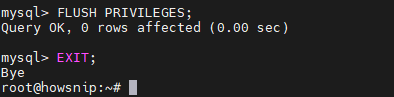
Warning: Replace changeme with a strong password before using this setup in production.
b) Create a PHP Database Test File
Create the file:
sudo nano /var/www/example.com/db-test.php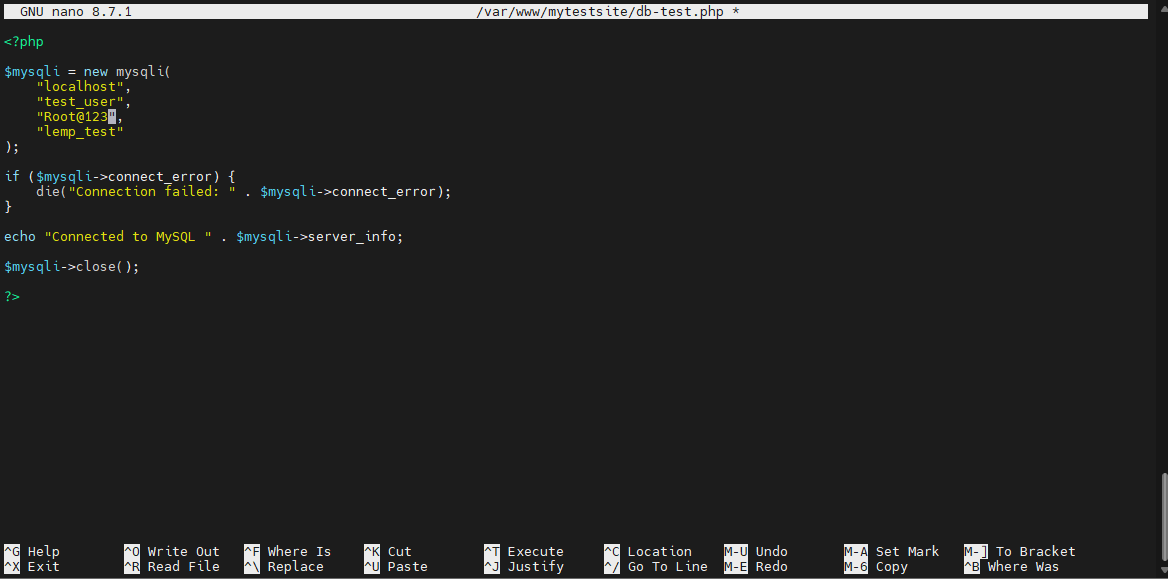
Add the following code:
<?php
$mysqli = new mysqli("localhost", "lemp_user", "changeme", "lemp_test");

if ($mysqli->connect_error) {
die("Connection failed: " . $mysqli->connect_error);
}

echo "Connected to MySQL " . $mysqli->server_info;

$mysqli->close();
This script attempts to connect to MySQL and displays the server version when successful.
c) Test the Database Connection
Open:
http://example.com/db-test.php
A successful connection displays a message similar to:
Connected to MySQL 8.4.x
d) Remove the Test File
After confirming connectivity:
sudo rm /var/www/example.com/db-test.phpRemoving the file helps reduce unnecessary exposure of database connection information.
Conclusion
You have successfully installed and configured a complete LEMP stack on Ubuntu. Nginx is now serving web requests, MySQL 8.4 is handling database operations, and PHP 8.5 is processing dynamic content through PHP-FPM.
After completing these tests, your server is ready to host PHP-based applications such as WordPress, Laravel, Magento, and other modern web projects. For production deployments, consider adding SSL certificates, regular backups, database security policies, and ongoing system updates to keep your server secure and reliable.