

Managing software on Linux is one of the first skills every user should learn. On Ubuntu, Debian, and other Debian-based distributions, the APT (Advanced Package Tool) command makes it easy to install, update, upgrade, remove, and manage software packages directly from the terminal.
In this guide, you’ll learn the most commonly used APT commands with practical examples and explanations.
Note: Most APT commands require administrative privileges, so you’ll typically use them with sudo.
Prerequisites
Before you begin, make sure you have:
- A Debian-based Linux distribution (Ubuntu, Debian, Linux Mint, etc.)
- Access to a terminal
- A user account with sudo privileges
- An internet connection for downloading package information and software
Understanding APT
APT (Advanced Package Tool) is the default package management system used by Debian-based distributions. It allows you to:
- Install software packages
- Update package information
- Upgrade installed software
- Remove unnecessary packages
- Search repositories
- View package details
APT combines commonly used features from older tools such as apt-get and apt-cache into a more user-friendly command.
Important: APT is designed primarily for interactive terminal use. For scripts and automation, apt-get is generally preferred because its behavior and output remain more stable across versions.
1. Update the Package Index
Before installing or upgrading software, update your system’s package index.
sudo apt update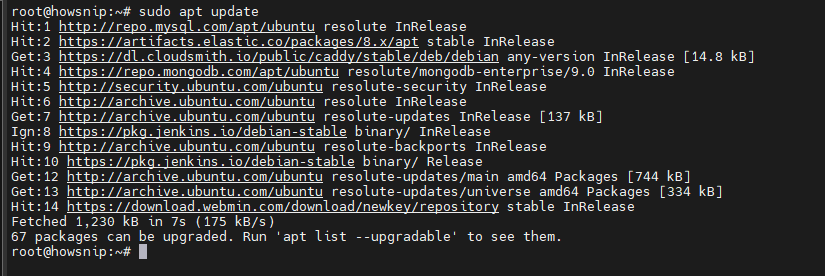
The package index contains information about software available from configured repositories. Running apt update downloads the latest package metadata but does not install anything.
Best Practice: Always run apt update before installing new software or upgrading existing packages.
2. Install Packages
a) Install a Single Package
Use the following command to install a package:
sudo apt install package_nameExample
sudo apt install nmap
APT downloads the selected package along with any required dependencies and installs them automatically.
b) Install Multiple Packages at Once
You can install several packages in a single command:
sudo apt install package1 package2Example
sudo apt install curl wget git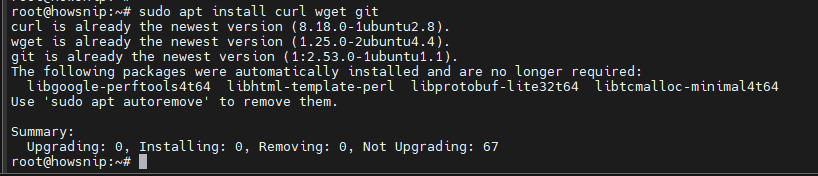
This saves time when setting up a system.
c) Install a Local .deb Package
If you have downloaded a Debian package file, install it by specifying its full path:
sudo apt install /full/path/file.deb
APT installs the local package and also attempts to resolve any missing dependencies automatically.
d) Install a Specific Package Version
First, check available package versions:
apt policy package_nameThen install the desired version:
sudo apt install package_name=versionExample
sudo apt install nginx=1.26.0-1ubuntu1
This is useful when you need a particular package release for compatibility reasons.
e) Install a Package from a Specific Release
To install a package from another repository release:
sudo apt install package_name/trixie-backports
This selects the package from the specified release while generally preferring dependencies from the default system release.
f) Use a Target Release
You can set a target release for the entire installation process:
sudo apt install -t trixie-backports package_nameThe -t option allows APT to pull required dependencies from the selected release when necessary.
Warning: Use this option carefully because it may introduce additional packages from another repository branch.
3. Upgrade Installed Packages
Keeping software updated is essential for security and stability.
a) Upgrade All Installed Packages
sudo apt upgrade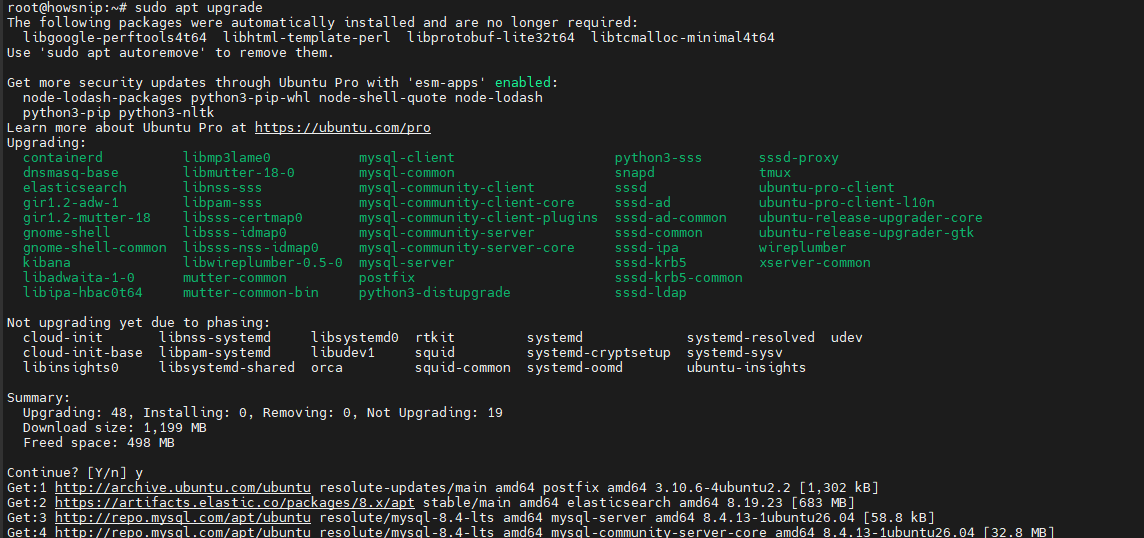
APT upgrades installed packages to the latest available versions without removing existing packages.
b) Upgrade a Single Installed Package
If you only want to update one package:
sudo apt install --only-upgrade package_nameExample
sudo apt install --only-upgrade nginx
This upgrades the package only if it is already installed.
4. Perform a Full System Upgrade
Sometimes upgrades require removing obsolete packages.
sudo apt full-upgrade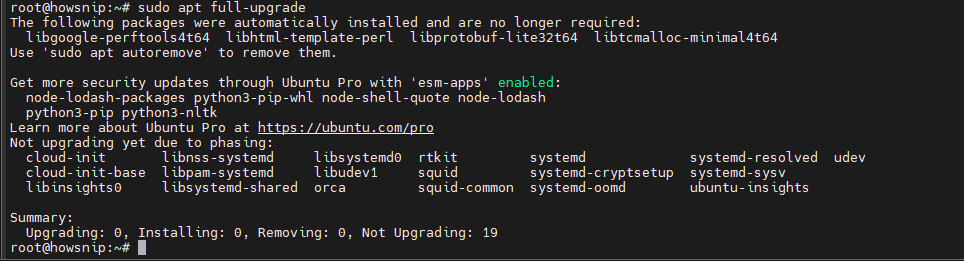
Unlike apt upgrade, the full-upgrade command allows package removals if needed to complete the upgrade process.
Warning: Review proposed changes carefully before confirming because packages may be removed.
5. Skip Confirmation Prompts
APT normally asks for confirmation before making changes.
a) Install Without Confirmation
sudo apt install -y package_name
b) Upgrade Without Confirmation
sudo apt upgrade -y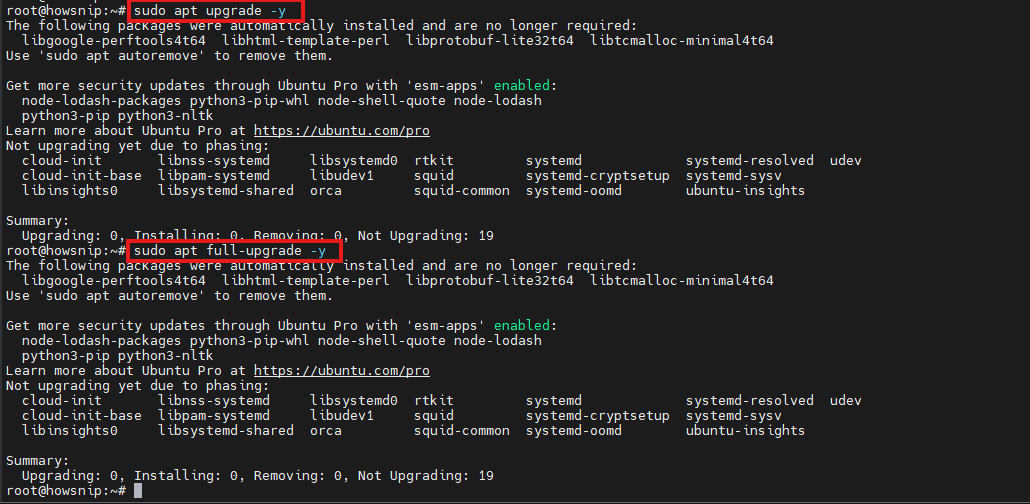
c) Full Upgrade Without Confirmation
sudo apt full-upgrade -yThe -y (or –yes) flag automatically answers “yes” to confirmation prompts.
Important: Only use -y when you understand and trust the actions being performed.
d) Update and Upgrade in One Command
A common shortcut is:
sudo apt update && sudo apt upgrade -y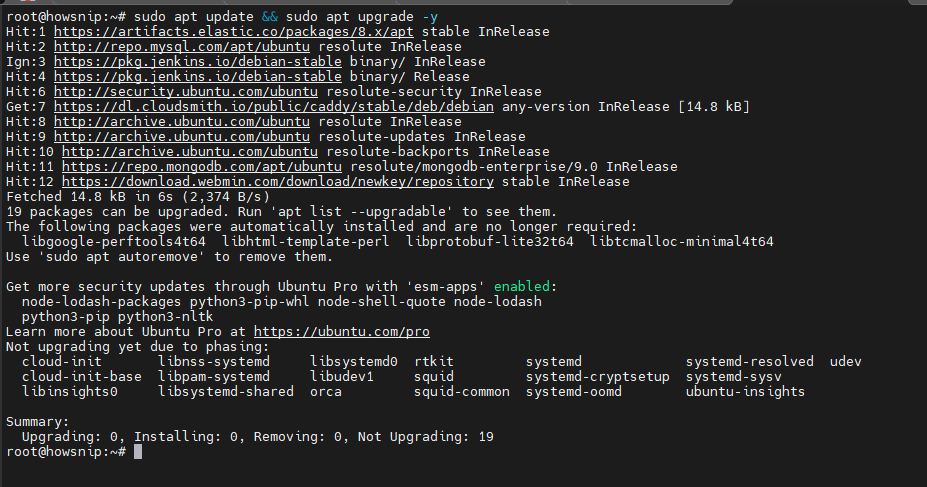
How it works
- apt update refreshes package information.
- && runs the second command only if the first succeeds.
- apt upgrade -y upgrades installed packages.
Note: Although commonly used, this command is not guaranteed to be fully unattended because repository changes may still require confirmation.
6. Reinstall a Package
If a package becomes corrupted or files are accidentally modified, reinstall it.
sudo apt install --reinstall package_nameExample
sudo apt install --reinstall nmap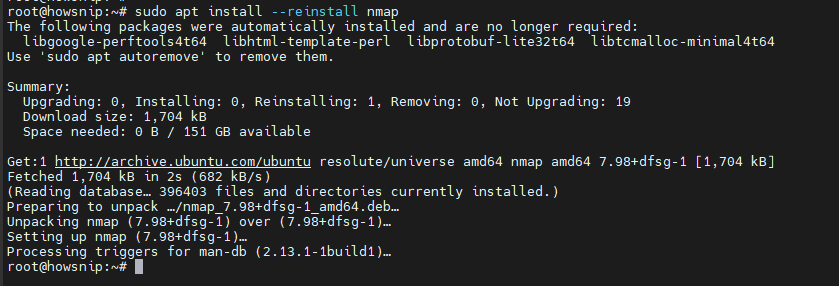
APT reinstalls package files while keeping existing package settings where applicable.
7. Fix Broken Dependencies
Package installations may occasionally fail, especially after interrupted installations or manual package management with dpkg.
You may see a message similar to:
You might want to run ‘apt –fix-broken install’ to correct these.
Fix Broken Packages
sudo apt install -f
Or:
sudo apt --fix-broken install
The -f option stands for –fix-broken. It installs missing dependencies and completes unfinished package configurations.
8. Remove Installed Packages
If you no longer need software, you can remove it.
a) Remove a Package
sudo apt remove package_nameExample
sudo apt remove nmap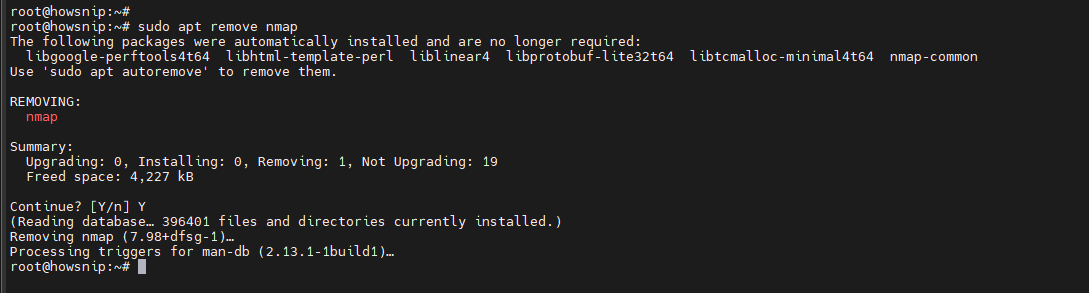
The package is removed, but some configuration files may remain on the system.
b) Remove Multiple Packages
sudo apt remove package1 package2Example:
sudo apt remove curl wget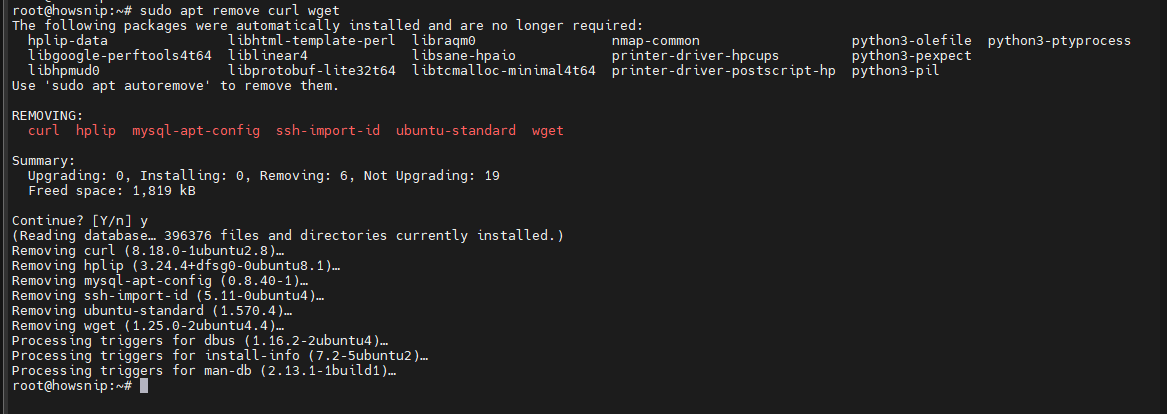
c) Remove a Package and Its Configuration Files
To completely remove a package:
sudo apt purge package_nameExample
sudo apt purge nmap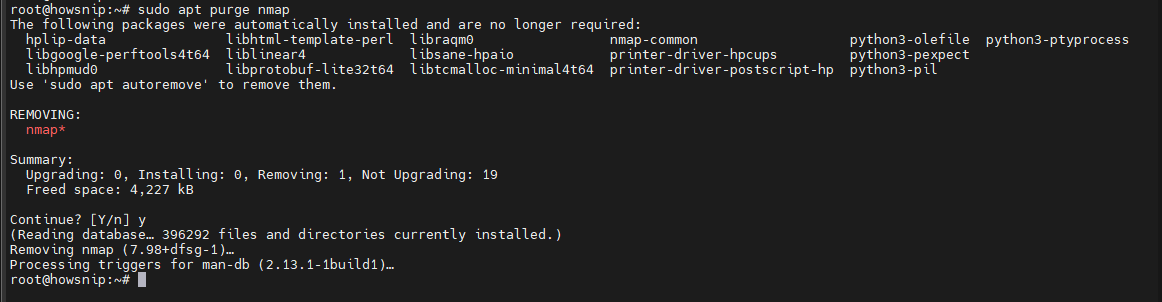
This removes both the package and its configuration files.
9. Remove Unused Dependencies
Over time, your system accumulates dependency packages that are no longer needed.
a) Remove Unused Packages
sudo apt autoremove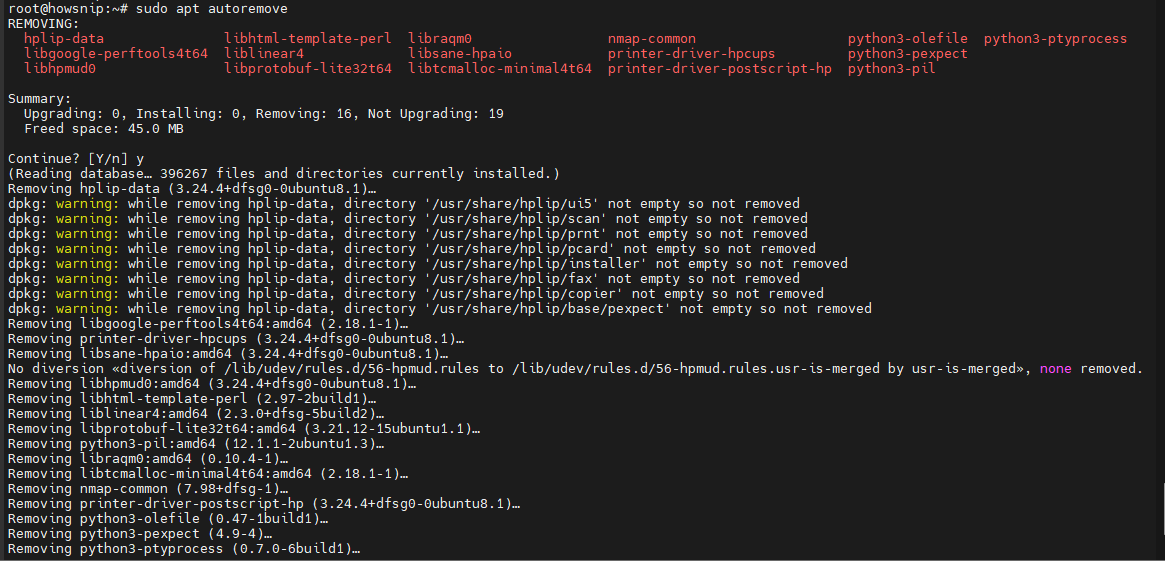
APT removes packages that were automatically installed as dependencies and are no longer required.
b) Remove Unused Packages and Configurations
sudo apt autoremove --purge
This cleans up unnecessary packages and removes their leftover configuration files.
10. List Available and Installed Packages
APT can display package information already stored on your system.
Note: These commands do not require sudo because they only read local package information.
a) List All Available Packages
apt list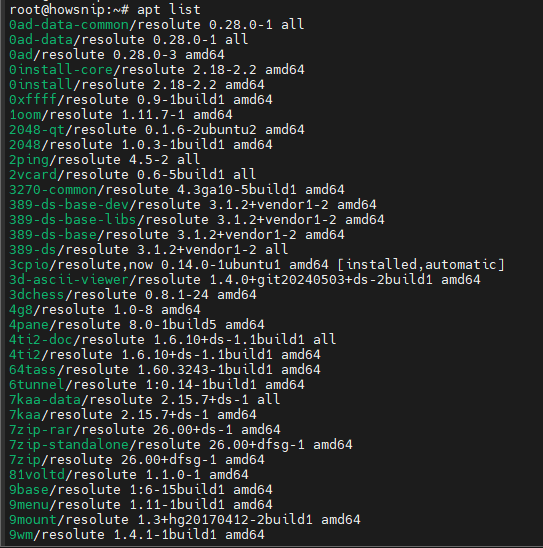
This displays all packages known to the package manager.
b) Check if a Package Is Installed
apt list | grep package_nameExample
apt list | grep nmap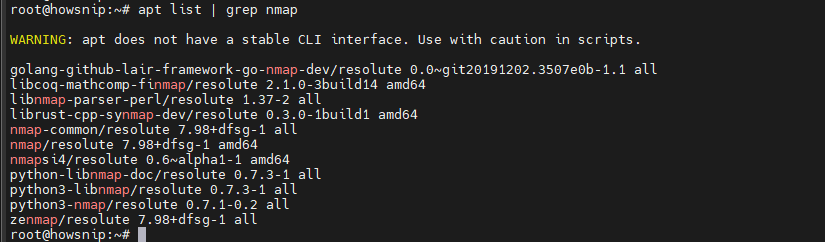
This helps verify whether a package exists or is already installed.
c) List Installed Packages
apt list --installed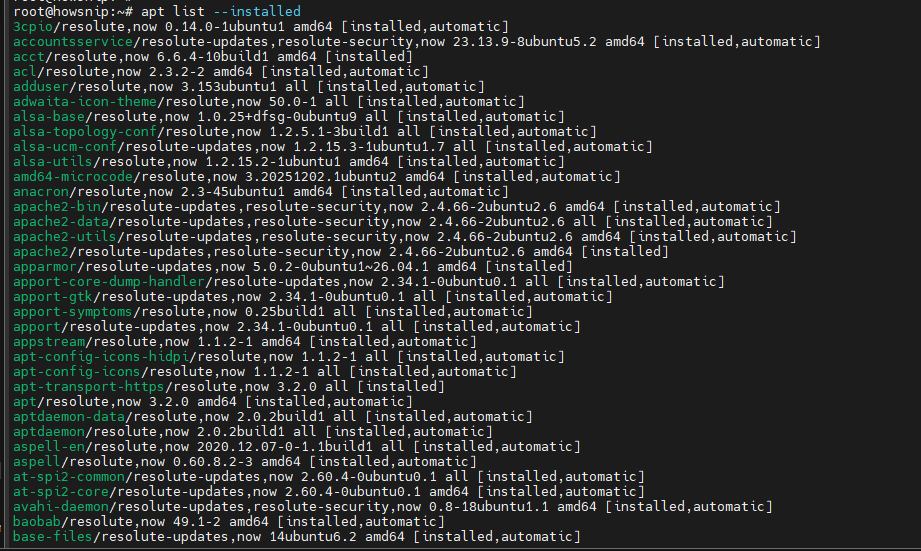
This displays all software currently installed on the system.
d) List Upgradable Packages
apt list --upgradable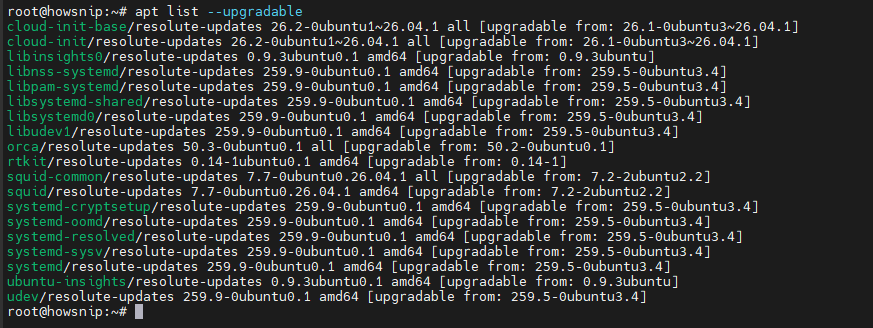
Use this command to see which packages have updates available before performing an upgrade.
11. Search for Packages
When you don’t know the exact package name, use the search feature.
apt search package_nameExample
apt search nmap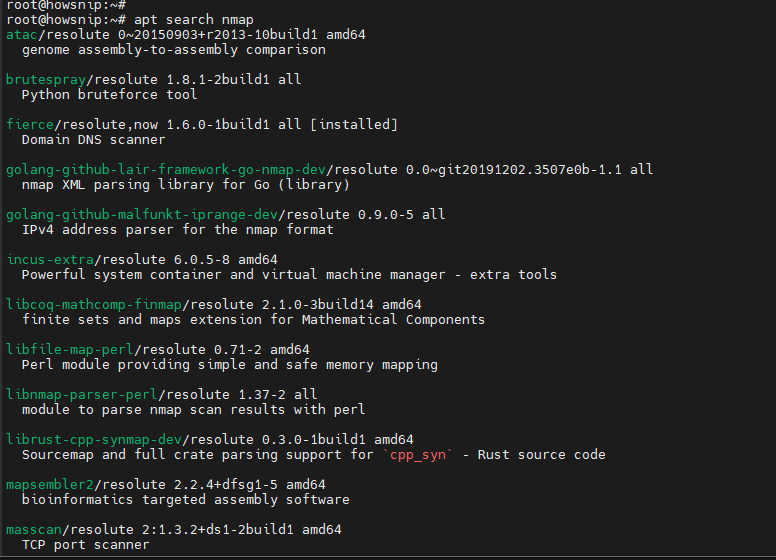
APT searches enabled repositories and displays packages that match the specified keyword.
12. View Package Information
Before installing or removing software, you may want additional details.
apt show package_nameExample
apt show nmap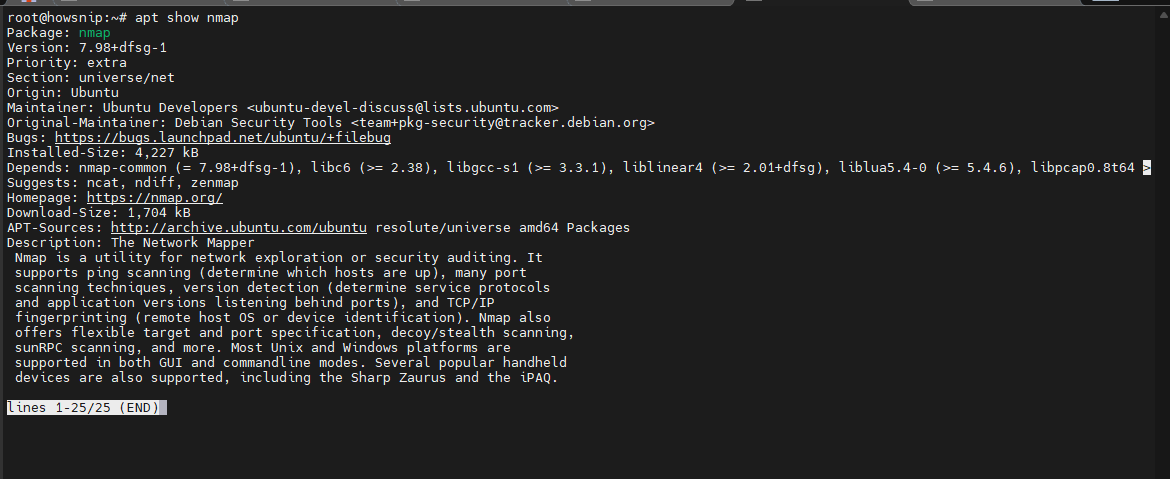
Displays information such as:
- Package description
- Dependencies
- Version
- Download size
- Installed size
- Source repository
13. Check Package Policy
To determine which version will be installed and where it comes from:
apt policy package_nameExample
apt policy nmap
It shows:
- Installed version
- Candidate version
- Repository sources
- Package priority information
This is especially useful when troubleshooting version conflicts or repository preferences.
14. Clean the Package Cache
APT stores downloaded package files in a local cache. Removing them can free disk space.
a) Remove All Cached Packages
sudo apt cleanIt deletes all downloaded package files from the local cache.
b) Remove Only Outdated Cached Packages
sudo apt autoclean
This command removes outdated package files that can no longer be downloaded while keeping useful cached packages.
Conclusion
The APT command is one of the most important tools for managing software on Ubuntu, Debian, and other Debian-based Linux distributions. By learning commands such as apt update, apt install, apt upgrade, apt remove, and apt search, you can efficiently install, maintain, and troubleshoot software directly from the terminal.
Regular updates and cleanup operations will help keep your system secure, stable, and performing at its best.