

Knowing your Linux version and kernel release is important when troubleshooting issues, installing software, verifying system compatibility, or seeking technical support. Fortunately, Linux provides several built-in ways to view this information.
In this tutorial, you’ll learn how to check your Linux kernel version, identify your distribution and release version, and view detailed system information using commonly available commands.
Prerequisites
- Access to a Linux terminal.
- A user account with permission to run commands.
- Some commands may require installing additional packages depending on your distribution.
Method 1: Check the Linux Kernel Version with uname
The uname command is one of the fastest ways to display kernel and operating system information.
Display Kernel Release and Operating System
Run:
uname -or
What the options mean:
- -o displays the operating system name.
- -r displays the kernel release version.
The output shows the operating system and the currently running kernel version.
Display Complete System Information
To view all available information from uname, use:
uname -a
This command displays details such as:
- Kernel name
- Kernel release
- Kernel version
- Hostname
- Machine architecture
- Processor type
- Operating system
Method 2: Check Kernel Information Using /proc/version
Linux stores runtime system information in the /proc virtual filesystem. The /proc/version file contains details about the running kernel and build information.
Run:
cat /proc/version
The output typically includes:
- Linux kernel version
- System architecture
- Compiler information
- Linker version
- Kernel build details
- Build date and time
- Distribution-specific build information
For example, from the output you may identify:
- Kernel version
- Architecture such as x86_64
- Kernel build host
- GCC compiler version
- GNU linker version
- Build date and timestamp
This approach is useful when you need more detailed information than uname provides, especially for debugging or system diagnostics.
Method 3: Find Your Linux Distribution Name and Release Version
The most reliable way to determine which Linux distribution you are running is by reading the os-release file.
Run:
cat /etc/os-release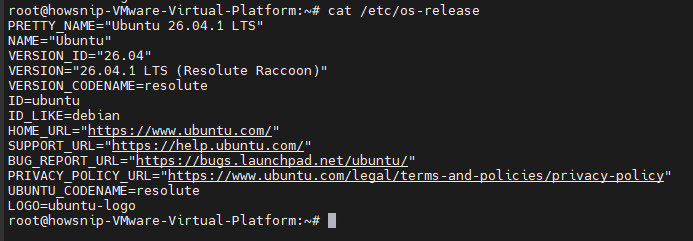
This method works on most modern Linux distributions, including:
- Ubuntu
- Debian
- Linux Mint
- Fedora
- RHEL
- CentOS
- Rocky Linux
- AlmaLinux
- Arch Linux
- Alpine Linux
- OpenSUSE
The output typically includes:
- Distribution name
- Version number
- Version codename
- Distribution family information
Gentoo Linux
Gentoo stores version information in a different file:
cat /etc/gentoo-releaseMethod 4: Check Linux Version with lsb_release
The lsb_release command provides Linux Standard Base (LSB) distribution information in a consistent format.
Install lsb_release if Required
Depending on your Linux distribution, install the package using the appropriate command.
Debian, Ubuntu, Linux Mint
sudo apt install lsb-release
RHEL, CentOS, Fedora, Rocky Linux, AlmaLinux
sudo yum install redhat-lsb-coreor
sudo dnf install redhat-lsb-coreGentoo
sudo emerge -a sys-apps/lsb-releaseAlpine Linux
sudo apk add lsb-releaseArch Linux
sudo pacman -S lsb-releaseOpenSUSE
sudo zypper install lsb-releaseDisplay Distribution Information
Once installed, run:
lsb_release -a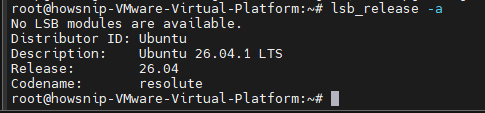
The command displays details such as:
- Distributor ID
- Description
- Release version
- Codename
View Specific Information Only
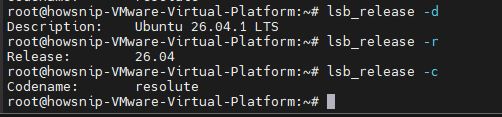
If you only need particular details, use one of these options:
lsb_release -dDisplays only the distribution description.
lsb_release -rDisplays only the release number.
lsb_release -cDisplays only the codename.
Method 5: View Operating System Details with hostnamectl
On Linux systems that use systemd, the hostnamectl command provides extensive system information.
Run:
hostnamectl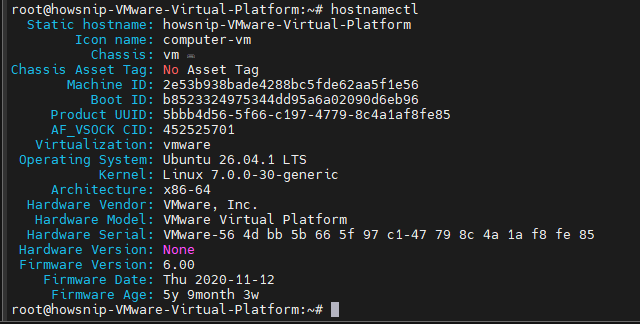
The output can include:
- Operating system name and version
- Kernel version
- System architecture
- Hostname information
- Hardware details
- Machine ID
- Boot ID
If you want operating system, hardware, and kernel information in a single command, hostnamectl is often the most convenient option.
Method 6: Check Distribution-Specific Release Files
Many Linux distributions provide release information through dedicated files.
RHEL, CentOS, Fedora, Rocky Linux, AlmaLinux
cat /etc/redhat-releaseDebian
cat /etc/debian_version
Ubuntu (Older Releases)
cat /etc/lsb-release
Arch Linux
cat /etc/arch-releaseThese files provide quick access to version information specific to each distribution.
For most users:
- Use uname -or to quickly check the kernel version.
- Use cat /etc/os-release to identify your Linux distribution and version.
- Use hostnamectl for a complete system overview.
- Use lsb_release -a when you need standardized distribution information.
Conclusion
Linux offers several simple ways to check your operating system and kernel version. For quick kernel information, uname is usually the fastest option. For distribution details, /etc/os-release is the most reliable method across modern Linux distributions.
If you need a more complete system summary, hostnamectl and lsb_release provide additional information that can be useful for troubleshooting and system administration.