

A fresh installation of Kali Linux provides a powerful environment for security testing and system administration. However, most users also need everyday applications for browsing the web, editing documents, downloading files, writing code, and managing projects.
This guide covers several commonly installed programs that can help make a Kali Linux system more practical for daily use. You’ll learn how to install privacy-focused browsers, productivity software, development tools, and other useful applications.
While Kali Linux includes many security-focused tools by default, it does not always come with every application users need for regular tasks. Installing a few additional packages can significantly improve productivity and usability.
- Tor Browser
- LibreOffice
- Google Chrome
- Brave Browser
- qBittorrent
- Python
- Visual Studio Code
1. Tor Browser
Tor Browser is designed to enhance online privacy by routing internet traffic through the Tor network. This helps mask user activity and can provide a greater level of anonymity while browsing the web.
Use the following command to install Tor Browser:
sudo apt-get install tor torbrowser-launcher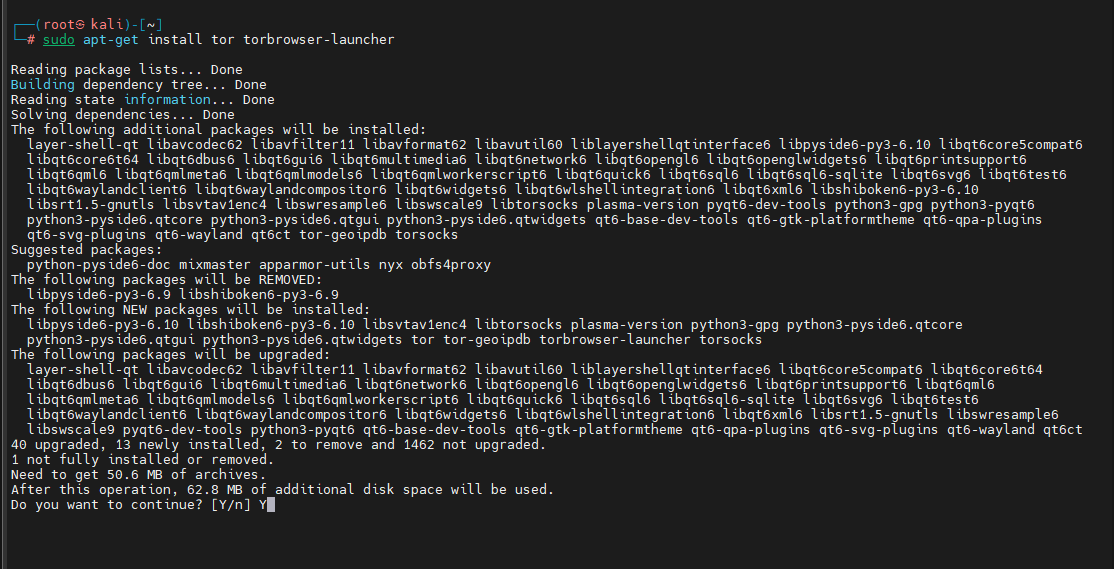
Once installed, the Tor Browser Launcher can download and configure the browser automatically.
2. LibreOffice
LibreOffice is a free and open-source office suite that includes tools for:
- Word processing
- Spreadsheets
- Presentations
- Database management
- Document creation and editing
It serves as a popular alternative to commercial office applications.
Install LibreOffice with:
sudo apt install libreoffice -y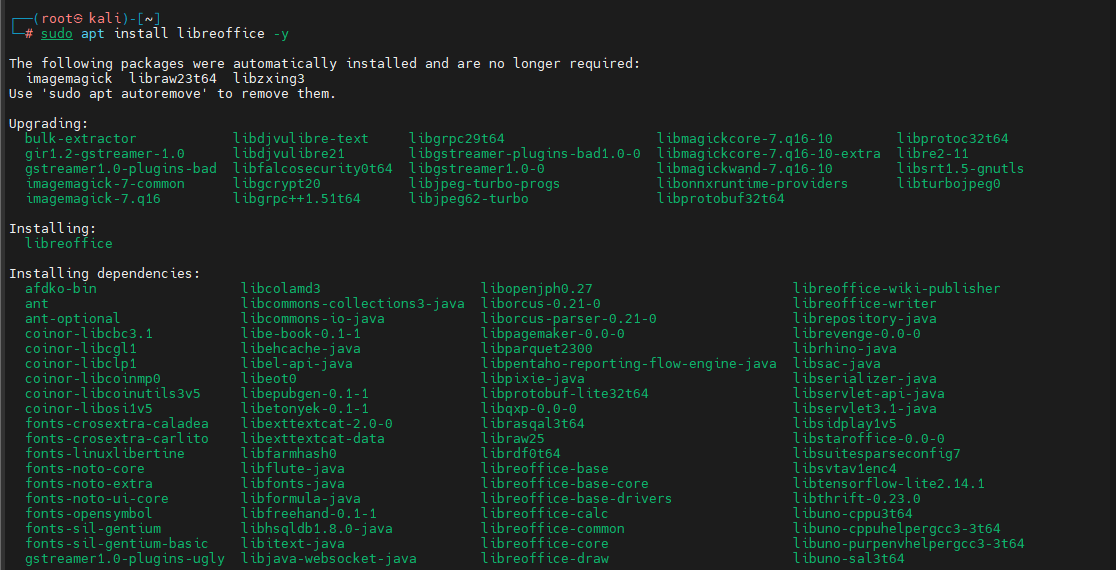
After installation, you can access the applications through the system menu.
3. Google Chrome
Google Chrome is one of the most widely used web browsers. It provides strong website compatibility, extensive extension support, and fast performance.
Download the Chrome Package
Use wget to download the installation package:
wget https://dl.google.com/linux/direct/google-chrome-stable_current_amd64.deb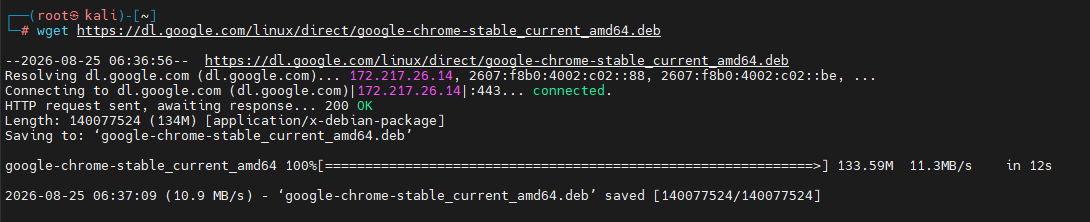
Install Google Chrome
After the download is complete, install the package:
apt install ./google-chrome-stable_current_amd64.deb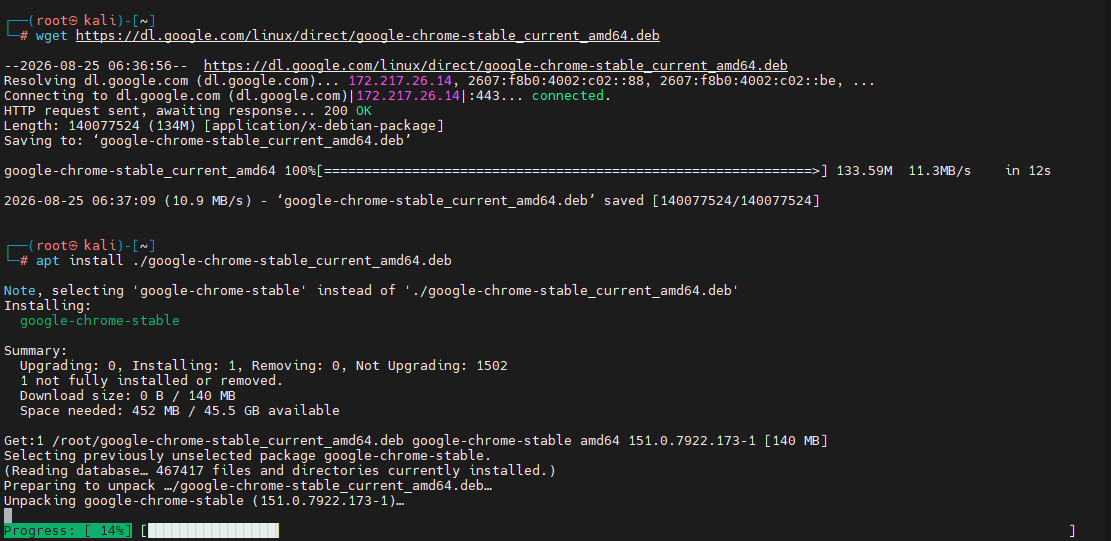
Once installed, Google Chrome will be available alongside your other applications.
4. Brave Browser
Brave Browser focuses on privacy and security while maintaining compatibility with modern websites. It blocks many trackers and unwanted advertisements by default.
Step 1: Install curl
sudo apt install curl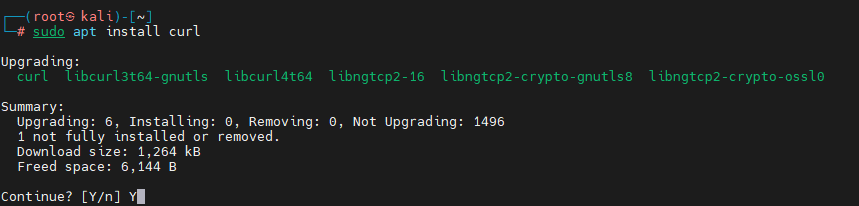
Step 2: Add the Brave Repository Key
sudo curl -fsSLo /usr/share/keyrings/brave-browser-archive-keyring.gpg https://brave-browser-apt-release.s3.brave.com/brave-browser-archive-keyring.gpg
Step 3: Add the Brave Repository
echo "deb [signed-by=/usr/share/keyrings/brave-browser-archive-keyring.gpg] https://brave-browser-apt-release.s3.brave.com/ stable main" | sudo tee /etc/apt/sources.list.d/brave-browser-release.list
Step 4: Update Package Information
sudo apt update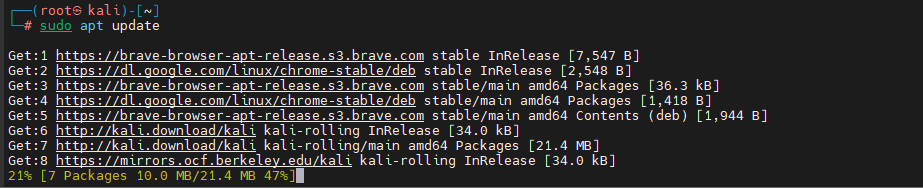
Step 5: Install Brave Browser
sudo apt install brave-browser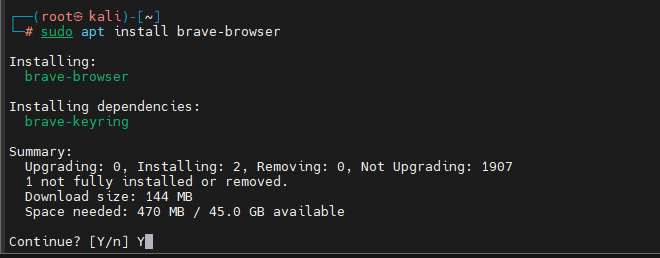
After installation, you can launch Brave from the applications menu or directly from the terminal.
5. qBittorrent
qBittorrent is a lightweight, open-source BitTorrent client that offers an intuitive interface for managing torrent downloads.
Install qBittorrent using:
sudo apt install qbittorrent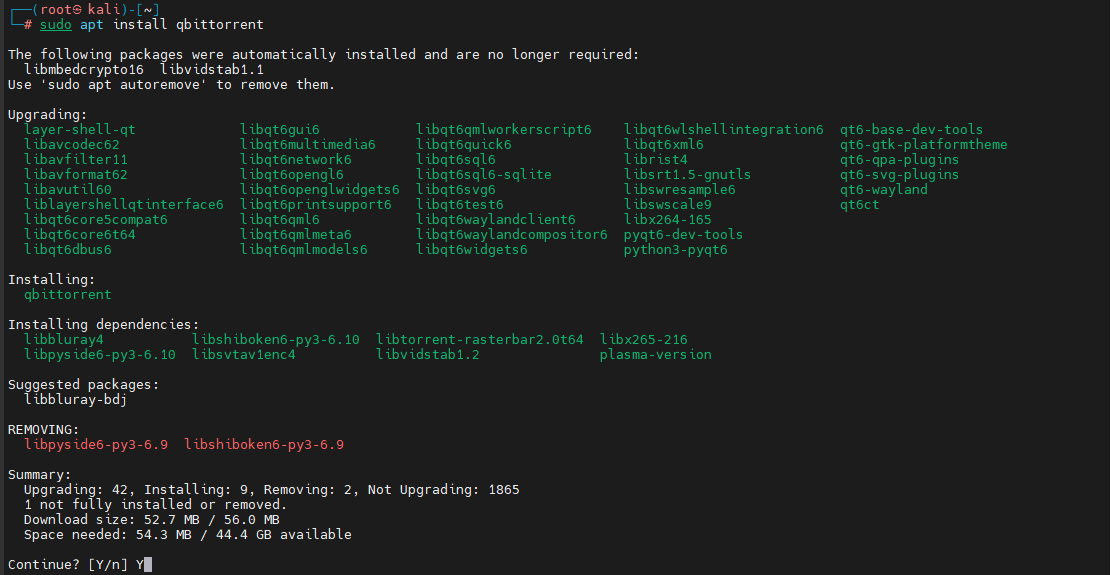
6. Python
Python is one of the most widely used programming languages and is essential for development, automation, scripting, and many cybersecurity-related tasks.
Install Python 3 and pip with:
sudo apt install python3 python3-pip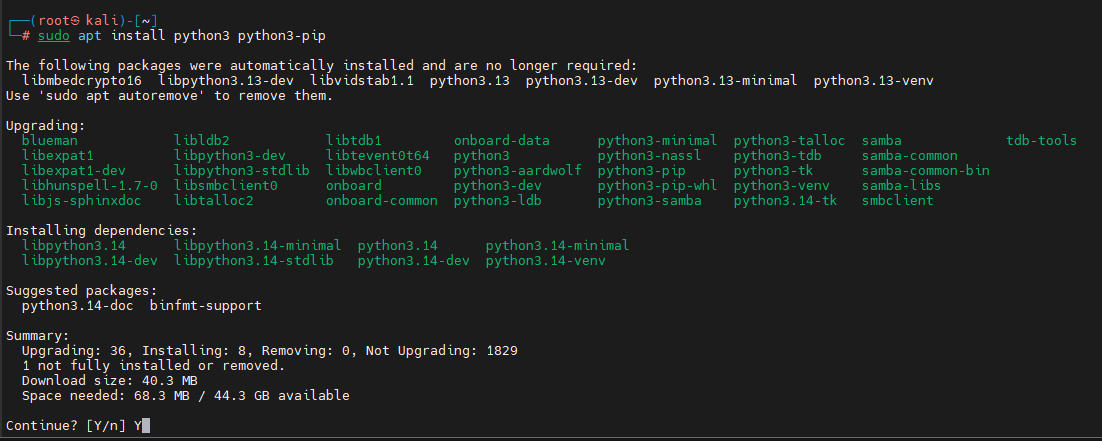
Verify the Installation
Check the installed Python version:
python3 --version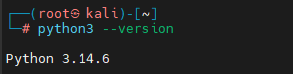
This command confirms that Python has been installed successfully and displays the currently available version.
7. Visual Studio Code
Visual Studio Code (VS Code) is a popular code editor used by developers, system administrators, and security professionals. It supports numerous programming languages and extensions.
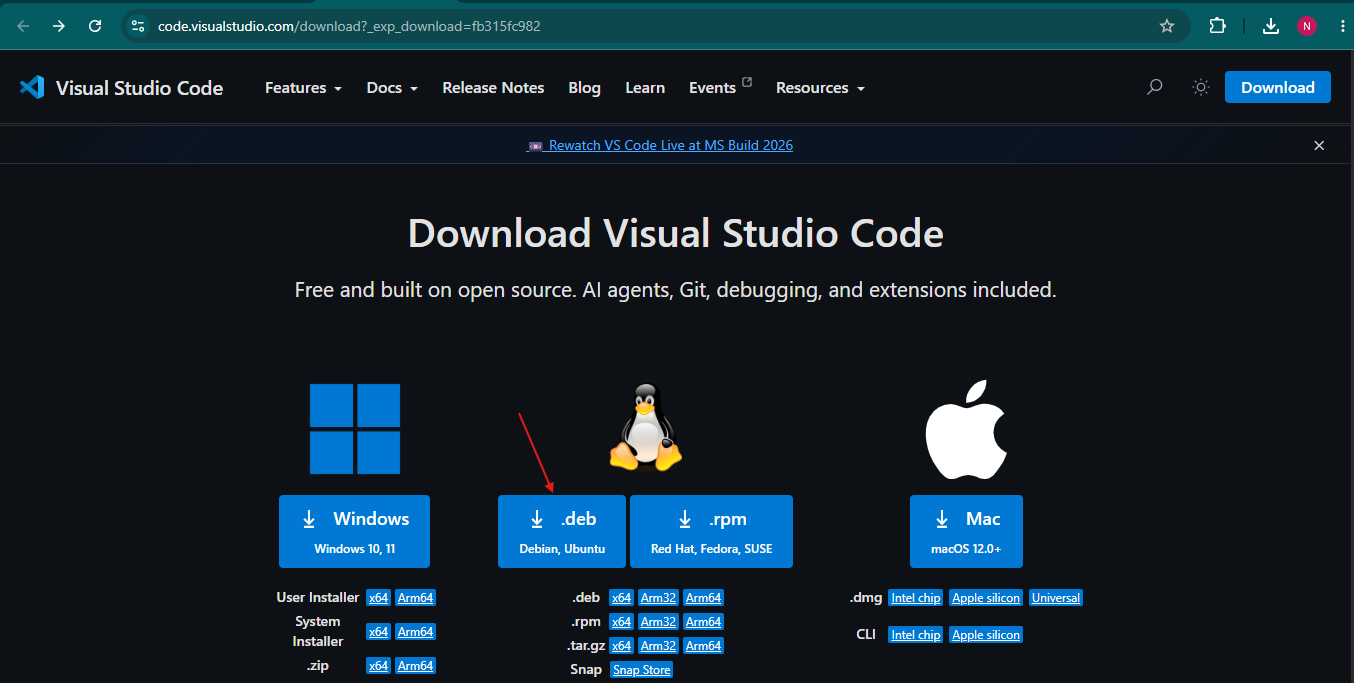
Download the VS Code Package
Visit the official VS Code download page and download the Debian package (.deb) that matches your system architecture.
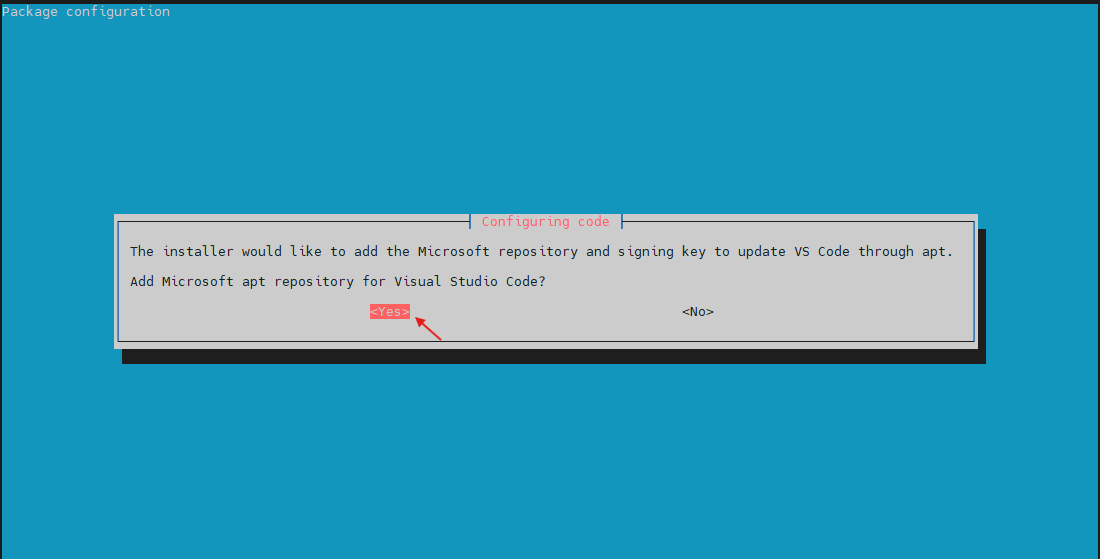
Install the Downloaded Package
Open a terminal in the directory containing the downloaded file and run:
sudo apt install ./<name_of_deb_file>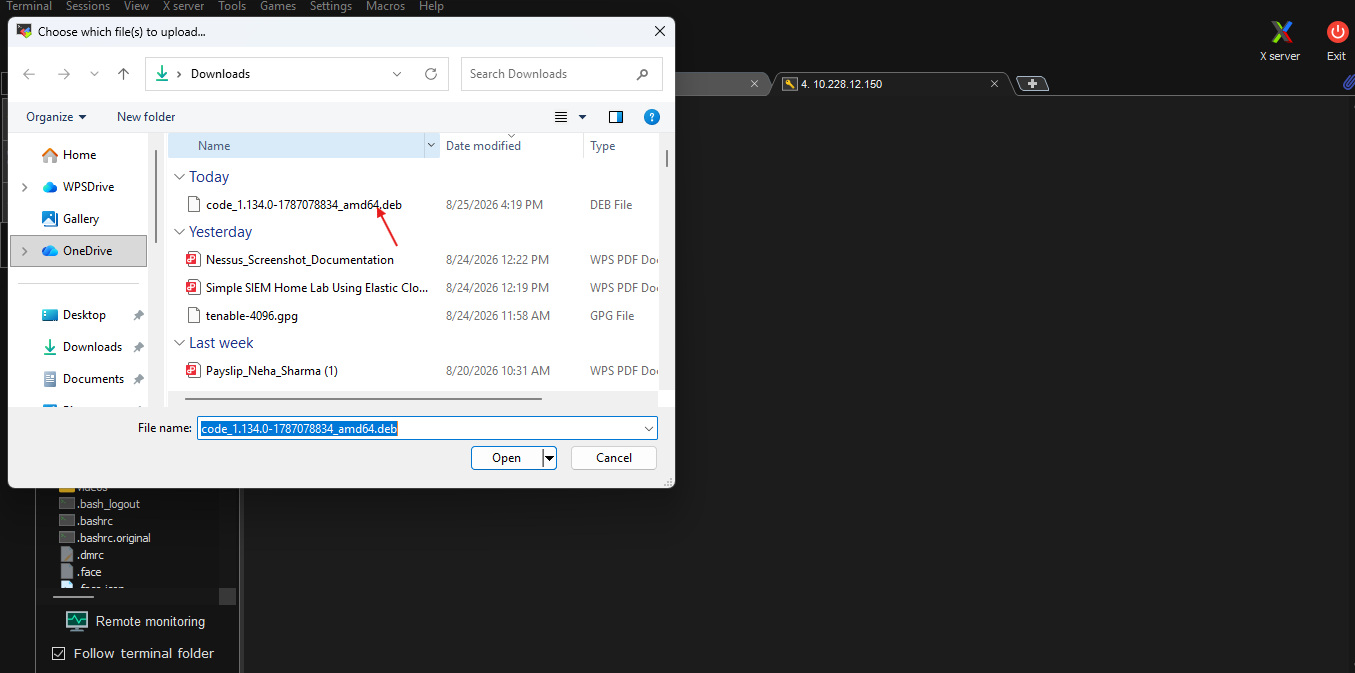
For example:
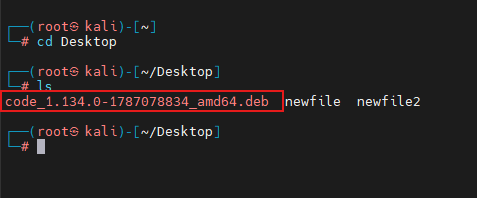
sudo apt install ./code_1.134.0-1787078834_amd64.deb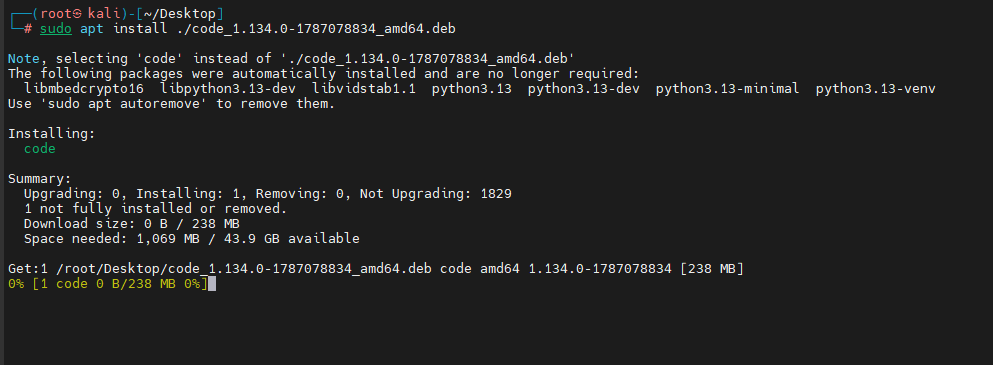
Replace the filename with the actual package you downloaded.
Launch VS Code
After installation, start Visual Studio Code from the applications menu or by entering code in the terminal.
Conclusion
Setting up essential software on Kali Linux helps transform a fresh installation into a well-rounded working environment.
By installing tools such as Tor Browser, LibreOffice, Google Chrome, Brave Browser, qBittorrent, Python, and Visual Studio Code, users can cover most of their browsing, productivity, and development requirements while maintaining the flexibility that Linux is known for.