
When investigating security incidents or analyzing malware activity, network traffic often provides some of the most valuable evidence. Wireshark is one of the most widely used packet analysis tools for examining communications between systems, identifying suspicious activity, and uncovering indicators of compromise.
In this tutorial, you’ll learn how to use common Wireshark display filters to answer key investigation questions during incident response and malware analysis. Each section includes the exact filter to use along with an explanation of what the filter helps you discover.
Prerequisites
- Wireshark installed on your system
- A packet capture file (PCAP) to analyze
- Basic familiarity with Wireshark’s interface
- Knowledge of the IP addresses involved in the investigation (where applicable)
1. Identify All Traffic Involving a Specific Host
One of the first steps in any investigation is identifying all network activity associated with a particular system, such as a compromised endpoint or victim machine.
Investigation Question
Show all traffic involving the victim system.
ip.addr == 10.228.1.179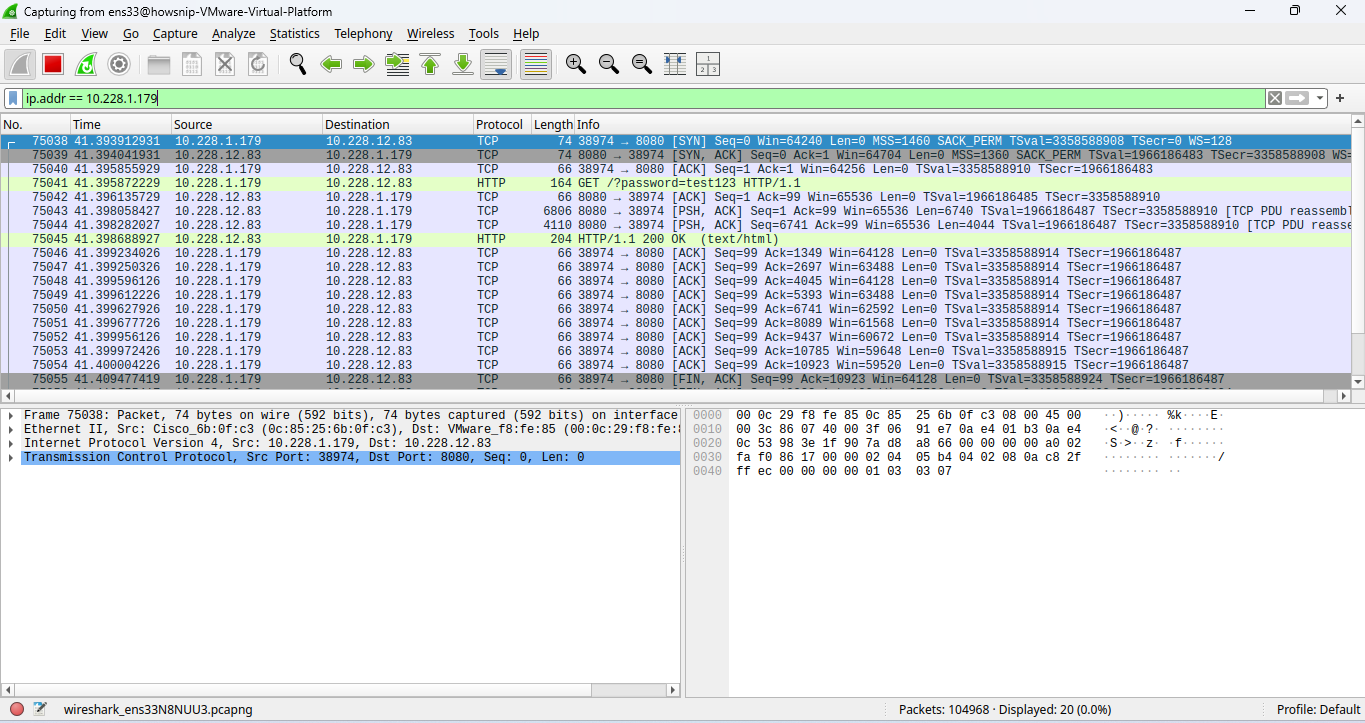
This filter displays every packet where the specified IP address appears as either the source or destination address. It provides a complete view of all communications involving the target host.
Steps
- Open the PCAP file in Wireshark.
- Enter the filter in the Display Filter bar.
- Press Enter to apply the filter.
- Review all inbound and outbound communications related to the host.
2. Show Traffic Between a Victim and an Attacker
After identifying the victim, investigators often need to isolate communications between the victim and a known suspicious system.
Investigation Question
Show only communication between the victim and attacker.
ip.addr == 10.228.1.179 && ip.addr == 10.228.12.83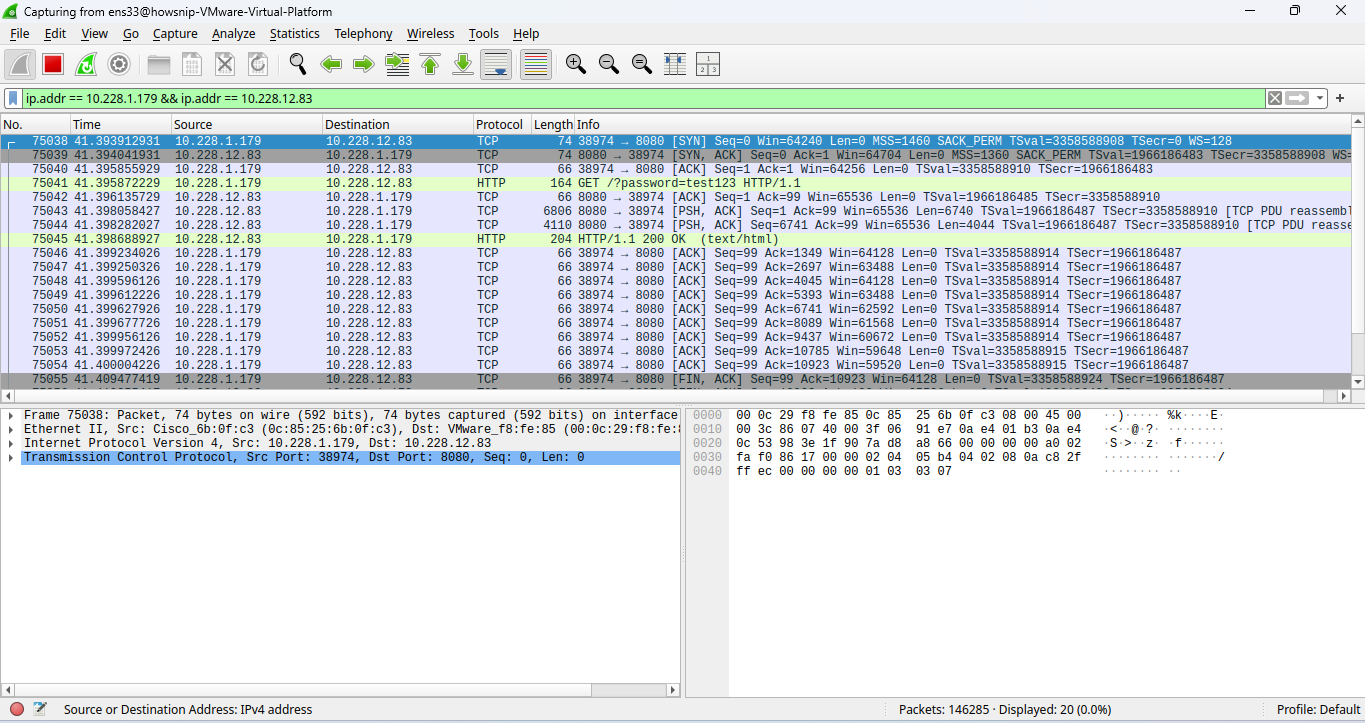
This filter displays only packets where both IP addresses are involved in the communication. It helps narrow the investigation to interactions between the victim and the suspected attacker.
Steps
- Enter the filter in the Display Filter bar.
- Apply the filter.
- Review the traffic to identify suspicious connections, data transfers, or command-and-control communications.
Also Read:
- Wireshark Investigation Guide – Essential Filters for Incident Response and Malware Analysis
- How to Use Tshark for Network Traffic Capture and Analysis
- How to Use Wireshark Filters to Analyze Network Traffic
- A Complete TCPDump Guide for Network Administrators
- 14 Essential TCPDUMP Commands Every Linux Administrator Should Know
- Top 15 Most Popular Cybersecurity Tools You Need To Know
3. Find the First Connection Between Two Hosts
Determining when communication first occurred can help establish the timeline of a compromise.
Investigation Question
What is the first time the victim communicated with the attacker?
Step 1: Apply the Host Communication Filter
(ip.addr == 10.228.1.179) && (ip.addr == 10.228.12.83)Step 2: Sort Packets by Time
Click the Time column and sort packets in ascending order so the earliest communications appear first.
Step 3: Display Full Timestamps
In Wireshark, navigate to:
View → Time Display Format → Date and Time
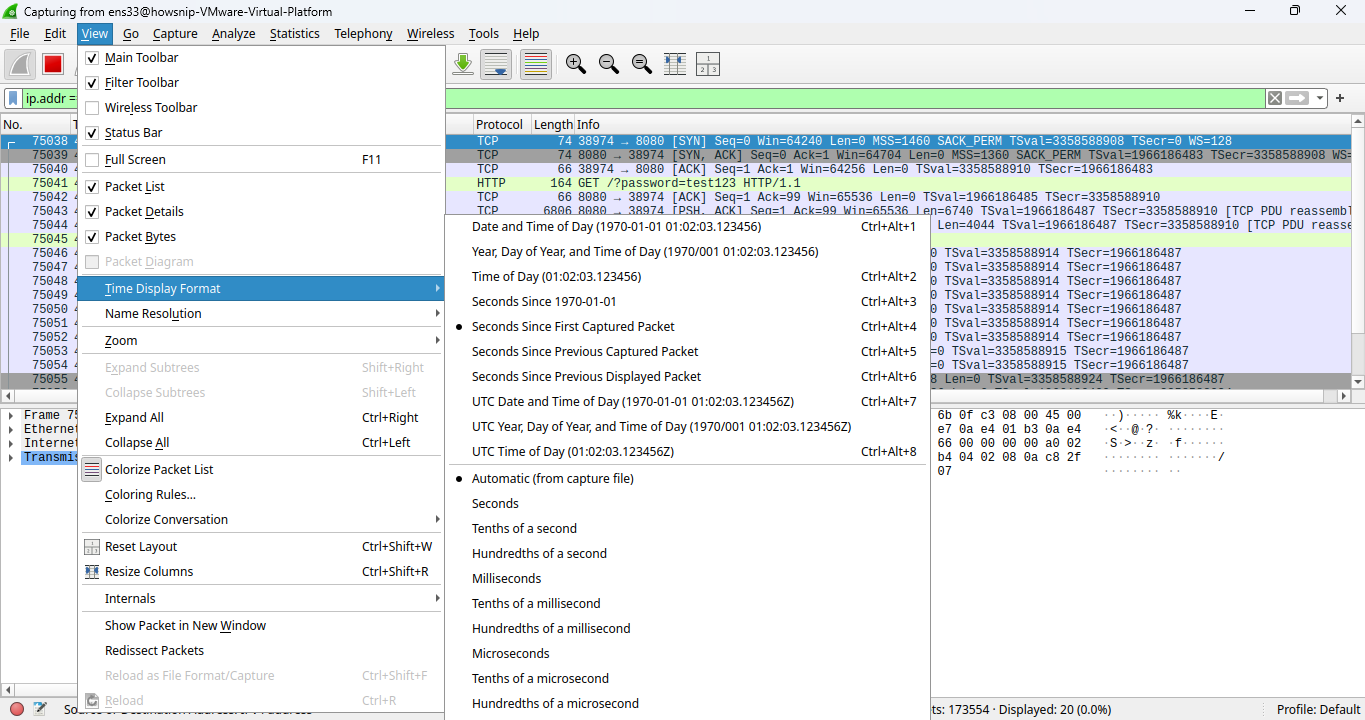
Sorting traffic chronologically allows you to identify the earliest packet exchanged between the victim and attacker, helping build an accurate incident timeline.
4. Identify DNS Queries and Visited Domains
DNS traffic can reveal which domains a system attempted to contact.
Investigation Question
What domains did the victim system query?
dns.qry.name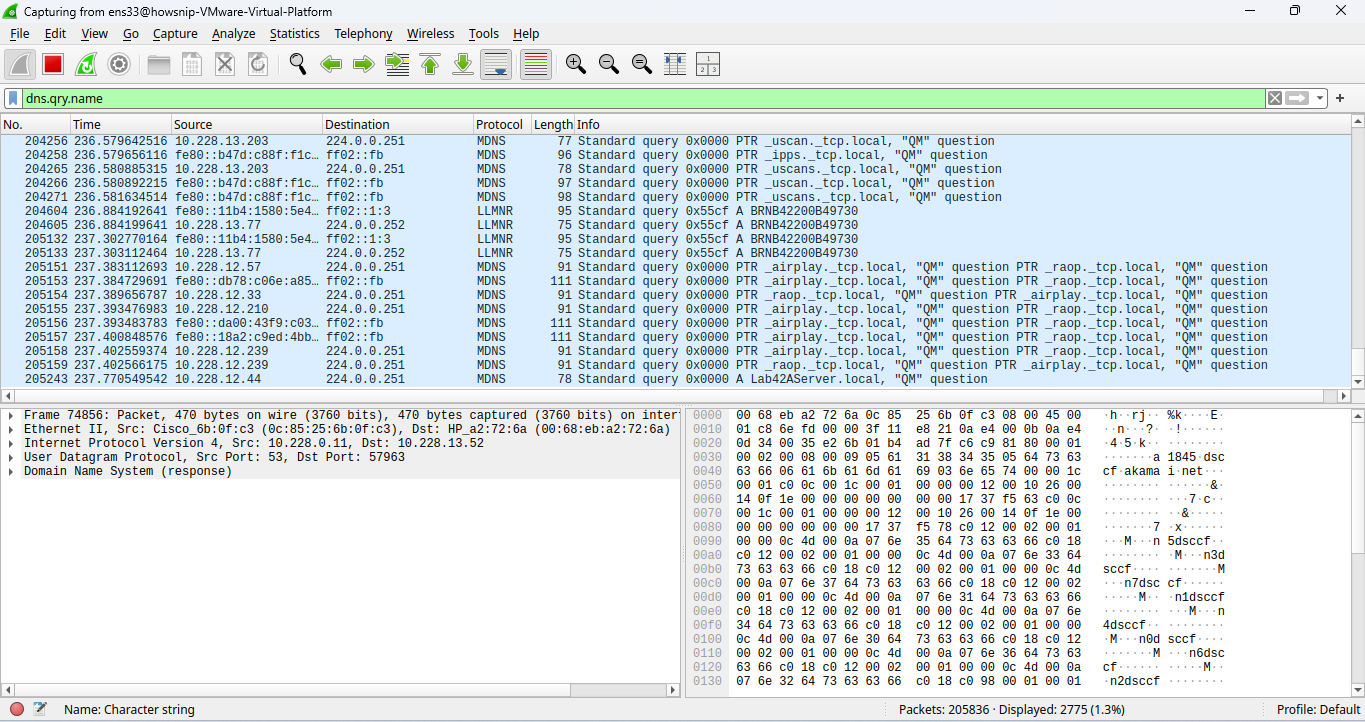
This filter displays DNS query names, allowing investigators to review domains requested by systems on the network.
Steps
- Apply the filter.
- Review the Query Name field in DNS packets.
- Look for suspicious, unusual, or unknown domains.
5. Show Only DNS Queries
When analyzing DNS activity, it can be useful to display only requests generated by clients.
Investigation Question
Show only DNS requests made by clients.
dns.flags.response == 0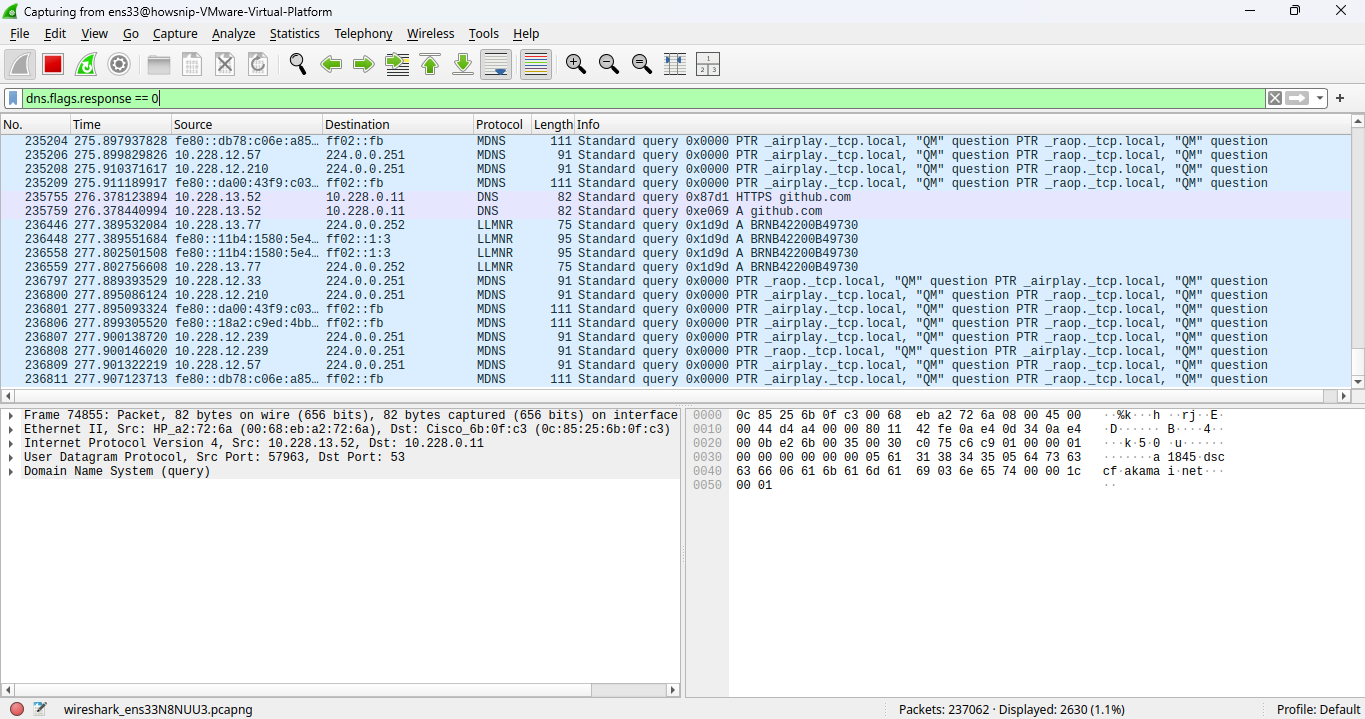
This filter displays DNS request packets and excludes server responses, making it easier to review what systems are trying to resolve.
Steps
- Enter the filter.
- Apply it to the packet capture.
- Analyze requested domains and their frequency.
6. Show Only DNS Responses
DNS responses provide visibility into how DNS servers answered client requests.
Investigation Question
Show DNS replies from DNS servers.
dns.flags.response == 1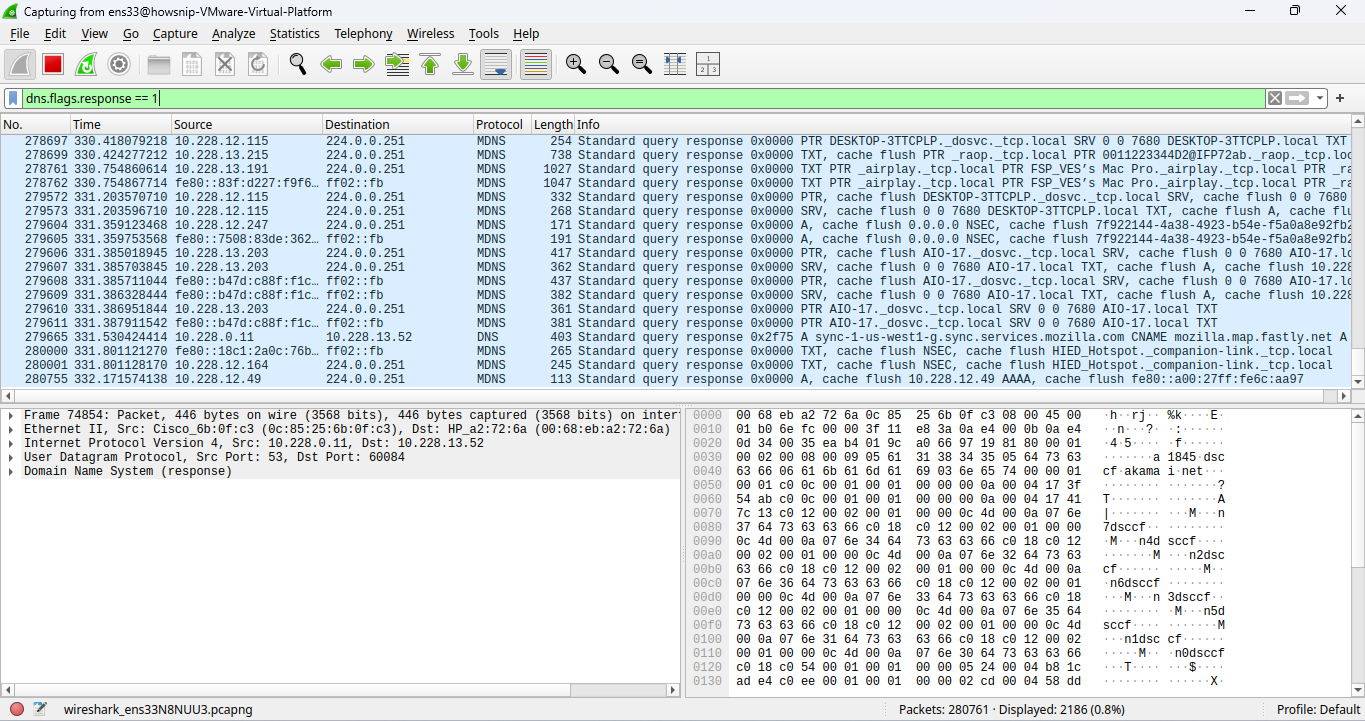
This filter displays only DNS response packets returned by DNS servers.
Steps
- Apply the filter.
- Review returned IP addresses and DNS response records.
- Compare responses with earlier DNS requests if necessary.
7. Detect Suspicious or Failed DNS Queries
Malware often attempts to contact domains that do not exist or are generated automatically.
Investigation Question
Is malware attempting to resolve random or non-existent domains?
dns.flags.rcode != 0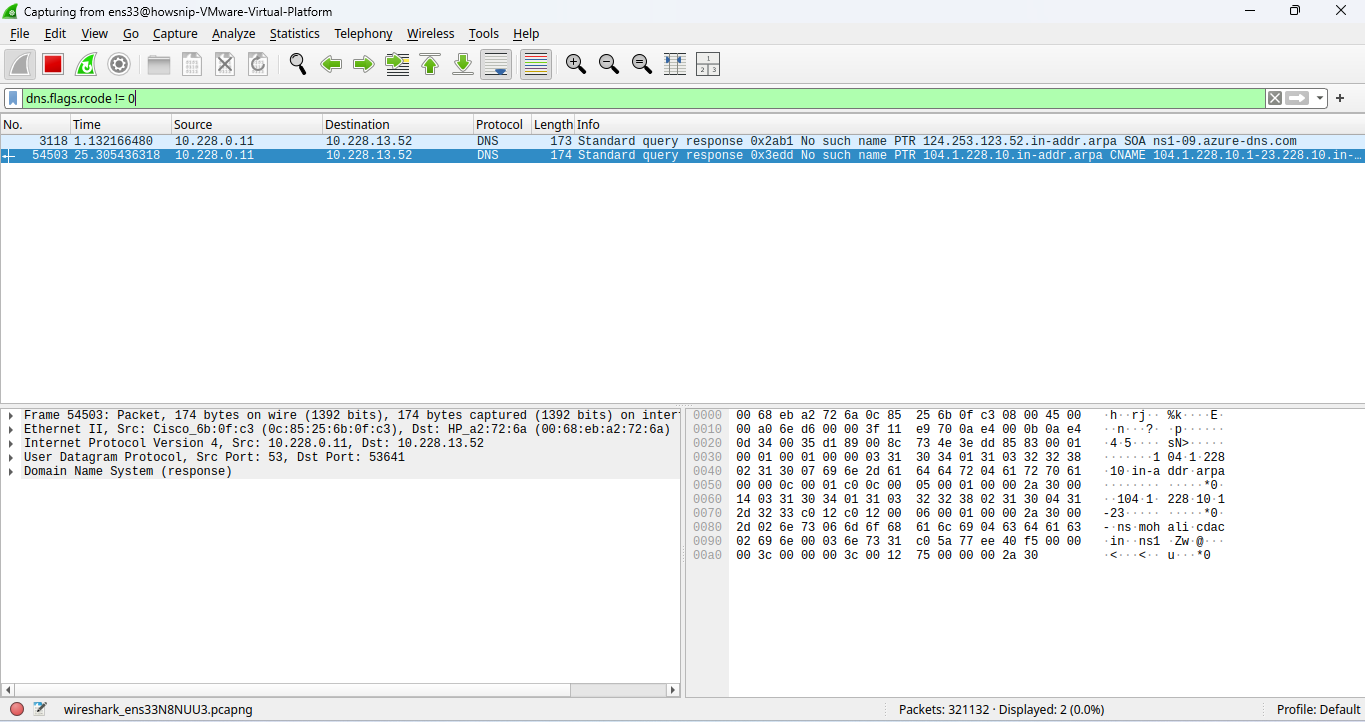
This filter displays DNS responses that contain errors instead of successful resolutions.
Common indicators include:
- Non-existent domains
- Failed lookups
- Repeated DNS resolution failures
Steps
- Apply the filter.
- Review failed DNS requests.
- Investigate recurring failed domains that may indicate malicious activity.
8. Detect Potential DNS Tunneling Activity
DNS tunneling is sometimes used to exfiltrate data or establish covert communication channels.
Note: These filters identify potentially suspicious behavior and should be validated with additional analysis.
Investigation Question
Is data being exfiltrated through DNS?
Method 1: Identify Long DNS Queries
dns.qry.name.len > 50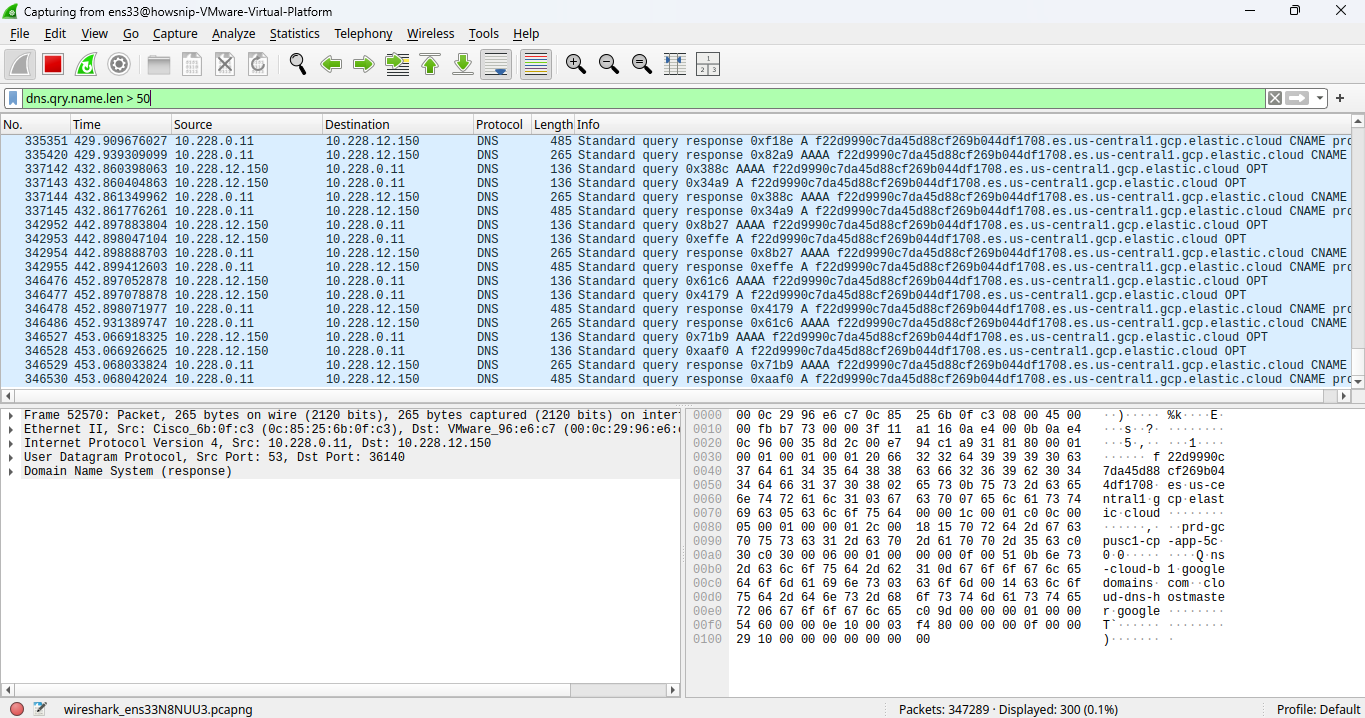
Unusually long DNS query names may indicate encoded data embedded within DNS requests.
Method 2: Look for Encoded Character Patterns
dns.qry.name matches "[A-Za-z0-9+/]{20,}"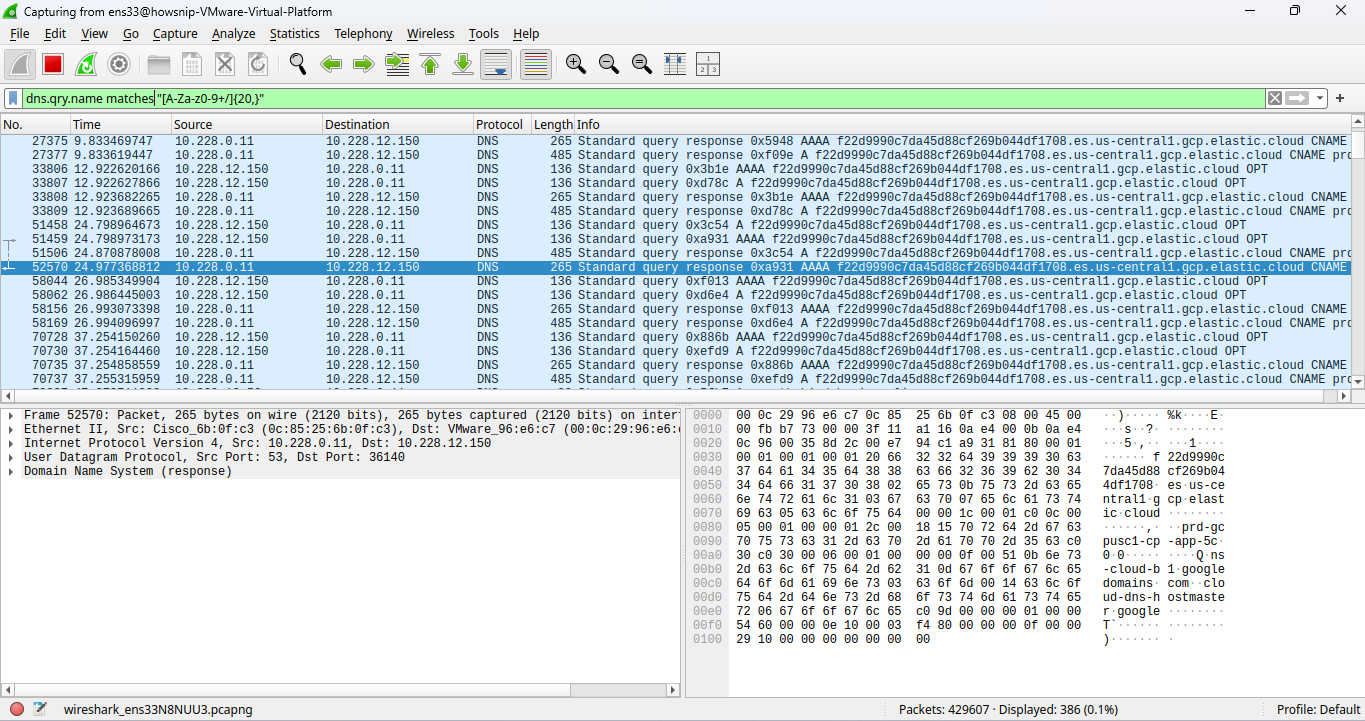
This filter searches for long alphanumeric strings that may resemble encoded payloads.
Steps
- Apply the filters individually.
- Review suspicious query names.
- Investigate repetitive, lengthy, or encoded-looking patterns.
9. Show All Web Traffic
Web traffic analysis is often required when investigating malware downloads, command-and-control activity, or user browsing behavior.
Investigation Question
Show all HTTP and HTTPS activity.
tcp.port == 80 || tcp.port == 443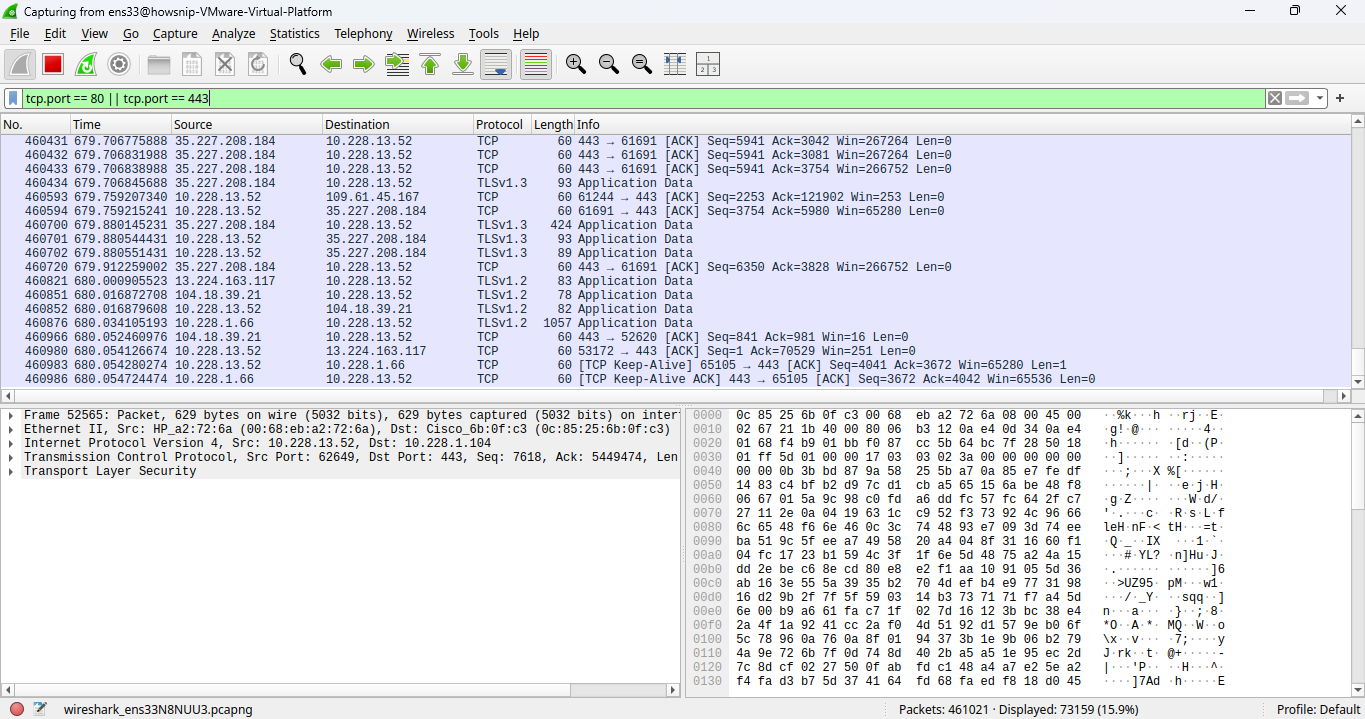
This filter displays traffic using:
- Port 80 (HTTP)
- Port 443 (HTTPS)
Steps
- Apply the filter.
- Review client-server communications.
- Identify unusual destinations or unexpected connections.
10. Show Successful HTTP Responses
Successful web responses can help investigators identify completed web requests and downloaded resources.
Investigation Question
Show successful HTTP requests.
http.response.code == 200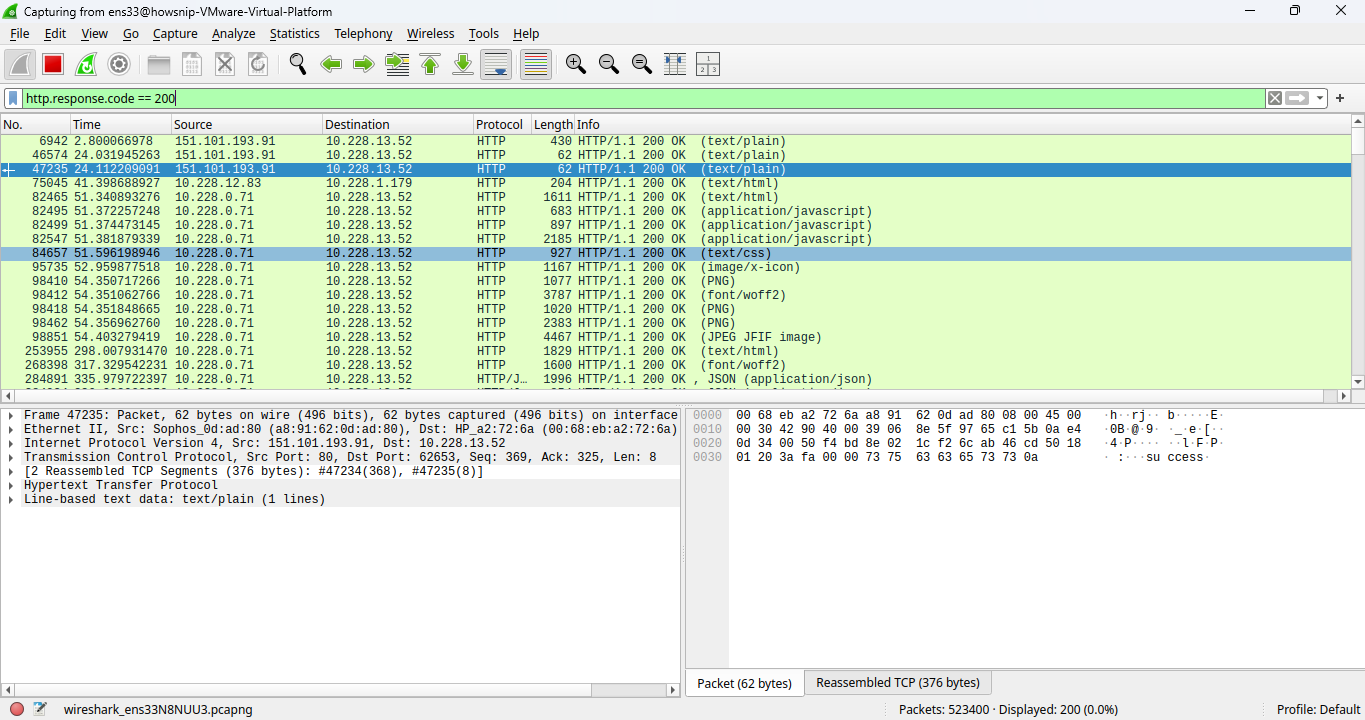
HTTP status code 200 indicates that the server successfully processed the request and returned the requested content.
Steps
- Apply the filter.
- Review successful web transactions.
- Correlate responses with associated requests when investigating downloads or web activity.
Conclusion
Wireshark provides powerful filtering capabilities that make network investigations faster and more effective. By using the filters covered in this guide, you can quickly identify communications between hosts, analyze DNS activity, detect potential tunneling attempts, review web traffic, and build accurate timelines during incident response and malware analysis.
These filters serve as a practical starting point for both beginners learning network forensics and experienced analysts conducting deeper investigations. Keep them handy as a reference during future security investigations.