
The head command is one of the most useful Linux utilities for quickly previewing file contents. Whether you’re checking a log file, examining a CSV dataset, validating command output, or inspecting a large file, head lets you view the beginning of a file without opening the entire thing.
In this tutorial, you’ll learn how to use the Linux head command with practical examples, understand its most important options, and explore common real-world use cases. This guide is suitable for both beginners and experienced Linux users.
What Is the head Command in Linux?
The head command is a standard Unix/Linux utility that displays the beginning of a file or data stream. On most Linux distributions, it is included as part of the GNU Core Utilities package.
By default, head displays the first 10 lines of a file, but you can configure it to show a specific number of lines or bytes.
Some key benefits of using head include:
- Quickly previewing large files
- Reading log files efficiently
- Sampling command output in pipelines
- Inspecting binary file headers
- Reducing unnecessary system resource usage
head Command Syntax
The basic syntax of the command is:
head [OPTION]... [FILE]...Where:
- OPTION specifies how the output should be displayed.
- FILE is the file you want to read.
Display the First 10 Lines of a File
If you run head without any options, it displays the first 10 lines of the file.
head /var/log/syslog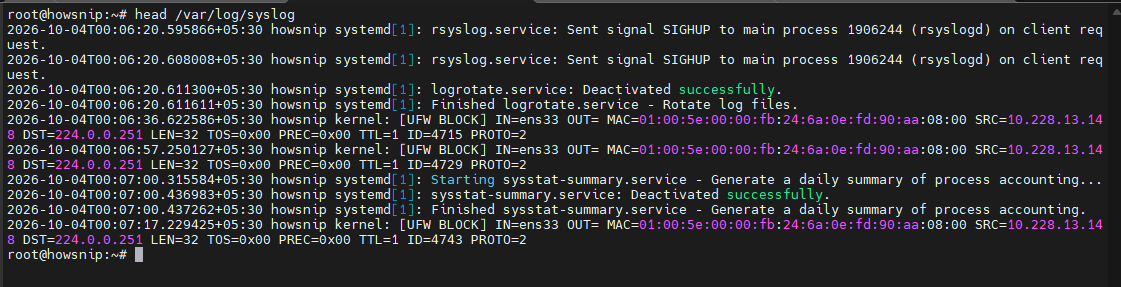
This is the fastest way to preview the beginning of a text file.
Show the First N Lines
Use the -n option to specify exactly how many lines should be displayed.
a) Display the First 20 Lines
head -n 20 /var/log/syslog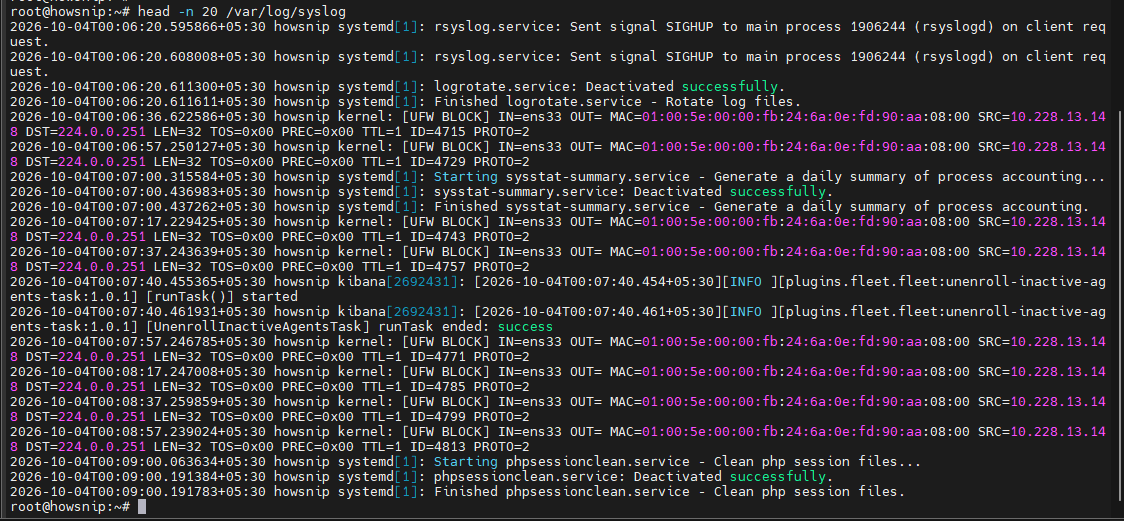
This command shows the first 20 lines of the file instead of the default 10.
b) Display the First 3 Lines of Multiple Files
head -n 3 file1.txt file2.txt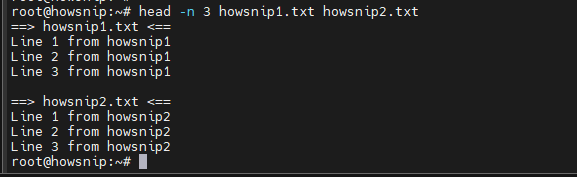
This displays the first three lines from both files.
c) Display the First N Bytes
When you need a byte-level preview rather than line-based output, use the -c option.
d) Display the First 100 Bytes
head -c 100 image.jpg > sample.bin
This copies the first 100 bytes of image.jpg into a new file named sample.bin.
e) Display the First 4 KB of a Log File
head -c 4096 /var/log/auth.log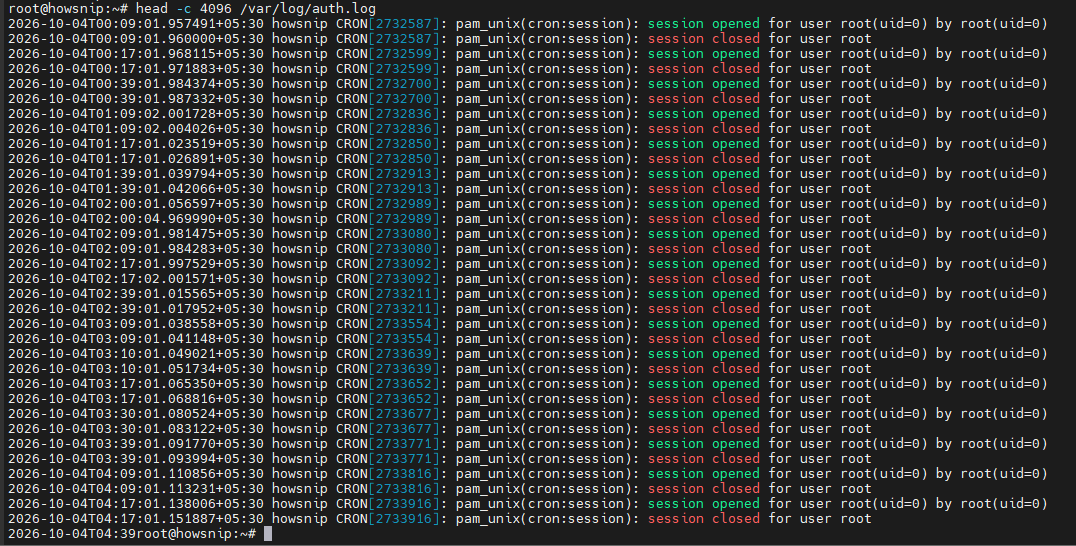
This command reads only the first 4096 bytes, which is useful when working with very large files.
Note: Byte-based previews are especially useful for binary files and performance-sensitive operations.
Read Input From Pipes
One of the most common uses of head is in command pipelines. It helps limit output to a manageable amount while testing or troubleshooting commands.
a) Preview the First 10 Error Entries
grep "failed" /var/log/auth.log | head
The grep command finds matching lines, while head displays only the first 10 results.
b) Display the First 15 Sorted Entries
sort largefile.txt | head -n 15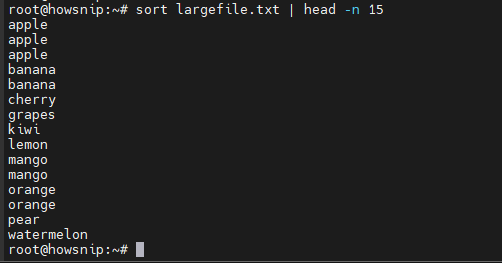
This sorts the file contents and shows only the first 15 lines.
Working With Multiple Files
When multiple files are provided, head automatically displays a header for each file.
a) Default Behavior
head -n 5 file1.txt file2.txtThe output includes file names before displaying their contents.
b) Suppress File Headers
head -q -n 5 file1.txt file2.txt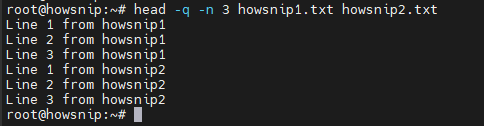
The -q (quiet) option disables file headers.
c) Force Headers
head -v file1.txt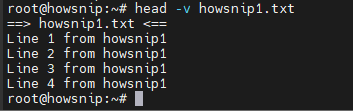
The -v (verbose) option always displays headers, even when reading a single file.
Important head Command Options
a) Show the First 25 Lines
head -n 25 report.txt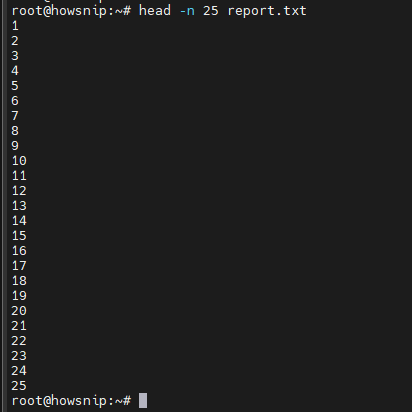
It displays the first 25 lines of the file.
b) Exclude the Last 3 Lines (GNU head)
head -n -3 report.txt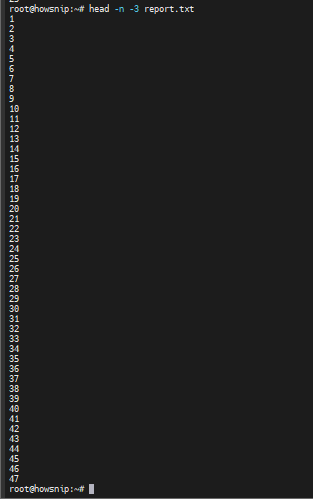
Instead of showing a fixed number of lines, this displays everything except the final three lines.
Important: Negative values are supported by GNU head but may not work on all Unix-like systems.
c) Show the First 1 MB
head -c 1M bigfile.dat
It displays the first megabyte of the file.
d) Exclude the Last 512 Bytes
head -c -512 archive.tar
Shows the file contents except the final 512 bytes.
e) Quiet Mode
head -q file1.txt file2.txtThis command suppresses file names in the output.
f) Verbose Mode
head -v file1.txtIt always displays file headers.
g) The -z Option
The -z option treats input as null (NUL) terminated instead of newline terminated. This is useful when working with filenames that contain spaces, special characters, or newlines.
find . -type f -print0 | head -z -n 10 | tr '' 'n'
This safely displays the first 10 filenames returned by find.
Note: -z is a GNU-specific extension and may not be available everywhere.
Display Help and Version Information
To view available options:
head --help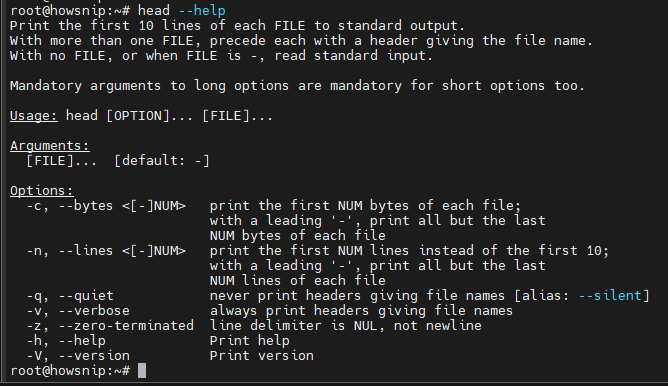
To check the installed version:
head --version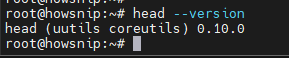
These commands are useful when verifying feature support on different systems.
Practical Use Cases of the head Command
Preview Log Files
Log files can be very large. Instead of opening the entire file, use head to inspect the beginning.
Check an Nginx Access Log
head -n 20 /var/log/auth.log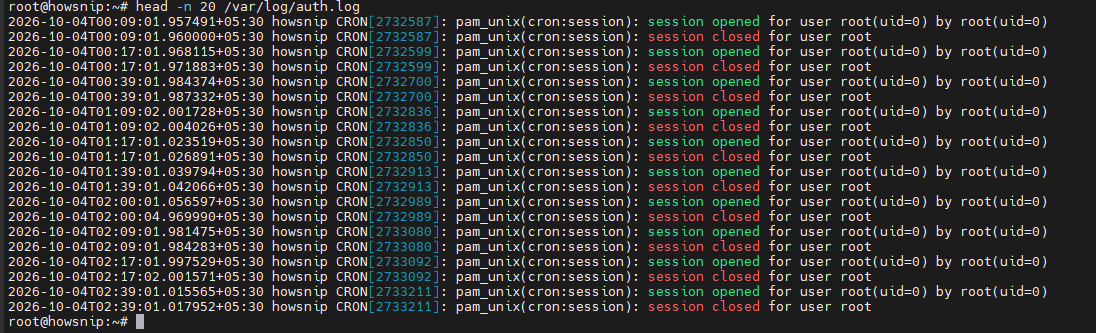
This helps verify log formatting and data structure.
Identify the Oldest Recent Log File
ls -ltr /var/log | tail -n 5 | head -n 1
This displays the first entry from the latest subset of listed files.
Check CSV File Structure
When working with datasets, it’s often useful to confirm the header row and sample records.
a) Display Header and First 10 Rows
head -n 11 data.csv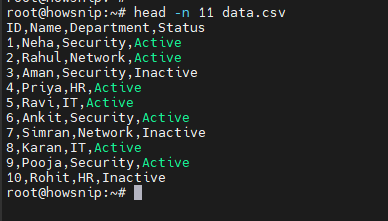
This shows the header plus ten records.
b) Inspect Raw File Data
head -c 256 data.csv | hexdump -C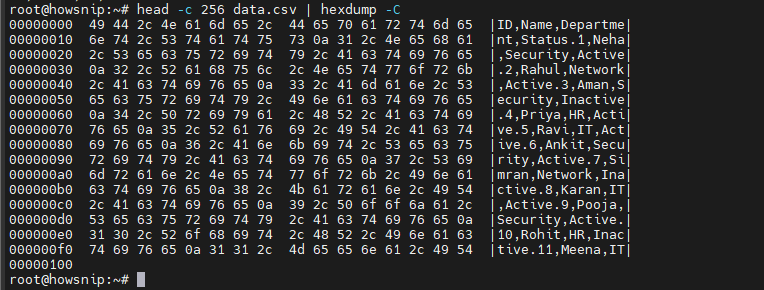
It is very useful for identifying encoding issues or malformed files.
Combine head With Other Commands
The head command acts as a convenient output limiter while building and testing pipelines.
a) Display the First 15 Error Messages
grep -i "error" app.log | head -n 15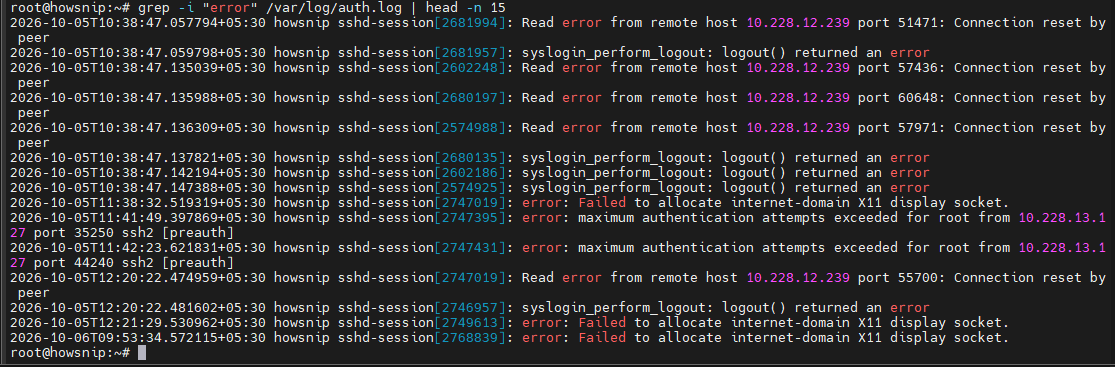
It shows only the first matching error entries.
b) Preview Unique Domains
awk -F, '{print tolower($3)}' data.csv | sort -u | head -n 50
This command extracts unique values and limits the output to 50 entries.
c) Test Text Transformations
sed 's/foo/bar/g' big.txt | head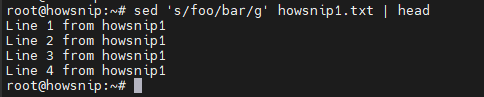
It allows you to verify transformation results without processing the full file.
Inspect Binary Files Safely
Reading a small portion of a binary file is faster and safer than opening the entire file.
a) View File Headers
head -c 64 file.bin | hexdump -C
This command shows the first 64 bytes in hexadecimal format.
b) Preview TAR Archive Headers
head -c 512 project.tar | hexdump -C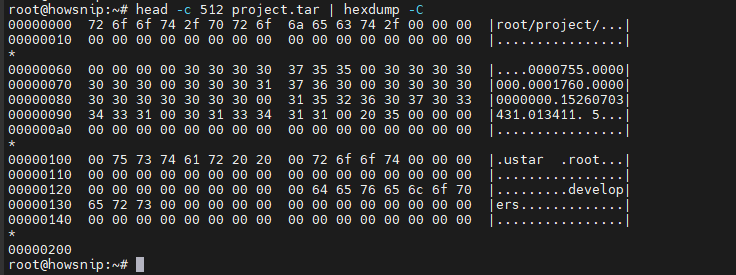
It is useful for quick archive validation without extracting files.
Use head in Scripts
The command is commonly used in automation scripts, CI/CD pipelines, and scheduled tasks.
ls -lh artifacts/ | head -n 20 > build_summary.txtThis saves a concise summary of the first 20 entries into a file.
Exclude Trailing Lines
GNU head can remove lines from the end of output.
head -n -2 file.txt
This displays all content except the last two lines.
Exclude Trailing Bytes
head -c -128 file.bin
It displays the file contents except the final 128 bytes.
Warning: Negative counts are GNU-specific features and may not be portable to all Unix systems.
Improve Performance on Large Files
When working with huge files:
Avoid patterns like:
cat bigfile.txt | headInstead, use:
head bigfile.txtThis avoids creating an unnecessary extra process. For large binary or log files, use byte-based reads with -c to minimize disk I/O.
Preview Files on Remote Servers
You can use head with SSH to inspect files on remote systems without downloading them.
ssh user@server "head -n 50 /var/log/app.log"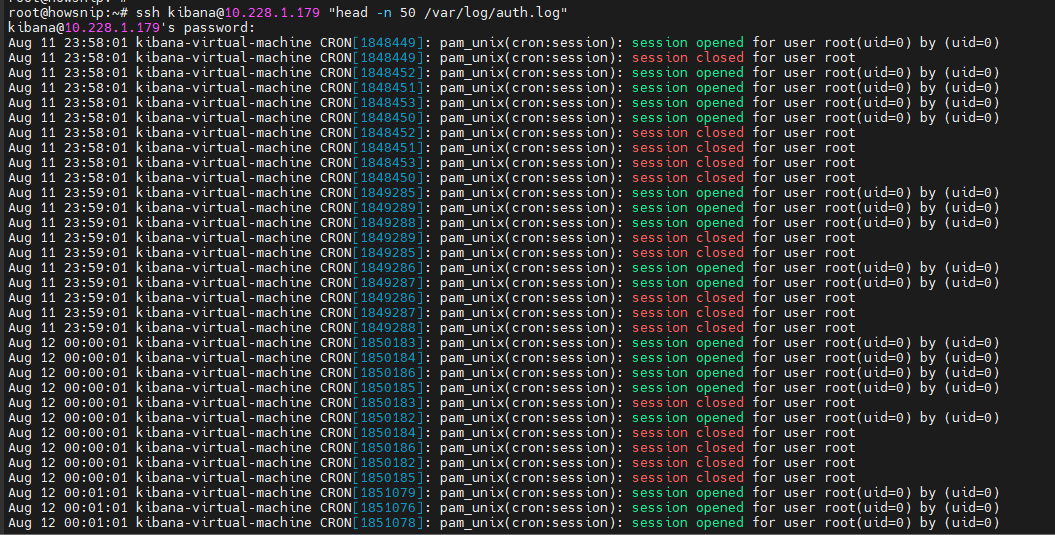
This retrieves only the first 50 lines of the remote file, reducing bandwidth usage and speeding up troubleshooting.
Conclusion
The Linux head command is a simple yet powerful utility for previewing files, sampling command output, and working efficiently with large datasets or logs. Whether you’re examining text files, inspecting binary headers, validating CSV data, or troubleshooting systems through pipelines, head provides a fast and resource-friendly way to view only the information you need.
By mastering options such as -n, -c, -q, -v, and -z, you can make file inspection and command-line workflows much more efficient.