
The Netstat command is a classic Linux networking utility used to view active network connections, listening ports, routing tables, interface statistics, and protocol information. It is especially useful when troubleshooting network services, investigating port conflicts, or monitoring system connectivity.
In this tutorial, you’ll learn how to install Netstat, understand its most commonly used options, and work through practical examples that are useful for both beginners and experienced Linux administrators.
Note: On many modern Linux distributions, the ss command is the recommended replacement for netstat. However, Netstat is still widely used in legacy environments, scripts, and quick troubleshooting tasks.
Prerequisites
Before getting started, make sure you have:
- A Linux system with terminal access
- A user account with sudo privileges (for some commands)
- Internet access for package installation
Install Netstat on Linux
The netstat utility is included in the net-tools package. If you receive a “command not found” error, install the package using your distribution’s package manager.
Debian and Ubuntu
Update package repositories and install the net-tools package:
sudo apt update && sudo apt install -y net-tools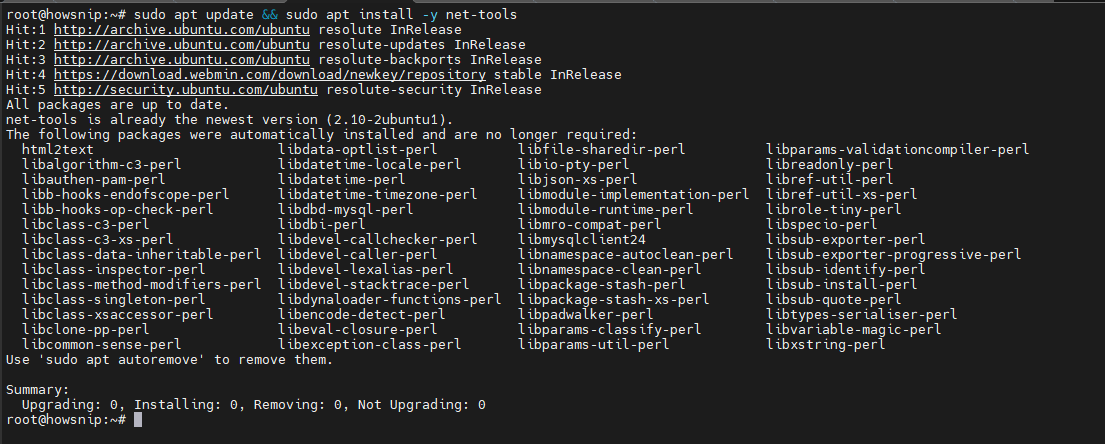
RHEL, CentOS, AlmaLinux, and Rocky Linux
Install the package using either yum or dnf depending on your system version.
sudo yum install -y net-toolsor
sudo dnf install -y net-toolsFedora
sudo dnf install -y net-toolsWhat this command does:
openSUSE
sudo zypper install -y net-toolsUnderstanding Netstat Syntax
The basic command format is:
netstat [options]Different options allow you to filter and display specific networking information.
Commonly Used Netstat Options
- -t : Display TCP connections
- -u : Display UDP connections
- -l : Show listening sockets
- -n : Show numerical IP addresses and ports without DNS lookups
- -p : Display the PID and program name associated with a connection
- -a : Show all sockets, including listening and non-listening
- -r : Display the routing table
- -i : Show network interface statistics
- -s : Display protocol statistics
- -c : Continuously refresh the output
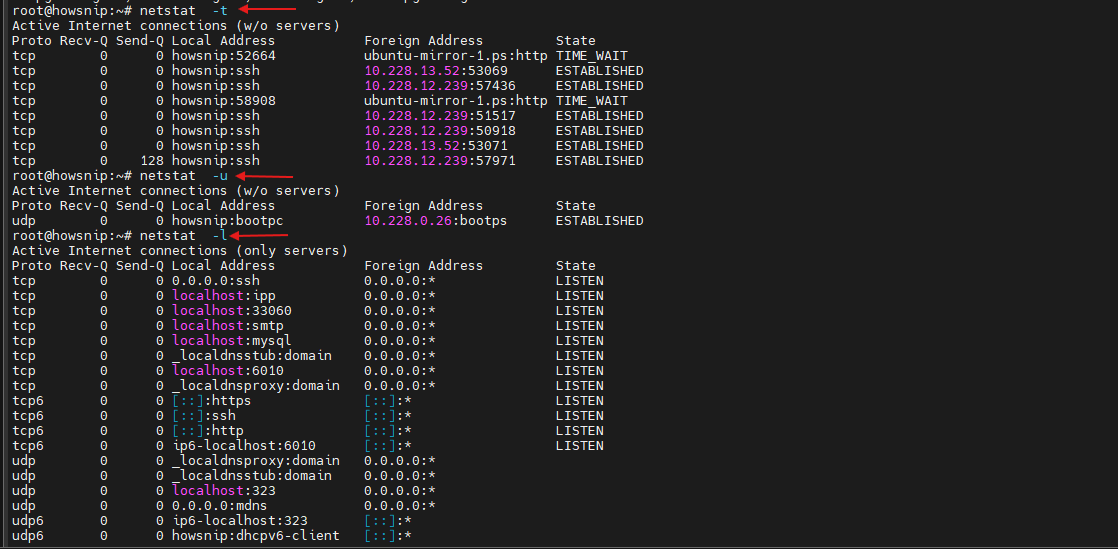
Understanding these options makes it easier to build commands for troubleshooting and monitoring network activity. The following examples demonstrate some of the most common Netstat use cases.
1. Show All Listening Ports (TCP and UDP)
Use the following command to view all services currently listening on TCP and UDP ports.
sudo netstat -tulnp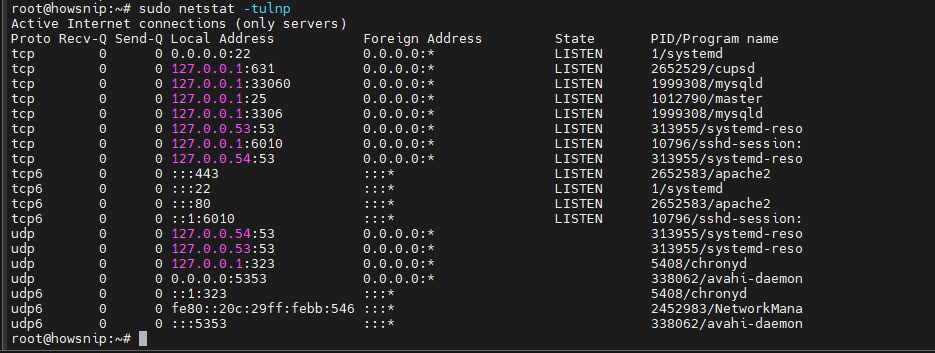
What this command does
- -t shows TCP ports.
- -u shows UDP ports.
- -l displays only listening sockets.
- -n shows numerical addresses and port numbers.
- -p displays the process ID and program name.
The Local Address column shows the IP address and port being used:
- 0.0.0.0 indicates the service is listening on all IPv4 interfaces.
- ::: indicates the service is listening on all IPv6 interfaces.
The PID/Program name column identifies the application using the port.
2. Find Which Process Is Using a Specific Port
If a service fails to start because a port is already in use, identify the process occupying that port.
sudo netstat -tulnp | grep ':80'
What this command does
- Searches Netstat output for port 80.
- Helps identify the process currently bound to that port.
You can replace 80 with any required port:
sudo netstat -tulnp | grep ':443'

sudo netstat -tulnp | grep ':3306'

sudo netstat -tulnp | grep ':6379'
Once identified, you can stop, reconfigure, or change the conflicting application.
3. List All Active Network Connections
To view all current connections and socket states:
netstat -anp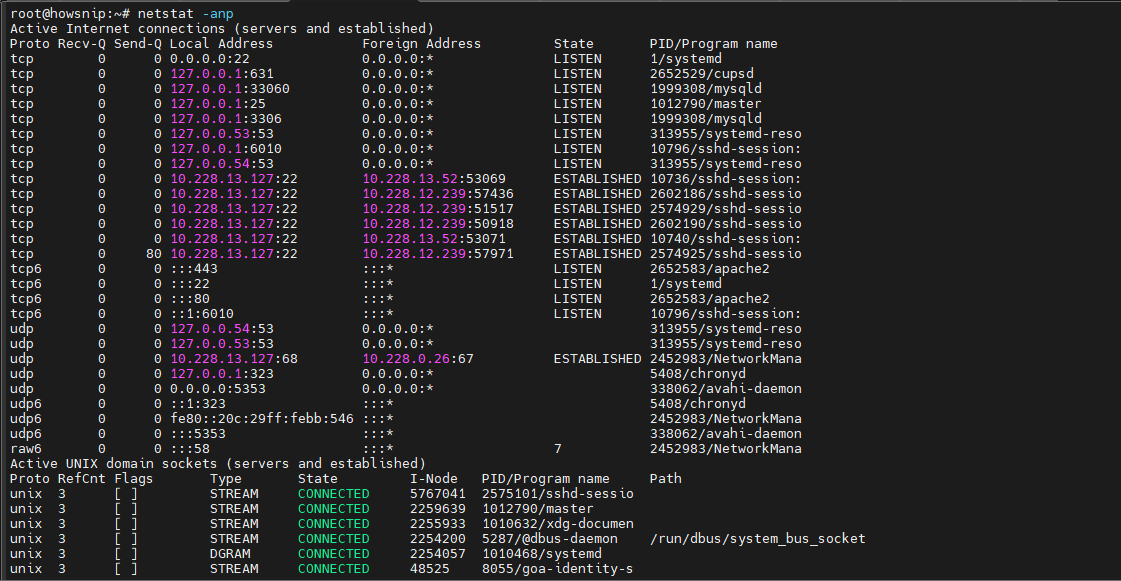
It displays all active sockets and shows connection states such as:
- ESTABLISHED
- TIME_WAIT
- CLOSE_WAIT
- LISTEN
This is useful when diagnosing high network activity or slow application performance.
Show Only Established TCP Connections
netstat -ant | grep ESTABLISHED
Explanation:
- -a shows all sockets.
- -n displays numeric values.
- -t limits output to TCP connections.
- grep ESTABLISHED filters active sessions.
4. Monitor Connections in Real Time
To continuously refresh network information:
sudo netstat -tulnp -c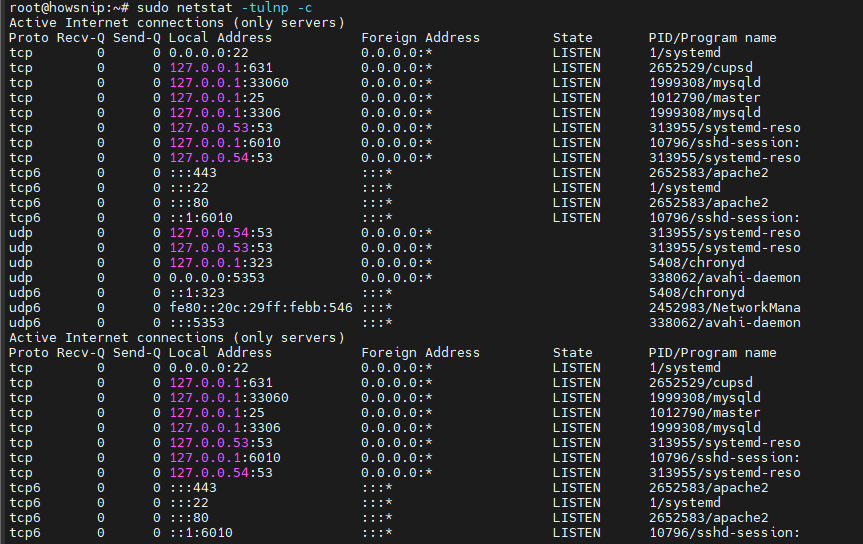
What this command does
- Updates the output automatically every second.
- Allows you to observe changes in active listening ports and services in real time.
This can be particularly helpful during:
- Application deployments
- Firewall rule testing
- Service restarts
- Connection troubleshooting
5. Display the Routing Table
Routing information helps determine how network traffic is forwarded.
netstat -rn
What this command does
- -r displays the routing table.
- -n shows numeric addresses instead of resolving hostnames.
Use this command when troubleshooting:
- Gateway issues
- Subnet routing problems
- Inter-network connectivity failures
- Cloud or VPC network routes
6. View Network Interface Statistics
Check interface performance and identify networking problems.
netstat -i
This command displays information such as:
- Packets received
- Packets transmitted
- Errors
- Dropped packets
- Interface names
Extended Interface Statistics
On many Linux distributions, you can view additional details with:
netstat -ie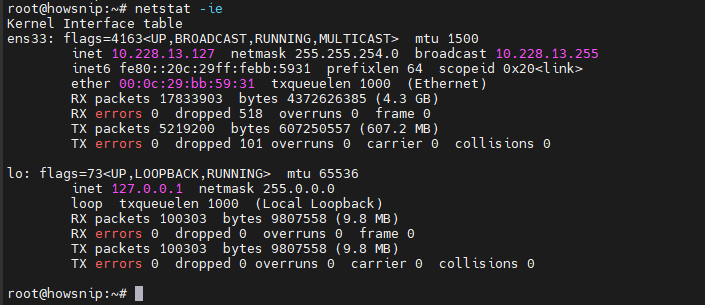
This extra information can help identify faulty network interfaces or connectivity issues.
7. View Protocol Statistics
To display statistics for protocols such as TCP, UDP, and ICMP:
netstat -s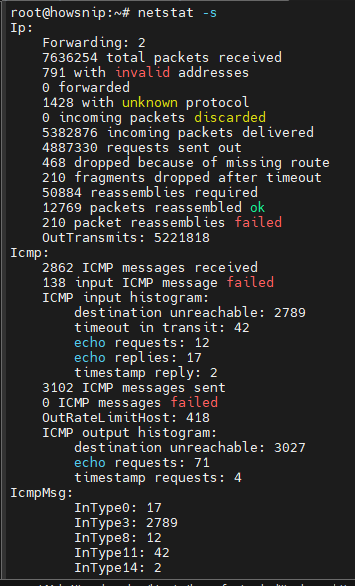
It shows protocol-level metrics including:
- Connection attempts
- Retransmissions
- Packet errors
- Failed connections
- Protocol activity statistics
Filter TCP Statistics Only
netstat -s | grep -i tcp -A 10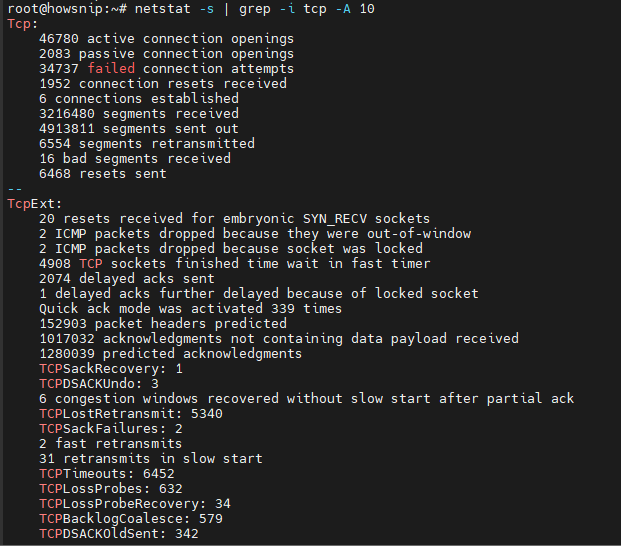
Explanation:
- grep -i tcp searches for TCP-related statistics.
- -A 10 displays the next 10 lines after the match.
This is useful when investigating network performance issues or TCP connection problems.
8. Show UNIX Domain Sockets
Many local services communicate through UNIX domain sockets rather than TCP/IP networking.
sudo netstat -ax --unix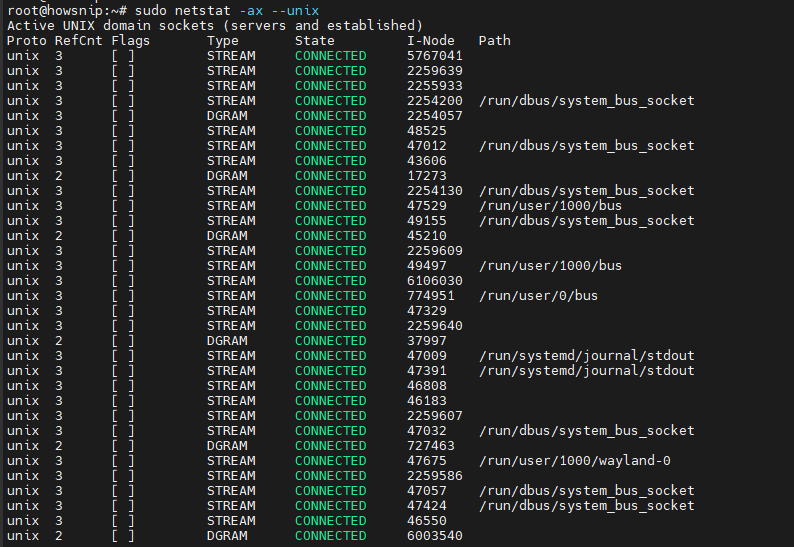
What this command does
- -a displays all sockets.
- -x shows UNIX domain sockets.
- –unix limits output to UNIX socket information.
Common services that use UNIX sockets include:
- Docker
- systemd
- Database services
- Local inter-process communication (IPC)
9. Display Program Names for Connections
To associate active connections with the processes that own them:
sudo netstat -plant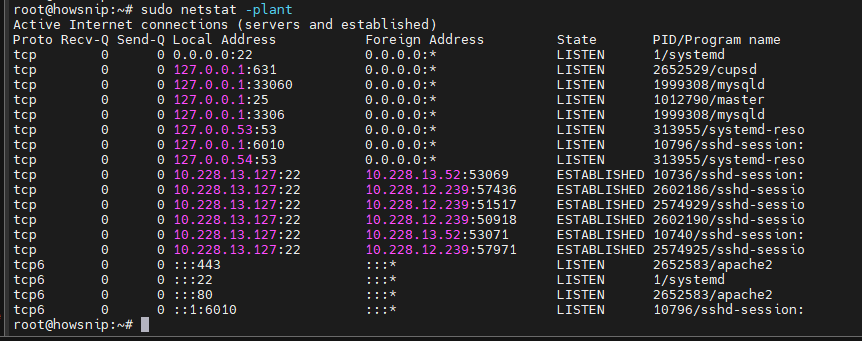
What this command does
- -p shows PID and program name.
- -l displays listening sockets.
- -a shows all sockets.
- -n disables hostname lookups.
- -t limits output to TCP connections.
This command makes troubleshooting significantly easier because you can immediately see which application owns a connection.
10. Continuously Monitor Specific Ports
When starting or troubleshooting services, you may want to watch specific ports in real time.
sudo netstat -tulnp -c | grep -E '(:80|:443)'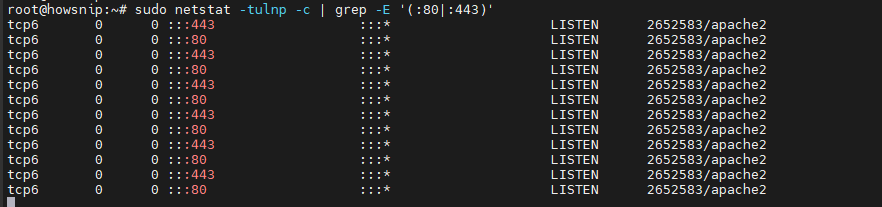
What this command does
- Continuously monitors active listening ports.
- Filters output to display only ports 80 and 443.
- Helps confirm that web services are listening on the expected interfaces and ports.
This is particularly useful after:
- Starting a web server
- Changing configuration files
- Deploying a new application
- Updating firewall rules
Conclusion
The Netstat command remains a valuable tool for Linux network troubleshooting and monitoring. Whether you need to identify listening ports, find which process is using a specific port, inspect routing information, or analyze protocol statistics, Netstat provides quick visibility into your system’s network activity.
Although many newer Linux distributions recommend the ss command, Netstat continues to be useful for administrators, developers, and anyone working with legacy systems or existing automation scripts.
By mastering the examples in this guide, you can diagnose common networking issues faster and better understand how services communicate on your Linux machine.