

TCPDump is one of the most widely used command-line tools for capturing and analyzing network traffic on Linux and Unix-based systems. Whether you’re troubleshooting connectivity issues, monitoring network activity, or investigating security incidents, TCPDump provides a powerful way to inspect packets directly from the terminal.
In this tutorial, you’ll learn how to use common TCPDump commands to capture, filter, save, and analyze network packets. The examples are suitable for beginners while also covering several advanced filtering techniques used by network administrators and security professionals.
Prerequisite: TCPDump must be installed on your system, and you may need administrative or root privileges to capture packets on network interfaces.
- Capture Packets on a Specific Network Interface
- Capture Packets with Detailed Output
- View Packets in HEX and ASCII Format
- Save Captured Traffic to a PCAP File
- Read Packets from a Saved Capture File
- Display IP Addresses Instead of Hostnames
- Filtering Traffic by IP Address
- Filter Traffic by Port
- Capture Traffic for an Entire Network
- Filter Packets by Size
- Advanced TCPDump Filtering
- Capture Traffic from a Specific Host to a Specific Port
- Capture Traffic Between Multiple Networks
- Capture Traffic While Excluding a Specific Port
- Use Parentheses in Complex Filters
1. Capture Packets on a Specific Network Interface
To start capturing packets on a particular interface, use the -i option followed by the interface name.
tcpdump -i ens33This command captures all traffic flowing through the ens33 interface.
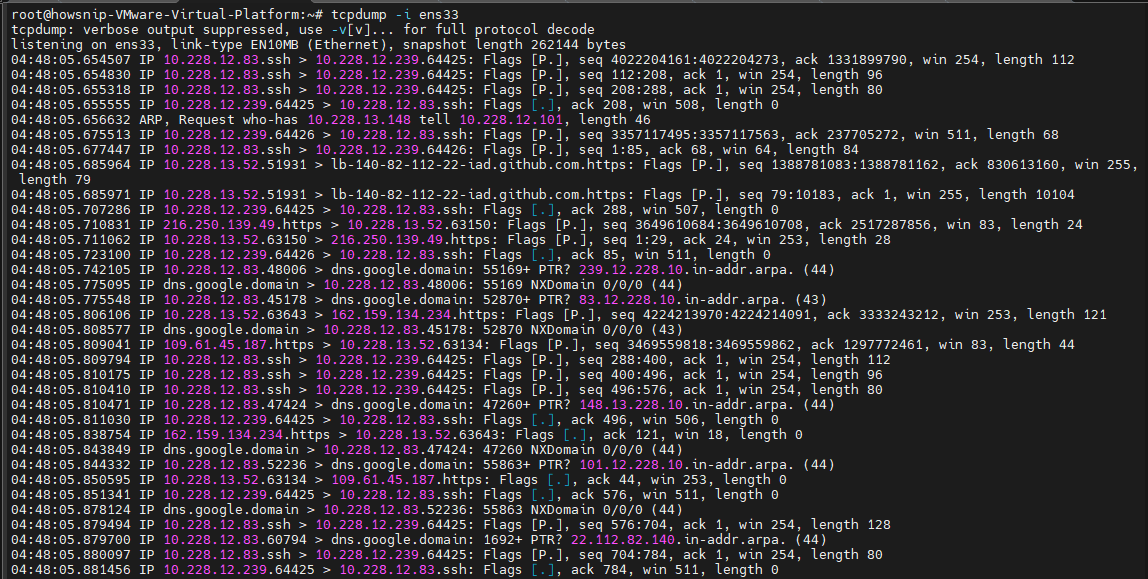
Note: If your system only has a single active network interface, running tcpdump without the -i option may also work.
2. Capture Packets with Detailed Output
For more detailed packet information, combine several output options.
tcpdump -i ens33 -nnvvS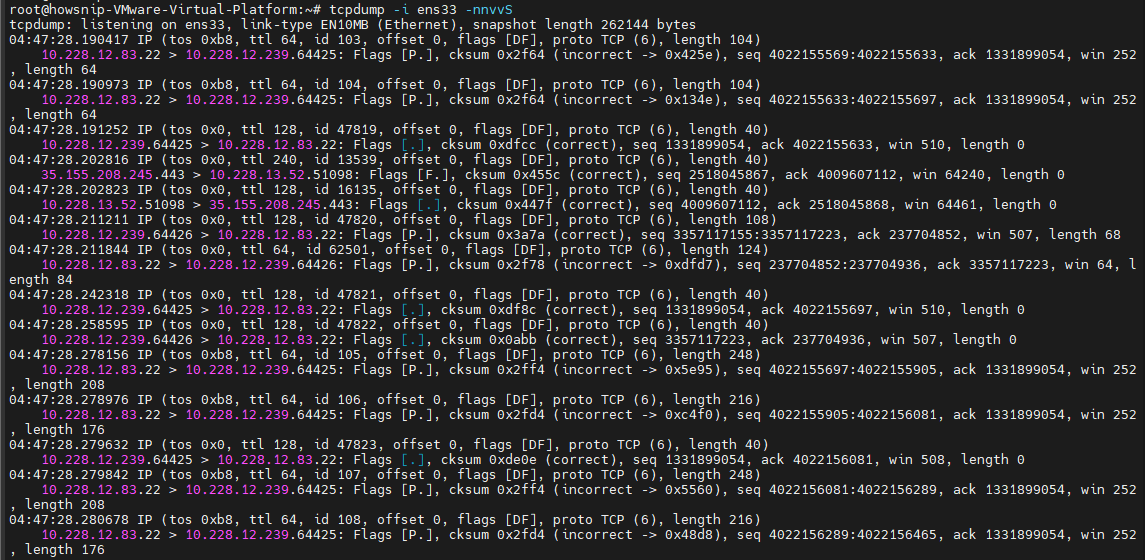
Here’s what these options do:
- -n prevents hostname resolution.
- -nn prevents both hostname and service name resolution.
- -vv increases verbosity.
- -S displays absolute TCP sequence numbers.
This output is useful when troubleshooting network connections and protocol behavior.
3. View Packets in HEX and ASCII Format
To inspect packet contents in both hexadecimal and ASCII formats, use:
tcpdump -XX -i ens33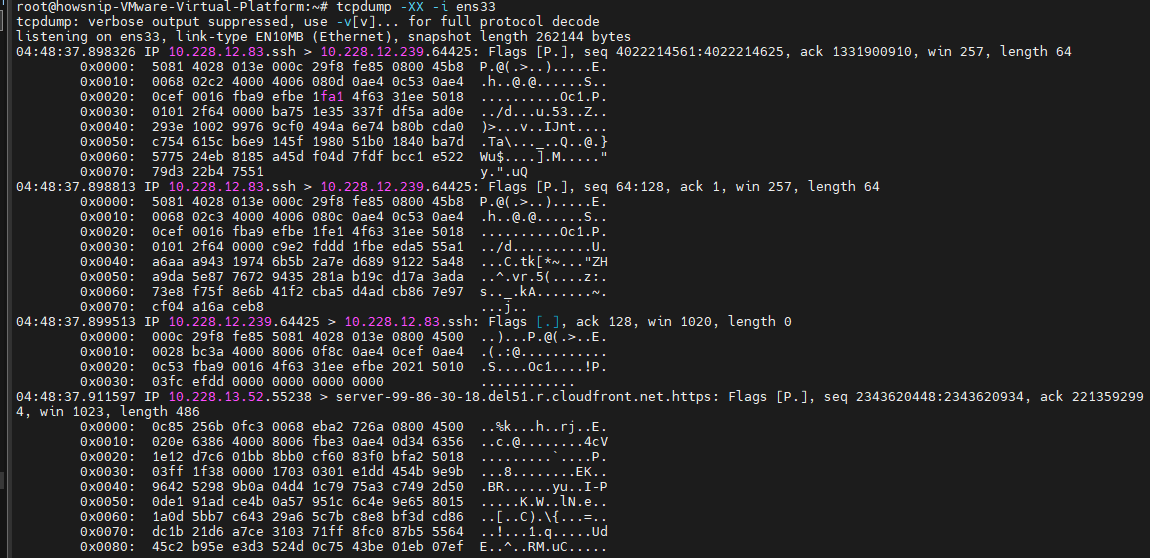
This command helps when examining packet payloads or troubleshooting application-level communication.
4. Save Captured Traffic to a PCAP File
You can write captured packets to a file for later analysis.
tcpdump -w filename.pcap -i ens33
The resulting .pcap file can be opened with tools such as Wireshark or other packet analysis applications.
Important: Saving traffic to a file is often preferable when investigating issues that require deeper analysis later.
5. Read Packets from a Saved Capture File
To review packets from a previously saved capture:
tcpdump -tttt -r savedfile.pcap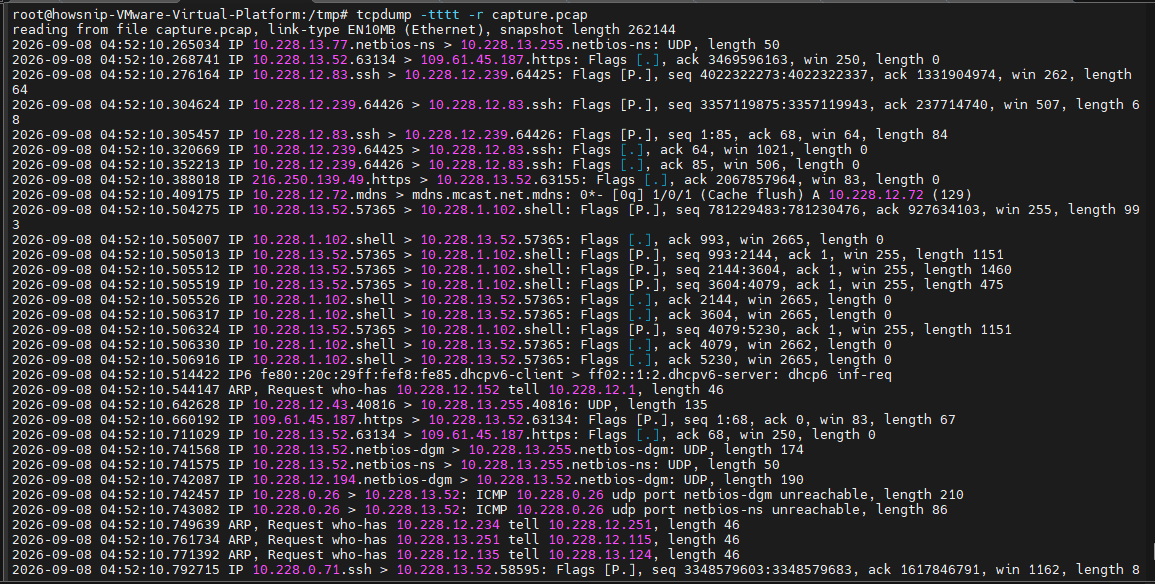
Command options:
- -r reads packets from a capture file.
- -tttt displays a detailed timestamp for each packet.
This is useful when reviewing historical network activity without performing a live capture.
6. Display IP Addresses Instead of Hostnames
To avoid DNS lookups and display only IP addresses:
tcpdump -n -i ens33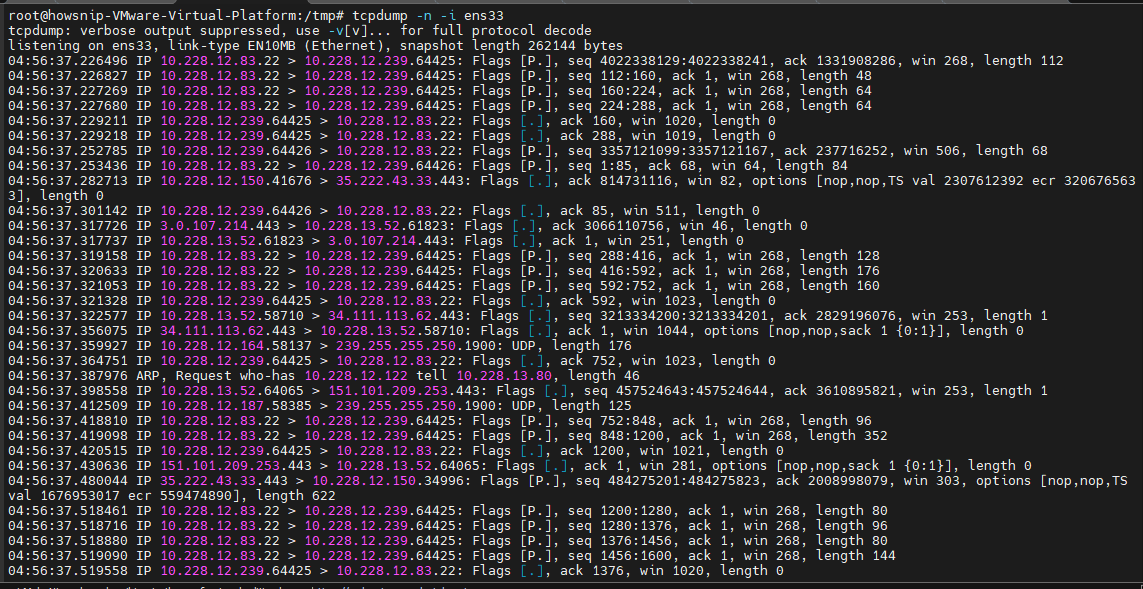
Disabling name resolution can make output easier to read and improve capture performance.
7. Filtering Traffic by IP Address
One of TCPDump’s most useful features is the ability to filter traffic.
a) Capture Traffic from a Specific Source IP
tcpdump src 192.168.1.1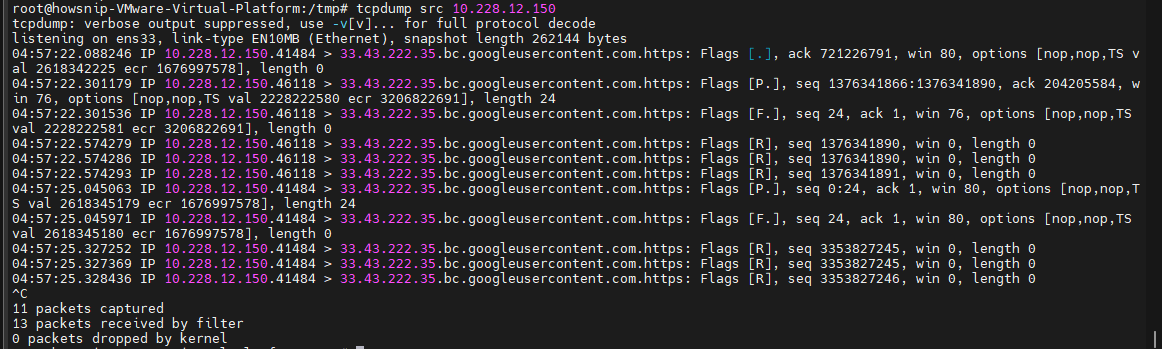
This displays packets originating from 192.168.1.1.
b) Capture Traffic to a Specific Destination IP
tcpdump dst 192.168.1.1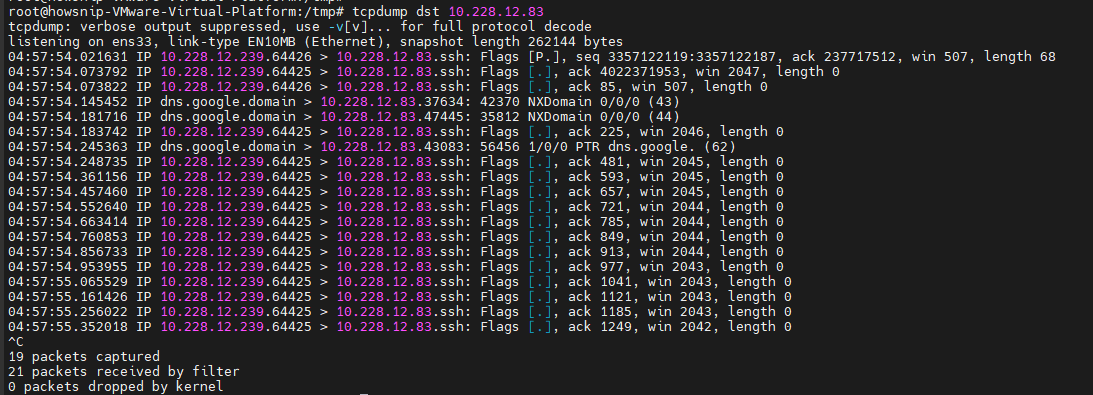
This displays packets being sent to 192.168.1.1.
8. Filter Traffic by Port
a) Capture Traffic from a Source Port
tcpdump src port 53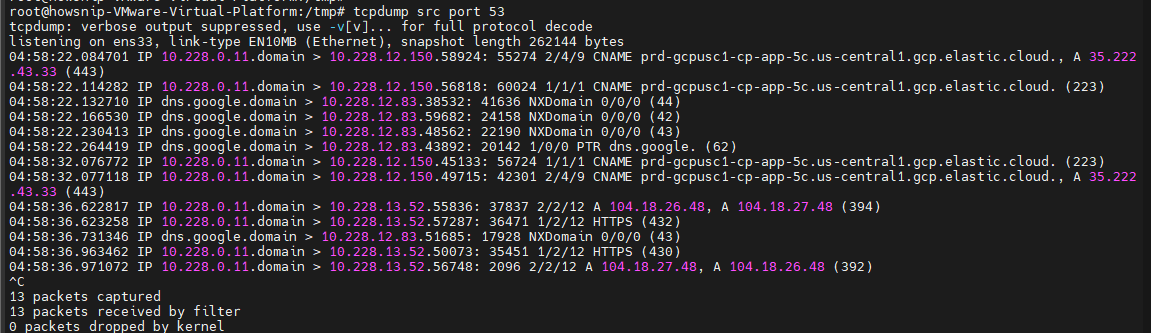
This captures traffic originating from port 53, commonly used by DNS servers.
b) Capture Traffic to a Destination Port
tcpdump dst port 22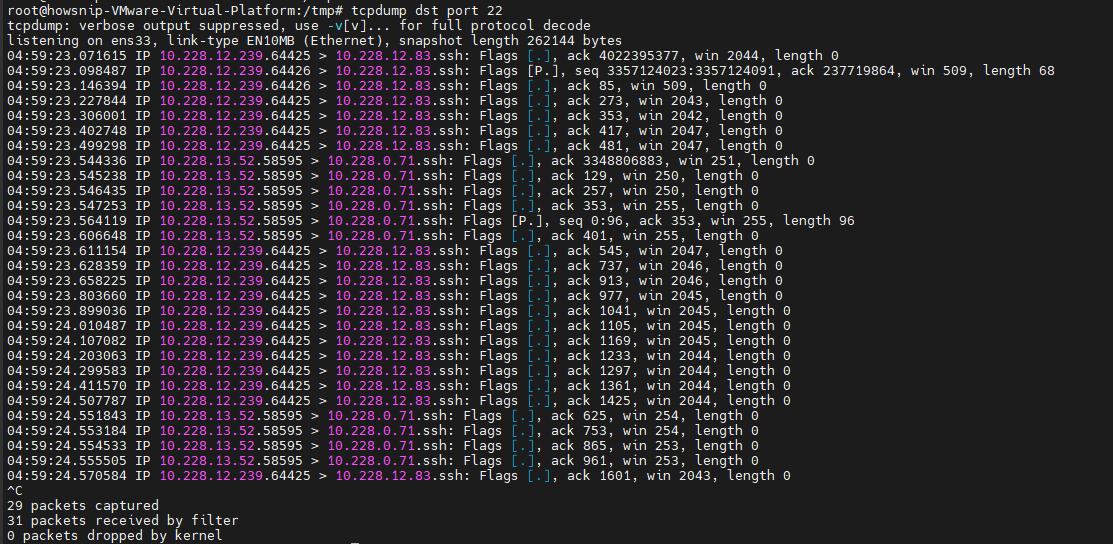
This captures packets destined for port 22.
c) Capture Traffic To or From a Port
tcpdump port 8080This captures all traffic using port 8080, regardless of direction. This type of filtering is often used when monitoring application-specific traffic.

9. Capture Traffic for an Entire Network
You can monitor traffic for a subnet using CIDR notation.
tcpdump net 10.228.12.0/24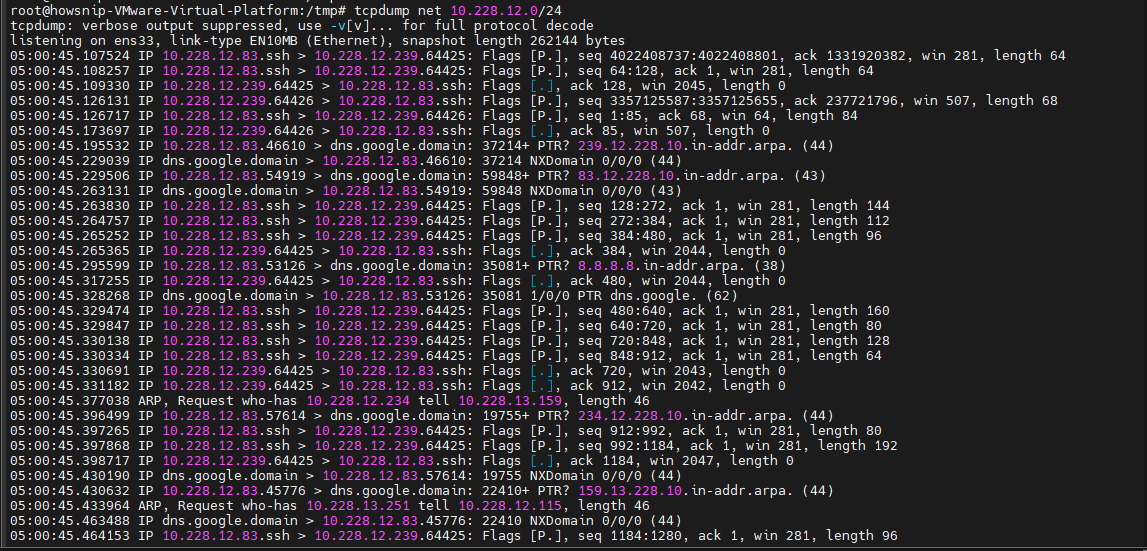
This captures traffic associated with the 192.168.1.0/24 network.
10. Filter Packets by Size
TCPDump can filter packets based on their size.
a) Show Packets Smaller Than 64 Bytes
tcpdump less 64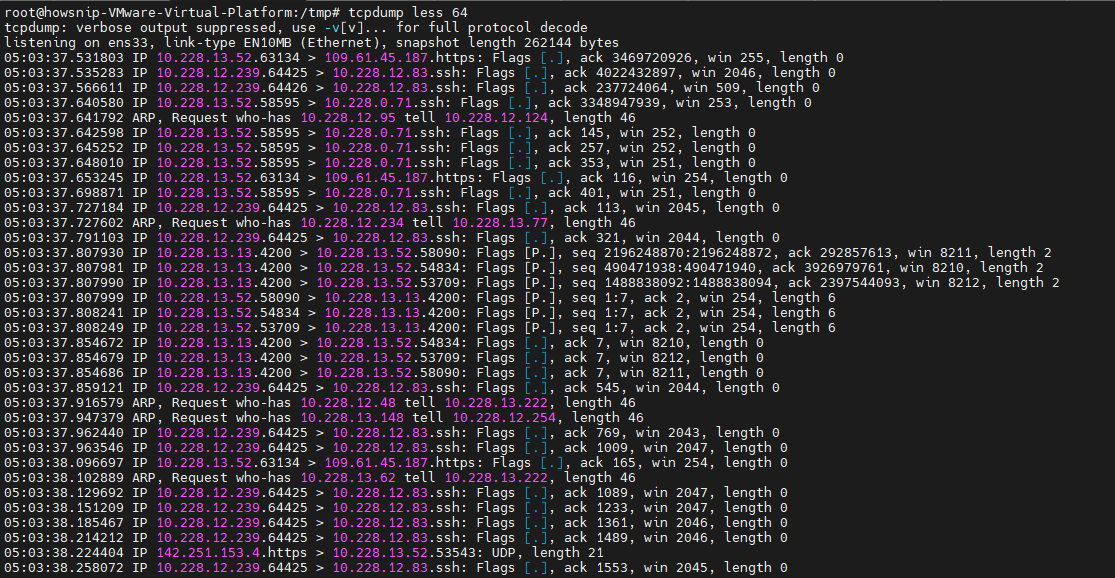
b) Show Packets Larger Than 256 Bytes
tcpdump greater 256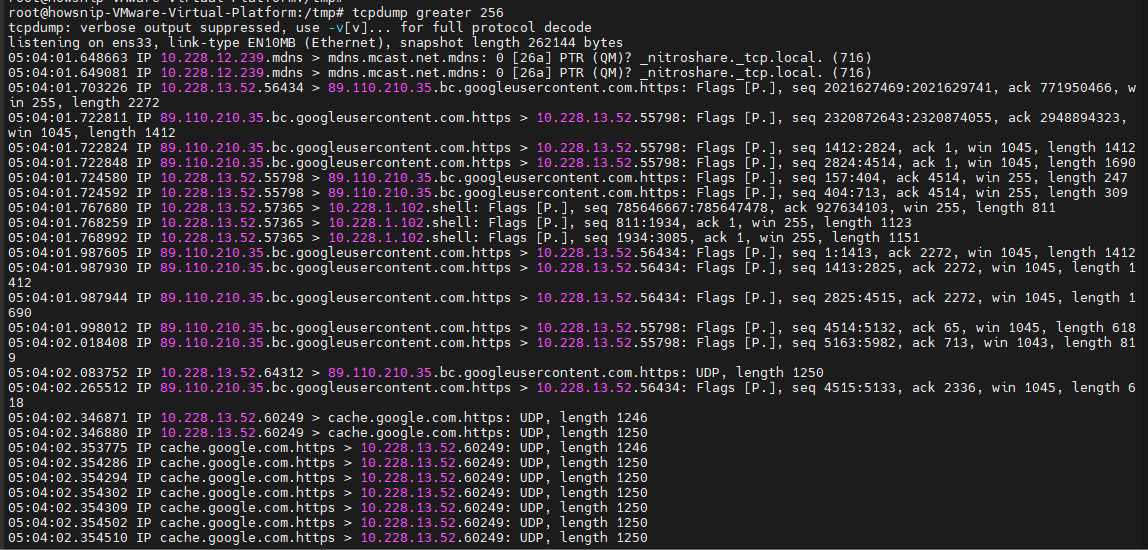
These filters can help identify unusually small or large packets during network analysis.
11. Advanced TCPDump Filtering
TCPDump supports logical operators such as:
- and
- or
- not
These operators allow you to create powerful filtering expressions.
Note: Complex filters may need to be enclosed in single quotes to prevent the shell from interpreting special characters.
12. Capture Traffic from a Specific Host to a Specific Port
Capture all traffic from a source IP with a destination port of 80:
tcpdump -nnvvS src 192.168.1.10 and dst port 80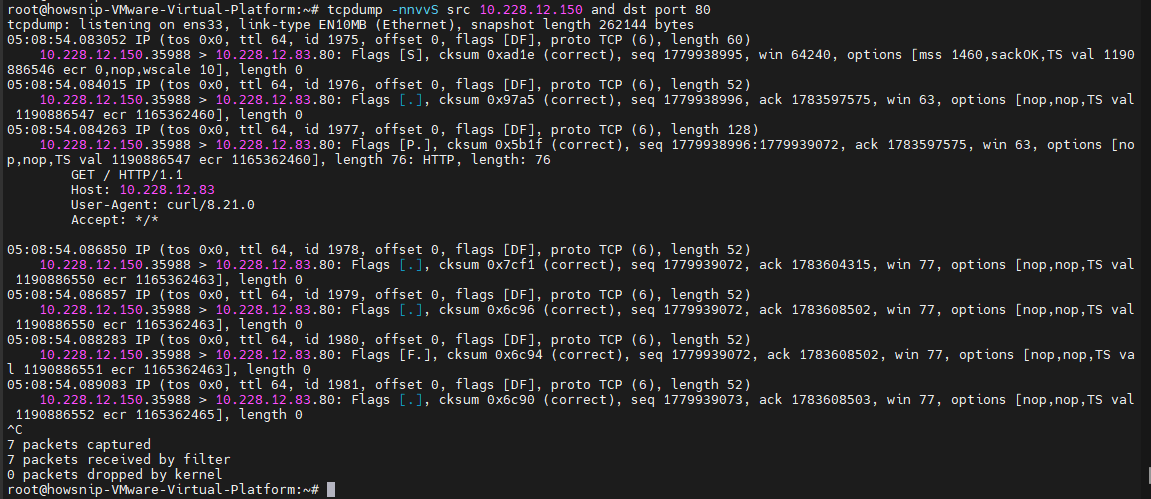
This is useful when troubleshooting web traffic generated by a particular device.
13. Capture Traffic Between Multiple Networks
Capture traffic originating from the 172.16.0.0/16 network and destined for either 192.168.1.0/24 or 10.0.0.0/8:
tcpdump src net 172.16.0.0/16 and dst net 192.168.1.0/24 or 10.0.0.0/8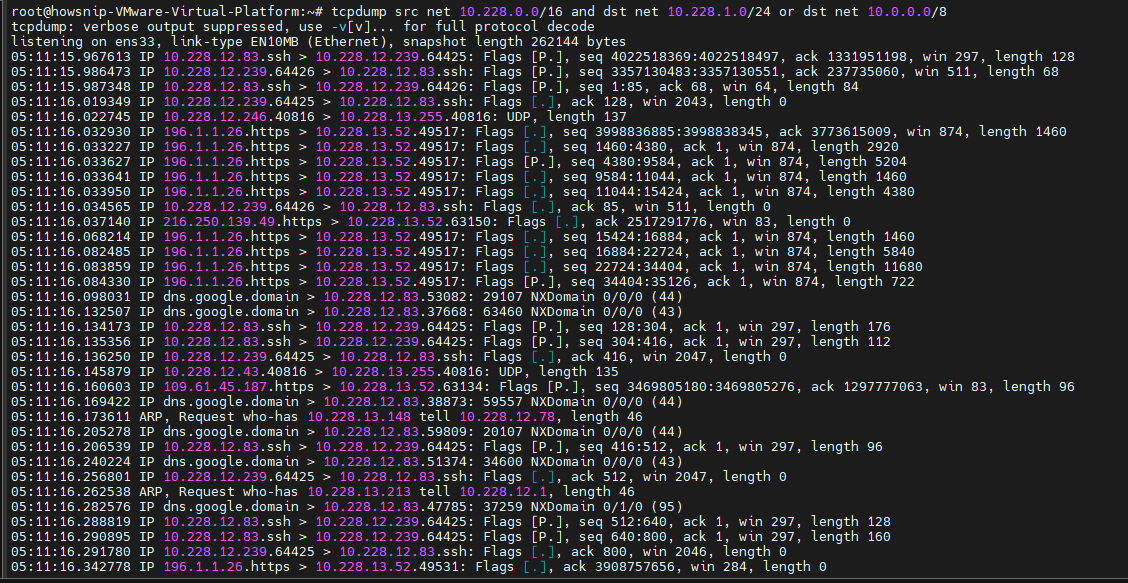
This filter is helpful when monitoring communication between multiple network segments.
14. Capture Traffic While Excluding a Specific Port
To capture all traffic from a host except traffic destined for port 22:
tcpdump -i ens33 'src host 10.228.1.179 and not dst port 22'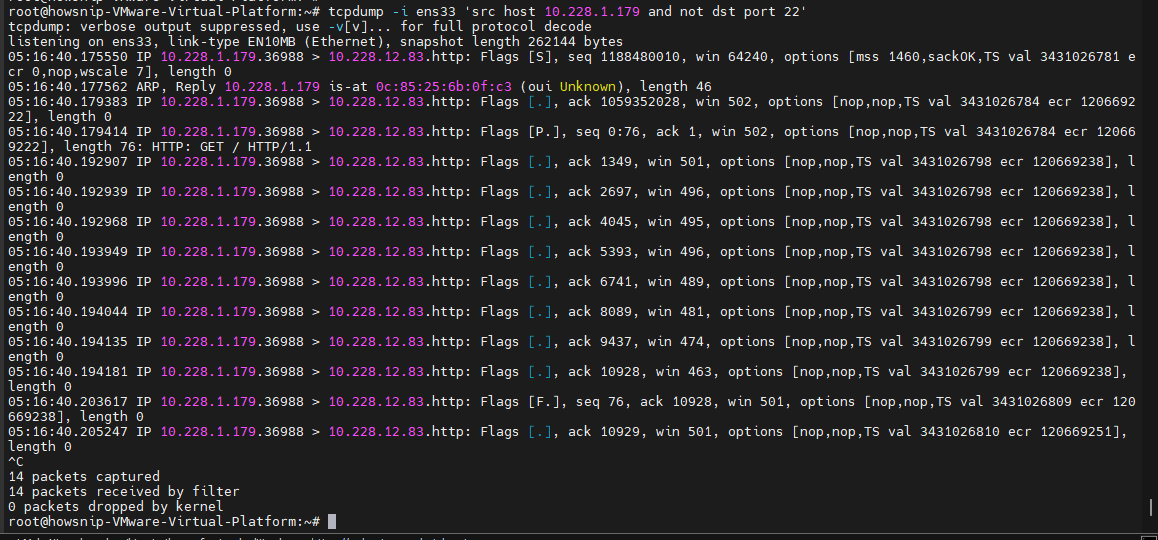
The not operator allows you to exclude unwanted traffic from your capture results.
15. Use Parentheses in Complex Filters
For more advanced filtering logic, enclose expressions in single quotes. The following command captures traffic from 192.168.1.1 destined for either port 80 or port 21:
tcpdump 'src 192.168.1.1 and (dst port 80 or 21)'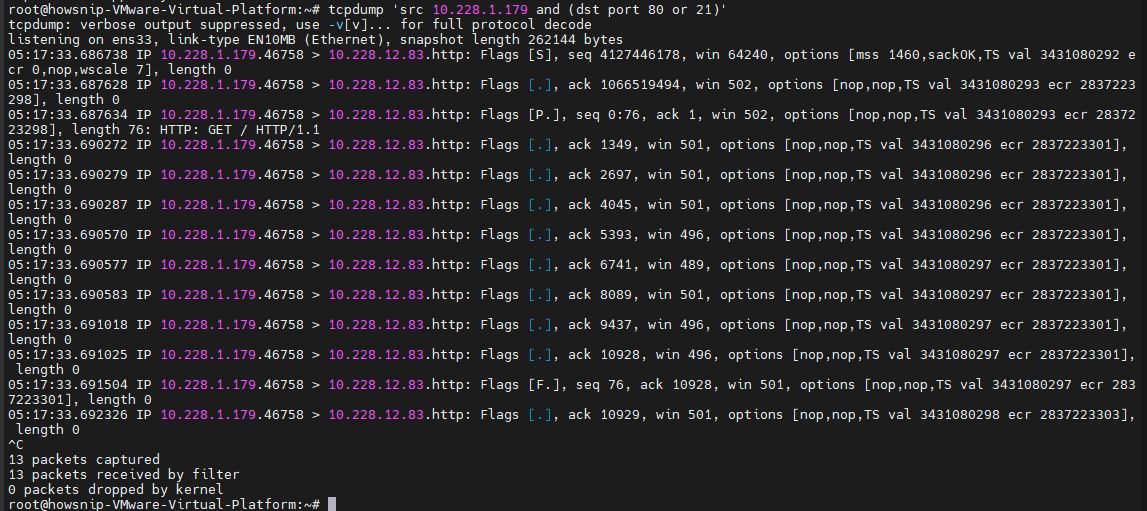
Parentheses help group conditions and ensure the filter is evaluated correctly.
Conclusion
TCPDump is a powerful and flexible tool for capturing and analyzing network traffic directly from the command line.
By learning how to capture packets, save traffic to PCAP files, filter by IP addresses and ports, and build advanced filter expressions, you can diagnose network issues more efficiently and gain deeper visibility into network activity.
Keeping these essential TCPDump commands handy will make troubleshooting and traffic analysis significantly easier.