

Tshark is the command-line version of Wireshark, one of the most widely used network analysis tools. It allows you to capture live traffic, analyze packet capture (PCAP) files, apply powerful filters, generate statistics, and extract protocol data directly from a terminal session.
Because it works without a graphical interface, Tshark is especially useful on servers, remote systems accessed via SSH, security monitoring environments, and automated analysis workflows.
In this tutorial, you’ll learn how to install Tshark, capture network traffic, apply filters, analyze PCAP files, generate statistics, and use practical commands for real-world troubleshooting and monitoring.
Prerequisites
Before you begin, make sure you have:
- A Linux system with terminal access
- Administrative (sudo) privileges
- A basic understanding of networking concepts such as IP addresses, TCP, UDP, and DNS
1. Install Tshark
Tshark is included in the Wireshark package repository on most Linux distributions.
Run the following command to install it:
sudo apt install tshark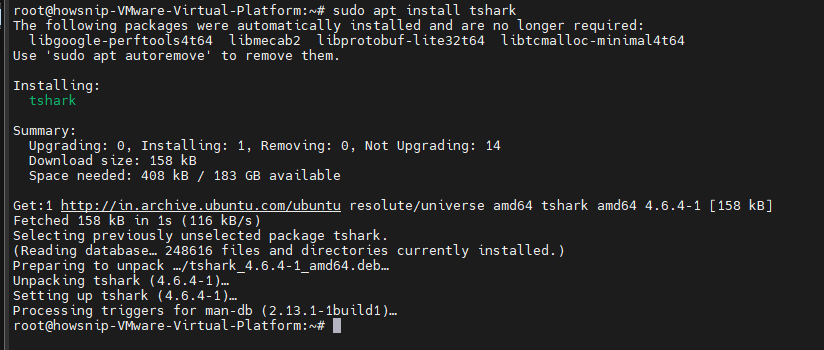
During installation, you’ll be asked whether non-root users should be allowed to capture packets. Select Yes if you want packet capture capabilities without running Tshark as root.
After installation, add your user account to the Wireshark group:
sudo usermod -aG wireshark $USERApply the new group membership:
newgrp wiresharkVerify that Tshark was installed successfully:
tshark -v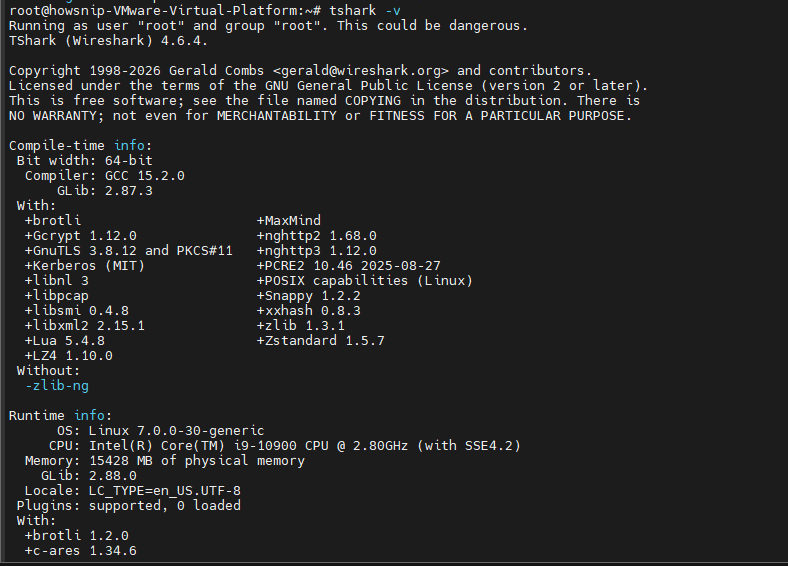
This command displays the installed Tshark version and build information.
2. List Available Network Interfaces
Before capturing traffic, identify the available network interfaces on your system.
Run:
tshark -D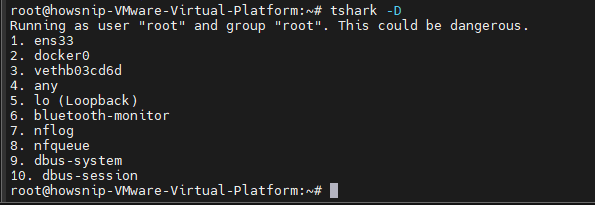
Example output:
- ens33
- docker0
- vethb03cd6d
- any
- lo (Loopback)
- bluetooth-monitor
- nflog
- nfqueue
- dbus-system
- dbus-session
Each interface represents a potential source of network traffic.
Common interfaces include:
- ens33: Physical or virtual network adapter
- lo: Local loopback traffic
- any: Capture traffic from all interfaces
3. Capture Network Traffic
a) Capture Traffic on a Specific Interface
Capture packets from a single interface:
sudo tshark -i ens33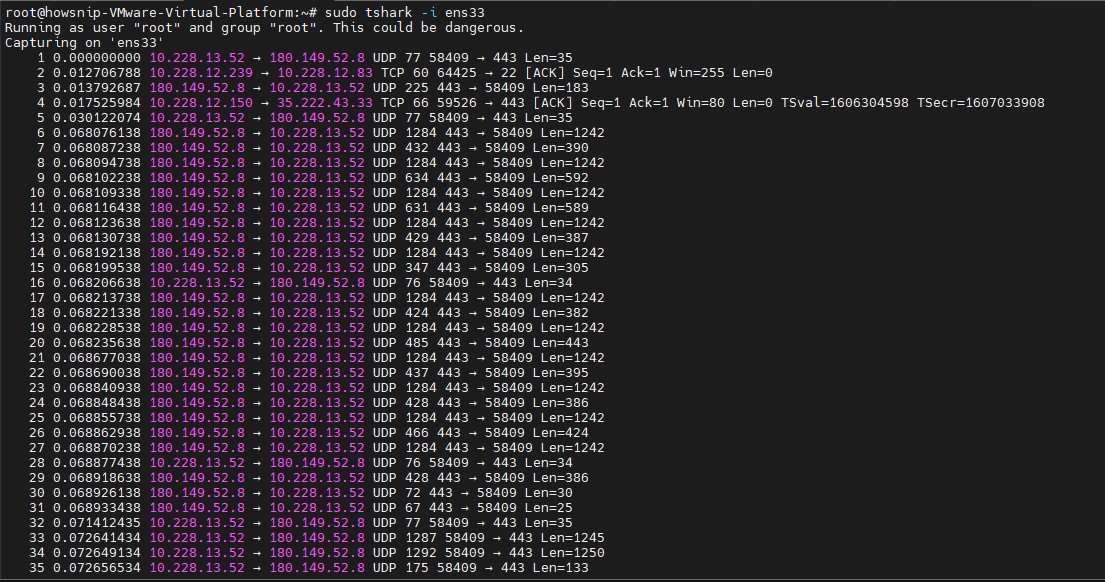
The -i option specifies the network interface.
b) Capture Traffic from All Interfaces
If you’re unsure which interface is active:
sudo tshark -i any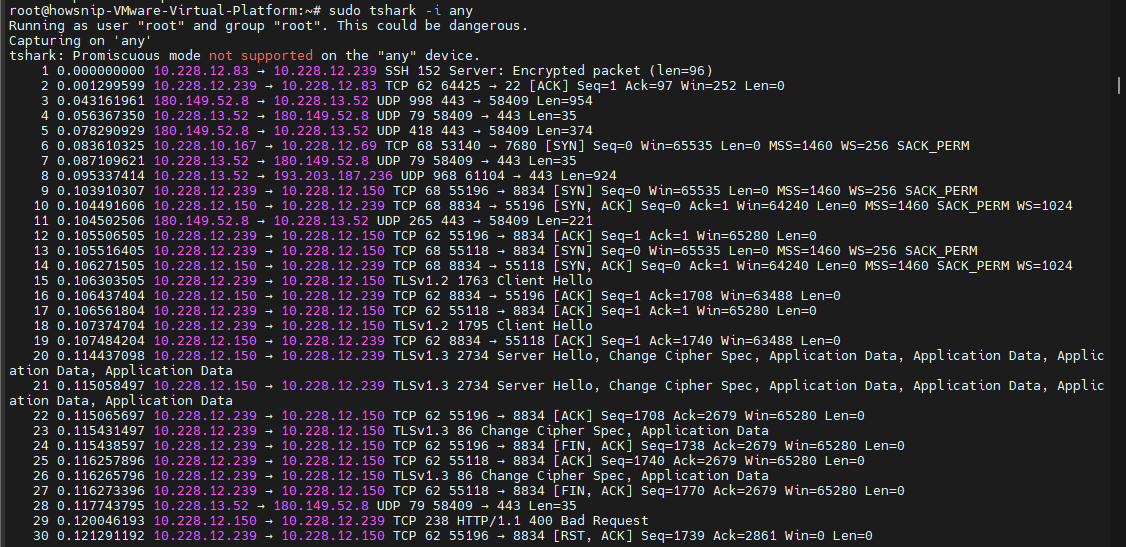
This captures traffic across all available interfaces.
c) Capture a Limited Number of Packets
Stop automatically after capturing 100 packets:
sudo tshark -i ens33 -c 100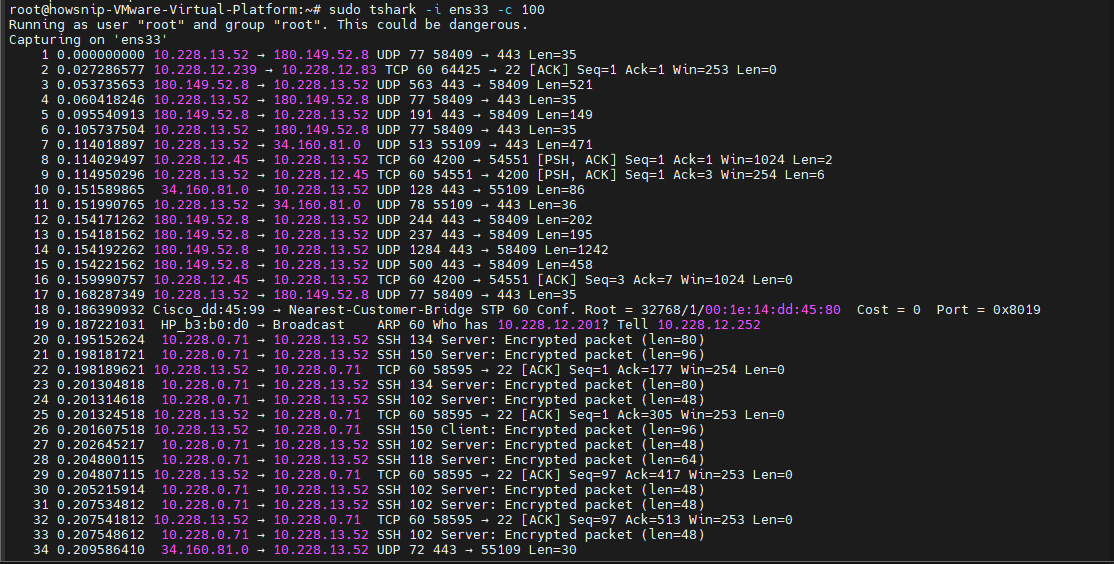
The -c option controls the packet count limit.
d) Capture for a Fixed Duration
Capture traffic for 30 seconds:
sudo tshark -i ens33 -a duration:30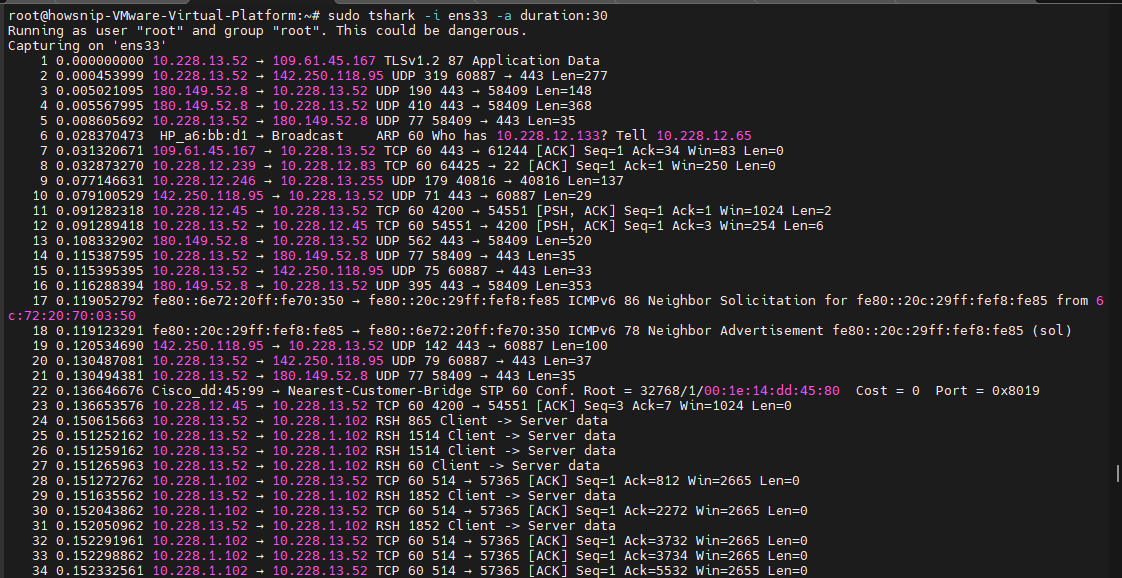
The -a parameter defines an automatic stop condition.
e) Stop Capture Based on File Size
Save packets until the capture file reaches approximately 1000 KB:
sudo tshark -i ens33 -a filesize:1000 -w /tmp/capture.pcap
The -w option writes packets to a PCAP file instead of displaying them.
4. Use Capture Filters
Capture filters reduce the amount of data collected by filtering traffic before it is written to memory or disk. Tshark uses Berkeley Packet Filter (BPF) syntax for capture filters.
a) Capture Only HTTP Traffic
sudo tshark -i ens33 -f "tcp port 80"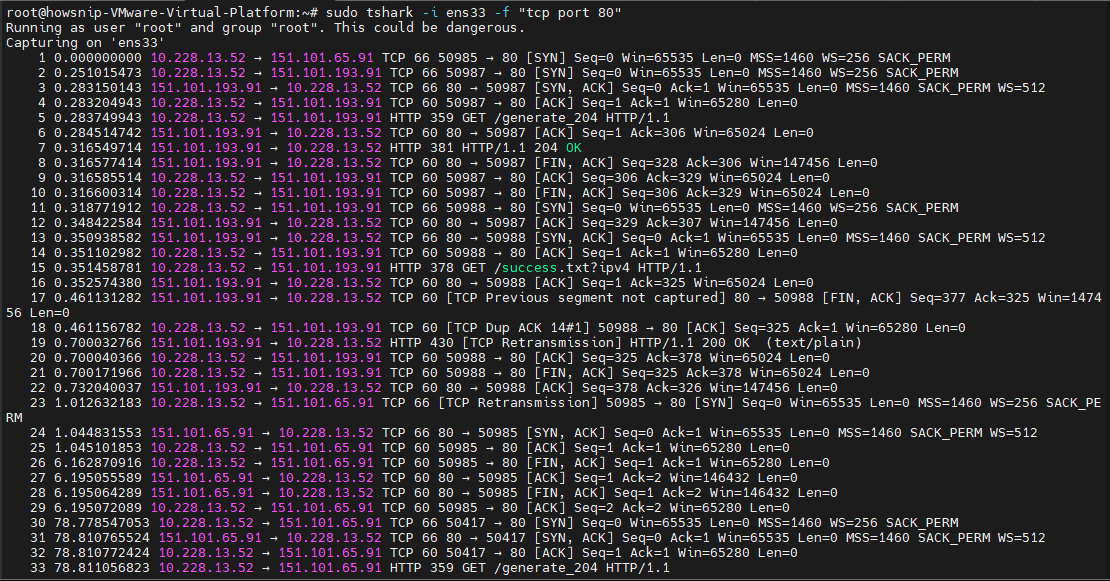
The above command captures HTTP traffic using TCP port 80.
b) Capture Traffic for a Specific Host
sudo tshark -i ens33 -f "host 10.228.1.179"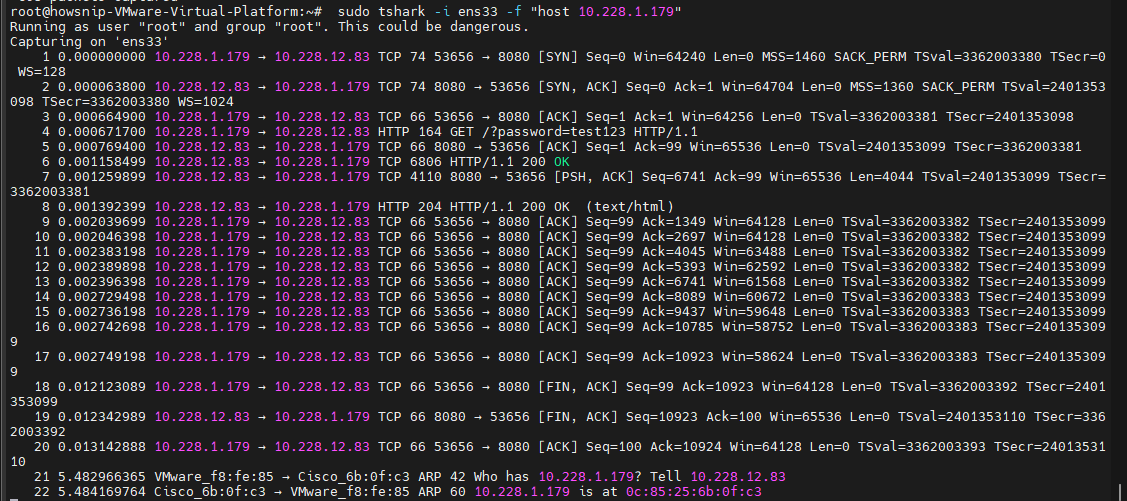
It captures packets sent to or received from the specified IP address.
c) Capture DNS Queries
sudo tshark -i ens33 -f "udp port 53"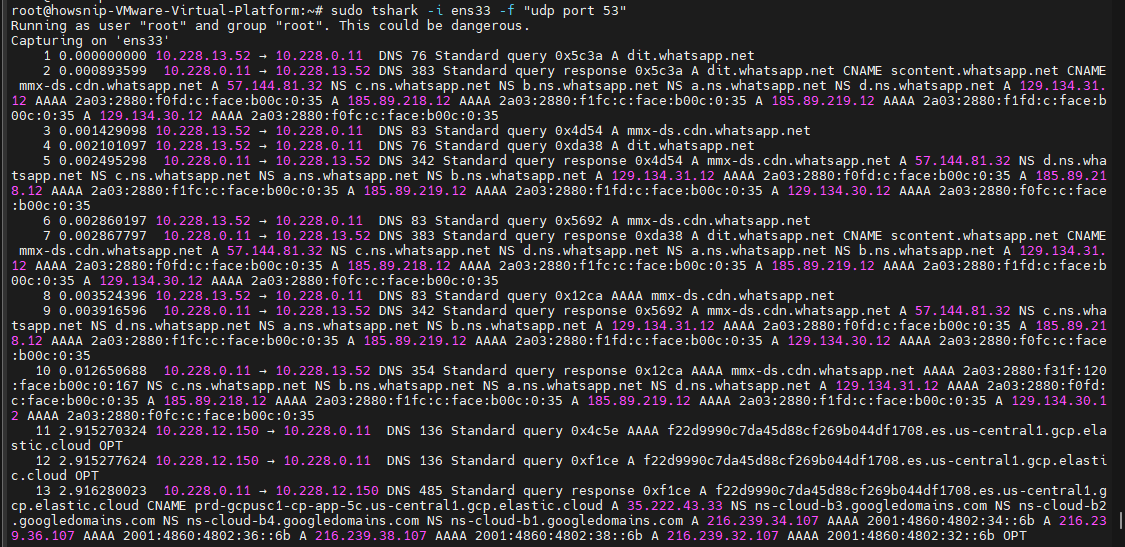
This command captures DNS traffic over UDP port 53.
d) Capture TCP SYN Packets
sudo tshark -i ens33 -f "tcp[tcpflags] & tcp-syn != 0"
It is useful for identifying connection attempts.
e) Capture Multiple Ports
sudo tshark -i ens33 -f "tcp port 80 or tcp port 443 or tcp port 8080"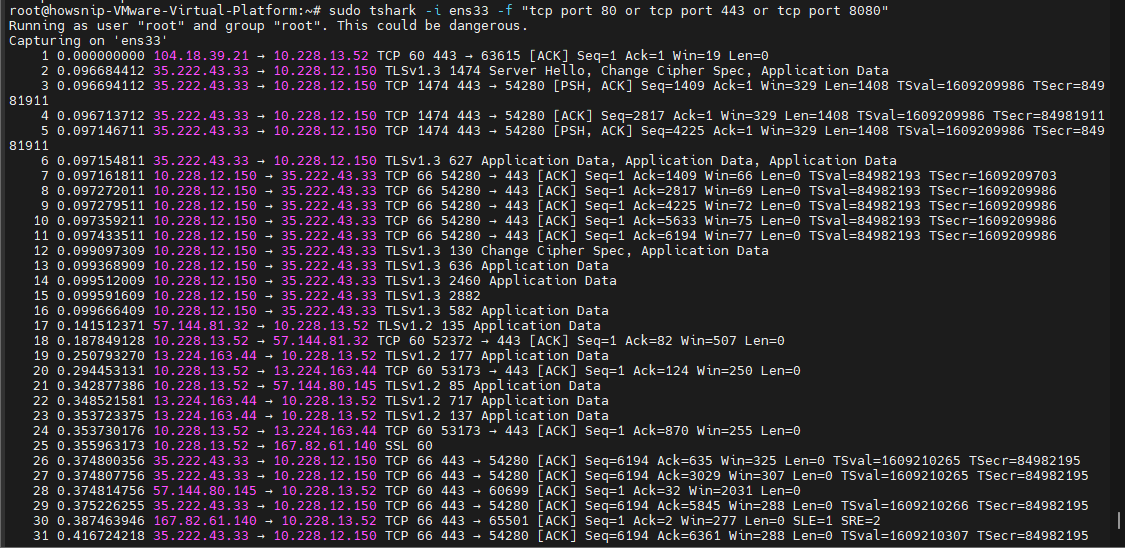
It captures traffic on multiple web-related ports.
f) Exclude Loopback Traffic
sudo tshark -i ens33 -f "not host 127.0.0.1"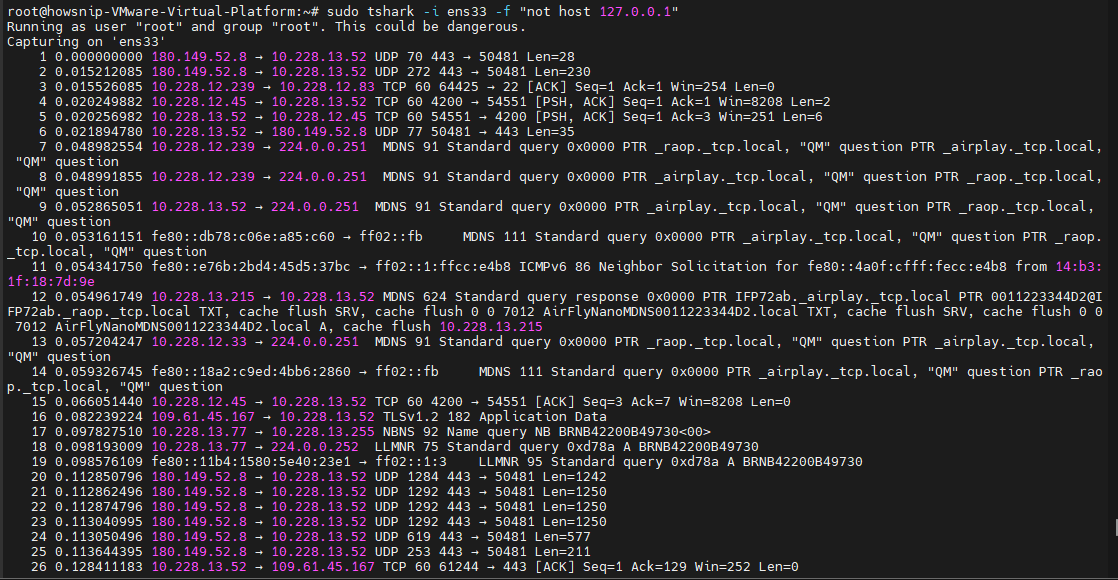
The above command filters out loopback traffic from captures.
Important: Capture filters cannot be applied after data has already been captured.
5. Save and Read PCAP Files
a) Save a Capture to a File
sudo tshark -i ens33 -w /tmp/capture.pcap
This stores captured packets in a standard PCAP file.
b) Read an Existing PCAP File
tshark -r /tmp/capture.pcap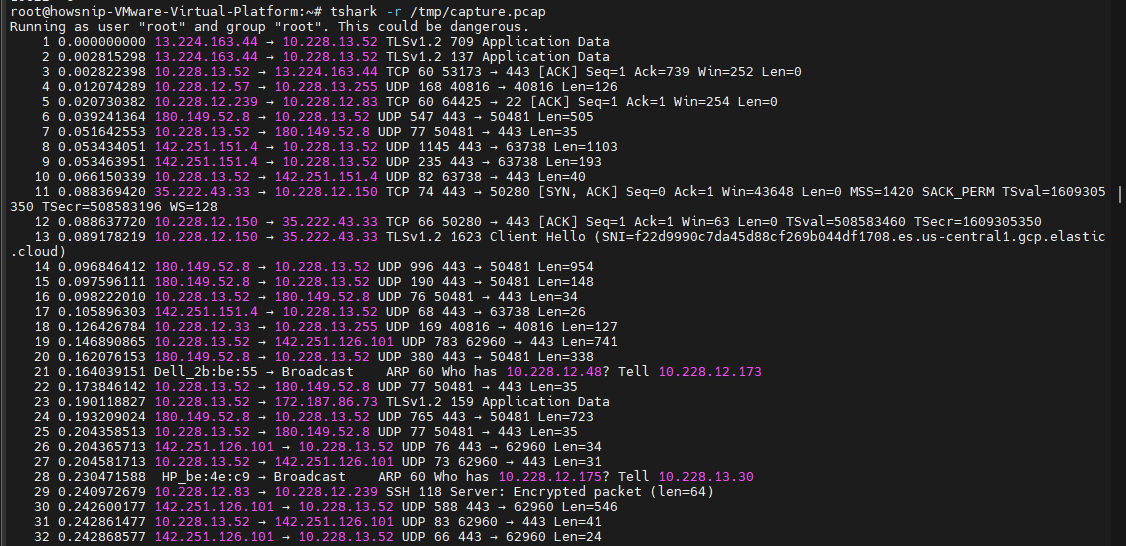
The -r option tells Tshark to read packet data from a file.
c) Rotate Capture Files Automatically
Create multiple rotating capture files:
sudo tshark -i ens33 -b filesize:1000 -b files:10 -w /tmp/capture.pcap
This maintains up to 10 files and rotates them when they reach the specified size.
d) Open a Compressed Capture File
tshark -r capture.pcap.gz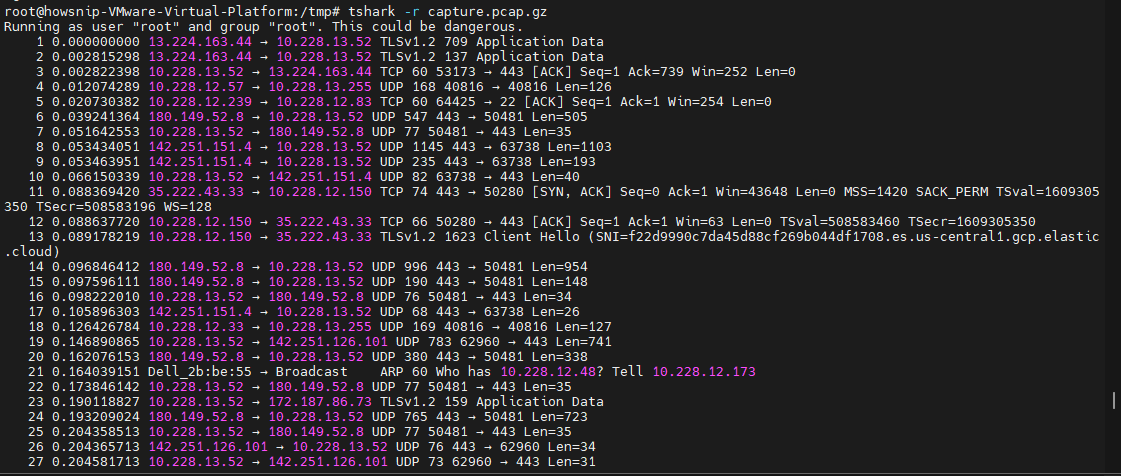
Tshark can read compressed capture files directly.
6. Apply Display Filters
Display filters are applied after packet capture and provide much more advanced filtering capabilities than capture filters.
a) Filter HTTP Traffic
tshark -r capture.pcap -Y "http"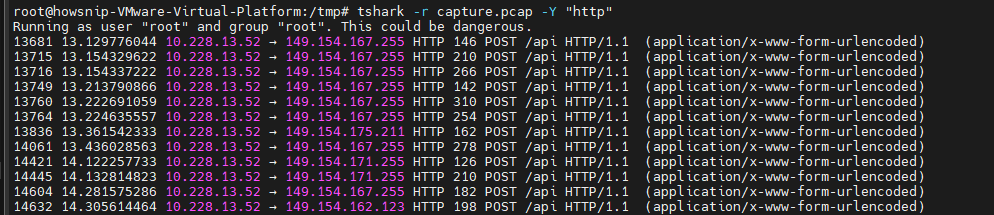
It displays only HTTP packets.
b) Filter HTTPS Traffic
sudo tshark -i ens33 -Y "tcp.port == 443"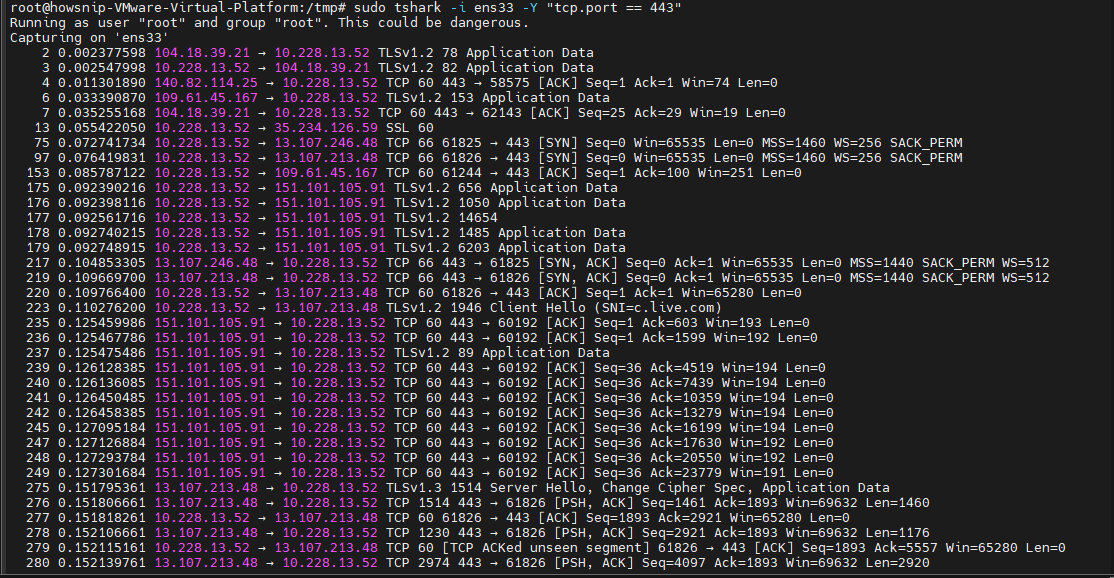
This command sows HTTPS-related traffic.
c) Filter by IP Address
tshark -r capture.pcap -Y "ip.addr == 10.228.1.179"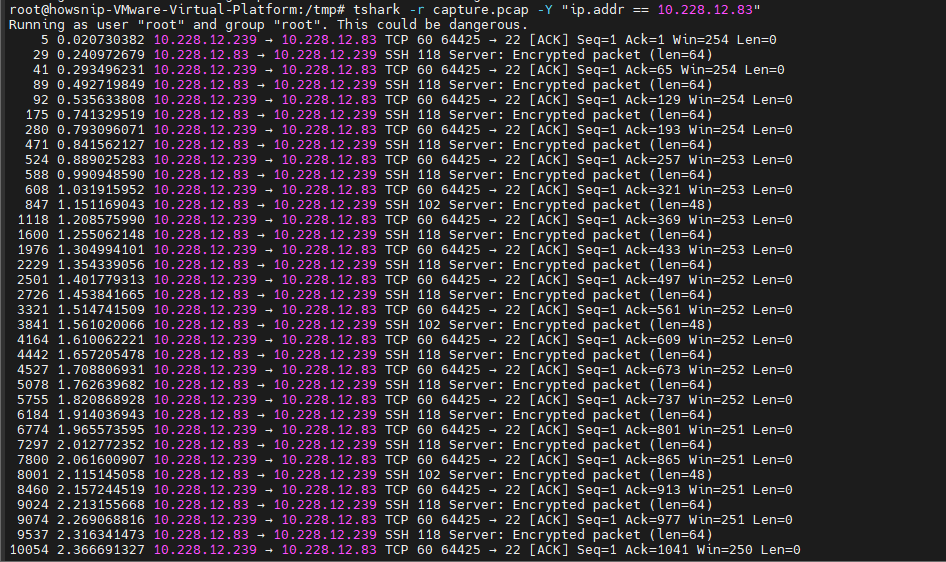
It dsplays packets involving the specified IP.
d) Filter by Protocol
DNS:
tshark -r capture.pcap -Y "dns"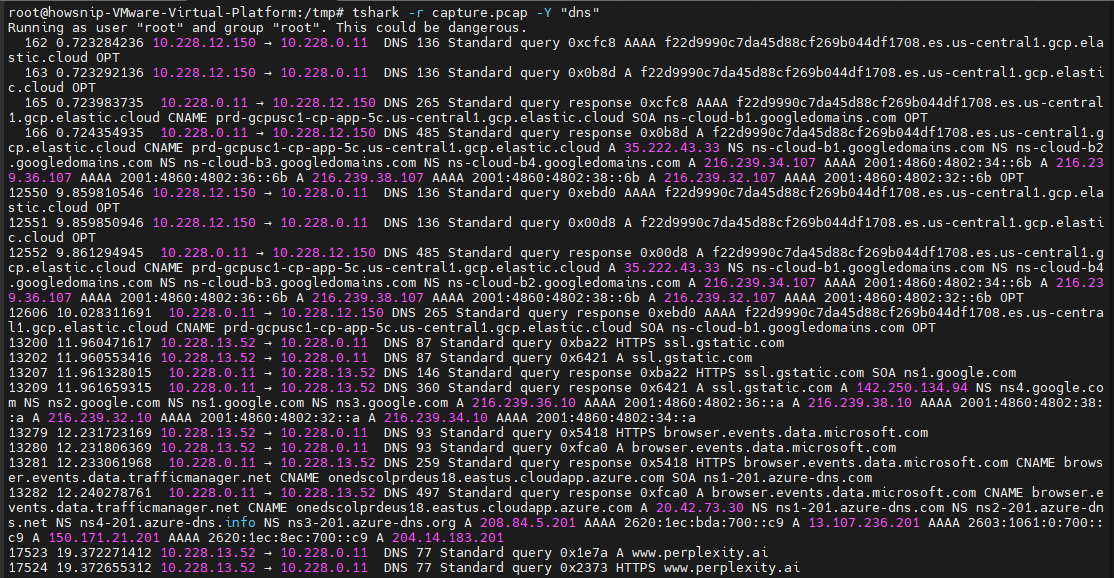
HTTP:
tshark -r capture.pcap -Y "http"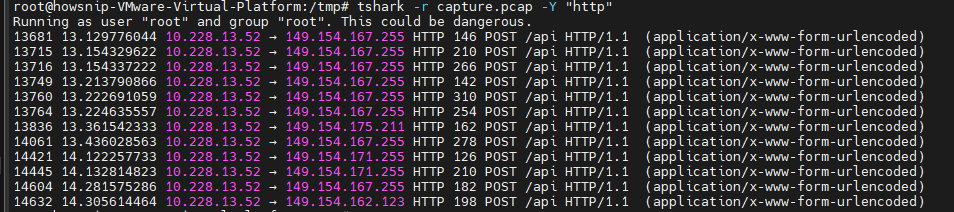
TLS:
tshark -r capture.pcap -Y "tls"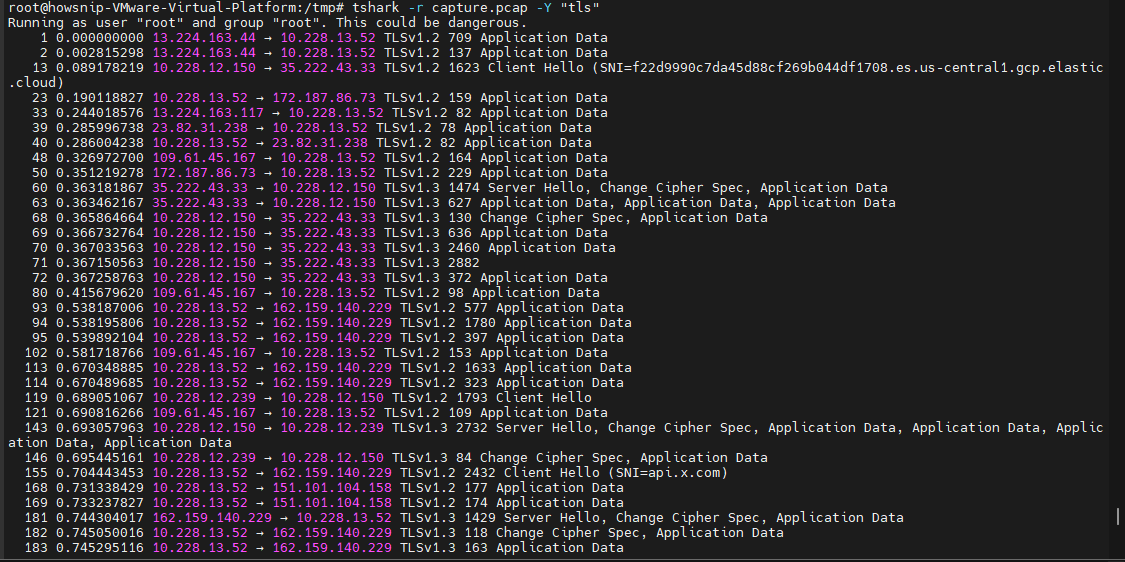
SSH:
tshark -r capture.pcap -Y "ssh"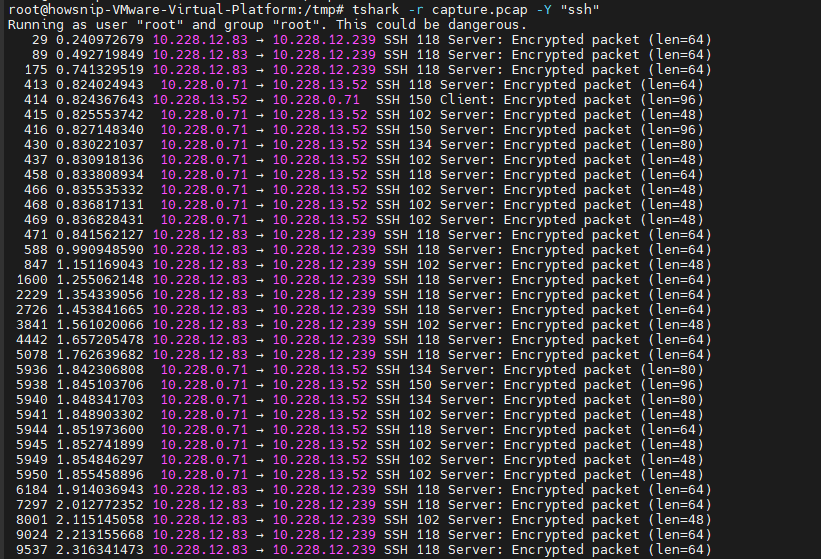
e) Filter HTTP POST Requests
tshark -r capture.pcap -Y "http.request.method == POST"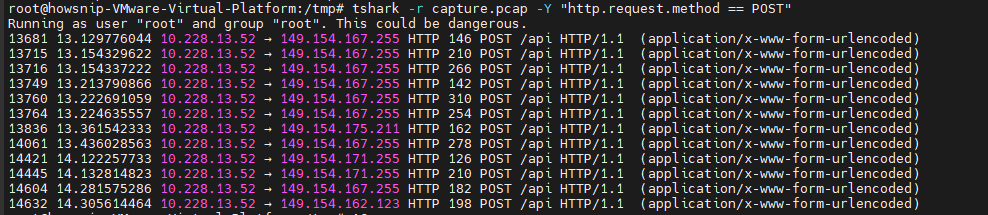
It is useful when analyzing web application traffic.
f) Filter HTTP Error Responses
tshark -r capture.pcap -Y "http.response.code >= 400"
This command shows failed HTTP requests.
g) Filter DNS Queries for a Domain
tshark -r capture.pcap -Y 'dns.qry.name contains "example.com"'
It displays DNS lookups matching a specific domain.
h) Analyze TCP Retransmissions
tshark -r capture.pcap -Y "tcp.analysis.retransmission"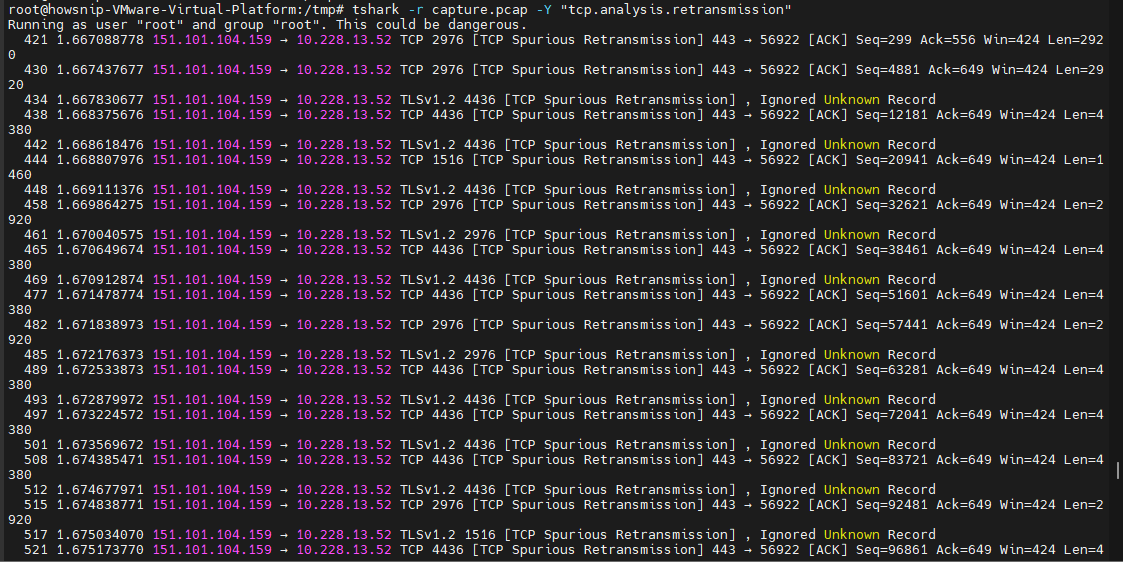
It helps identify packet loss and network instability.
i) Show Duplicate ACKs
tshark -r capture.pcap -Y "tcp.analysis.duplicate_ack"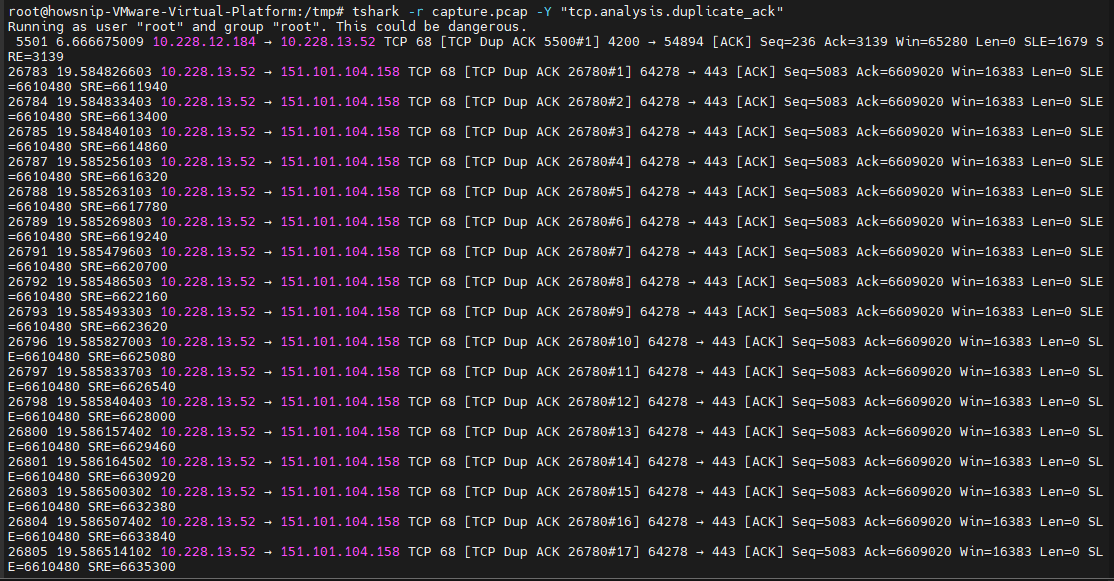
Can indicate congestion or packet loss.
7. Extract Specific Fields
Instead of displaying full packet details, you can extract only the fields you need.
a) Display Source and Destination Information
tshark -r capture.pcap -T fields -e ip.src -e ip.dst -e tcp.port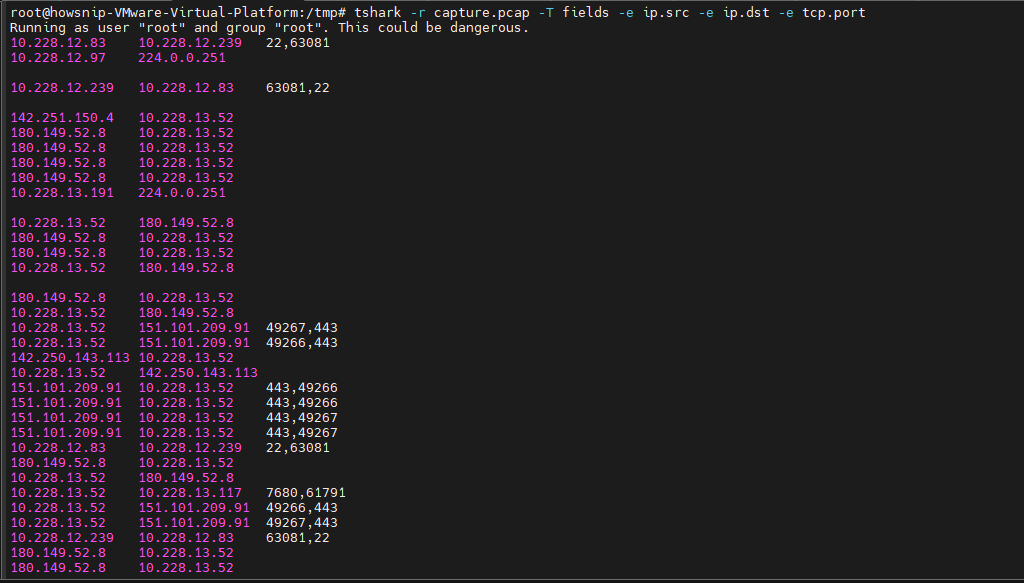
This command shows source IP, destination IP, and TCP port information.
b) Extract HTTP Request Details
tshark -r capture.pcap -Y "http.request" -T fields \
-e ip.src \
-e http.request.method \
-e http.request.uri \
-e http.host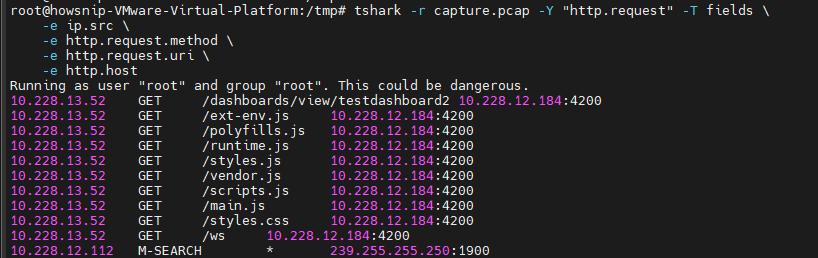
It retrieves useful HTTP request information for analysis.
c) Extract DNS Queries
tshark -r capture.pcap -Y "dns.flags.response == 0" -T fields \
-e frame.time \
-e ip.src \
-e dns.qry.name \
-e dns.qry.type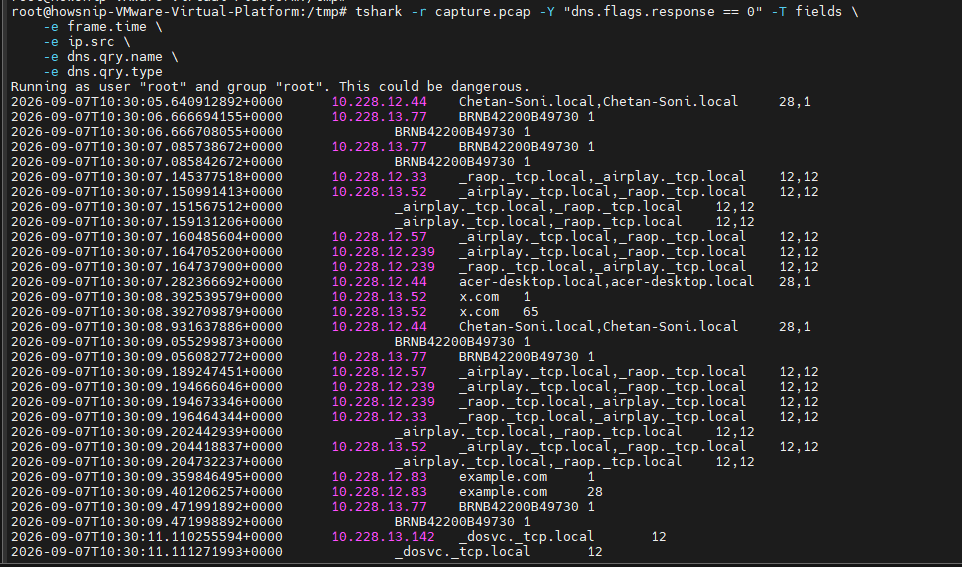
It displays DNS query activity.
d) Extract TLS Handshake Details
tshark -r capture.pcap -Y "tls.handshake.type == 1" -T fields \
-e ip.src \
-e ip.dst \
-e tls.handshake.extensions_server_name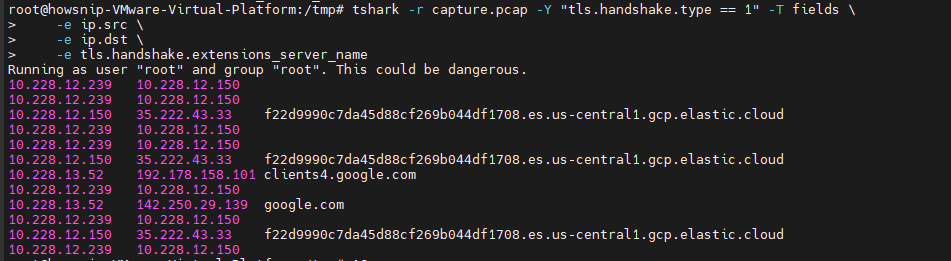
This shows information from TLS Client Hello messages.
e) Change the Output Separator
tshark -r capture.pcap -T fields -e ip.src -e ip.dst -E separator=,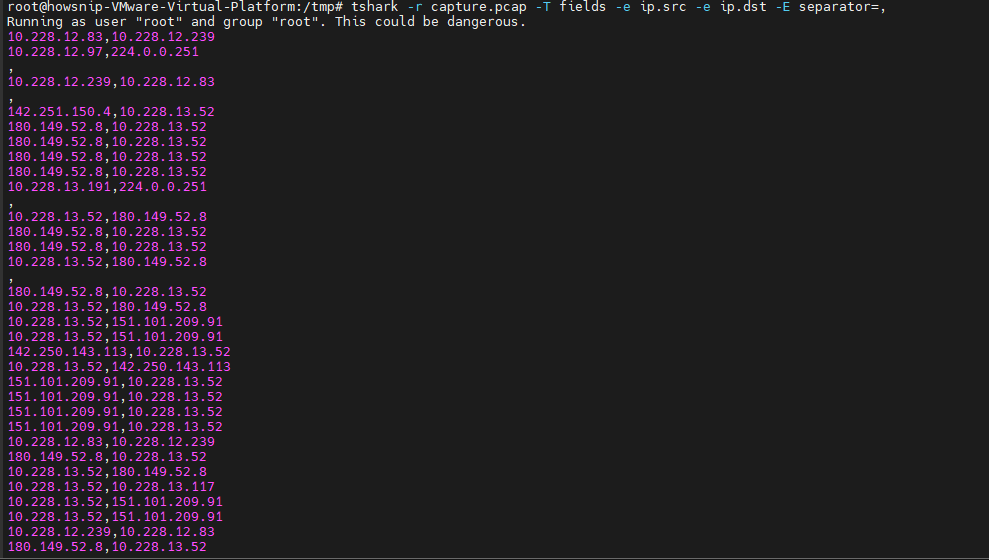
The above command outputs fields in CSV-style format.
8. Export Data in JSON and Other Formats
a) JSON Output
tshark -r capture.pcap -T json | head -50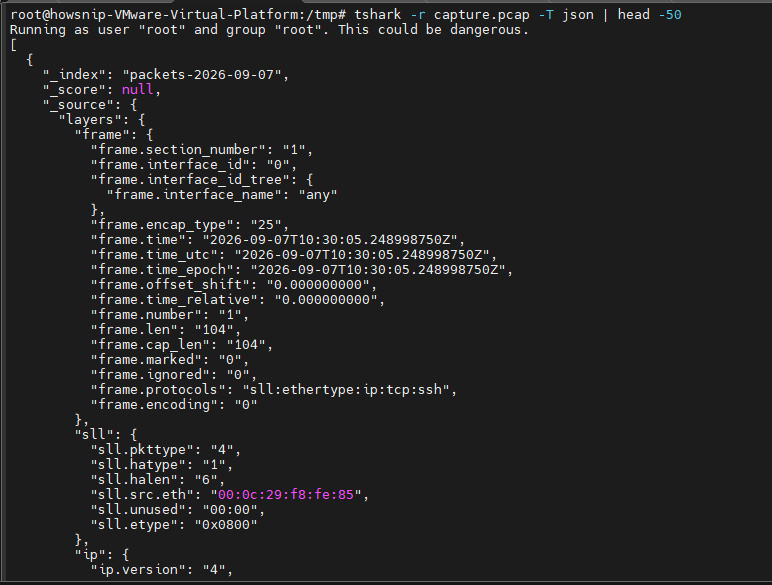
It is useful for automation and scripting.
b) Compact JSON
tshark -r capture.pcap -T jsonraw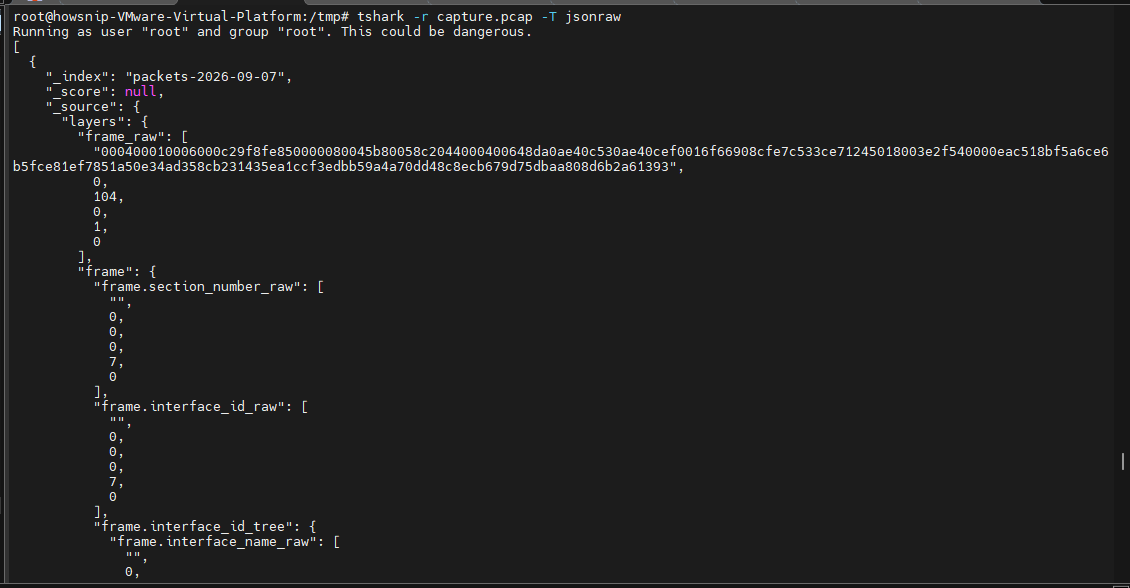
It produces raw JSON output.
c) Elasticsearch-Compatible JSON
tshark -r capture.pcap -T ek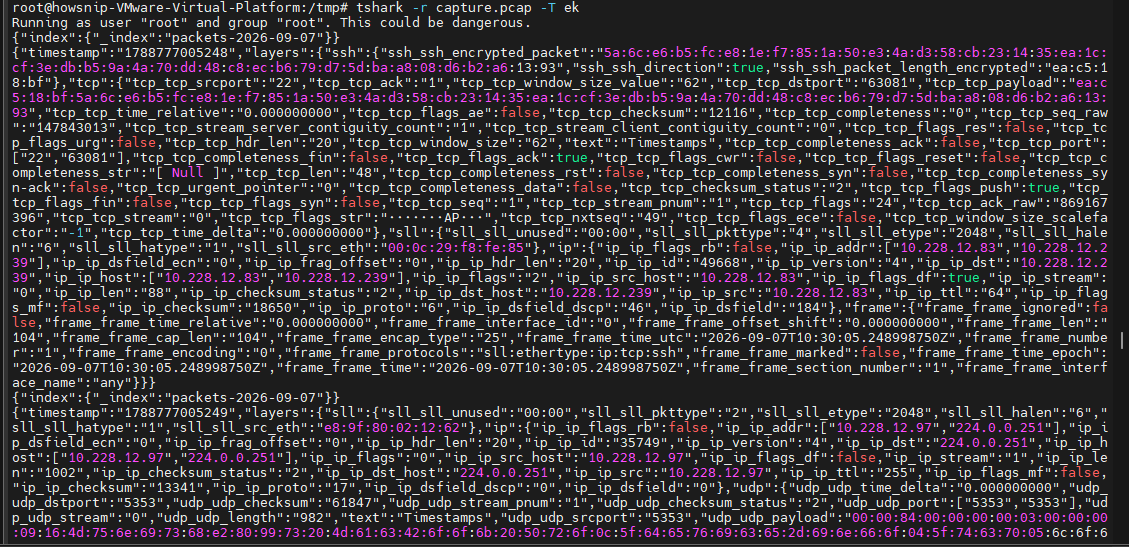
It generates output suitable for Elasticsearch ingestion.
d) PDML XML Format
tshark -r capture.pcap -T pdml | head -50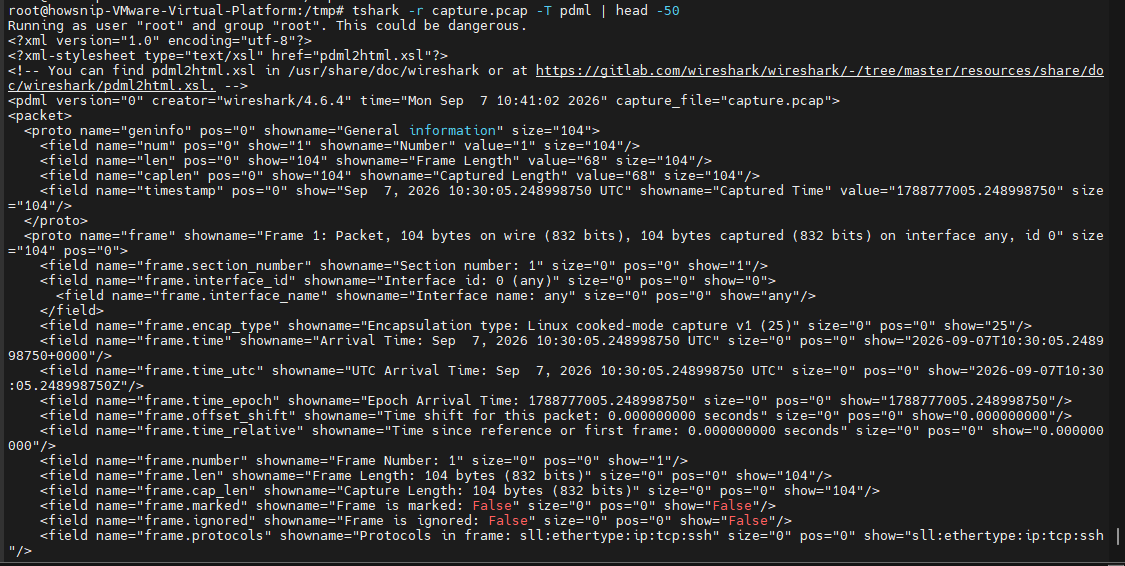
Produces packet data in XML format.
9. Generate Network Statistics
Tshark includes several built-in statistical reports.
a) Protocol Hierarchy Statistics
tshark -r capture.pcap -q -z io,phs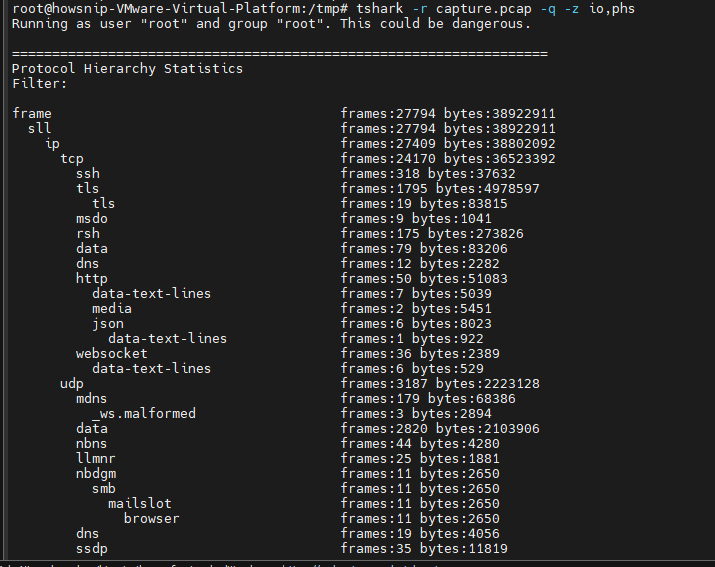
It shows the distribution of protocols within the capture.
b) Conversation Statistics
TCP:
tshark -r capture.pcap -q -z conv,tcp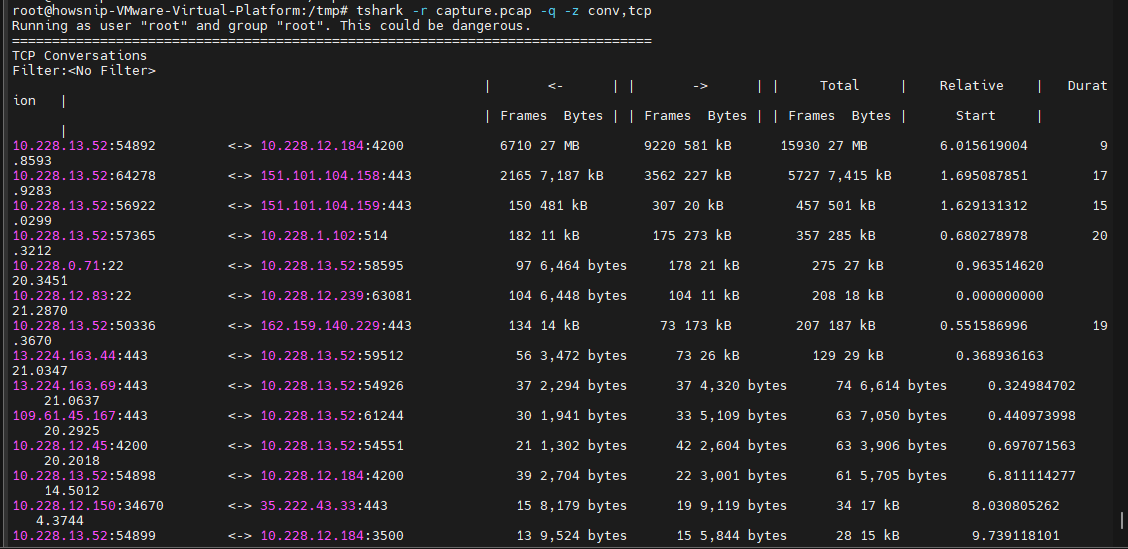
UDP:
tshark -r capture.pcap -q -z conv,udp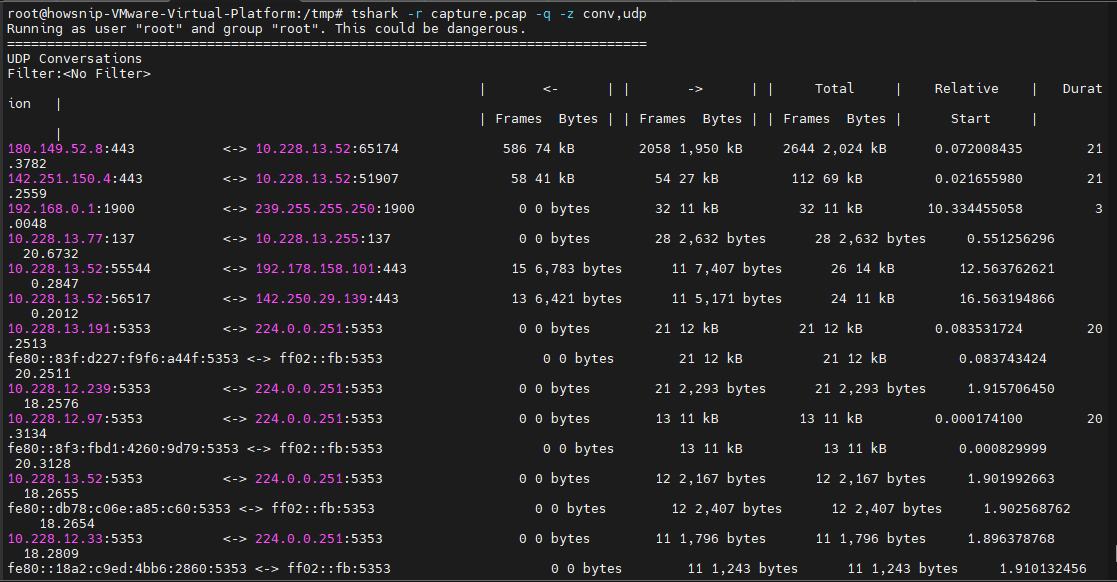
IP:
tshark -r capture.pcap -q -z conv,ip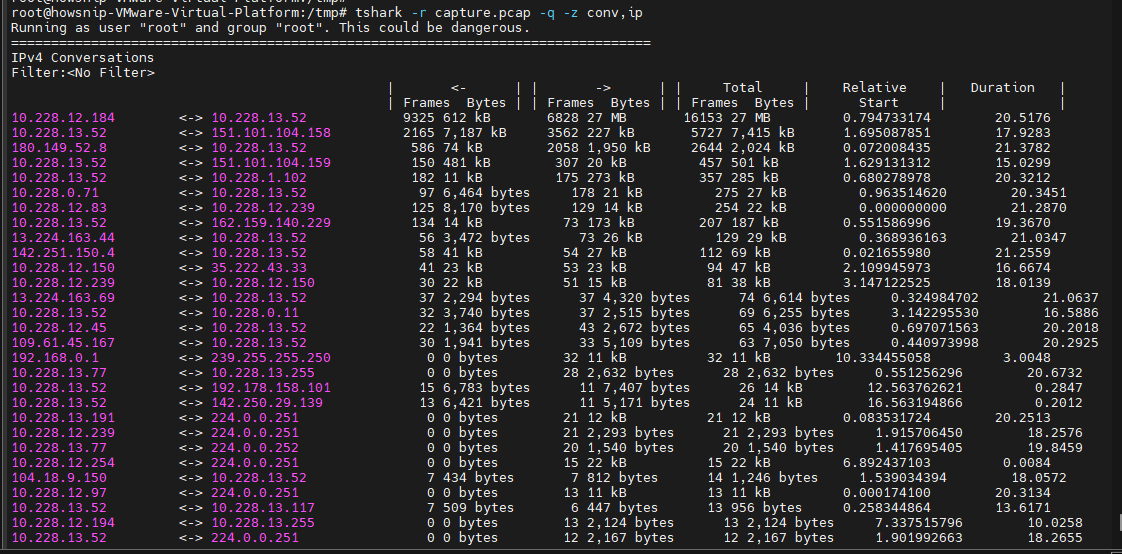
These reports identify communication pairs and traffic volumes.
c) Endpoint Statistics
tshark -r capture.pcap -q -z endpoints,ip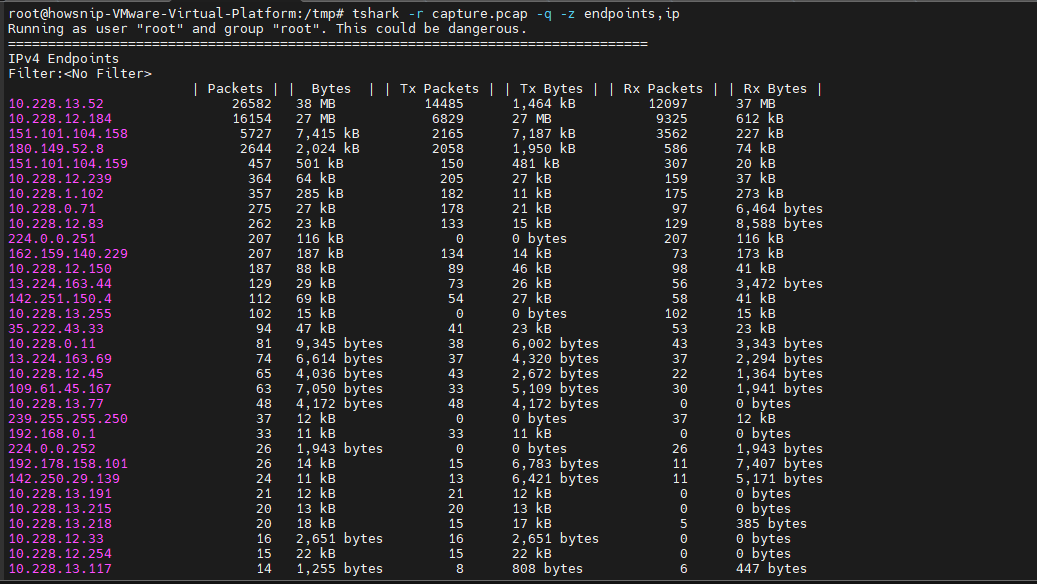
It displays the most active IP addresses.
d) HTTP Statistics
tshark -r capture.pcap -q -z http,tree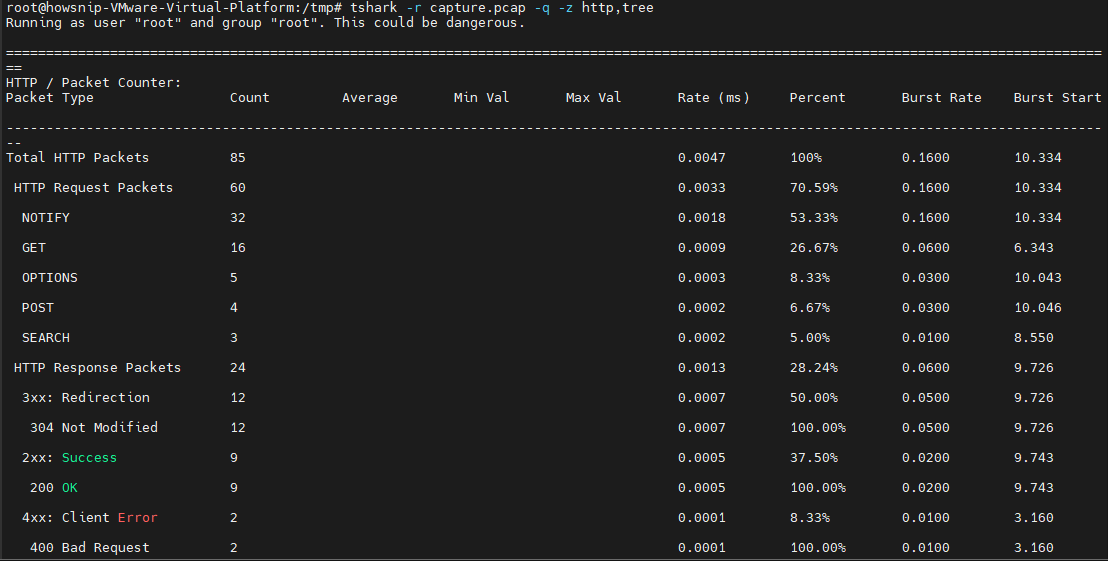
It provides a hierarchical view of HTTP activity.
e) DNS Statistics
tshark -r capture.pcap -q -z dns,tree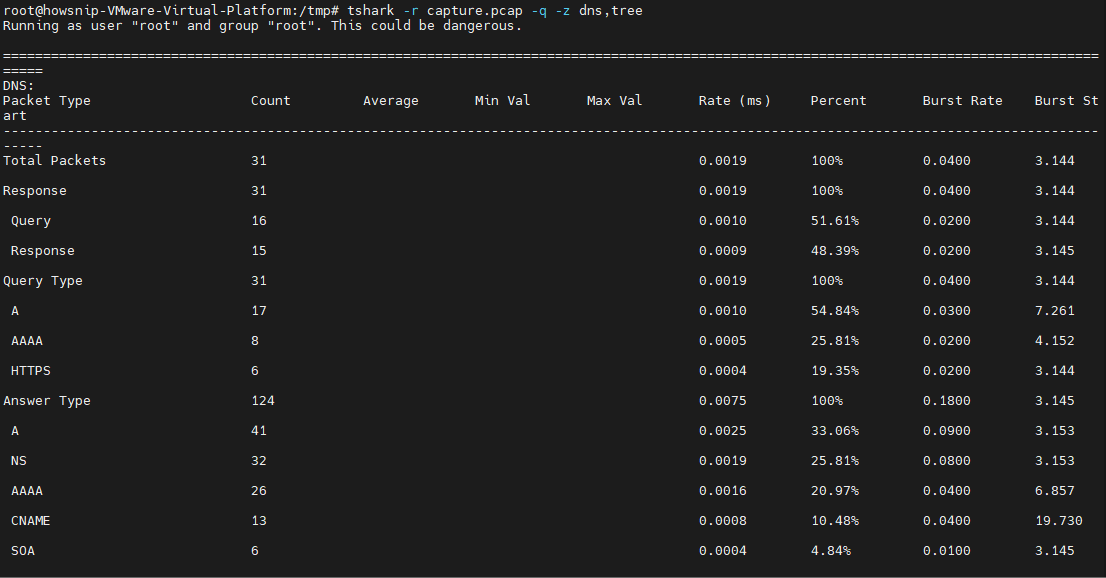
It summarizes DNS traffic.
f) Expert Analysis
tshark -r capture.pcap -q -z expert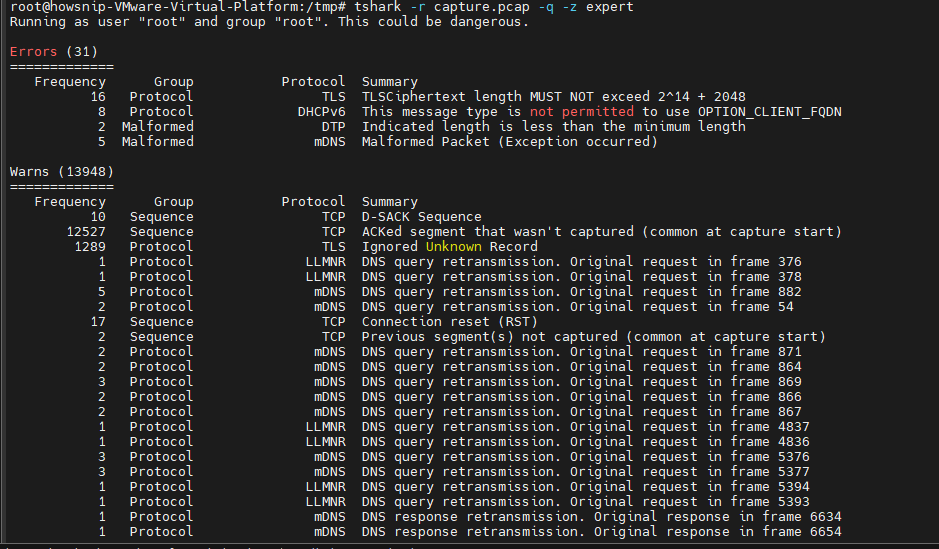
It highlights warnings, errors, and unusual network events.
g) I/O Statistics
tshark -r capture.pcap -q -z io,stat,1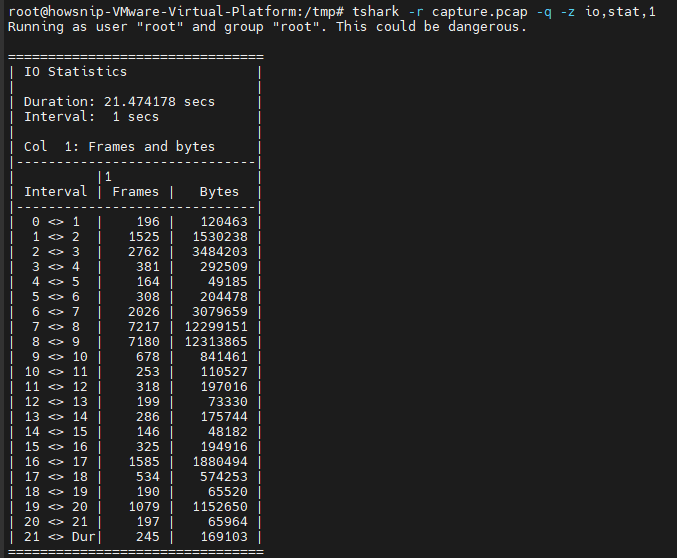
This command displays throughput over one-second intervals.
h) Filtered I/O Statistics
tshark -r capture.pcap -q -z io,stat,1,"http.request","http.response"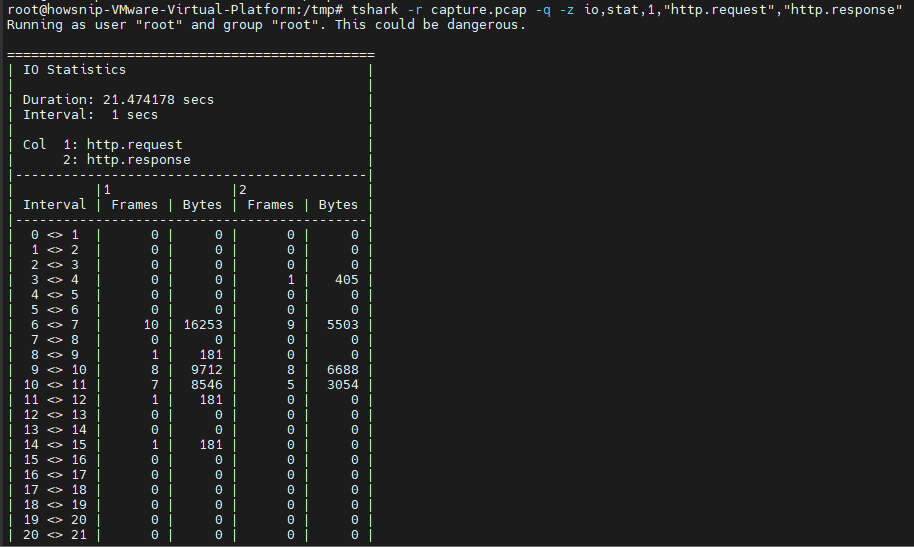
It tracks specific traffic types over time.
10. Practical Tshark Analysis Examples
a) Extract HTTP URLs
Capture live HTTP GET requests:
sudo tshark -i ens33 -Y "http.request.method == GET" -T fields \
-e frame.time \
-e ip.src \
-e http.host \
-e http.request.uri \
| tee /tmp/http-requests.log
Save and review HTTP request information in a log file.
From a PCAP file:
tshark -r capture.pcap -Y "http.request" -T fields \
-e http.host \
-e http.request.uri | sort | uniq -c | sort -rn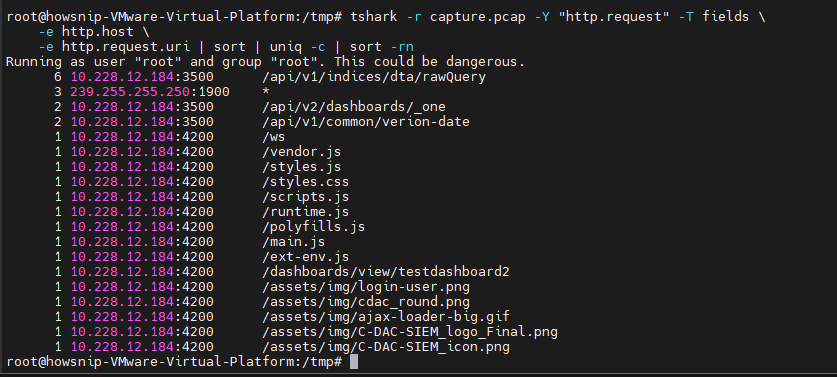
This helps identify the most frequently requested URLs.
b) Review DNS TTL Values
tshark -r capture.pcap -Y "dns.flags.response == 1" -T fields \
-e dns.qry.name \
-e dns.resp.ttl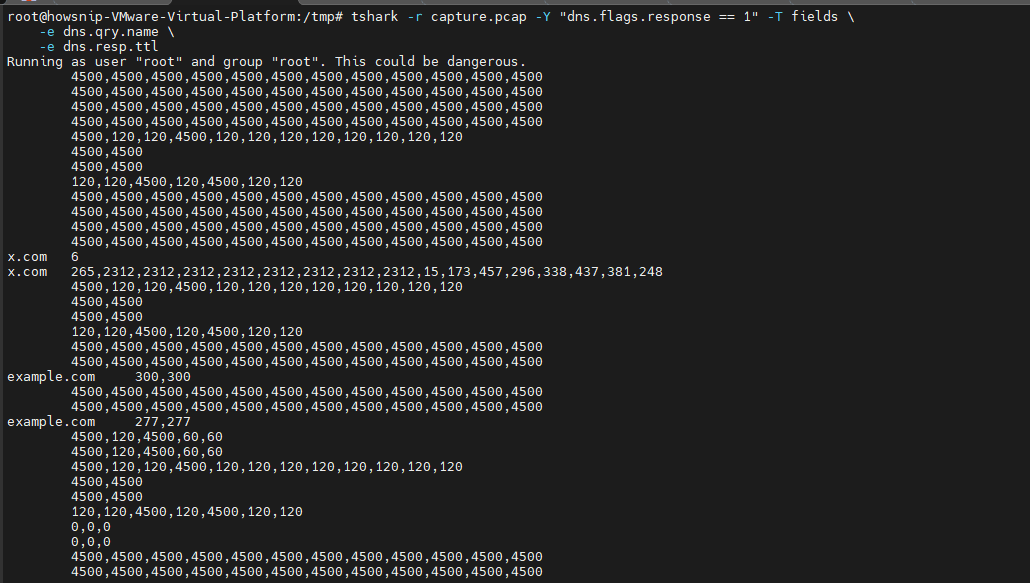
It is useful when investigating DNS caching behavior.
c) Detect Potential Port Scans
sudo tshark -i ens33 -f "tcp[tcpflags] & tcp-syn != 0 and tcp[tcpflags] & tcp-ack == 0" \
-T fields -e ip.src -e tcp.dstport | \
awk '{count[$1]++} END {for (ip in count) if (count[ip]>50) print ip, count[ip]}' | \
sort -rn -k2
This command looks for hosts generating a large number of connection attempts.
d) Analyze TLS Handshakes
sudo tshark -i ens33 -Y "tls.handshake" -T fields \
-e ip.src \
-e ip.dst \
-e tls.handshake.type \
-e tls.handshake.ciphersuite \
-e tls.handshake.extensions_server_name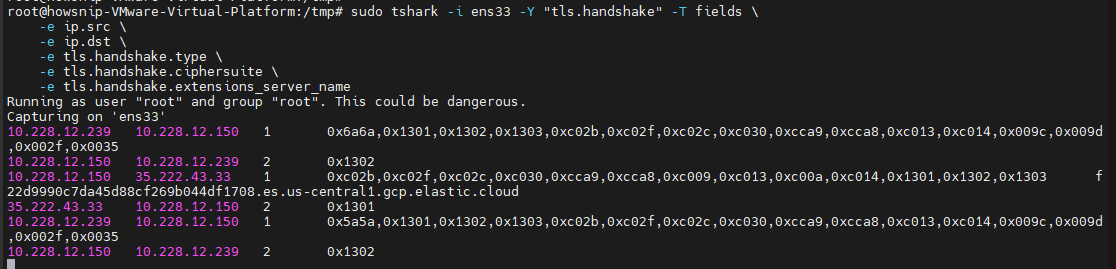
It displays metadata from TLS handshake packets.
e) Decrypt TLS Traffic Using Session Keys
If browser session keys are available through SSLKEYLOGFILE:
tshark -r /tmp/http2-test.pcap \
-o "tls.keylog_file:/tmp/sslkeys.log" \
-Y "http2" \
-T fields \
-e frame.number \
-e http2.header.name \
-e http2.header.value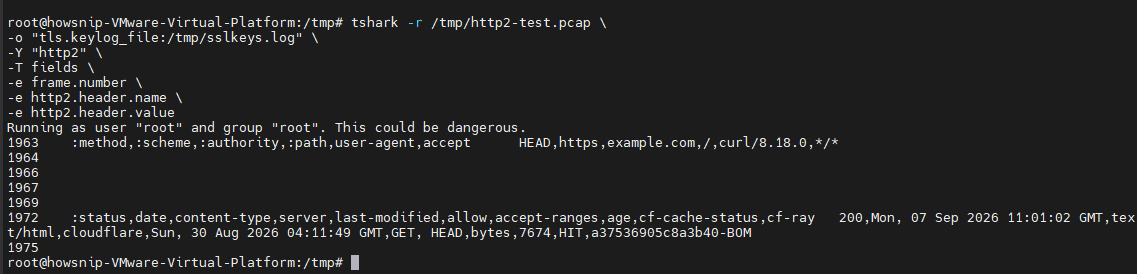
This allows analysis of encrypted HTTP/2 traffic.
Warning: TLS decryption requires access to valid session key logs.
f) Monitor ICMP Traffic
sudo tshark -i ens33 -f "icmp" -T fields \
-e frame.time \
-e ip.src \
-e ip.dst \
-e icmp.type \
-e icmp.code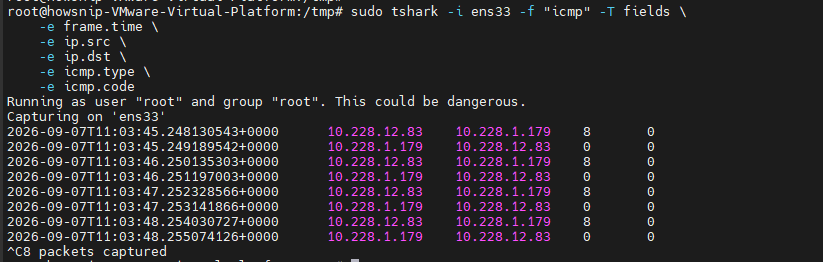
Useful for monitoring ping activity and troubleshooting connectivity issues.
11. Combine Tshark with Other Tools
a) Stream Traffic to a Remote Wireshark Instance
ssh user@server "sudo tshark -i ens33 -w -" | wireshark -k -i -
This enables GUI-based analysis on a different machine.
b) Count Unique Source IP Addresses
sudo tshark -i ens33 -Y "ip" -T fields -e ip.src -l | \
sort | uniq -c | sort -rn | head -20
It displays the most frequently observed source addresses.
c) Alert on Cleartext Protocols
sudo tshark -i ens33 -Y "tcp.dstport == 23 or tcp.dstport == 21" \
-T fields -e ip.src -e ip.dst -e tcp.dstport -l | \
while read line; do
echo "ALERT: Cleartext protocol detected: $line" | mail -s "Security Alert" admin@example.com
done
It monitors Telnet and FTP traffic and generates alerts when detected.
Useful Tshark Options Reference
- -r FILE Read packets from a file
- -w FILE Write packets to a file
- -f FILTER Apply a capture filter
- -Y FILTER Apply a display filter
- -T FORMAT Set output format
- -e FIELD Output specific fields
- -c COUNT Stop after a packet count
- -a CONDITION Automatic stop conditions
- -q Quiet mode
- -z STAT Generate statistics
- -V Verbose packet details
- -x Show packet hex dump
- -l Flush output after every packet
- -n Disable DNS resolution
- -N FLAGS Enable selective name resolution
Conclusion
Tshark brings the power of Wireshark to the command line, making it an excellent tool for network troubleshooting, traffic monitoring, incident response, and automated analysis.
By learning how to capture packets, apply filters, extract protocol data, and generate statistics, you can perform detailed network investigations entirely from a terminal session. Once you’re comfortable with Tshark’s filtering syntax and reporting options, it becomes one of the most valuable tools in a network administrator’s or security analyst’s toolkit.