

Jenkins is one of the most popular open-source automation servers used for Continuous Integration and Continuous Delivery (CI/CD). It helps developers automate building, testing, and deploying applications.
In this tutorial, you’ll learn how to install Jenkins on Ubuntu using a proven installation process. We’ll also cover two common issues that can cause the dreaded “Package ‘jenkins’ has no installation candidate” error and show you how to avoid them.
Prerequisites
Before you begin, make sure you have:
- An Ubuntu server
- A user account with sudo privileges
- Internet access for package downloads
- At least a few gigabytes of available disk space
Step 0: Configure Swap Space (Recommended)
If your server does not have swap configured, Jenkins builds can run out of memory when handling resource-intensive tasks such as Composer installs, npm builds, or database-backed test suites.
First, check your current memory and swap usage:
free -h
If the Swap value shows 0B, create a 4 GB swap file.
Create and Enable Swap
sudo fallocate -l 4G /swapfile
sudo chmod 600 /swapfile
sudo mkswap /swapfile && sudo swapon /swapfile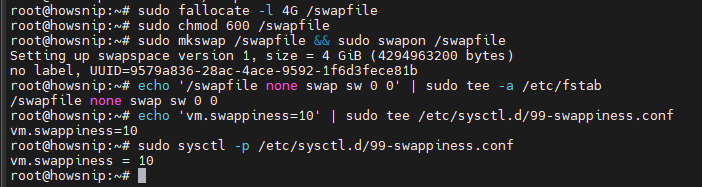
What this does:
- fallocate creates a 4 GB swap file.
- chmod 600 secures the file so only root can access it.
- mkswap formats it for swap usage.
- swapon activates the swap immediately.
Make Swap Persistent After Reboot
echo '/swapfile none swap sw 0 0' | sudo tee -a /etc/fstabThis adds the swap file to the system’s filesystem table so it is enabled automatically at startup.
Configure Swappiness
echo 'vm.swappiness=10' | sudo tee /etc/sysctl.d/99-swappiness.conf
sudo sysctl -p /etc/sysctl.d/99-swappiness.conf
A swappiness value of 10 tells Linux to use swap only when necessary instead of relying on it aggressively.
Step 1: Install Java 21
Jenkins requires Java to run. Install OpenJDK 21 Runtime Environment using the following commands:
sudo apt update
sudo apt install -y openjdk-21-jre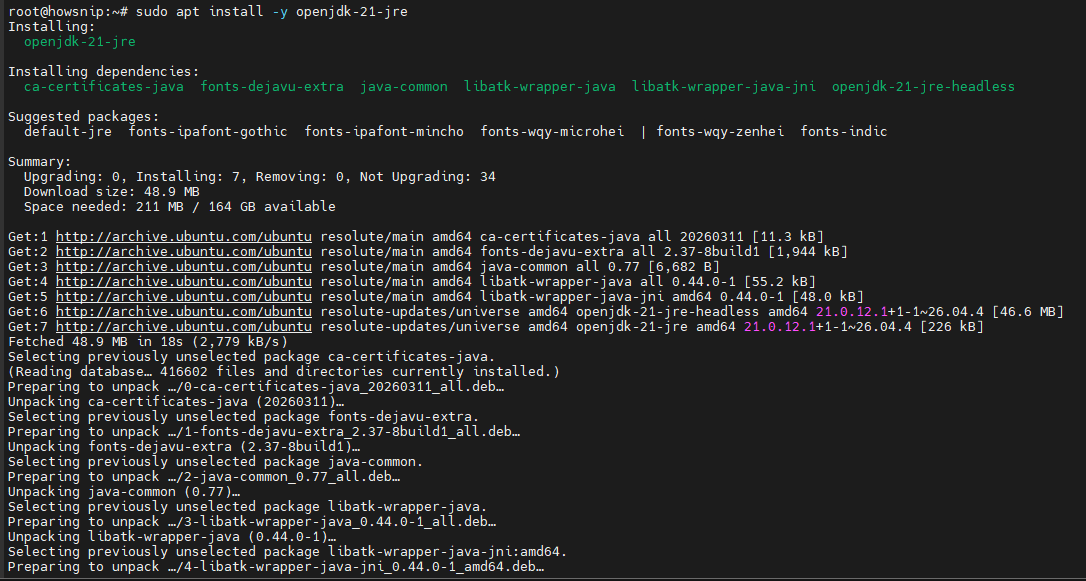
Verify the Installation
java -version
You should see output indicating that OpenJDK 21 is installed. Jenkins runs as a Java application, so Java must be installed before Jenkins can start.
Step 2: Add the Jenkins Repository
Ubuntu’s default repositories do not include the latest Jenkins packages, so you’ll need to add the official Jenkins repository.
Important: Avoid These Two Common Issues
Trap #1: Missing Keyrings Directory
Many installation guides assume the /etc/apt/keyrings directory already exists. On a fresh Ubuntu installation (any LTS version), it may not.
Create it manually:
sudo mkdir -p /etc/apt/keyrings
Without this directory, the Jenkins signing key may not be stored correctly, which can later prevent package installation.
Trap #2: Repository Signing Key Rotation
Older tutorials often reference a previous Jenkins signing key. If the key has been rotated, repository validation can fail and Jenkins may not appear as an available package.
Download the current Jenkins signing key:
sudo wget -O /etc/apt/keyrings/jenkins-keyring.asc \
https://pkg.jenkins.io/debian-stable/jenkins.io-2026.key
Add the Jenkins Repository
echo "deb [signed-by=/etc/apt/keyrings/jenkins-keyring.asc] https://pkg.jenkins.io/debian-stable binary/" | \
sudo tee /etc/apt/sources.list.d/jenkins.list > /dev/null
This command creates a new APT source file pointing to the Jenkins package repository.
Important: Repository signing keys may change in the future. If you are performing this installation later, verify the current key filename on the Jenkins package repository site before proceeding.
Step 3: Install Jenkins
Once the repository is configured, update the package list.
sudo apt update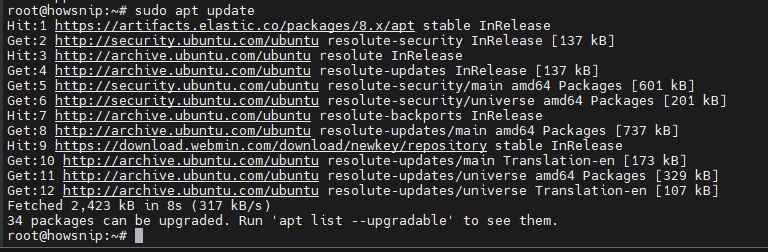
Before installing Jenkins, confirm that Ubuntu can detect the package:
apt-cache policy jenkins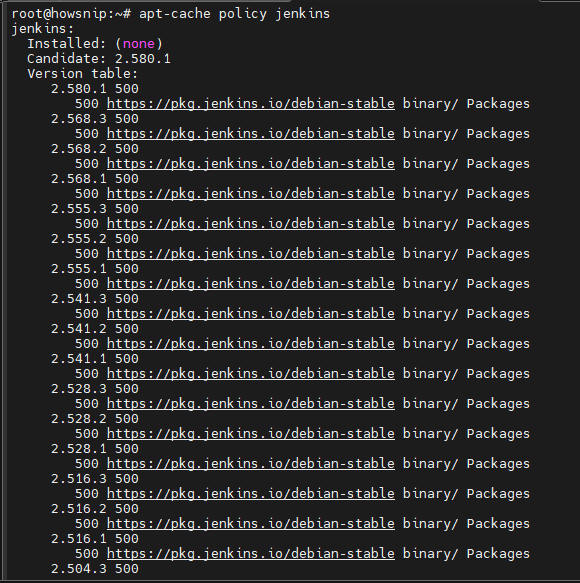
Check for a Candidate Version
The output should show a Candidate version. If no candidate version is displayed, revisit the repository configuration and key setup from Step 2.
Install Jenkins
sudo apt install -y jenkins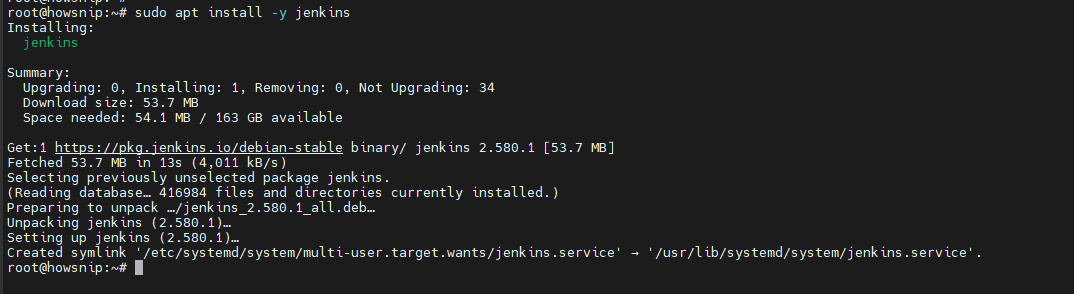
Enable and Start the Service
sudo systemctl enable --now jenkins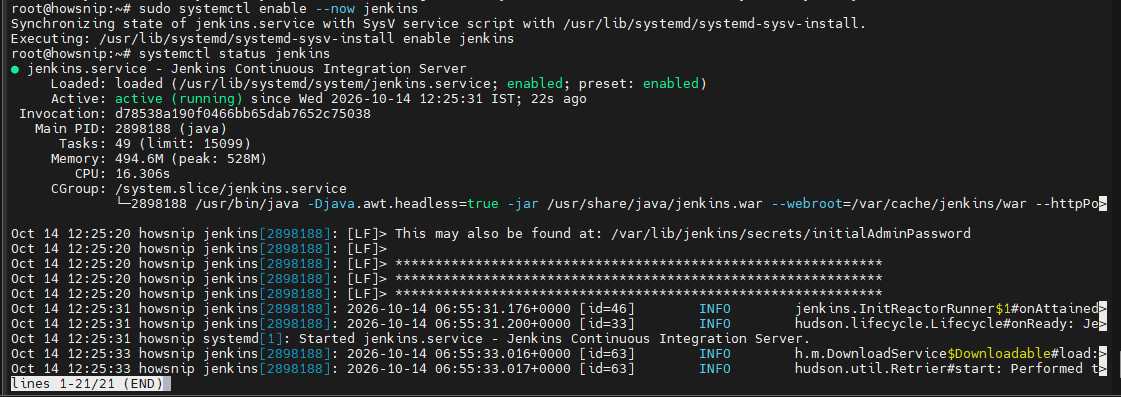
This command:
- Starts Jenkins immediately
- Configures Jenkins to start automatically after system reboots
Verify Service Status
systemctl status jenkinsYou should see a status similar to:
active (running)
Step 4: Complete the Jenkins Setup Wizard
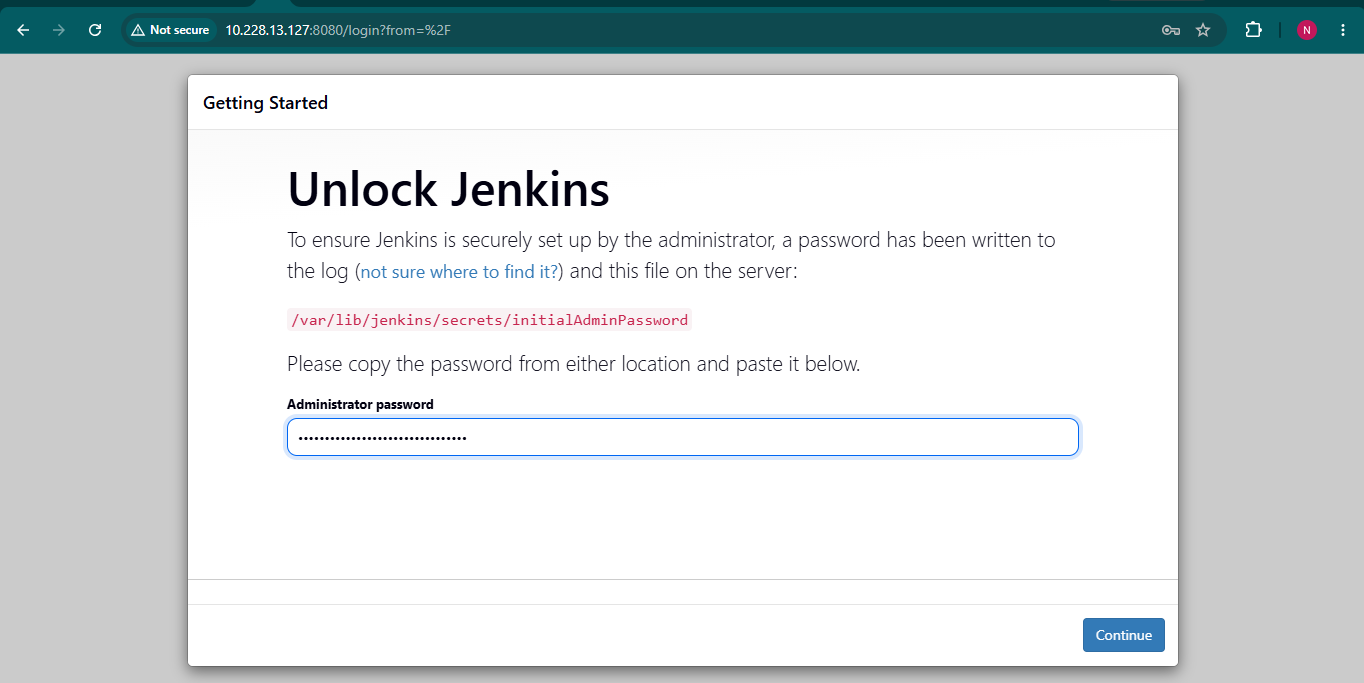
After Jenkins starts successfully, obtain the initial administrator password.
sudo cat /var/lib/jenkins/secrets/initialAdminPassword
Copy the displayed password.
Access the Jenkins Web Interface
Open the following URL in your browser:
http://your-server-ip:8080Paste the administrator password when prompted.
Install Plugins
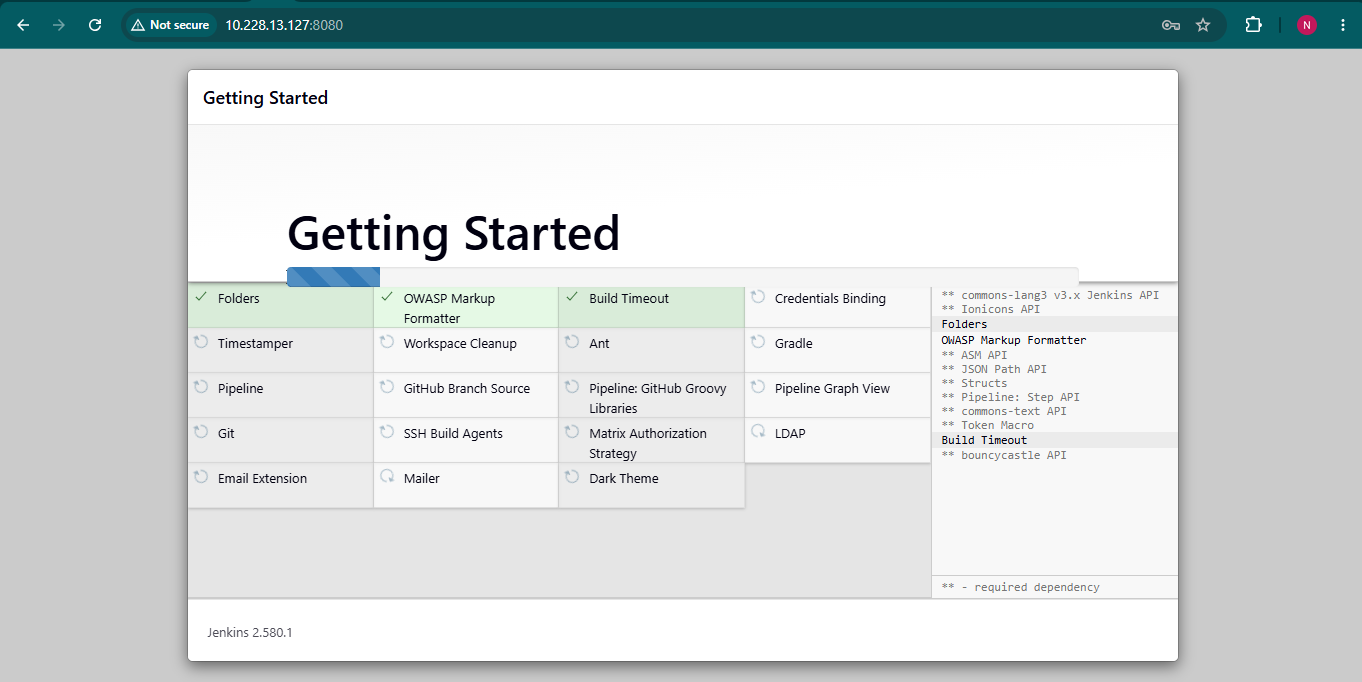
When the setup wizard appears, select: Install suggested plugins
This installs the most commonly used Jenkins extensions.
For most CI/CD environments, the following plugins are particularly useful:
- Git
- GitHub
- Pipeline
- Credentials Binding
- SSH Agent
Additional plugins can be installed later through the Jenkins dashboard.
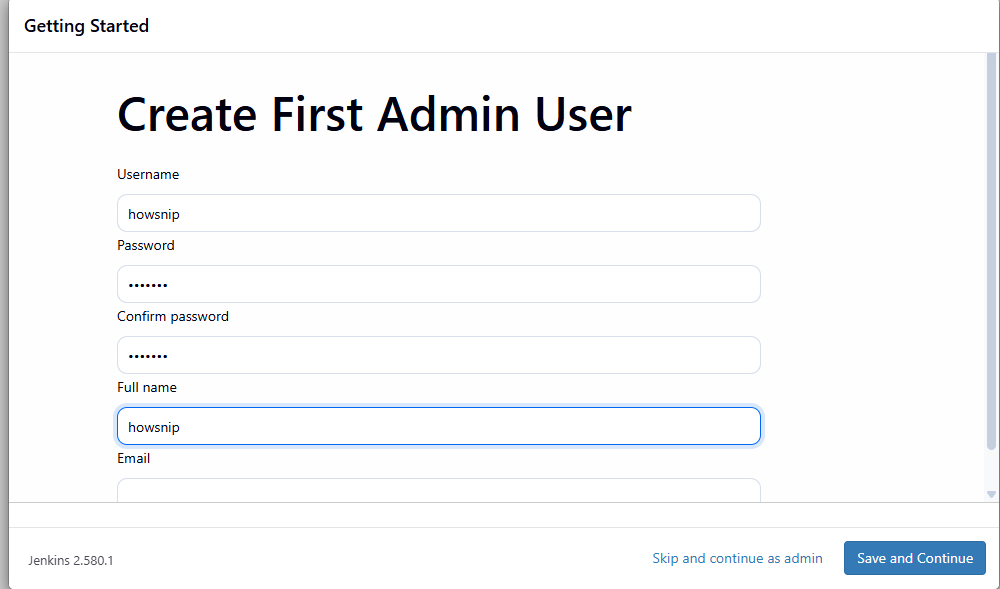
Create an Administrator Account
Create a dedicated administrator user instead of continuing to use the temporary unlock account. Using a separate admin account improves security and simplifies ongoing management.
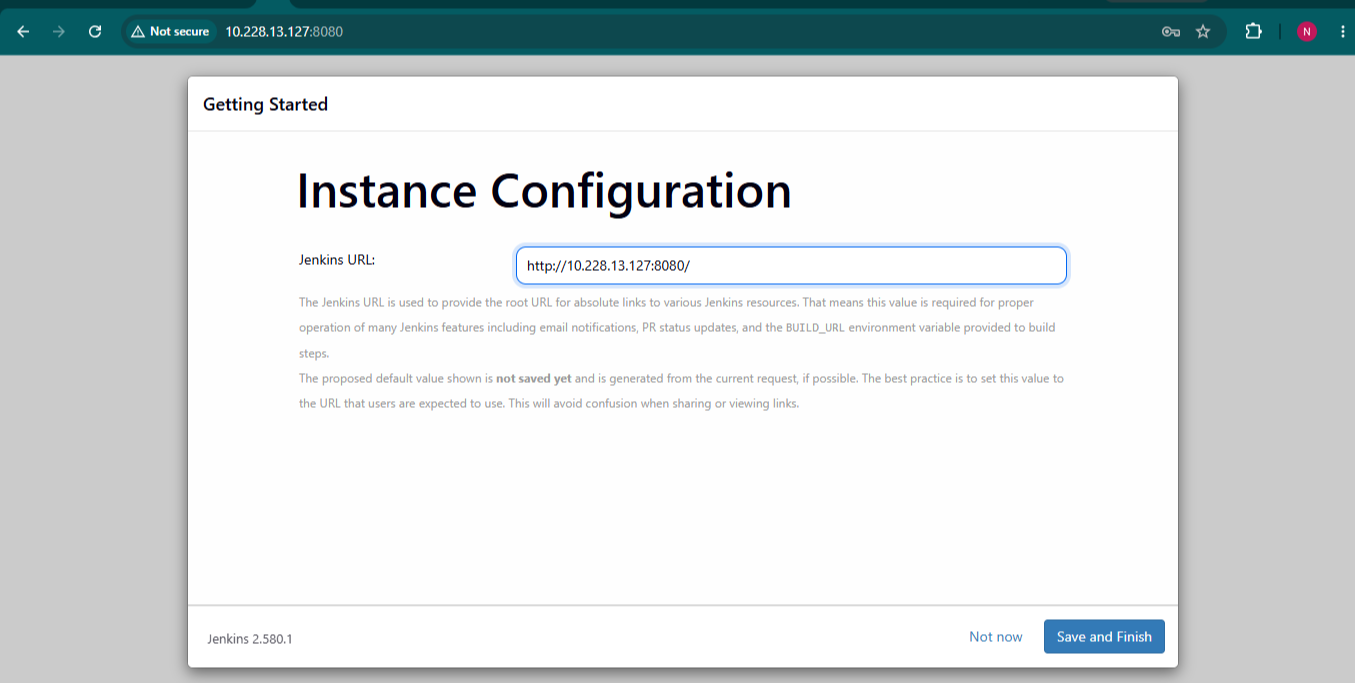
Configure the Jenkins URL
When prompted for the instance URL, use the hostname you intend to use for Jenkins.
Example:
https://jenkins.example.com/Avoid using the server’s raw IP address if you plan to access Jenkins through a domain name later.
Configure Jenkins Executors
In recent Jenkins releases (2.5xx series), the executor configuration location has changed.
Navigate to:
- Manage Jenkins
- → Nodes
- → Built-In Node
- → Configure
For a VPS that also hosts production services, consider setting:
# of executors = 1
This prevents multiple heavy builds from running simultaneously and consuming excessive server resources.
Verify the Installation
Run the following checks to confirm Jenkins is working correctly.
Check Jenkins Service Status
systemctl is-active jenkins
Expected output:
active
Verify Web Service Accessibility
curl -s -o /dev/null -w "%{http_code}\n" http://127.0.0.1:8080
Expected output:
403
A 403 response indicates Jenkins is running and requires authentication.
Confirm Swap Is Active
free -hVerify that swap space is present and enabled.

Conclusion
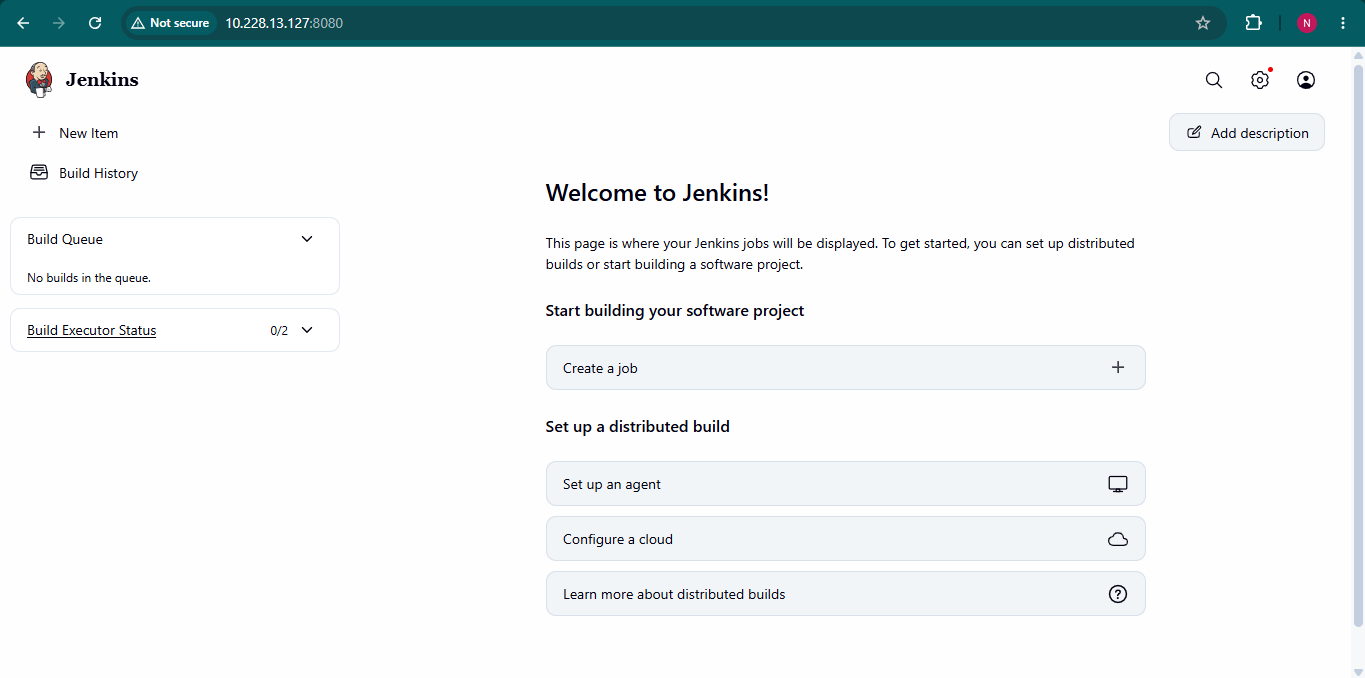
You have successfully installed Jenkins on Ubuntu and completed the initial configuration. By ensuring Java 21 is installed, configuring the correct Jenkins repository, avoiding key-related installation issues, and enabling swap space, you can build a more reliable Jenkins server ready for CI/CD workloads.
After installation, you can begin creating pipelines, integrating source control repositories, and automating your deployment workflows.