

Elasticsearch is a powerful search and analytics engine used for log management, full-text search, observability, security analytics, and more. In this tutorial, you’ll learn how to install Elasticsearch 8, configure it for single-node or multi-node deployments, secure access, verify functionality, and perform basic operations.
This guide covers Ubuntu, Debian, RHEL, CentOS, AlmaLinux, and Rocky Linux systems.
Prerequisites
Before starting, make sure you have:
- A supported Linux server
- Sudo privileges
- Internet connectivity for package downloads
- Enough system resources to run Elasticsearch
- Firewall access to required ports (if remote access is needed)
Note: Elasticsearch 8 enables security features by default. During installation, a temporary password and certificate information may be displayed. Store this information securely.
Step 1: Install Elasticsearch on Ubuntu and Debian
First, update your package repository and install the required dependencies.
sudo apt update && sudo apt install -y curl gnupg apt-transport-https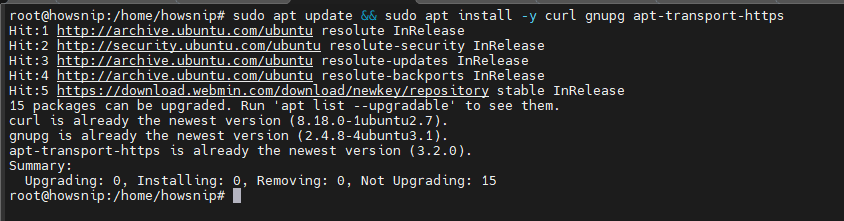
This command installs tools required to add Elastic’s package repository securely.
Import the Elastic GPG Key
The GPG key allows your system to verify package authenticity.
curl -fsSL https://artifacts.elastic.co/GPG-KEY-elasticsearch | sudo gpg --dearmor -o /usr/share/keyrings/elastic.gpg
Add the Elasticsearch Repository
Add the official Elastic APT repository to your system.
echo "deb [signed-by=/usr/share/keyrings/elastic.gpg] https://artifacts.elastic.co/packages/8.x/apt stable main" | sudo tee /etc/apt/sources.list.d/elastic-8.x.list
Update package indexes and install Elasticsearch.
sudo apt update
sudo apt install -y elasticsearch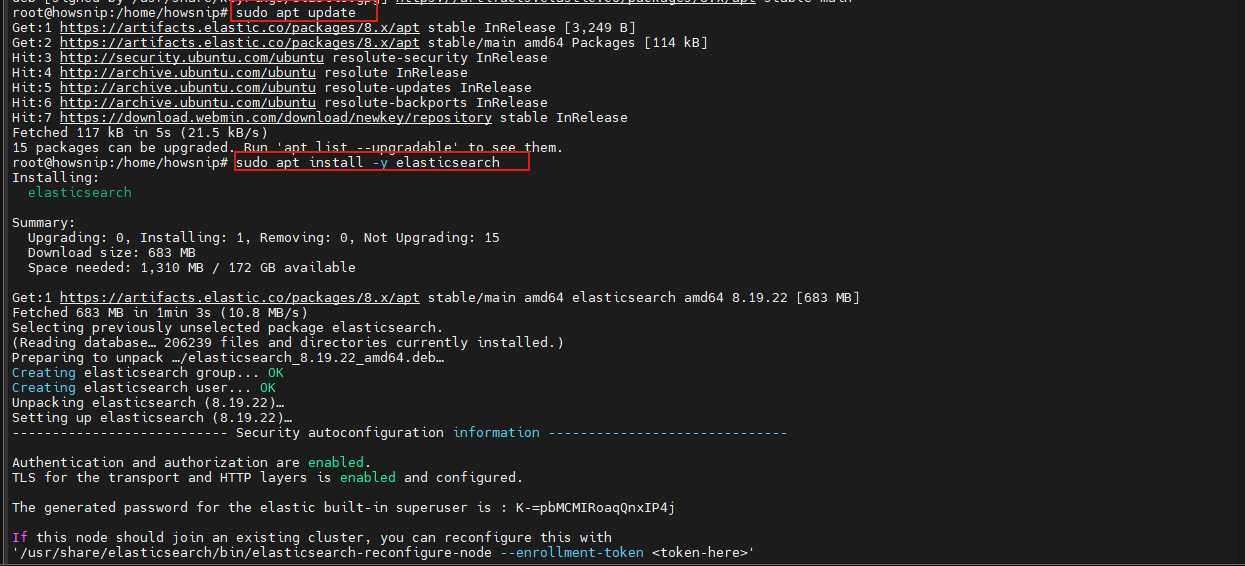
Step 2: Install Elasticsearch on RHEL, CentOS, AlmaLinux, and Rocky Linux
Install the required packages:
sudo dnf install -y curl gnupgCreate the Elasticsearch Repository
Create a YUM repository configuration file:
cat <<'EOF' | sudo tee /etc/yum.repos.d/elasticsearch.repo
[elasticsearch-8.x]
name=Elasticsearch repository for 8.x packages
baseurl=https://artifacts.elastic.co/packages/8.x/yum
gpgcheck=1
gpgkey=https://artifacts.elastic.co/GPG-KEY-elasticsearch
enabled=1
autorefresh=1
type=rpm-md
EOF
Clean repository metadata and install Elasticsearch:
sudo dnf clean all
sudo dnf install -y elasticsearch
Step 3: Apply Required Kernel and System Tuning
Elasticsearch relies heavily on virtual memory mappings and open file limits. These settings should be configured before starting the service.
a) Configure Virtual Memory Mappings
echo "vm.max_map_count=262144" | sudo tee /etc/sysctl.d/99-elasticsearch.conf
sudo sysctl --system
This increases the maximum number of memory map areas used by Elasticsearch.
b) Configure File Descriptor and Process Limits
Create limits for the Elasticsearch service user:
echo -e "elasticsearch soft nofile 65536
elasticsearch hard nofile 65536
elasticsearch soft nproc 4096
elasticsearch hard nproc 4096" | sudo tee /etc/security/limits.d/90-elasticsearch.conf
These settings allow Elasticsearch to safely handle large workloads.
c) Optional: Reduce Swap Usage
echo "vm.swappiness=1" | sudo tee /etc/sysctl.d/98-swappiness.conf
sudo sysctl --system
This reduces the likelihood of Elasticsearch performance issues caused by swapping.
d) Optional: Enable Memory Locking
Memory locking helps prevent Elasticsearch memory from being swapped to disk. Edit the Elasticsearch configuration file and add:
bootstrap.memory_lock: truee) Configure Systemd Limits
Create a systemd override:
sudo systemctl edit elasticsearchAdd the following:
[Service]
LimitMEMLOCK=infinity
Reload systemd settings:
sudo systemctl daemon-reload
Step 4: Configure Elasticsearch
The main configuration file is located at:
sudo nano /etc/elasticsearch/elasticsearch.yml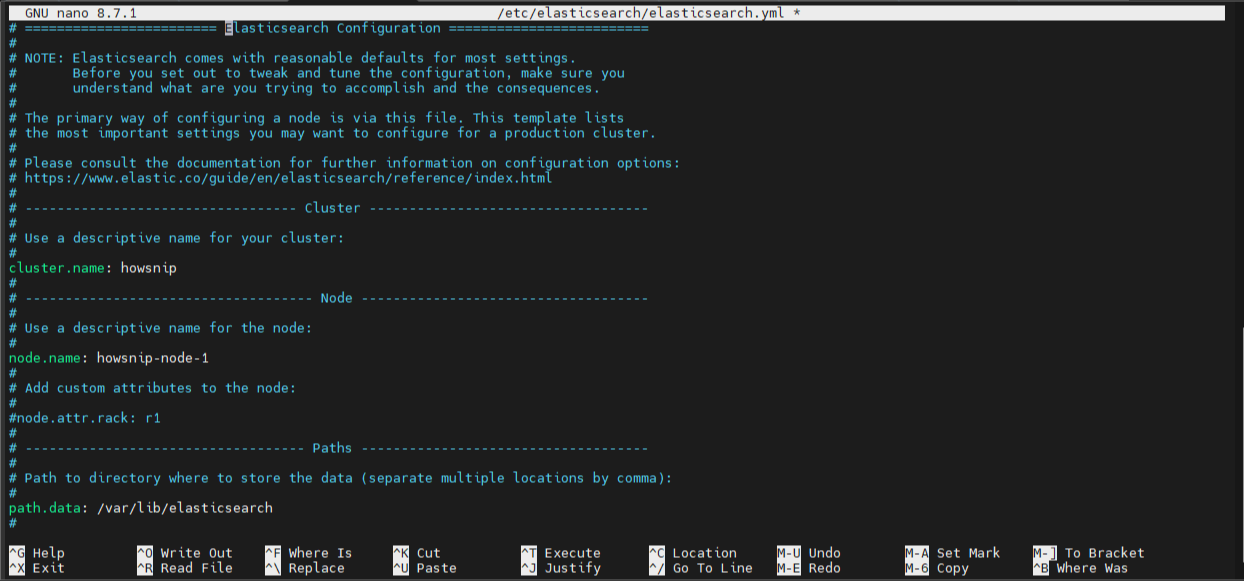
a) Single-Node Configuration (Development or Testing)
Use the following settings for a secure standalone node:
cluster.name: my-es-cluster
node.name: node-1
network.host: 0.0.0.0
discovery.type: single-node
xpack.security.enabled: true
What these settings do
- cluster.name defines the cluster identifier.
- node.name specifies the node’s unique name.
- network.host controls network binding.
- discovery.type: single-node disables cluster discovery.
- xpack.security.enabled enables built-in security.
Warning: Avoid exposing Elasticsearch directly to the public internet.
b) Multi-Node Production Cluster Example
For cluster deployments:
cluster.name: prod-es
node.name: es-1
network.host: 10.0.1.10

discovery.seed_hosts:
- 10.0.1.10
- 10.0.1.11
- 10.0.1.12

cluster.initial_master_nodes:
- es-1
- es-2
- es-3

xpack.security.enabled: true
xpack.security.transport.ssl.enabled: true
xpack.security.http.ssl.enabled: true
These settings enable node discovery, cluster formation, and encrypted communications.
Note: Elasticsearch 8 generates service certificates during installation. You can regenerate certificates using the elasticsearch-certutil utility if needed.
Step 5: Start and Enable Elasticsearch
Enable Elasticsearch to start automatically at boot and launch it immediately.
sudo systemctl enable elasticsearch
sudo systemctl start elasticsearch
Verify the service status:
sudo systemctl status elasticsearch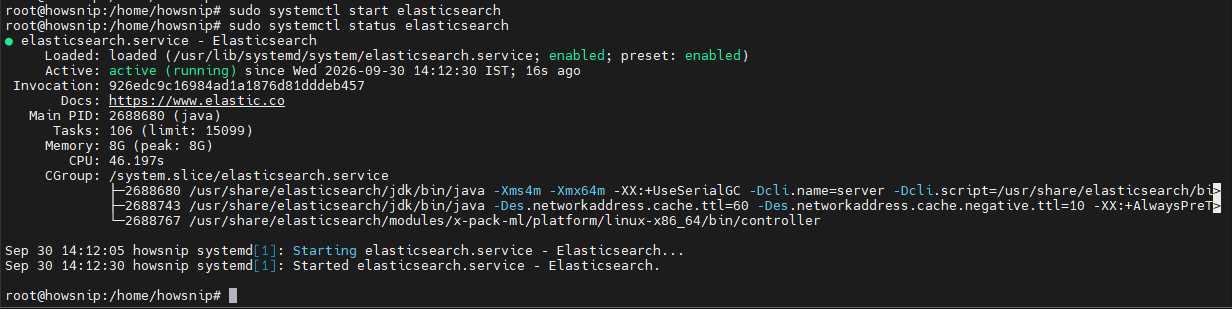
If troubleshooting is required, view the live logs:
sudo journalctl -u elasticsearch -f
Step 6: Reset or Retrieve the Elastic User Password
If you did not save the password displayed during installation, reset it using:
sudo /usr/share/elasticsearch/bin/elasticsearch-reset-password -u elasticSave the generated password securely.

Step 7: Verify Elasticsearch Is Working
Test connectivity using the built-in elastic user.
curl -u elastic https://localhost:9200 -k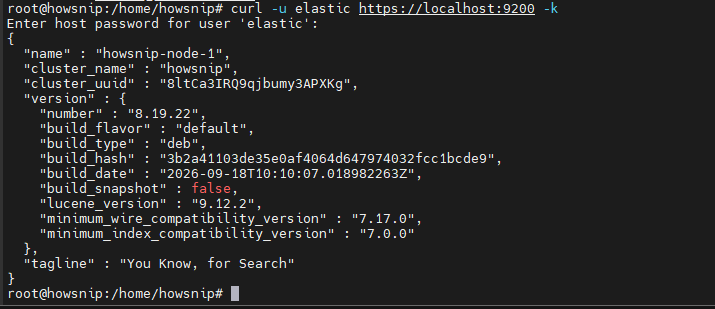
The command should return cluster information in JSON format, confirming that Elasticsearch is running and accepting requests.
Step 8: Configure Firewall Access
Only open the ports you actually need.
a) Ubuntu (UFW)
Allow Elasticsearch API and cluster communication ports:
sudo ufw allow 9200/tcp
sudo ufw allow 9300/tcp
sudo ufw reload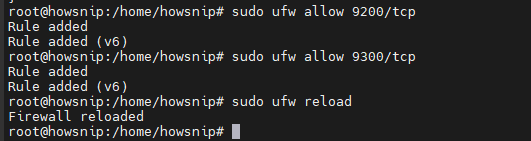
b) RHEL-Based Systems (firewalld)
sudo firewall-cmd --permanent --add-port=9200/tcp
sudo firewall-cmd --permanent --add-port=9300/tcp
sudo firewall-cmd --reload
Port Usage
- 9200 – REST API access
- 9300 – Node-to-node cluster communication
Security Tip: Port 9300 should generally be accessible only on private networks.
Step 9: Create an Index and Test Elasticsearch
Now that Elasticsearch is running, create an index and perform some basic operations.
Create an Index
curl -k -u elastic:YOUR_PASSWORD \
-X PUT "https://localhost:9200/blog?pretty" \
-H 'Content-Type: application/json' \
-d '{
"settings": {
"number_of_shards": 1,
"number_of_replicas": 1
}
}'
This creates a new index called blog.
Index a Document
curl -k -u elastic:YOUR_PASSWORD \
-X POST "https://localhost:9200/blog/_doc?pretty" \
-H 'Content-Type: application/json' \
-d '{
"title": "Hello Elasticsearch",
"tags": ["linux","search"],
"published": true
}'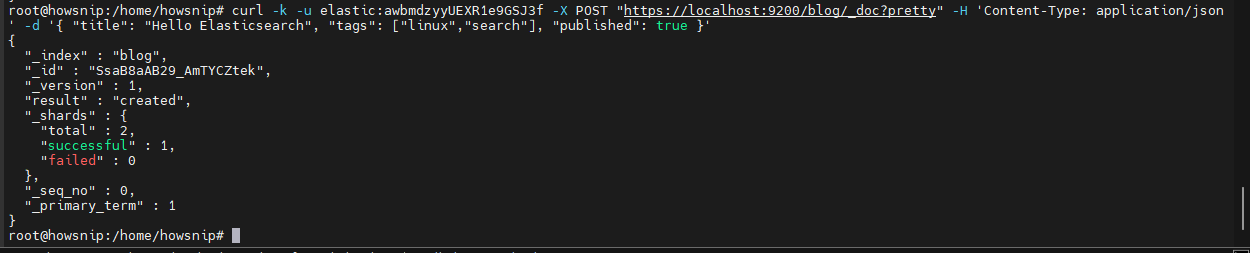
This adds a sample document to the index.
Search the Index
curl -k -u elastic:YOUR_PASSWORD \
"https://localhost:9200/blog/_search?q=title:hello&pretty"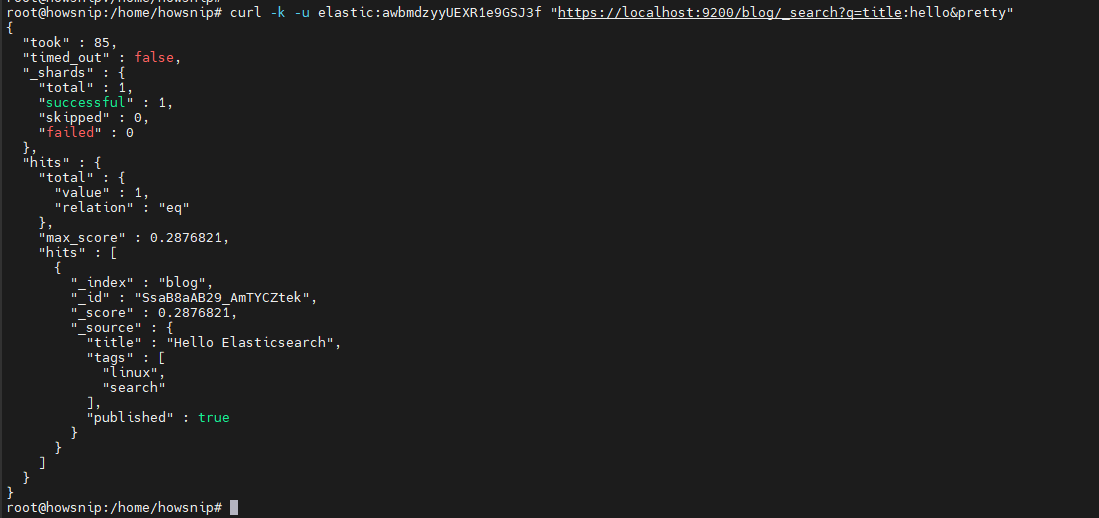
This searches for documents matching the specified title.
Optional: Install Kibana
Kibana provides a web-based interface for managing Elasticsearch, visualizing data, and running queries.
Install Kibana
Ubuntu/Debian
sudo apt install -y kibana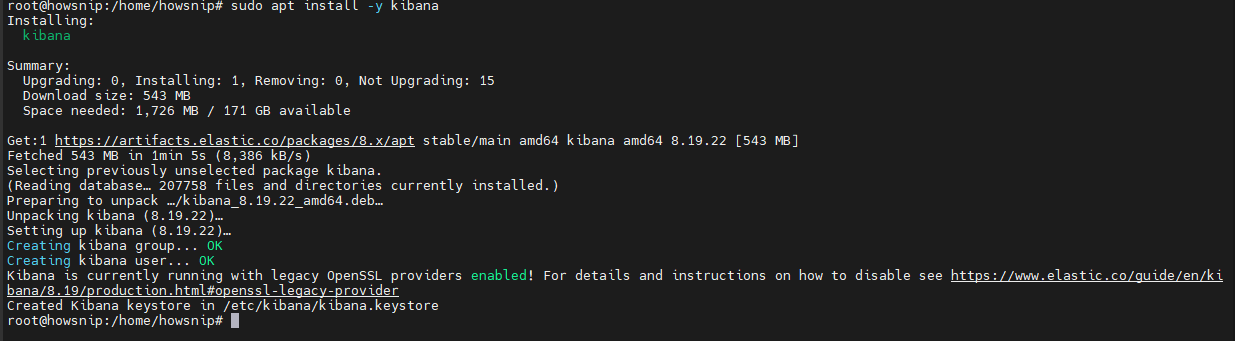
RHEL-Based Systems
sudo dnf install -y kibanaConfigure Kibana
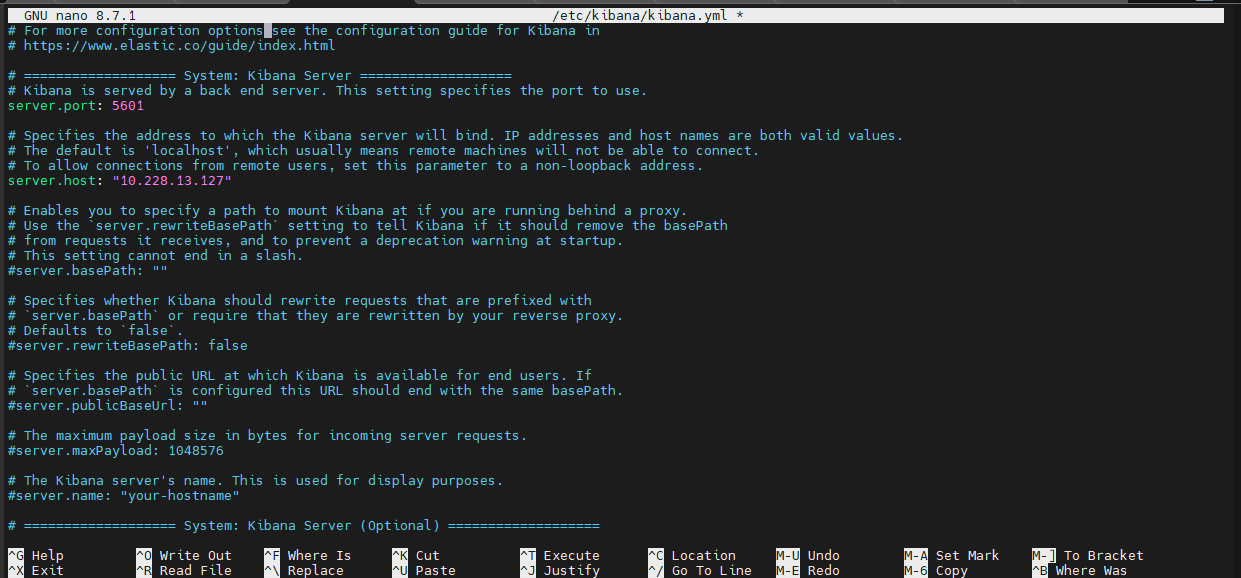
Edit the Kibana configuration file (/etc/kibana/kibana.yml):
server.host: "0.0.0.0"
elasticsearch.hosts: ["https://localhost:9200"]
This allows Kibana to connect to Elasticsearch.
Generate an Enrollment Token
Generate a Kibana enrollment token:
sudo /usr/share/elasticsearch/bin/elasticsearch-create-enrollment-token -s kibana
Enroll Kibana using the generated token:
sudo /usr/share/kibana/bin/kibana-setup --enrollment-token <TOKEN>Start and enable Kibana:
sudo systemctl enable --now kibana
Performance Tuning Essentials
Once Elasticsearch is operational, consider the following optimization practices.
1. Configure Heap Size
Allocate approximately 50% of available RAM to Elasticsearch.
Example:
echo "-Xms4g" | sudo tee /etc/elasticsearch/jvm.options.d/heap.options
echo "-Xmx4g" | sudo tee -a /etc/elasticsearch/jvm.options.d/heap.options
Restart Elasticsearch after changing heap settings:
sudo systemctl restart elasticsearch
- -Xms sets the minimum heap size.
- -Xmx sets the maximum heap size.
Both values should be identical.
2. Use Fast Storage
Prefer NVMe or SSD storage.
- Avoid slow network storage for active workloads.
- Keep Elasticsearch data on dedicated disks when possible.
3. Avoid Oversharding
Start with a small number of shards and scale based on actual data growth.
- Small deployments: 1 primary shard
- Medium deployments: 1–2 primary shards
4. Optimize Replicas
- Fewer replicas improve indexing speed.
- More replicas improve availability and query capacity.
5. Use Ingest Pipelines or Logstash
For complex parsing and transformations, offload processing to ingest pipelines or Logstash instead of handling it during searches.
Conclusion
You have successfully installed Elasticsearch 8 on Linux, applied the required system tuning, configured security settings, started the service, and verified functionality using REST API calls. You also learned how to open firewall ports, create indexes, insert documents, perform searches, install Kibana, and apply basic performance optimizations.
With these fundamentals in place, your Elasticsearch deployment is ready for development, testing, or further production hardening.