

The SED command (short for Stream Editor) is one of the most powerful text-processing tools available in Linux. It allows you to search, filter, modify, and transform text directly from files or command output without opening an interactive editor.
Whether you’re updating configuration files, cleaning log files, automating repetitive changes, or building shell scripts, SED can save significant time and effort.
In this tutorial, you’ll learn how SED works, understand its syntax, and explore practical examples ranging from simple text replacements to advanced multi-line editing techniques.
What Is the SED Command in Linux?
SED is a command-line utility designed to process text streams. Instead of editing files manually, it reads input line by line, applies specified commands, and outputs the modified result.
Common uses include:
- Finding and replacing text
- Editing configuration files
- Cleaning log data
- Extracting specific information
- Automating text-processing tasks in shell scripts
Because SED operates on streams of text, it works especially well in Linux pipelines and automation workflows.
Understanding How SED Works
SED processes text one line at a time:
- Reads a line from input.
- Applies the specified command or pattern.
- Outputs the result.
- Moves to the next line.
Basic Syntax
sed [OPTIONS] 'address(es) command(s)' file(s)Example: Replace Text
sed 's/old/new/' file.txtThis replaces the first occurrence of old with new on each line.
Example: Print Specific Lines
sed -n '1,10p' file.txt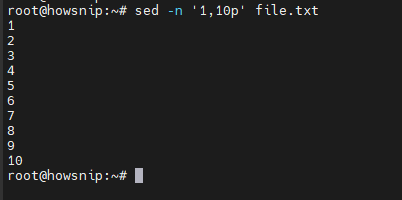
This prints only lines 1 through 10.
Example: Delete Matching Lines
sed '/error/d' app.log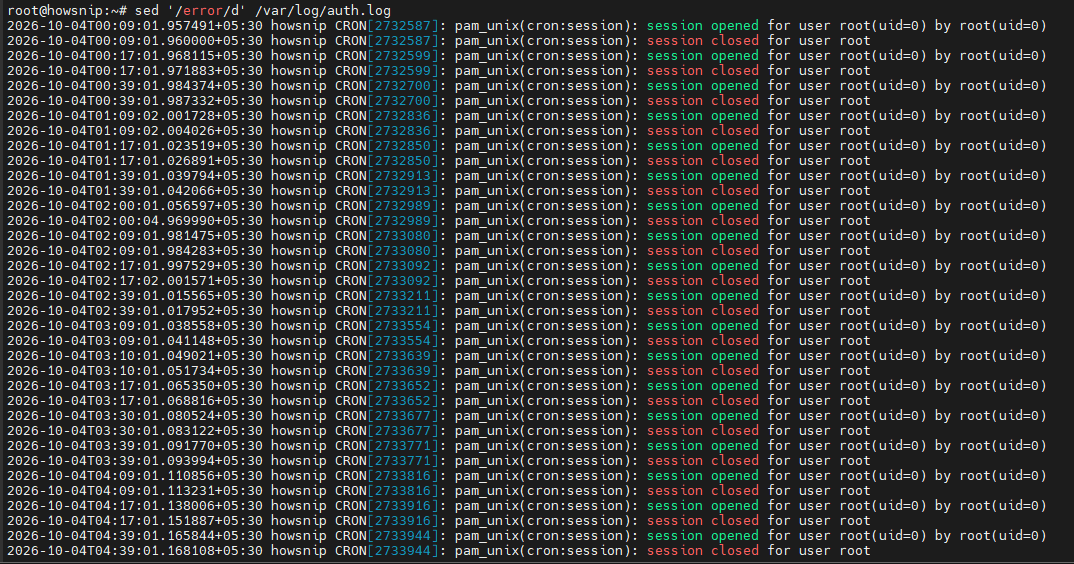
This removes lines containing the word error.
Common SED Options
a) Suppress Automatic Output (-n)
sed -n '5p' file.txt
It prevents SED from printing every line automatically. Useful when you only want specific output.
b) Edit Files In Place (-i)
sed -i.bak 's/old/new/g' file.txtIt modifies the file directly and creates a backup named file.txt.bak.
Important: Always test commands before using -i on production files.
c) Use Extended Regular Expressions (-E)
sed -E 's/[0-9]+/NUMBER/g' file.txtIt enables extended regular expressions, making patterns easier to read and write.
d) Load Commands from a Script File (-f)
sed -f script.sed input.txtIt executes SED commands stored in a file.
e) Add Multiple Commands (-e)
sed -e 'command1' -e 'command2' file.txt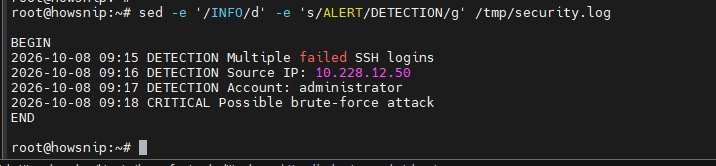
It allows multiple edit operations in a single execution.
Working with Addresses and Line Ranges
Addresses let you target specific lines or patterns.
a) Print a Specific Line
sed -n '5p' file.txtIt prints line 5 only.
b) Print a Range of Lines
sed -n '5,12p' file.txt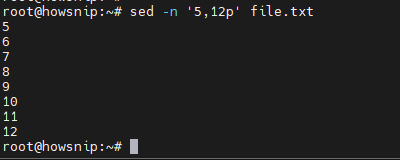
This command prints lines 5 through 12.
c) Match Text Using Regular Expressions
sed -n '/error/p' log.txt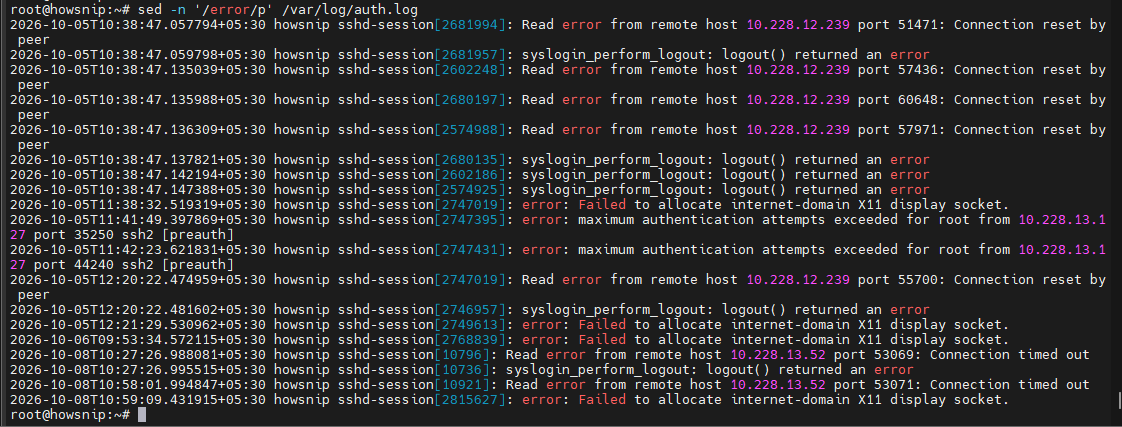
It prints lines containing ERROR.
d) Delete Comment Lines
sed '/^#/d' config.conf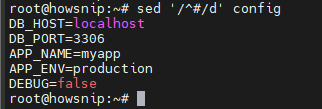
This command removes lines beginning with #.
e) Print a Pattern Range
sed -n '/START/,/END/p' file.txt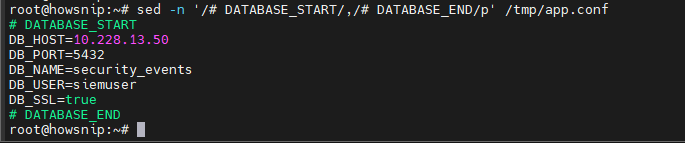
It prints everything between lines containing START and END.
f) Print Only Non-Empty Lines
sed -n '/^$/!p' file.txt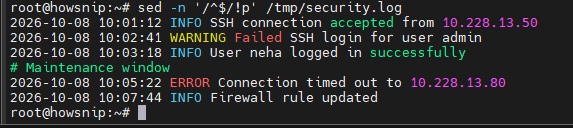
The ! negates the pattern, so only non-empty lines are printed.
g) Find and Replace Text with SED
The substitution command uses the following format:
s/pattern/replacement/flagsh) Replace the First Match Per Line
sed 's/foo/bar/' file.txt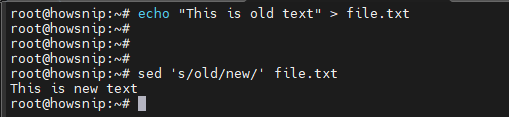
It replaces only the first occurrence on each line.
i) Replace All Matches
sed 's/foo/bar/g' file.txtThe g flag performs a global replacement on each line.
j) Case-Insensitive Replacement (GNU SED)
sed 's/linux/Linux/Ig' notes.txt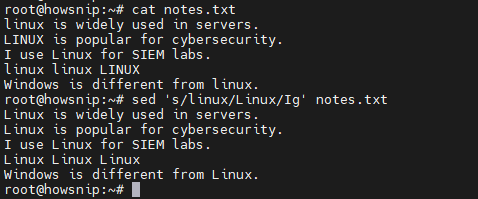
It replaces matches regardless of letter case.
k) Use Alternate Delimiters
When working with file paths, alternate delimiters improve readability:
sed 's#/var/www/html#/srv/www#' vhost.conf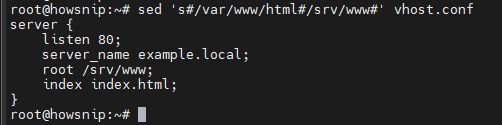
This avoids escaping / characters.
l) Replace Text Only on Matching Lines
sed '/^server_name/s/example.com/example.org/' site.conf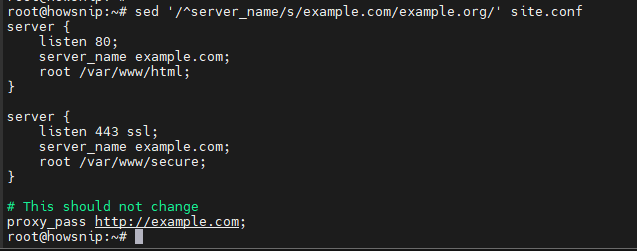
It updates text only on lines beginning with server_name.
m) Replace a Specific Occurrence
sed 's/foo/bar/2' input.txt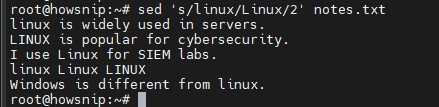
This command replaces only the second occurrence of foo on each line.
n) Working with Capture Groups
sed -E 's/([0-9]{3})-([0-9]{2})-([0-9]{4})/***-**-\3/g' data.txt
This command uses captured groups to mask part of a value while keeping selected digits visible.
Another example:
sed -E 's/error:<([^>]+)>/issue:&[\1]/' log.txt
- \1 refers to the first captured group.
- & represents the entire matched text.
Insert, Append, and Replace Lines
a) Insert Text Before a Match
sed '/^[mysqld]/i # Managed by automation' my.cnf
It adds a line before matching entries.
b) Append Text After a Match
sed '/listen 80;/a listen 443 ssl;' nginx.conf
It adds a new line after the matching line.
c) Replace an Entire Line
sed '/^DocumentRoot/c DocumentRoot "/srv/www/example"' httpd.conf
This command replaces the entire matching line with new content.
Delete Lines with SED
a) Remove Comments and Empty Lines
sed -E '/^\s*($|#)/d' file.txt
It deletes blank lines and comment lines.
b) Delete a Specific Line Range
sed '10,20d' file.txt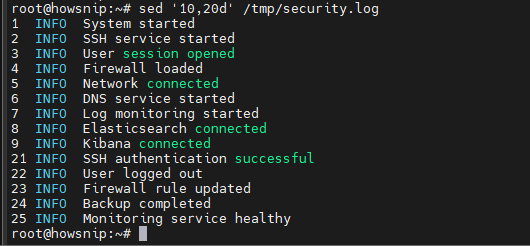
It removes lines 10 through 20.
c) Keep Only a Specific Block
sed '/BEGIN/,/END/!d' file.txt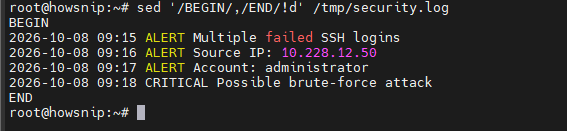
This command deletes everything except content between BEGIN and END.
Perform Multiple Edits in a Single Command
a) Using Multiple -e Options
sed -E -e 's/\s+$//' -e 's/^\s+//' input.txt
This removes trailing and leading whitespace.
b) Using Semicolons
sed -E 's/\s+$//; s/^\s+//' input.txtIt produces the same result using a shorter syntax.
c) Using a Script File
sed -f fixup.sed input.txt
This command is useful when managing larger collections of editing commands.
Safely Edit Files In Place
Directly modifying files is convenient but should be done carefully.
a) Preview Changes First
sed -E 's/http:/https:/g' site.conf | diff -u site.conf -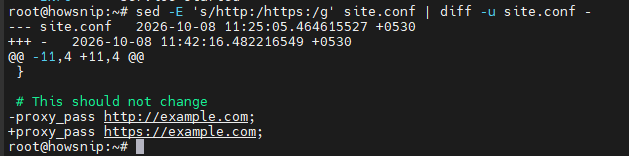
This command shows differences before making permanent changes.
b) GNU/Linux Example
sed -i.bak 's/PermitRootLogin no/PermitRootLogin prohibit-password/' /etc/ssh/sshd_config
It creates a backup before modifying the file.
c) macOS/BSD Example
sed -i '' -E 's#<Directory /var/www>#<Directory /srv/www>#' /tmp/httpd.conf
It edits the file without creating a backup.
Portability Notes
- Use -E for extended regular expressions.
- The I flag for case-insensitive matching is GNU SED specific.
- GNU/Linux and BSD/macOS handle the -i option differently.
Important: Test commands on non-production files first.
Advanced SED Techniques
Using Extended Regular Expressions
a) Normalize Multiple Spaces
sed -E 's/[[:space:]]+/ /g' file.txt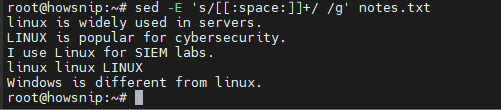
It converts repeated whitespace into a single space.
b) Swap First and Last Names
sed -E 's/^([A-Za-z]+)\s+([A-Za-z]+)$/\2 \1/' names.txt
This command reorders names using capture groups.
c) Keep Only Digits
sed -E 's/[^0-9]+//g' data.txt
This command removes all non-numeric characters.
Multi-Line Editing with SED
By default, SED processes one line at a time. The N command allows multiple lines to be processed together.
a) Join Every Two Lines
sed 'N; s/n/ /' file.txt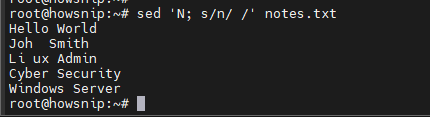
It combines pairs of lines into a single line.
b) Remove Consecutive Blank Lines
sed -E '/^$/N;/^\n$/D' file.txt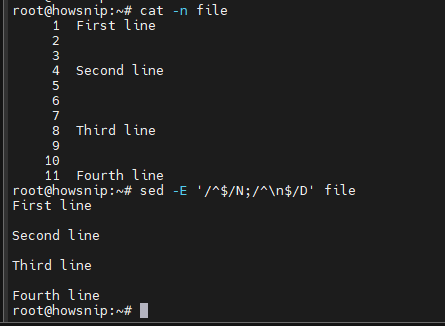
It collapses multiple blank lines into a single blank line.
c) Replace Text Across Line Breaks
sed 'N; s/TOKEN\nCONTINUED/TOKEN CONTINUED/; P; D' file.txt
This command is useful when text is split between two lines.
Understanding Hold Space
SED maintains two buffers:
- Pattern Space – the current line being processed.
- Hold Space – a temporary storage area.
a) Print the Previous Line with the Current Line
sed ‘1!G; h; $!p’ file.txt
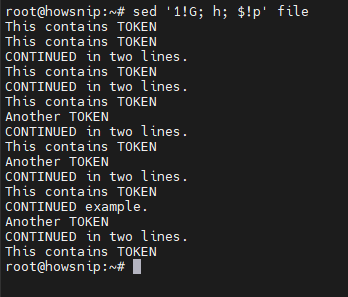
It stores each line and appends the previous line when printing.
b) Swap Current and Previous Lines
sed 'x; 1!p; h' file.txt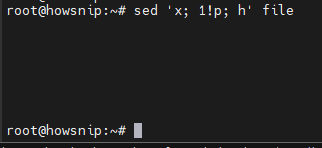
It exchanges data between the pattern space and hold space.
c) Branching and Conditional Logic
SED can perform conditional operations using labels and branching commands.
sed -E ':start; s/alpha/A/g; t next; b end; :next s/beta/B/g; :end' file.txt
In this example:
- t branches only when a substitution succeeds.
- b performs an unconditional branch.
- Labels (:start, :next, :end) help control execution flow.
Useful Real-World SED Examples
1. Remove Comments and Trailing Spaces
sed -E 's/\s+$//;/^\s*(#|$)/d' config.conf
It cleans configuration files before processing.
2. Bulk HTTPS Update in Nginx Configurations
find /etc/nginx/sites-available -type f -name '*.conf' -print0 \
| xargs -0 sed -i.bak 's/http:/https:/g'
This command updates multiple Nginx configuration files while keeping backups.
3. Keep the Last 1000 Log Lines
sed -n -e :a -e '$q;N;101,$D;ba' app.log > app.log.tail
It creates a trimmed log file containing recent entries.
4. Mask Email Usernames
sed -E 's/([A-Za-z0-9._%+-])[A-Za-z0-9._%+-]*(@[A-Za-z0-9.-]+\.[A-Za-z]{2,})/\1***\2/g' access.log
It protects user privacy in log files.
5. Convert CSV Delimiters to Tabs
sed 's/,/\t/g' data.csv > data.tsv
It converts comma-separated values to tab-separated format.
Note: This simple approach does not account for commas inside quoted fields.
6. Update a Value Within a Specific Block
sed -E '/<VirtualHost *:80>/,/<\/VirtualHost>/ s/ServerName .*/ServerName example.org/' vhost.conf
It changes values only within a defined configuration section.
7. Remove Adjacent Duplicate Lines
sed '$!N; /(.*)\n\1/!P; D' file.txt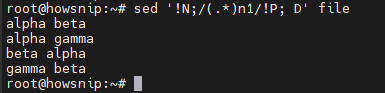
This command removes consecutive duplicate lines from a file.
Conclusion
The Linux SED command is an essential tool for text processing, automation, and system administration. From simple text replacements to advanced pattern matching, multi-line editing, and configuration management, SED provides a fast and efficient way to manipulate text directly from the command line.
Start with basic commands like printing, replacing, and deleting lines. Once you’re comfortable with those, explore regular expressions, in-place editing, and advanced features such as hold space and branching to unlock the full power of SED in your automation workflows.