

DNS issues can cause websites, email services, and applications to stop working correctly. The nslookup command is one of the most commonly used tools for checking DNS records, verifying domain configurations, and troubleshooting name resolution problems.
In this tutorial, you’ll learn the basic nslookup syntax, understand its different modes, and use practical examples to query common DNS record types such as A, MX, NS, TXT, SOA, CNAME, PTR, and AAAA records.
Prerequisites
- Access to a terminal or command prompt.
- The nslookup utility installed on your system (available by default on most operating systems).
- A domain name or IP address to test.
The basic format of the nslookup command is:
nslookup [domain] [DNS server]Example:
nslookup howsnip.com 8.8.8.8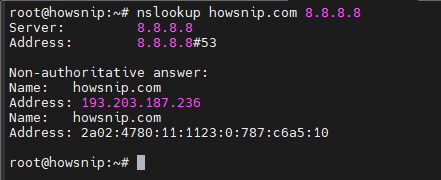
This command queries the DNS records for howsnip.com using Google’s public DNS server (8.8.8.8) instead of your system’s default DNS resolver.
Nslookup Operating Modes
nslookup supports two primary modes.
a) Non-Interactive Mode
Non-interactive mode is used when you need a quick DNS lookup with a single command. Simply run a query and receive the result immediately.
Example:
nslookup example.com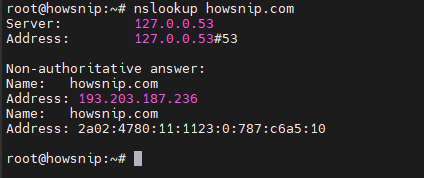
b) Interactive Mode
Interactive mode allows you to run multiple DNS queries without reopening the command every time. To enter interactive mode:
nslookupAfter entering the console, you can perform different DNS lookups and change query types as needed.
A Record Lookup (Domain to IP Address)
An A record maps a domain name to its IPv4 address. This is one of the most common DNS lookups.
Run:
nslookup example.comThis command returns the IPv4 address associated with the domain.
Why use it?
- Verify website DNS resolution.
- Check whether a domain points to the correct server.
- Troubleshoot connectivity issues.
MX Record Lookup (Mail Server Check)
MX (Mail Exchange) records specify which mail servers receive email for a domain.
Run:
nslookup -type=MX example.com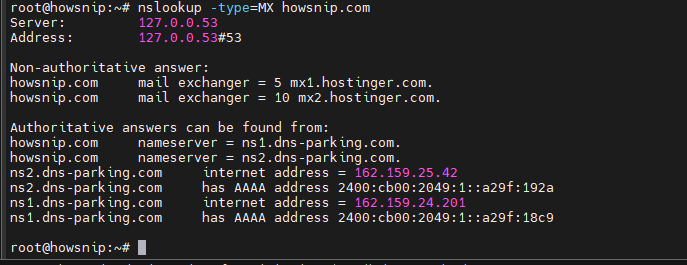
This query displays the mail servers configured for the domain.
Why use it?
- Verify email routing.
- Troubleshoot mail delivery problems.
- Confirm email server configuration.
NS Record Lookup (Name Servers)
NS records identify the authoritative name servers responsible for a domain.
Run:
nslookup -type=NS example.com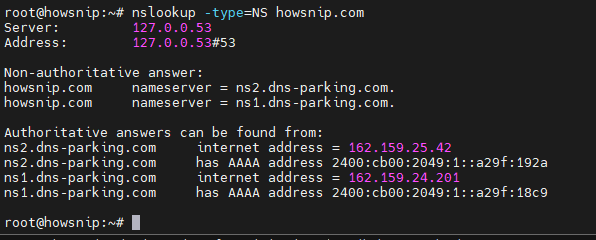
This command lists the domain’s configured name servers.
Why use it?
- Verify domain delegation.
- Confirm nameserver changes.
- Troubleshoot DNS propagation issues.
TXT Record Lookup (SPF, DKIM, and Verification Records)
TXT records store text-based DNS information and are commonly used for email authentication and domain verification.
Run:
nslookup -type=TXT example.com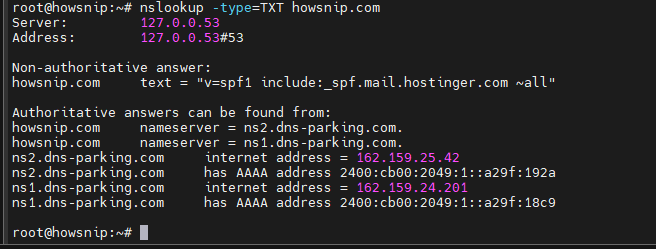
The command returns TXT records associated with the domain.
Why use it?
- Check SPF records.
- Verify DKIM-related entries.
- Confirm domain ownership verification records.
SOA Record Lookup (Start of Authority)
The SOA (Start of Authority) record contains important information about the primary DNS zone for a domain.
Run:
nslookup -type=SOA example.com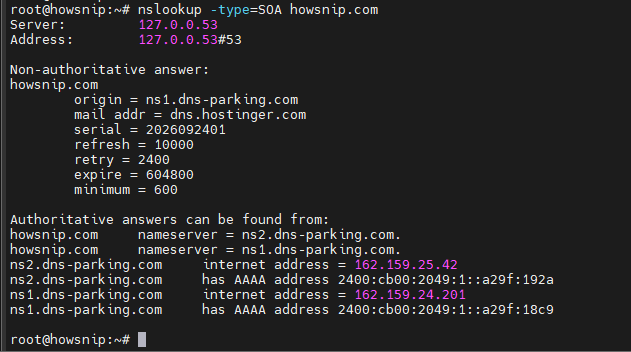
This query retrieves authority information about the domain’s DNS zone.
Why use it?
- Review DNS zone information.
- Verify the primary authoritative server.
- Troubleshoot DNS synchronization issues.
CNAME Record Lookup (Alias Records)
A CNAME (Canonical Name) record creates an alias that points one domain or subdomain to another hostname.
Run:
nslookup -type=CNAME www.example.com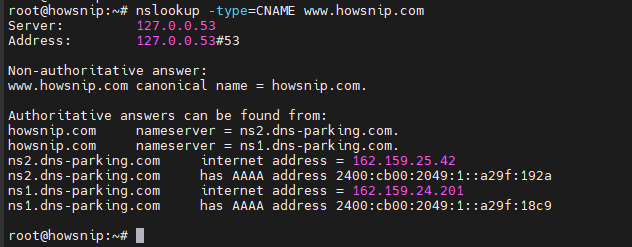
This command checks whether the specified hostname is configured as an alias.
Why use it?
- Verify subdomain aliases.
- Troubleshoot redirection or hostname resolution issues.
- Confirm CDN and service integrations.
Reverse DNS Lookup (PTR Record)
Reverse DNS lookups translate an IP address back into a hostname using PTR records.
Run:
nslookup 93.184.216.34
This command attempts to determine the hostname associated with the IP address.
Why use it?
- Identify servers from IP addresses.
- Verify reverse DNS configuration.
- Troubleshoot email server reputation and authentication issues.
Advanced Nslookup Commands
The following examples are useful for more advanced DNS troubleshooting.
a) Query Using a Specific DNS Server
Instead of using your system’s default DNS resolver, you can direct the query to a specific DNS server.
nslookup example.com 1.1.1.1This command queries example.com using the DNS server 1.1.1.1.
Why use it?
- Compare DNS responses from different providers.
- Verify DNS propagation.
- Troubleshoot resolver-specific issues.
b) Enable Debug Output
Debug mode provides additional details about the DNS query and response.
nslookup -debug example.com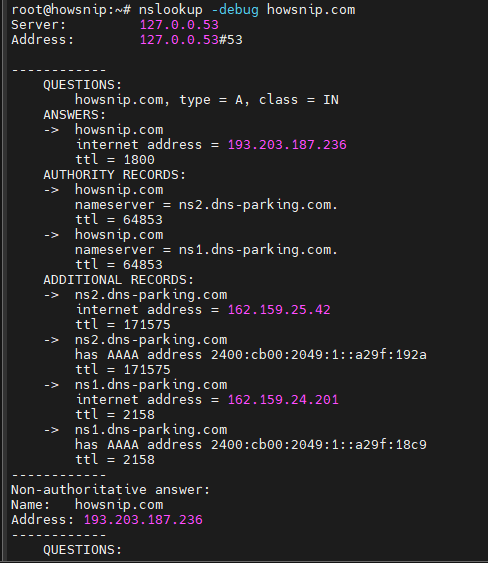
This command displays extended information useful for diagnosing DNS issues.
c) Set a Custom Timeout
By default, DNS queries may timeout based on system settings. You can specify a custom timeout value.
nslookup -timeout=10 example.com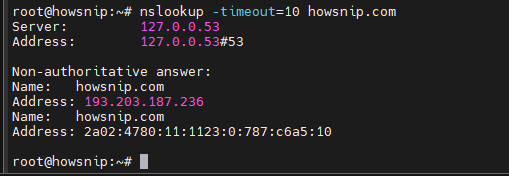
This command waits up to 10 seconds for a response before timing out.
Why use it?
- Troubleshoot slow DNS servers.
- Test response behavior in different network conditions.
d) Perform an IPv6 DNS Query
To retrieve IPv6 addresses, query AAAA records.
nslookup -query=AAAA example.com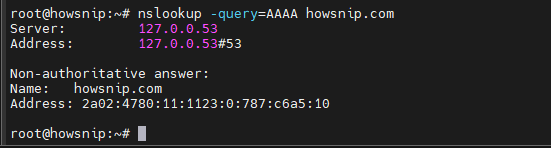
This command returns any IPv6 addresses associated with the domain.
Why use it?
- Verify IPv6 connectivity.
- Check dual-stack DNS configurations.
- Confirm IPv6 deployment.
Conclusion
The nslookup command is an essential DNS troubleshooting tool for system administrators, developers, and website owners.
By understanding the examples covered in this guide, you can diagnose common DNS issues more efficiently and verify that your domain and server configurations are working as expected.