
PowerShell is one of the most powerful tools available for Windows administration and automation. Whether you’re a beginner learning the basics or an IT professional managing multiple systems, knowing the right PowerShell commands can help you work more efficiently.
In this tutorial, you’ll learn essential PowerShell cmdlets for finding commands, managing files and folders, creating reports, working with processes, handling event logs, gathering system information, and managing remote sessions.
Prerequisites
- Windows PowerShell installed on your system
- Basic familiarity with the PowerShell console
- Administrator privileges for certain commands, especially those involving event logs and remote management
- Finding PowerShell Commands and Getting Help
Before using PowerShell effectively, you need to know how to discover available commands and understand how they work.
1. Find Available Commands with Get-Command
The Get-Command cmdlet is often the first command PowerShell users should learn. It displays available commands, functions, aliases, and scripts installed on your system.
Run:
Get-Command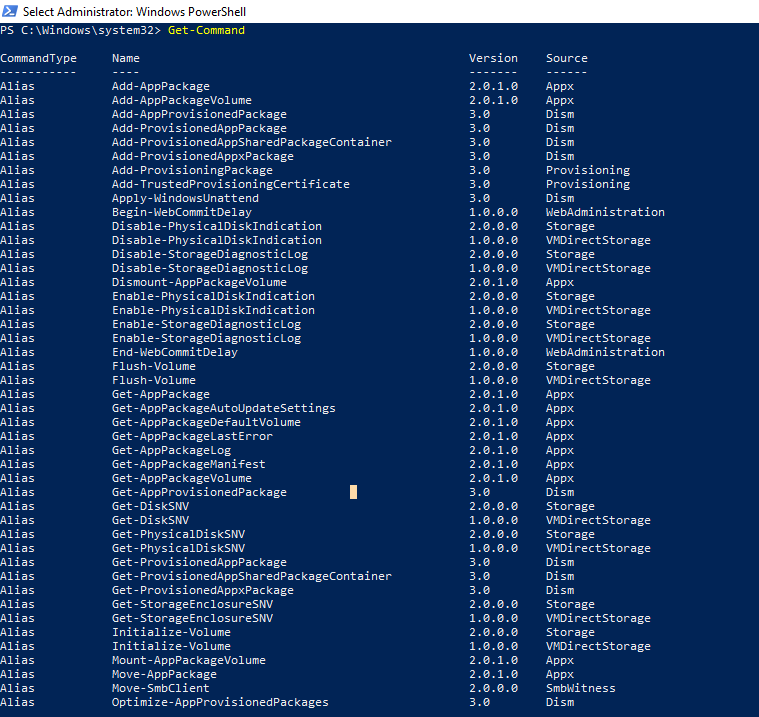
This command lists all available PowerShell commands. The results typically include the following columns:
- CommandType – Indicates whether the item is a Cmdlet, Function, or Alias.
- Name – The command name you execute.
- Version – The version associated with the command’s module.
- Source – The PowerShell module that provides the command.
2. Search for Specific Commands
If you know part of a command name, use wildcards to locate related cmdlets.
Example:
Get-Command -Name *EventLog*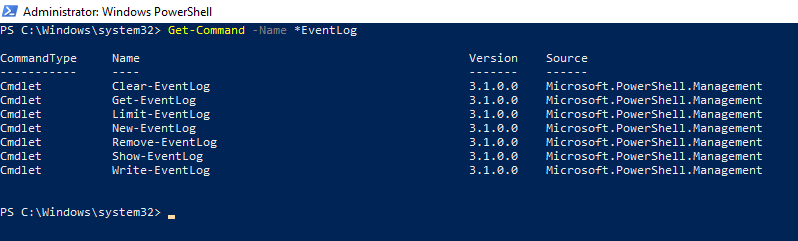
This searches for commands containing the word EventLog. The asterisk (*) acts as a wildcard and can be used before or after a keyword to broaden your search.
3. View Detailed Information About Get-Command
To see the complete help documentation for Get-Command, run:
Get-Help Get-Command -Full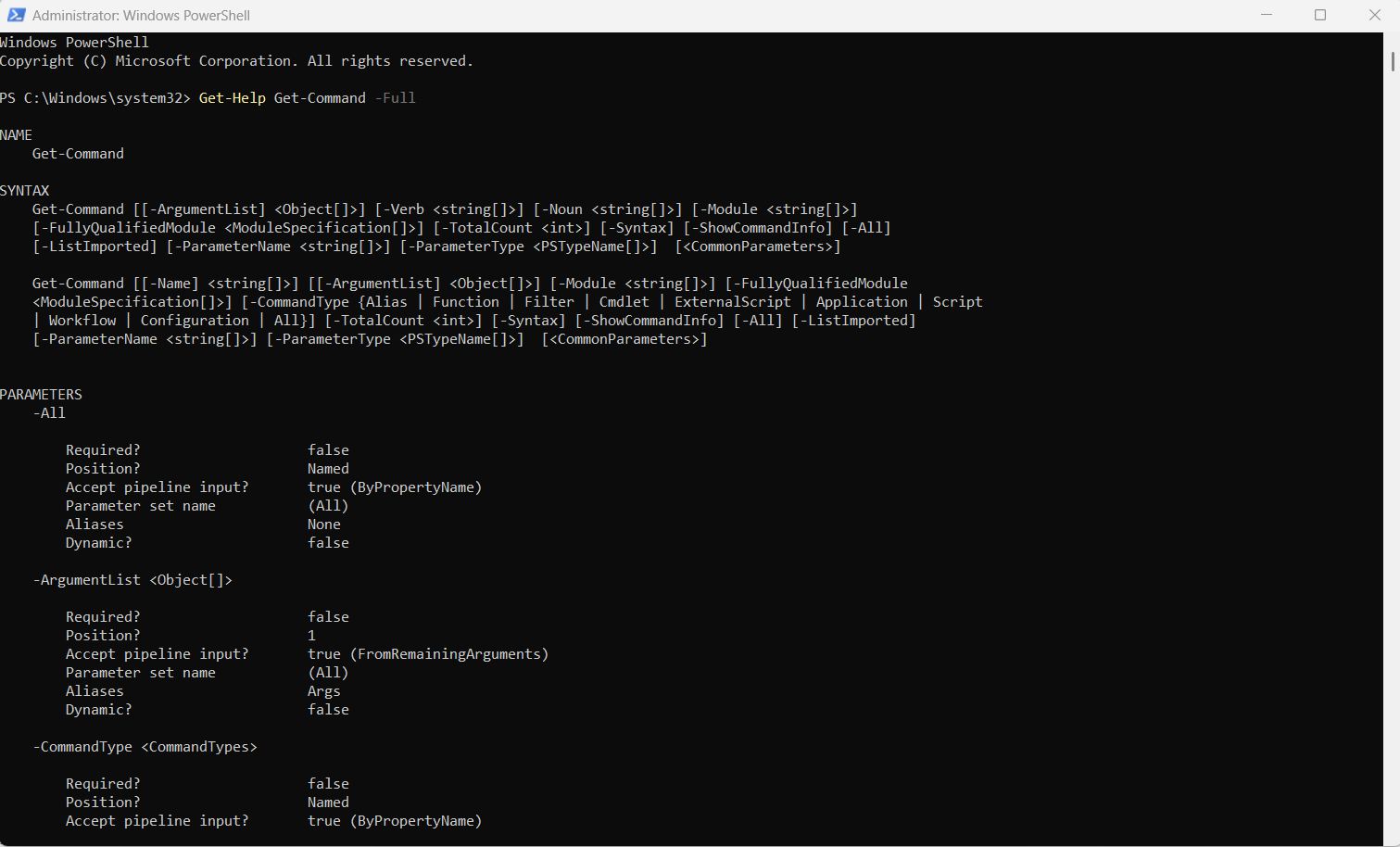
This displays syntax information, available parameters, examples, and detailed usage instructions. Once you’ve found a cmdlet, the next step is learning how to use it.
4. Display Help for Any Cmdlet
Use Get-Help followed by the cmdlet name.
Example:
Get-Help Get-EventLog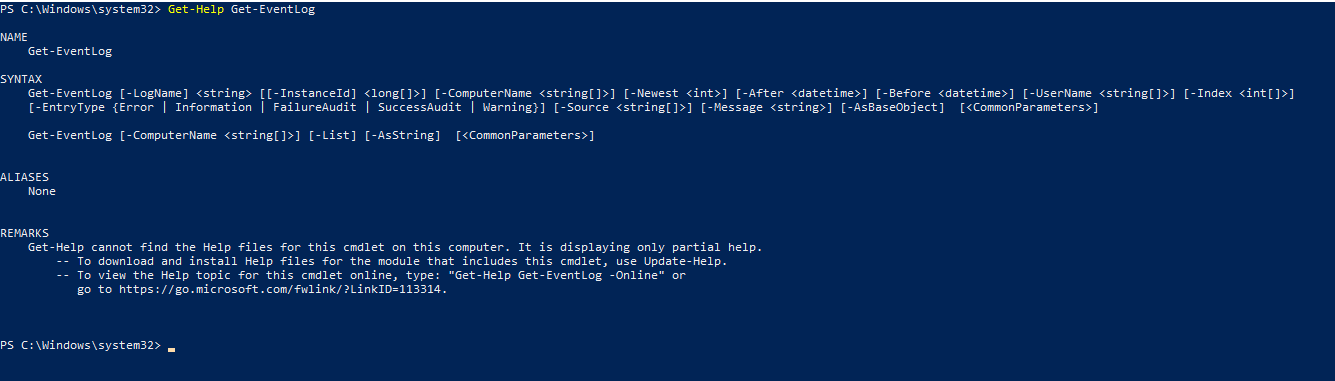
This displays basic information about the Get-EventLog cmdlet.
Important Get-Help Parameters
View Detailed Help
Get-Help Get-EventLog -Detailed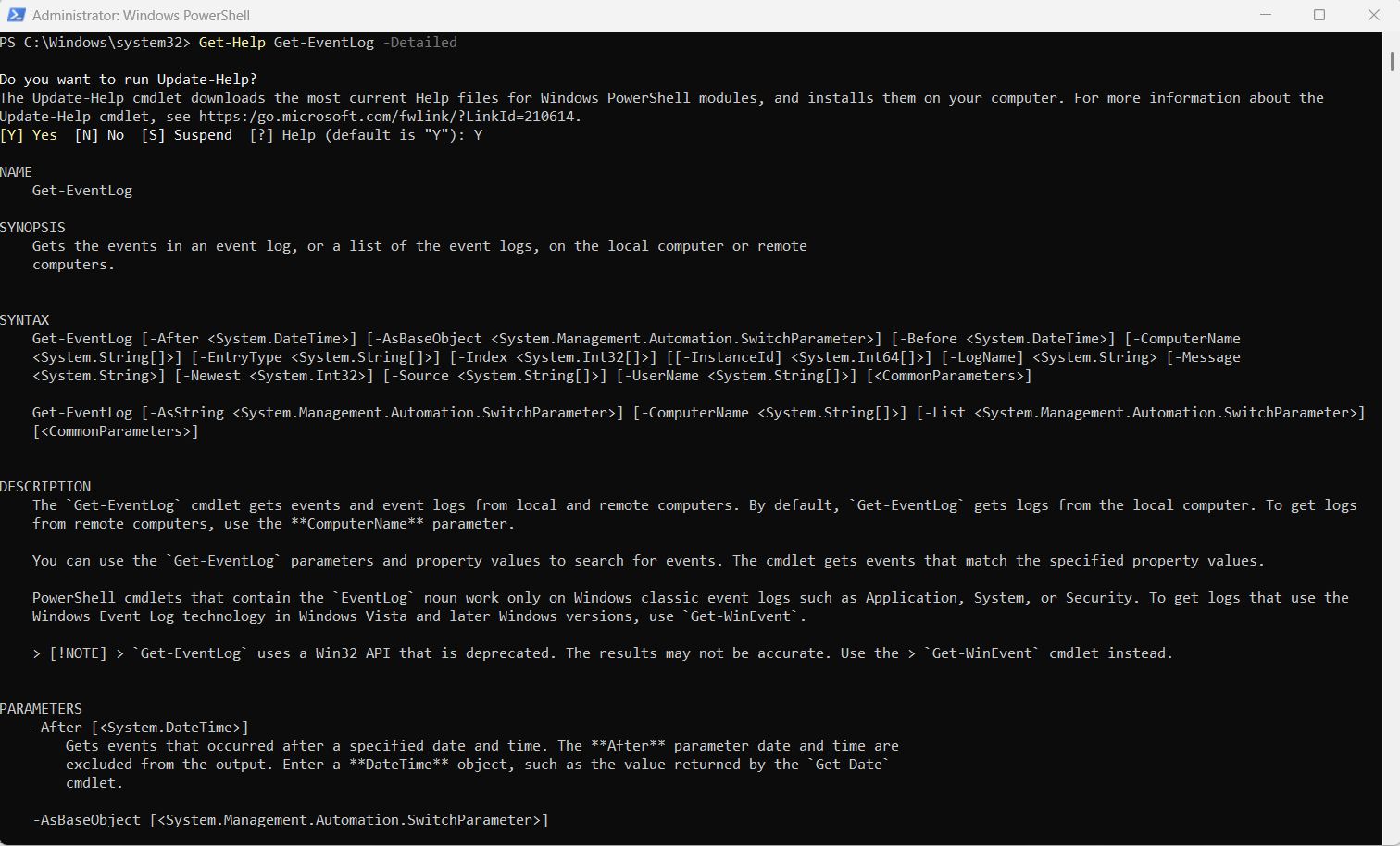
It displays syntax, parameters, aliases, and remarks.
View Full Documentation
Get-Help Get-EventLog -Full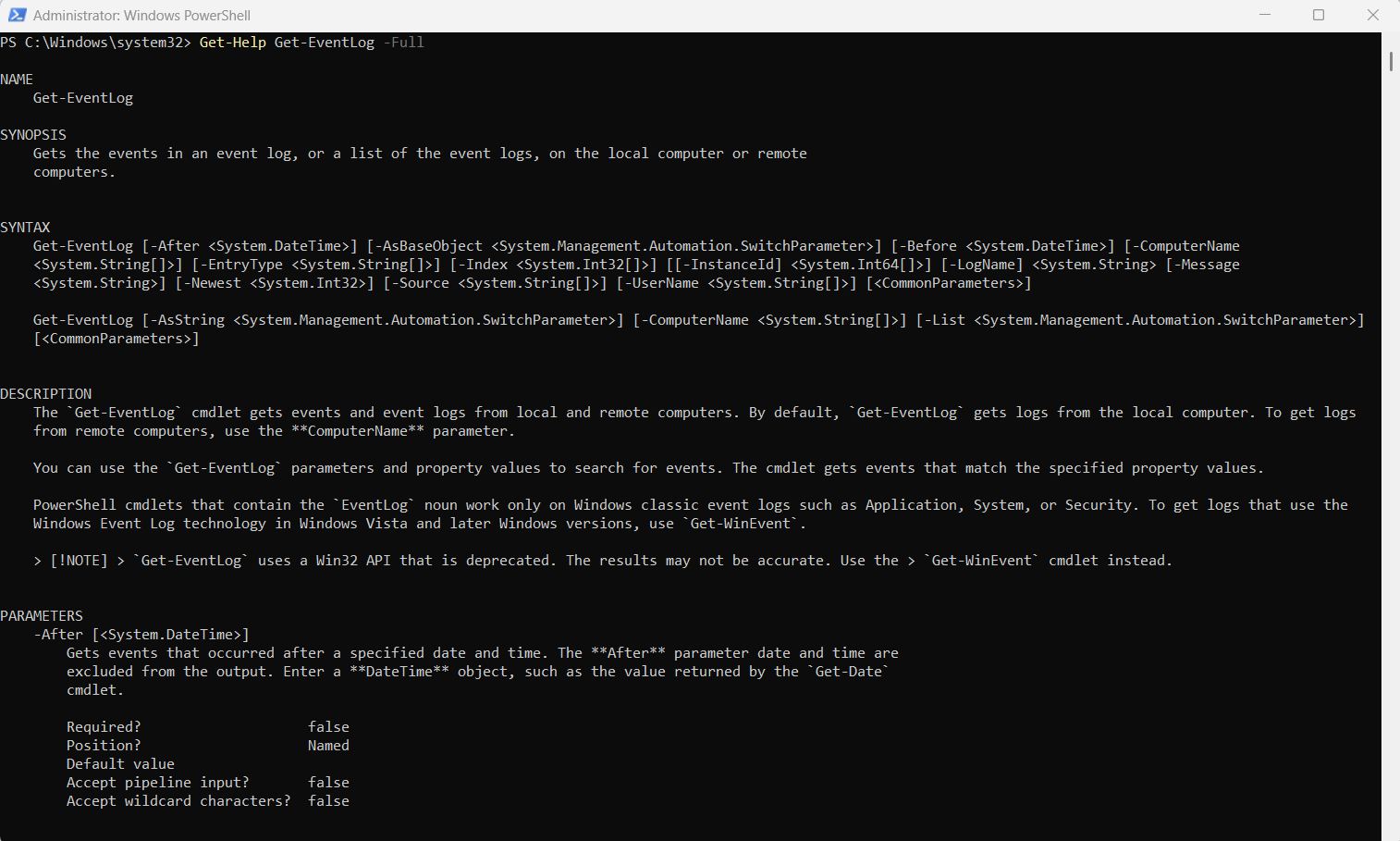
It provides complete documentation, including detailed parameter descriptions.
View Examples
Get-Help Get-EventLog -ExamplesThe above command shows practical examples of how to use the cmdlet.
Open Online Documentation
Get-Help Get-EventLog -Online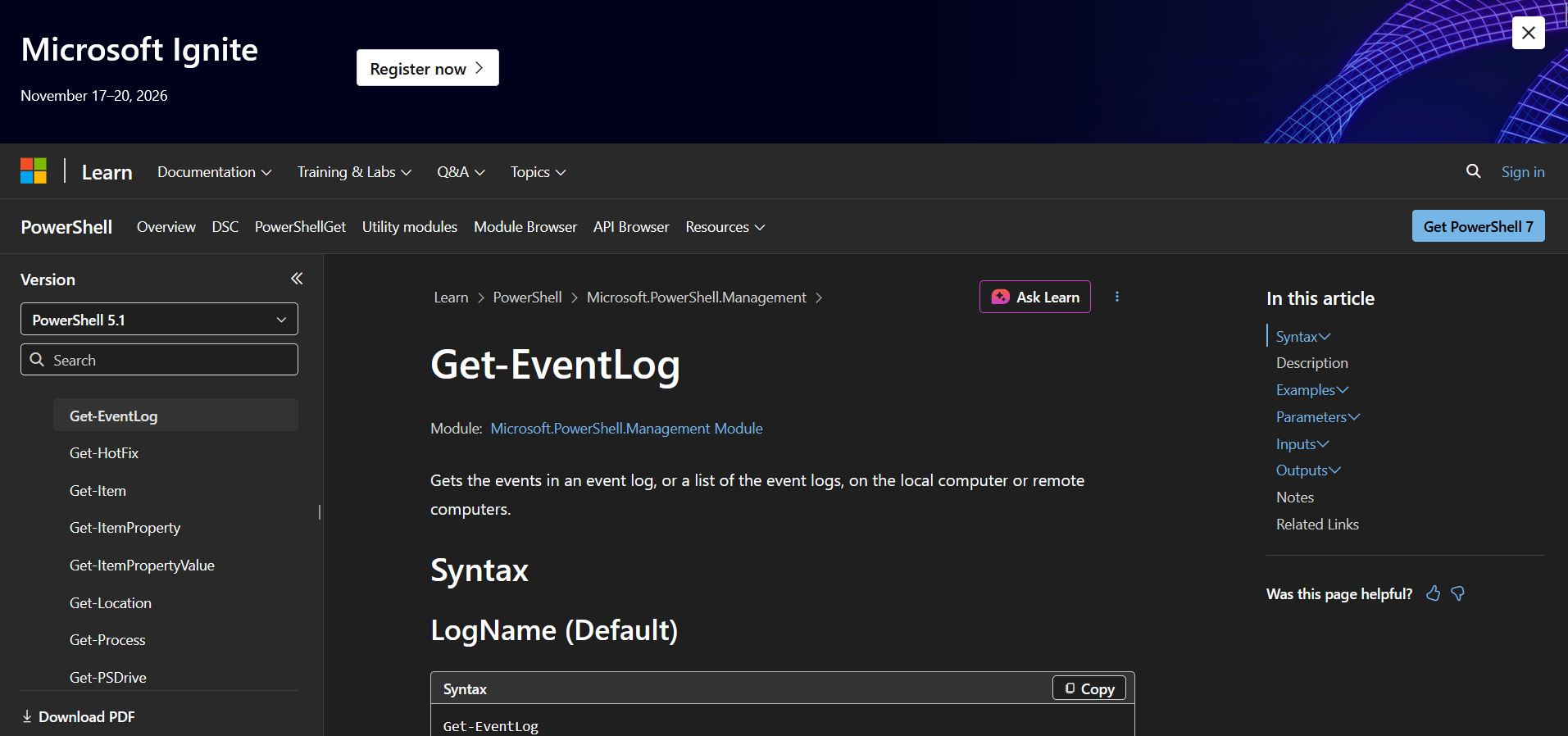
The above command opens the online help page in your default browser.
5. List Files and Folders with Get-ChildItem
To view items in a directory, use:
Get-ChildItem C:\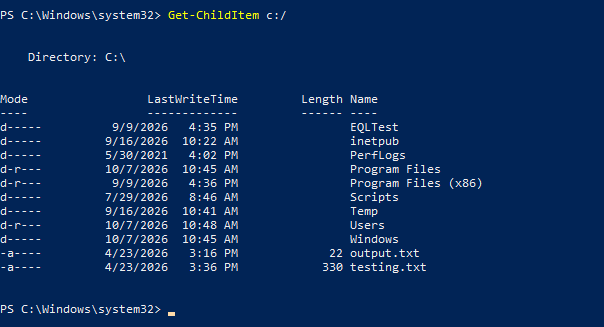
This displays files and folders in the root of drive C.
Include Subfolders
To display all files and folders recursively:
Get-ChildItem C:\ -RecurseThe -Recurse parameter tells PowerShell to search through all subfolders.
6. Copy Files Using Copy-Item
Copy files from one location to another by piping results from Get-ChildItem.
Get-ChildItem C:\Dropbox | Copy-Item -Destination C:\NewFolder
This copies only top-level files and folders.
Copy Including Subfolders
Get-ChildItem C:\Dropbox -Recurse | Copy-Item -Destination C:\NewFolder
Adding -Recurse ensures all subfolders and contents are copied.
7. Move Files with Move-Item
Move-Item works similarly to Copy-Item, but it moves items instead of copying them. Use it when you want to relocate files or folders rather than create duplicates.
8. Delete Files with Remove-Item
To remove items from a location, use Remove-Item.
Get-ChildItem output can be piped directly into the cmdlet.
Warning: Use Remove-Item carefully. Deleting important files or system folders can cause serious problems.
Practical Use Case
Many administrators automate cleanup tasks by creating scripts that remove old log files and scheduling those scripts using Windows Task Scheduler.
9. Export Data to CSV Using Export-Csv
First, view commands that use the Export verb:
Get-Command -Verb Export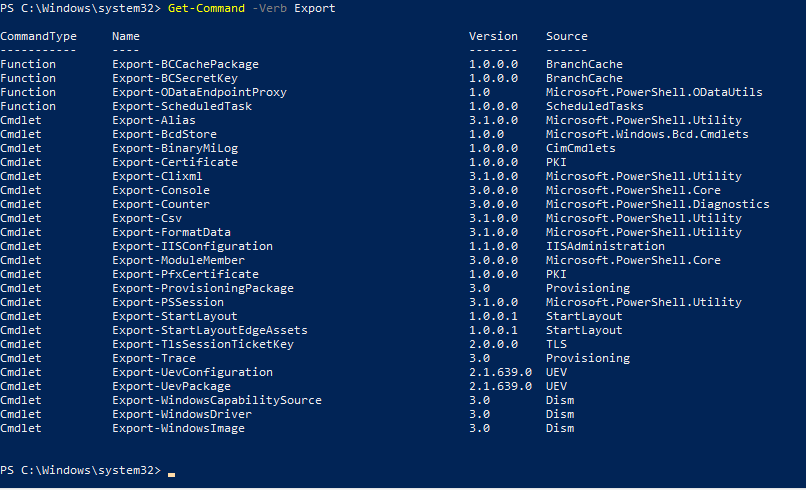
To save the results as a CSV report:
Get-Command -Verb Export | Select-Object CommandType, Name, Version, Source | Export-Csv -NoTypeInformation -Path C:\NewFolder\ExportCommands.csv
What This Command Does
- Get-Command retrieves the commands.
- Select-Object limits the output to specific columns.
- Export-Csv saves the information as a CSV file.
- -NoTypeInformation removes unnecessary type details from the output.
10. Export Data to a Text File with Out-File
To save output as a text file:
Get-Command -Verb Export | Select-Object CommandType, Name, Version, Source | Out-File C:\Temp\ExportCommands.txt
Append Instead of Overwriting
If you want to keep existing content and add new results:
Get-Command -Verb Export | Select-Object CommandType, Name, Version, Source | Out-File C:\NewFolder\ExportCommands.txt -Append
The -Append parameter preserves existing data and adds new output to the end of the file.
11. View Running Processes with Get-Process
To display all active processes:
Get-Process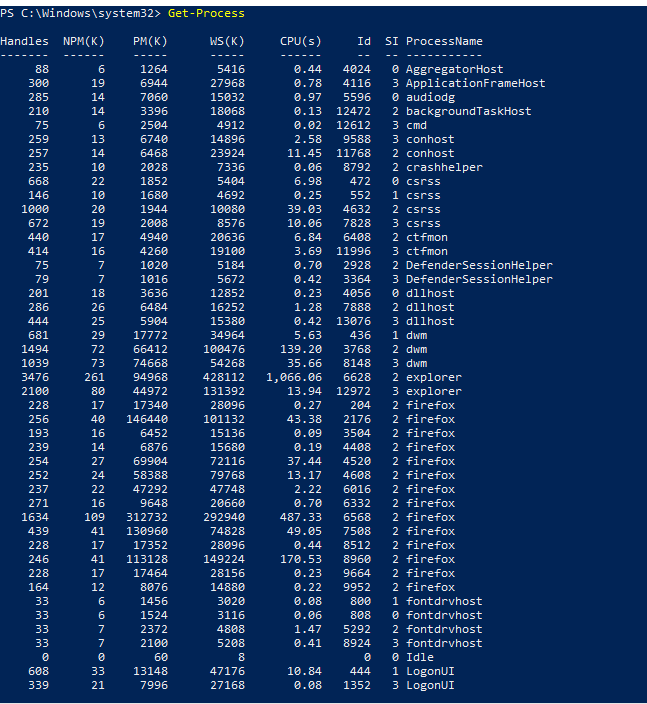
This returns information about programs and services currently running on the system.
12. Stop a Process with Stop-Process
To stop a process by its ID:
Get-Process -Id 10500 | Stop-ProcessThis retrieves the specified process and then terminates it.
Warning: Ending critical system processes may cause instability or unexpected behavior.
13. Start Processes with Start-Process
The Start-Process cmdlet launches applications and executable files. It is commonly used in scripts to automate application startup tasks.
14. View Event Logs with Get-EventLog
To retrieve the latest entries from the System log:
Get-EventLog -LogName System -Newest 5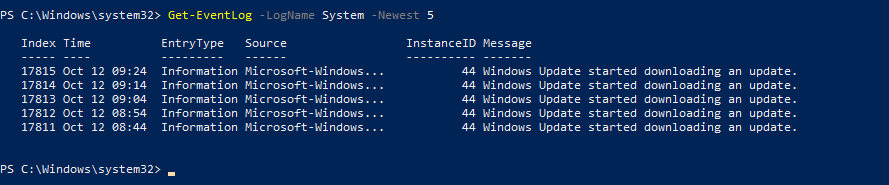
What This Command Does
- -LogName System specifies the System log.
- -Newest 5 returns only the last five entries.
Pro Tip: This command is particularly useful when diagnosing recent system issues.
15. Clear Event Logs with Clear-EventLog
To clear the Windows PowerShell event log:
Clear-EventLog "Windows PowerShell"
Important: Open PowerShell as Administrator before running this command.
Warning: Clearing logs permanently removes existing log entries.
16. Explore Available WMI Classes
To list available Win32 classes:
Get-WmiObject -List -Class Win32*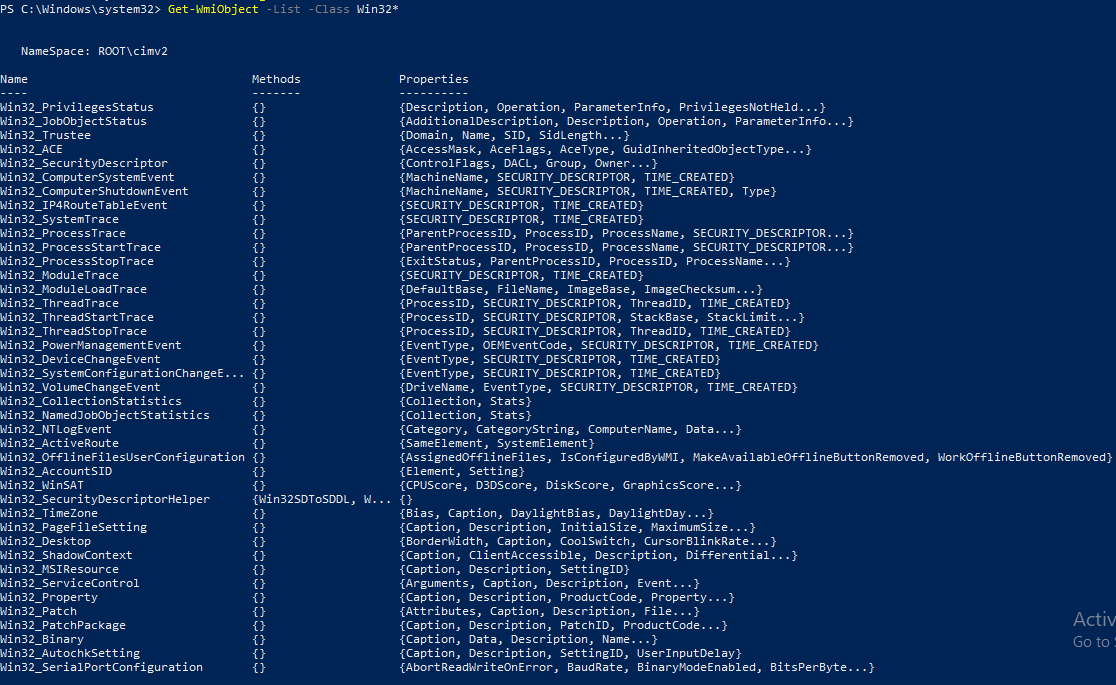
This command displays available WMI classes that can be queried for system information.
17. Retrieve Operating System Information
To view operating system details:
Get-WmiObject -Class Win32_OperatingSystem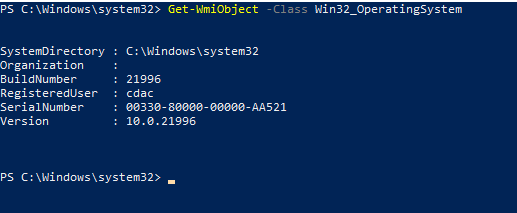
Commonly used WMI classes include:
- Win32_PhysicalMemory – Memory information
- Win32_Processor – CPU details
- Win32_LogicalDisk – Logical disk information
- Win32_DiskDrive – Physical disk details
- Win32_OperatingSystem – Operating system information
- Win32_BaseBoard – Motherboard details
18. Work with Remote Sessions
Start an Interactive Remote Session
Enter-PSSession Computer1This opens an interactive PowerShell session on the remote computer.
Exit the Session
Exit-PSSessionThis closes the current remote session.
Run Commands on Multiple Computers with Invoke-Command
To run a command on several remote systems:
Invoke-Command -ComputerName Computer1, Computer2, Computer3 -ScriptBlock {Get-Process}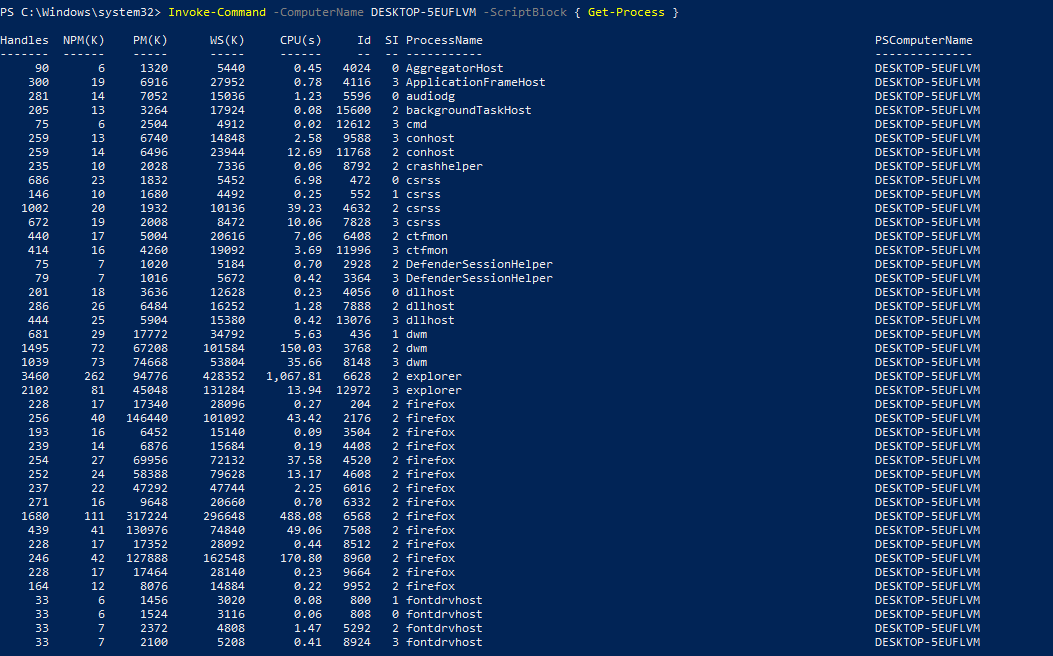
This executes Get-Process on all specified computers.
Create Persistent Sessions with New-PSSession
To establish persistent remote sessions:
$session = New-PSSession -ComputerName Computer1, Computer2
The session is stored in the $session variable and can be reused for additional commands.
Execute Commands in the Session
Invoke-Command -Session $session {$Processes = Get-Process}
This runs Get-Process within the established remote sessions.
Note: PowerShell remoting must be properly configured, and you must have permission to access the remote computers.
Conclusion
Learning these essential PowerShell commands provides a strong foundation for Windows administration and automation.
From discovering cmdlets with Get-Command and Get-Help to managing files, processes, event logs, system information, and remote sessions, these tools can significantly improve your productivity. As you become more comfortable with PowerShell, you can combine these cmdlets into scripts and automate many routine administrative tasks.