

Monitoring user activity is an important part of Linux system administration. Whether you’re managing a server, troubleshooting performance issues, performing security audits, or tracking user login history, the psacct and acct packages provide valuable accounting information about user activity.
In this tutorial, you’ll learn how to install and configure these tools, monitor user login statistics, view command execution history, and analyze system usage with practical examples.
Note: The package name differs between Linux distributions. RPM-based distributions use psacct, while Debian-based distributions typically use acct. Both provide similar functionality.
Prerequisites
Before you begin, make sure:
- You have root or sudo privileges.
- Your Linux system has access to package repositories.
- You’re using a supported Linux distribution such as RHEL, CentOS, Fedora, Ubuntu, Debian, Linux Mint, Alpine, Arch Linux, or openSUSE.
Step 1: Install psacct or acct
The first step is to install the accounting package appropriate for your Linux distribution.
a) Install on RHEL, CentOS, Fedora, and Other RPM-Based Systems
Use either yum or dnf, depending on your distribution version:
sudo yum install psacctOr:
sudo dnf install psacctThese commands install the psacct package, which provides tools for tracking user activity and command execution.
b) Install on Ubuntu, Debian, and Linux Mint
On Debian-based systems, install the acct package:
sudo apt install acct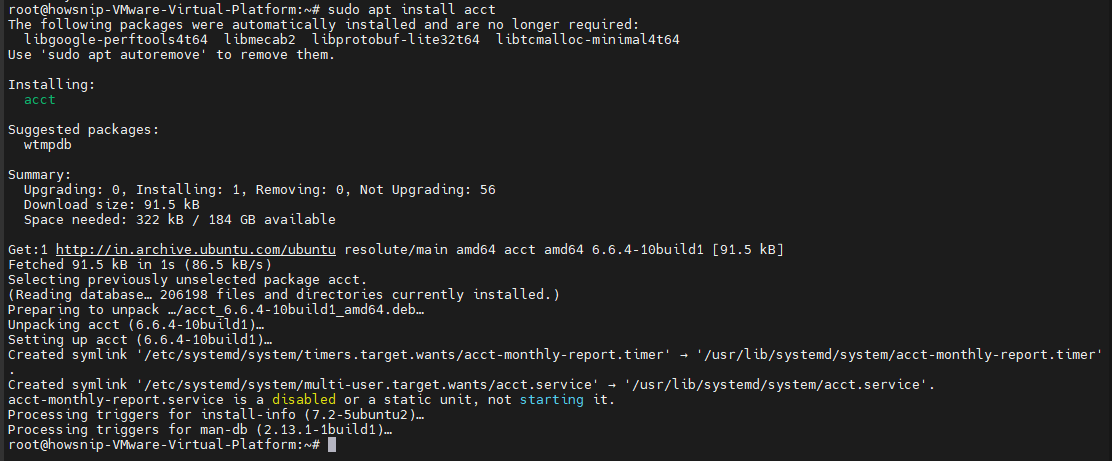
This installs the accounting utilities used to monitor user sessions and command activity.
c) Install on Other Linux Distributions
For Alpine Linux
sudo apk add psacctFor Arch Linux
sudo pacman -S acctFor openSUSE
sudo zypper install acctStep 2: Start and Enable the Accounting Service
After installation, the accounting service must be running to collect activity data.
Check Service Status
Verify whether the accounting service is active:
sudo systemctl status acct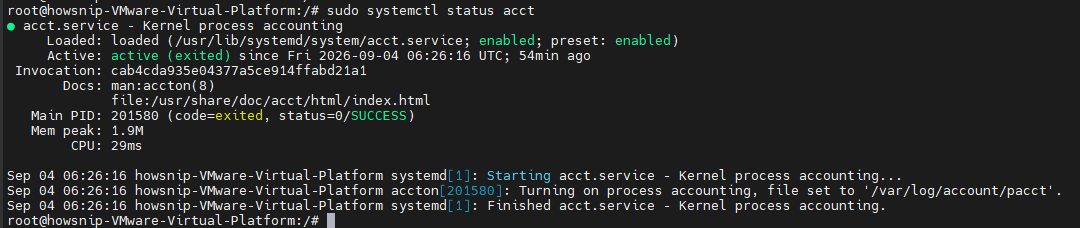
This command displays the current service state and whether accounting is enabled.
Start the Service on RPM-Based Systems
If the service is not running, start it manually:
sudo systemctl start psacctEnable it to start automatically during boot:
sudo systemctl enable psacctVerify the service status:
sudo systemctl status psacctWhen the service starts, it creates the accounting file:
/var/account/pacctThis file stores process accounting data used by the reporting tools.
Important: On Debian-based distributions, the service is generally started automatically after installation.
Step 3: View Total User Login Time
The ac command reads login records from the current wtmp file and displays accumulated login statistics.
Run:
ac
This shows the total amount of time users have been logged into the system. This information can help administrators understand overall system usage patterns.
Step 4: Display Daily Login Statistics
To view login activity broken down by day, use:
ac -d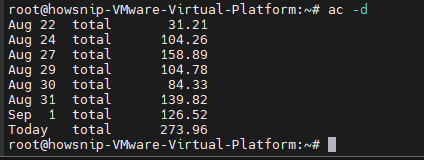
The -d option displays daily totals instead of a combined summary. This makes it easier to identify days with unusually high activity.
Tip: Investigate unexpected spikes in login hours, as they may indicate increased workload or unusual user activity.
Step 5: View Total Login Time for All Users
To see how long each user has been logged into the system, run:
ac -p
The output shows cumulative login hours for each user. This helps identify heavily used accounts and overall user activity.
Step 6: Check Login Time for a Specific User
To display login statistics for an individual user:
ac howsnip
Replace howsnip with the username you want to examine. This command shows the total login hours for that user.
Step 7: Display a User’s Daily Login History
To view login time by day for a specific user:
ac -d howsnip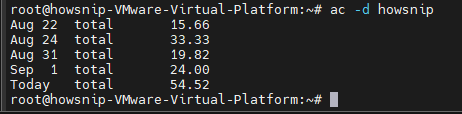
This helps you identify when a particular user was most active.
View Recent Login Activity
To display approximately the last 31 daily records:
ac -d howsnip | tail -n 31
This is useful when reviewing login activity for the current month.
Step 8: View Commands Executed by Users
The sa command summarizes commands recorded by process accounting.
Run:
sa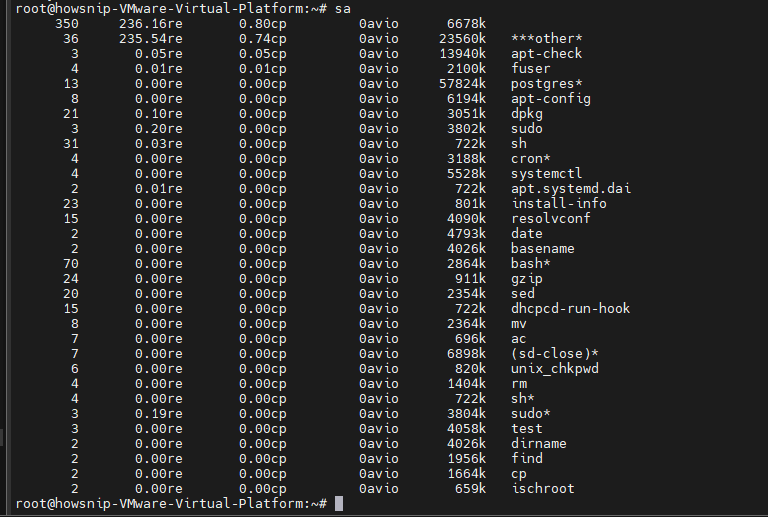
This displays statistics about commands executed by users on the system.
Understanding the Output
Typical output fields include:
- re – Real elapsed time (wall-clock time).
- cp – Combined user and system CPU time.
- k – Average CPU core usage.
- Command Name – The command that was executed.
An asterisk (*) following a command usually indicates that it was executed with superuser privileges.
Step 9: View User-Specific Command Information
To display command statistics grouped by users:
sa -u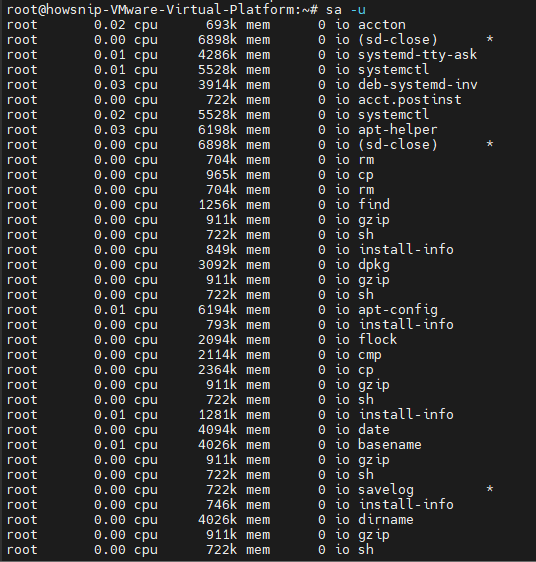
This command shows which users executed commands and how many system resources were consumed.
Step 10: Display Process and CPU Usage Statistics
To view process counts and CPU usage summaries:
sa -m
This command helps identify periods of heavy system usage. If process counts or CPU utilization continuously increase, further investigation may be required.
Step 11: Sort Resource Usage by Percentage
To identify commands consuming the highest percentage of resources:
sa -c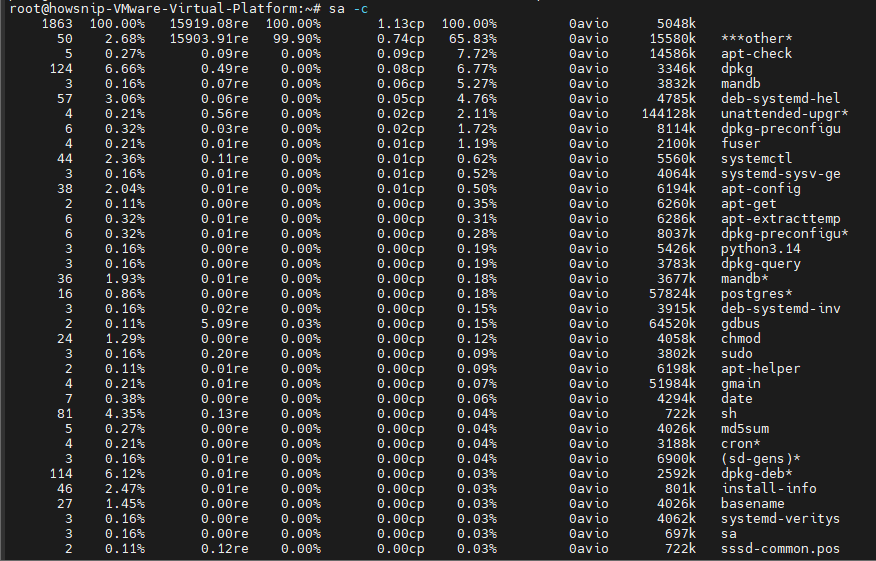
This report can help locate resource-intensive commands and potential performance bottlenecks.
Tip: If a server becomes slow, sa -c can help identify which commands are responsible for the increased resource consumption.
Step 12: View Recently Executed Commands
The lastcomm command displays historical command execution records. To view commands executed by a specific user:
lastcomm howsnip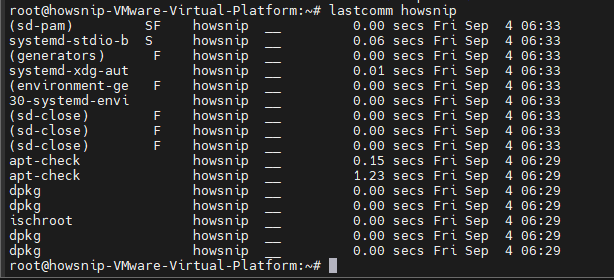
This provides details about commands the user previously executed.
Display Only Recent Entries
To limit the output to the most recent commands:
lastcomm howsnip | head -n 20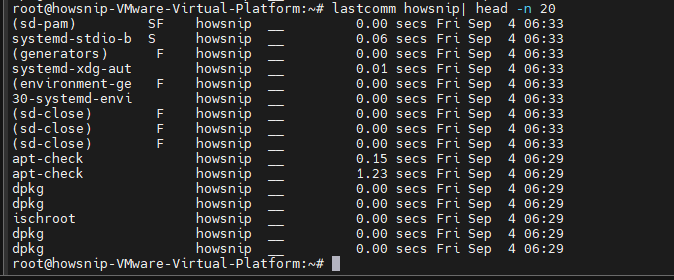
This displays the latest 20 command records.
About the "F" FlagYou may occasionally see the F flag in the output. This indicates the process forked but did not execute a new program, which is commonly associated with normal shell initialization activities.
Step 13: Search Command Execution History
You can use lastcomm to search for a specific command.
For example:
lastcomm ls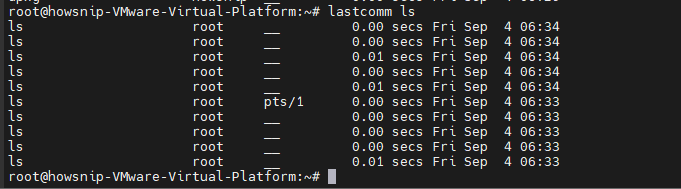
This displays historical executions of the ls command.
Search for Sensitive Command Usage
To find records involving commands related to password files:
lastcomm cat | grep -i "shadow\|passwd"
This can be useful during security audits and incident investigations.
Warning: Review command histories responsibly and according to your organization’s security and privacy policies.
Practical Use Cases
1. Identify Resource-Intensive Commands
Use:
sa -cThis helps determine which commands consume the most system resources.
2. Perform Security Audits
Use:
lastcommThis creates an audit trail of executed commands, making it useful when investigating security incidents.
3. Generate User Usage Reports
Use:
ac -pThis provides per-user login statistics suitable for reporting and usage tracking.
4. Troubleshoot User Activity
When investigating user-related issues, command history and login records can help verify system activity and assist with troubleshooting.
Over time, process accounting logs can grow significantly in size. The primary accounting file is:
/var/account/pacctTo rotate and archive the file automatically, create a configuration file:
/etc/logrotate.d/psacct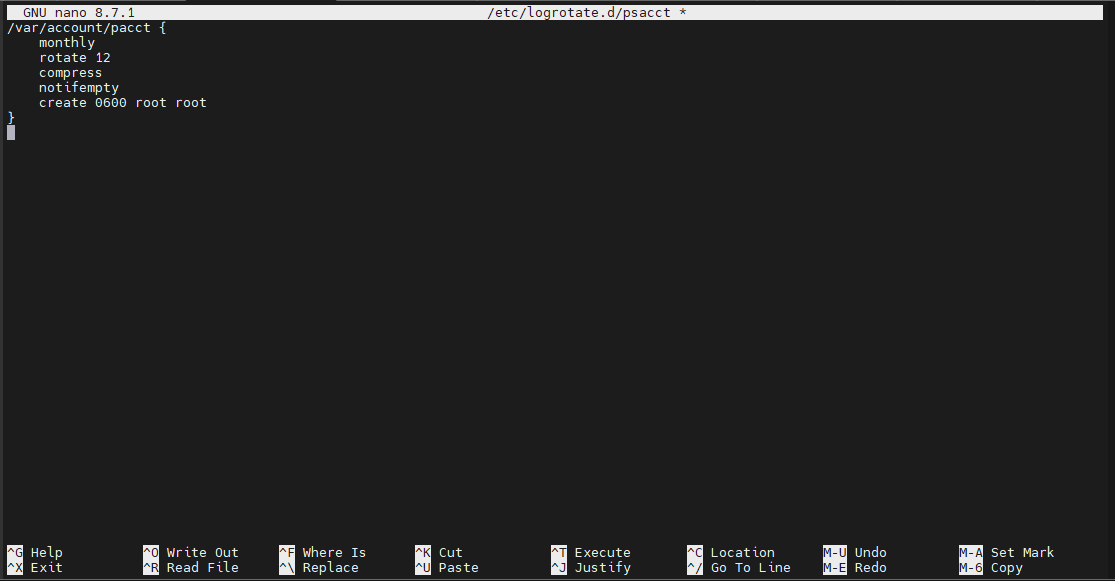
Add the following configuration:
/var/account/pacct {
  monthly
  rotate 12
  compress
  notifempty
  create 0600 root root
}
What This Configuration Does
- monthly – Rotates logs every month.
- rotate 12 – Keeps 12 archived log files.
- compress – Compresses old logs to save disk space.
- notifempty – Skips rotation when the file is empty.
- create – Creates a new log file with specified permissions.
Important: Regular log rotation prevents accounting files from consuming excessive disk space.
Additional Documentation
To explore more options and advanced functionality, review the manual pages:
man ac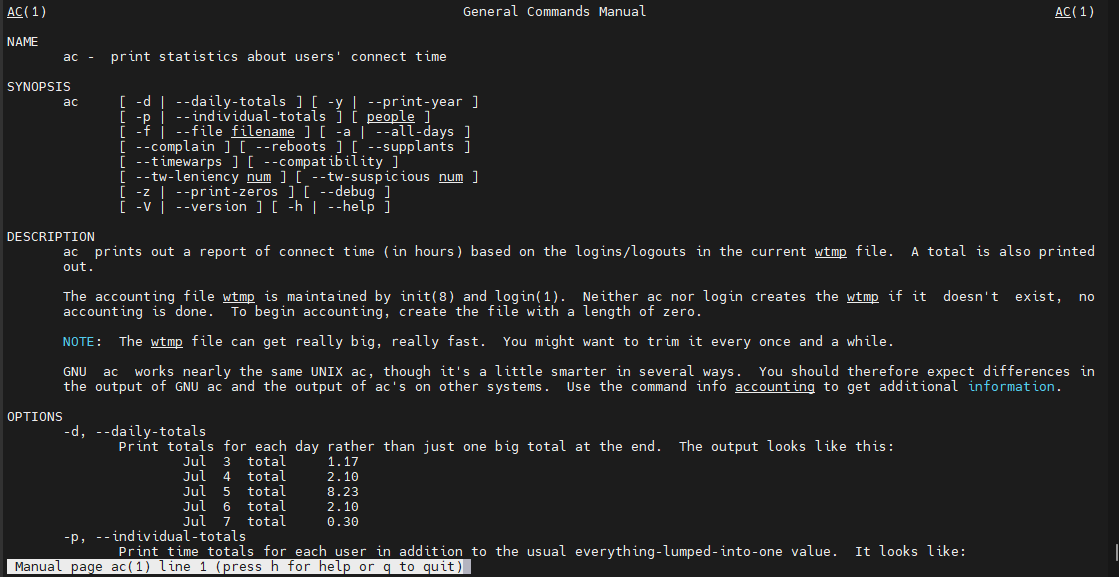
man sa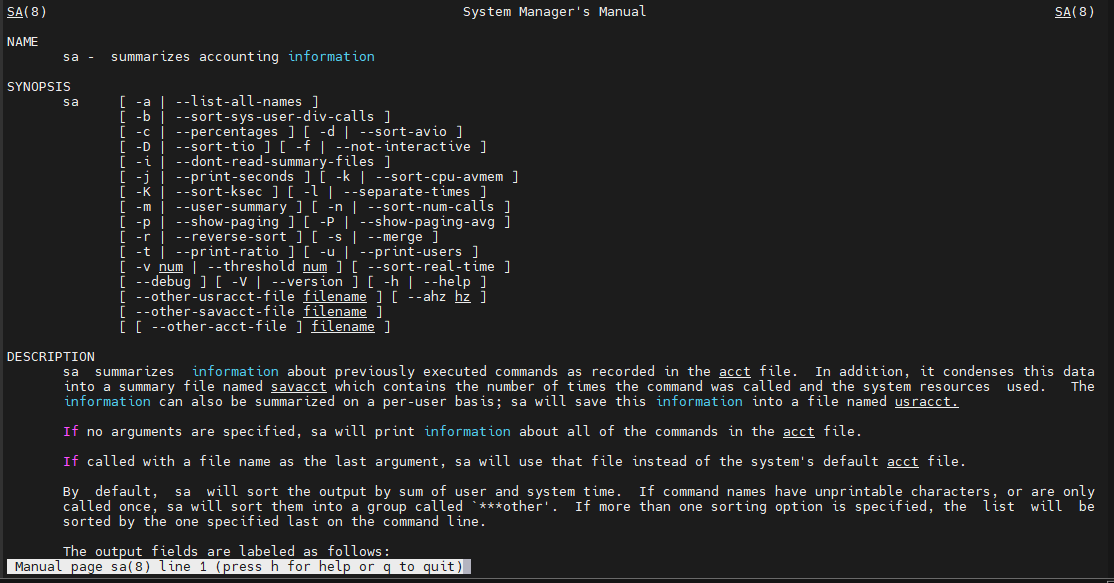
man lastcomm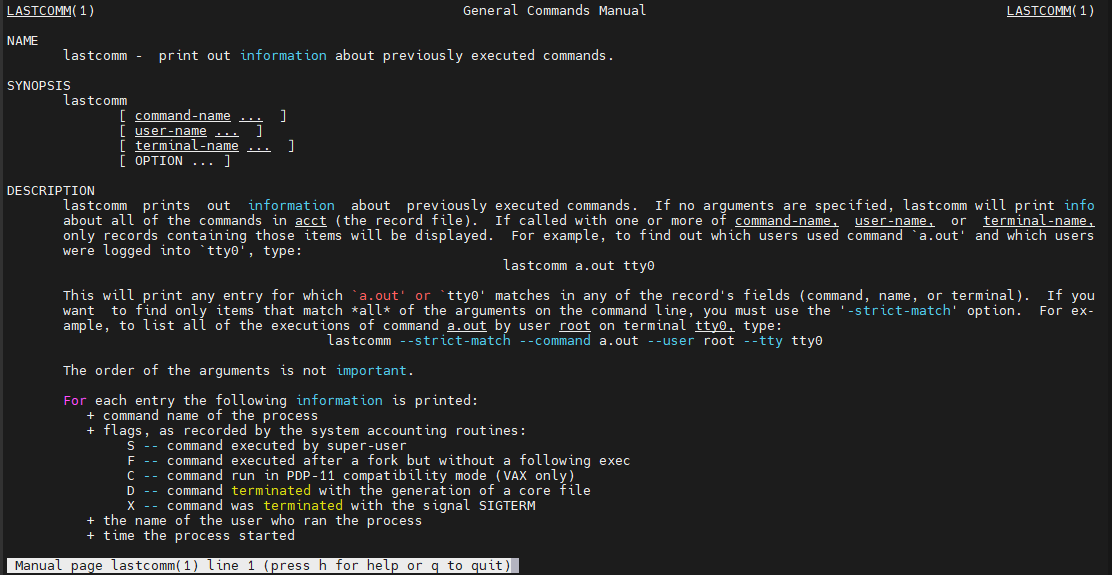
man accton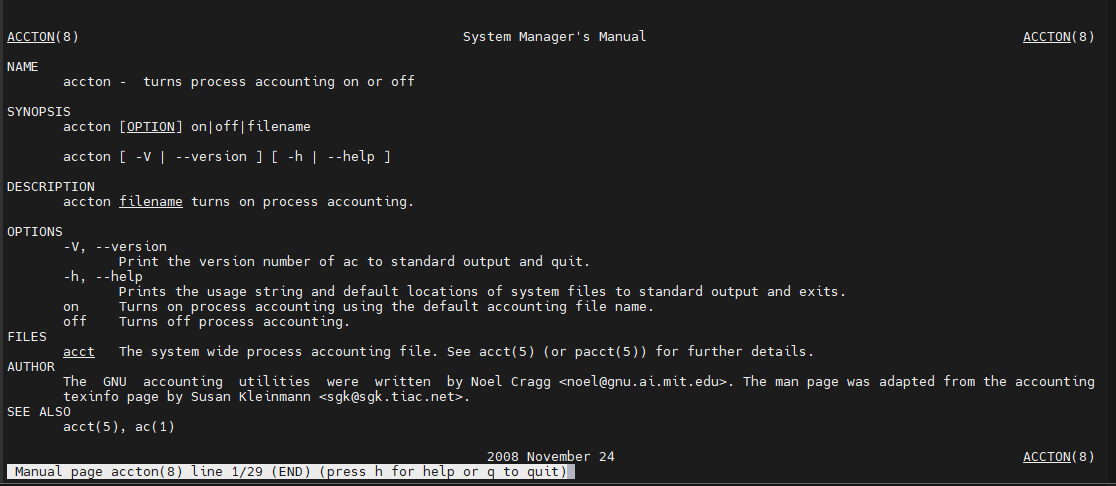
These manuals provide detailed explanations of available options and can help you customize monitoring and reporting to fit your environment.
Conclusion
The psacct and acct packages provide a simple yet powerful way to monitor Linux user activity, track login history, analyze resource usage, and audit executed commands.
By enabling process accounting and using tools such as ac, sa, and lastcomm, administrators can gain valuable visibility into system activity, troubleshoot issues more effectively, and improve security auditing across Linux systems.