Webmin is a powerful web-based system administration panel that allows you to manage Linux servers through an easy-to-use browser interface. With Webmin, you can handle user accounts, web servers, databases, DNS settings, firewall rules, software packages, and more without relying entirely on the command line.
This tutorial explains how to install Webmin using the official repository on Ubuntu, Debian, RHEL, CentOS, AlmaLinux, and Rocky Linux. You’ll also learn how to open the required firewall ports, access the Webmin dashboard, and apply important security hardening measures for production environments.
Prerequisites
Before starting, make sure you have:
- A Linux server with sudo privileges
- Internet access from the server
- A firewall configured to allow Webmin traffic
- Terminal or SSH access to the server
Note: Using the official Webmin repository ensures you receive security updates and new releases through your package manager.
Install Webmin on RHEL, CentOS, AlmaLinux, and Rocky Linux
Step 1: Update the System and Install Required Packages
First, refresh the package index and install the required tools.
sudo apt update
sudo apt install -y curl gpg
What this does:
- apt update refreshes the package database.
- curl downloads files from remote servers.
- gpg verifies package signatures and repository authenticity.
Step 2: Import the Webmin GPG Key
Import the official Webmin signing key into a dedicated keyring.
curl -fsSL https://download.webmin.com/jcameron-key.asc | sudo gpg --dearmor -o /usr/share/keyrings/webmin.gpg
What this does:
- Downloads the official Webmin GPG key.
- Converts it into a keyring format.
- Stores it securely in /usr/share/keyrings/.
This approach avoids the deprecated apt-key method.
Step 3: Add the Official Webmin Repository
Create a repository configuration file pointing to the official Webmin package source.
echo "deb [signed-by=/usr/share/keyrings/webmin.gpg] https://download.webmin.com/download/repository sarge contrib" | sudo tee /etc/apt/sources.list.d/webmin.list
What this does:
- Adds the Webmin repository to APT.
- Associates the repository with the imported GPG key.
Step 4: Install Webmin
Update package metadata again and install Webmin.
sudo apt update
sudo apt install -y webmin
What this does:
- Retrieves package information from the newly added repository.
- Installs Webmin and its dependencies.
Step 5: Enable and Verify the Webmin Service
Although Webmin typically starts automatically after installation, you can explicitly enable and start it.
sudo systemctl enable --now webmin
sudo systemctl status webmin --no-pager
What this does:
- Starts the Webmin service immediately.
- Configures it to start automatically at boot.
- Displays its current status.
For RHEL-based distributions, configure the official DNF/YUM repository before installation.
Step 1: Import the Webmin GPG Key
sudo rpm --import https://download.webmin.com/jcameron-key.ascWhat this does:
- Imports the repository’s signing key.
- Allows package authenticity verification.
Step 2: Create the Repository Configuration
Create a new repository file.
sudo tee /etc/yum.repos.d/webmin.repo > /dev/null << 'EOF'
[Webmin]
name=Webmin Distribution Neutral
baseurl=https://download.webmin.com/download/yum
enabled=1
gpgcheck=1
gpgkey=https://download.webmin.com/jcameron-key.asc
EOF
What this does:
- Adds the Webmin package repository.
- Enables GPG signature verification for security.
Step 3: Install Webmin
sudo dnf install -y webminWhat this does:
- Downloads and installs Webmin along with required dependencies.
Step 4: Start and Enable the Service
sudo systemctl enable --now webmin
sudo systemctl status webmin --no-pager
What this does:
- Starts the service immediately.
- Enables automatic startup during boot.
Open Firewall Port 10000 for Webmin
By default, Webmin listens on HTTPS port 10000/TCP. You must allow this port through your firewall.
Using UFW (Ubuntu and Debian)
sudo ufw allow 10000/tcp
sudo ufw reload
sudo ufw status
What this does:
- Allows inbound traffic on port 10000.
- Reloads firewall rules.
- Verifies the configuration.
Using firewalld (RHEL-Based Systems)
sudo firewall-cmd --permanent --add-port=10000/tcp
sudo firewall-cmd --reload
sudo firewall-cmd --list-ports
What this does:
- Permanently opens port 10000.
- Reloads firewall settings.
- Displays currently allowed ports.
Important: If you’re using a cloud provider, also verify that security groups or network firewalls permit traffic on the selected Webmin port.
Access the Webmin Dashboard
Open a web browser and navigate to:
https://YOUR_SERVER_IP:10000/Replace YOUR_SERVER_IP with your server’s public IP address.

Because Webmin uses a self-signed certificate initially, your browser will display a security warning. Proceed to the login page.

Login as Root
On many RHEL-based systems, you can log in directly with the root account.
On Ubuntu, root login is typically disabled by default. If needed, assign a password to the root account:
sudo -i
passwd
What this does:
- Switches to the root account.
- Sets a strong password for Webmin authentication.
After logging in, it is recommended to create dedicated administrative users and reduce reliance on the root account.
Secure Webmin for Production Use
A fresh installation works, but production servers should be secured before regular use.
Use a Real SSL Certificate
For secure browser connections without certificate warnings:
- Point a DNS record to your server.
- Log in to Webmin.
- Navigate to:
- Webmin → Webmin Configuration → SSL Encryption → Let’s Encrypt
- Enter your hostname.
- Select Webmin as the service.
- Request and install the certificate.
Webmin can automatically renew Let’s Encrypt certificates as long as DNS remains correctly configured.
Change the Default Port
Changing the default port can help reduce automated scanning and bot traffic.
Modify the Webmin Configuration
sudo sed -i 's/^port=.*/port=10443/' /etc/webmin/miniserv.conf
Restart Webmin
sudo systemctl restart webmin
What this does:
- Changes Webmin’s listening port from 10000 to 10443.
- Restarts the service to apply changes.
Additional SELinux Configuration (RHEL Systems)
If SELinux is enabled and you change the port:
sudo semanage port -a -t webmin_port_t -p tcp 10443 || sudo semanage port -m -t webmin_port_t -p tcp 10443If required:
sudo dnf install -y policycoreutils-python-utilsUpdate firewall rules for the new port:
sudo firewall-cmd --permanent --add-port=10443/tcp && sudo firewall-cmd --reloadOr with UFW:
sudo ufw allow 10443/tcp
Restrict Access by IP Address
Limiting access to trusted locations significantly improves security.
a) UFW Example
sudo ufw deny 10000/tcp
sudo ufw allow from 203.0.113.10 to any port 10000 proto tcp
b) firewalld Example
sudo firewall-cmd --permanent --remove-port=10000/tcp

sudo firewall-cmd --permanent --add-rich-rule='rule family="ipv4" source address="203.0.113.10" port protocol="tcp" port="10000" accept'

sudo firewall-cmd --reload
Replace 203.0.113.10 with your trusted public IP address.
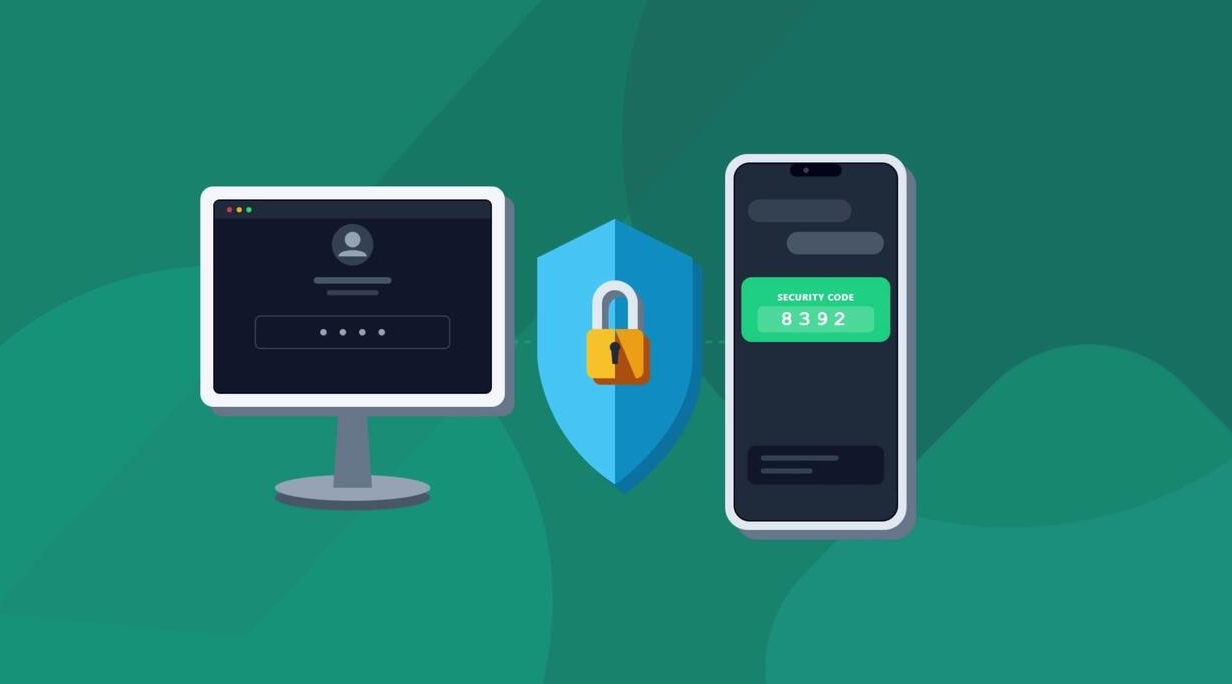
Enable Two-Factor Authentication (2FA)
Webmin supports Time-Based One-Time Password (TOTP) authentication.
Navigate to:
Webmin → Webmin Users → Two-Factor AuthenticationThen:
- Choose Time-Based OTP (TOTP).
- Scan the QR code using an authenticator application.
- Require 2FA for all administrative accounts.

Create Dedicated Webmin Users and ACLs
Instead of sharing the root account, create individual Webmin users.
Recommended Configuration
- Go to Webmin Users.
- Create a new user.
- Choose either:
- Unix authentication, or
- A Webmin-specific password.
- Assign only the required modules.
- Configure module-specific access controls (ACLs).

Examples of module access:
- Apache Webserver
- Nginx Webserver
- MySQL/MariaDB
- BIND DNS
- Postfix
- Firewall management
Once alternative administrator accounts are configured, disable root access within Webmin where appropriate.
Keeping Webmin Updated
Regular updates provide security fixes and feature improvements.
Ubuntu and Debian
sudo apt update && sudo apt upgrade -y webmin
RHEL-Based Systems
sudo dnf upgrade -y webminAdditionally:
- Back up Webmin configuration regularly.
- Store backups outside the server.
- Create VPS snapshots before major changes.
Troubleshooting Webmin
a) Webmin Is Not Accessible
Check whether the service is running:
sudo systemctl status webminIf access still fails, verify:
- Firewall rules allow the Webmin port.
- Cloud security groups permit access.
- SELinux settings match any custom port changes.
- Webmin logs for errors.
Useful log files:
/var/webmin/miniserv.error
/var/webmin/miniserv.log
b) Reset a Forgotten Webmin Password
Debian and Ubuntu
sudo /usr/share/webmin/changepass.pl /etc/webmin root NEW_STR0NG_PASSWORD
sudo systemctl restart webmin
RHEL-Based Systems
sudo /usr/libexec/webmin/changepass.pl /etc/webmin root NEW_STR0NG_PASSWORD
sudo systemctl restart webmin
Replace NEW_STR0NG_PASSWORD with a secure password.

c) Uninstall Webmin
Debian and Ubuntu
sudo apt remove --purge -y webmin

sudo rm -f /etc/apt/sources.list.d/webmin.list /usr/share/keyrings/webmin.gpg

sudo apt update

RHEL-Based Systems
sudo dnf remove -y webmin

sudo rm -f /etc/yum.repos.d/webmin.repo
This removes Webmin and deletes the repository configuration.
Conclusion
Webmin provides a convenient web-based interface for managing Linux servers without performing every task from the command line.
By installing it from the official repository, opening the required firewall port, and applying security best practices such as HTTPS, IP restrictions, dedicated users, and two-factor authentication, you can safely manage your server through an intuitive administration dashboard.
Regular updates and backups will help keep your Webmin installation secure and reliable over time.