

Securing SSH access is one of the most important steps in protecting an Ubuntu server. Password-only logins can be vulnerable if credentials are leaked or stolen. By enabling two-factor authentication (2FA), you add an extra layer of security that requires both your password (or SSH key) and a time-based verification code generated on your phone.
In this tutorial, you’ll learn how to configure SSH two-factor authentication on Ubuntu using Google Authenticator and the PAM (Pluggable Authentication Module) framework. The process works for both password-based and SSH key-based authentication.
Why Use SSH Two-Factor Authentication?
With 2FA enabled, logging in through SSH requires:
- Something you know: your password or SSH key passphrase.
- Something you have: a one-time verification code from an authenticator app.
Even if an attacker obtains your SSH password, they still won’t be able to access the server without the verification code from your device.
Prerequisites
Before starting, make sure you have:
- An Ubuntu server (Ubuntu 20.04 or newer is recommended)
- SSH access with sudo privileges
- The SSH service installed and running
- A smartphone with Google Authenticator or Authy installed
If you’re deploying a new Ubuntu VM, using the Ubuntu Server Live ISO is recommended because it includes the SSH daemon during installation.
Verify SSH Is Running
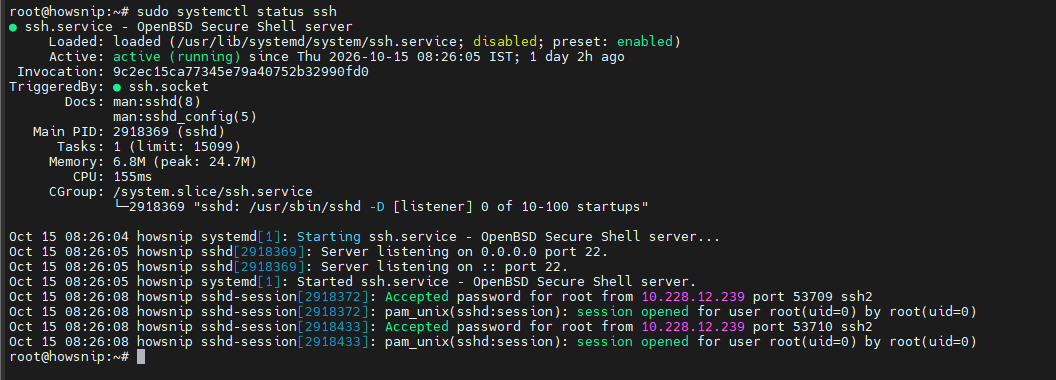
Before making any changes, confirm that the SSH service is active:
sudo systemctl status sshThis command displays the current status of the SSH service. Make sure the output shows:
active (running)
Step 1: Install the Google Authenticator PAM Module
Ubuntu uses PAM (Pluggable Authentication Modules) to handle authentication. Installing the Google Authenticator PAM package allows SSH to verify time-based one-time passwords (TOTP).
Update the package repository:
sudo apt update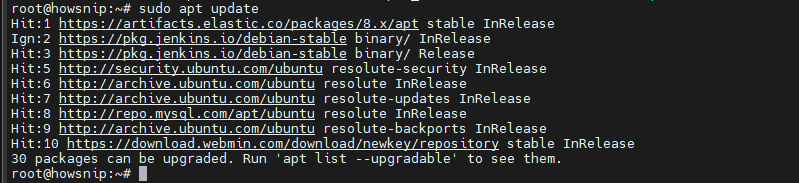
Install the Google Authenticator PAM module:
sudo apt install libpam-google-authenticator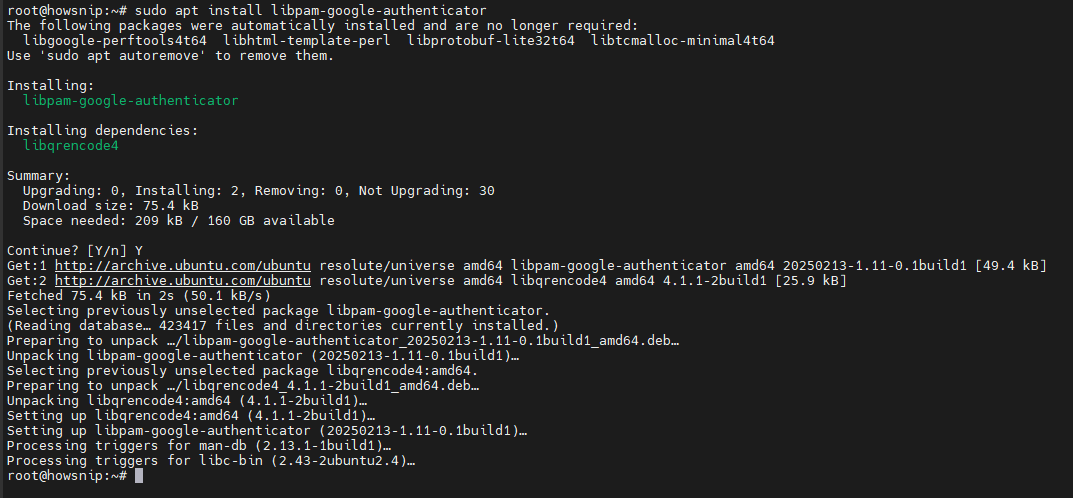
This package integrates Google Authenticator with the system authentication process.
Step 2: Configure Google Authenticator for Your User Account
Before proceeding, install an authenticator app such as Google Authenticator or Authy on your mobile device.
Run the setup wizard:
google-authenticator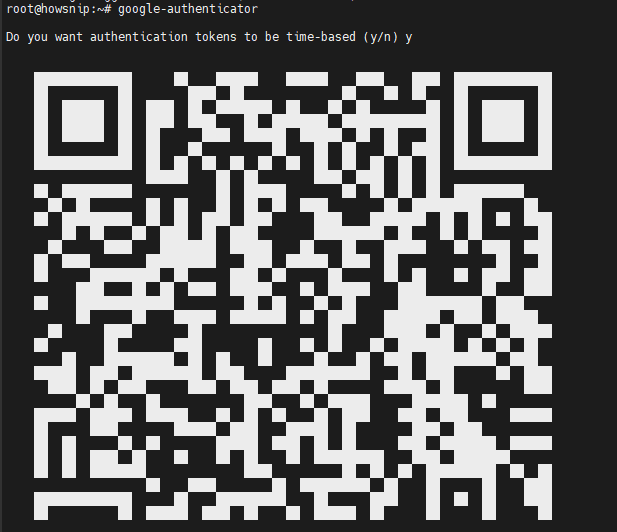
The wizard will ask several configuration questions.
Configure Time-Based Tokens
When prompted:
Do you want authentication tokens to be time-based?
Enter:
y
Time-based tokens are the standard and recommended option for SSH authentication.
Scan the QR Code
The setup displays a QR code in the terminal.
- Open your authenticator app.
- Choose Add Account.
- Scan the displayed QR code.
A new account entry will appear in your authenticator app and begin generating verification codes.
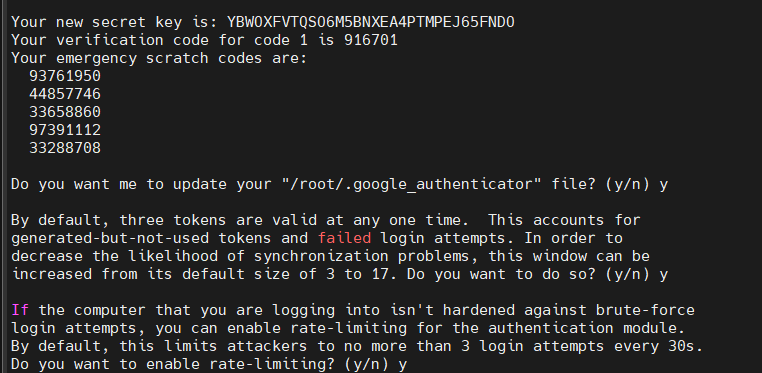
Save the Emergency Scratch Codes
The wizard generates several emergency recovery codes.
Store these codes in a safe offline location. They can be used if you lose access to your authenticator app or mobile device.
Answer the Remaining Prompts
Use the following recommended responses:
- Prompt Recommended AnswerUpdate ~/.google_authenticator file? Yes
- Disallow multiple uses of the same token? Yes
- Increase the time window? No
- Enable rate limiting? Yes
These settings help prevent token reuse and limit brute-force authentication attempts.
Step 3: Configure PAM for SSH Authentication
Now configure PAM to require Google Authenticator verification during SSH login.
Open the SSH PAM configuration file:
sudo nano /etc/pam.d/sshd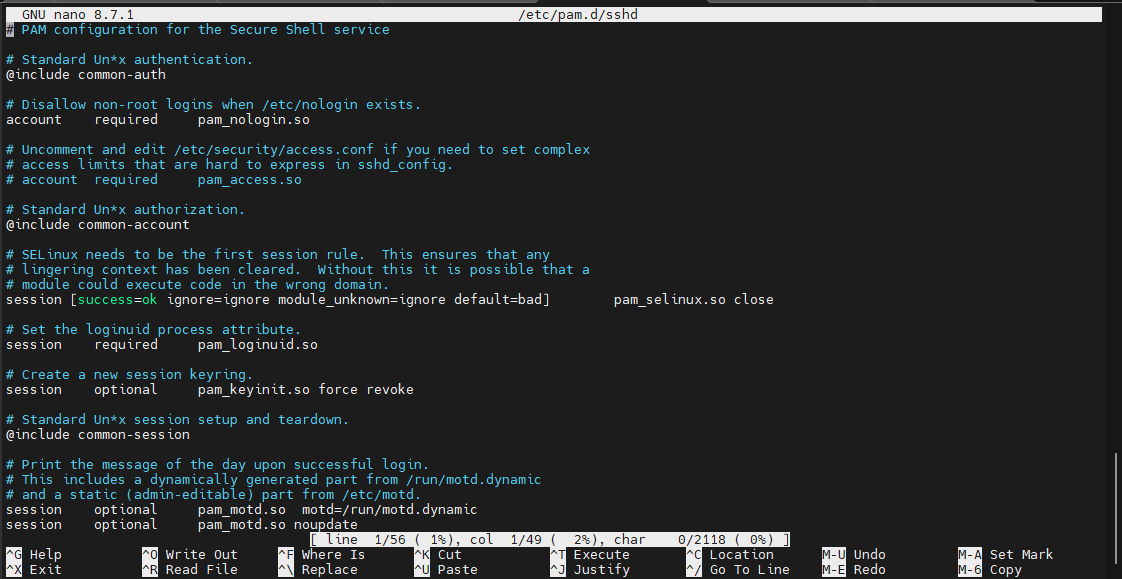
Add the following line near the top of the file, before other authentication directives:
auth required pam_google_authenticator.so
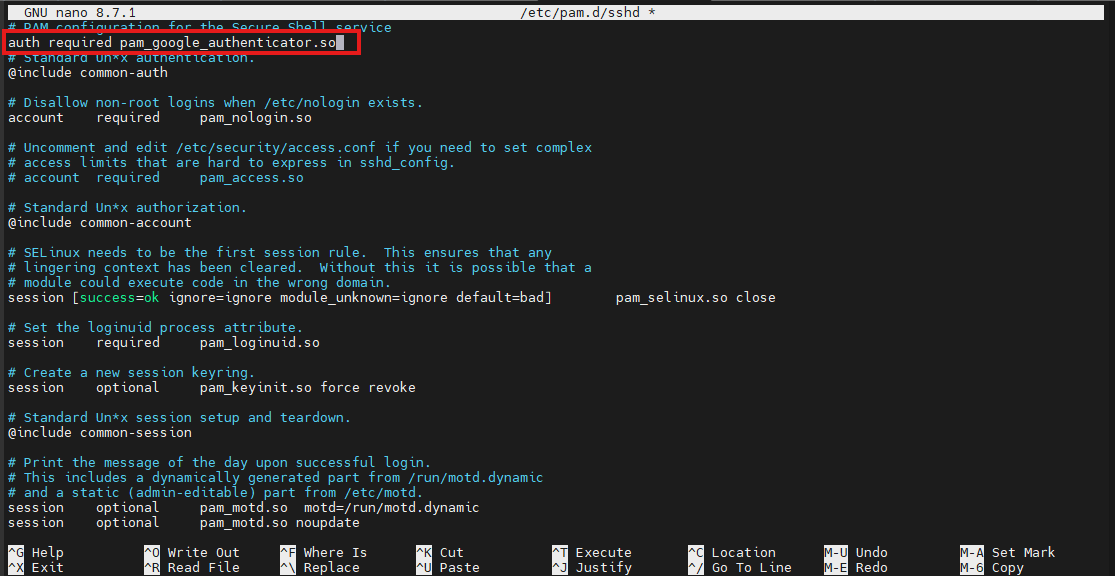
This tells PAM to request a TOTP code during authentication.
Optional: Allow Logins Without 2FA Configuration
If you want users without Google Authenticator configured to continue using password-only logins, use:
auth required pam_google_authenticator.so nullok
The nullok option makes two-factor authentication optional rather than mandatory.
Save and exit the file:
- Ctrl + X
- Y
- Enter
Step 4: Configure the SSH Daemon
Next, update the SSH server configuration so SSH can work with PAM-based authentication challenges.
Open the SSH configuration file:
sudo nano /etc/ssh/sshd_config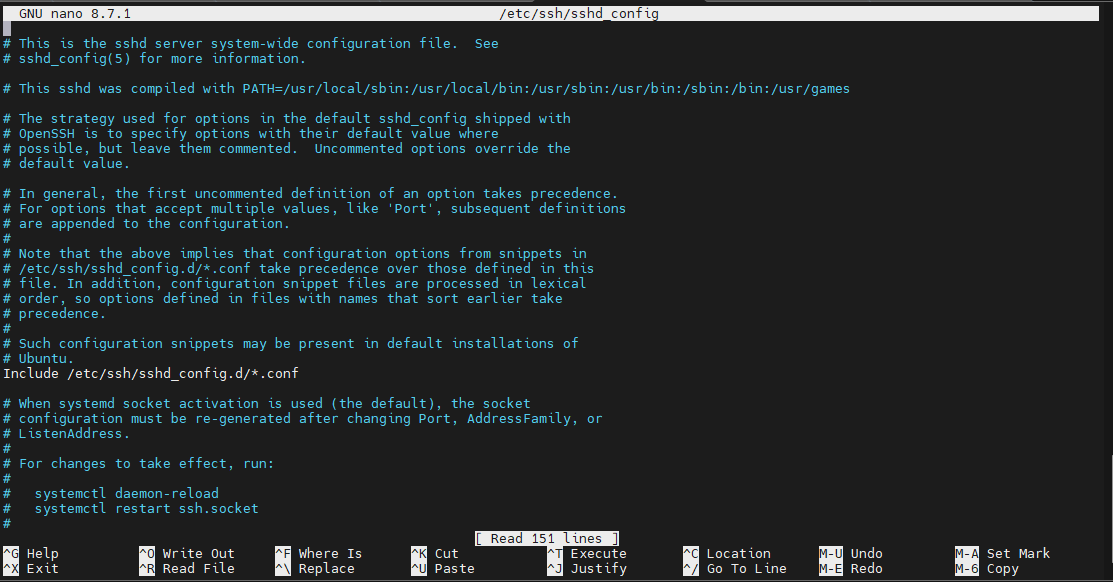
Option 1: Password Authentication + 2FA
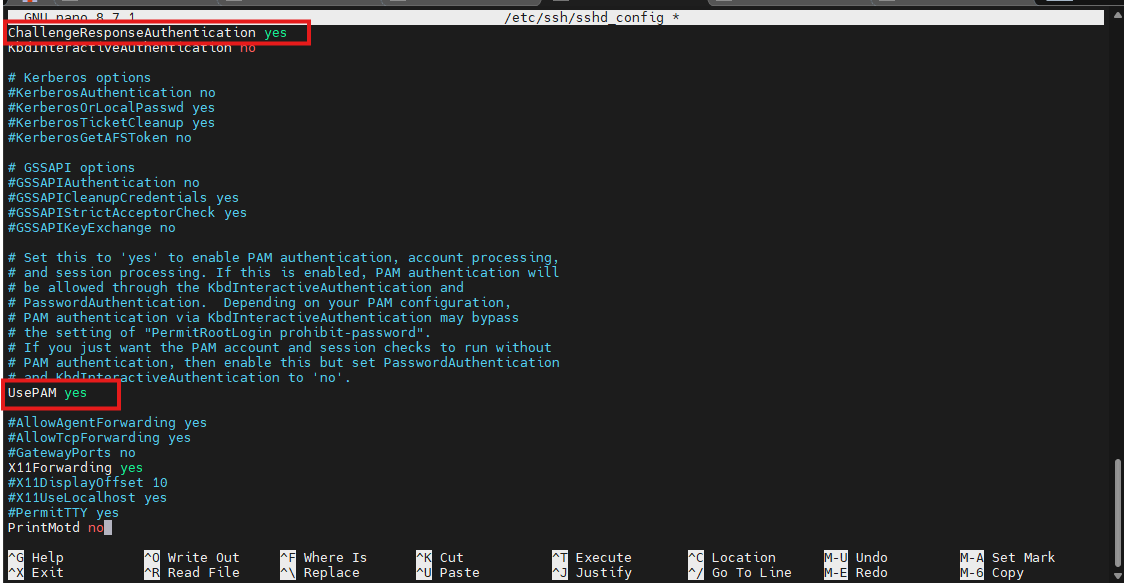
If you authenticate using SSH passwords, make sure the following settings are present:
- ChallengeResponseAuthentication yes
- UsePAM yes
- AuthenticationMethods password,keyboard-interactive
Option 2: SSH Key Authentication + 2FA
For stronger security, combine SSH public keys with Google Authenticator.
Use:
- ChallengeResponseAuthentication yes
- UsePAM yes
- AuthenticationMethods publickey,keyboard-interactive
This requires:
- A valid SSH key.
- A valid Google Authenticator verification code.
Pro Tip: SSH public key authentication combined with 2FA is generally considered more secure than passwords with 2FA.
Save the file and exit the editor.
Step 5: Restart the SSH Service
After modifying the configuration files, restart SSH to apply the changes.
sudo systemctl restart sshThis reloads the SSH daemon with the new authentication settings.
To verify the service restarted successfully:
sudo systemctl status sshEnsure the service status remains:
active (running)
Step 6: Test SSH Two-Factor Authentication
Before closing your current SSH session, open a second terminal window and test the new configuration.
Use:
ssh username@your-server-ip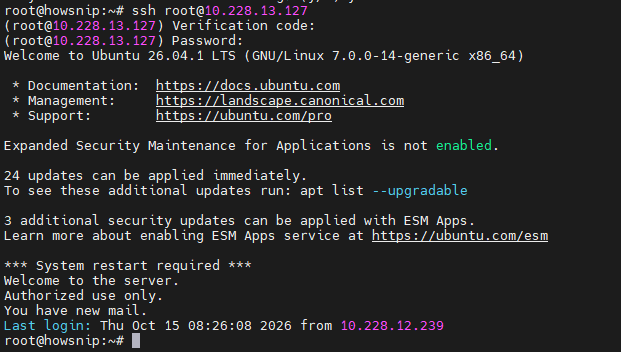
Replace:
- username with your Ubuntu username
- your-server-ip with your server’s IP address
If everything is configured correctly, SSH will prompt for:
- Password:
Followed by:
- Verification code:
Enter the current code from your authenticator app.
If authentication succeeds, you’ll be logged in normally.
Important: Always keep your original SSH session open while testing new SSH authentication settings. This prevents accidental lockouts if a configuration issue occurs.
Troubleshooting Tips
a) SSH Login Stops Working
If you’re unable to log in after enabling 2FA:
- Keep the existing SSH session open.
- Review /etc/pam.d/sshd for syntax errors.
- Verify settings in /etc/ssh/sshd_config.
- Confirm that your Google Authenticator account is generating valid codes.
- Ensure the server time is synchronized correctly, as TOTP codes rely on accurate system time.
b) Lost Your Authenticator Device
- If you lose access to your phone, use one of the emergency scratch codes generated during setup. This is why securely storing the recovery codes is critical.
Conclusion
Adding Google Authenticator to SSH significantly improves the security of your Ubuntu server by requiring a second authentication factor during login. By configuring PAM and SSH correctly, you can protect your server from unauthorized access even if passwords are compromised.
For the strongest security setup, use SSH public key authentication combined with Google Authenticator 2FA, ensuring that both a trusted key and a time-based verification code are required for every login.

![[PHP2Shell] How to Check PHP Servers for CVE-2026-109618 and CVE-2026-109619](https://howsnip.com/wp-content/uploads/2026/10/PHP2Shell-Vulnerability-Scanner-Howsnip-150x150.jpg)