

SCP (Secure Copy Protocol) is one of the easiest and most reliable ways to transfer files between Linux systems over a secure SSH connection. Whether you need to copy backups to a remote server, download files from another machine, or transfer entire directories, SCP provides a simple command-line solution with built-in encryption.
In this tutorial, you’ll learn how to configure SSH, test connectivity, and use SCP to transfer files and folders between local and remote Linux systems. We’ll also cover useful options such as compression, bandwidth control, custom ports, remote-to-remote transfers, and proxy connections.
Prerequisites
Before using SCP, make sure you have:
- A Linux system with terminal access.
- A remote server accessible over the network.
- A valid user account on the remote system.
- SSH installed and running on the remote server.
- Network connectivity between both systems.
Step 1: Install and Configure SSH on the Remote Server
SCP relies on SSH for secure communication, so an SSH server must be installed and running on the remote machine.
a) On Debian/Ubuntu
sudo apt install ssh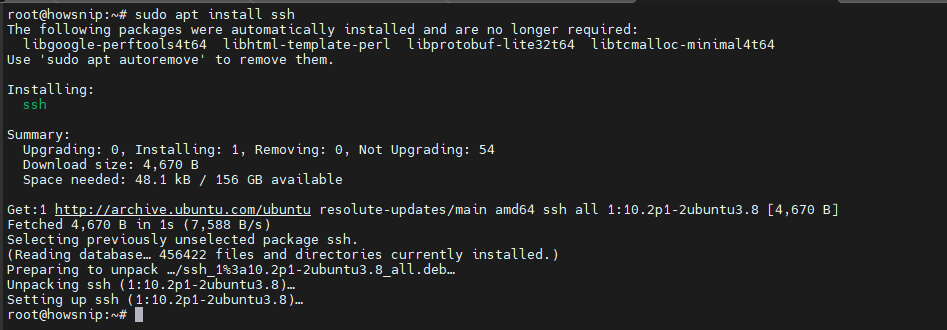
This installs the OpenSSH server package required for SSH and SCP connections.
b) On Fedora
sudo dnf install opensshThis installs the OpenSSH server package on Fedora-based systems.
Allow SSH Through the Firewall (Fedora)
If your firewall blocks SSH traffic, allow the SSH service and reload the firewall configuration.
sudo firewall-cmd --add-service=ssh --permanent
sudo firewall-cmd --reload
Note: Ubuntu systems commonly allow SSH access without requiring these firewall commands, depending on the firewall configuration.
Step 2: Find the IP Address of the Remote Server
Before connecting, you need the server’s IP address.
Run:
ip addr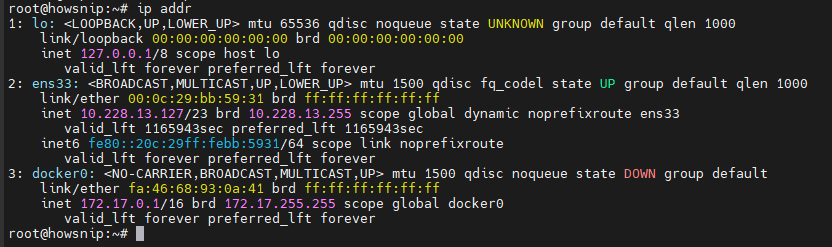
This command displays all network interfaces and their assigned IP addresses.
Look for the inet entry under your active network interface, such as eth0, ens33, or enpXsY.
Example:
inet 10.228.13.127/23In this example, the server IP address is:
10.228.13.127
Step 3: Test the SSH Connection
Before transferring files, verify that SSH access works correctly.
Use the following command from another Linux machine:
ssh user@remote.machine.ip.address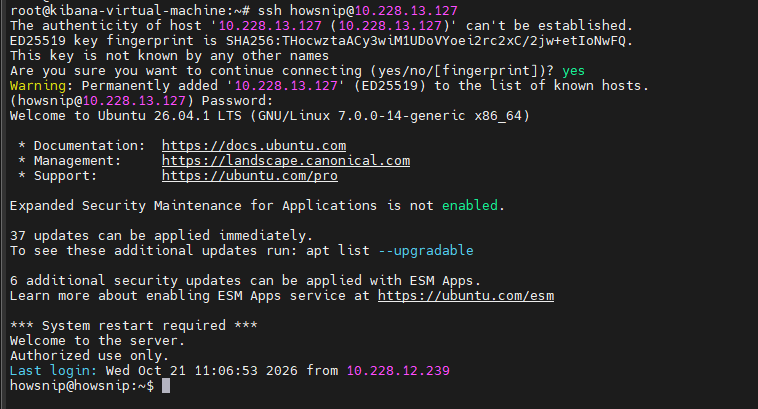
Replace:
- user with the actual username.
- remote.machine.ip.address with the server’s IP address.
Example:
ssh kibana@10.228.1.179What Happens Next?
- You’ll be asked for the account password.
- During the first connection, SSH may display a host authenticity warning.
Example:
The authenticity of host can’t be established.
Type:
yes
This stores the server’s fingerprint and allows future connections.
If login succeeds, you’ll see a command prompt on the remote server.
Important: Consider securing SSH access with strong authentication methods and additional security measures before using SCP for production workloads.
Step 4: Understand the Basic SCP Command Syntax
The general SCP syntax is:
scp /PATH/TO/FILE USER@IP-ADDRESS:PATH/TO/DESTINATIONThis command copies a file from the local system to a remote destination.
Components:
- scp – Starts a secure copy operation.
- /PATH/TO/FILE – Source file.
- USER – Remote username.
- IP-ADDRESS – Remote server IP.
- PATH/TO/DESTINATION – Destination location on the remote system.
Step 5: Copy a File from Local Machine to a Remote Server
To upload a file:
scp howsnip1.txt kibana@10.228.1.179:/home/kibana/
This command:
- Copies howsnip1.txt
- Connects as user kibana
- Uploads the file to the /home/kibana/ directory in the user’s folder.
You’ll be prompted for the user’s password before the transfer begins.
Step 6: Transfer Multiple Files Using Wildcards
You can copy groups of files using wildcard patterns.
Example:
scp *.tar kibana@10.228.1.179:/home/kibana/
This transfers every .tar file in the current directory to the remote server.
Step 7: Copy Files from a Remote Server to the Local Machine
To download a file, reverse the source and destination locations.
scp kibana@10.228.1.179:/home/kibana/backup.tar /root/
This command downloads the backup file from the remote server into the directory where the command is executed.
Step 8: Copy Entire Directories with SCP
To transfer directories, use the -r (recursive) option.
a) Download a Remote Directory
scp -r kibana@10.228.1.179:/home/kibana/my-backups/ backups-from-server/This copies the entire remote backups directory to a local folder named backups-from-server.
b) Download Multiple Files with Wildcards
scp 'kibana@10.228.1.179:/home/kibana/my-backups/*.txz' ./It only matching .txz files will be downloaded.
c) Upload a Local Directory
scp -r ~/my-backups/ kibana@10.228.1.179:/home/kibana/This recursively uploads the local backups folder.

d) Download a Directory into the Current Folder
scp -r kibana@10.228.1.179:/home/kibana/my-backups/ ./
The directory and all contents are copied into the current working directory.
Step 9: Compress Data During Transfer
If you’re working over a slow or bandwidth-limited connection, compression can improve transfer efficiency.
Use the -C option:
scp -C backup.tar.gz kibana@10.228.1.179:/home/kibana/
The -C flag compresses data before sending it across the network.
Use Compression with Recursive Transfers
scp -Cr kibana@10.228.1.179:/home/kibana/my-backups /root/
This combines:
- -C for compression.
- -r for recursive directory copying.
Note: Compression is often most useful when transferring text-heavy or highly compressible files.
Step 10: Specify an Encryption Cipher
SCP uses SSH encryption by default, but you can explicitly choose the cipher used during a transfer.
a) Use AES-256 Encryption
scp -c aes256-ctr ./backup.tar.gz kibana@10.228.1.179:/home/kibana/
This tells SCP to use the aes256-ctr cipher.
b) Provide Multiple Cipher Options
scp -c aes192-ctr,aes256-ctr ./backup.tar.gz kibana@10.228.1.179:/home/kibana/
Here, SCP can use either of the specified ciphers during the connection.
Important: Use encryption settings that are supported by both systems.
Step 11: Limit Bandwidth Usage
If SCP is consuming too much network bandwidth, you can restrict its transfer rate.
Use the -l option:
scp -l 1600 ./backup.tar.gz kibana@10.228.1.179:/home/kibana/
In this example, SCP limits throughput to approximately 1600 Kb/s.
This is especially useful on:
- Shared networks
- Metered internet connections
- Production servers with bandwidth constraints
Step 12: Transfer Files Between Two Remote Servers
SCP can copy files directly between remote hosts.
Example:
scp howsnip@10.228.13.127:/home/howsnip/curl-source.tar.gz kibana@10.228.1.179:/home/kibana/
This transfers the file from one remote server to another without manually downloading it first.
Step 13: Transfer Files Through an SSH Proxy
Some network environments require traffic to pass through an intermediary system.
You can achieve this using the ProxyCommand option:
scp -o "ProxyCommand ssh howsnip@10.228.13.127 nc %h %p" \
/root/backup.tar.gz kibana@10.228.1.179:/home/kibana/
This command:
- Creates an SSH connection to the proxy server.
- Forwards the SCP connection through that server.
- Transfers the file to the final destination.
Note: This method is useful when direct access to the target server is unavailable.
Step 14: Use a Custom SSH Port
Many administrators move SSH services away from the default port for administrative or security reasons.
To connect using a different port, use -P.
Example:
scp -r -P 2222 /root/backup kibana@10.228.1.179:/home/kibana/
This command:
- Recursively uploads the backup directory.
- Connects using SSH port 2222.
Important: The -P option must use an uppercase P.
Step 15: Run SCP in Quiet Mode
For scripts and automated tasks, you may want to suppress SCP’s output.
Use the -q option:
scp -q /root/backup.tar.gz kibana@10.228.1.179:/home/kibana/
Quiet mode:
- Hides progress information.
- Reduces terminal output.
- Is useful for automation and scheduled tasks.
This option is commonly used alongside SSH keys and cron jobs for unattended file transfers.
Conclusion
SCP is a simple yet powerful tool for securely transferring files between Linux systems over SSH. After setting up SSH access, you can upload and download files, copy entire directories, transfer data between remote servers, compress transfers, limit bandwidth usage, and even use custom ports or SSH proxies.
By understanding these commonly used SCP options, you’ll be able to handle most secure file transfer tasks directly from the command line with confidence.