

MongoDB is one of the most popular NoSQL databases used for storing and managing flexible, document-based data. Before you can start building applications with MongoDB, you need to install the database server, connect to it, and learn how to create databases and collections.
In this tutorial, you’ll learn how to install MongoDB on Windows, macOS, and Linux, open Mongo Shell, create your first database, insert data into a collection, and retrieve records. You’ll also see how to perform the same tasks using the DbSchema graphical interface.
Prerequisites
Before starting, make sure you have:
- Administrator or sudo access on your computer
- A working internet connection
- Terminal (macOS/Linux) or Command Prompt (Windows)
- MongoDB installation package or repository access
Step 1: Install MongoDB Server
MongoDB Server must be installed before you can create databases and collections.
Install MongoDB on Windows
- Visit the official MongoDB website and download the Windows installer.
- Run the installer.
- Follow the installation wizard.
- When prompted, select the option to install MongoDB as a service.
- Complete the installation.
- Verify the Installation
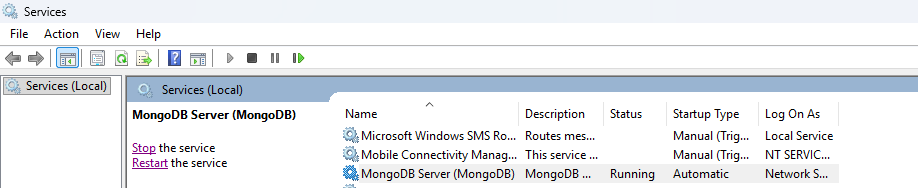
Open Command Prompt and run:
mongoshIf Mongo Shell opens successfully, MongoDB is installed and ready to use.
Install MongoDB on macOS
If you use Homebrew, install MongoDB with the following commands:
brew tap mongodb/brew
brew install mongodb-community@5.0
Start the MongoDB Service
brew services start mongodb/brew/mongodb-communityThis command starts MongoDB as a background service so it can accept database connections.
Install MongoDB on Linux (Ubuntu)
Install MongoDB using:
sudo apt-get install -y mongodb-enterprise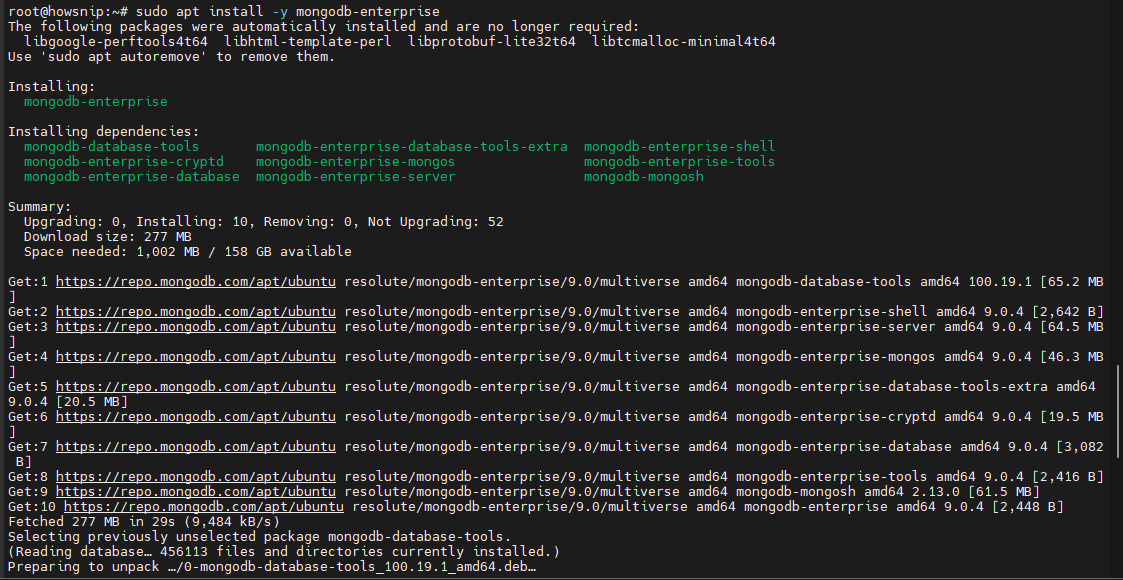
Start the MongoDB Service
sudo service mongodb start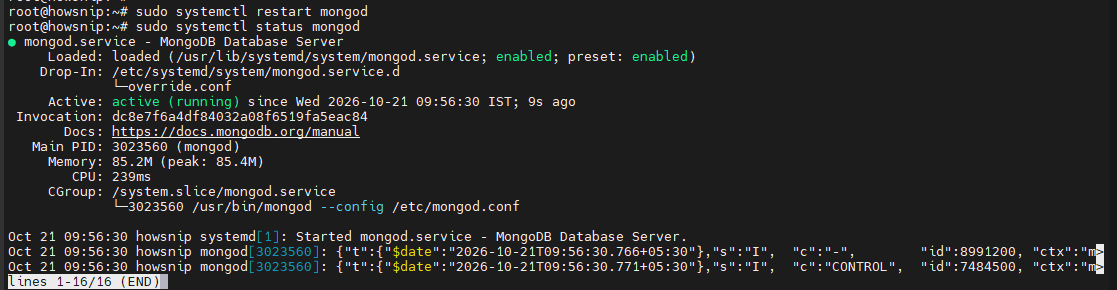
This command starts the MongoDB server and allows client applications to connect.
Step 2: Open Mongo Shell
Mongo Shell (mongosh) is the command-line interface used to communicate with a MongoDB server.
Open your terminal or command prompt and run:
mongosh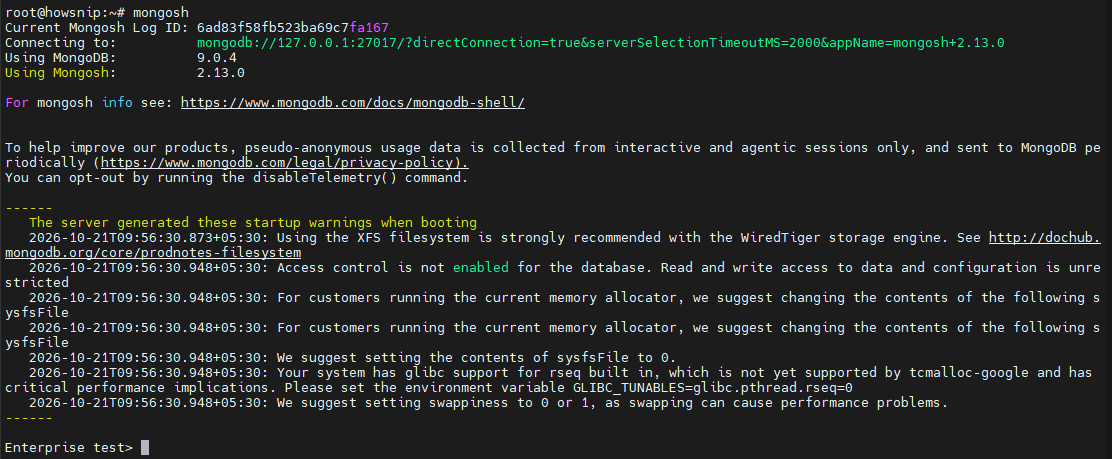
Once connected, you’ll be able to execute MongoDB commands, create databases, manage collections, and query data.
Step 3: View Existing Databases
To see the databases currently available on your MongoDB server, run:
show dbs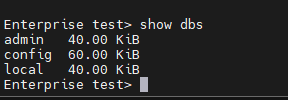
This command lists all existing databases.
Step 4: Create and Select a Database
Create and switch to a database named flights:
use flights
The use command changes the active database context. If the database does not already exist, MongoDB prepares it for creation once data is added.
The current database can be referenced using:
dbThis returns the name of the active database you are working in.
Step 5: Create a Collection and Insert a Document
Collections in MongoDB are similar to tables in relational databases. Documents are stored inside collections.
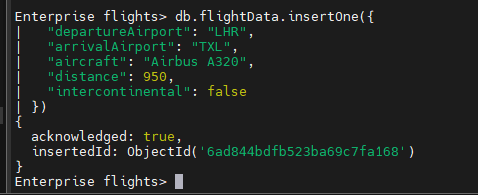
Run the following command:
db.flightData.insertOne({
"departureAirport": "LHR",
"arrivalAirport": "TXL",
"aircraft": "Airbus A320",
"distance": 950,
"intercontinental": false
})
What This Command Does
- Creates the flightData collection if it does not exist.
- Inserts a new document into the collection.
- Automatically generates an _id field.
- Returns an acknowledgment when the operation succeeds.
A successful result includes:
acknowledged: true
This indicates that MongoDB successfully processed the insert operation.
Step 6: Retrieve Documents from the Collection
To view the stored data, run:
db.flightData.find().pretty()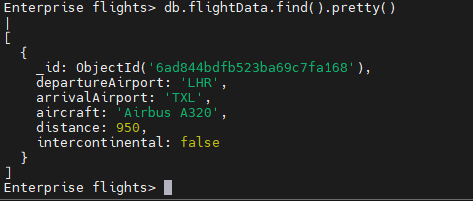
This command retrieves all documents from the flightData collection.
Understanding the Command
- find() returns the matching documents.
- .pretty() formats the output to make it easier to read.
In modern versions of mongosh, .pretty() is optional. After executing the command, MongoDB displays the stored document in a structured format.
What Happened Behind the Scenes?
When you inserted the first document:
- MongoDB automatically created the flights database.
- MongoDB automatically created the flightData collection.
- A unique _id value was generated for the document.
Unlike traditional databases, MongoDB creates databases and collections automatically when data is inserted.
Create a Database Using DbSchema
If you prefer a graphical interface instead of command-line tools, DbSchema provides an easy way to work with MongoDB visually.
With DbSchema, you can:
- Create databases and collections
- Insert documents
- Browse records
- Execute queries
- Visualize database structures
Step 1: Connect DbSchema to MongoDB
After installing DbSchema and launching the application:
- Open DbSchema.
- Connect to your MongoDB server.
- Locate the Project Structure or Database Explorer panel.
Important: Ensure the MongoDB server (mongod) is running before attempting to connect.
By default, MongoDB typically uses port:
27017If connecting from another computer, configure access securely and avoid exposing MongoDB publicly without proper authentication and firewall protection.
You can also learn about connecting to MongoDB and exploring database diagrams in the DbSchema MongoDB guide.
Step 2: Create a New Database
To create a database:
- Right-click inside the Project Structure panel.
- Select the option to create a database.
- Enter the name:
- flights2
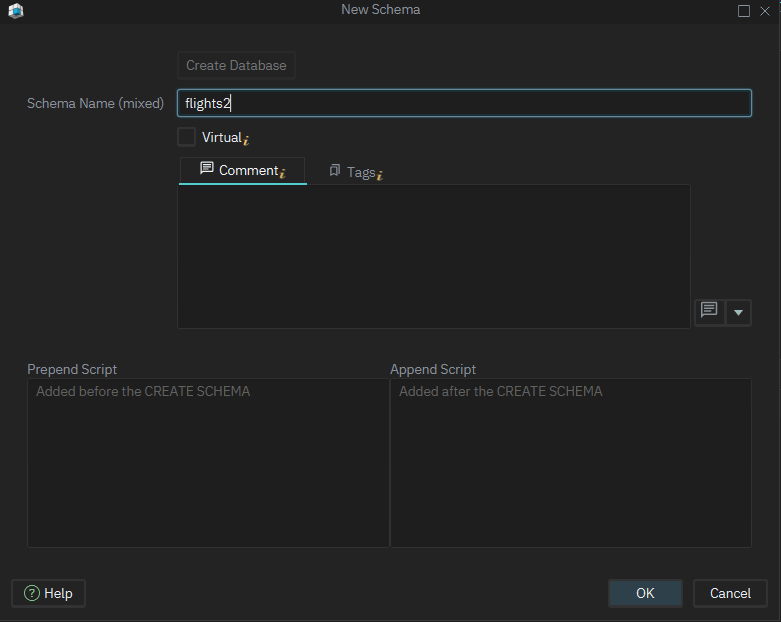
Confirm the action.
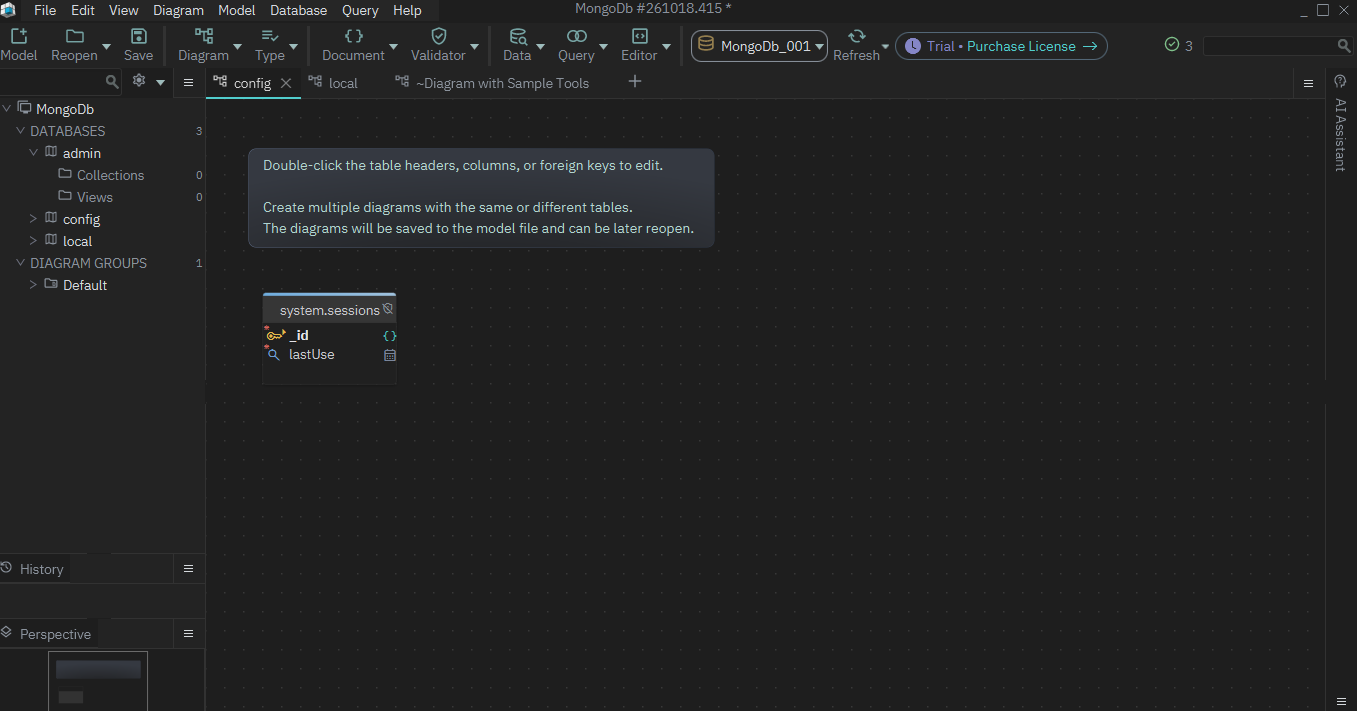
Depending on MongoDB behavior, the database may not become permanent until a collection is created or data is inserted.
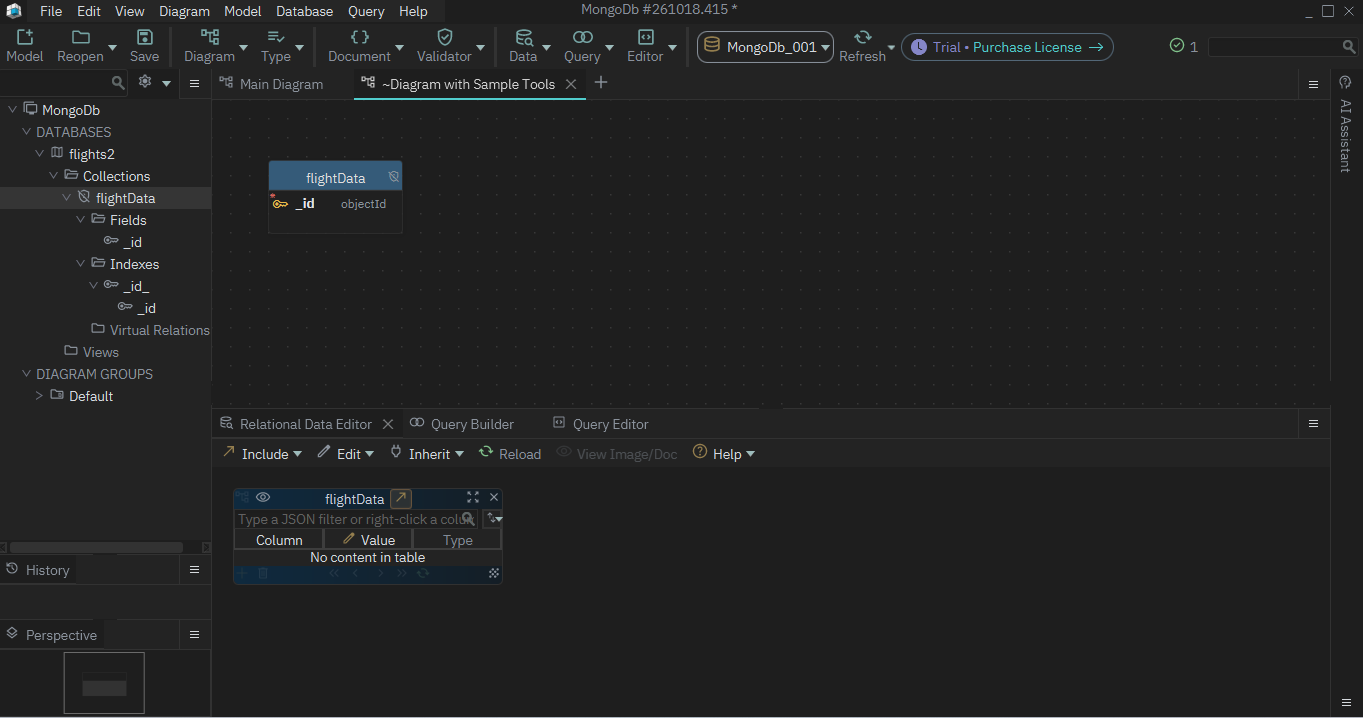
Step 3: Create a Collection
After selecting the flights2 database:
Right-click in the main workspace. Choose Create Validator / Define Collection.
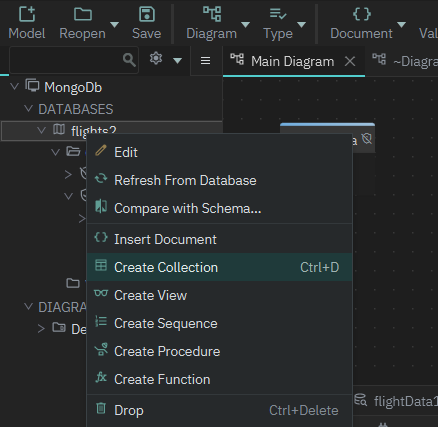
Enter the collection name:
flightData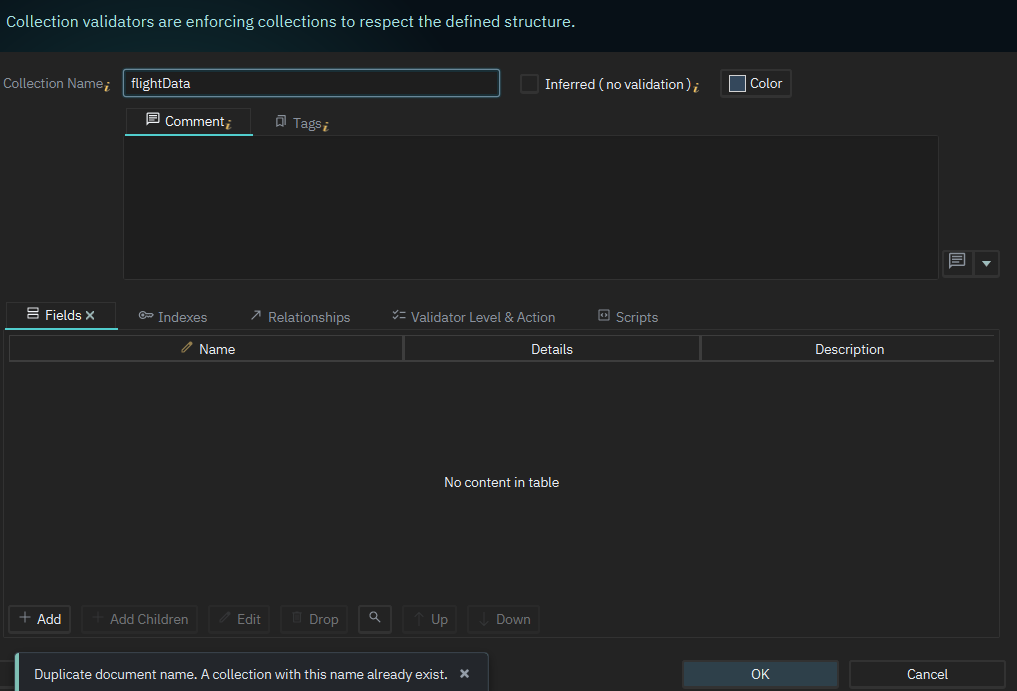
- Click Add to define fields.
- Add Collection Fields
- Start by adding:
- Field Data Type Required_id ObjectId Yes
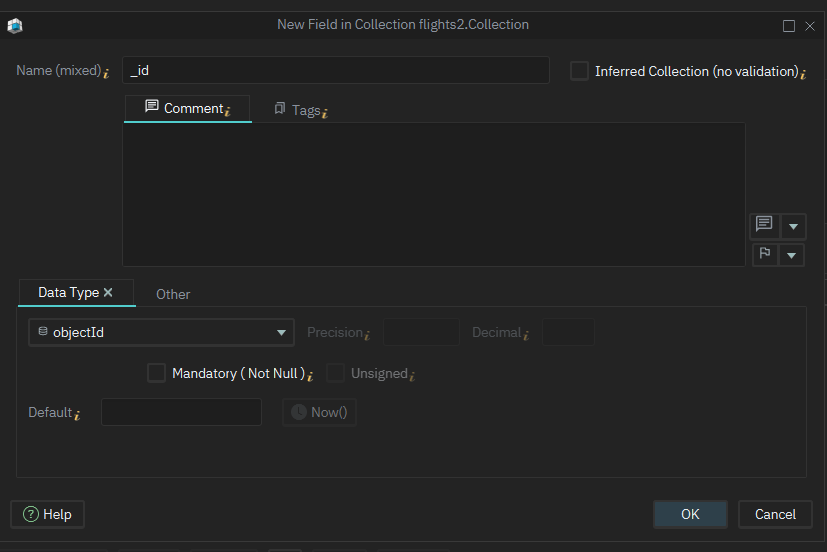
Then add any additional fields needed for your collection.
Click OK to create the collection. The new collection structure will appear in the DbSchema diagram.
Step 4: Insert Data Using the Data Editor
To add a document visually:
- Open the collection.
- Click Relational Data Editor.
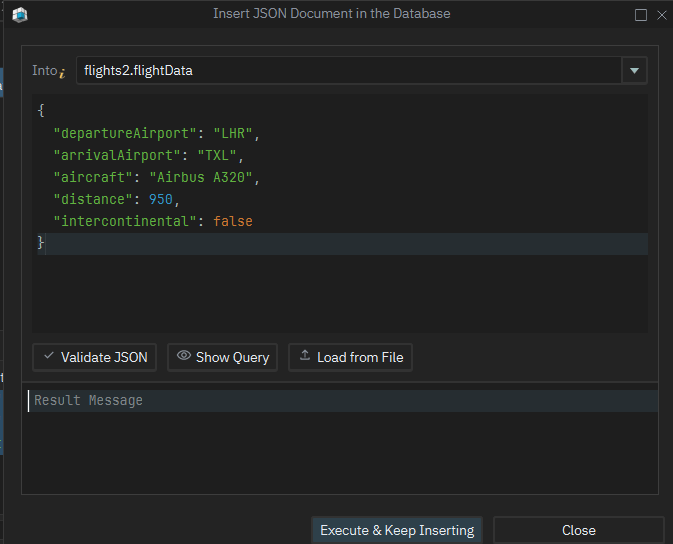
- Select the + button.
- Enter the document data in JSON format.
- Click Execute & Keep Inserting.
This inserts the data into the collection without using terminal commands.
Step 5: Query and View Data
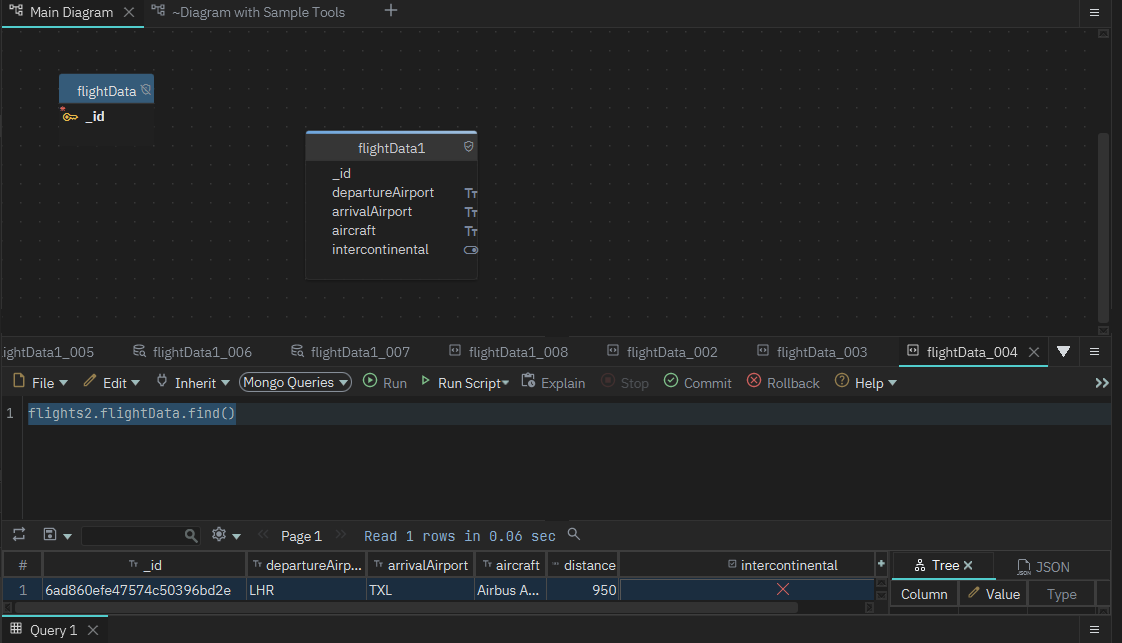
To display the stored documents:
- Click the collection header.
- Open Query Editor.
- Run the automatically generated find() query.
- Review the results table.
DbSchema displays query results in a spreadsheet-like format, making it easy to browse records.
What’s Next?
Now that you’ve successfully installed MongoDB, created a database, added a collection, and inserted data, you’re ready to learn the core CRUD operations:
- Find documents using queries
- Insert multiple documents
- Update existing documents
- Delete documents
These operations form the foundation of working with MongoDB in real-world applications.
Conclusion
Installing MongoDB and creating your first database is an important first step toward working with document-based data.
Whether you prefer Mongo Shell or a visual tool like DbSchema, the process follows the same principles: create a database, add collections, insert documents, and query your data. Once you’re comfortable with these basics, you can move on to more advanced MongoDB features such as filtering, indexing, validation, and CRUD operations.