AnyDesk is a popular remote desktop application that allows you to access and manage systems remotely. On Debian-based distributions such as Debian and Kali Linux, the recommended installation method is through the official AnyDesk repository, which makes updates easier and keeps the software current.
This tutorial walks you through the complete installation process, including repository setup, service verification, unattended access configuration, firewall configuration, offline installation, and removal.
Prerequisites
- A Debian-based Linux distribution (Debian, Kali Linux, etc.)
- A user account with sudo privileges
- Internet access for repository-based installation
Step 1: Add the Official AnyDesk Repository
AnyDesk signs its repository with a GPG key. Before adding the repository, create a keyring directory and import the key.
sudo mkdir -p /etc/apt/keyrings
wget -qO- https://keys.anydesk.com/repos/DEB-GPG-KEY | sudo gpg --dearmor -o /etc/apt/keyrings/anydesk.gpg
What this does
- Creates the /etc/apt/keyrings directory if it doesn’t already exist.
- Downloads the official AnyDesk GPG key.
- Converts the key into a format APT can use for package verification.
- Verify the GPG Key
A missing or empty keyring is one of the most common causes of repository signature errors.
Run:
ls -l /etc/apt/keyrings/anydesk.gpgA valid key file should display information similar to:
-rw-r–r– 1 root root 1759 Sep 17 13:11 /etc/apt/keyrings/anydesk.gpg
Register the AnyDesk Repository
Add the official AnyDesk repository to your system:
echo "deb [signed-by=/etc/apt/keyrings/anydesk.gpg] https://deb.anydesk.com/ all main" | sudo tee /etc/apt/sources.list.d/anydesk-stable.list
Unlike many repositories, AnyDesk uses a single distribution suite named all. There is no Debian or Kali codename to replace, making future distribution upgrades simpler.
Update Package Lists
Refresh APT so it can detect packages from the newly added repository.
sudo apt updateThis downloads the latest package information from all configured sources, including the AnyDesk repository.
Step 2: Check Available AnyDesk Packages
Before installation, verify that APT can see the AnyDesk package.
apt-cache policy anydesk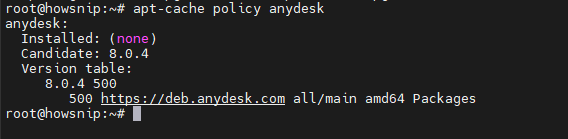
The command shows:
- Available package versions
- Package source repository
- Installation candidate version
If the package information appears, your repository configuration is working correctly.
Step 3: Install AnyDesk
Install the package using APT:
sudo apt install -y anydesk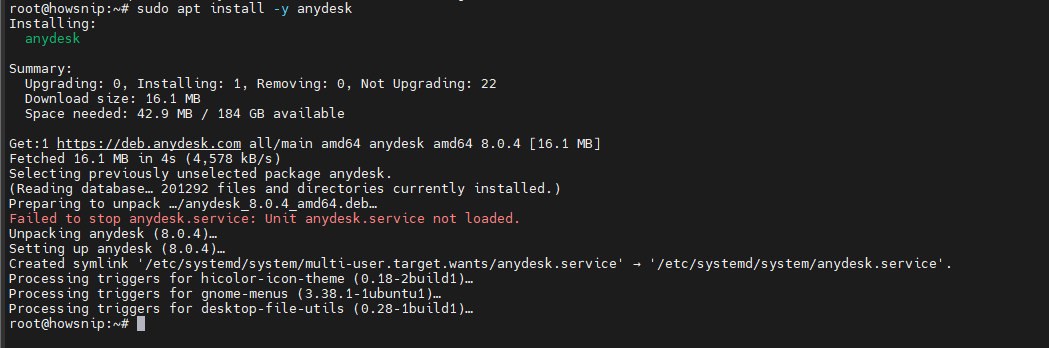
The installer:
- Downloads the AnyDesk package.
- Installs required components.
- Creates and enables the AnyDesk system service.
- Configures startup using systemd.
You may see a message similar to:
Failed to stop anydesk.service: Unit anydesk.service not loaded.
Is this an error?
No. During a first-time installation, the installer attempts to stop a service that does not yet exist. This message is harmless and can be safely ignored.
Step 4: Verify the AnyDesk Service
After installation, confirm that the AnyDesk service is running and enabled.
Check its status:
systemctl is-active anydesk
Check whether it starts automatically after boot:
systemctl is-enabled anydeskWhat these results mean
- active means the AnyDesk daemon is currently running.
- enabled means it will automatically start after system reboots.
Step 5: Retrieve Your AnyDesk ID
Every AnyDesk installation receives a unique numeric ID used for remote connections.
Run:
sudo anydesk --get-id
Remote users connect to your system using this ID. As long as the /etc/anydesk/ directory remains intact, the ID will usually remain unchanged across reboots.
Step 6: Configure Unattended Access
By default, incoming connections require someone at the local machine to manually approve access. To allow unattended remote access, configure a password.
echo "Str0ngLabPass#2026" | sudo anydesk --set-password
The supplied password is securely stored and used for remote authentication.
Important Warning About Password Configuration
Running the password command without sudo will fail, even though it can return a successful exit code.
Example message:
Setting the password requires administrator privileges and an installed service.
Because of this behavior, you should verify that the password was actually saved.
Run:
sudo grep -oE '^ad\.anynet\.(pwd_hash|pwd_salt)' /etc/anydesk/service.conf
Expected output:
ad.anynet.pwd_hash
ad.anynet.pwd_salt
These configuration entries only appear after a password has been successfully stored. Whenever you change the password in the future, run the verification command again.
Step 7: Verify Listening Ports
Check which ports AnyDesk is listening on:
sudo ss -tlnp | grep anydesk
AnyDesk listens on TCP port 7070 for direct connections and binds to both IPv4 and IPv6 interfaces.
Step 8: Configure Firewall Access (Optional)
AnyDesk can work through its relay network over outbound HTTPS connections without opening inbound ports. However, direct LAN connections are often faster and require TCP port 7070.
Check Existing Firewall Configuration
Before creating rules, verify your current firewall status.
Check nftables:
sudo nft list ruleset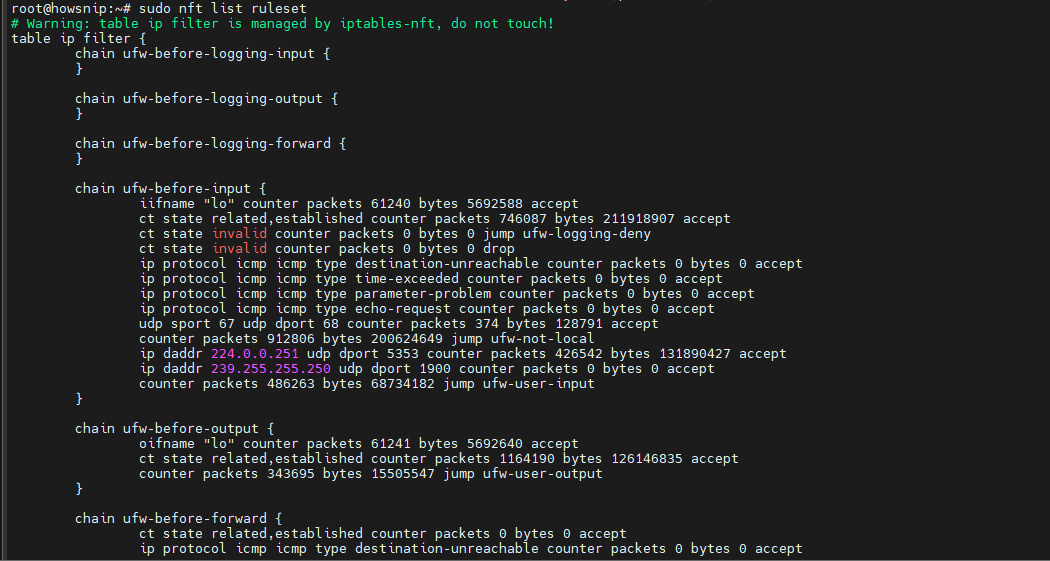
Check whether UFW is installed:
command -v ufw || echo "ufw not installed"
On a default Kali Linux installation, UFW is typically not installed.
Install and Configure UFW
Install the firewall:
sudo apt install -y ufw
Allow SSH access first:
sudo ufw allow OpenSSHImportant: If you manage the system remotely, do not skip the SSH rule. Enabling UFW without it can block remote administration access.
Allow direct AnyDesk connections from trusted networks:
sudo ufw allow from 10.0.0.0/8 to any port 7070 proto tcp comment 'AnyDesk direct LAN'Enable the firewall:
sudo ufw enableVerify the active rules:
sudo ufw statusOptional: Enable Local Network Discovery
AnyDesk discovery uses UDP ports 50001-50003. If you want local-device discovery, allow those ports:
sudo ufw allow from 10.0.0.0/8 to any port 50001:50003 proto udpIf you only connect using AnyDesk IDs, this rule is not required.
Alternative Installation: Install AnyDesk Without Adding the Repository
Some lab, enterprise, or penetration-testing environments block third-party repositories. In that case, download the current package directly.
Retrieve the latest package filename:
ANYDESK_DEB=$(curl -fsSL https://deb.anydesk.com/dists/all/main/binary-amd64/Packages | awk -F': ' '/^Filename/{print $2}')
echo "https://deb.anydesk.com/${ANYDESK_DEB}"
wget "https://deb.anydesk.com/${ANYDESK_DEB}"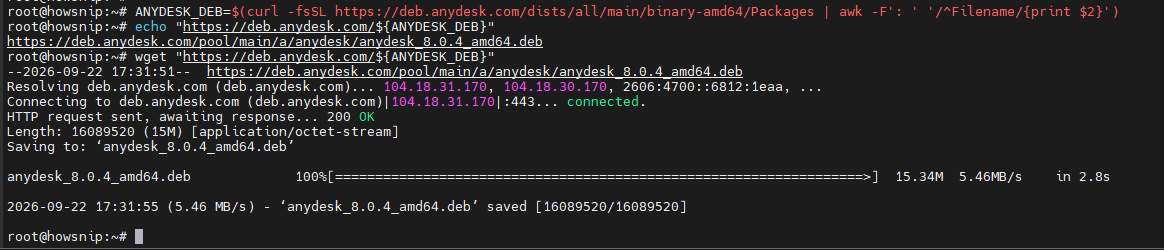
Example URL:
https://deb.anydesk.com/pool/main/a/anydesk/anydesk_8.0.4_amd64.debTransfer the package to the target system:
scp anydesk_*_amd64.deb kali@10.0.1.50:/tmp/
Install it using APT:
ssh kali@10.0.1.50 'sudo apt install -y /tmp/anydesk_*_amd64.deb'APT automatically installs and resolves required dependencies from your Linux repositories, reducing installation issues.
Note: This method does not provide automatic updates from the AnyDesk repository.
How to Uninstall AnyDesk
If you no longer need AnyDesk, remove it completely from the system.
a) Stop and Disable the Service
sudo systemctl disable --now anydesk
b) Remove the Package
sudo apt remove --purge -y anydesk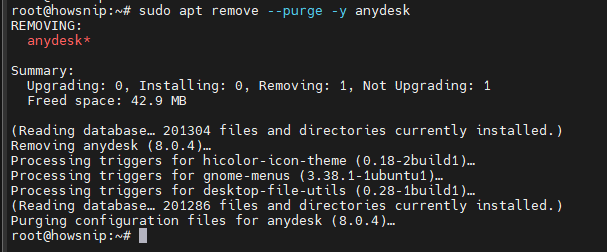
The purge option removes:
- The AnyDesk application
- Service configuration
- Stored AnyDesk ID
- Password-related settings
c) Remove Unused Dependencies
sudo apt autoremove -y
d) Remove Repository Configuration
Delete the repository and key:
sudo rm -f /etc/apt/sources.list.d/anydesk-stable.list /etc/apt/keyrings/anydesk.gpg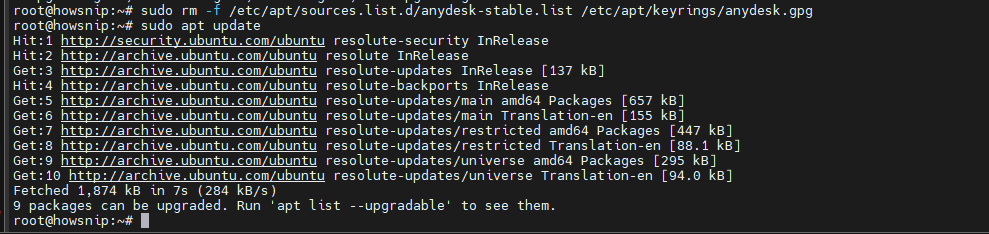
Update package information:
sudo apt update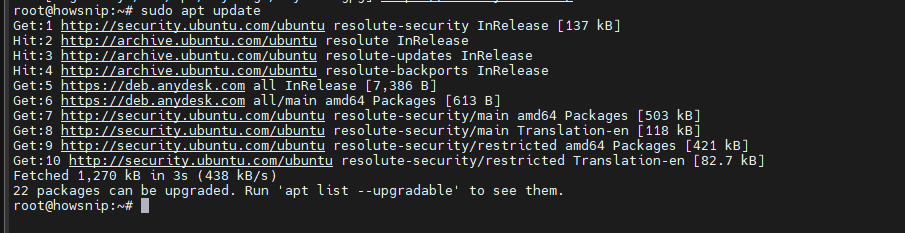
e) Remove User-Specific Data (Optional)
AnyDesk leaves per-user settings under:
~/.anydesk/To remove them:
rm -rf ~/.anydeskWarning: This deletes personal AnyDesk settings, connection history, and local GUI preferences.
Conclusion
Installing AnyDesk on Debian or Kali Linux is straightforward when using the official repository. After adding the repository, you can install the package, verify the service, obtain your AnyDesk ID, and configure unattended access for remote management.
For secure direct LAN connections, consider configuring a firewall rule for port 7070. If repository access is unavailable, the standalone DEB package provides an alternative installation method. When you’re finished with AnyDesk, you can completely remove it along with its repository and configuration files using the uninstall steps above.