

FTP remains a practical solution for transferring files between systems, especially in environments where users need simple access to upload and download content. One of the most popular FTP server applications on Linux is vsftpd (Very Secure FTP Daemon), known for its performance, security-focused defaults, and reliability on production systems.
In this tutorial, you’ll learn how to install vsftpd on Linux, configure secure FTP access, create restricted users, enable passive mode, configure firewall rules, secure connections with TLS, and optionally use SFTP as a modern alternative.
Prerequisites
- A Linux server running Ubuntu, Debian, RHEL, CentOS, AlmaLinux, or Rocky Linux
- Root or sudo privileges
- A public IP address or DNS hostname for external access
- Basic familiarity with the Linux terminal
Step 1: Install vsftpd
The installation process varies slightly depending on your Linux distribution.
a) Install vsftpd on Ubuntu and Debian
First, update the package index and install the vsftpd package:
sudo apt update
sudo apt install -y vsftpd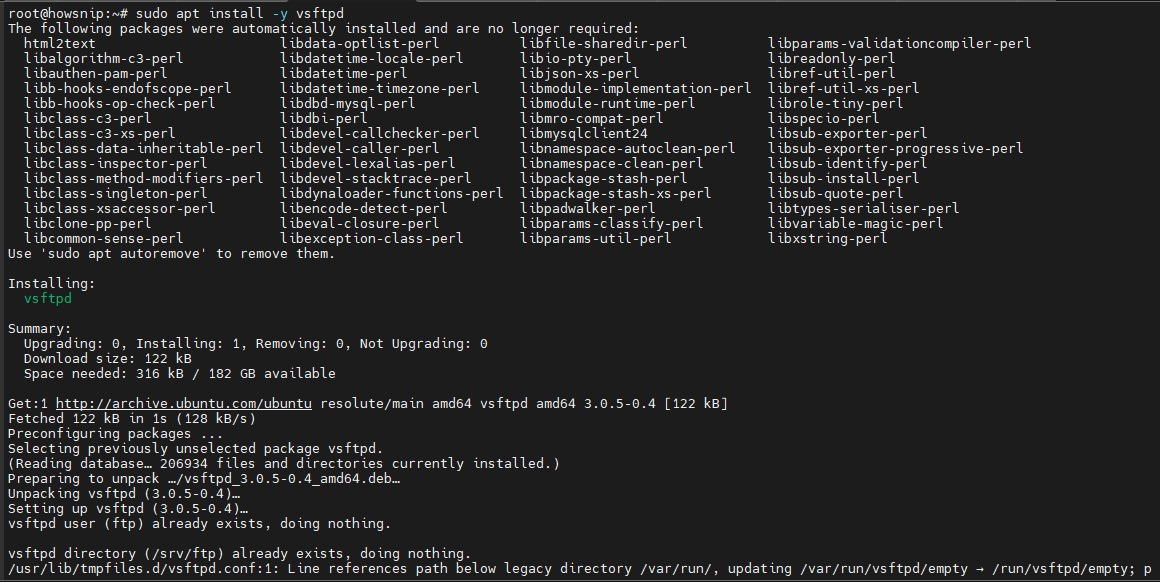
Enable the service so it starts automatically at boot and start it immediately:
sudo systemctl enable --now vsftpd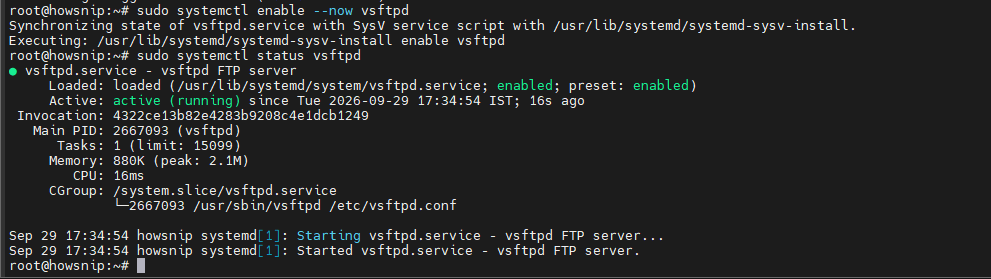
Check that the service is running correctly:
sudo systemctl status vsftpd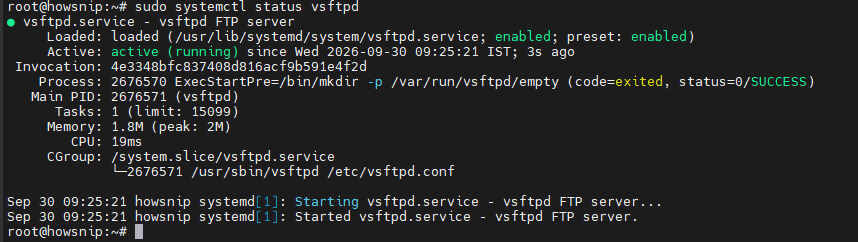
b) Install vsftpd on RHEL, CentOS, AlmaLinux, and Rocky Linux
Install the package using DNF:
sudo dnf install -y vsftpdFor older CentOS releases:
sudo yum install -y vsftpdEnable and start the service:
sudo systemctl enable --now vsftpdVerify its status:
sudo systemctl status vsftpdvsftpd is widely used because it offers strong security defaults, excellent performance, and support for user isolation through chroot environments.
Step 2: Back Up the Existing Configuration
Before making any changes, create a backup of the default configuration file. This makes it easy to restore the original settings if something goes wrong.
sudo cp /etc/vsftpd.conf /etc/vsftpd.conf.bakStep 3: Configure vsftpd
Open the configuration file with your preferred text editor:
sudo nano /etc/vsftpd.conf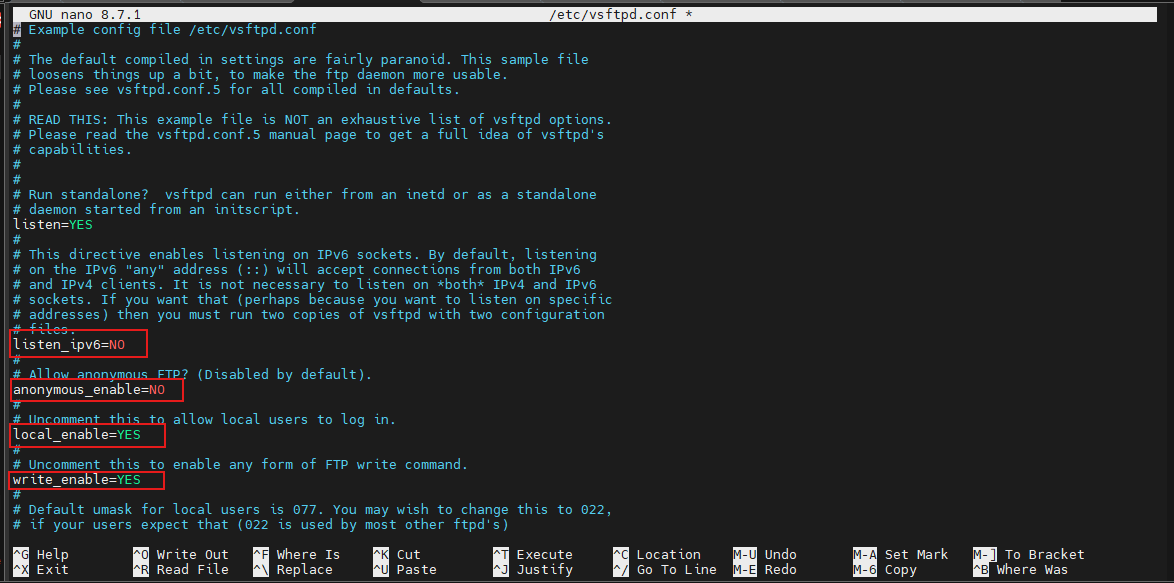
Replace or update the configuration with the following baseline settings.
Recommended Base Configuration
# Core settings
listen=YES
listen_ipv6=NO

# Authentication & access
anonymous_enable=NO
local_enable=YES
write_enable=YES

# Security & isolation
chroot_local_user=YES
allow_writeable_chroot=YES

# Permissions & umask
local_umask=022
file_open_mode=0644

dirlist_enable=YES
xferlog_enable=YES
xferlog_std_format=YES

# Passive mode
pasv_enable=YES
pasv_min_port=40000
pasv_max_port=40100
pasv_address=YOUR.PUBLIC.IP.ADDRESS

# Performance
use_localtime=YES
max_clients=30
max_per_ip=10

# TLS (FTPS)
ssl_enable=YES
allow_anon_ssl=NO
force_local_logins_ssl=YES
force_local_data_ssl=YES
ssl_tlsv1_2=YES
rsa_cert_file=/etc/ssl/private/vsftpd.pem
rsa_private_key_file=/etc/ssl/private/vsftpd.pem

# Logging
dual_log_enable=YES
xferlog_file=/var/log/vsftpd.log
What These Settings Do
- anonymous_enable=NO disables anonymous FTP access.
- local_enable=YES allows local Linux users to log in.
- write_enable=YES permits file uploads and modifications.
- chroot_local_user=YES restricts users to their home directories.
- pasv_enable=YES enables passive mode for better compatibility with firewalls and NAT environments.
- TLS-related settings encrypt authentication and file transfers.
- Logging options help with monitoring and troubleshooting.
Important
- Replace YOUR.PUBLIC.IP.ADDRESS with your server’s public IP address or DNS hostname.
- If the server is behind NAT, a load balancer, or a firewall appliance, use the external IP address.
Step 4: Create a Restricted FTP User
For better security, create a dedicated user account specifically for FTP access.
a) Create the User
Ubuntu and Debian:
sudo adduser ftpuser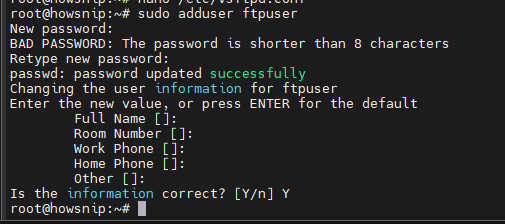
RHEL-based systems:
sudo adduser ftpuser
sudo passwd ftpuser
b) Disable Interactive Shell Access (Optional)
This prevents the FTP user from logging in through SSH.
Ubuntu and Debian:
sudo usermod -s /usr/sbin/nologin ftpuser
RHEL-based distributions:
sudo usermod -s /sbin/nologin ftpuserc) Create an Upload Directory
Create a directory where files can be uploaded and set appropriate ownership and permissions.
sudo mkdir -p /home/ftpuser/uploads
sudo chown -R ftpuser:ftpuser /home/ftpuser
sudo chmod -R 755 /home/ftpuser
sudo chmod 755 /home/ftpuser/uploads
Why This Is Important
Because users are confined to their home directories through chroot, permissions should be configured carefully. Keep the home directory readable while allowing uploads inside designated subdirectories.
Step 5: Open Firewall Ports
FTP requires port 21 for control traffic and additional ports for passive mode connections.
a) Using UFW (Ubuntu/Debian)
Allow FTP traffic:
sudo ufw allow 21/tcp
sudo ufw allow 40000:40100/tcp
Reload the firewall:
sudo ufw reloadVerify the rules:
sudo ufw status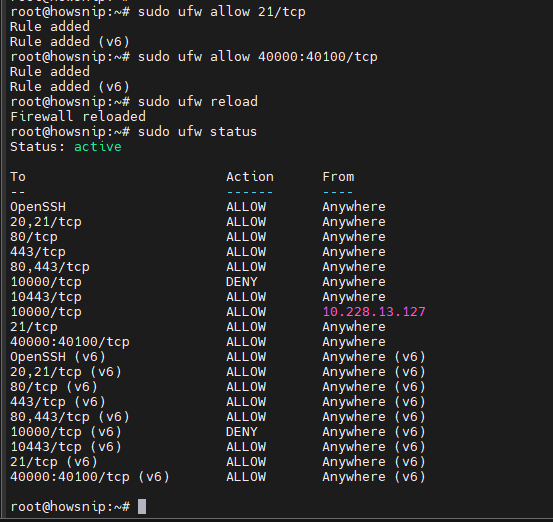
b) Using firewalld (RHEL, AlmaLinux, Rocky Linux)
Allow FTP and passive mode ports:
sudo firewall-cmd --permanent --add-port=21/tcp
sudo firewall-cmd --permanent --add-port=40000-40100/tcp
Apply the changes:
sudo firewall-cmd --reloadView active rules:
sudo firewall-cmd --list-allUsing iptables (Legacy Systems)
sudo iptables -A INPUT -p tcp --dport 21 -j ACCEPT
sudo iptables -A INPUT -p tcp --dport 40000:40100 -j ACCEPT
Save the rules:
sudo service iptables saveOr:
sudo iptables-save > /etc/iptables.rulesImportant: Passive mode settings in vsftpd.conf must match the passive port range allowed by your firewall.
Step 6: Configure SELinux (RHEL-Based Systems)
If SELinux is enabled and enforcing, FTP access may be blocked unless additional policies are configured.
Install the required SELinux tools:
sudo dnf install -y policycoreutils-python-utilsAllow FTP access to user home directories:
sudo setsebool -P ftp_home_dir onAllow the passive port range:
sudo semanage port -a -t ftp_port_t -p tcp 40000-40100If the port range already exists, modify it instead:
sudo semanage port -m -t ftp_port_t -p tcp 40000-40100Step 7: Enable TLS (FTPS)
TLS encrypts usernames, passwords, and transferred files, significantly improving security.
a) Create a TLS Certificate
Create the certificate directory if it does not already exist:
sudo mkdir -p /etc/ssl/privateGenerate a self-signed certificate:
sudo openssl req -x509 -nodes -days 3650 -newkey rsa:2048 \
-keyout /etc/ssl/private/vsftpd.pem \
-out /etc/ssl/private/vsftpd.pem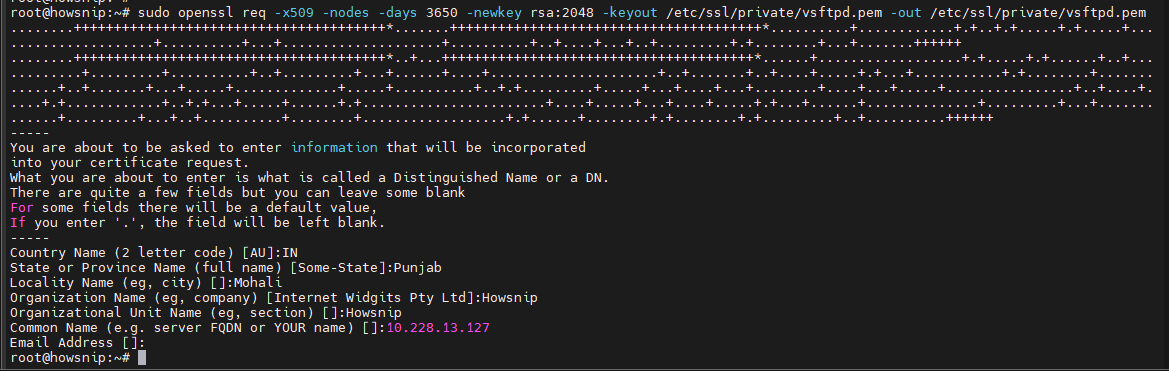
Restrict access to the certificate:
sudo chmod 600 /etc/ssl/private/vsftpd.pem
b) Restart vsftpd
After confirming that the TLS settings in vsftpd.conf point to /etc/ssl/private/vsftpd.pem, restart the service:
sudo systemctl restart vsftpdNote: For production environments, consider using a certificate issued by a trusted Certificate Authority instead of a self-signed certificate.
Step 8: Verify and Test the FTP Server
Check that the service is active:
sudo systemctl status vsftpdVerify that the server is listening on port 21:
sudo ss -tulpn | grep :21
Alternatively:
sudo netstat -tulpn | grep :21Test with FileZilla
Configure FileZilla with the following settings:
- Host: Your server IP address or domain name
- Protocol: FTP – File Transfer Protocol
- Encryption: Require Explicit FTP over TLS
- Logon Type: Normal
- User: ftpuser
- Password: Your configured password
Troubleshooting Tips
a) Connection hangs at “Entering Passive Mode”
Check:
- Passive ports are open in the firewall.
- pasv_address contains the correct public IP or hostname.
b) Authentication fails
Verify:
- The user account exists.
- local_enable=YES is present in the configuration.
- The correct username and password are being used.
Optional: Configure SFTP Instead of FTP
For many modern deployments, SFTP is the recommended option because it uses SSH, requires fewer firewall rules, and provides strong encryption by default.
Install OpenSSH Server
Ubuntu/Debian:
sudo apt install -y openssh-server
RHEL-based systems:
sudo dnf install -y openssh-serverEnable and start the SSH service:
sudo systemctl enable --now sshb) Create an SFTP-Only User
Create a dedicated group and user:
sudo groupadd sftpusers
sudo useradd -m -G sftpusers -s /usr/sbin/nologin sftpuser
sudo passwd sftpuser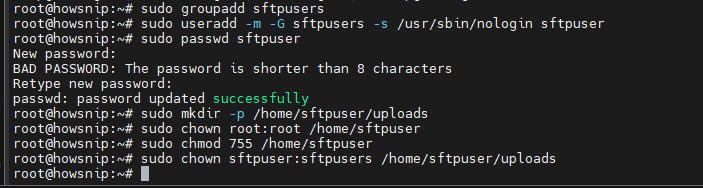
Create the upload directory:
sudo mkdir -p /home/sftpuser/uploads
sudo chown root:root /home/sftpuser
sudo chmod 755 /home/sftpuser
sudo chown sftpuser:sftpusers /home/sftpuser/uploads
c) Configure SSH for SFTP
Append the following settings to /etc/ssh/sshd_config:
sudo bash -c 'cat >> /etc/ssh/sshd_config <<EOF
Match Group sftpusers
ChrootDirectory %h
ForceCommand internal-sftp
X11Forwarding no
AllowTcpForwarding no
EOF'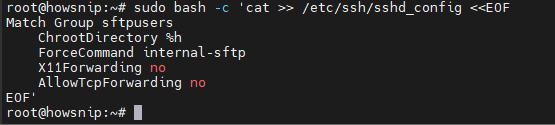
Restart the SSH service:
sudo systemctl restart sshConnect using:
sftp sftpuser@your-server-ip
You can also connect using FileZilla, WinSCP, or any other SFTP-compatible client.
Recommendation
If your environment supports SFTP, it is generally the preferred solution for secure file transfers because it operates over SSH and avoids many traditional FTP networking complications.
Conclusion
You now have a fully functional and secure vsftpd FTP server running on Linux. The setup includes user isolation, passive mode support, firewall configuration, TLS encryption, and optional SELinux adjustments for RHEL-based systems.
For environments requiring a more modern and simplified approach, SFTP provides an excellent alternative while maintaining secure file transfer capabilities.