
Docker simplifies application deployment by packaging software and its dependencies into portable containers. Whether you’re new to Docker or looking for a quick reference to common commands, this tutorial walks through the most important Docker commands for managing images, containers, troubleshooting, and system cleanup.
Prerequisite: Docker must already be installed and running on your system. Some environments require sudo before Docker commands, while others allow Docker commands to run without elevated privileges.
Getting Started with Docker Commands
Most Docker commands follow a simple structure:
docker <command> [options]Before working with images and containers, it is helpful to verify your Docker installation and learn how to access Docker’s built-in help system.
Check Your Docker Version
Run the following command to display the installed Docker version:
docker --version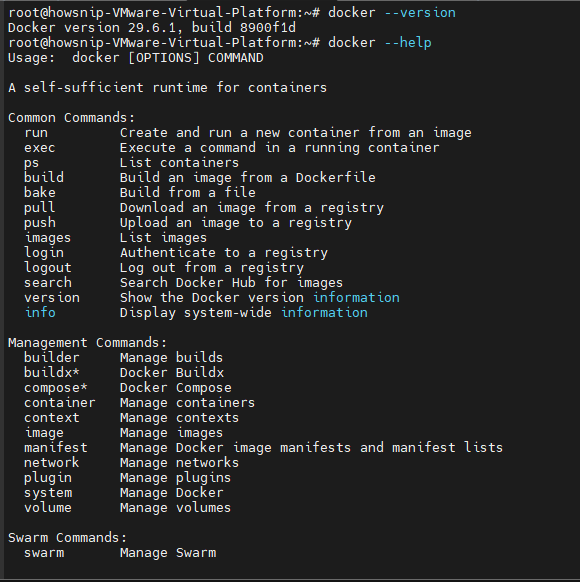
This is often the first command used when troubleshooting or verifying an installation.
View General Docker Help
Docker includes a built-in help system that lists available commands and options.
docker --helpThis command provides an overview of Docker’s functionality and available command groups.
Get Help for a Specific Command
You can also display detailed help for individual commands.
docker run --help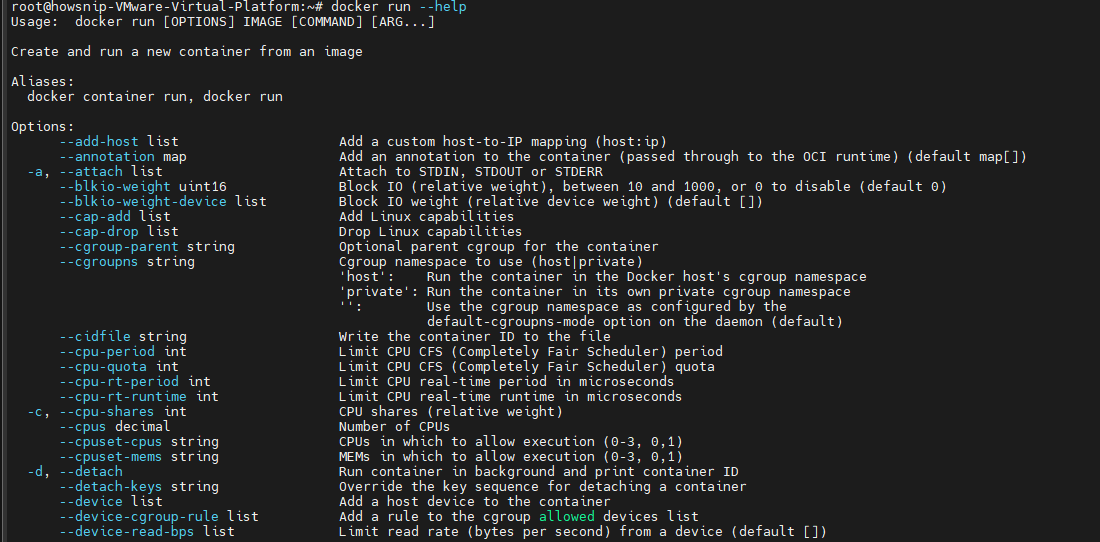
This shows all available flags, parameters, and usage examples for the docker run command.
Working with Docker Images
Docker images are the foundation of containers. An image contains everything needed to run an application, including code, libraries, dependencies, and runtime components.
Search for Docker Images
Before downloading an image, you can search Docker Hub directly from the terminal.
sudo docker search nginx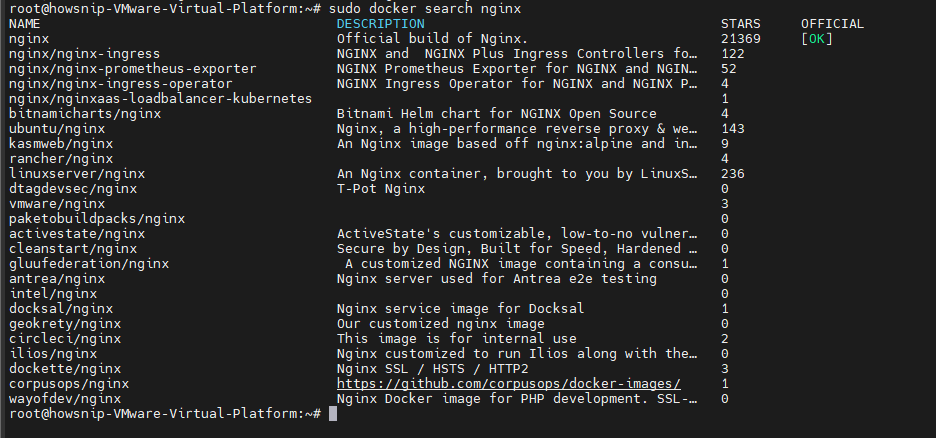
This command displays available Nginx images along with useful information such as descriptions and popularity indicators.
Pull Docker Images
To download the latest version of an image:
sudo docker pull nginx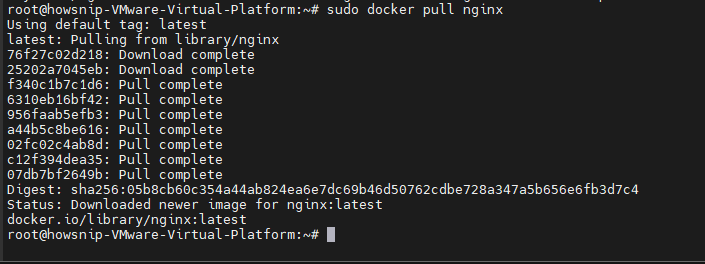
To pull a specific version, specify the image tag:
sudo docker pull nginx:1.25.3Using specific tags helps maintain consistency across environments.
List Local Docker Images
To view all images stored on your system:
sudo docker images
The output includes:
- Repository name
- Tag
- Image ID
- Creation date
- Image size
Build a Custom Docker Image
If you need a customized image, create a Dockerfile and build your own Docker image.
Step 1: Create a Dockerfile
Create a file named Dockerfile in your working directory and add the following content:
FROM ubuntu:24.04
RUN apt update && apt install -y nginx
EXPOSE 80
CMD ["nginx", "-g", "daemon off;"]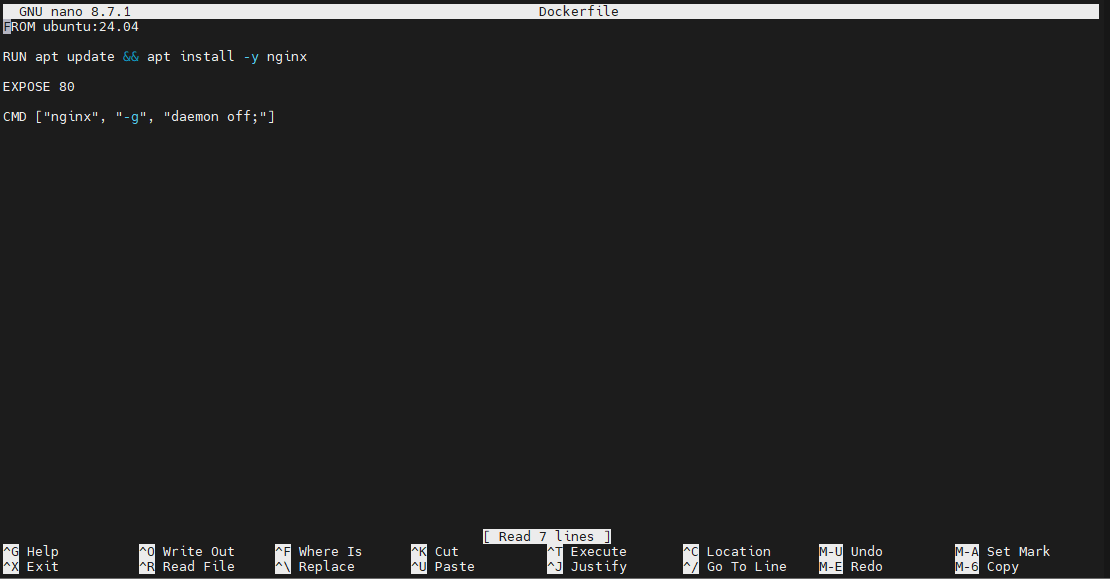
Step 2: Build the Image
Run:
sudo docker build -t myapp:1.0 .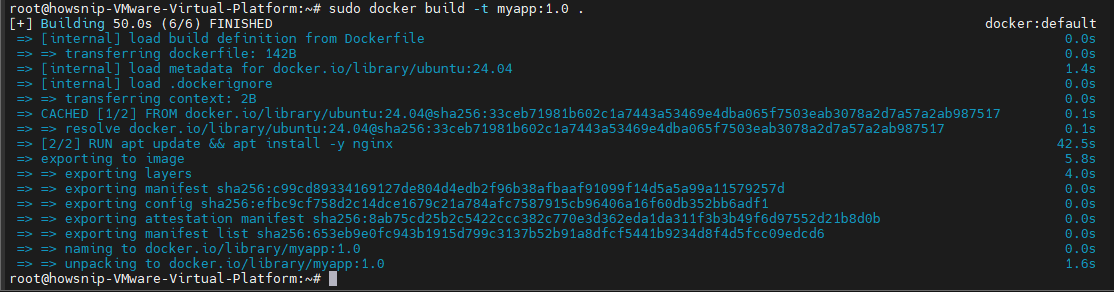
After the build completes, the new image will be available locally.
Remove Docker Images
Unused images can be removed to free up storage space.
Delete an Image
sudo docker rmi nginx:latest
If the Image Is in Use
Docker prevents removal when a container depends on the image.
First remove the related container:
docker rm container_nameOr force image removal:
docker rmi -f nginx:latest
Warning: Use the -f option carefully. Force deletion may impact containers that depend on the image.
Managing Docker Containers
Containers are running instances of Docker images. The following commands help you create, manage, and remove them.
Run a Container
The simplest way to start a container is:
sudo docker run nginx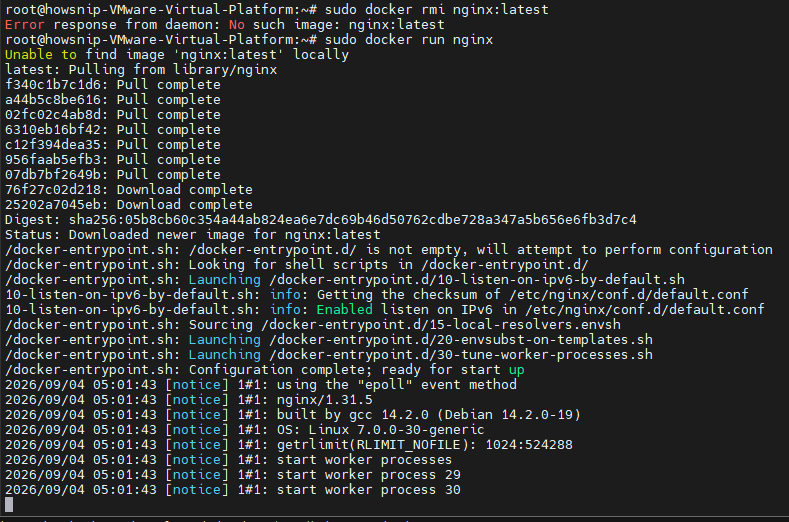
This runs the container in the foreground, occupying the current terminal session.
Run a Container in Detached Mode
For most production and development scenarios, run containers in the background:
sudo docker run -d nginx
The -d flag starts the container in detached mode.
Run a Container with Port Mapping and a Custom Name
sudo docker run -d -p 8081:80 --name my-webserver nginx
This command:
- Runs the container in the background.
- Maps host port 8081 to container port 80.
- Assigns the container the name my-webserver.
Note: The command maps 8081:80, meaning port 8081 on the host forwards traffic to port 80 inside the container.
List Docker Containers
View Running Containers
sudo docker ps
This displays only active containers.
View All Containers
sudo docker ps -a
This includes both running and stopped containers.
Start, Stop, and Restart Containers
#Stop a Container
sudo docker stop howsnip

#Start a Container
sudo docker start howsnip

#Restart a Container
sudo docker restart howsnip
Restarting stops and immediately starts the container again.
Remove Docker Containers
When a container is no longer needed, remove it using:
sudo docker rm howsnipForce Remove a Running Container
If the container is still running:
sudo docker rm -f howsnipWarning: Force removal immediately terminates the container without a graceful shutdown.

Monitoring and Debugging Docker Containers
Monitoring tools help identify issues and verify container health.
View Container Logs
Display container logs:
sudo docker logs howsnip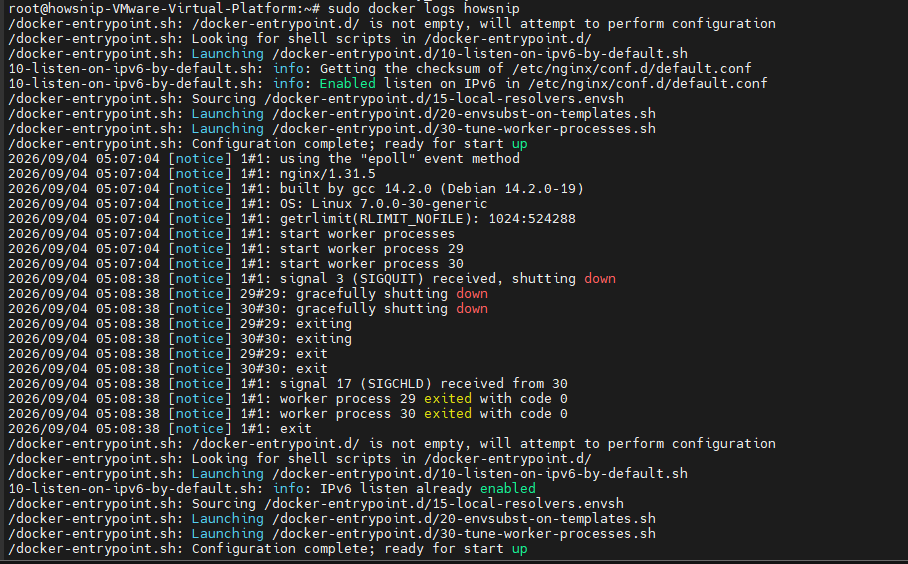
Follow logs in real time:
sudo docker logs -f howsnip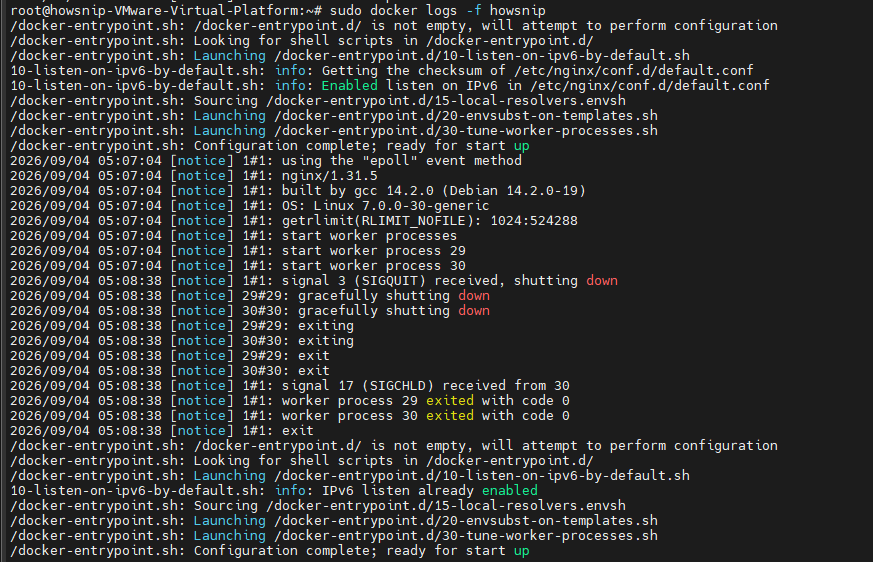
The -f option behaves similarly to tail -f for log files.
Execute Commands Inside a Running Container
Access an interactive shell inside a container:
sudo docker exec -it howsnip /bin/bash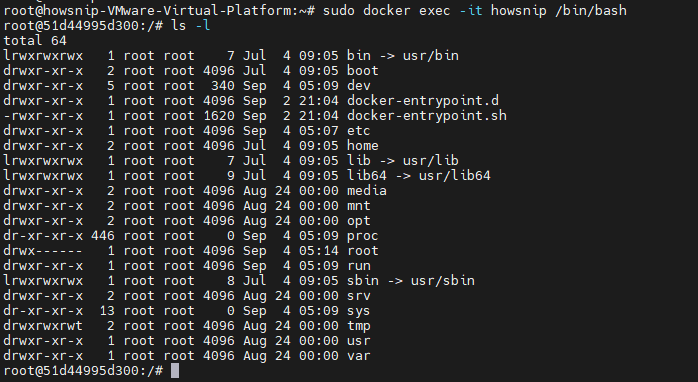
The options used are:
- -i keeps standard input open.
- -t allocates a terminal session.
This is useful for troubleshooting, inspecting files, and testing commands inside a container.
Inspect Container Configuration
To view detailed container information:
sudo docker inspect howsnip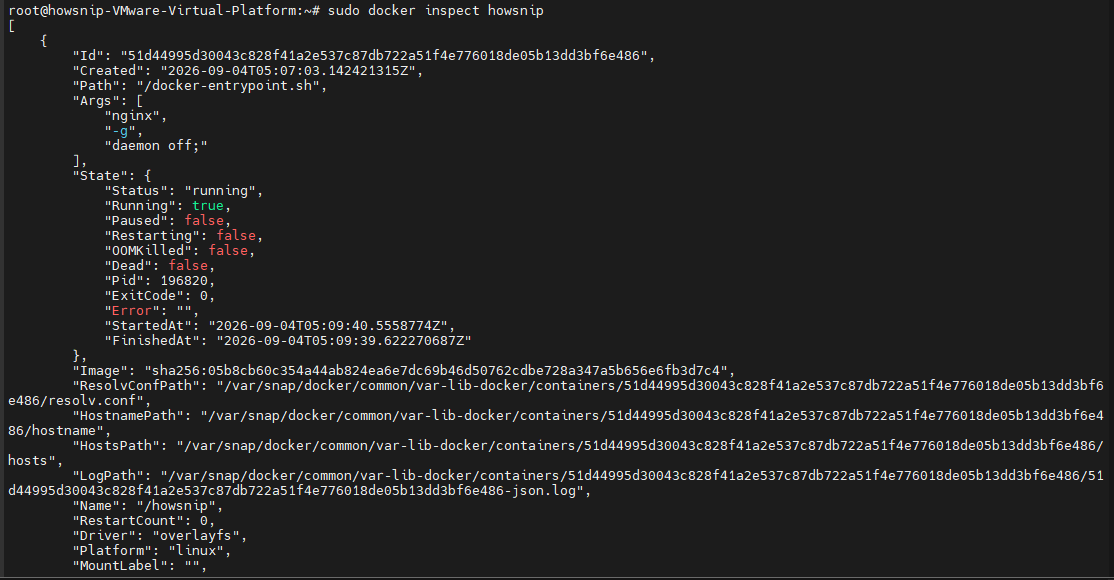
The output is returned in JSON format and includes:
- Network configuration
- Environment variables
- Mounted volumes
- Container state
- Runtime settings
Monitor Resource Usage
View real-time resource consumption:
sudo docker stats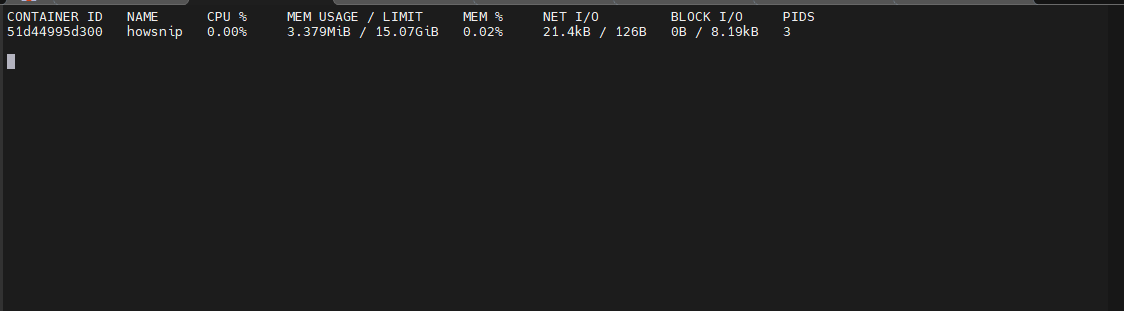
This command displays live statistics for:
- CPU usage
- Memory usage
- Network activity
- Disk I/O
Docker Cleanup and Maintenance
Over time, Docker accumulates unused containers and images that can consume valuable disk space.
Remove All Stopped Containers
sudo docker container prune
This removes all stopped containers in a single operation.
Remove Unused Images
sudo docker image prune
This deletes images that are no longer referenced by containers.
Perform a Full Docker Cleanup
For broader cleanup:
sudo docker system prune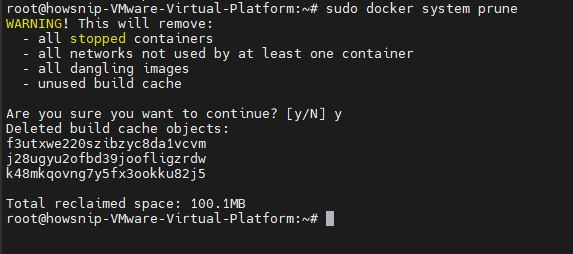
This command removes multiple types of unused Docker resources, helping reclaim disk space and keep your environment organized.
Important: Review the confirmation prompt carefully before proceeding, as Docker will remove unused resources.
Conclusion
Learning a core set of Docker commands makes everyday container management significantly easier. By understanding how to search, pull, build, run, monitor, and clean up Docker resources, you can confidently work with containers in development, testing, and production environments.
Keep these commands handy as a reference while building and managing your Docker-based applications.