Linux is widely regarded as a secure operating system, but security is never automatic. Even a well-configured server can become vulnerable due to outdated software, weak authentication methods, unnecessary services, or poor monitoring practices.
Whether you’re managing a VPS, dedicated server, or cloud instance, applying basic hardening measures can significantly reduce the risk of unauthorized access, malware infections, privilege escalation, and data breaches.
In this tutorial, you’ll learn 11 practical Linux server hardening techniques that help improve security and establish a stronger foundation for long-term server management.
Prerequisites
- A Linux server with administrative access
- Root access or a user account with sudo privileges
- Basic familiarity with the Linux command line
- SSH access to the server
1. Keep Software Packages Updated
One of the most effective ways to secure a Linux server is to keep installed software up to date. Security updates often contain fixes for known vulnerabilities that attackers actively exploit.
Delaying updates increases the risk of compromise and may also create compliance issues in regulated environments.
Update Debian and Ubuntu Systems
Run the following command to refresh package information and install available updates:
apt update && apt upgrade -y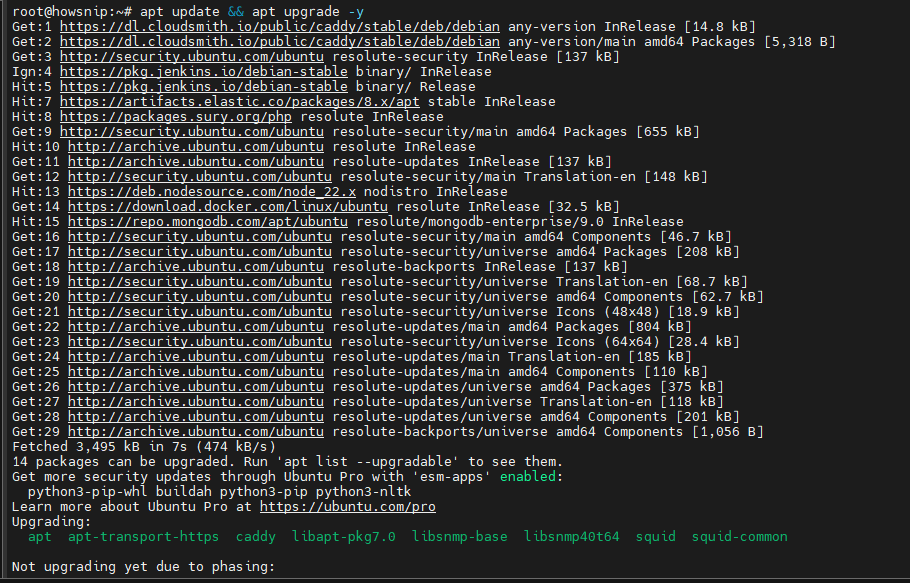
Update RHEL-Based Distributions
For Rocky Linux, AlmaLinux, CentOS Stream, and RHEL systems, use:
dnf updateThis downloads and installs the latest available package updates.
2. Enable Automatic Security Updates
Manual updates are important, but they’re easy to forget. Automating updates helps ensure that critical security patches are installed regularly without requiring manual intervention.
On Debian and Ubuntu, the unattended-upgrades utility can automatically install security updates.
Enable Unattended Upgrades
Run:
dpkg-reconfigure --priority=low unattended-upgrades
When prompted, choose Yes to enable automatic updates.
Verify Configuration Files
After enabling the service, verify that configuration files were created:
ls -l /etc/apt/apt.conf.d/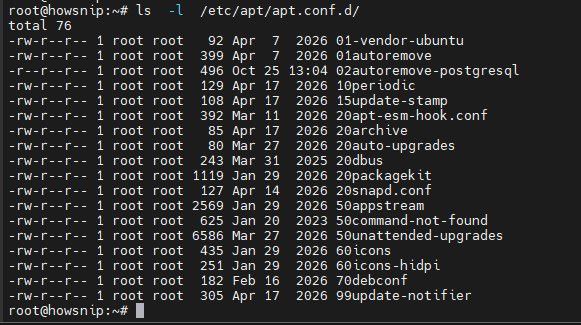
This lists the configuration files used by APT and unattended-upgrades.
Test with a Dry Run
Before relying on automation, simulate the update process:
unattended-upgrade --dry-run --debug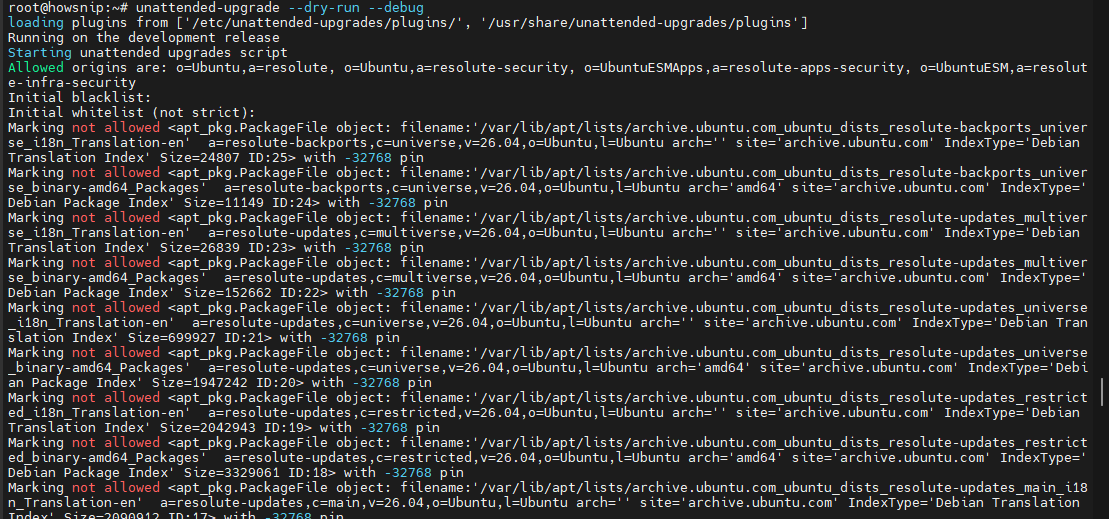
3. Create and Use a Non-Root User
Using the root account for everyday administration increases risk. A mistyped command or compromised session can have severe consequences because root has unrestricted access.
A safer approach is to use a standard user account with sudo privileges.
Create a New User
The example below creates a user named cherry:
adduser howsnip
Follow the prompts to set a password and user information.
Verify the User Was Created
grep -i howsnip /etc/passwd
This searches the system user database for the new account.
Add the User to the Sudo Group
usermod -aG sudo howsnip
Verify Group Membership
groups howsnip | grep -i sudoSuccessful output confirms that the user belongs to the sudo group.
4. Configure SSH Key-Based Authentication
Password-based SSH authentication is a common target for brute-force attacks. SSH key authentication provides stronger security by using public and private cryptographic keys instead of passwords.
Benefits include:
- Improved security
- Reduced risk of password guessing attacks
- Easier automation with tools such as Ansible
- Simplified server administration at scale
Important: Before disabling SSH password authentication, confirm that SSH key login works successfully. Otherwise, you may lock yourself out of the server.
5. Disable Unused Services and Close Unnecessary Ports
Every running service increases the server’s attack surface. If a service is not required, it should be disabled or removed.
A good rule is:
If you don’t need a service, don’t run it.
Check Open Ports
Run:
sudo ss -pnltu
This helps identify active services and exposed ports.
Use lsof to View Listening Connections
sudo lsof -i -P -n | grep LISTEN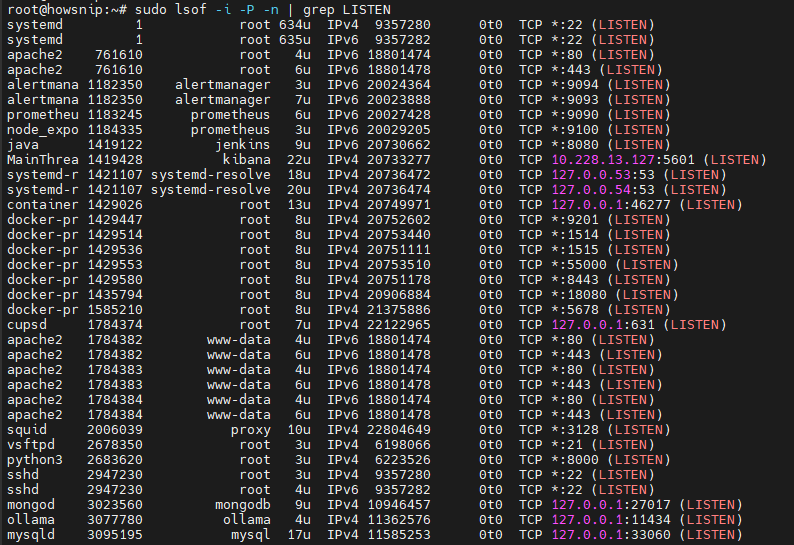
This displays applications currently listening for network connections.
List Running System Services
sudo systemctl list-units --type=service --state=running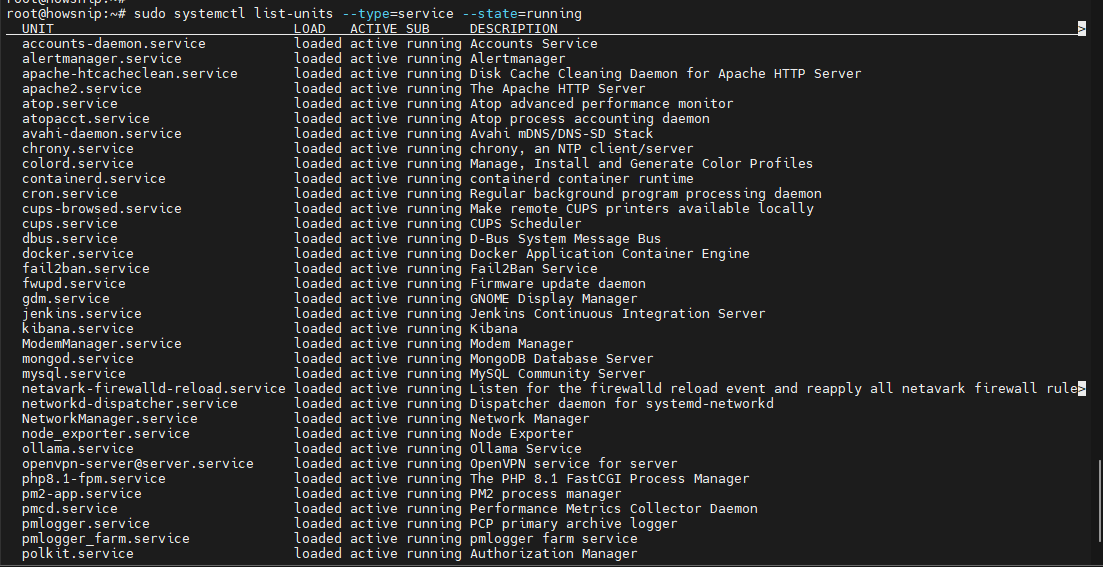
This provides a list of active systemd services.
Stop an Unused Service
For example, to stop Apache:
sudo systemctl stop apache2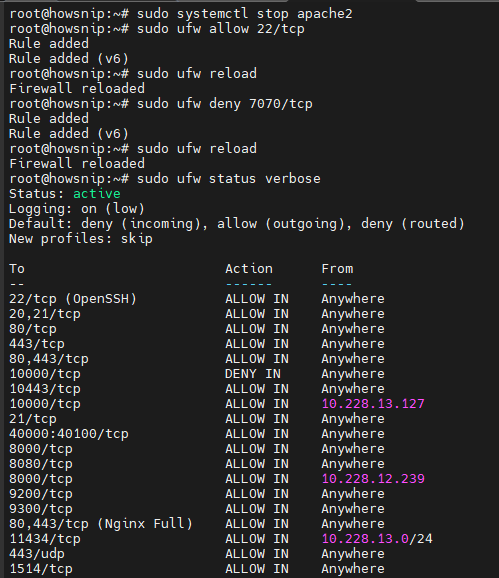
This immediately stops the Apache web server.
6. Restrict Network Access with a Firewall
A firewall controls which network connections can reach your server. Restricting unnecessary ports reduces opportunities for attackers to access services.
Ubuntu and Debian systems commonly use UFW (Uncomplicated Firewall).
Allow SSH Before Enabling Firewall Rules
To prevent accidental lockout:
sudo ufw allow 22/tcpThis allows incoming SSH connections on port 22.
Reload Firewall Rules
sudo ufw reloadReloading applies any changes made to the firewall configuration.
Block a Specific Port
For example:
sudo ufw deny 7070/tcpThis blocks inbound TCP traffic on port 7070.
Block a Range of Ports
sudo ufw deny 1024:4000/tcpThis blocks TCP ports from 1024 through 4000.
View Active Firewall Rules
sudo ufw status verboseThis displays configured rules and firewall status.
7. Install an Intrusion Prevention System (IPS)
Firewalls protect network access, but they do not stop every type of attack. An Intrusion Prevention System (IPS) adds another layer of defense by identifying and blocking suspicious activity.
Popular IPS solutions include:
- Fail2ban
- Suricata
- Snort
An IPS can help:
- Block brute-force attacks automatically
- Detect suspicious traffic patterns
- Generate security alerts
- Improve visibility into attack attempts
Fail2ban is particularly popular because it monitors logs and temporarily blocks IP addresses that generate repeated login failures.
8. Strengthen Security with SELinux or AppArmor
SELinux and AppArmor enforce additional security controls that restrict what applications and processes can do, even if they become compromised.
Check SELinux Status
On RHEL-based systems, run:
sestatusIf SELinux is active, you should see:
enforcing
What SELinux does:
- Controls application permissions.
- Restricts access to files and resources.
- Limits damage from compromised services.
Check AppArmor Status
On Debian and Ubuntu systems:
sudo apparmor_status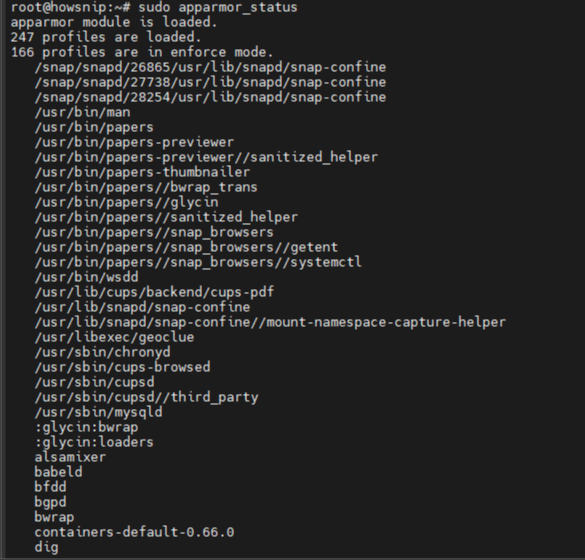
This displays loaded profiles and their current enforcement status.
What AppArmor does:
- Applies application-specific security profiles.
- Restricts access to files, network resources, and system capabilities.
- Reduces the impact of successful attacks.
Note: Default SELinux and AppArmor configurations already provide valuable protection. Advanced administrators can further strengthen security by creating custom policies.
9. Install Malware and Rootkit Scanners
Although Linux is generally secure, internet-facing servers can still become targets for malware and rootkits.
Common security scanning tools include:
- ClamAV
- Rkhunter
- Chkrootkit
Benefits of Security Scanners
These tools help:
- Detect known malware signatures
- Identify hidden rootkits
- Automate routine security scans
- Alert administrators to suspicious files
Many organizations incorporate malware scans into regular security audits as an additional security layer.
10. Monitor Logs and Set Up Alerts
Server logs provide valuable information about system activity, authentication attempts, service failures, and security incidents.
Key events commonly found in logs include:
- User login attempts
- Failed authentication events
- Service startups and shutdowns
- Scheduled task execution
- Application warnings and errors
Regular log reviews help identify suspicious behavior before it develops into a serious security incident.
Best Practice: Configure automated alerts so administrators are notified immediately when unusual activity is detected.
11. Automate Server Backups
Even with strong security controls, data loss can still occur due to accidental deletion, hardware failure, ransomware, or configuration mistakes.
Maintaining automated backups ensures that critical data can be restored quickly.
Common backup tools include:
- Rsync
- tar
- Cron-based scheduled backups
Why Automated Backups Matter
Automated backups help:
- Protect databases and application data
- Recover from accidental changes
- Reduce downtime during incidents
- Support disaster recovery planning
Important: Store backups separately from the production server whenever possible. A backup stored on the same compromised system may be lost during an attack.
Conclusion
Linux provides a strong security foundation, but securing a server requires ongoing maintenance and proactive hardening. Keeping systems updated, using non-root accounts, enabling SSH key authentication, restricting network access, deploying security tools such as Fail2ban and SELinux/AppArmor, monitoring logs, and automating backups all contribute to a more secure environment.
By implementing these 11 Linux server hardening practices, you can significantly reduce your attack surface and improve the stability, security, and reliability of your server infrastructure.