

Ollama makes it easy to run large language models (LLMs) locally on your machine. Whether you’re experimenting with AI chatbots, testing models for development projects, or building applications with local AI, Ollama provides a simple way to download, manage, and interact with models directly from Ubuntu.
In this tutorial, you’ll learn how to install Ollama, verify that it’s running correctly, download and run your first model, use the local API, enable GPU acceleration, and securely expose the service on your network.
Prerequisites
Before getting started, make sure you have:
- An Ubuntu system with terminal access
- Administrative (sudo) privileges
- Internet access for downloading Ollama and models
- Optional: A supported NVIDIA or AMD GPU for hardware acceleration
Step 1: Install Ollama on Ubuntu
Ollama provides an official installation script that automatically:
- Detects your system architecture
- Downloads and installs the Ollama binary
- Creates the required system user
- Configures and enables the Ollama service
a) Update the Package List
Start by updating your Ubuntu package repositories:
sudo apt update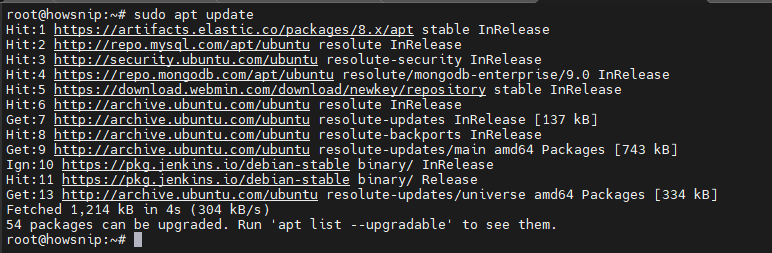
This ensures you’re installing the latest available packages.
b) Install Required Dependencies
Install curl and zstd, which are used to download and extract the Ollama package:
sudo apt install curl zstd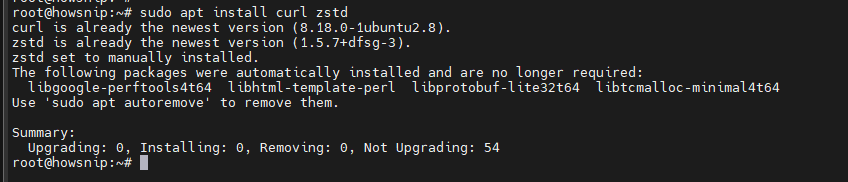
c) Run the Official Installer
Execute the official installation script:
curl -fsSL https://ollama.com/install.sh | sh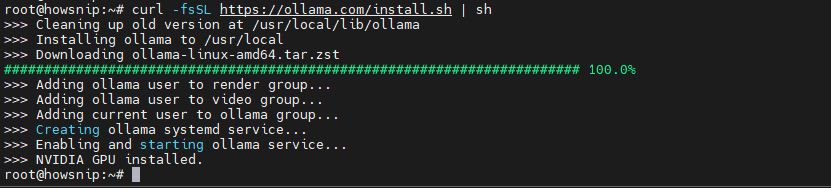
The installer adds the ollama command to your system path and configures the background service automatically.
d) Optional: Review the Installation Script First
If you prefer to inspect the script before executing it, download it locally:
curl -fsSL https://ollama.com/install.sh -o ollama-install.sh
View the script contents:
less ollama-install.sh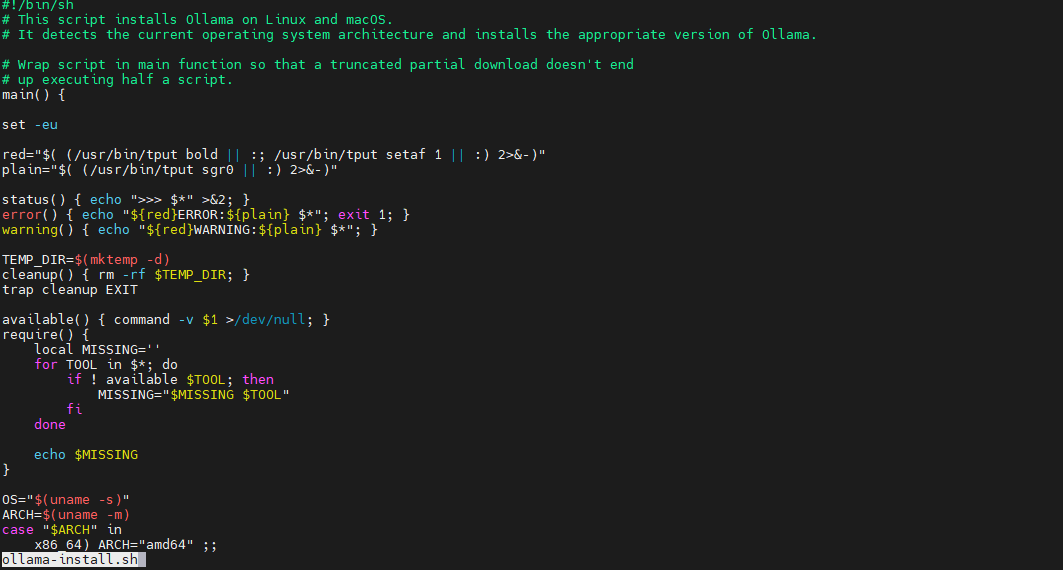
Run the script manually:
sh ollama-install.sh
e) Verify the Installation
Check that Ollama is installed successfully:
ollama --version
The command displays the currently installed Ollama version.
Step 2: Verify the Ollama Service
By default, Ollama runs as a background service and listens on: 127.0.0.1:11434
This allows local applications and API requests to communicate with Ollama.
a) Check Service Status
Run:
systemctl status ollama --no-pager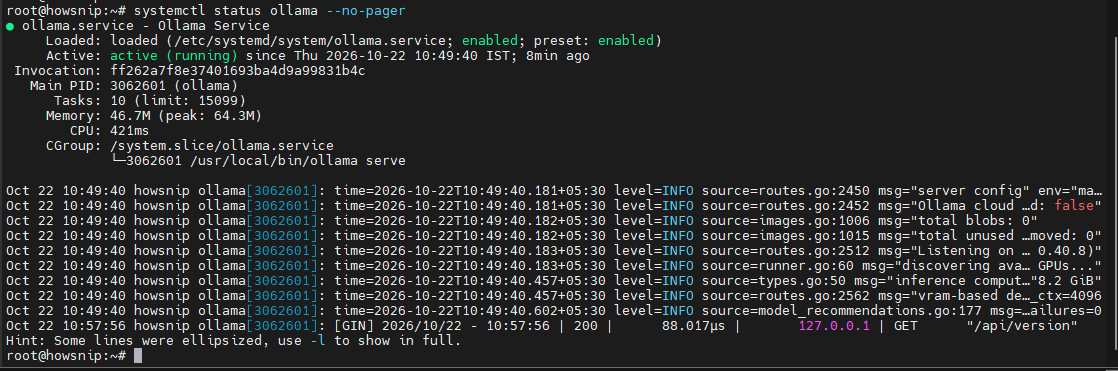
Step 3: Run Your First AI Model
Once Ollama is running, you can download and launch a model.
a) Start the Llama 3.2 Model
Run:
ollama run llama3.2
The first execution downloads the model automatically before launching an interactive chat session. The default 3B variant of Llama 3.2 is approximately 2 GB in size, making it a practical starting point for many systems.
b) Test the Model
After the model loads, enter a prompt:
>>> Explain what a reverse proxy does in one sentence.
Example response:
A reverse proxy receives client requests and forwards them to one or more backend servers, often handling TLS, caching, or load balancing.

c) Exit the Chat Session
You can leave the session using:
/bye
Or press:
- Ctrl + D
To view available chat commands:
/?Step 4: Manage Ollama Models
As you work with multiple AI models, Ollama provides commands for downloading, listing, inspecting, and removing them.
a) Download a Model
Download a model without opening a chat session:
ollama pull mistral
This downloads the model and stores it for future use.
b) List Installed Models
View all downloaded models:
ollama lsThis displays model names, sizes, and available variants.
c) Show Model Details
Inspect information about a specific model:
ollama show llama3.2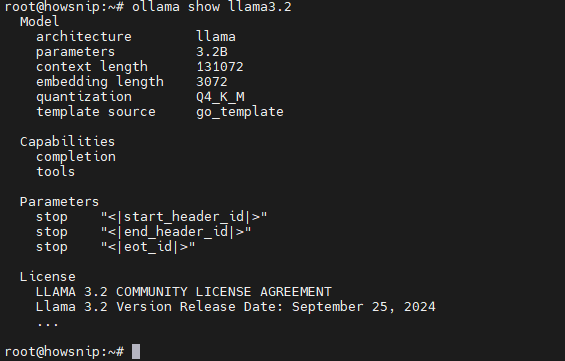
This helps you review model metadata and configuration details.
d) View Loaded Models
Check which models are currently loaded into memory:
ollama pse) Unload a Model
Remove a model from memory immediately:
ollama stop llama3.2By default, Ollama keeps recently used models loaded for approximately five minutes.
f) Remove a Model
Delete an unused model to free up storage space:
ollama rm mistral
g) Model Storage Location
Models installed by the system service are stored in:
/usr/share/ollama/.ollama/modelsh) Choosing the Right Model Size
Consider your available hardware resources:
- 1B–3B models: Suitable for CPU-based systems.
- Larger models: Require significantly more RAM or GPU memory.
- GPU acceleration: Improves inference speed considerably when supported hardware is available.
Step 5: Use the Ollama API
In addition to the command-line interface, Ollama provides a local REST API.
The API is available at:
http://localhost:11434/apia) Send a Prompt Through the API
Run:
curl http://localhost:11434/api/generate -d '{
"model": "llama3.2",
"prompt": "Name three Linux distributions.",
"stream": false
}'
What This Request Does
- model specifies which AI model to use.
- prompt contains the request sent to the model.
- stream: false returns a single JSON response instead of streamed output.
The response contains:
- Generated text
- Token usage information
- Timing statistics
A major advantage of local inference is that requests stay on your machine and do not require external API keys.
b) Additional API Capabilities
The Ollama service also provides endpoints for:
- Chat interactions
- Embeddings generation
- Model management
- OpenAI-compatible integrations
This makes it easy to connect Ollama with existing applications and AI tools.
Step 6: Check GPU Acceleration
Ollama can use supported GPUs to significantly improve model performance. If no supported GPU is detected, Ollama automatically falls back to CPU execution.
a) Verify NVIDIA Driver Installation
For NVIDIA systems, check that the driver is working:
nvidia-smiA successful response indicates that the operating system can communicate with the GPU.
b) NVIDIA Requirements
Ollama supports NVIDIA GPUs with compute capability 5.0 or newer, provided the appropriate drivers are installed.
Note: Ollama does not require the full CUDA Toolkit for inference.
c) AMD GPU Support
For supported AMD hardware on Linux:
- Ollama uses ROCm
- A compatible ROCm 7 driver is required
- The installer downloads additional ROCm packages when compatible hardware is detected
d) Confirm GPU Usage
Run a quick test:
ollama run llama3.2 "Respond with the word ready."
Then check processing status:
ollama psInterpreting the Output
- PROCESSOR: 100% GPU → GPU acceleration is active.
- PROCESSOR: 100% CPU → The model is running on the CPU.
e) Check Service Logs
If GPU detection is not working correctly, inspect the service logs:
journalctl -e -u ollama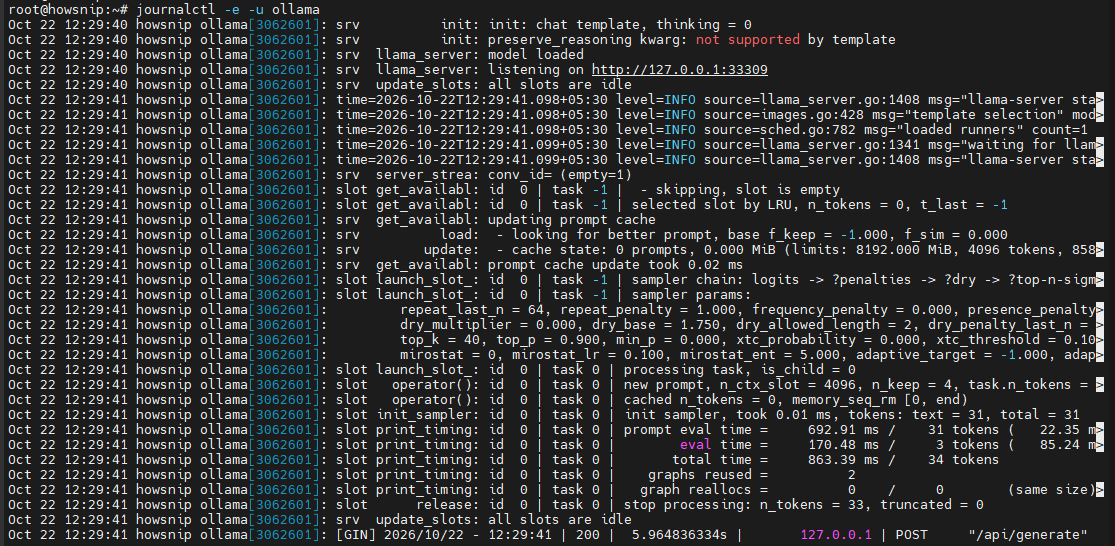
Review the logs for driver-related or hardware-detection errors.
Step 7: Expose Ollama on Your Network
By default, Ollama only accepts connections from the local machine. If you want another trusted workstation to access the service, update the systemd configuration.
a) Create a Systemd Override
Run:
sudo systemctl edit ollama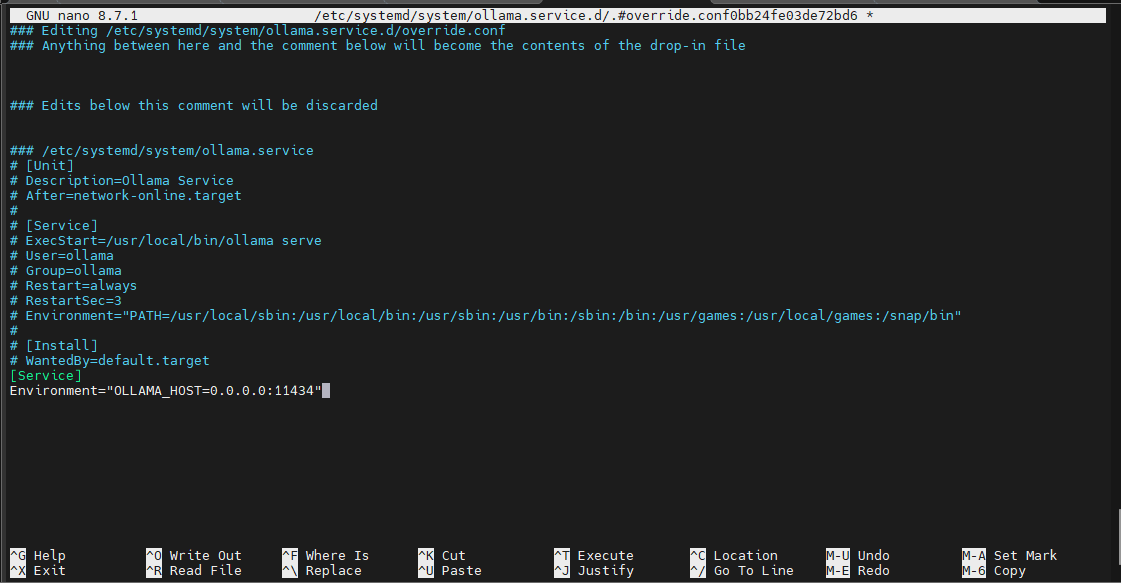
Add the following configuration:
[Service]
Environment="OLLAMA_HOST=0.0.0.0:11434"
This instructs Ollama to listen on all available network interfaces.
b) Reload and Restart the Service
Apply the changes:
sudo systemctl daemon-reload
sudo systemctl restart ollama
Important Security Warning
Warning: Ollama’s API does not require authentication by default.
When bound to 0.0.0.0, any device that can access port 11434 can send requests to your models.
Never expose the service directly to the public internet.
Instead, limit access using firewall rules.
c) Restrict Access with UFW
Example rule allowing only a trusted subnet:
sudo ufw allow from 192.168.1.0/24 to any port 11434 proto tcpReplace the subnet with the appropriate address range for your environment. This helps ensure that only authorized devices can access the Ollama API.
d) Updating Ollama
When a new release becomes available, update Ollama by rerunning the installation script:
curl -fsSL https://ollama.com/install.sh | sh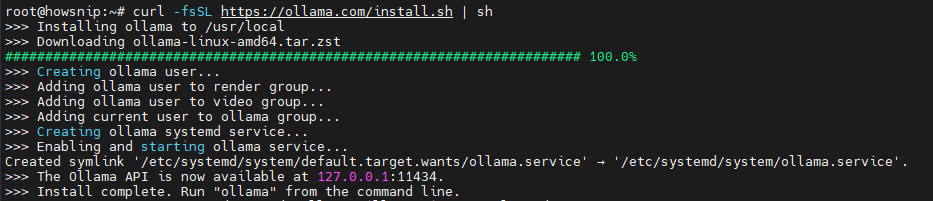
The installer updates program files and restarts the service while preserving downloaded models.
Conclusion
You have now installed Ollama on Ubuntu, verified the service, run your first AI model, managed model downloads, used the local API, checked GPU acceleration, and configured network access.
With these fundamentals in place, you can start experimenting with local AI workflows, integrate Ollama into applications, or deploy it as a dedicated inference server for development and testing.