

Finding files on a Linux system can be challenging, especially when you don’t remember the exact filename or location. Fortunately, the find command is one of the most powerful file-searching tools available in Linux.
In this tutorial, you’ll learn how to use the Linux find command to search for files by name, partial name, modification date, owner, group, size, file type, inode number, and more. Whether you’re a beginner learning Linux administration or an advanced user managing large systems, these examples will help you quickly locate the files you need.
Prerequisites
Before you begin:
- Access to a Linux terminal.
- Basic familiarity with command-line navigation.
- Appropriate permissions to search certain directories.
- sudo access for searches that require elevated privileges.
Understanding the Find Command Syntax
The basic syntax of the find command is:
find [starting point] [search criteria] [action]Where:
- Starting point specifies where the search begins.
- Search criteria defines what file attributes to look for.
- Action determines what should be displayed or done with matching files.
For example, searches can be based on file names, ownership, size, modification time, and much more.
Find Files by Name
One of the most common uses of the find command is locating a file by its exact name.
find . -name myfile -print
What this command does
- . starts the search in the current directory.
- -name myfile searches for files named myfile.
- -print displays matching file paths.
The command returns every file named myfile found beneath the current directory.
Display Detailed File Information
If you want more information about the matched files, use -ls instead of -print.
find . -name myfile -ls
This displays detailed information similar to the output of ls -l, including permissions, owner, size, and modification time.
Searching from a Specific Directory
You are not limited to the current directory. You can start from any location:
find /home/jdoe -name myfile -printOr:
find /usr/local/bin -name myfile -printNote: Use sudo if the target directory requires elevated permissions.
Find Files by Partial Name
If you only remember part of a filename, use wildcards (*) with the -name option.
Find Files Starting with a Specific Word
find /usr/bin -name "zip*"
What it does
- Searches inside /usr/bin.
- Finds files whose names begin with zip.
Examples:
zip
zipgrep
zipinfo
Find Files by Modification Date
The -mtime option allows you to search based on when files were last modified.
a) Find Files Modified Within the Last 24 Hours
find . -mtime 0 -ls
What it does
- -mtime 0 finds files modified less than one day ago.
- -ls displays detailed information.
b) Find Files Modified Within the Last Two Days
find . -mtime -2 -lsThe minus sign (-) means “less than.”
c) Find Files Older Than Four Days
find . -mtime +4 -lsThe plus sign (+) means “more than.”
d) Find Files Modified Within the Last Week
find . -mtime -8 -ls
This finds files modified within the previous seven days.
View Recently Modified Files with ls
For a quick look at recently changed files, you can use:
ls -ltr | tail -11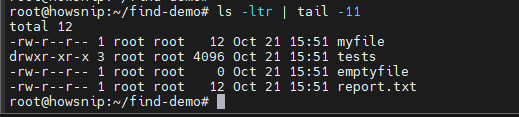
What this command does
- -l shows detailed information.
- -t sorts by modification time.
- -r reverses the order.
- tail -11 displays the last eleven entries.
This is useful when you’re looking for recently edited files in the current directory.
Find Files by Owner
You can search for files owned by a specific user.
sudo find /home/howsnip -user howsnip -name report -ls
What it does
- Searches under /home/howsnip.
- Finds files named report.
- Displays only files owned by user howsnip.
Important: Administrative privileges may be required for accurate results.
Find Files by Group
To locate files associated with a specific group:
sudo find /tmp -group howsnip -ls
What it does
- Searches within /tmp.
- Returns files belonging to the group howsnip.
Find Files Newer Than Another File
Sometimes it’s easier to compare files against a known reference file.
find -newer tests -ls
It returns files modified after the file or directory named tests. This is very useful when checking what has changed since a specific file was updated.
Find Files Older Than Another File
To find files that are not newer than a specific file:
find -not -newer index.html -ls
It lists files that are older than or have the same timestamp as index.html.
Find Files by Size
The -size option helps locate files based on their size.
a) Find Files Larger Than 10 MB
find . -type f -size +10M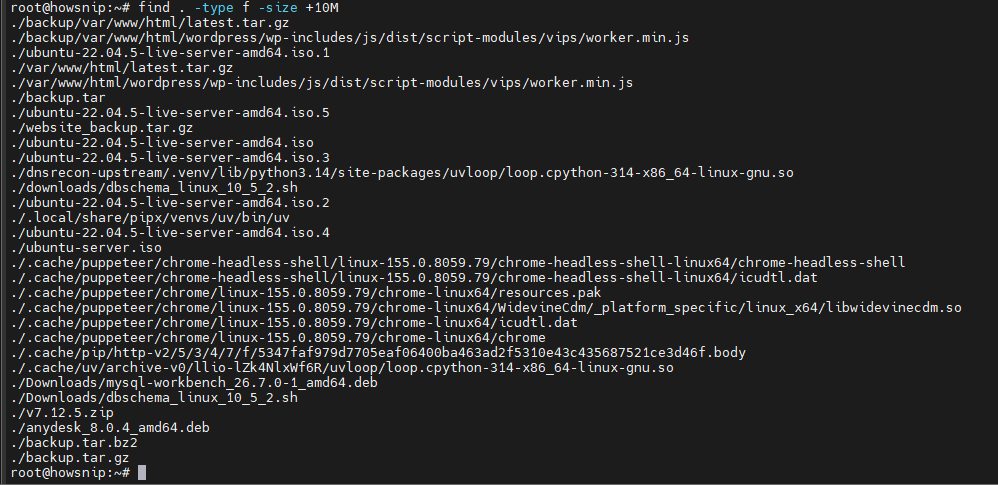
Explanation
- -type f limits results to regular files.
- +10M means larger than 10 megabytes.
b) Find Files Smaller Than 10 MB
cd /usr/bin
find . -type f -size -10M | head -5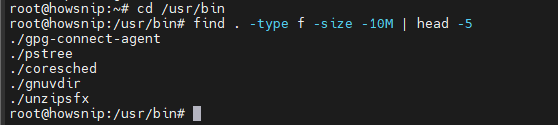
Explanation
- -10M means smaller than 10 MB.
- head -5 limits output to the first five matches.
Find Files by File Type or Extension
To search for files with a particular extension:
find . -name "*.jpg" -print
It searches for files ending in .jpg within the current directory and all subdirectories.
Common examples include:
find . -name "*.txt"
find . -name "*.log"
find . -name "*.conf"
Find Empty Files
Empty files can consume directory space and create confusion during maintenance.
Method 1: Search by File Size
find . -type f -size 0 -ls
It finds regular files with a size of zero bytes.
Method 2: Use the Empty Option
find . -type f -empty -ls
This is often the simpler and more readable approach.
Find Files With No Valid User
Orphaned files can appear when user accounts are removed from the system.
sudo find -nouser -ls
It finds files whose owners no longer exist in /etc/passwd.
Find Files With No Valid Group
Similarly, you can search for files assigned to groups that no longer exist.
sudo find -nogroup -ls
It lists files associated with missing group entries. These searches are useful during system cleanup and migration projects.
Find Files by Inode Number
Every file on Linux has an inode number. If you know the inode, you can find the file directly.
find . -inum 10551 -ls
It searches for files whose inode number is 10551. This can be helpful when troubleshooting hard links or filesystem issues.
Control How Deep Find Searches
The -maxdepth option limits how many directory levels the search will traverse.
Example Setup
Create a deep directory structure and a file at the lowest level:
mkdir -p 1/2/3/4/5/6/7/8/9/10
fortune > 1/2/3/4/5/6/7/8/9/10/TheEnd
a) Search with a Depth Limit
find . -maxdepth 7 -name TheEndSince the file is deeper than seven directory levels, it will not be found.
b) Search Without a Depth Limit
find . -name TheEndThis search continues through all subdirectories and successfully finds the file.
Delete Files Found with Find
The find command can also remove files after locating them.
find . -name TheEnd -delete
What it does
- Searches for files named TheEnd.
- Deletes matching files immediately.
Warning: The -delete option permanently removes files. Double-check your search criteria before running the command.
A good practice is to first verify the results:
find . -name TheEndThen run the delete command if the results are correct.
Conclusion
The Linux find command is one of the most flexible and powerful tools for locating files across a system. By combining search options such as filename, modification time, owner, group, size, file type, inode number, and directory depth, you can quickly pinpoint exactly what you’re looking for.
Mastering these common find command examples will make system administration, troubleshooting, and file management significantly easier, whether you’re managing a personal Linux machine or a large server environment.