

Network issues can be frustrating, whether you’re troubleshooting a slow internet connection, checking if a server is reachable, or diagnosing application performance problems. Fortunately, Linux provides several powerful command-line tools that can help you test connectivity, measure transfer speeds, analyze network delays, and monitor bandwidth usage.
In this tutorial, you’ll learn how to use 10 essential Linux networking commands, including ping, traceroute, mtr, ncat, speedtest, and more. Each tool serves a specific purpose and can help you quickly identify and resolve network-related issues.
Note: Some commands may not be installed by default on your Linux distribution. Install them using your distribution’s package manager if needed.
Prerequisites
Before using these tools:
- Ensure you have terminal access to a Linux system.
- Install any missing packages using your distribution’s package manager.
- Use administrative privileges (sudo) where required.
- Verify that your network interface is active and properly configured.
1. Test Basic Connectivity with ping
The ping command is one of the most commonly used network troubleshooting tools. It sends ICMP echo requests to a target system and measures how long it takes to receive a response.
This is often the first command administrators run when checking network connectivity.
ping 192.168.0.11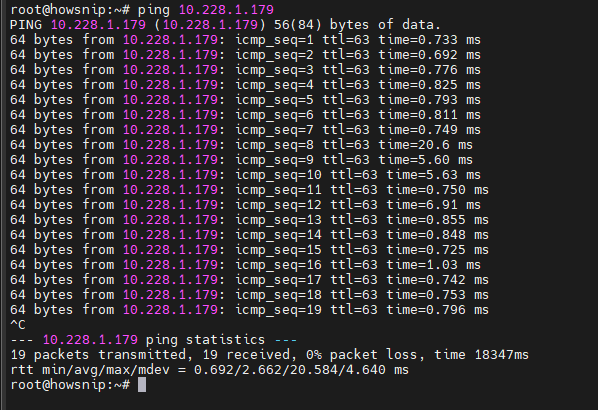
What This Command Does
- Sends continuous echo requests to the target host.
- Displays response times in milliseconds.
- Reports packet loss statistics.
- Helps determine whether a system is reachable.
On most Linux distributions, the command continues running until you stop it with: Ctrl + C
2. Trace Network Paths with traceroute
While ping confirms connectivity, traceroute shows the route packets take between your system and a destination.
This helps identify where delays occur across network hops.
traceroute 192.168.0.11
For a remote host:
traceroute www.howsnip.com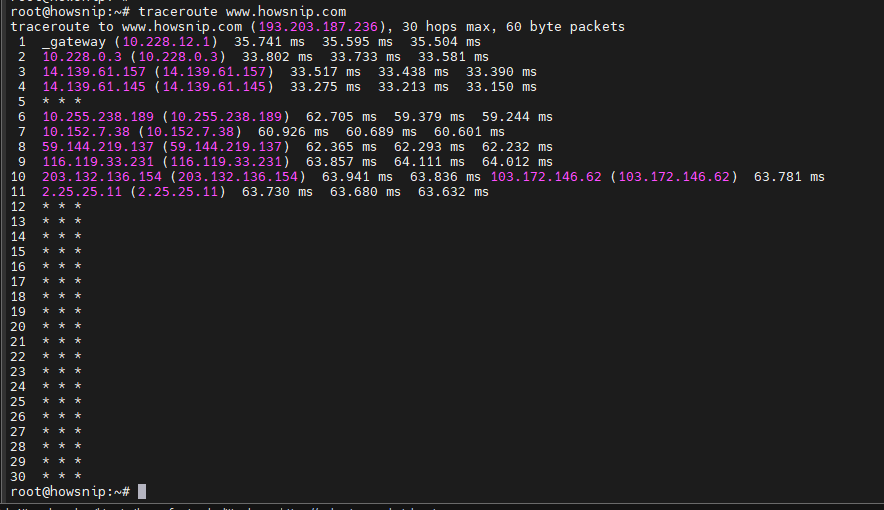
What This Command Does
- Displays every network hop between source and destination.
- Measures the response time for each hop.
- Helps identify routing issues or bottlenecks.
Each line represents a router or network device along the path.
You may occasionally see asterisks (*) in the output. This is not always a problem. Some routers simply do not respond to the packet type used by traceroute.
Increase Maximum Hops
By default, traceroute uses a maximum of 30 hops.
traceroute -m 50 distant.orgHere, -m 50 sets the maximum hop count to 50.
3. Analyze Connectivity and Latency with mtr
mtr (My Traceroute) combines the functionality of both ping and traceroute into a single interactive tool.
It continuously updates network statistics, making it useful for identifying unstable connections.
mtr 192.168.0.1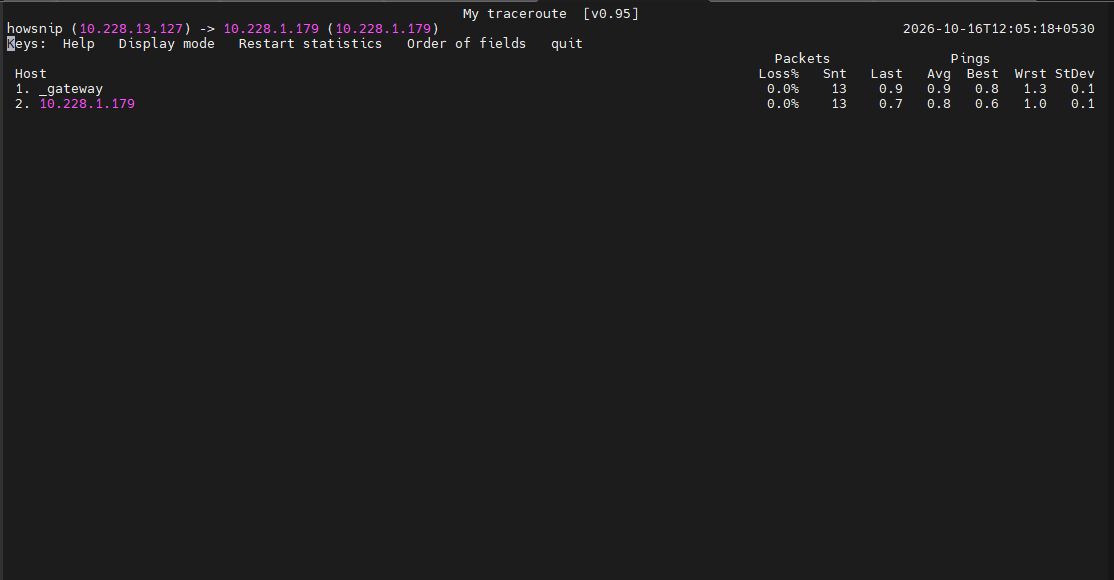
What This Command Does
- Continuously monitors network paths.
- Tracks latency across multiple hops.
- Displays packet-loss statistics.
Use mtr when intermittent network issues make it difficult to identify problems with static tools like ping.
4. Check Service Availability with ncat (nc)
Sometimes a system is reachable, but a specific service may not be running. The ncat (or nc) command helps test whether a particular port is open.
a) Test SSH Availability
nc -z -v 10.228.1.179 22
Command Explanation
- -z sends zero data.
- -v enables verbose output.
- 22 is the SSH port.
This verifies whether an SSH service is accepting connections.
b) Test Web Server Availability
nc -z -v 10.228.1.179 80
Command Explanation
- Port 80 is commonly used for HTTP services.
- The command checks whether a web server is listening.
This method allows you to test service availability without actually logging in or transferring data.
5. Measure Internet Speed with speedtest
The speedtest utility checks connection performance between your system and a speed testing server.
speedtest
What This Command Does
- Measures download speed.
- Measures upload speed.
- Provides latency information.
Many internet connections have significantly higher download speeds than upload speeds. Running a speed test helps verify whether you’re receiving expected performance from your provider.
6. Check Download Speed with fast
The fast utility measures download speed using Netflix’s Fast.com service. Unlike speedtest, it focuses on download performance and reports an average speed after multiple measurements.
fast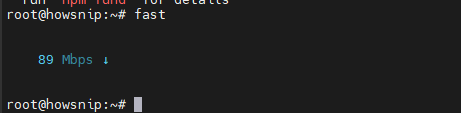
Install fast
wget https://github.com/ddo/fast/releases/download/v0.0.4/fast_linux_amd64Downloads the binary package.
sudo install fast_linux_amd64 /usr/local/bin/fastInstalls the executable system-wide.
which fast
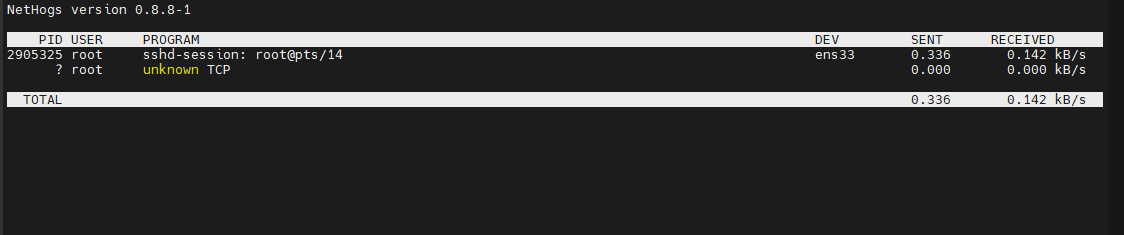
7. Find Bandwidth-Hungry Processes with nethogs
nethogs helps identify which applications are consuming network bandwidth. Instead of displaying traffic by connection, it groups usage by process.
sudo nethogsWhat This Command Does
- Monitors bandwidth in real time.
- Associates traffic with specific processes.
- Helps identify applications causing network slowdowns.
This tool is especially useful when a system’s connection seems slow but the cause is unknown.
8. Inspect Network Sockets with ss
The ss command (Socket Statistics) provides detailed information about network sockets and active connections.
Display TCP Sockets
ss -a -t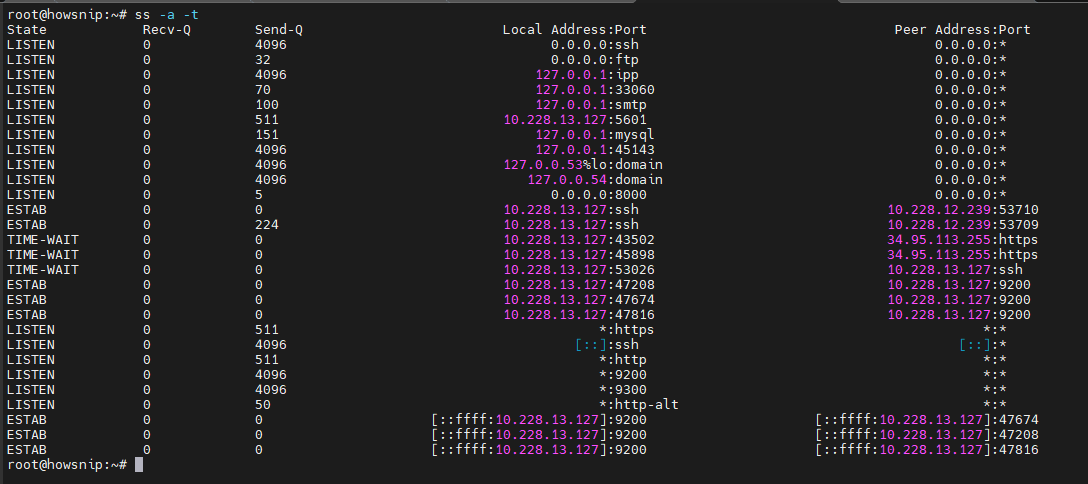
Command Explanation
- -a displays all sockets.
- -t displays TCP sockets only.
What This Command Does
- Lists active connections.
- Shows listening services.
- Helps investigate application communication issues.
Because it can generate a large amount of information, it is commonly used with filtering options.
9. Monitor Network Traffic with iftop
iftop is a real-time network monitoring tool that displays current bandwidth usage by connection.
sudo iftop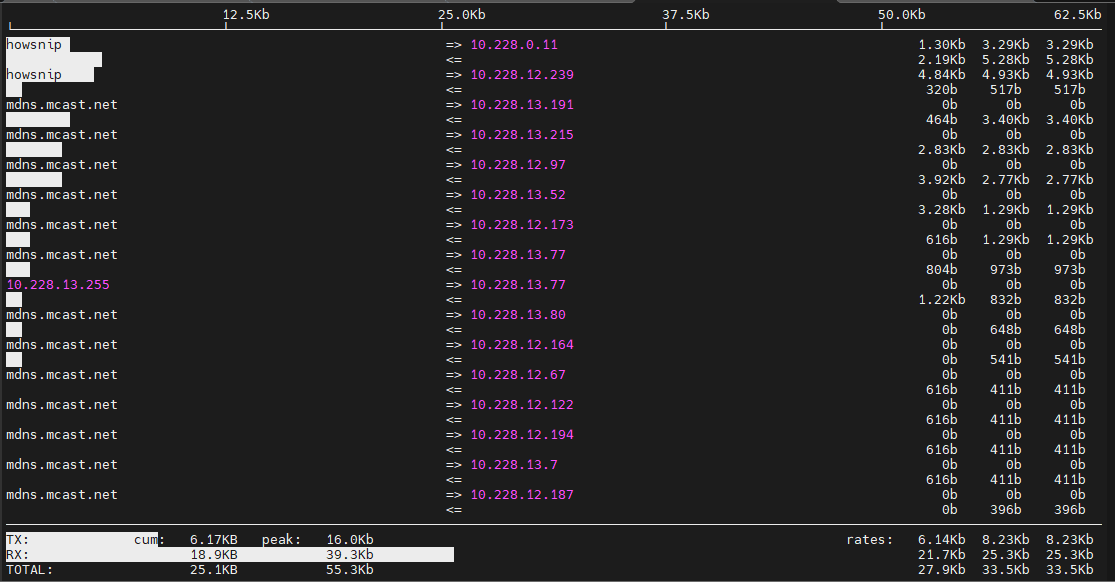
What This Command Does
- Displays active network connections.
- Shows incoming and outgoing traffic rates.
- Helps identify which hosts are using the most bandwidth.
Unlike nethogs, which focuses on processes, iftop focuses on network connections.
Important: Administrative privileges are typically required.
10. Examine Network Interfaces with ethtool
The ethtool command provides detailed information about a network interface card (NIC).
It is widely used by system administrators for troubleshooting and performance analysis.
ethtool --show-features ens33 | column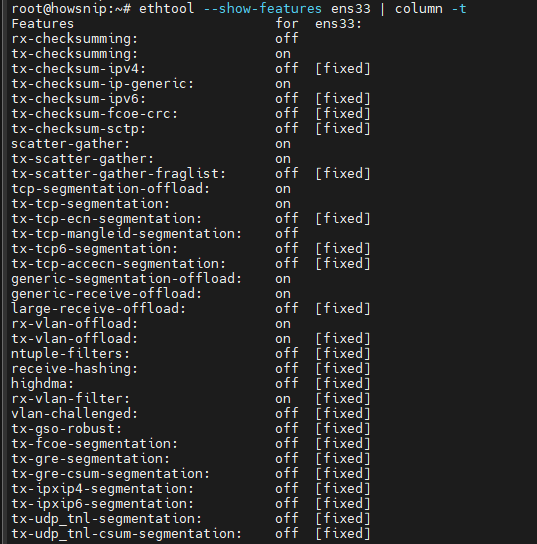
Command Explanation
- –show-features displays supported and enabled NIC features.
- ens33 is the network interface name.
- column formats the output for easier reading.
What This Command Does
- Displays NIC capabilities.
- Shows enabled and disabled features.
- Helps diagnose interface-related problems.
Note: If a feature is marked as fixed, it means the setting cannot be changed, not that it has been repaired.
Conclusion
Linux includes a rich set of networking tools that make troubleshooting connectivity problems much easier. Whether you need to verify basic reachability with ping, track packet paths using traceroute, monitor latency with mtr, test service availability using ncat, or analyze bandwidth consumption with nethogs and iftop, each tool provides valuable insight into network performance.
Learning these commands will help you diagnose connectivity issues faster, understand network behavior more clearly, and maintain healthier Linux systems.