
Caddy is a modern web server that makes website hosting and reverse proxy configuration simple. One of its biggest advantages is automatic HTTPS, which allows you to secure websites without manually configuring SSL certificates.
In this tutorial, you’ll learn how to install Caddy on Ubuntu 26.04, verify that it is working correctly, serve a static website, configure a reverse proxy, host multiple sites, manage the service with systemd, and review logs.
Prerequisites
Before you begin, make sure you have:
- An Ubuntu 26.04 server.
- A user account with sudo privileges.
- A domain name with an A or AAAA DNS record pointing to your server (required for automatic HTTPS certificates).
- TCP ports 80 and 443 open in both the server firewall and any cloud-provider firewall.
Allow HTTP and HTTPS Through UFW
If you are using UFW, allow web traffic with the following commands:
sudo ufw allow 80/tcp
sudo ufw allow 443/tcp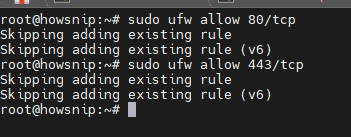
These rules allow incoming HTTP and HTTPS requests to reach your server.
Optional: Enable HTTP/3 Support
Caddy supports HTTP/3, which uses UDP port 443.
sudo ufw allow 443/udpAllowing this port enables compatible clients to connect using HTTP/3.
Important: If you are only testing Caddy locally, use a site address such as http://localhost or a custom port like :8080 in the Caddyfile. Automatic HTTPS is not enabled for these local addresses.
Install Caddy from the Official Repository
The recommended installation method is through Caddy’s official APT repository. This ensures you receive the latest stable releases and future updates through Ubuntu’s package manager.
Step 1: Update Package Information
Refresh the package index:
sudo apt update
This downloads the latest package information from configured repositories.
Step 2: Install Required Packages
Install the dependencies needed to add the Caddy repository:
sudo apt install -y debian-keyring debian-archive-keyring apt-transport-https curl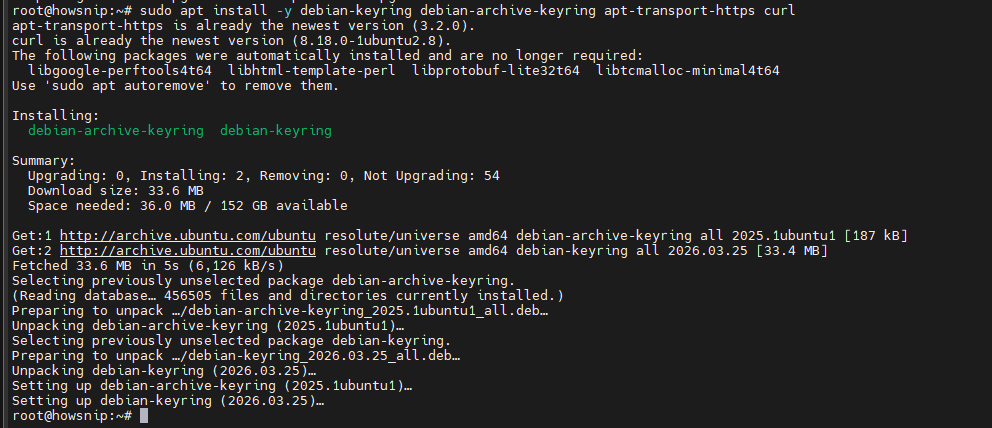
These packages allow Ubuntu to securely communicate with external repositories.
Step 3: Add the Caddy Signing Key
Run the following command:
curl -1sLf 'https://dl.cloudsmith.io/public/caddy/stable/gpg.key' \
| sudo gpg --dearmor -o /usr/share/keyrings/caddy-stable-archive-keyring.gpg
This downloads and installs the GPG key used to verify Caddy packages.
Step 4: Add the Caddy Repository
Add the official repository to your system:
curl -1sLf 'https://dl.cloudsmith.io/public/caddy/stable/debian.deb.txt' \
| sudo tee /etc/apt/sources.list.d/caddy-stable.list
This allows Ubuntu to download Caddy packages directly from the official source.
Step 5: Set Repository Permissions
Make the repository files readable by APT:
sudo chmod o+r /usr/share/keyrings/caddy-stable-archive-keyring.gpg
sudo chmod o+r /etc/apt/sources.list.d/caddy-stable.list
These permissions ensure the package manager can access the required files.
Step 6: Install Caddy
Update package information again and install Caddy:
sudo apt update
sudo apt install -y caddy
The installation process:
- Places the Caddy binary in /usr/bin/caddy
- Creates the caddy system user
- Installs the default configuration file at /etc/caddy/Caddyfile
- Creates the caddy.service systemd service
- Verify the Installation
a) Check the Installed Version
Confirm Caddy is installed successfully:
caddy version
The command displays the installed version number.
b) Check the Service Status
Verify the service is running:
sudo systemctl status caddyThe output should show:
active (running)
Press Q to exit the status screen.
c) Test the Default Website
Send a request to the local web server:
curl -I http://localhost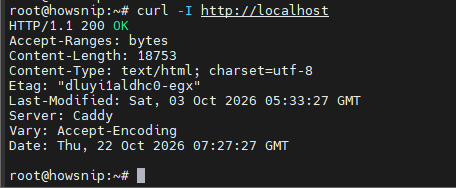
A successful response returns:
HTTP/1.1 200 OK
You should also see:
Server: Caddy
You can alternatively open your server’s IP address in a web browser to view the default page.
d) Serve a Static Website with Caddy
Caddy reads its configuration from:
/etc/caddy/CaddyfileThe default configuration serves content from:
/usr/share/caddyStep 1: Back Up the Existing Configuration
Before making changes, create a backup:
sudo cp /etc/caddy/Caddyfile /etc/caddy/Caddyfile.backupThis allows you to restore the original configuration if needed.
Step 2: Edit the Caddyfile
Open the configuration file:
sudo nano /etc/caddy/Caddyfile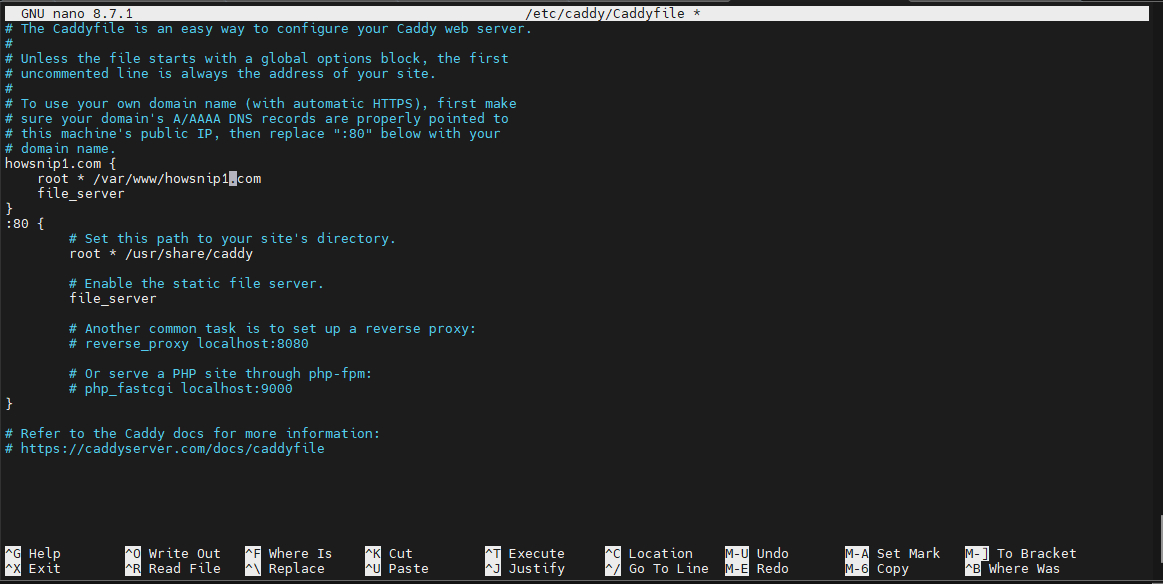
Replace its contents with:
example.com {
root * /var/www/example.com
file_server
}
Replace example.com with your actual domain name.
How This Configuration Works
- example.com defines the site address.
- root specifies the website’s document root.
- file_server enables static file serving.
Caddy automatically:
- Requests SSL certificates.
- Configures HTTPS.
- Redirects HTTP requests to HTTPS.
Step 3: Create Website Files
Create the document root directory:
sudo mkdir -p /var/www/example.com
Create a simple test page:
echo "<h1>Hello from Caddy</h1>" | sudo tee /var/www/example.com/index.htmlGrant read access to website files:
sudo chmod -R a+rX /var/www/example.comThe Caddy service only requires read access to serve static content.
Step 4: Validate the Configuration
Before applying changes, check for syntax errors:
sudo caddy validate --config /etc/caddy/Caddyfile
This command verifies that the configuration can be loaded correctly.
Step 5: Reload Caddy
Apply the updated configuration:
sudo systemctl reload caddyReloading updates the configuration without stopping the service.
If DNS records point to your server and ports 80 and 443 are accessible, Caddy automatically requests and installs an HTTPS certificate.
Configure a Reverse Proxy
A common Caddy use case is placing it in front of applications running on the same server.
For example, if a Node.js or Python application listens on 127.0.0.1:3000, use:
app.example.com {
reverse_proxy 127.0.0.1:3000
}
With this configuration, Caddy:
- Handles HTTPS certificates.
- Terminates SSL/TLS connections.
- Forwards requests to the backend application.
- Supports WebSockets automatically.
Reverse Proxy Only a Specific Path
To proxy requests under /api/ while still serving static content:
example.com {
  root * /var/www/example.com
  file_server

  handle /api/* {
    reverse_proxy 127.0.0.1:3000
  }
}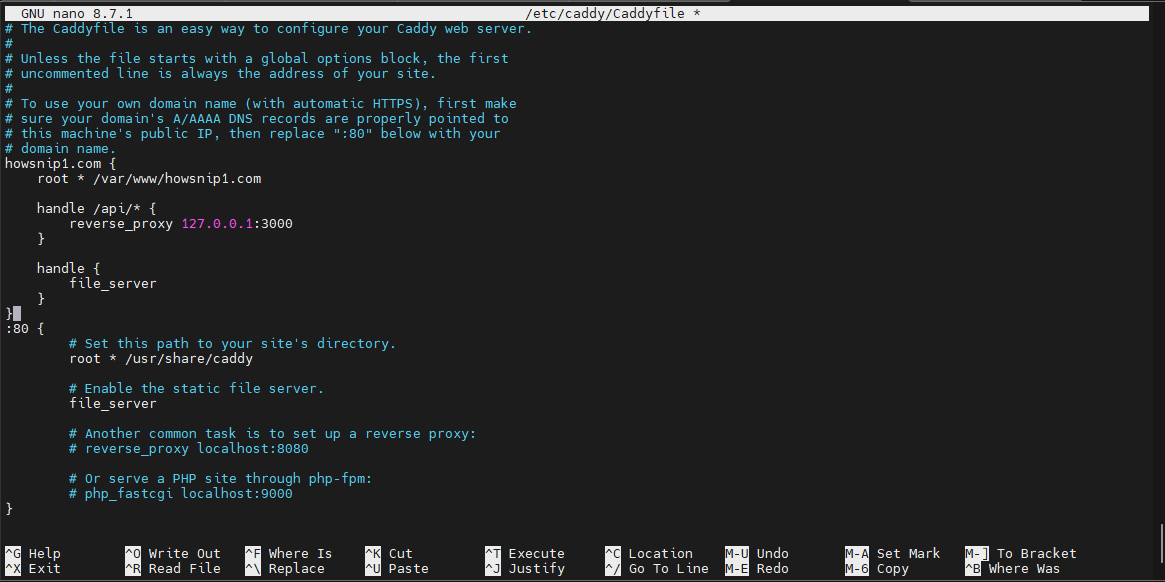
How It Works
- Requests to /api/* are forwarded to the backend application.
- All other requests are served from the static website.
- The /api prefix remains unchanged when forwarded.
If the backend application expects paths without the /api prefix, replace handle with handle_path.
After making changes:
sudo caddy validate --config /etc/caddy/Caddyfile
sudo systemctl reload caddy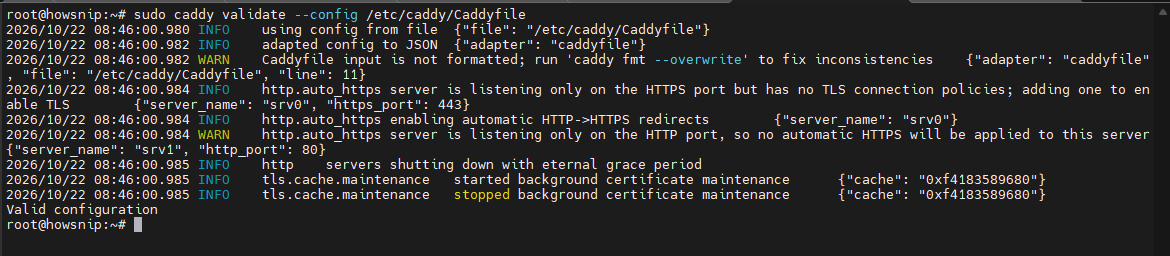
Host Multiple Websites
Caddy can manage multiple domains and subdomains from a single configuration file.
Example:
example.com {
root * /var/www/example.com
file_server
}

blog.example.com {
root * /var/www/blog
file_server
encode gzip
}

api.example.com {
reverse_proxy 127.0.0.1:8080
}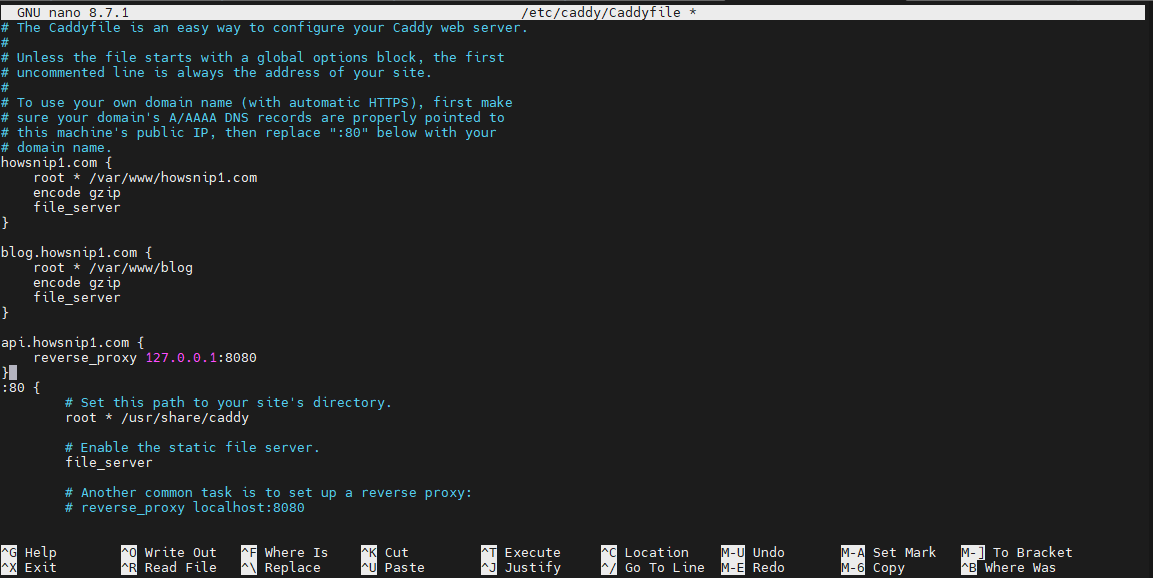
In this setup:
- example.com serves static files.
- blog.example.com serves compressed static content.
- api.example.com acts as a reverse proxy.
Caddy automatically obtains and renews certificates for each eligible hostname.
Split Configurations into Multiple Files
For larger deployments, use the import directive:
import /etc/caddy/sites/*.caddy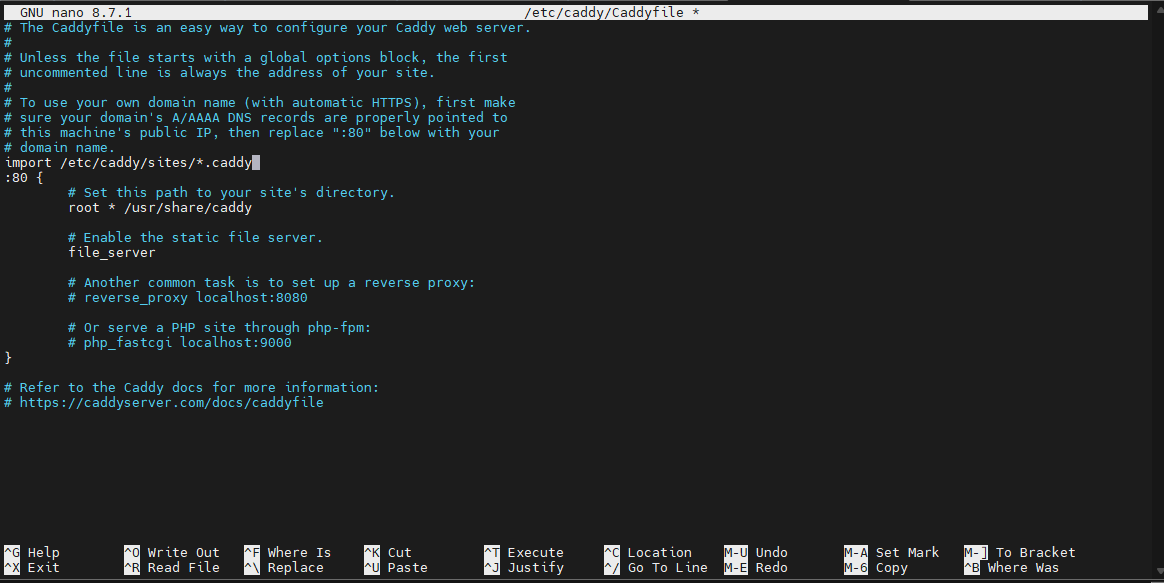
Create the site configuration directory:
sudo mkdir -p /etc/caddy/sitesStore each site’s configuration in its own .caddy file to simplify management. Always validate changes after adding or removing configuration files.
Validate and Format the Caddyfile
a) Validate Configuration
Before every reload, verify the configuration:
sudo caddy validate --config /etc/caddy/CaddyfileThis checks for syntax errors and configuration problems without starting another server instance.
b) Format the Configuration File
Caddy includes a built-in formatter:
sudo caddy fmt --overwrite /etc/caddy/CaddyfileThe –overwrite option updates the file with consistent indentation and spacing.
Tip: Review formatting changes or store your configuration in version control before deployment.
c) Manage Caddy with systemd
Caddy runs as a systemd service named caddy.service.
Common Service Management Commands
Start the service:
sudo systemctl start caddyStop the service:
sudo systemctl stop caddyRestart the service:
sudo systemctl restart caddyReload the configuration:
sudo systemctl reload caddyCheck service status:
sudo systemctl status caddyReload vs Restart
When changing the Caddyfile, use:
sudo systemctl reload caddyReloading applies configuration updates without disrupting active connections.
Enable Caddy at Boot
If the service has been disabled, enable it again:
sudo systemctl enable caddyThis ensures Caddy starts automatically whenever the server reboots.

View Caddy Logs
Monitoring logs helps troubleshoot issues and verify server activity.
a) Follow Live Logs
View real-time service logs:
sudo journalctl -u caddy -f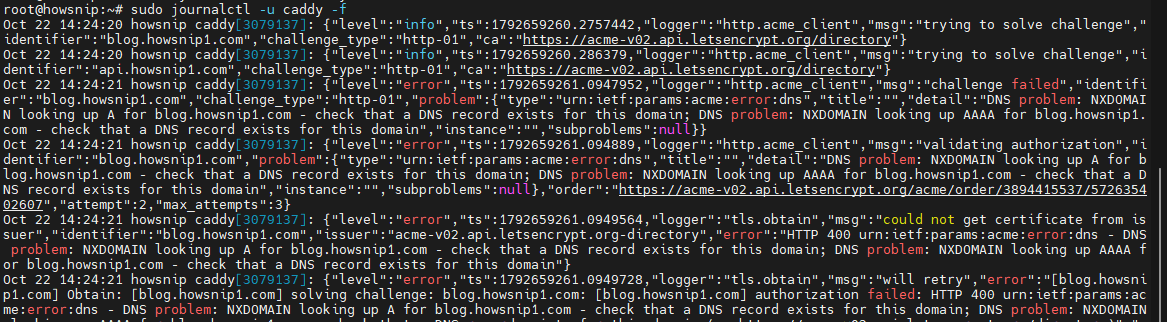
This continuously displays new log entries as they are generated.
b) Enable Access Logging
By default, access logs are not enabled.
Add the following to a site block:
example.com {
  root * /var/www/example.com
  file_server

  log {
    output file /var/log/caddy/access.log
    format json
  }
}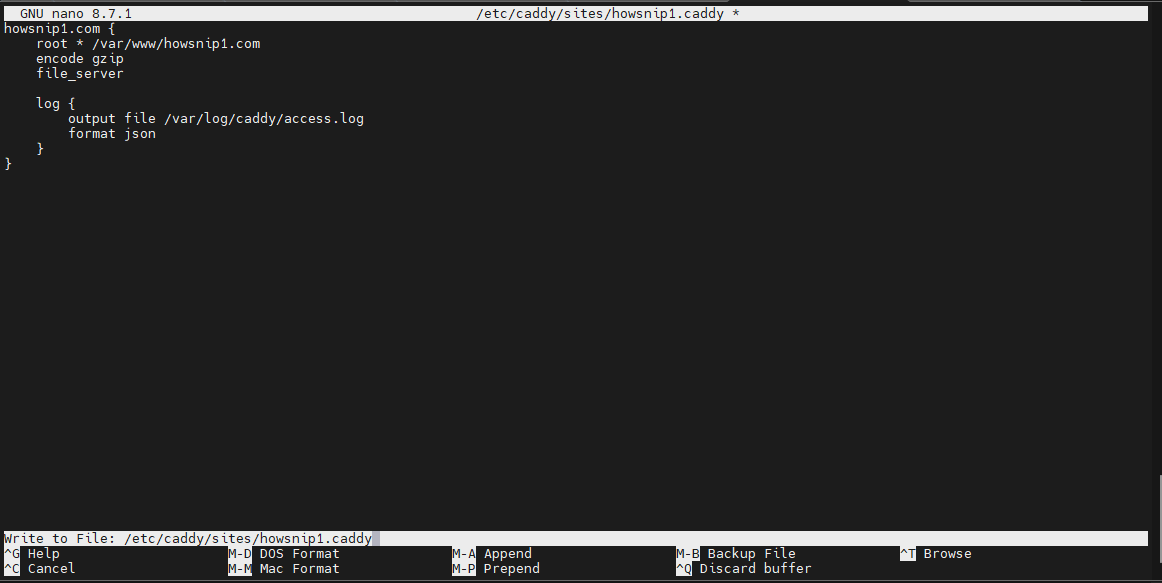
This writes access logs to a JSON file.
c) Create the Log Directory
Configure permissions for the log location:
sudo mkdir -p /var/log/caddy
sudo chown caddy:caddy /var/log/caddy
Validate and reload Caddy after making the changes. Caddy automatically rotates file-based access logs, and JSON output works well with centralized logging systems.
d) Update Caddy
Since Caddy was installed from an APT repository, updating it follows the standard Ubuntu package management process.
e) Upgrade Caddy
Update package information:
sudo apt update
Install the latest available version:
sudo apt install --only-upgrade caddy
This upgrades Caddy while preserving your configuration and data.
f) Confirm the Upgrade
Check the installed version:
caddy version
Verify the service status:
sudo systemctl status caddy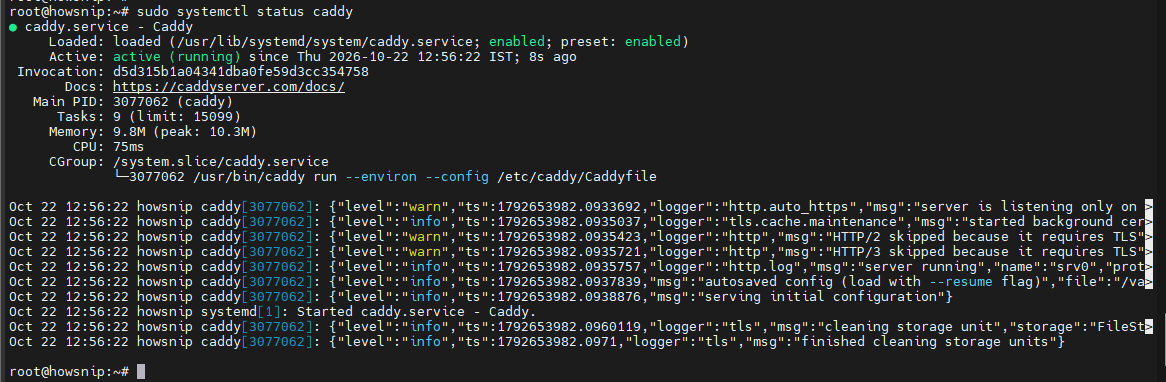
Ensure the service is running normally after the upgrade.
Conclusion
Caddy provides a straightforward way to host websites and applications on Ubuntu 26.04. After installing it from the official repository, you can quickly serve static websites, configure reverse proxies, host multiple domains, and take advantage of automatic HTTPS.
By validating configurations before reloading and monitoring logs regularly, you can maintain a reliable and secure web server with minimal administration.