

Managing disk space is an important part of Linux system administration. Whether you’re troubleshooting a full disk, checking storage availability, or identifying large files and directories, Linux provides several built-in commands to help.
In this tutorial, you’ll learn how to use the df, du, ls, fdisk, and lsblk commands to monitor disk usage, check available storage, and view disk partition information. The examples are beginner-friendly while still providing useful insights for more experienced Linux users.
Prerequisites
Before you begin:
- Access to a Linux system.
- A terminal session.
- Basic familiarity with command-line navigation.
- Some commands may require sudo privileges to access system-level information.
1. Check Available Disk Space with the df Command
The df command stands for disk free. It displays information about disk space usage and available storage on mounted file systems.
By default, df reports disk usage in kilobytes.
View Disk Space Usage
Run the following command:
df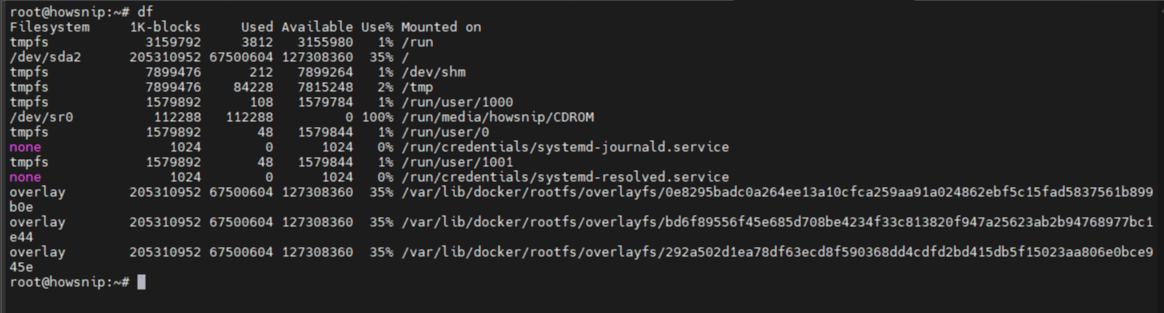
This displays available and used space for all mounted file systems.
2. Display Disk Usage in Human-Readable Format
The -h option makes the output easier to read by automatically displaying values in KB, MB, or GB.
df -h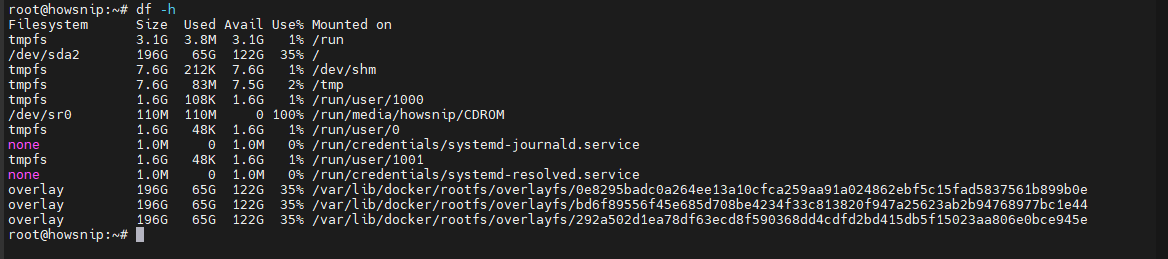
This is one of the most commonly used variations of the command because it presents storage information in a more understandable format.
3. Check Disk Information for a Specific Directory
You can check the file system containing a particular directory.
df /home/howsnip
This command displays disk usage information for the partition where /home/howsnip is located.
Permission Limitation Example
While you can query a directory, you may not have permission to access its contents.
df /home/howsnip/reportIf you do not have read permissions for a directory, Linux may prevent access.
Important: Superuser privileges are generally not required for df, unless you need to inspect locations that require elevated permissions.
4. Display the File System Type
Use the -T option to view the file system type associated with a directory.
df -T /home
This command displays details such as:
- Mounted file system
- File system type
- Disk usage statistics
This can be useful when working with multiple storage devices or file system formats.
5. Analyze Disk Usage with the du Command
The du command stands for disk usage. Unlike df, which reports usage for entire file systems, du calculates the space used by files and directories.
a) Show Total Size of the Current Directory
Run:
du -sk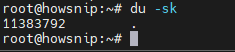
Explanation:
- -s displays only the summary.
- -k reports the size in kilobytes.
The output represents the total size of the current directory.
b) Check a Specific Directory Size
You can specify a directory path directly.
du -sk /home/*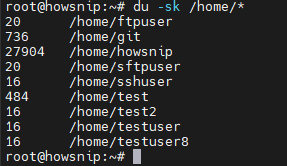
This returns the total size of the /home/ directory without listing individual subdirectories.
c) View Disk Usage for a Directory
To see usage details within a directory:
du backup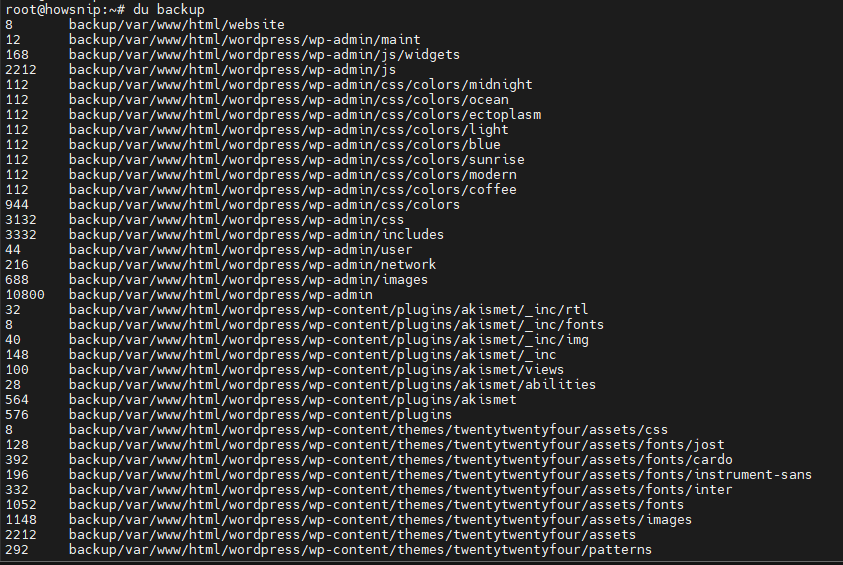
This command reports storage usage for the directory and its contents.
d) Check Multiple Directories with Elevated Permissions
If some directories require administrative access, use:
sudo du -sk *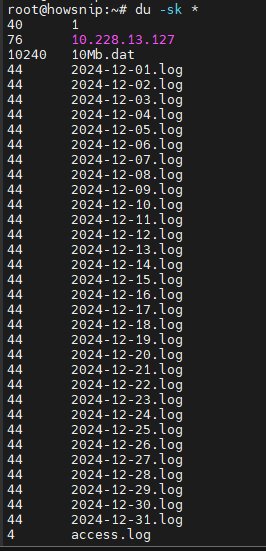
This command summarizes the sizes of items in the current location.
Important: Superuser permissions are required to access directories that your account cannot read.
e) Display Human-Readable Disk Usage
Use the -h option to make output easier to interpret.
du -h backup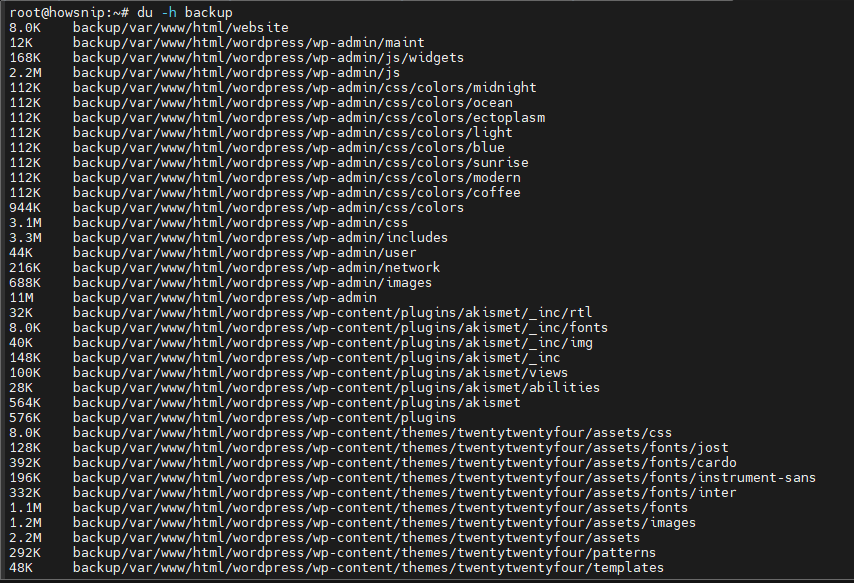
Instead of displaying values only in kilobytes, the command automatically uses appropriate units such as MB or GB.
f) Show the Size of the Current Directory
To display a concise summary of the current directory:
du -sh .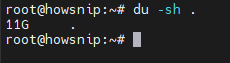
Explanation:
- -s shows only the total.
- -h displays values in a human-readable format.
- . refers to the current directory.
This is one of the quickest ways to check how much space your current working directory occupies.
g) Check Disk Usage for a Parent Directory
To view the total size of a larger directory structure:
cd /home; du -sh .
If some directories cannot be read, you may see permission-related messages, and their contents will not be included in the calculated total.
h) Find the Largest Files and Directories
To quickly identify storage consumers, use:
du -ah /home/shs | sort -rh | head -n 5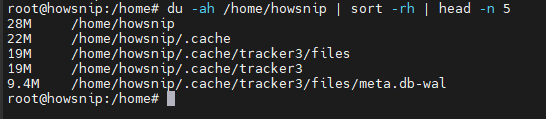
What This Command Does
- du -ah displays sizes for files and directories.
- sort -rh sorts results by size in descending order.
- head -n 5 shows only the five largest entries.
This method is particularly useful when troubleshooting low disk space.
6. Sort Files by Size with the ls Command
The ls command is commonly used to list files and directories. It can also sort files based on size.
a) Display the Largest Files
Run:
ls -lhS | head -5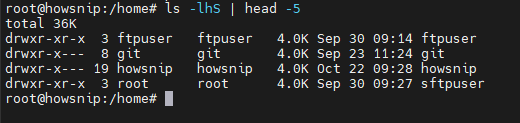
Explanation
- -l uses the long listing format.
- -h displays human-readable file sizes.
- -S sorts files by size.
- head -5 limits output to the first five entries.
This command quickly reveals the largest files in the current directory.
b) Create a Helpful Alias
If you frequently sort files by size, create a shell alias:
alias bysize="ls -lhS"After creating the alias, simply run:
bysizeThis saves time and avoids repeatedly typing the full command.
7. View Disk Partition Information with fdisk
The fdisk utility provides information about disk partitions and storage devices.
a) Running fdisk Without Arguments
If executed incorrectly, you may see an error message such as:
sudo fdisk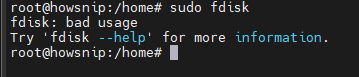
Output:
- fdisk: bad usage
- Try ‘fdisk –help’ for more information.
This indicates that additional options are required.
b) List Available Disk Partitions
To display partition information, run:
sudo fdisk -l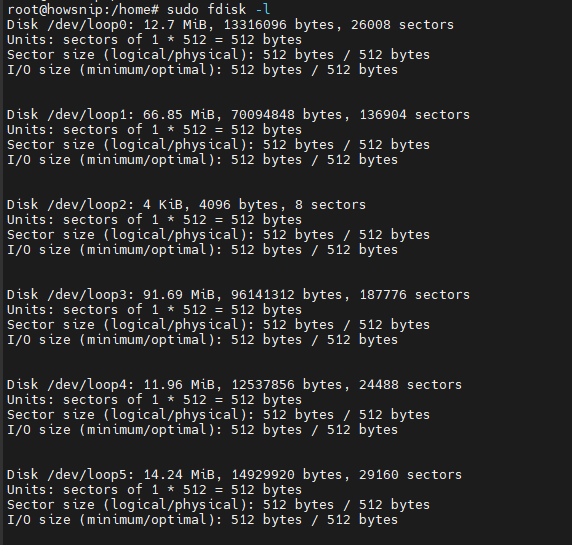
This command lists:
- Available disks
- Partition layouts
- Partition sizes
- Device details
Warning: Listing partitions is safe, but modifying them with fdisk can affect data on your system. Only make partition changes if you understand the implications.
8. Display Block Device Information with lsblk
The lsblk command provides a clear overview of block devices and partitions.
List Disks and Partitions
Run:
lsblk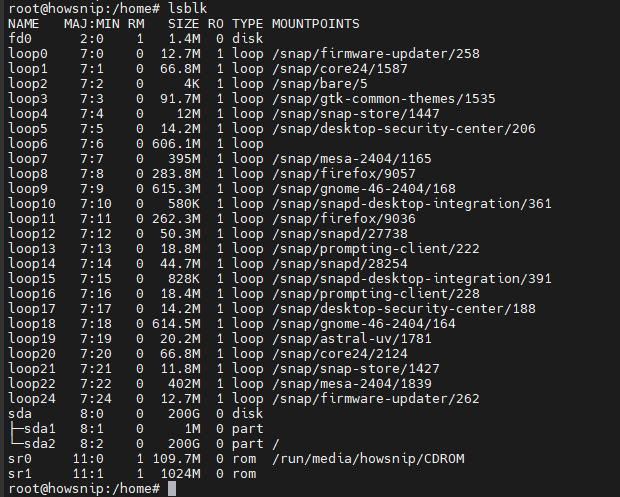
The output typically includes:
- Disk names
- Partition names
- Sizes
- Mount points
- Device hierarchy
This makes it easy to identify storage devices and understand how partitions are organized.
For example, the output may show a disk such as sda and its associated partitions, along with their mount points.
Conclusion
Linux provides several powerful commands for monitoring and managing storage usage. The df command helps you check available disk space, du measures directory and file usage, ls can identify large files, while fdisk and lsblk provide detailed partition information.
By combining these commands, you can quickly diagnose storage issues, locate large files, and better understand your Linux system’s disk layout.