

MySQL is one of the most widely used relational database management systems for web applications, software development, and server environments. If you’re setting up a new Ubuntu system, installing and securing MySQL should be one of your first tasks.
In this tutorial, you’ll learn how to install MySQL on Ubuntu, secure the root account, create additional users, assign privileges, and verify that the database server is working correctly.
Prerequisites
Before you begin, make sure you have:
- An Ubuntu system with administrative (sudo) privileges
- Internet access for package installation
- Terminal access
Step 1: Update Ubuntu and Install MySQL
Before installing MySQL, update your package list to ensure you’re downloading the latest available packages from Ubuntu repositories.
Run:
sudo apt-get update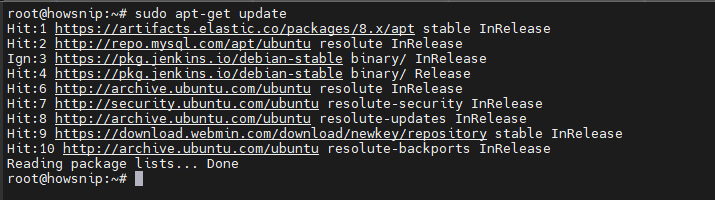
This command refreshes the package index on your system.
Next, install the MySQL server package:
sudo apt-get install mysql-server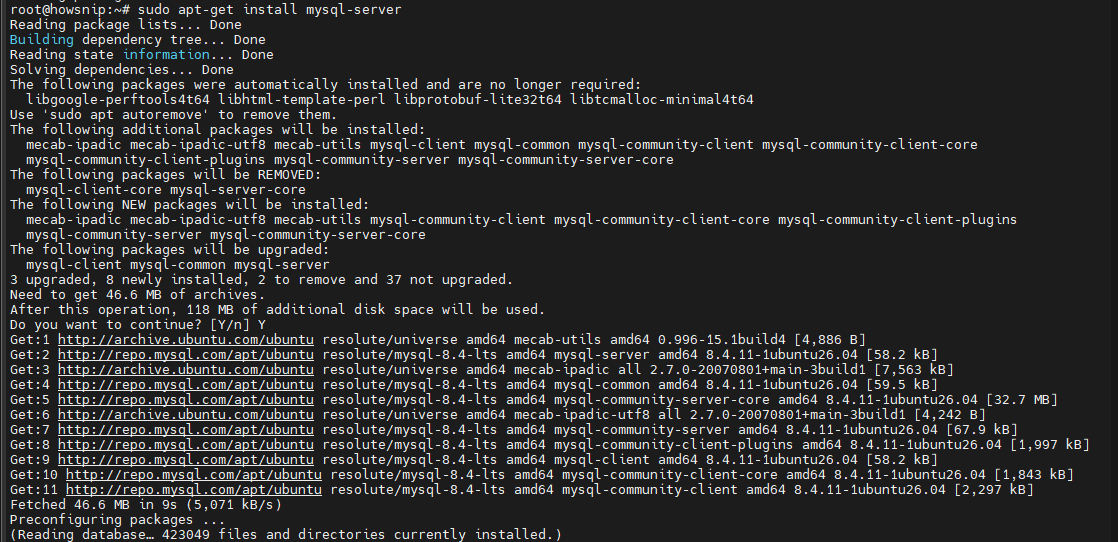
This command downloads and installs the MySQL database server along with any required dependencies.
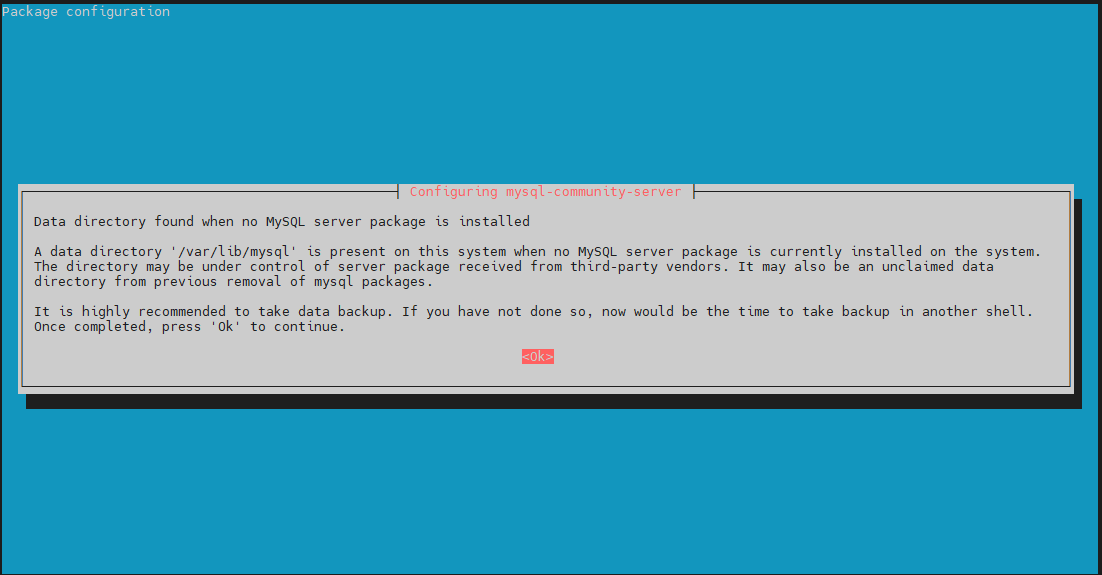
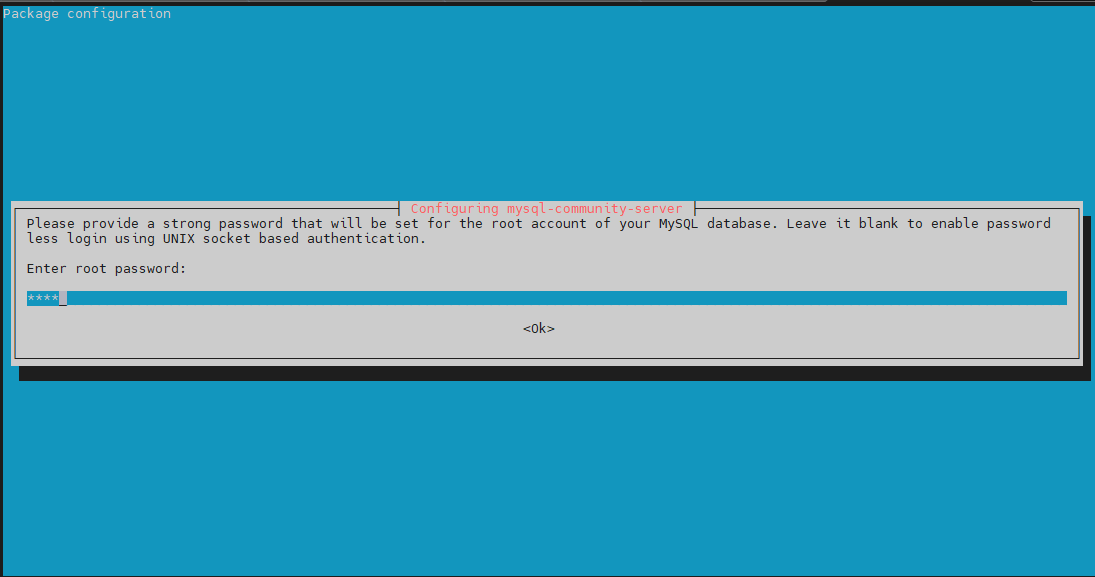
Step 2: Start and Verify the MySQL Service
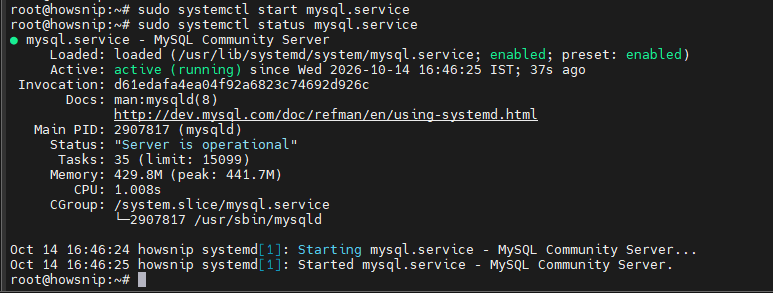
After installation, confirm that the MySQL service is running.
Start the service:
sudo systemctl start mysql.serviceThis command starts the MySQL server if it is not already running.
Check the service status:
sudo systemctl status mysql.serviceYou should see output indicating that the service is active and running.
Step 3: Configure the MySQL Root Account
On Ubuntu systems, MySQL root authentication is configured differently by default. If you want to use password-based authentication for the root account, you’ll need to modify the authentication method.
Access the MySQL shell:
sudo mysql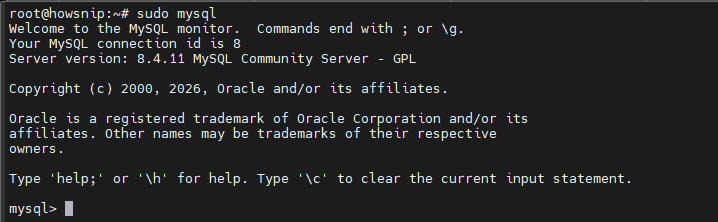
Once inside the MySQL prompt, set a password for the root account:
ALTER USER 'root'@'localhost' IDENTIFIED WITH mysql_native_password BY 'password';Replace: password with a strong and secure password
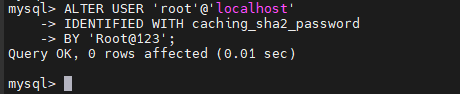
This command changes the root account to use the mysql_native_password authentication method.
Exit the MySQL shell:
exitImportant: Use a strong password that includes uppercase letters, lowercase letters, numbers, and special characters.
Step 4: Secure the MySQL Installation
MySQL includes a built-in security script that helps harden your database server by applying recommended security settings.
Run:
sudo mysql_secure_installation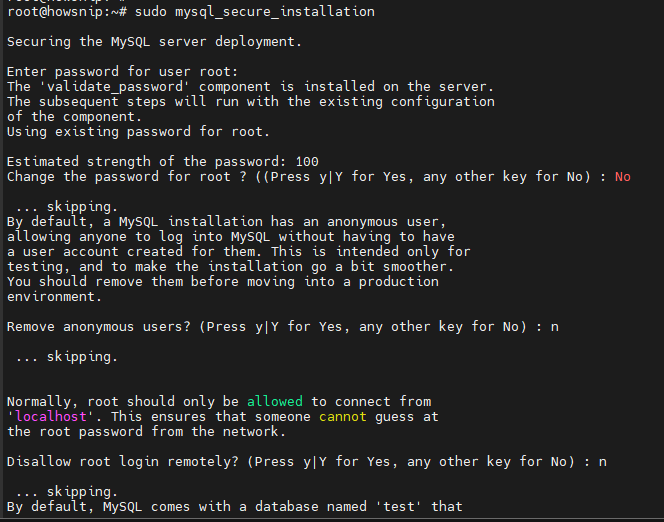
The script guides you through several security-related options, including:
- Password policy configuration
- Password validation
- Removal of anonymous users
- Restricting remote root access
- Removing test databases
The password policy you choose will apply to future user accounts created on the server.
Step 5: Test Root Login with Password Authentication
After configuring the root account, test whether password-based authentication works correctly.
Run:
mysql -u root -p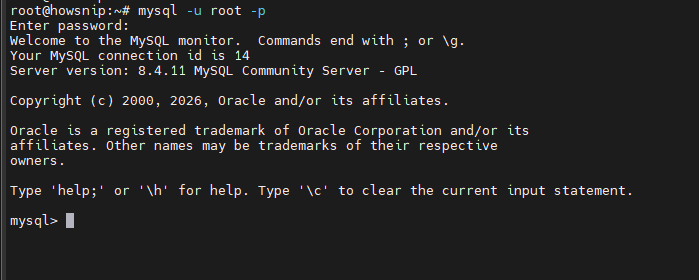
You’ll be prompted to enter the root password. This command grants access to the MySQL command-line interface using the root credentials.
Step 6: Restore Ubuntu’s Default Authentication Method (Optional)
If you prefer to use Ubuntu’s default authentication mechanism again, log in to MySQL and switch the root account back to socket authentication.
From the MySQL prompt, run:
ALTER USER 'root'@'localhost' IDENTIFIED WITH auth_socket;This allows administrative access using:
sudo mysqlwithout requiring a password.
Note: Socket-based authentication can improve security for local administrative access.
Step 7: Create a New MySQL User
Using the root account for day-to-day database operations is not considered a security best practice. Instead, create a dedicated user account with only the permissions it needs.
Log in as root:
sudo mysqlOr, if password authentication is enabled:
mysql -u root -p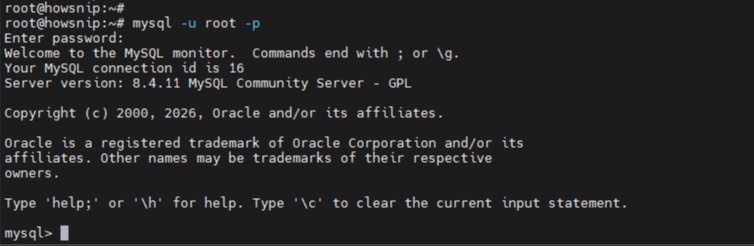
Create a new user:
CREATE USER 'username'@'host' IDENTIFIED WITH authentication_plugin BY 'password';Example:
CREATE USER 'testuser'@'localhost' IDENTIFIED WITH mysql_native_password BY 'password';

Replace:
- testuser with your preferred username
- password with a secure password
- localhost with the appropriate hostname
Authentication Plugin Options
MySQL supports several authentication methods:
- auth_socket – Uses the system user’s credentials and does not require a password. Suitable for local access.
- caching_sha2_password – The default MySQL authentication method.
- mysql_native_password – Commonly used for broader compatibility with applications and older software.

Step 8: Modify an Existing User
If you need to change a user’s authentication settings or password, use the ALTER statement.
Example:
ALTER 'testuser'@'hostname' IDENTIFIED WITH mysql_native_password BY 'password';This updates the specified user’s authentication configuration.

Step 9: Assign User Privileges
After creating a user, grant only the privileges required for that account.
General syntax:
GRANT PRIVILEGE ON database.table TO 'username'@'host';
Example: Grant Common Database Permissions
GRANT CREATE, ALTER, DROP, INSERT, UPDATE, DELETE, SELECT ON *.* TO 'testuser'@'hostname' WITH GRANT OPTION;
This command allows the user to:
- Create databases and tables
- Modify database structures
- Remove tables or databases
- Insert records
- Read data
- Update existing data
- Delete records
About WITH GRANT OPTION
The WITH GRANT OPTION parameter allows the user to grant their own privileges to other users.
Warning: Be careful when using WITH GRANT OPTION because it gives the account additional administrative capabilities.
Avoid Granting All Privileges
Although you can use:
GRANT ALL PRIVILEGES ON *.* TO 'username'@'host';doing so effectively provides superuser-level permissions and reduces the security benefits of having separate accounts.
Step 10: Reload Privilege Tables
After modifying privileges, refresh MySQL’s privilege cache.
Run:
FLUSH PRIVILEGES;
This reloads privilege information and ensures changes take effect immediately.
Exit MySQL:
exitStep 11: Log In Using the New User
Test the newly created account by logging in with its credentials.
mysql -u testuser -p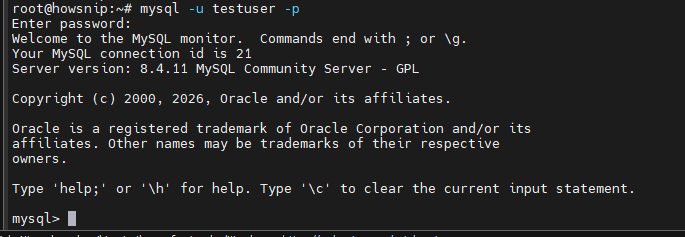
Enter the password when prompted.
If authentication succeeds, your user account has been configured correctly.
Step 12: Verify That MySQL Is Running
You can confirm the MySQL service is still active by checking its status.
systemctl status mysql.serviceThis displays the current state of the MySQL server.
Step 13: Check Server Information with mysqladmin
Another way to verify your MySQL installation is by using the mysqladmin utility.
Run:
sudo mysqladmin -p -u testuser version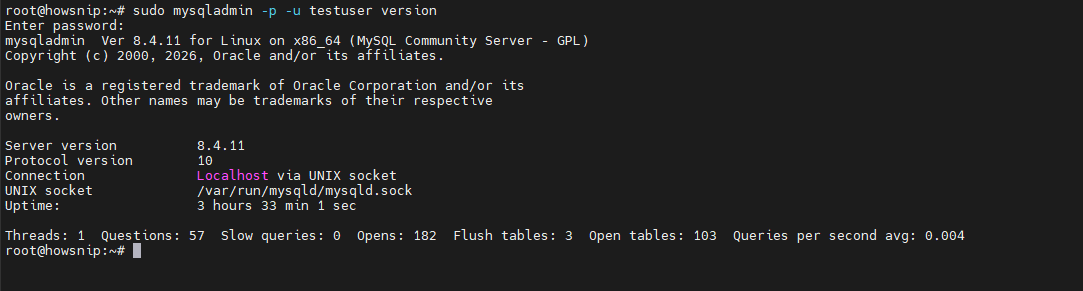
After entering the password, MySQL displays version and server information.
This helps confirm that:
- The server is running
- Authentication is working
- Client-server communication is functioning correctly
Conclusion
You have successfully installed MySQL on Ubuntu, configured the root account, secured the database server, created a dedicated user, assigned privileges, and verified that the service is functioning properly.
Following these steps helps create a more secure and manageable MySQL environment for development or production use.


![[PHP2Shell] How to Check PHP Servers for CVE-2026-109618 and CVE-2026-109619](https://howsnip.com/wp-content/uploads/2026/10/PHP2Shell-Vulnerability-Scanner-Howsnip-150x150.jpg)