
After installing Kali Linux, there are a few important tasks you should complete before using it for security testing, development, or everyday work. These steps help ensure your system is up to date, secure, and configured to match your preferences.
This guide walks through the essential post-installation setup process, including updating Kali Linux, changing keyboard settings, creating user accounts, customizing the terminal, and installing useful tools.
Prerequisites:
- A working Kali Linux installation
- Internet connectivity for updates and package installation
- Access to a user account with sudo privileges
Step 1: Change the Keyboard Layout
If your keyboard layout does not match your physical keyboard, changing it early can prevent typing issues, especially when entering passwords or commands.
Open a terminal and run:
sudo dpkg-reconfigure keyboard-configuration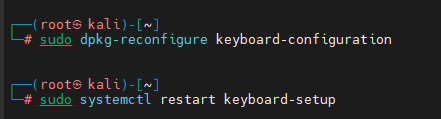
This command launches the keyboard configuration utility, allowing you to select the appropriate keyboard model and layout.
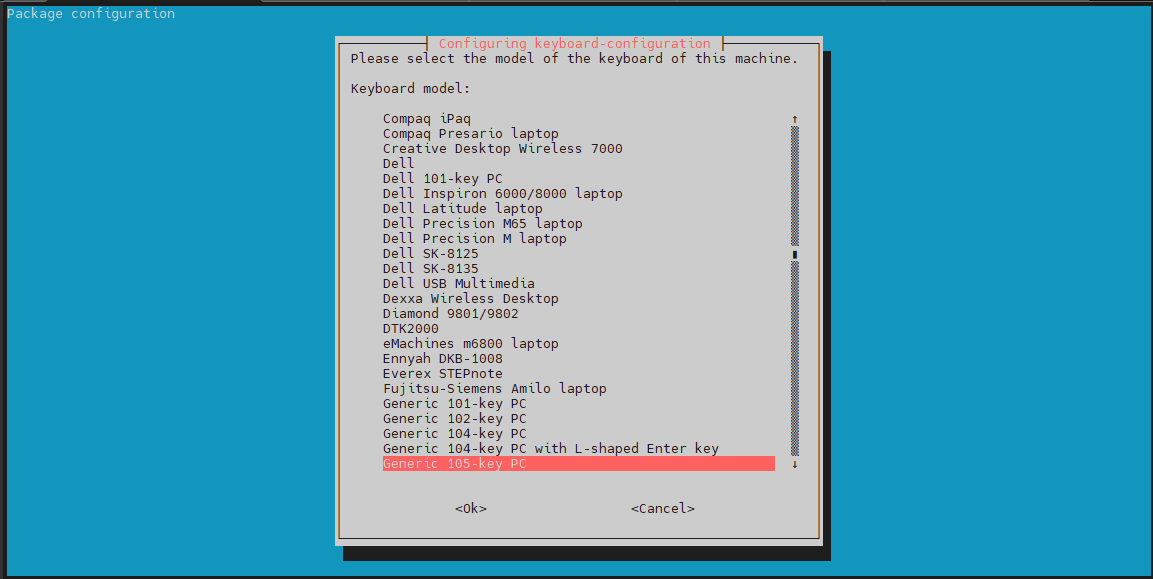
Configure the Keyboard
- Select Generic 105-key PC unless you use specialized hardware.
- Choose your preferred keyboard layout.
- If your layout is not listed, select Other and browse available options.
- Choose The default for the keyboard layout when prompted.
- Optionally configure a compose key.
- Continue through the remaining prompts by pressing Enter.
- Apply the Changes
Restart the keyboard service:
sudo systemctl restart keyboard-setupThis reloads the keyboard configuration without requiring a full reboot.
Step 2: Update Kali Linux
One of the first tasks on any fresh Kali installation is updating the operating system and installed tools. This ensures you have the latest packages, security fixes, and improvements.
Run:
sudo apt update && sudo apt full-upgrade -y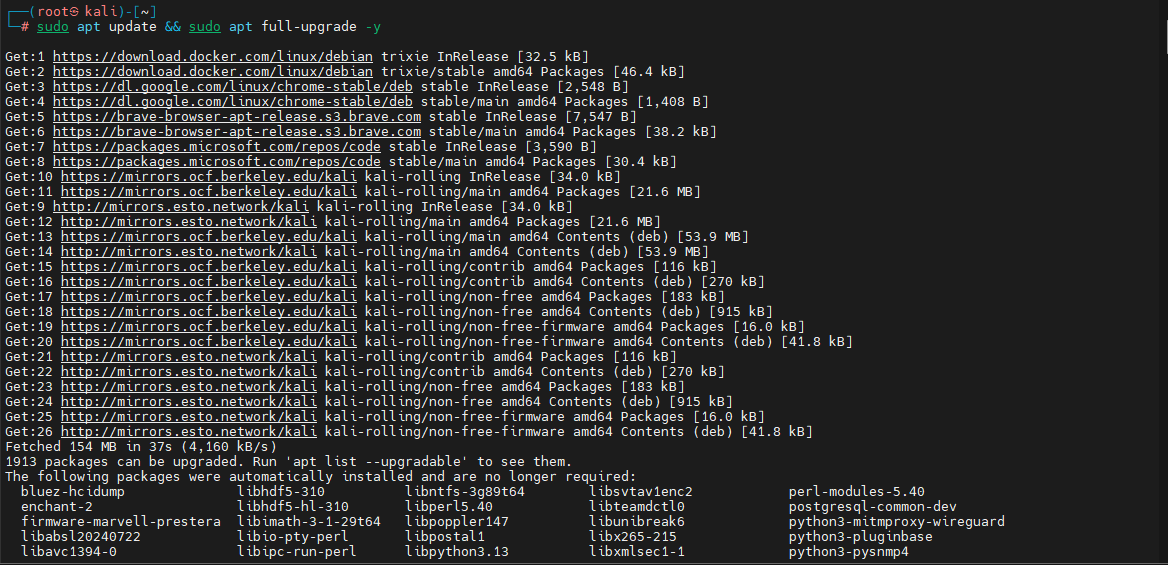
What This Command Does
- apt update refreshes package information from repositories.
- apt full-upgrade installs available upgrades and handles package dependency changes that may be required on Kali’s rolling-release model.
- -y automatically confirms prompts.
If prompted to restart services during package installation, choose Yes.
Remove Unused Packages
After a large upgrade, you may have packages that are no longer needed.
sudo apt autoremove -y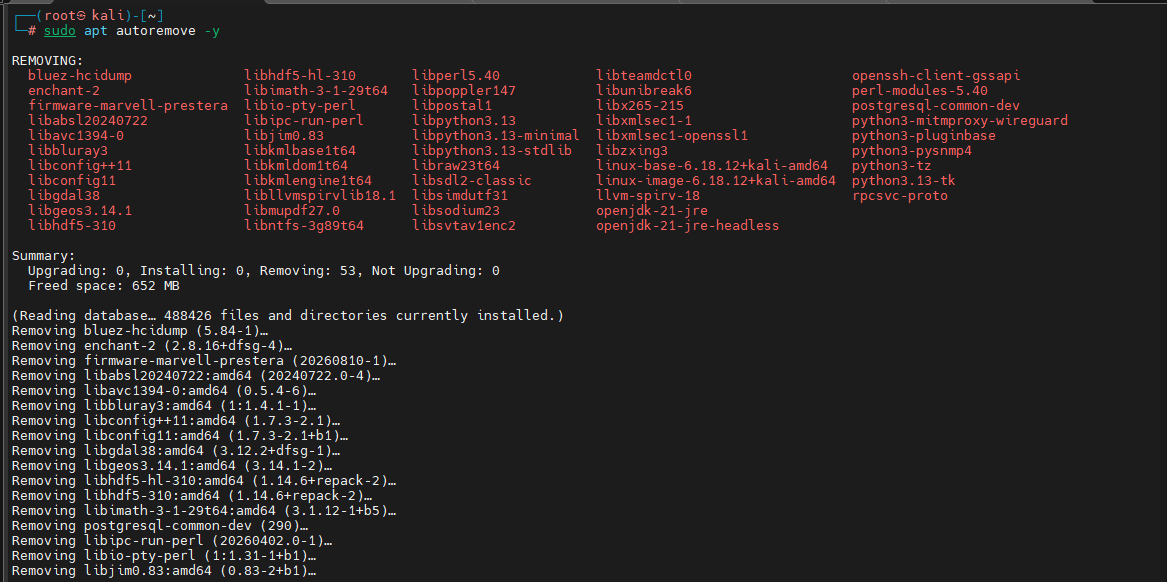
This removes obsolete packages and helps keep the system clean.
Fix Kali Signing Key Errors
Older Kali installations may encounter repository update errors related to missing signing keys. If you receive errors mentioning a missing key or /usr/bin/sqv, update the archive keyring:
sudo wget https://archive.kali.org/archive-keyring.gpg -O /usr/share/keyrings/kali-archive-keyring.gpgAfter downloading the updated key, run:
sudo apt updateThis refreshes repository information using the updated signing key.
Check Repository Configuration
Recent Kali releases use a different repository configuration format. The repository configuration may be stored in:
/etc/apt/sources.list.d/kali.sourcesExample configuration:
Types: deb
URIs: http://http.kali.org/kali/
Suites: kali-rolling
Components: main contrib non-free non-free-firmware
Signed-By: /usr/share/keyrings/kali-archive-keyring.gpg
To modernize older repository settings automatically:
sudo apt modernize-sources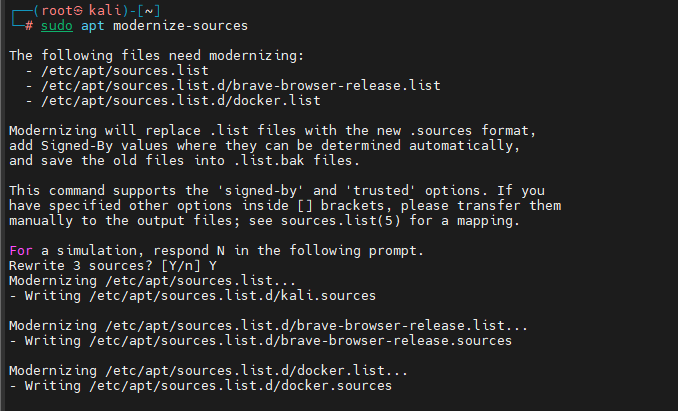
Important: Ensure non-free-firmware is included in the components list. Missing firmware packages can cause hardware issues, particularly with wireless adapters.
Step 3: Change the Default Password
If you are using a live image, virtual machine image, or ARM image, changing the default password should be a priority.
Run:
passwd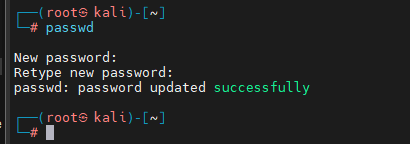
This command prompts you to create a new password for your current user account.
Optional: Set a Root Password
Modern Kali Linux installations do not set a password for the root account by default.
If you specifically need one:
sudo passwd root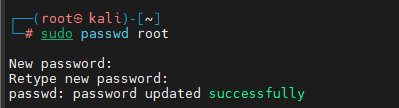
For most users, using sudo is recommended instead of enabling direct root access.
Step 4: Create a Low-Privileged User Account
Kali Linux already uses a non-root user by default. However, you may prefer creating a personal account.
Create a new user:
sudo adduser username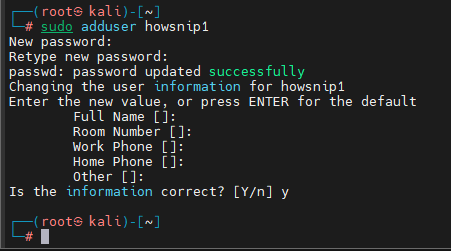
Replace username with the desired account name. This command creates:
- A user account
- A home directory
- Basic user configuration
Verify User Creation
Check that the new home directory exists:
ls /home/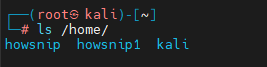
Grant Sudo Access
If the new user requires administrative privileges:
sudo usermod -aG sudo username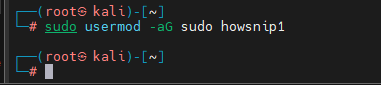
This adds the user to the sudo group.
Set Zsh as the Default Shell
Kali Linux uses Zsh as its default shell environment.
sudo chsh -s /usr/bin/zsh username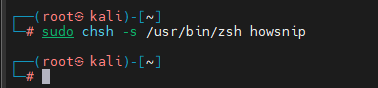
Afterward, log out and sign back in using the new account.
Step 5: Install and Explore Kali Tweaks
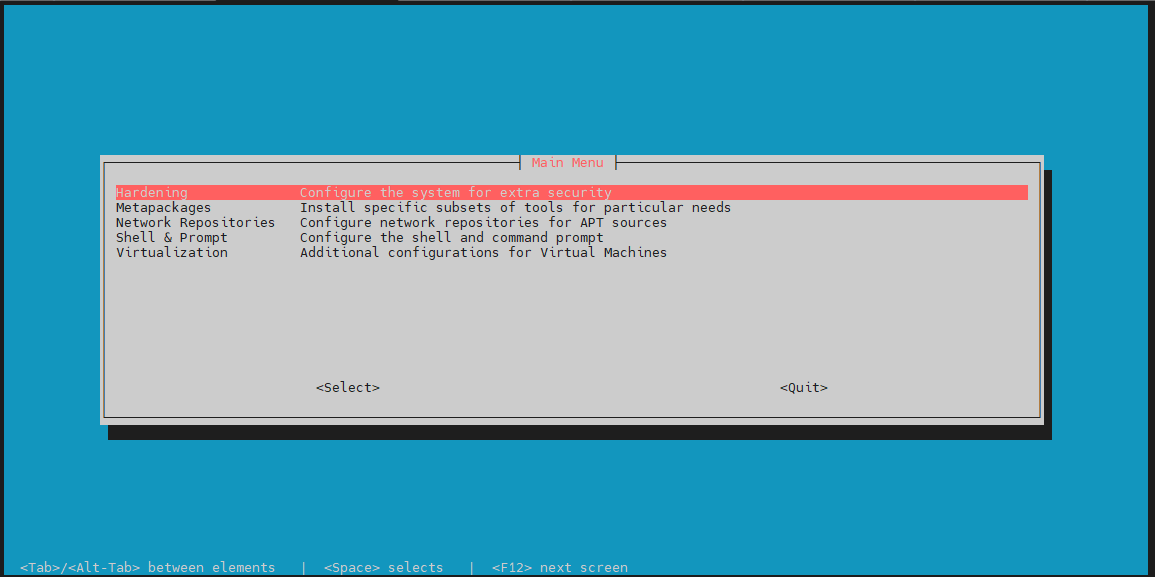
Kali Tweaks provides a central location for managing several useful system settings.
Install it if necessary:
sudo apt install -y kali-tweaks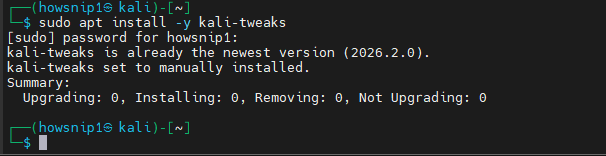
Launch the utility:
sudo kali-tweaks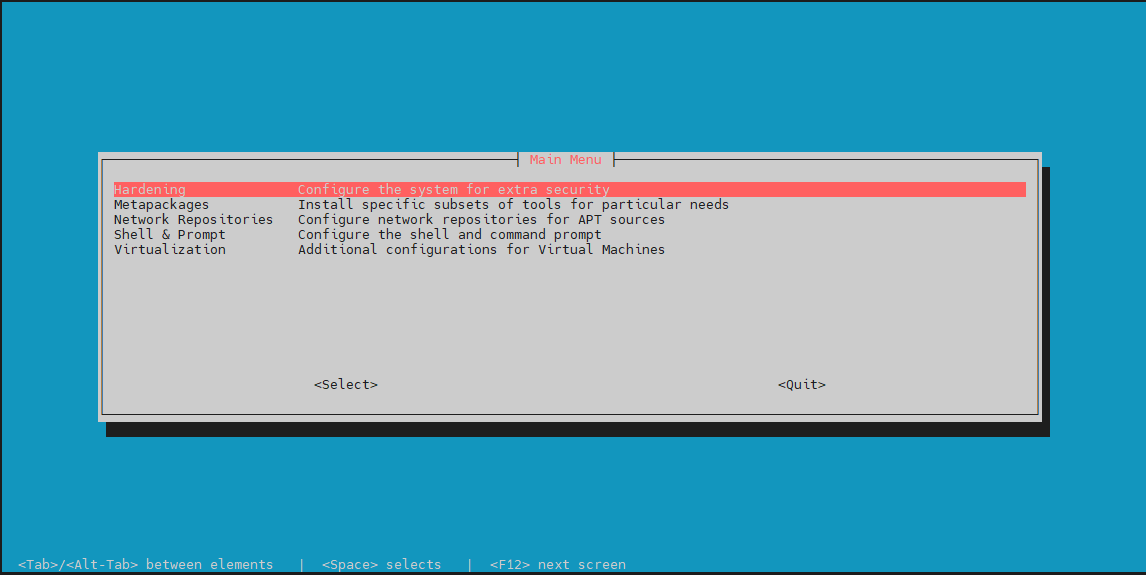
Useful Features in Kali Tweaks
- Hardening – Configure compatibility and security-related settings, including legacy SSH support.
- Metapackages – Install groups of security tools without manually installing packages one by one.
- Network Repositories – Enable or disable additional repositories such as experimental branches.
- Shell and Prompt – Customize the shell experience, prompts, and terminal appearance.
- Virtualization – Configure features for virtual machine environments and guest integrations.
Install Additional Tool Collections
The default Kali desktop installation typically includes the kali-linux-default metapackage.
For a larger collection of tools:
sudo apt install -y kali-linux-large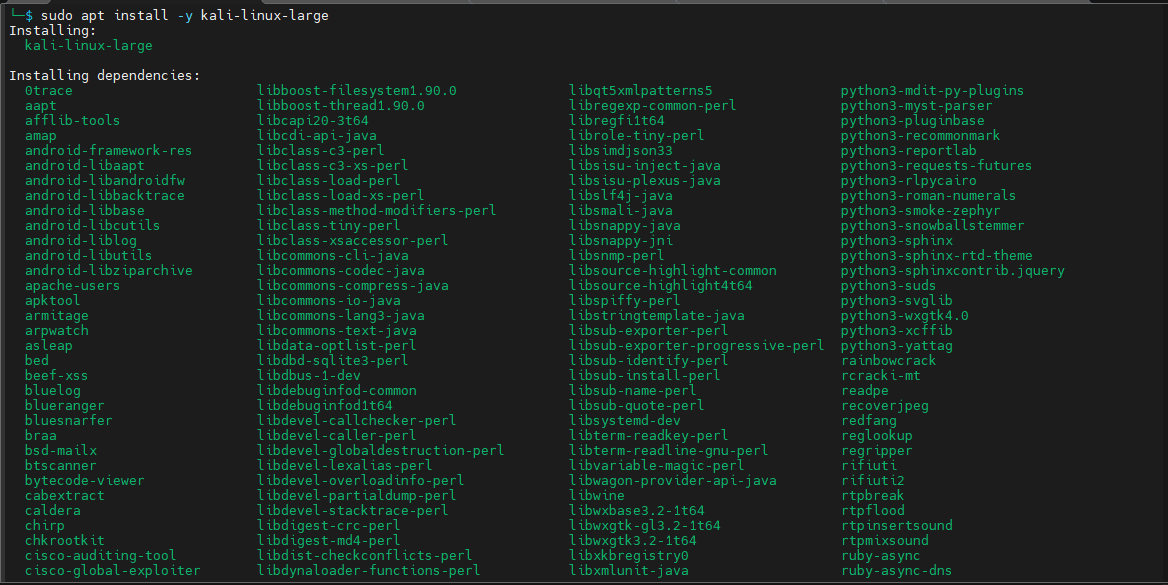
Note: The kali-linux-everything package installs nearly all available Kali tools and requires substantial disk space and installation time.
Step 6: Install Guake Terminal
Guake is a drop-down terminal inspired by gaming consoles. It can be opened instantly without switching windows, making it convenient for daily use.
a) Install Guake
sudo apt install -y guake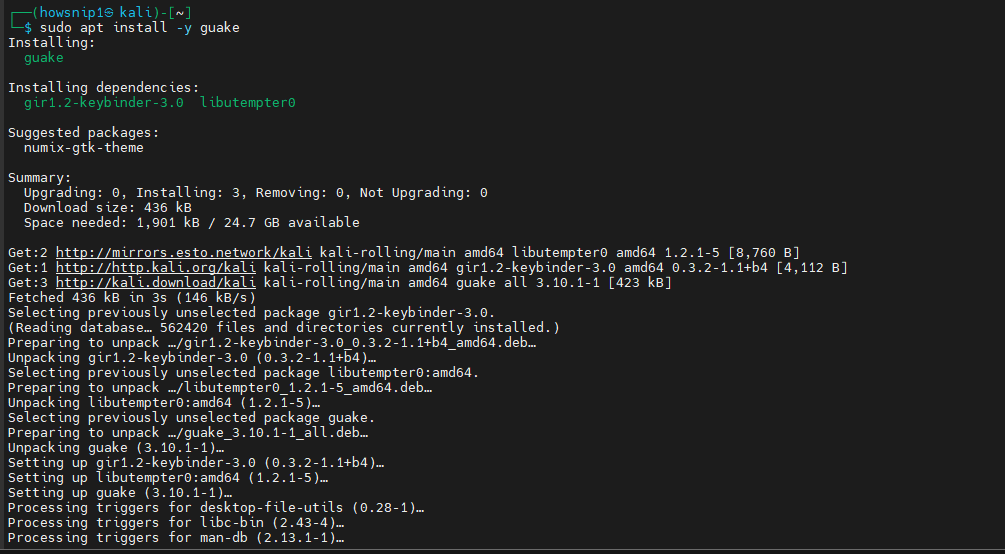
b) Start Guake Automatically
Copy the desktop launcher into the autostart directory:
sudo cp /usr/share/applications/guake.desktop /etc/xdg/autostart/
c) Restart your system
sudo reboot nowAfter logging back in, press F12 to open the drop-down terminal.
Step 7: Customize Your Terminal Environment
Kali ships with Zsh by default, but it’s worth confirming your current shell configuration.
a) Check the Active Shell
echo $SHELL
b) Verify Zsh Installation
zsh --version
c) Install Zsh (If Needed)
sudo apt update
sudo apt install -y zsh
d) Set Zsh as the Default Shell
chsh -s /usr/bin/zsh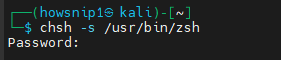
After running the command, reconnect your SSH session or log out and back in.
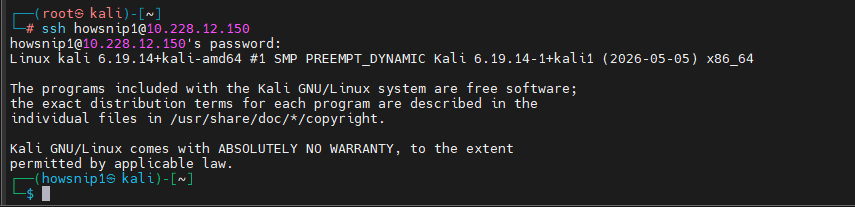
Verify the change:
echo $SHELL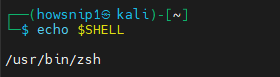
Expected output:
/usr/bin/zsh
Additional Customization
Launch:
kali-tweaksFrom there, you can adjust shell settings and prompt styles.
Step 8: Install Visual Studio Code
Visual Studio Code is a popular editor for scripting, development, automation, and security-related projects.
Download the VS Code Package
Move to the Downloads directory:
cd ~/DownloadsDownload the latest 64-bit Debian package:
wget -O code.deb https://update.code.visualstudio.com/latest/linux-deb-x64/stable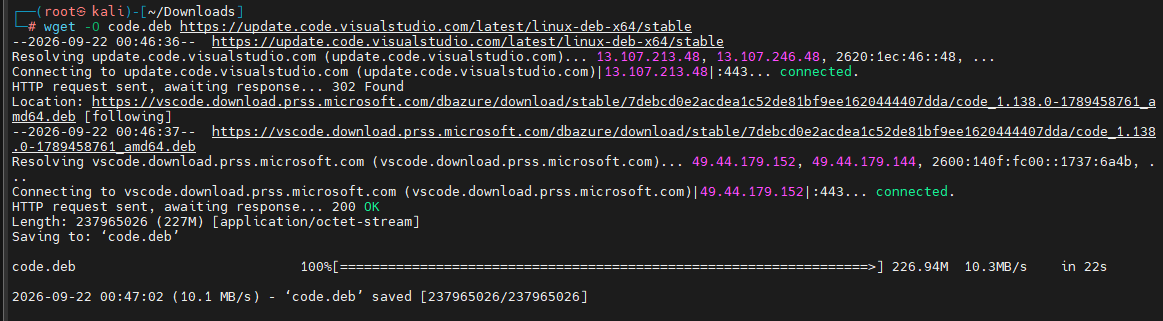
This downloads the installer package and prepares it for installation.
Step 9: Install GVM (OpenVAS)
Greenbone Vulnerability Management (GVM) is a vulnerability assessment platform. Many users still refer to it by its former name, OpenVAS.
Install GVM
sudo apt install -y gvm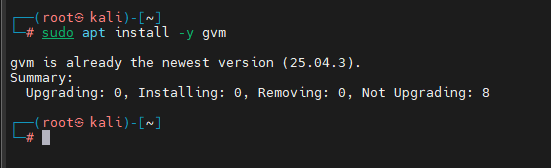
Run Initial Setup
sudo gvm-setup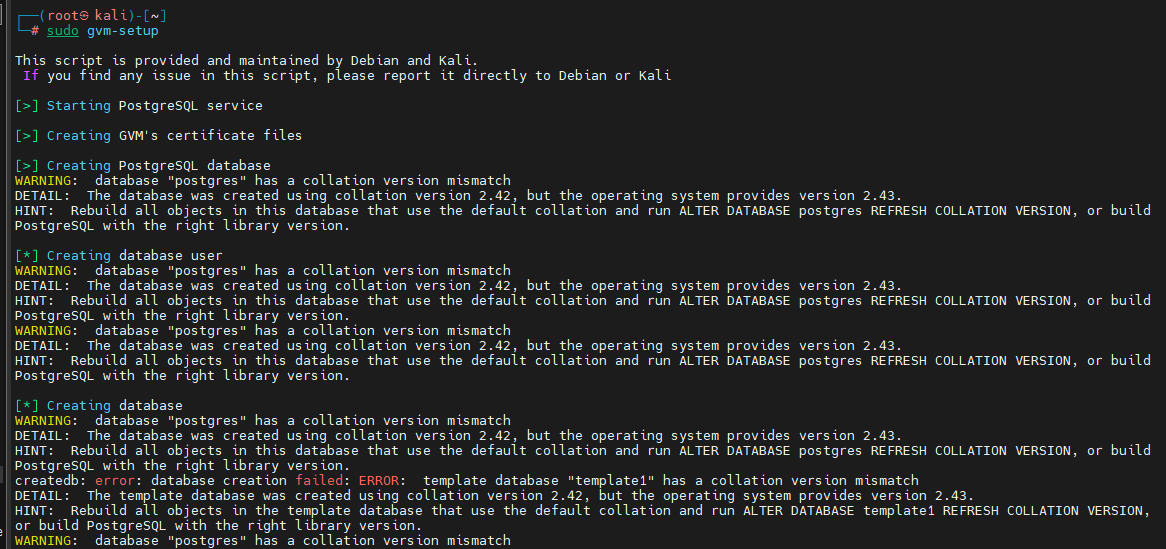
This setup process:
- Configures PostgreSQL
- Generates certificates
- Downloads vulnerability feeds
- Creates administrative credentials
Important: The feed synchronization process may take a considerable amount of time. Save the generated administrator password when setup completes.
Verify the Installation
sudo gvm-check-setup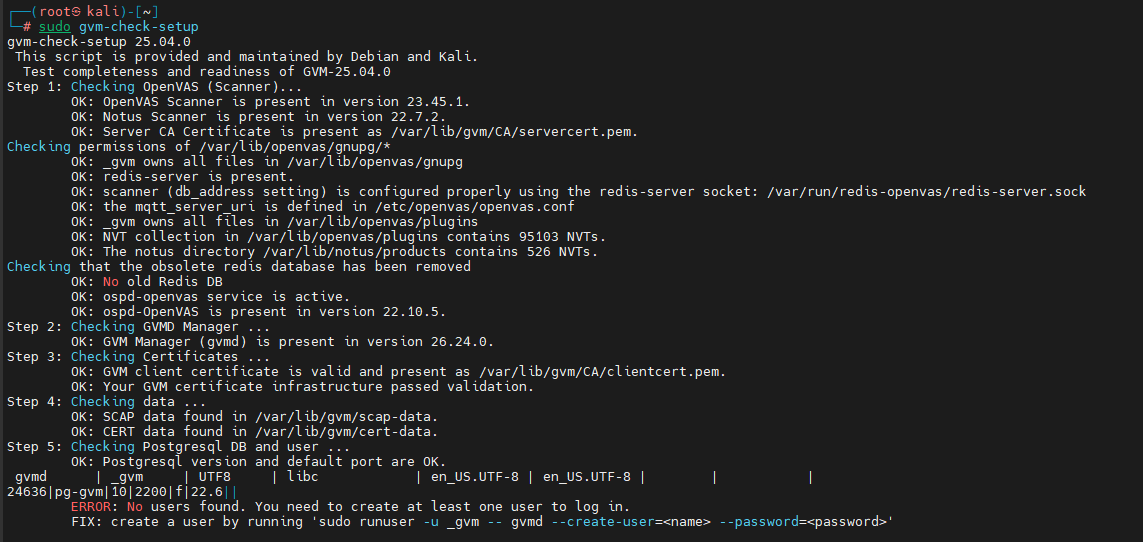
This command checks that all required services and components are properly configured.
Start GVM
sudo gvm-start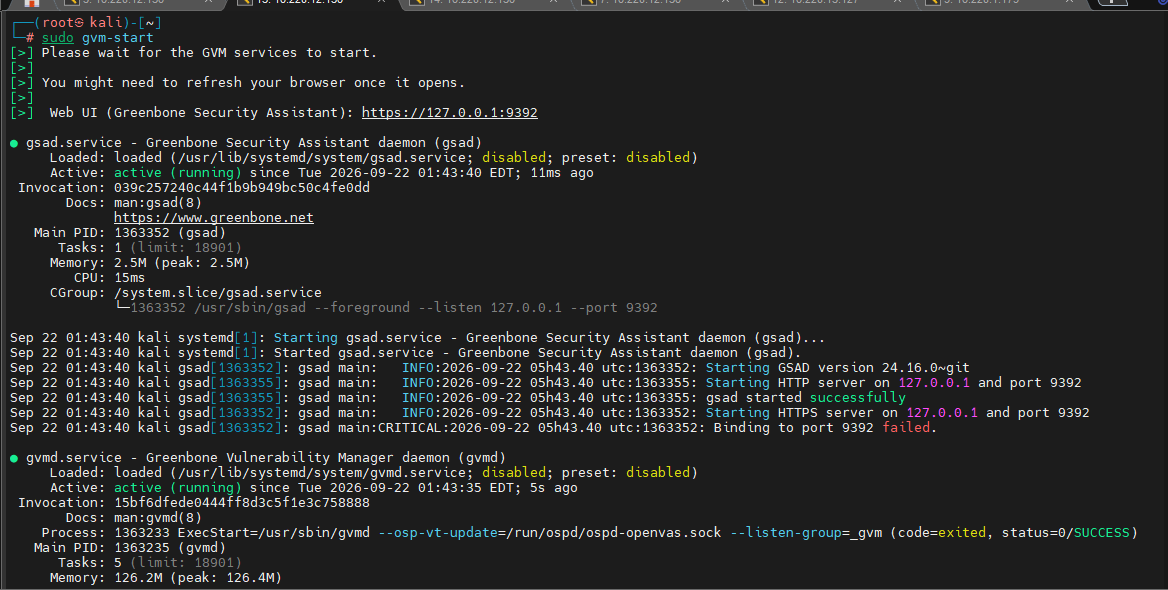
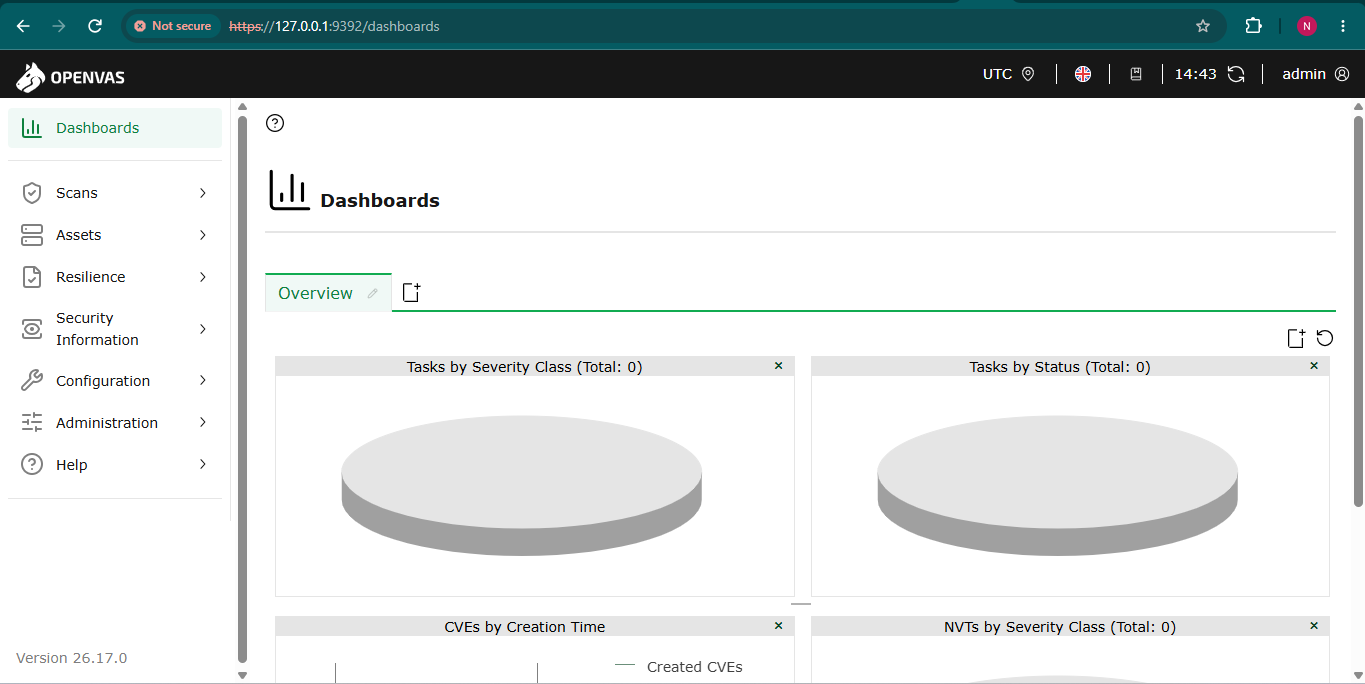
Once started, the web interface is available at:
https://127.0.0.1:9392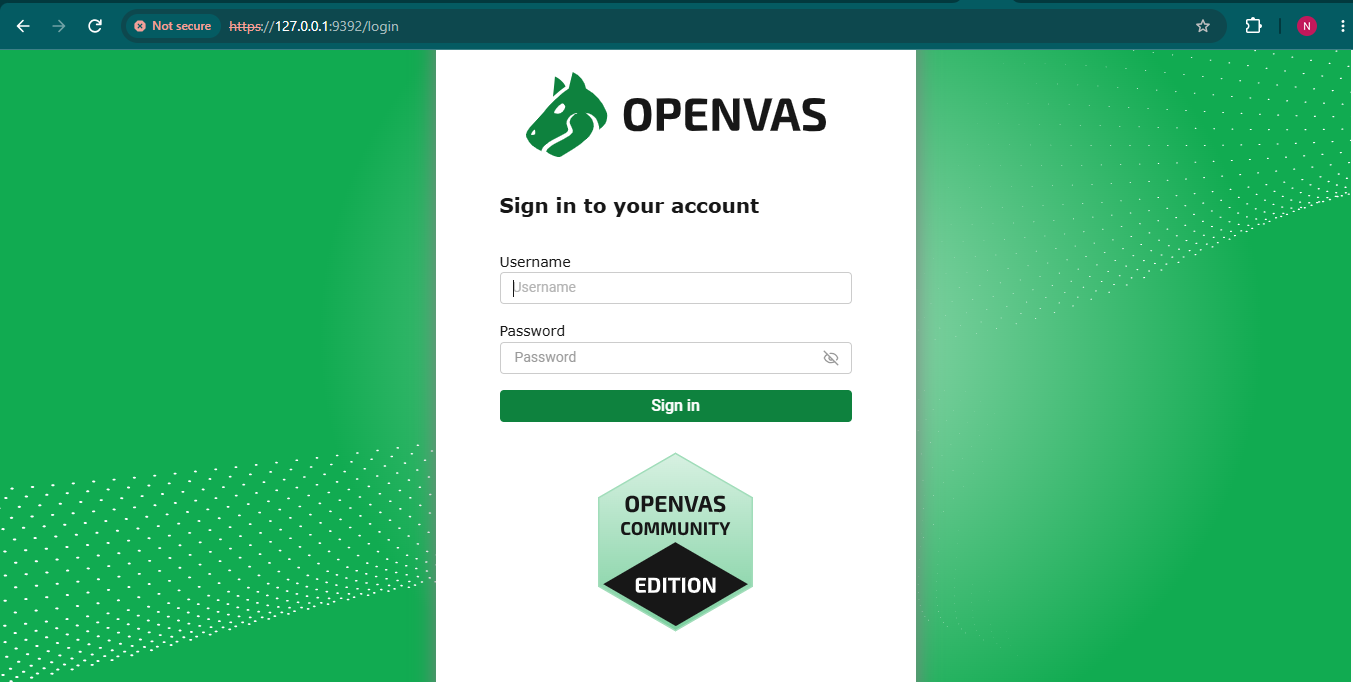
Conclusion
Setting up Kali Linux properly after installation can save you a lot of time and troubleshooting later. Start by configuring your keyboard, updating the system, and securing user accounts.
Then customize your environment with tools like Kali Tweaks, Guake, Zsh, Visual Studio Code, and GVM. These changes help create a more productive, secure, and reliable Kali Linux workstation for penetration testing, development, and cybersecurity learning.