

NPing is a network packet generation and analysis tool included with the Nmap suite. It allows administrators, security professionals, and network engineers to create and send custom TCP, UDP, ICMP, and ARP packets for troubleshooting, connectivity testing, and network analysis.
In this tutorial, you’ll learn how to use common NPing commands through practical examples. The guide is suitable for beginners who want to verify network connectivity and for advanced users performing network diagnostics.
Prerequisites
Before you begin, ensure that:
- NPing is installed as part of the Nmap package.
- You have permission to test the target systems and networks.
- You have terminal or command-line access.
- Administrative or root privileges may be required for some packet types.
Note: Network scanning and packet generation should only be performed on systems and networks you are authorized to test.
- Perform a TCP Connection Handshake with a Host
- Perform TCP Connection Tests Against Multiple Hosts
- Test TCP Handshakes on Specific Ports or Port Ranges
- Send a UDP Packet with Random Data
- Send TCP Packets at a Defined Rate
- Send an ARP Request to a Specific Host
- Send ARP Requests Across an Entire Network
- Send an ICMP Echo Request (Ping)
- Send an ICMP Echo Reply Packet
- Send a Packet with an Invalid Checksum
1. Perform a TCP Connection Handshake with a Host
The –tcp-connect option performs a standard TCP connect() handshake to verify that a target host is reachable and accepting connections.
Command
nping --tcp-connect [target host]Example
nping --tcp-connect example.com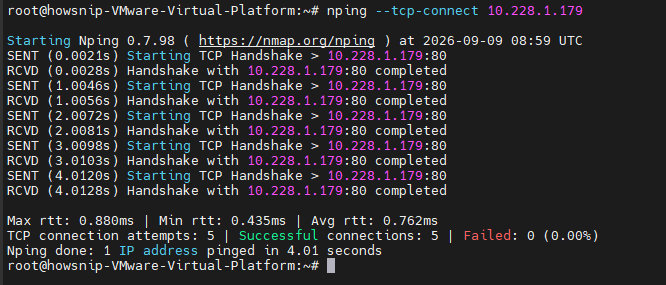
This command attempts a TCP connection to the target host and reports the result.
2. Perform TCP Connection Tests Against Multiple Hosts
You can test connectivity to multiple hosts in a single command.
Command
nping --tcp-connect [target host] [target host] [target host]Example
nping --tcp-connect example1.com example2.com example3.com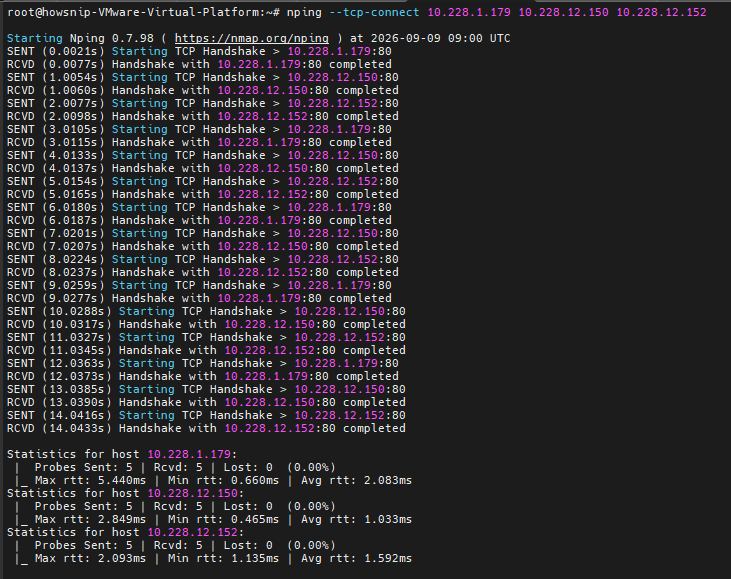
This is useful when validating connectivity across several systems at the same time.
3. Test TCP Handshakes on Specific Ports or Port Ranges
You can attempt TCP handshakes against individual ports or a range of ports to determine whether services are accepting connections.
Command
nping --tcp-connect [target host] -p1-80 -c 1Example
nping --tcp-connect 10.228.12.150 -p 22,80,443 -c 1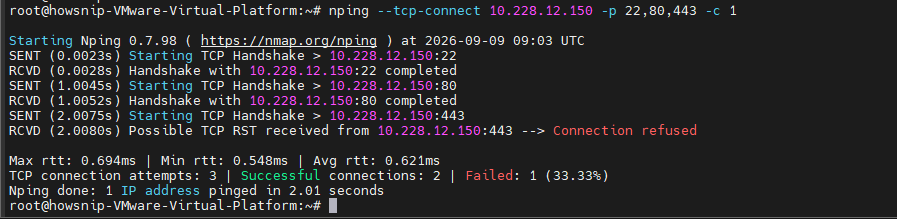
This command tests TCP connectivity on ports:
- 22 (SSH)
- 80 (HTTP)
- 443 (HTTPS)
4. Send a UDP Packet with Random Data
UDP testing is helpful when troubleshooting DNS, VoIP, streaming services, and other UDP-based applications.
Command
nping --udp [target host] -p 53 --data-length 100Example
nping --udp 192.168.1.10 -p 53 --data-length 100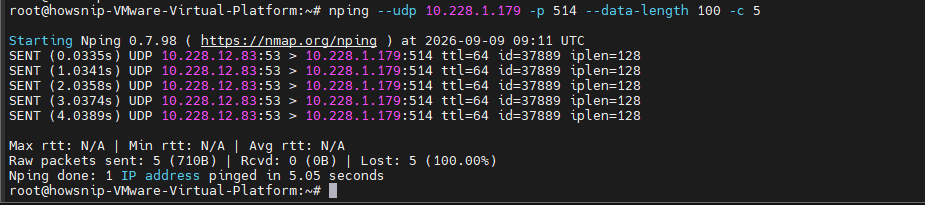
Where,
- –udp sends UDP packets.
- -p 53 targets port 53.
- –data-length 100 adds 100 bytes of random payload data.
This example sends a UDP packet containing random data to port 53.
5. Send TCP Packets at a Defined Rate
NPing allows you to control the speed and quantity of packets sent during a test.
Command
nping --tcp [target host] --rate 50 -c 500Where,
- –tcp sends TCP packets.
- –rate 50 sends 50 packets per second.
- -c 500 sends a total of 500 packets.
Example
nping --tcp 192.168.1.20 --rate 50 -c 500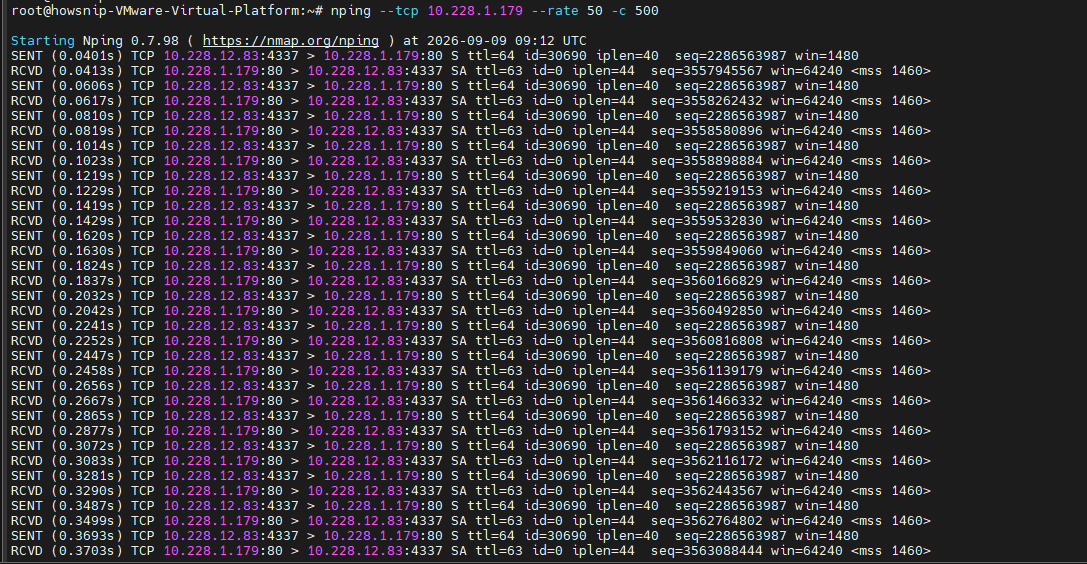
This command generates 500 TCP packets at a rate of 50 packets per second.
Warning: High packet rates may impact network performance. Use responsibly and only on authorized networks.
6. Send an ARP Request to a Specific Host
Address Resolution Protocol (ARP) requests can be used to verify communication with devices on the local network.
Command
nping --arp -c 4 10.228.1.179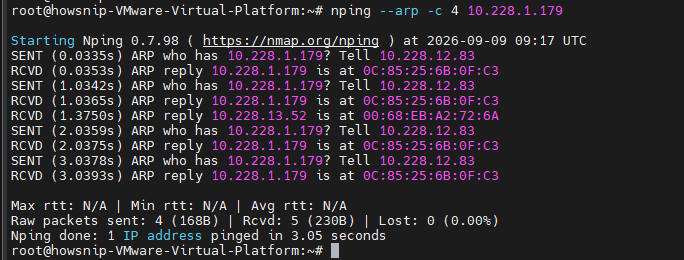
where,
- –arp sends ARP packets.
- -c 4 sends four ARP requests.
This command sends four ARP requests to the specified host and displays any responses received.
7. Send ARP Requests Across an Entire Network
You can ARP scan an entire subnet to identify active devices.
Command
nping --arp 192.168.1.0/24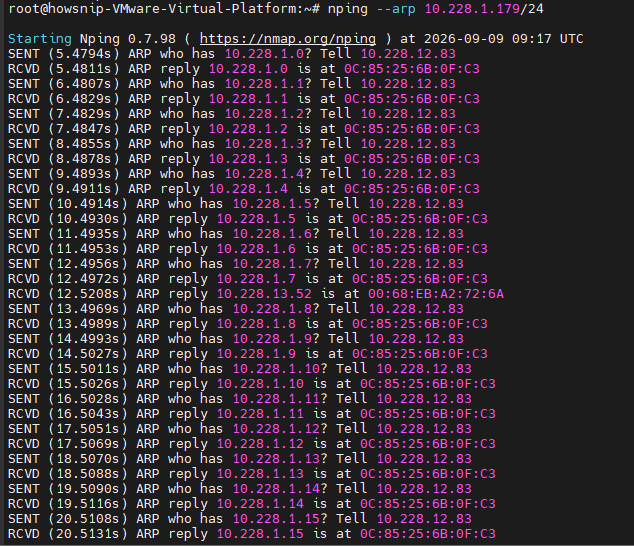
This command sends ARP requests throughout the 192.168.1.0/24 network range.
Note: ARP-based testing is typically limited to local network segments.
8. Send an ICMP Echo Request (Ping)
An ICMP echo request works similarly to a traditional ping and helps verify basic host reachability.
Command
nping [target host] --icmp --icmp-type echoExample
nping example.com --icmp --icmp-type echo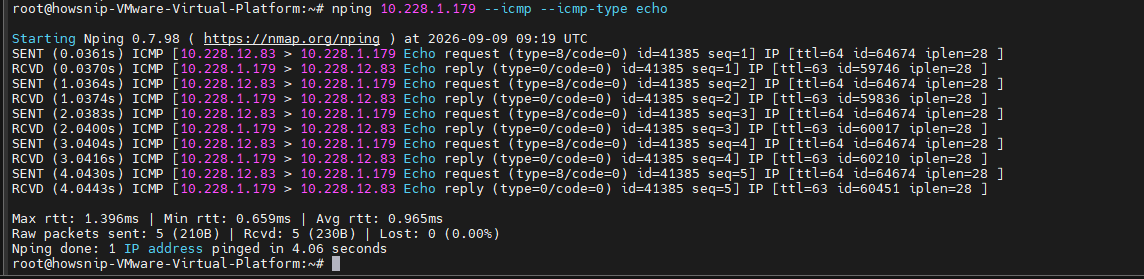
This sends an ICMP echo request to the target host and reports the response.
9. Send an ICMP Echo Reply Packet
NPing can also generate ICMP echo reply packets for testing purposes.
Command
nping google.com --icmp --icmp-type echo-reply
The command sends an ICMP packet using the echo-reply type instead of the standard echo request.
10. Send a Packet with an Invalid Checksum
For advanced troubleshooting and testing, NPing can deliberately generate packets with incorrect checksums.
Command
nping --udp --badsum --source-port 1221 -p 80 [target host]Where,
- –udp sends a UDP packet.
- –badsum creates an intentionally invalid checksum.
- –source-port 1221 sets the source port.
- -p 80 targets destination port 80.
Example
nping --udp --badsum --source-port 1221 -p 80 192.168.1.50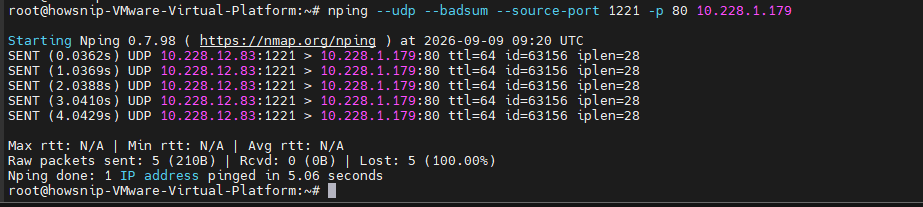
This test can be useful when evaluating how network devices, firewalls, or applications handle malformed packets.
Warning: Use malformed packet testing only in approved environments to avoid unintended disruptions.
Conclusion
NPing is a powerful tool for generating and analyzing network traffic.
Whether you need to test TCP connectivity, send UDP packets, perform ARP discovery, verify ICMP responses, or conduct advanced packet validation, NPing provides flexible options for network troubleshooting and analysis.
By understanding these core commands, you can quickly diagnose connectivity issues and gain deeper visibility into network behavior.