
Whether you’re troubleshooting a Linux server, documenting hardware specifications, or simply learning more about your system, Linux provides several built-in tools for gathering detailed system and hardware information.
In this guide, you’ll learn how to view system details, examine hardware components, check storage devices, inspect CPU information, and generate comprehensive hardware reports directly from the command line.
Prerequisites
- A Linux system with terminal access
- A user account with sudo privileges for commands that require elevated access
- Some tools may need to be installed separately depending on your distribution
Step 1: View Basic Linux System Information
The uname command displays important information about your Linux system and kernel.
Display the System Name
Run:
uname
You can also display only the kernel name:
uname -sCheck the Hostname
To view the network hostname:
uname -n
Check the Kernel Version
Display the kernel version:
uname -v
Check the Kernel Release
Show the kernel release number:
uname -r
View System Architecture
To identify your hardware architecture:
uname -m
Display All Available Information
For a complete summary:
uname -a
Step 2: View Detailed Hardware Information with lshw
The lshw utility generates detailed information about your system’s hardware, including:
- CPU
- Memory
- Storage devices
- USB controllers
- Network hardware
- Other system components
Note: lshw should be run as root or with sudo for complete results.
Display Full Hardware Information
sudo lshw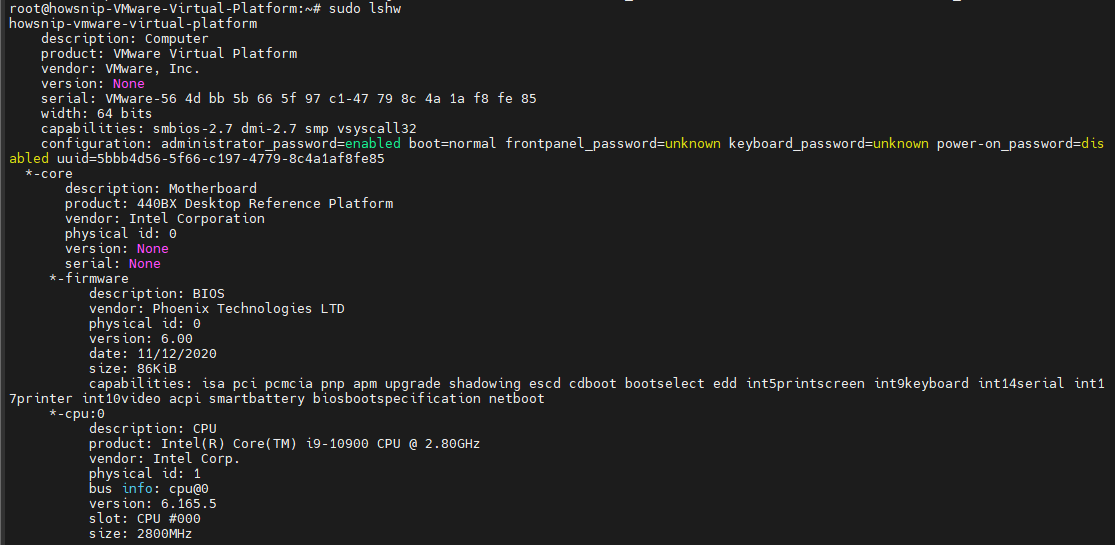
Display a Short Hardware Summary
sudo lshw -short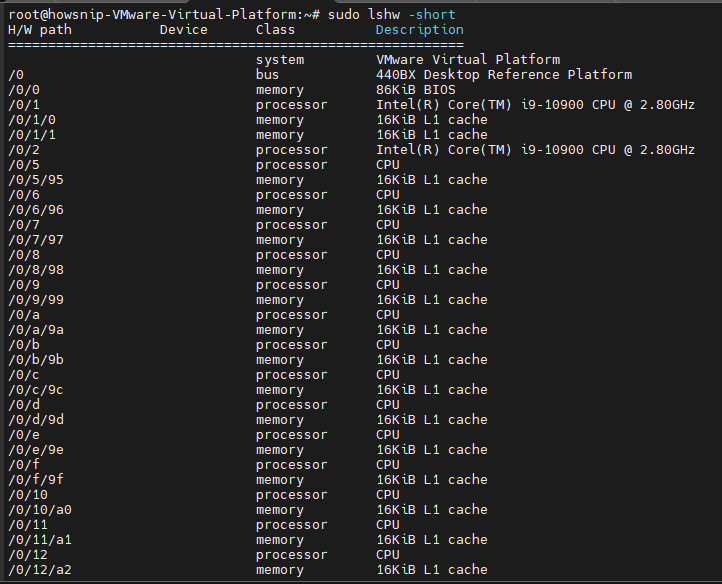
This provides a cleaner overview of installed hardware.
Export Hardware Information to HTML
To save the report as an HTML file:
sudo lshw -html > lshw.html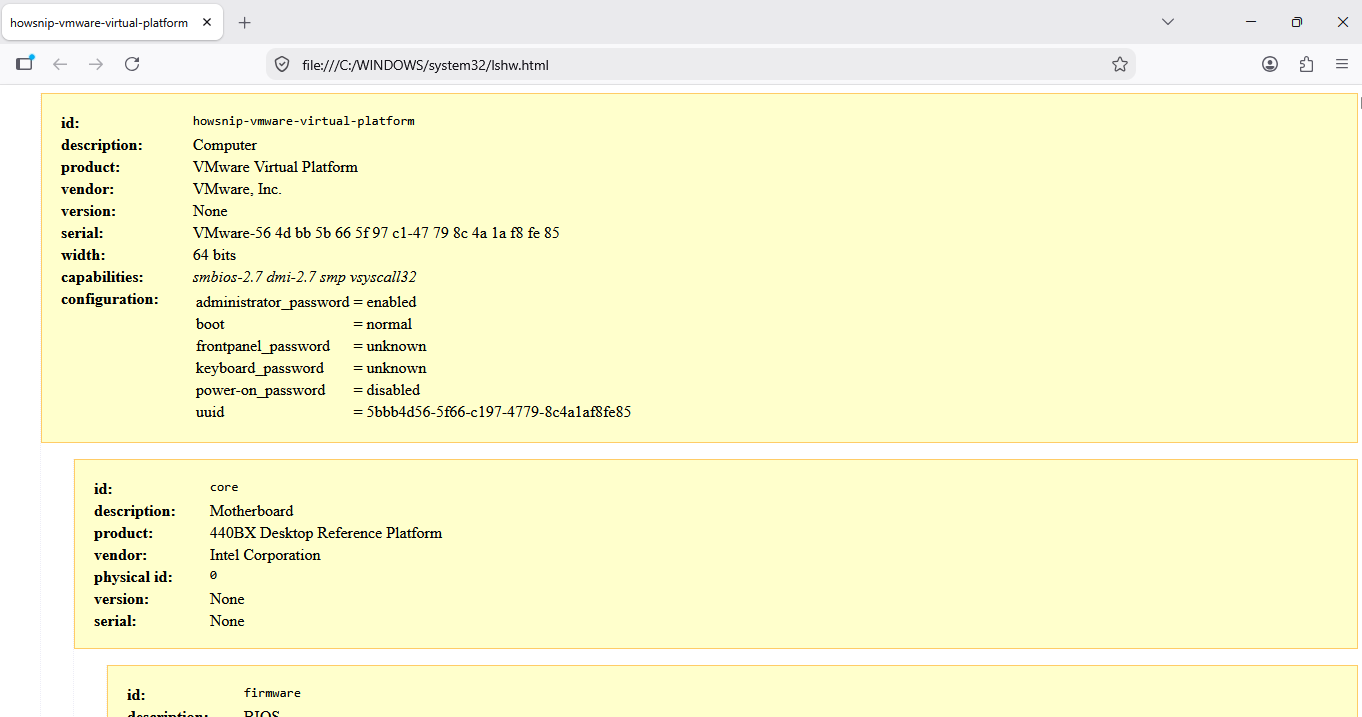
You can then open the generated file in a web browser for easier reading.
Step 3: Check CPU Information
The lscpu command displays processor-related details gathered from system information sources such as /proc/cpuinfo and sysfs.
View CPU Details
lscpu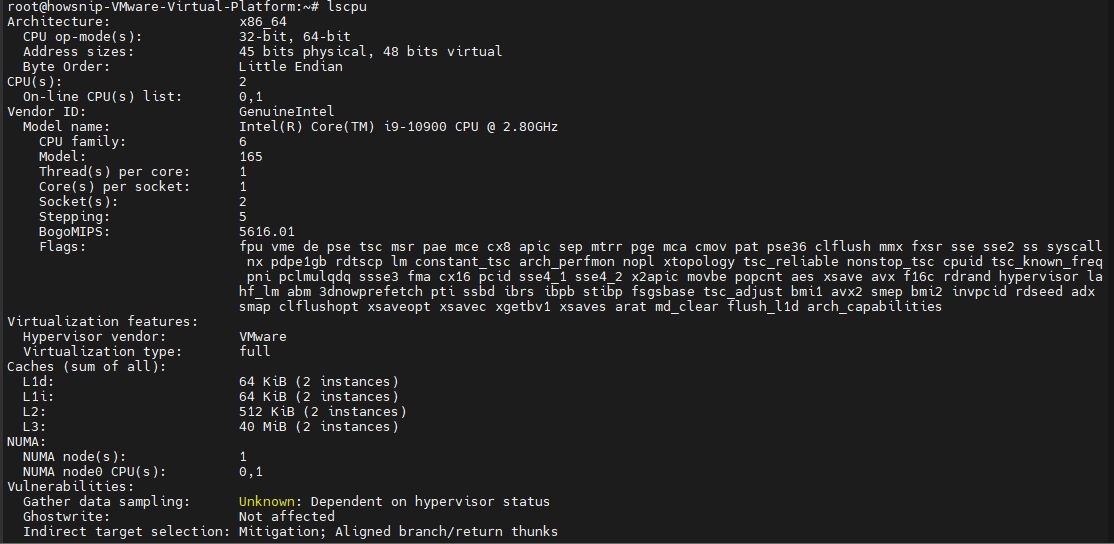
This command shows information such as:
- CPU architecture
- Number of CPUs
- Core count
- Threads
- CPU family and model
- Cache information
Step 4: View Block Device Information
Block devices include hard drives, SSDs, NVMe devices, and USB storage devices.
List Block Devices
lsblk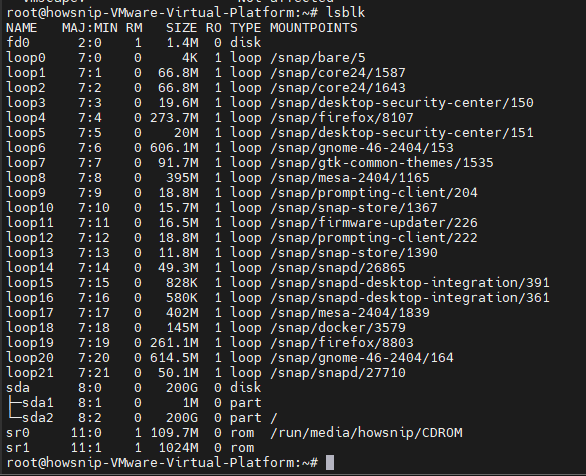
This displays disks, partitions, and mount points in a structured format.
Show All Block Devices
lsblk -a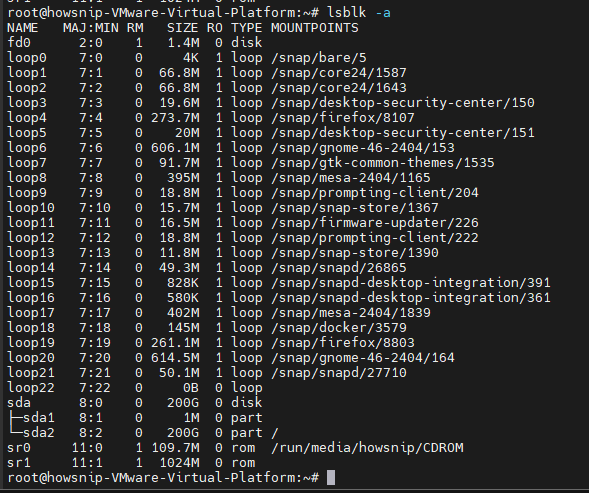
This includes empty or currently unused devices.
Step 5: Check USB Devices and Controllers
Use the lsusb command to display USB controllers and connected USB devices.
List USB Devices
lsusb
Display Detailed USB Information
lsusb -v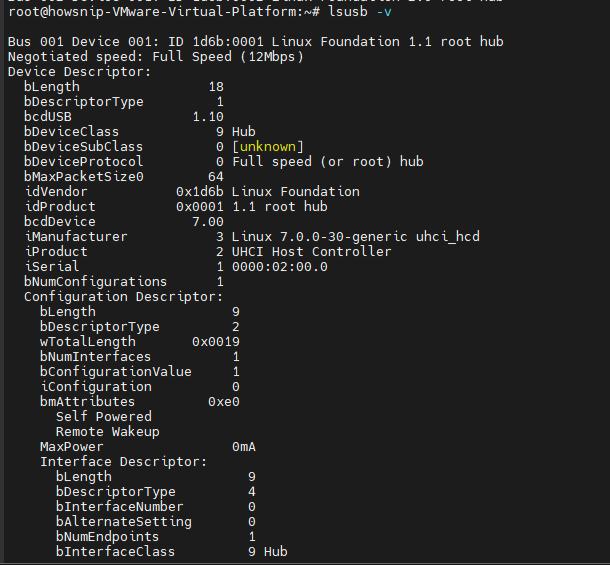
Note: The detailed output can be lengthy on systems with many connected devices.
Step 6: View PCI Device Information
PCI devices include graphics cards, network adapters, storage controllers, USB controllers, and more.
List All PCI Devices
lspci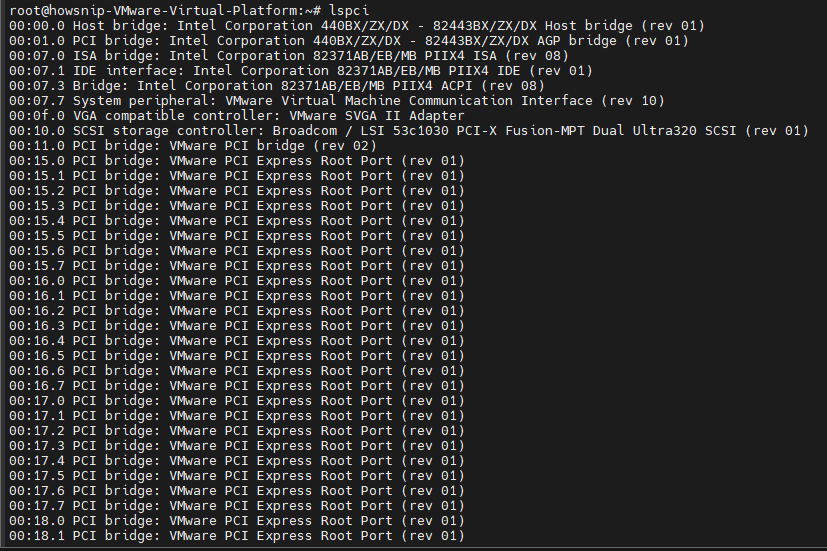
Display PCI Devices in Tree Format
lspci -t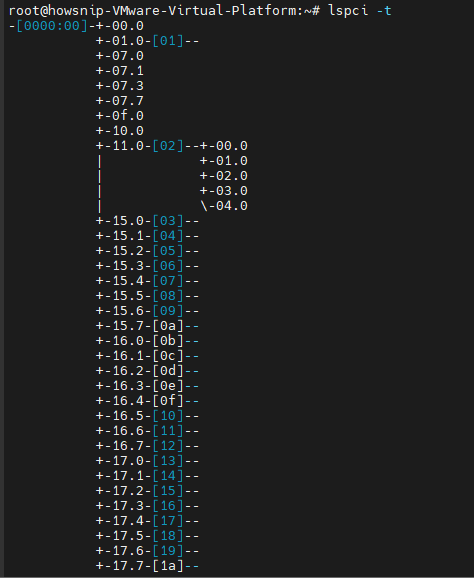
This helps visualize relationships between devices and controllers.
Display Detailed PCI Information
lspci -v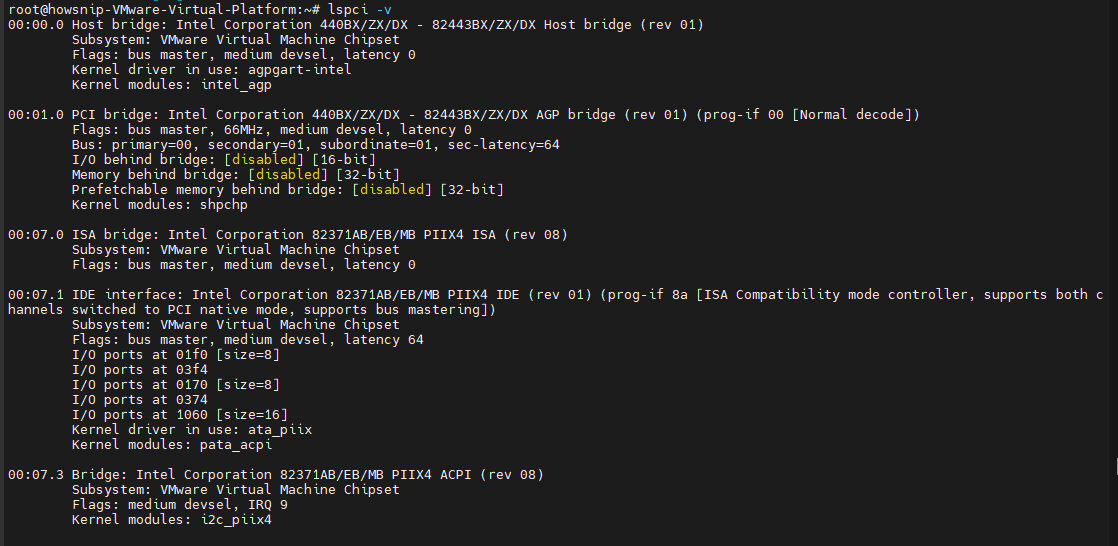
Step 7: Check SCSI and SATA Devices with lsscsi
The lsscsi utility displays SCSI and SATA storage devices connected to your system.
Install lsscsi
Debian and Ubuntu
sudo apt-get install lsscsi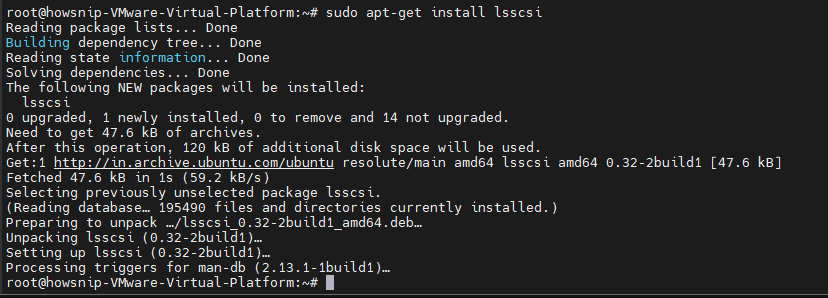
RHEL and CentOS
sudo yum install lsscsiFedora
sudo dnf install lsscsiDisplay SCSI Devices
lsscsi
Show Device Sizes
lsscsi -s
Step 8: Check SATA Drive Information
The hdparm utility can retrieve information about SATA storage devices.
Important: Replace /dev/sda1 with the appropriate device on your system.
View SATA Device Information
sudo hdparm /dev/sda1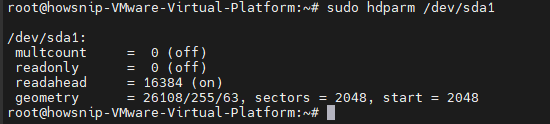
Display Drive Geometry Information
sudo hdparm -g /dev/sda1
This shows details such as:
- Cylinders
- Heads
- Sectors
- Device size
- Starting offset
Step 9: View File System Partition Information
The fdisk utility is commonly used for partition management, but it can also display partition details.
List All Partitions
sudo fdisk -l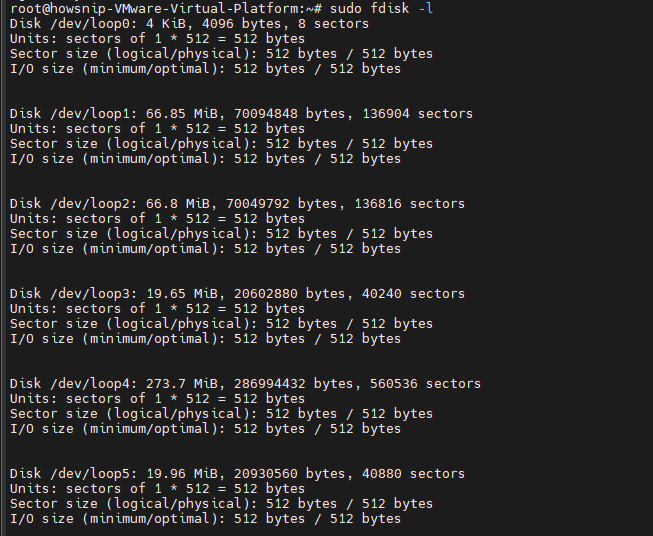
Note: Running fdisk without sudo may not display complete information.
The output includes:
- Disk sizes
- Partition layouts
- Partition types
- Device names
Step 10: Check Hardware Details with dmidecode
The dmidecode utility reads information directly from the system’s DMI tables. This is useful for viewing BIOS, memory, processor, and motherboard information.
View Memory Information
sudo dmidecode -t memory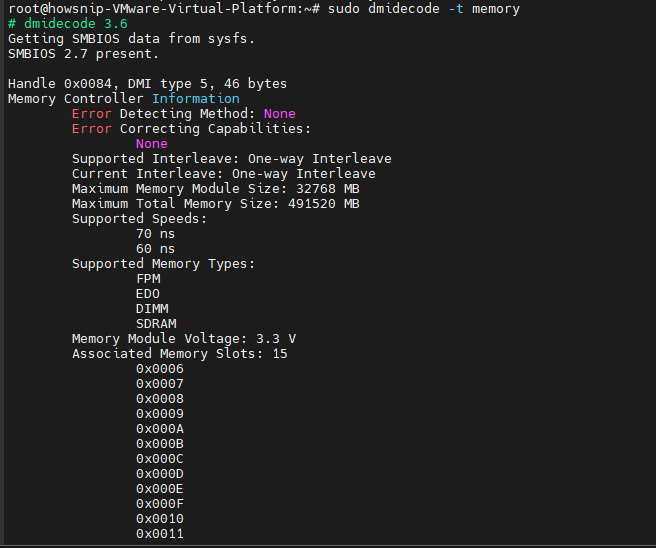
View System Information
sudo dmidecode -t system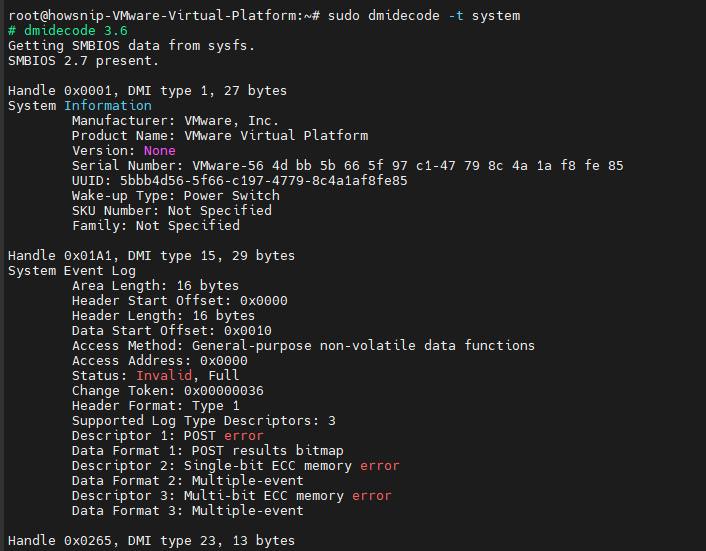
View BIOS Information
sudo dmidecode -t bios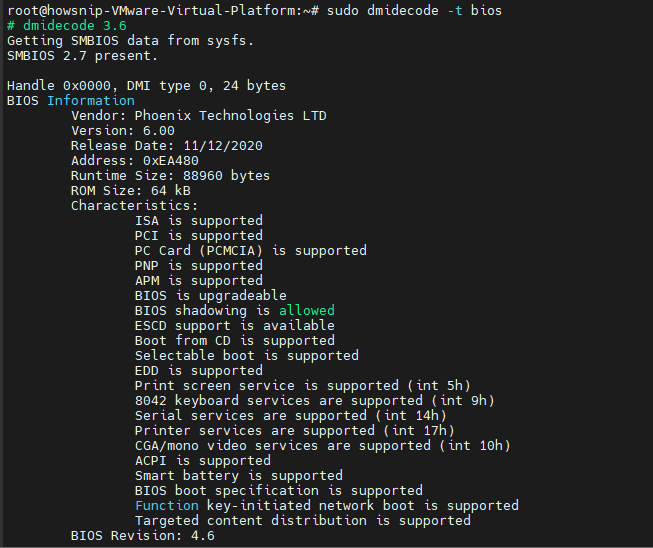
View Processor Information
sudo dmidecode -t processor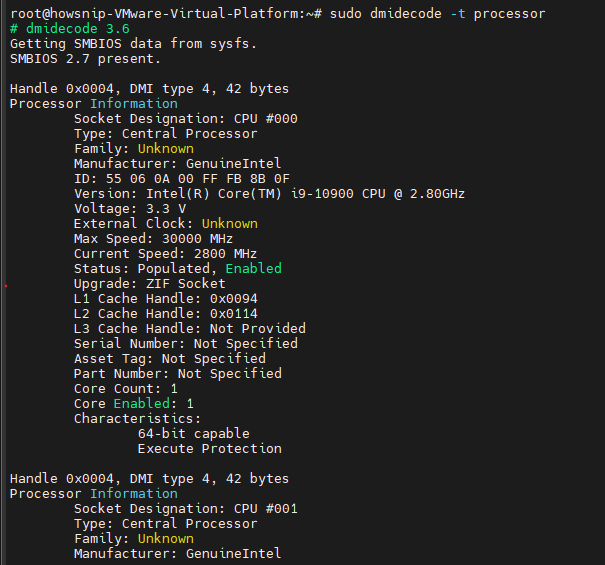
Step 11: Get a Complete Hardware Overview with inxi
The inxi utility provides a convenient, easy-to-read summary of system and hardware information. It is especially useful for troubleshooting and support requests because it gathers details from multiple system components in a single report.
Install inxi
Debian and Ubuntu
sudo apt install inxi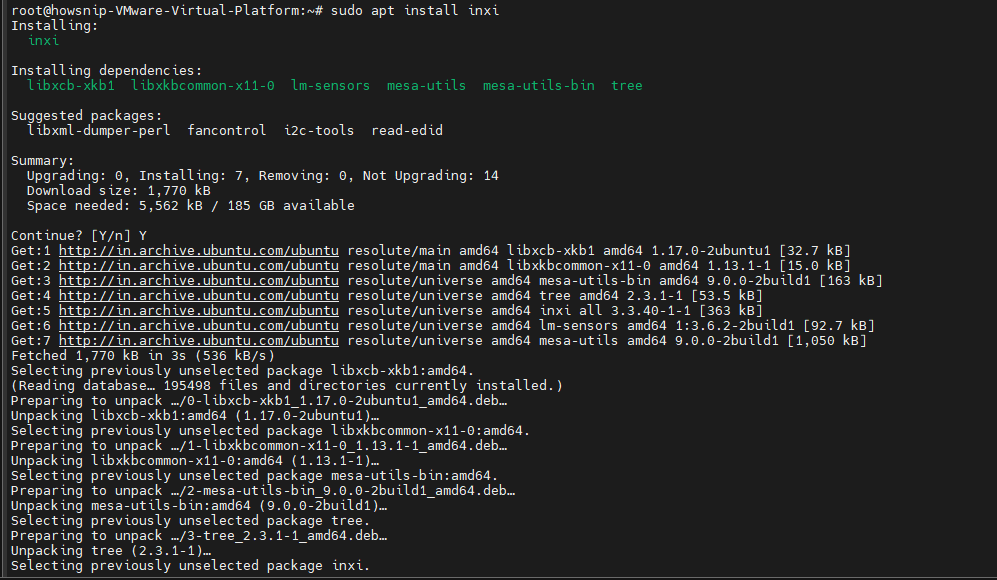
RHEL and CentOS
sudo yum install inxiFedora
sudo dnf install inxiDisplay a Basic System Overview
inxi
Display Full Hardware Information
inxi -F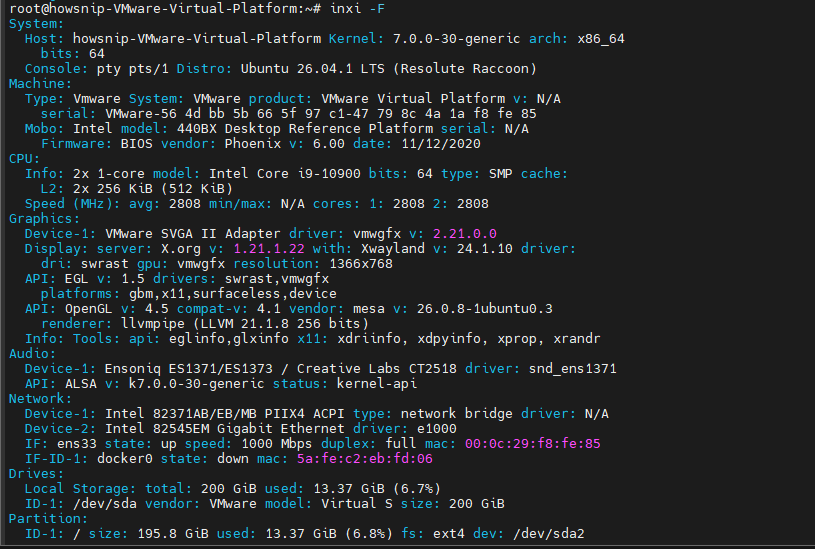
This command generates a detailed report covering:
- CPU
- Memory
- Storage
- Graphics
- Network devices
- Operating system information
Display CPU Information
inxi -C
Display Memory Information
inxi -m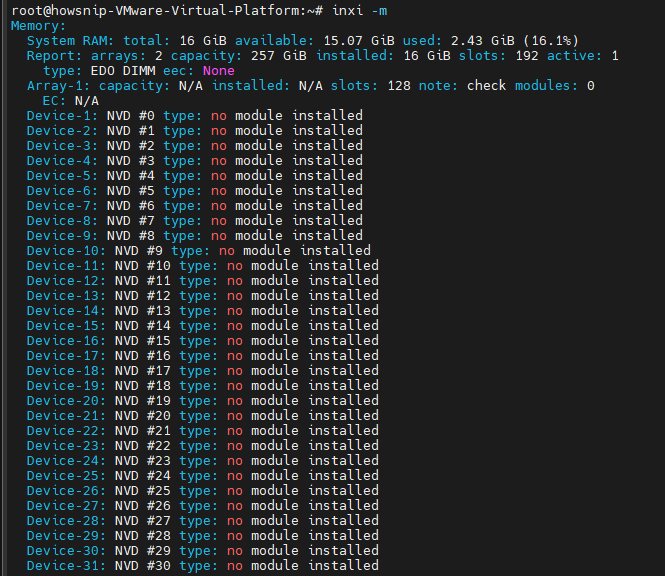
Conclusion
Linux includes a rich set of command-line tools for collecting system and hardware information. For quick system details, uname is often enough. For more in-depth hardware reporting, tools such as lshw, dmidecode, and inxi provide comprehensive insights into your system’s components.
By learning these commands, you can troubleshoot issues faster, document hardware configurations, and better understand the Linux systems you manage.