

The echo command is one of the most commonly used commands in Linux and Unix-based systems. Whether you’re displaying text on the terminal, printing environment variables, creating configuration files, or writing automation scripts, echo is an essential tool every Linux user should know.
In this tutorial, you’ll learn how the Linux echo command works, its syntax, common options, practical examples, file redirection techniques, scripting use cases, and important portability considerations.
What Is the Echo Command in Linux?
The echo command writes text and other values to standard output (stdout), usually the terminal.
In shells such as Bash and Zsh, echo is typically a built-in command. Many Linux systems also provide an external version located at:
/bin/echoAlthough both versions perform the same basic function, behavior can vary between shells, especially when handling escape sequences and command options.
Basic Syntax
echo [options] [string ...]Common Options
- -e Enables interpretation of escape sequences such as \n and \t
- -E Disables escape sequence interpretation (default in many shells)
Important: Some echo behaviors, especially with -e, are implementation-dependent. For scripts that require predictable behavior across systems, use printf instead.
1. Print Simple Text
The most common use of echo is displaying text in the terminal.
echo Hello, World!
What this does
- Prints the specified text.
- Automatically adds a newline at the end.
Output:
Hello, World!
2. Display Environment Variables
Environment variables store system and user-related information.
a) Print a Single Variable
echo "$HOME"
This displays the current user’s home directory.
b) Print Multiple Variables
echo "User: $USER, Shell: $SHELL"
This displays the current username and active shell.
c) Understanding Quotes
Use double quotes when you want variables to be expanded:
echo "$HOME"Use single quotes when you want the text to appear exactly as written:
echo '$HOME'3. Use Command Substitution
Command substitution allows you to include the output of another command inside echo.
a) Display Today’s Date
echo "Today is: $(date +%F)"
The date command runs first, and its output becomes part of the displayed message.
b) Display the Current Kernel Version
echo "Kernel: $(uname -r)"
This retrieves and prints the system’s kernel version.
4. Handle Spaces and Special Characters
When text contains spaces, always wrap it in quotes.
echo "Path with spaces: /var/www/My Site"
You can also print special characters literally:
echo "Dollar sign: $, Backslash: \, Asterisk literal: *"
This is useful when displaying paths, variables, or configuration values.
5. Print Newlines, Tabs, and Escaped Characters
To interpret escape sequences, use the -e option.
echo -e "Line1\nLine2\n\tIndented on Line3"
Explanation
- \n creates a new line.
- \t inserts a horizontal tab.
a) Hexadecimal Example
echo -e "A hex smile? x3Ax29"
b) Octal Example
echo -e "Octal newline\12Next line"
Note: Escape handling may vary across shells. For portable scripts, printf is usually the safer choice.
6. Suppress the Trailing Newline
The -n option prevents echo from moving to a new line after printing text.
a) Example: User Prompt
echo -n "Enter your username: "
read user
echo "Hello, $user!"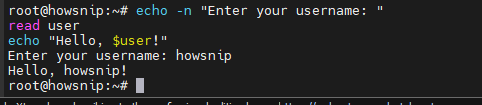
This keeps the cursor on the same line while waiting for user input.
b) Example: Concatenate Output
echo -n "Status: "
echo "OK"
c) Handling Text That Starts with a Dash
If the text begins with an option-like value such as -n, stop option parsing first:
echo -- "-n is text"7. Redirect Echo Output to Files
echo becomes especially useful when creating or modifying files.
a) Overwrite a File
echo "server=8.8.8.8" > resolv.conf
The > operator creates the file or replaces its contents.
b) Append to a File
echo "$(date '+%F %T') - Job finished" >> backup.log
The >> operator appends content without deleting existing data.
Warning: Using > on an existing file will erase its previous contents.
8. Use Echo with Pipes
You can pass echo output directly into another command using a pipe.
echo "SELECT 1;" | mysql -u root -p
The pipe (|) sends the output of echo as input to another program.
9. Write Protected Files Using sudo and tee
Direct redirection with sudo often fails because the shell performs redirection before privilege escalation.
Instead, use tee:
echo "net.ipv4.ip_forward=1" | sudo tee -a /etc/sysctl.conf > /dev/null
What this does
- Uses elevated privileges through sudo.
- Appends the configuration setting to the file.
- Suppresses terminal output using /dev/null.
10. Write Multiple Lines Using a Heredoc
For larger blocks of text, a heredoc is cleaner than multiple echo statements.
cat > /etc/motd <<'EOF'
Welcome to the server.
Authorized use only.
EOF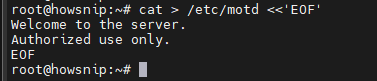
This creates or replaces the file with multiple lines of content. A heredoc is often easier to manage when generating configuration files.
11. Follow Quoting Best Practices
Proper quoting helps prevent unexpected behavior.
a) Expand Variables
echo "$PATH"b) Print Literal Values
echo '$PATH'c) Use Braces for Clarity
echo "Home: ${HOME}/projects"d) Quote Variables
echo "$file_name"Quoting prevents issues caused by spaces, wildcard expansion, and word splitting.
Example
name="YouStable"

echo "Provider: $name"
e) Literal Example
echo 'Provider: $name'f) Wildcard Example
file="*.log"

echo "$file"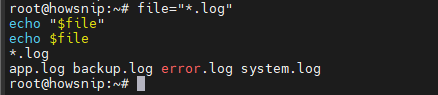
The shell may expand the wildcard to matching files in the directory.
12. Use Echo in Shell Scripts
The echo command is frequently used for logging, status updates, and generating configuration files.
Example Script
#!/usr/bin/env bash
set -euo pipefail

log() {
echo "[$(date +%F\ %T)] $*"
}

err() {
echo "[$(date +%F\ %T)] ERROR: $*" >&2
}

log "Starting deployment"

if systemctl is-active --quiet nginx; then
log "Nginx is running"
else
err "Nginx is not running"
exit 1
fi

echo "APP_ENV=production" > /var/www/app/.env
echo "DB_HOST=localhost" >> /var/www/app/.env

log "Deployment finished"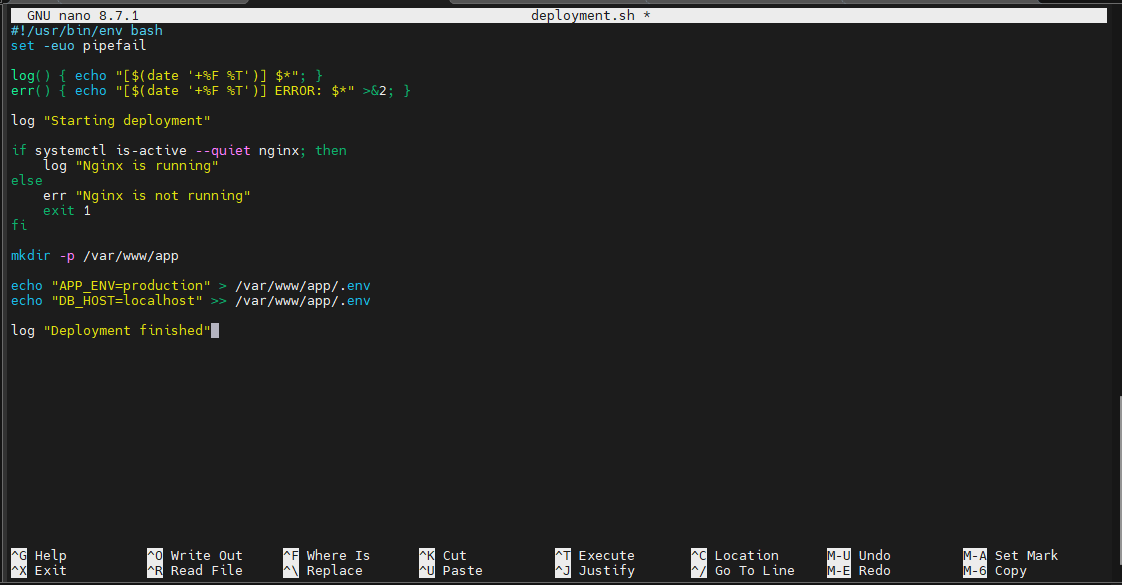
Key Points
- echo provides readable log messages.
- >&2 sends error messages to standard error.
- Configuration files can be generated dynamically.
Common DevOps and Hosting Use Cases
The echo command is widely used in automation and server administration.
a) Server Provisioning
Add values to configuration files during server setup:
echo "net.ipv4.ip_forward=1"b) Cron Job Logging
Record task status in log files:
echo "$(date) - Backup completed" >> backup.logc) Configuration Templates
Generate Nginx, Apache, or application configuration files.
d) Containers and Kubernetes
Write environment variables or configuration values into container files when required. For larger infrastructures, tools such as Ansible or Terraform are often used alongside shell scripts.
Common Pitfalls and Portability Tips
1. -e Behavior Varies
Different shells may handle escape sequences differently.
Recommended:
printf "Line1\nLine2\n"2. Text Starting with -n or -e
Use:
echo -- "-n is text"3. Unquoted Variables
Avoid:
echo $file_name
Prefer:
echo "$file_name"4. Trailing Backslashes
Escaped characters can behave differently across shells. For complex formatting, use printf.
5. Binary Output
echo is not ideal for binary-safe output or NUL bytes. Use printf or specialized tools when binary data is required.
Echo vs Printf: Which Should You Use?
Both commands display output, but they serve different purposes.
- Use echo When:
- Printing simple messages.
- Displaying variables.
- Writing basic log entries.
- Performing quick terminal output.
Example:
echo "Backup complete"
- Use printf When:
- You need consistent formatting.
- Working with escape sequences.
- Formatting numbers.
- Creating portable shell scripts.
Example:
printf "User: %s | ID: %d\n" "$USER" 1001
Adding Colors
printf "\033[32mSUCCESS\033[0m\n"
printf provides more predictable behavior across Unix and Linux systems.
Conclusion
The Linux echo command is a simple yet powerful tool for displaying text, expanding variables, writing files, creating logs, and automating repetitive tasks. While it’s perfect for quick output and scripting, understanding options like -n and -e, proper quoting, and file redirection can help you avoid common mistakes.
For advanced formatting and maximum portability, consider using printf. For everyday terminal work and shell scripting, however, echo remains one of the most useful commands in Linux.