
The find command is one of the most powerful file management tools available in Linux. Whether you need to locate a specific file, identify large files consuming disk space, audit permissions, remove old logs, or prepare files for backups, find can save hours of manual work.
This tutorial explains how the Linux find command works, covers its most useful options, and provides practical real-world examples for administrators, developers, and everyday Linux users.
Prerequisite: Basic familiarity with the Linux terminal is helpful, but no advanced knowledge is required.
Understanding How the Linux Find Command Works
GNU find (commonly used on Linux systems) searches directory trees recursively and evaluates each file and directory against specified conditions, known as predicates.
When a match is found, find performs an action such as displaying the file path, deleting a file, or executing another command.
One important detail is that expressions are evaluated from left to right, using short-circuit logic. This means the order of options can affect both accuracy and performance.
Basic Find Command Syntax
The general syntax is:
find [PATH…] [OPTIONS] [EXPRESSION] [ACTIONS]
Search the Current Directory Recursively
find . -name "*.log"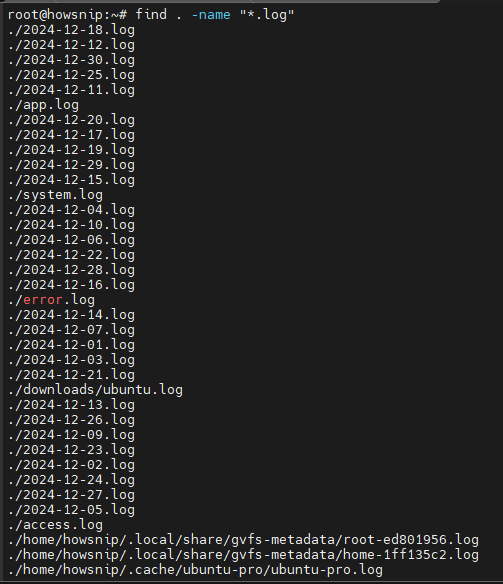
This searches the current directory and all subdirectories for files ending in .log.
Search Multiple Locations
find / -type f -size +100M 2>/dev/null
This searches both / for files larger than 100 MB.
Limit Search Depth
find /etc -maxdepth 1 -type f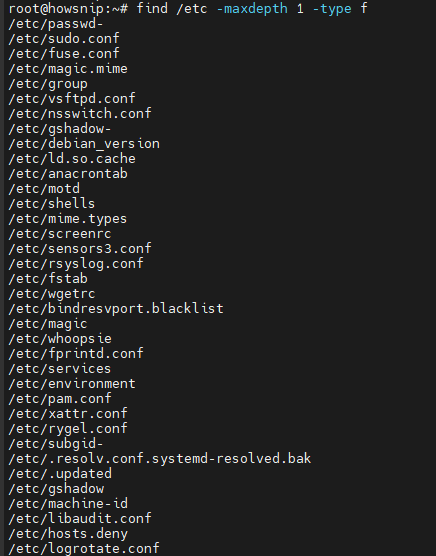
This searches only the top level of /etc without entering subdirectories.
Common Predicates and Actions
find works by combining predicates (conditions) and actions.
Frequently Used Predicates
- -name → Match filenames
- -type → Match file types
- -size → Match file sizes
- -mtime → Match modification times
- -user → Match file owner
- -group → Match group ownership
- -perm → Match permissions
- -path → Match paths
- -regex → Match regular expressions
- -empty → Find empty files/directories
- -newer → Compare file timestamps
- Logical Operators
- -and (default behavior)
- -or or -o
- -not or !
- Parentheses () for grouping conditions
Common Actions
- -print (default output)
- -print0
- -ls
- -exec
- -execdir
- -ok
- -delete
- -printf (GNU find only)
Find Files by Name
Case-Sensitive Search
find . -name "*.php"Case-Insensitive Search
find /var/www -iname "*.php"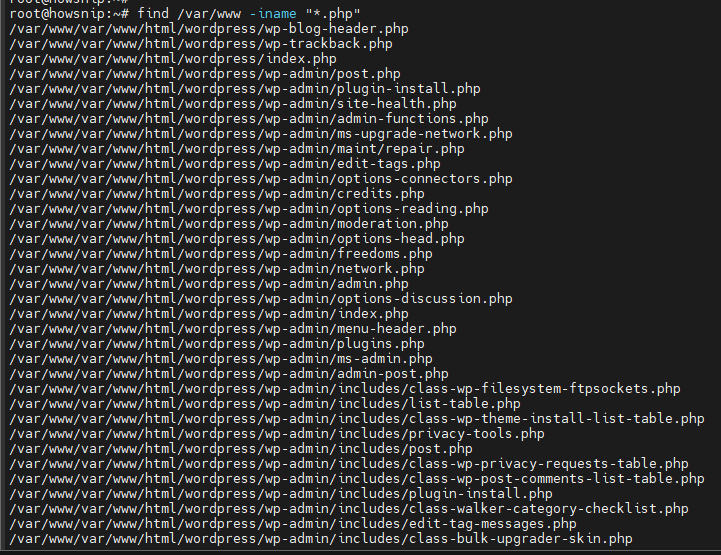
This finds PHP files regardless of letter casing.
Find Directories by Name
find . -type d -name "cache"
This returns only directories named cache.
Find Large Files
find / -type f -size +500M 2>/dev/null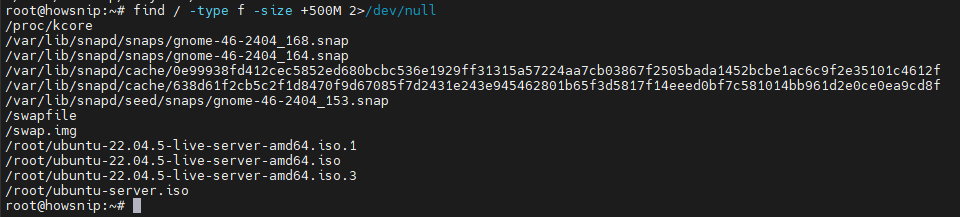
This finds files larger than 500 MB while suppressing permission-related errors.
Find Recently Modified Files
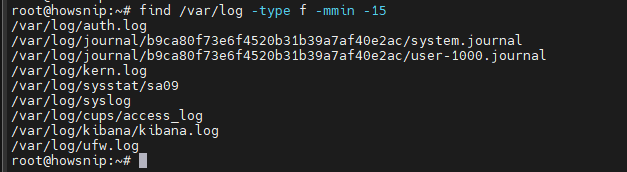
Modified Within the Last 15 Minutes
find /var/log -type f -mmin -15The above is useful when troubleshooting applications or monitoring recent activity.
Find Files Owned by a Specific User
find /var/www -type f -user www-data
This displays files owned by the nginx user.
Audit World-Writable Files
find / -type f -perm -0002 2>/dev/null
World-writable files can present security risks on shared systems.
Important: Always review permission findings before making changes.
Control Search Depth
find /etc -maxdepth 1 -type f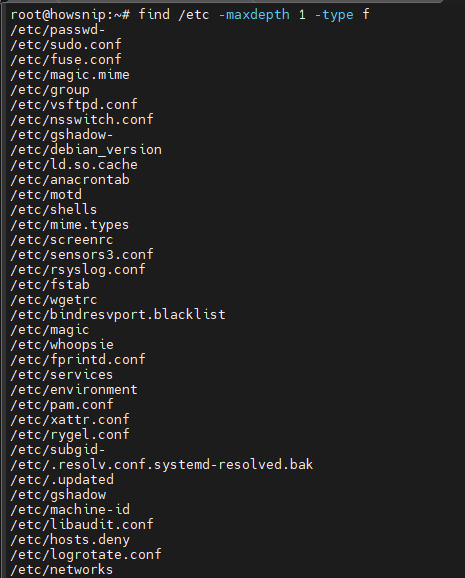
Limiting depth speeds up searches and reduces unnecessary directory traversal.
Exclude Specific Directories
To skip node_modules during a JavaScript project search:
find . -type d -name node_modules -prune -o -type f -name "*.js" -print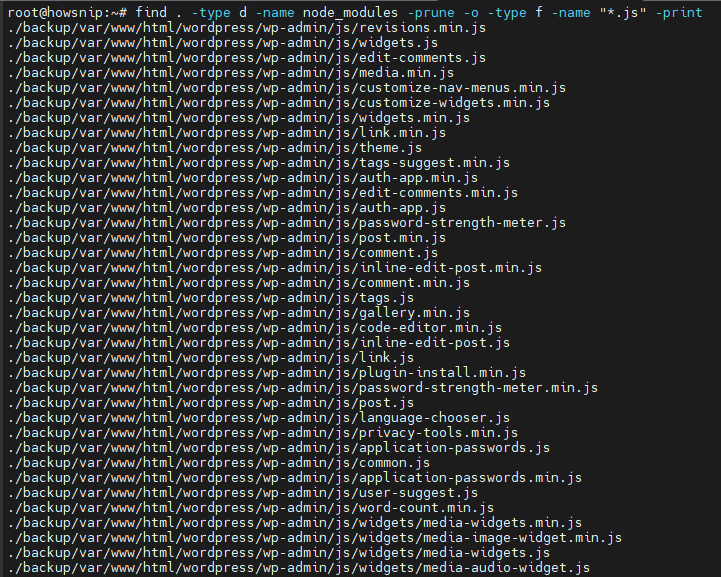
This prevents unnecessary scanning of large dependency folders.
Safely Pass Results to Other Commands
find . -type f -print0 | xargs -0 du -sh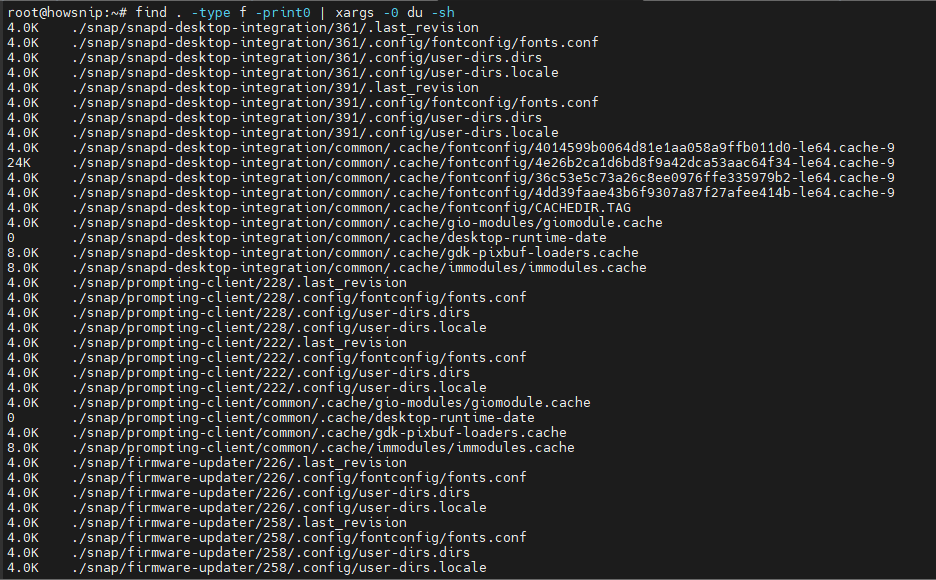
Using -print0 with xargs -0 safely handles files containing spaces and special characters.
Step 1: Locate Files Consuming Disk Space
When disk usage grows unexpectedly, start by identifying large files.
Linux (GNU Find)
find / -type f -size +100M -printf "%s %p\n" 2>/dev/null | sort -nr | head -20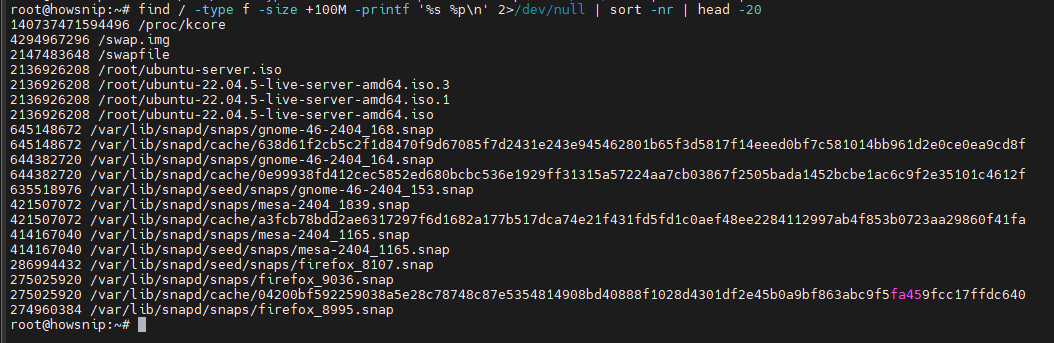
This lists the largest files over 100 MB.
macOS/BSD Alternative
find /var/www -type f -size +200M -print0 2>/dev/null | xargs -0 ls -lhS | head -20Step 2: Clean Up Old Logs and Backups
Review Old Compressed Logs
find /var/log -type f -name "*.gz" -mtime +14 -print
Always review matching files before deleting them.
Delete Old Logs
find /var/log -type f -name "*.gz" -mtime +14 -delete
Move Old Logs to an Archive
find /var/log -type f -name "*.log" -mtime +30 -exec mv -t /var/archive/logs {} +
Warning: Verify the search results with -print before using -delete.
Step 3: Perform Security Audits
Find World-Writable Files
find /home -xdev -type f -perm -0002 -print
Find Setuid and Setgid Binaries
find / -xdev -perm -4000 -o -perm -2000 -type f -print 2>/dev/null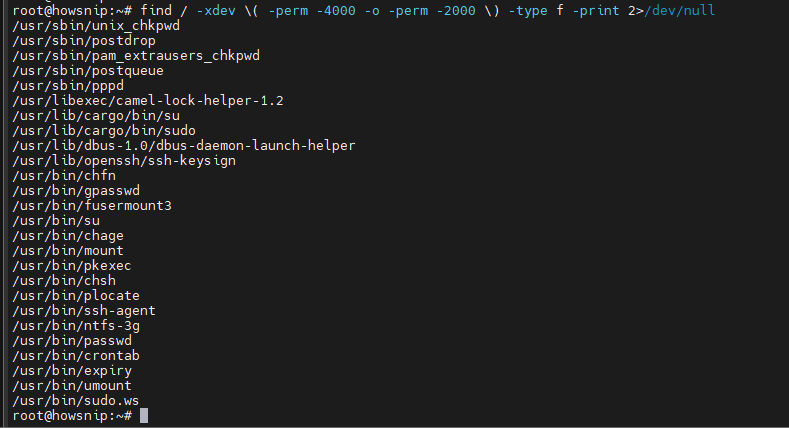
Find Recently Modified PHP Files
find /var/www -type f -name "*.php" -mtime -7 -print
This can help identify suspicious changes after a security incident.
Search PHP Files for Potentially Dangerous Functions
find /var/www -type f -name "*.php" -exec grep -HniE 'base64_decode|eval\(' {} \; 2>/dev/null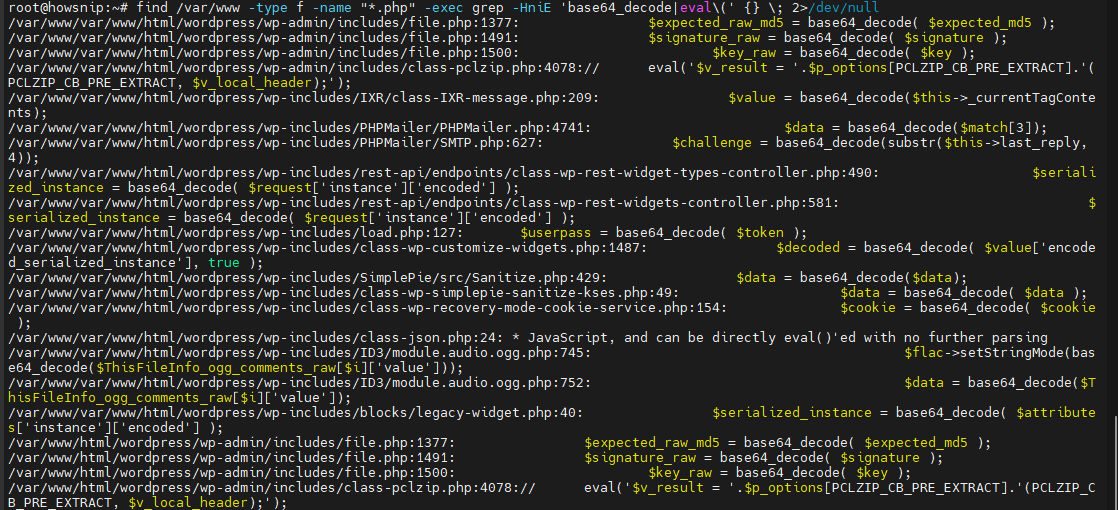
Step 4: Identify Recently Changed Files
Files Changed Within the Last 10 Minutes
find /var/www/site -type f -mmin -10 -print
Compare Against a Deployment Marker
Create a reference timestamp:
touch /tmp/howsnip.markerPerform your deployment, then find files changed afterwards:
find /var/www/site -type f -newer /tmp/howsnip.marker -print
This is useful for deployment verification and troubleshooting.
Step 5: Exclude Large or Irrelevant Directories
Skipping heavy folders can significantly improve search performance.
find . \
-path "./node_modules" -prune -o \
-path "./vendor" -prune -o \
-path "./.git" -prune -o \
-type f -name "*.js" -print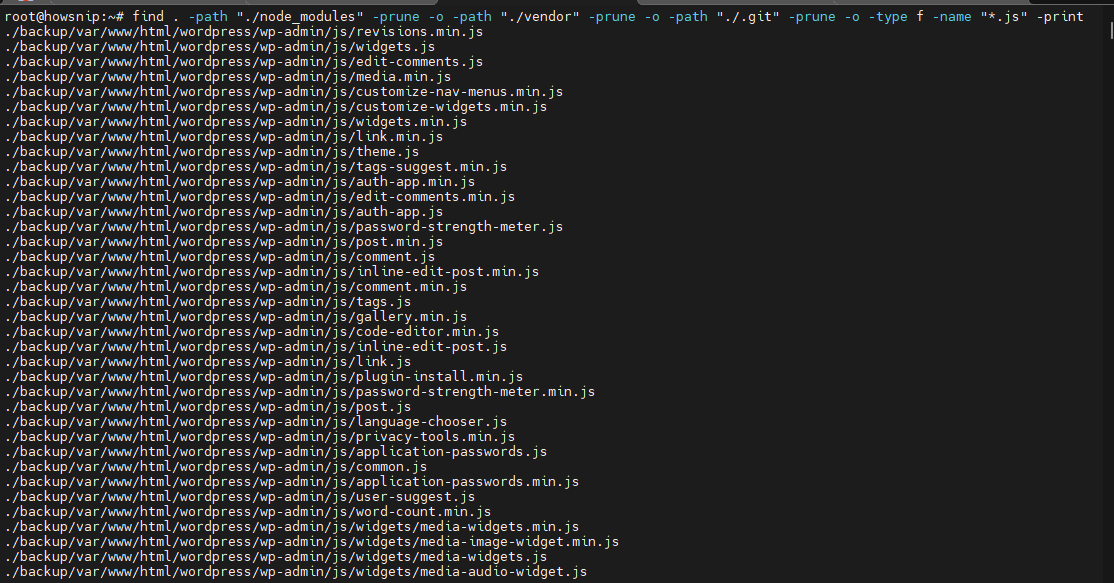
Common directories to exclude include:
- node_modules
- vendor
- .git
- Cache directories
- Session storage folders
Step 6: Find and Remove Broken Symlinks
Locate Broken Symlinks
find /var/www -xtype l -print
Remove Broken Symlinks
find /var/www -xtype l -delete
Important: Review the list of symlinks before deleting them.
Step 7: Search File Contents with Grep
Sometimes you need to search inside files rather than by filename.
Find PHP Files Containing a String
find . -type f -name "*.php" -exec grep -Hn "DB_HOST" {} \;
Search Environment Files
find . -type f -name "*.env" -print0 | xargs -0 grep -Hn "SECRET_KEY"
Step 8: Create File Lists for Backup or Synchronization
Archive images modified during the last week:
find /var/www/media -type f -mtime -7 \( -iname "*.jpg" -o -iname "*.png" \) -print0 | tar --null -T - -czf recent-images.tgz
This creates an archive containing recently modified image files.
Safe Deletion and -exec Best Practices
Before using destructive commands, follow these guidelines:
- Always test with -print first.
- Use -ok for confirmation on critical systems.
- Prefer -exec … {} + for better performance.
- Use -print0 and xargs -0 to safely handle filenames.
- Combine -depth with -delete when working with directories.
Example: Safe Cleanup Process
Dry Run
find /backups -type f -mtime +30 -print
Delete After Verification
find /backups -depth -type f -mtime +30 -delete
Remove Temporary Files Efficiently
find . -type f -name "*.tmp" -exec rm -f {} +
Performance Tips for Large Directory Trees
If you’re searching across large filesystems, these optimizations can help:
- Search from the most specific directory possible.
- Avoid running find / unless absolutely necessary.
- Use -maxdepth and -mindepth where possible.
- Exclude unnecessary directories with -prune.
- Perform simple name checks before expensive tests.
- Use -mount to stay within a single filesystem.
- Prefer -name over -regex for faster matching.
For filename-only searches, tools such as locate, fd, and ripgrep can often provide faster results.
Find Command Examples for Hosting and DevOps
The find command is widely used in hosting, system administration, and DevOps workflows.
Clear Old WordPress Cache Files
find /var/www/site/wp-content/cache -type f -mmin +720 -delete
This removes cache files older than 12 hours.
Identify Large Uploads
find /var/www/site/wp-content/uploads -type f -size +50M -print
Useful for identifying oversized media files consuming storage.
Conclusion
The Linux find command is a versatile tool for locating files, auditing permissions, managing disk space, cleaning old data, and automating routine administration tasks.
By combining predicates, logical operators, and actions, you can perform highly targeted searches and system maintenance tasks efficiently. Always test potentially destructive operations with -print before using actions such as -delete or -exec, especially on production systems.