Setting up a production-ready Ubuntu server typically involves installing a web server, database server, PHP runtime, and security tools. In this tutorial, you’ll learn how to configure an Ubuntu server with Nginx, PHP, MySQL, Let’s Encrypt SSL certificates, Composer, and Adminer.
This setup provides a solid foundation for hosting PHP-based websites and web applications while following common security and server management practices.
Prerequisites
Before you begin, make sure you have:
- An Ubuntu server with sudo privileges
- A registered domain name (required for SSL certificates)
- Internet connectivity on the server
- Access to the server via SSH
Step 1: Install Nginx Web Server
Nginx is a lightweight, high-performance web server commonly used to host websites and applications.
a) Update the Package List
First, refresh the package index so Ubuntu can access the latest available packages.
sudo apt update
b) Install Nginx
Install the Nginx package using APT.
sudo apt install nginx
c) Verify Nginx Status
After installation, Nginx should start automatically. Verify that the service is running:
sudo systemctl status nginx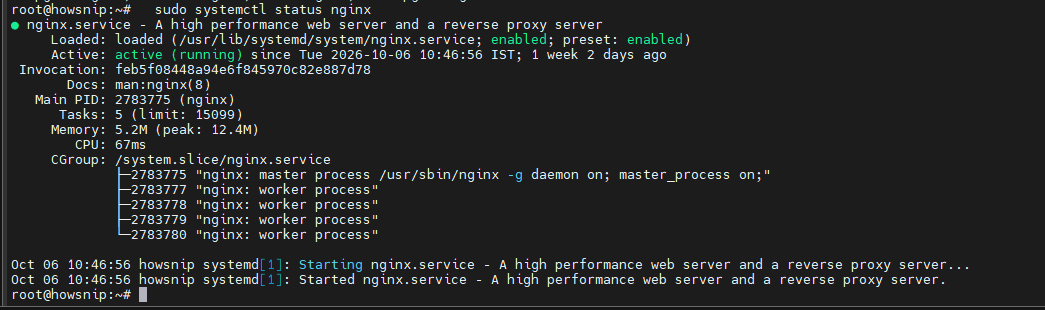
d) Configure the Firewall (Optional)
If UFW is enabled on your server, allow web traffic through the firewall:
sudo ufw allow 'Nginx Full'
This rule permits both HTTP (port 80) and HTTPS (port 443) traffic. At this point, Nginx is installed and ready for further configuration.
Step 2: Install PHP and Required Extensions
PHP processes dynamic content for websites and applications. This guide installs PHP 8.1 and commonly used extensions.
a) Install Required Packages
Begin by installing supporting packages:
sudo apt install software-properties-common ca-certificates lsb-release apt-transport-https curl git -y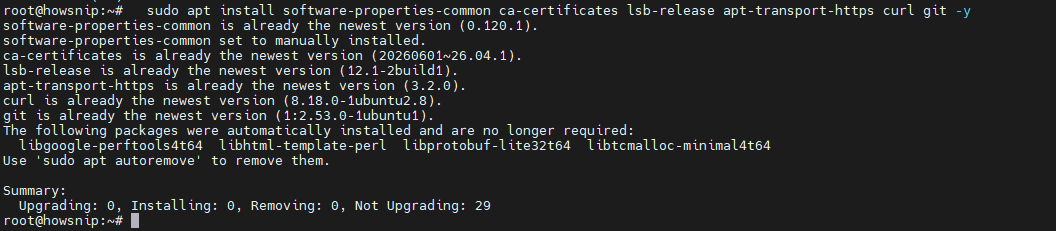
These packages allow Ubuntu to manage repositories and download software securely.
b) Add the PHP Repository
Add the PHP repository to access PHP packages:
sudo add-apt-repository ppa:ondrej/php
Then update the package index:
sudo apt update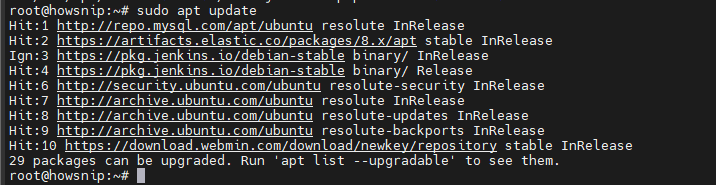
c) Install PHP and Extensions
Install PHP-FPM along with commonly required modules:
sudo apt install php8.5 php8.5-fpm php8.5-mysql php8.5-curl php8.5-mbstring php8.5-xml -y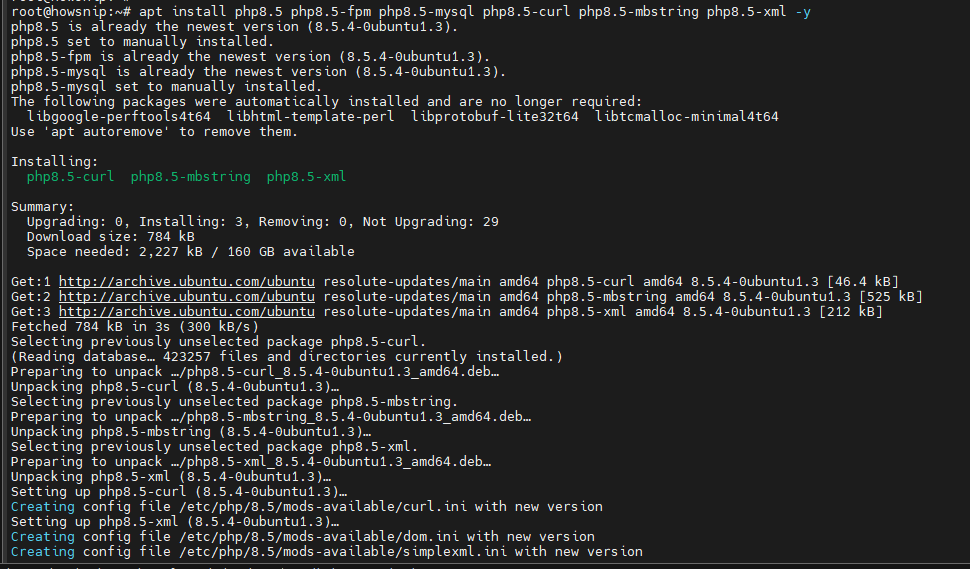
The installed extensions provide support for:
- MySQL database connectivity
- HTTP requests
- Multi-byte string processing
- XML handling
d) Verify the PHP Installation
Check the installed PHP version:
php -v
e) Configure PHP with Nginx
Open the default Nginx configuration file:
sudo nano /etc/nginx/sites-available/default
Locate the PHP processing section and configure it as follows:
location ~ \.php$ {
include snippets/fastcgi-php.conf;
fastcgi_pass unix:/var/run/php/php8.1-fpm.sock;
}
This configuration forwards PHP requests to the PHP-FPM service.
Save the file and reload Nginx:
sudo systemctl reload nginxStep 3: Install and Secure MySQL
MySQL is one of the most widely used relational database management systems for web applications.
a) Install MySQL
Install MySQL server, client utilities, and the PHP MySQL extension:
sudo apt install mysql-client mysql-server php8.5-mysql -y
b) Run the MySQL Security Script
After installation, secure your MySQL server:
sudo mysql_secure_installation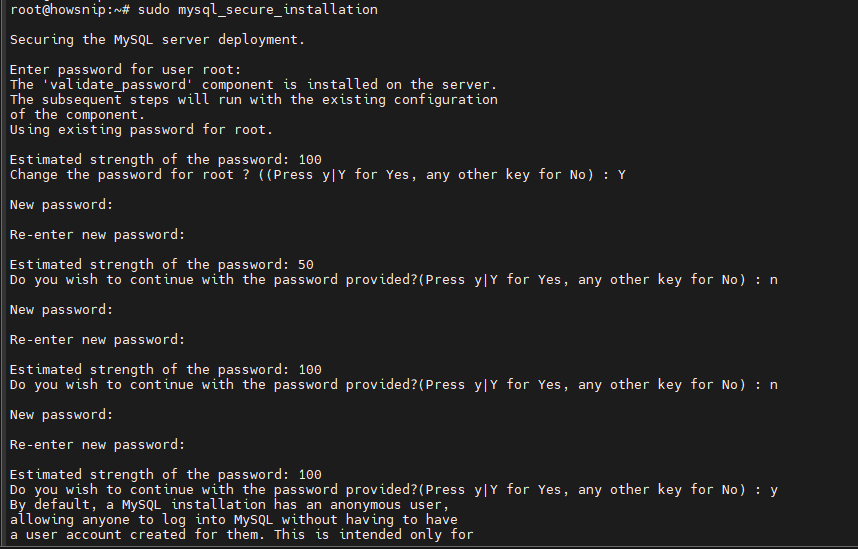
During the setup process, follow the prompts to:
- Set password policies
- Remove anonymous users
- Disable remote root logins
- Remove the test database
These steps improve the overall security of the database server.
c) Log In to MySQL
Access the MySQL shell as the root user:
sudo mysql -u root -p
d) Change the Root Password
Inside the MySQL console, run:
USE mysql;
ALTER USER 'root'@'localhost'
IDENTIFIED WITH mysql_native_password BY 'YourStrongPassword';
FLUSH PRIVILEGES;
Replace YourStrongPassword with a strong and unique password.
Exit MySQL:
exit;Important: Store database passwords securely and avoid reusing passwords across services.
Step 4: Secure Nginx with Let’s Encrypt SSL
HTTPS encrypts communication between visitors and your website. Let’s Encrypt provides free SSL certificates.
a) Install Certbot
Install Certbot and the Nginx integration package:
sudo apt install certbot python3-certbot-nginx
b) Request an SSL Certificate
Run the following command and replace the example domain with your actual domain:
sudo certbot --nginx -d your_domain -d www.your_domainCertbot will:
- Validate domain ownership
- Obtain SSL certificates
- Configure Nginx automatically
- Redirect HTTP requests to HTTPS
c) Test Automatic Renewal
Let’s Encrypt certificates renew automatically. Verify that renewal works correctly:
sudo certbot renew --dry-runA successful dry run confirms future renewals should work properly.
Step 5: Install Adminer
Adminer is a lightweight database management tool that offers a simpler alternative to phpMyAdmin.
a) Create the Adminer Directory
Create a dedicated directory for Adminer:
sudo mkdir /var/www/adminer
b) Download Adminer
Download the latest Adminer file:
sudo wget "https://www.adminer.org/latest.php" -O /var/www/adminer/index.php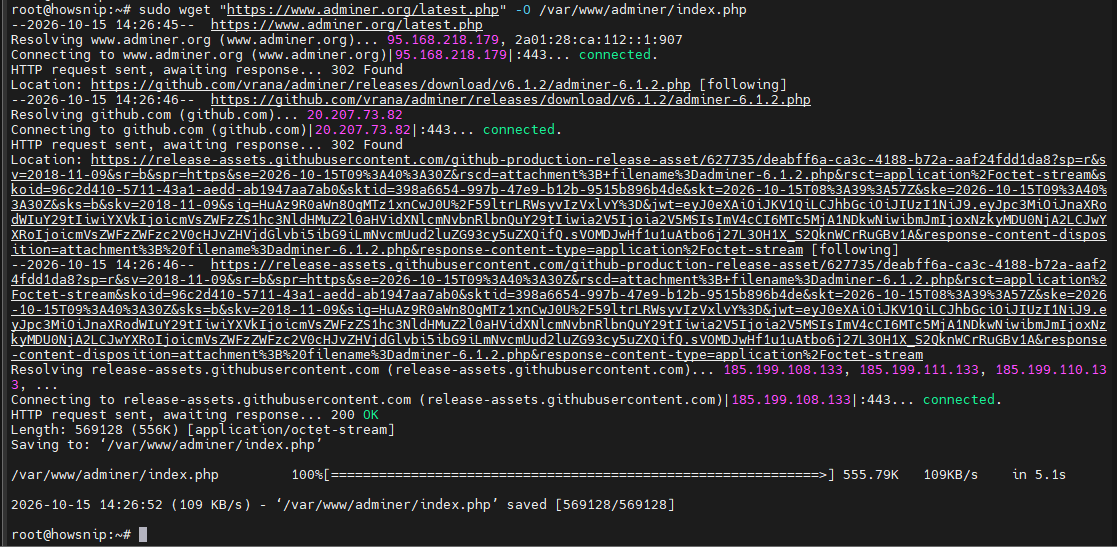
c) Create an Nginx Configuration
Create a new server block:
sudo nano /etc/nginx/sites-available/adminer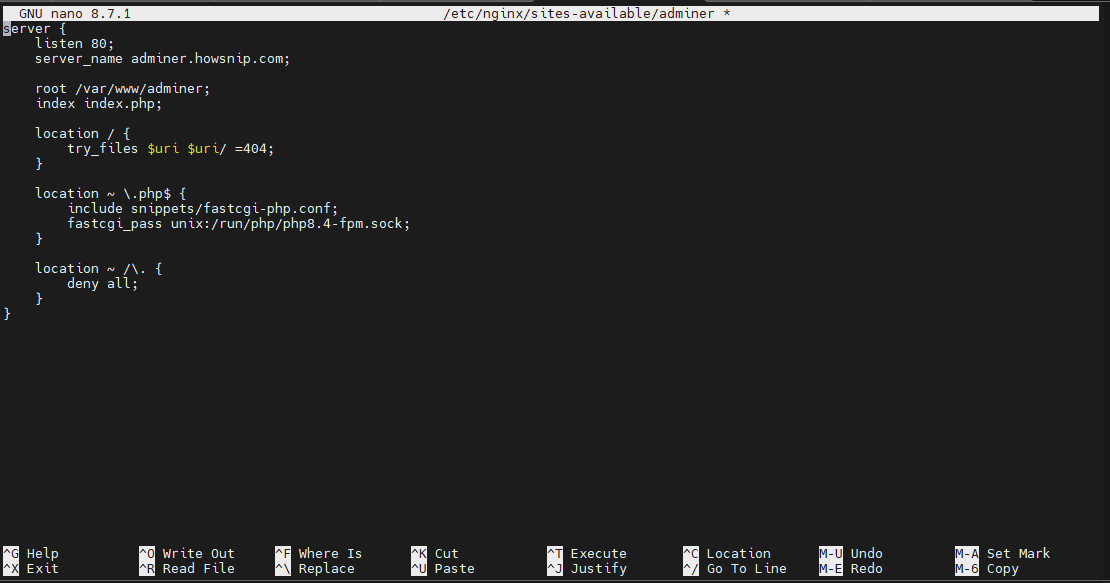
Add the following configuration:
server {
listen 80;
server_name adminer.your_domain;

root /var/www/adminer;
index index.php;

location / {
try_files $uri $uri/ =404;
}

location ~ \.php$ {
include snippets/fastcgi-php.conf;
fastcgi_pass unix:/var/run/php/php8.1-fpm.sock;
}
}
This configuration serves Adminer through a dedicated subdomain.
d) Enable the Site
Create a symbolic link to enable the configuration:
sudo ln -s /etc/nginx/sites-available/adminer /etc/nginx/sites-enabled/
e) Test and Reload Nginx
Validate the configuration:
sudo nginx -tReload Nginx:
sudo systemctl reload nginx
You can now access Adminer at:
http://adminer.your_domainStep 6: Install Composer
Composer is the standard dependency manager for PHP projects and simplifies package installation and updates.
a) Install Required Dependencies
Update package information and install additional packages:
sudo apt update
sudo apt install wget unzip php8.5-zip php8.5-fpm php8.5-mysql -y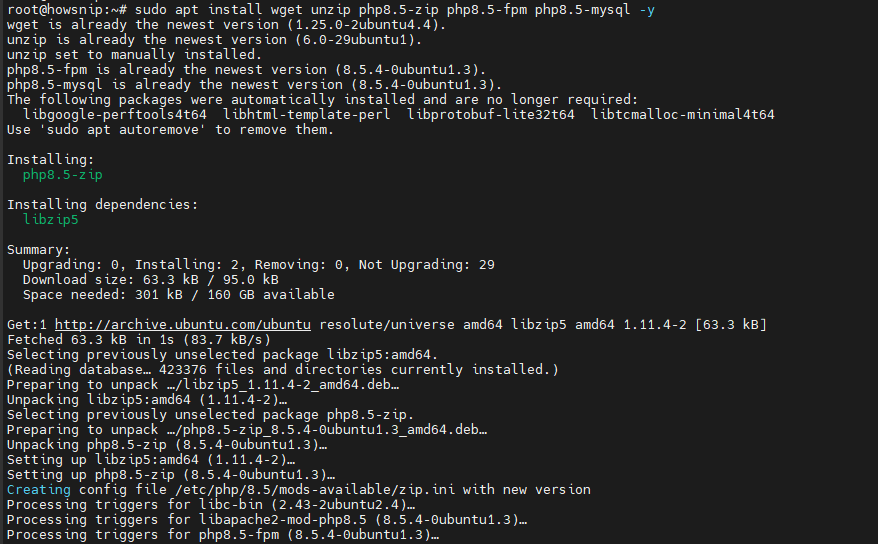
b) Download Composer
Download the Composer installer:
php -r "copy('https://getcomposer.org/installer', 'composer-setup.php');"
c) Verify the Installer
Retrieve the expected installer signature:
HASH="$(wget -q -O - https://composer.github.io/installer.sig)"
Verify the installer integrity:
php -r "if (hash_file('SHA384', 'composer-setup.php') === '$HASH') { echo 'Installer verified'; } else { echo 'Installer corrupt'; unlink('composer-setup.php'); } echo PHP_EOL;"This check helps ensure the installer has not been modified.
d) Install Composer Globally
Install Composer so it is available system-wide:
sudo php composer-setup.php --install-dir=/usr/local/bin --filename=composer
e) Verify Installation
Confirm the installation:
composer --version
Step 7: Manage Nginx Domains
Nginx allows you to host multiple websites using separate server blocks.
a) Add a New Domain
Create the Website Directory
sudo mkdir -p /var/www/your_domain/html
sudo chown -R $USER:$USER /var/www/your_domain/html
sudo chmod -R 755 /var/www/your_domain
These commands create the document root and set appropriate permissions.
b) Create a Server Block
sudo nano /etc/nginx/sites-available/your_domain
Add the following configuration:
server {
listen 80;
server_name your_domain www.your_domain;

root /var/www/your_domain/html;
index index.php index.html index.htm;

location / {
try_files $uri $uri/ =404;
}

location ~ \.php$ {
include snippets/fastcgi-php.conf;
fastcgi_pass unix:/var/run/php/php8.1-fpm.sock;
}
}
c) Enable the Site
Create the symbolic link:
sudo ln -s /etc/nginx/sites-available/your_domain /etc/nginx/sites-enabled/
Test the configuration:
sudo nginx -t
Reload Nginx:
sudo systemctl reload nginx
d) Remove a Domain
If a website is no longer needed, remove its Nginx configuration and files.
Disable the Site
sudo rm /etc/nginx/sites-enabled/your_domain
Remove Configuration and Website Files
sudo rm /etc/nginx/sites-available/your_domain
sudo rm -rf /var/www/your_domain
Reload Nginx
sudo systemctl reload nginxThis removes the domain from the server configuration.
Conclusion
You now have a complete Ubuntu web server environment configured with Nginx, PHP, MySQL, Let’s Encrypt SSL, Adminer, and Composer. This setup provides the core components needed to host modern PHP applications securely and efficiently.
As your projects grow, you can add additional domains, create separate Nginx server blocks, manage databases through Adminer, and use Composer to handle PHP dependencies more effectively.