

Working with text is a common task in Linux, whether you’re processing log files, cleaning data, parsing configuration files, or writing shell scripts. Linux provides several powerful command-line tools that make it easy to extract words, select substrings, replace text, and remove unwanted whitespace.
In this tutorial, you’ll learn how to work with substrings and text data using tools such as awk, cut, grep, expr, sed, xargs, and Bash parameter expansion. The examples are beginner-friendly while still providing practical techniques useful for scripting and automation.
Prerequisites
- A Linux system or terminal environment
- Basic familiarity with the command line
- Permission to access any files used in the examples
Understanding Words vs. Substrings
Before choosing a command, it’s important to understand what you’re trying to extract:
- Words (fields) are separated by delimiters such as spaces or colons.
- Substrings are extracted based on character positions within a string.
Different Linux commands are better suited for each task.
Extracting Specific Words with awk
The awk command is one of the easiest ways to extract words from text based on their position.
Example: Display the Third Word
echo "Focus on Peace" | awk '{print $3}'
How It Works
- $3 refers to the third field (word).
- By default, awk uses spaces as field separators.
Extracting Words with cut
The cut command can also extract fields, but you must explicitly specify the delimiter.
Example: Extract the Third Word
echo "Focus on Peace" | cut -d' ' -f3
Explanation
- -d’ ‘ sets a space as the delimiter.
- -f3 selects the third field.
Extract Multiple Fields
You can select more than one field at a time.
Example 1
echo "Focus on Peace on Earth" | cut -d' ' -f3,5
This command returns the third and fifth words.
Example 2
echo "one two three 4 5 6" | cut -d' ' -f1-3,6
This extracts:
- Fields 1 through 3
- Field 6
Use a Different Delimiter
Many Linux files use characters other than spaces as separators.
Example: Colon-Separated Fields
cut -d':' -f1-3,5,6 /etc/passwd | tail -n 5
Explanation
- -d’:’ uses a colon as the delimiter.
- -f1-3,5,6 selects specific fields.
- tail -n 5 displays the last five lines.
Using Multiple Delimiters with awk
Unlike cut, awk can work with multiple delimiters.
Example
awk -F'[: ]' '{OFS=" "; print $1,$3,$4}' file
Explanation
- -F'[: ]’ tells awk to split fields using either a colon (:) or a space.
- OFS=” ” specifies a space as the output field separator.
- The command prints selected fields from the file.
This approach is useful when data contains mixed separators.
Selecting Substrings by Character Position
Sometimes you need a specific sequence of characters rather than complete words.
Using awk and substr()
Example
echo "Focus on Peace" | awk '{print substr($0,10,5)}'
Explanation
- $0 represents the entire line.
- 10 is the starting position.
- 5 is the number of characters to extract.
The command returns five characters starting from the tenth position.
Extracting Characters with cut
The cut command can extract text based on character positions.
Example
echo "Linux is an impressive OS" | cut -c 13-22
Explanation
- -c selects character positions.
- 13-22 extracts characters from position 13 through 22.
Extract Character Ranges from a File
cut -c 7-12 sayings | head -4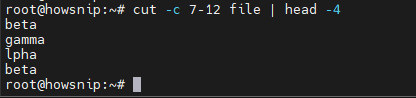
Explanation
- cut -c 7-12 extracts characters 7 through 12 from each line.
- head -4 limits output to the first four lines.
This is helpful when working with fixed-width text files.
Finding Specific Words with grep
The grep command searches for matching text patterns.
a) Display Only Matching Words
cat sayings | grep -o "quarrel\|empty"
Explanation
- grep searches for either quarrel or empty.
- -o outputs only the matching words.
b) Display Entire Matching Lines
cat sayings | grep "quarrel\|empty"
Without the -o option, grep displays complete lines that contain either word.
c) Search for Multiple Phrases
cat sayings | grep -o "never falter\|do not quarrel"
This command extracts only the matching phrases from the file.
Extracting Substrings with expr
The expr command also supports substring extraction.
Example
str="Learning to use Linux is fun"
expr substr "$str" 13 9
Explanation
- 13 is the starting character position.
- 9 specifies the number of characters to return.
This method can be useful in shell scripts when working with string variables.
Replacing Text with sed
The sed stream editor is commonly used for text replacement.
a) Replace a Single Word
echo "They never falter" | sed 's/falter/forget/'
Explanation
- s means substitute.
- The first value is the search text.
- The second value is the replacement text.
b) Replace Multiple Words
echo "They never falter" | sed 's/never falter/always forget/'
This replaces an entire phrase with another phrase in a single command.
Important: By default, sed replaces only the first matching occurrence per line unless additional flags are used.
Removing Extra Whitespace with xargs
Whitespace often causes issues in scripts and data processing tasks.
a) Trim Leading and Trailing Spaces
echo " Keep your nose to the grindstone " | xargs
xargs removes extra spaces from the beginning and end of the text.
b) Remove Blank Lines and Tabs
Assume a file named eg contains blank lines, tabs, and unnecessary spacing.
cat eg | xargs
The command:
- Removes empty lines
- Removes tabs
- Trims extra spaces
- Outputs only the cleaned text
This can be useful when preprocessing data before further analysis.
Using Bash Parameter Expansion
Bash includes built-in string manipulation features that don’t require external commands.
a) Extract Characters from a Variable
Create a Variable
string="Happy days are here again"
b) Extract 10 Characters Starting at Position 1
echo ${string:1:10}c) Extract the First 9 Characters
echo ${string:0:9}
Explanation
- The first number is the starting position.
- The second number is the length to extract.
- Bash indexing starts at 0.
Extract Text While Omitting Characters at the End
Example
string="1234567890"
echo ${string:7:-2}
Example
echo ${string:0:-2}
Explanation
- 7 refers to the eighth character position.
- -2 removes the last two characters from the result.
This technique is useful for trimming file names, extensions, or formatted text.
Extract Characters from a Value Created with set
Create a Positional Parameter
set -- 01234567890abcdefDisplay Characters 8 and 9
echo ${1:7:2}
Explanation
- ${1} refers to the first positional parameter.
- 7 indicates where extraction starts.
- 2 specifies how many characters to display.
View the Stored Value
set -- 01234567890abcdef
echo $1
This displays the complete string stored in the first positional parameter.
Note: The ${1:7:2} syntax references the value stored in $1.
Conclusion
Linux provides several powerful tools for extracting words, selecting substrings, finding patterns, replacing text, and removing unnecessary whitespace. Commands such as awk, cut, grep, sed, expr, xargs, and Bash parameter expansion each solve different text-processing challenges.
Understanding when to use field-based tools versus character-based extraction methods will help you write more efficient shell scripts and process text data with confidence. Whether you’re cleaning files, parsing logs, or automating system tasks, these techniques are essential skills for every Linux user.