

The grep command is one of the most useful tools available in Linux and macOS terminals. Whether you’re searching log files, troubleshooting applications, reviewing configuration files, or analyzing large datasets, grep helps you quickly find the information you need.
In this tutorial, you’ll learn how to use the grep command, understand its most important options, work with regular expressions, search entire directories, and apply it to real-world system administration and development tasks.
Prerequisite: Basic familiarity with the Linux command line and access to a terminal.
What Is the Grep Command?
grep stands for Global Regular Expression Print. It searches files or command output for text patterns and displays matching lines.
Because it is fast, script-friendly, and available on almost every Linux system, it is commonly used by:
- System administrators
- DevOps engineers
- Developers
- Security analysts
- Linux users managing logs and configuration files
For example, you can use grep to:
- Find errors in application logs
- Search source code for specific functions
- Detect suspicious log entries
- Verify configuration settings
- Extract useful information from large text files
Understanding Basic Grep Syntax
The basic syntax of the command is:
grep [OPTIONS] PATTERN [FILE…]
Example
Search for the word error inside a log file:
grep "error" /var/log/auth.log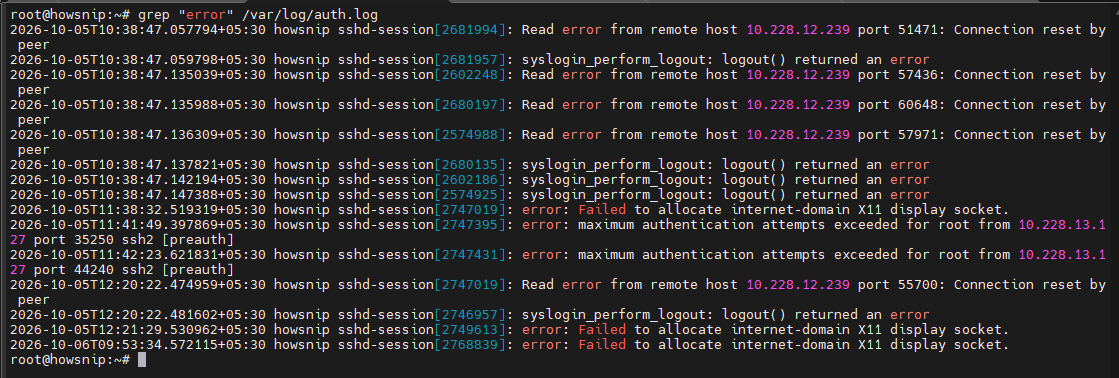
This command scans the specified file and displays every line containing the word error.
Essential Grep Options You Should Know
a) Search Without Case Sensitivity
grep -inw --color=auto "error" app.log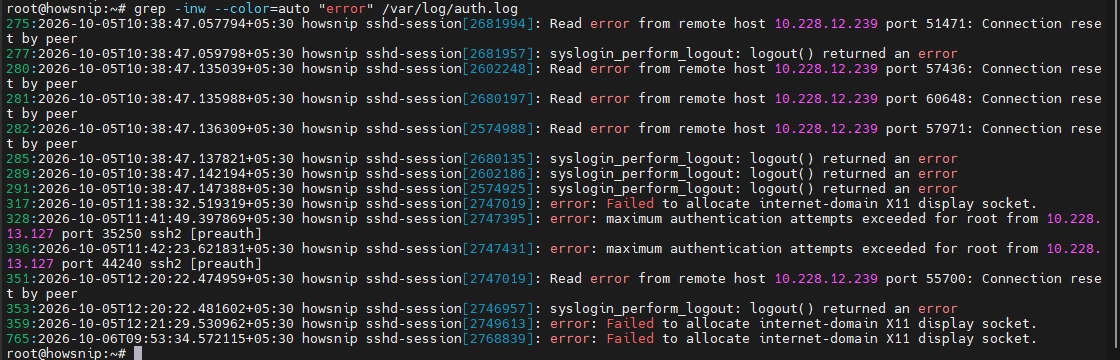
What this command does
- -i ignores uppercase/lowercase differences.
- -n shows line numbers.
- -w matches the exact word.
- –color=auto highlights matching text.
This is useful when searching logs where text capitalization varies.
b) Show Lines That Do Not Match
grep -v "200" access.log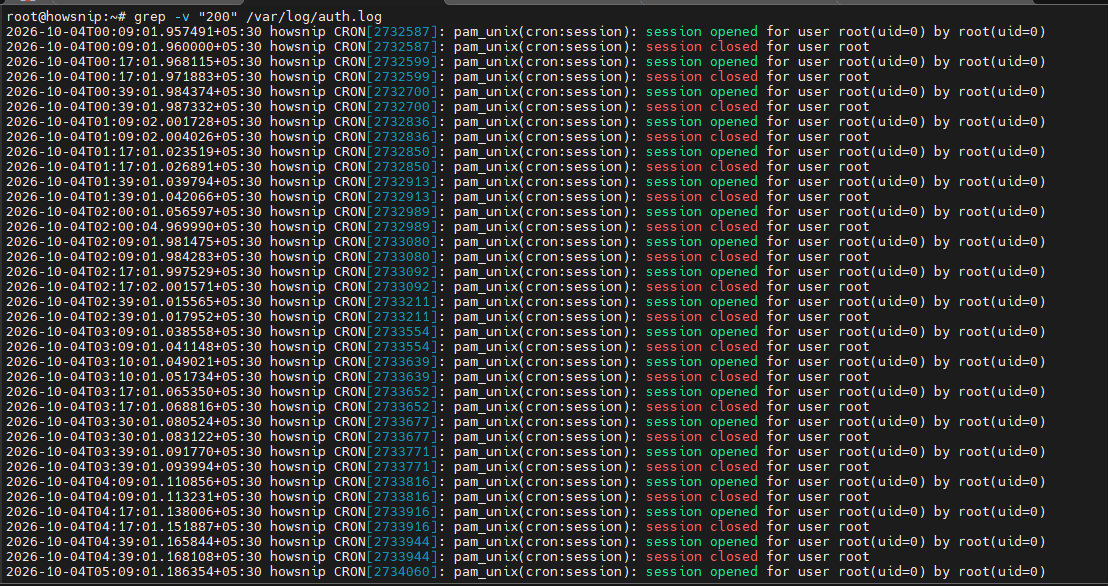
The -v option reverses the match and displays all lines that do not contain 200. This is commonly used when filtering successful HTTP responses from web server logs.
c) Count Matching Entries
grep -c "failed" /var/log/auth.log
Rather than displaying matching lines, -c returns the total number of matches. This is useful for quickly measuring the frequency of an event.
d) Search Multiple Files
grep -H "TODO" *.py
The -H option ensures each result includes the filename, making it easier to identify where matches are located.
Using Regular Expressions with Grep
Regular expressions allow you to perform more advanced pattern matching.
grep supports:
- Basic Regular Expressions (BRE) by default
- Extended Regular Expressions (ERE) using -E
- Perl Compatible Regular Expressions (PCRE) using -P when available
Note: The older egrep and fgrep commands are deprecated. Use grep -E and grep -F instead.
a) Match Lines Starting with Specific Text
grep "^GET" access.log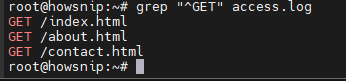
The ^ anchor matches the beginning of a line. This command finds requests that start with GET.
b) Match Lines Ending with Specific Text
grep "\.php$" urls.txtThe $ anchor matches the end of a line. This command finds entries ending with .php.
c) Match Multiple Values
grep -E "foo|bar" file.txt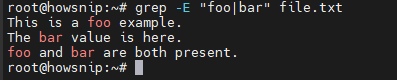
The | operator means “OR.” The command matches lines containing either foo or bar.
d) Match an IP Address Pattern
grep -E "[0-9]{1,3}(\.[0-9]{1,3}){3}" access.log
This pattern searches for IP-like values.
Note: This is a simple pattern and does not strictly validate IP addresses.
e) Print Only the Matching Portion
grep -Eo "[a-f0-9]{32}" checksums.txt
The -o option displays only the matched text rather than the entire line. This is useful for extracting values from large files.
f) Using PCRE with Grep
Some Linux distributions support Perl Compatible Regular Expressions through the -P option. If supported, you can use advanced pattern-matching capabilities.
Extract Email Addresses
grep -Po "[A-Za-z0-9._%+-]+@[A-Za-z0-9.-]+\.[A-Za-z]{2,}" maildump.txt
This command extracts email addresses from a text file using a PCRE pattern.
Important: Not all systems support grep -P. If unavailable, consider using grep -E or tools such as ripgrep (rg).
Search Directories Recursively
Searching entire directories is one of grep’s most powerful features.
a) Search Only Log Files
grep -R --include="*.log" " 500 " /var/log
Here,
- -R searches recursively.
- –include restricts the search to log files.
This helps locate HTTP 500 errors across log directories.
b) Exclude Specific Directories
grep -R --exclude-dir=vendor --exclude-dir=.git --include="*.php" "TODO" .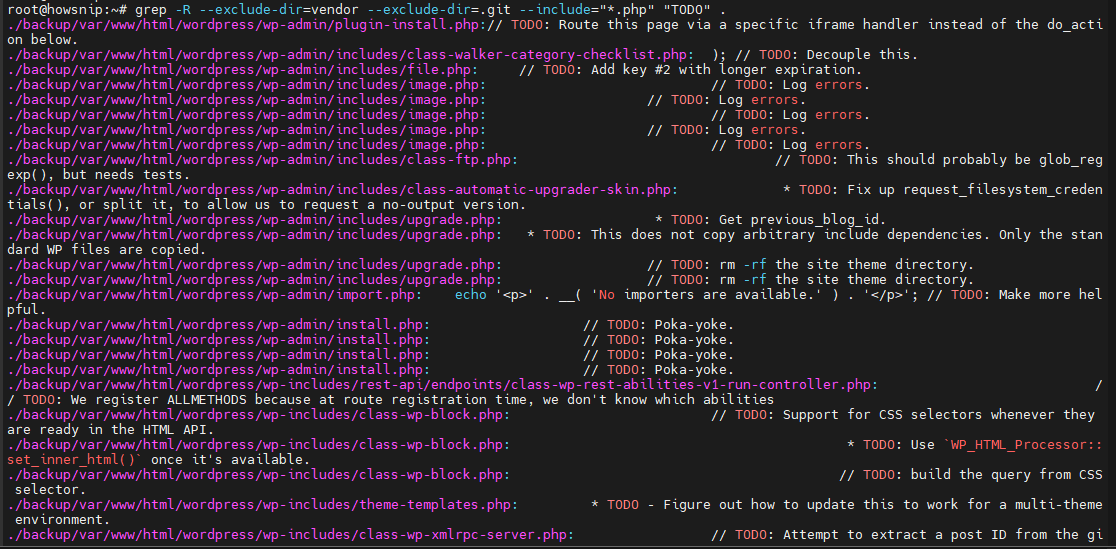
This command searches PHP files while skipping the vendor and .git directories. This reduces noise and improves performance.
c) Ignore Binary Files
grep -R -I "api_key" .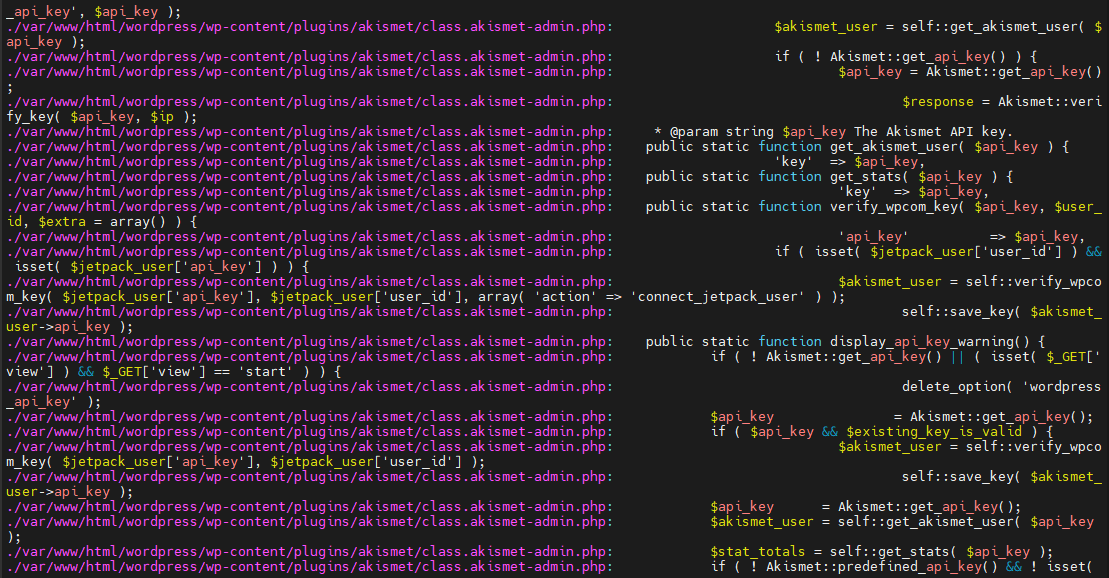
The -I option treats binary files as non-matching and suppresses unnecessary output.
d) Show Only Filenames
grep -Rl "deprecated_function" src/
Instead of displaying matches, grep returns filenames containing the specified pattern.
Search Inside Compressed Log Files
You can search compressed logs without manually extracting them.
a) Using zgrep
zgrep -n "timeout" /var/log/nginx/access.log*.gz
zgrep searches directly inside gzip-compressed files.
b) Alternative Method
gzcat access.log.1.gz | grep -n "timeout"The compressed file is sent to standard output and then filtered using grep.
Practical Grep Examples for Administrators and Developers
a) Find Server Errors in NGINX Logs
grep -Rn --include="access.log*" " 5[0-9][0-9] " /var/log/nginx
The above command searches recursively for HTTP 5xx server errors.
b) Identify Top IP Addresses Returning Errors
grep " error " access.log | awk '{print $1}' | sort | uniq -c | sort -nr | head
This pipeline:
- Finds 404 responses.
- Extracts client IP addresses.
- Counts occurrences.
- Displays the most common results.
c) Detect Failed SSH Login Attempts
grep -R "Failed password" /var/log/auth.log*
It is useful during security investigations and login troubleshooting.
d) Search for Suspicious SQL Injection Patterns
grep -R -iE "union(\s)+select|information_schema|/etc/passwd|sleep\([0-9]+\)" /var/log/nginx
This command looks for common attack signatures in web server logs.
e) Find Deprecated PHP Functions
grep -Rnw --include="*.php" -E 'mysql_|create_function|each\(\)' .
It helps developers identify outdated code requiring updates.
f) Verify Environment Variables
grep -Rn --include="*.env" "^APP_ENV=" /var/www
This command confirms that the APP_ENV setting exists across environment files.
Combining Grep with Other Linux Commands
Grep becomes even more useful when combined with other system utilities.
a) Filter Running Processes
ps aux | grep -i nginx
Displays running processes related to NGINX.
b) Search Kernel Messages
dmesg | grep -i "i/o"
It filters kernel logs for I/O-related issues.
c) Review Service Logs
journalctl -u php-fpm | grep -i "warning"This command shows warning messages from the PHP-FPM service logs.
d) Check Open Network Ports
ss -tulpn | grep ":443"
It displays services listening on port 443.
e) Search Docker Logs
docker logs myapp 2>&1 | grep -i "connection reset"
This command filters Docker container logs for connection-related issues.
Using Find and Grep Together
For larger projects, combining find and grep provides precise searching.
a) Search JavaScript Files Safely
find . -type f -name "*.js" -print0 | xargs -0 grep -nH "fetch("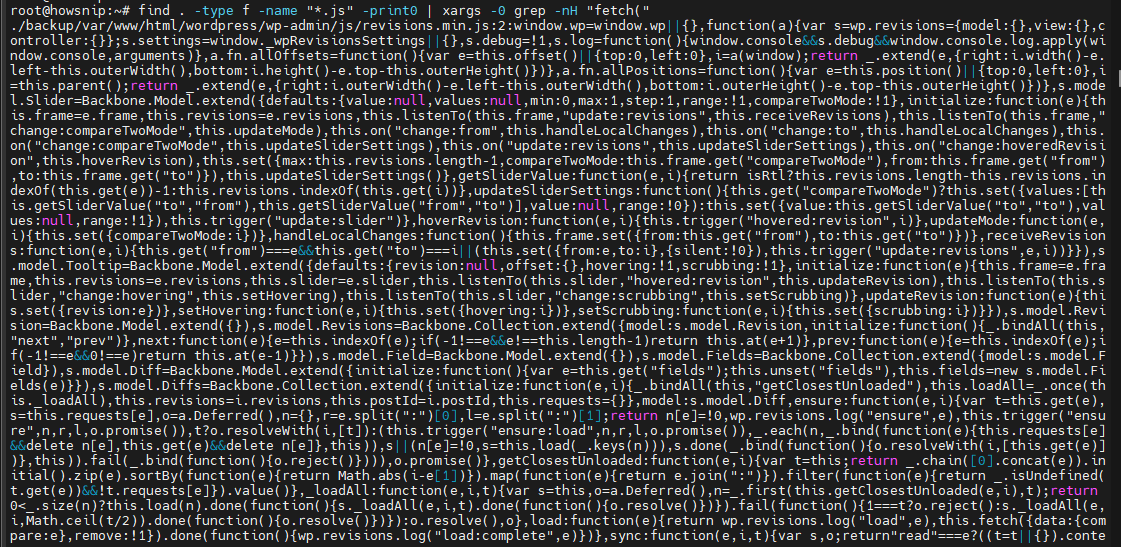
Here,
- find locates JavaScript files.
- -print0 handles filenames containing spaces.
- xargs -0 safely passes filenames to grep.
b) Exclude Directories While Searching
find . -type f -not -path "./node_modules/*" -name "*.ts" -print0 | xargs -0 grep -nH "TODO"
This command searches TypeScript files while skipping the node_modules directory.
Performance Tips for Grep
When dealing with large log files or source code repositories, these optimizations can significantly improve performance.
a) Use Fixed String Searches
grep -F "Connection timed out" logfile.logThe -F option avoids regex parsing and is often much faster.
b) Stop After a Specific Number of Matches
grep -m 10 "error" app.logThis command stops after 10 matches are found.
c) Optimize Recursive Searches
Use:
- –include
- –exclude
- –exclude-dir
to reduce the number of files being scanned.
d) Speed Up Searches on ASCII Data
LC_ALL=C grep -RFn --include="*.log" "Connection timed out" /var/log
This can improve performance by enabling byte-wise comparisons.
Important Grep Scripting Considerations
a) Binary Files
Skip binary files:
grep -I "keyword" .
Or process them as text:
grep --binary-files=text "keyword" file.binb) Null-Terminated Data
For specialized workflows using NUL delimiters:
grep -z "pattern" fileGrep returns different exit codes:
- No match found
- Error occurred
These return values make grep useful in shell scripts.
c) Use Grep Quietly in Scripts
if grep -q "MAINTENANCE_MODE=on" .env; then
echo "Maintenance mode enabled"
fi
The -q option suppresses output and simply checks whether a match exists. This approach is commonly used in automation scripts and deployment checks.
Conclusion
The grep command is one of the most powerful and practical tools available on Linux systems. From simple text searches to advanced regular expressions, log analysis, security investigations, and codebase searches, grep helps you locate information quickly and efficiently.
By learning its key options, recursive search capabilities, regex support, and performance optimization techniques, you can significantly improve your command-line troubleshooting and productivity workflows.