
Running Ubuntu Server inside VirtualBox is a great way to learn Linux administration, test server configurations, or build a lab environment without using a dedicated physical machine. In this tutorial, you’ll learn how to create a virtual machine, install Ubuntu Server, configure networking, and verify that the server is working correctly.
Throughout the guide, add your screenshots after each relevant step to help readers follow along.
Prerequisites
Before you begin, make sure your system meets at least the following requirements:
- CPU: 1 GHz or faster
- RAM: 1 GB or more
- Storage: Minimum 2.5 GB available disk space
- Oracle VirtualBox installed
- Ubuntu Server ISO image downloaded
Download Required Files
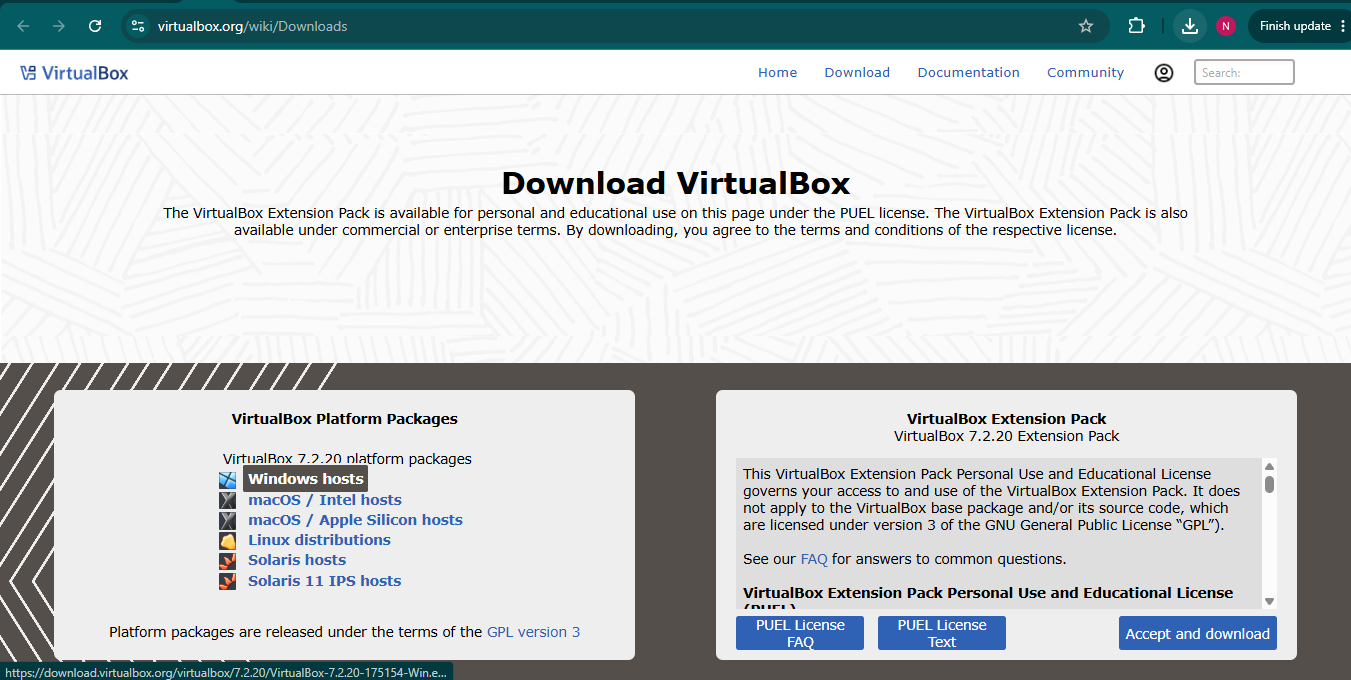
- VirtualBox Download: https://www.virtualbox.org/wiki/Downloads
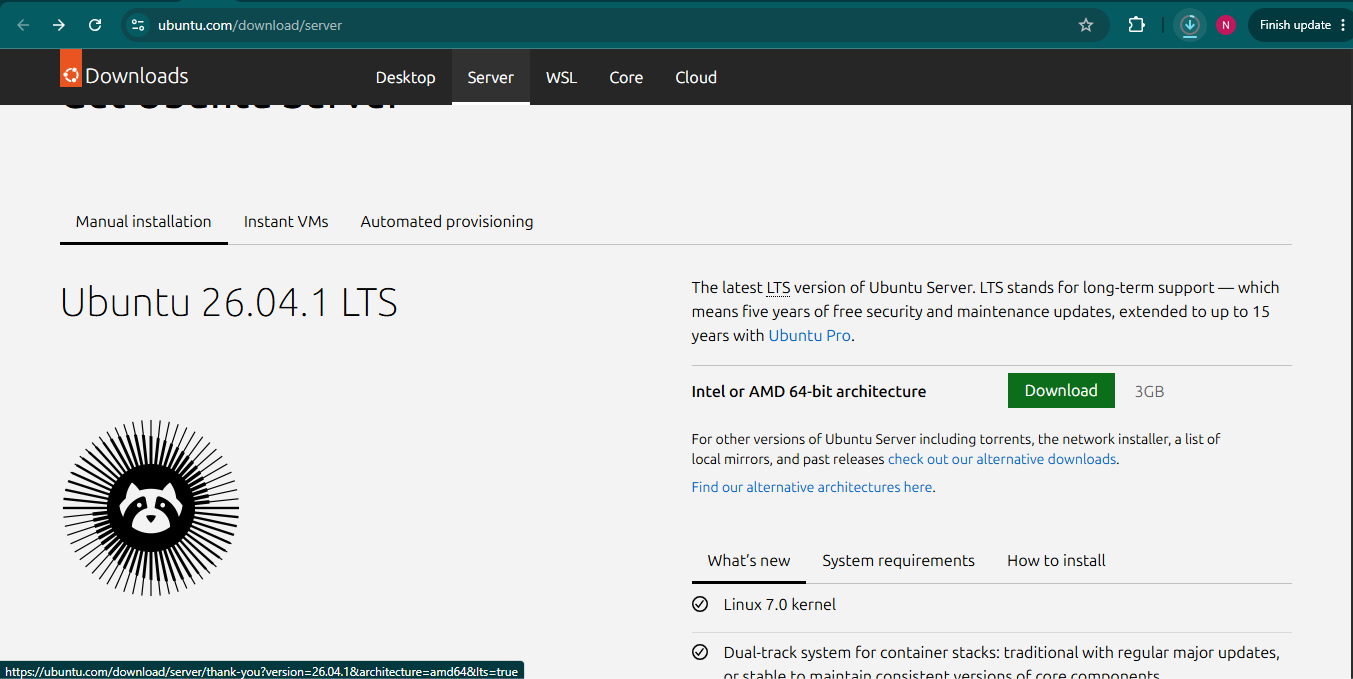
- Ubuntu Server Download: https://ubuntu.com/download/server
Step 1: Install VirtualBox and Download Ubuntu Server
First, install VirtualBox on your computer. After installation, download the Ubuntu Server ISO file from the official Ubuntu website. This ISO file will be used to create and install the Ubuntu Server virtual machine.
Step 2: Create a New Virtual Machine
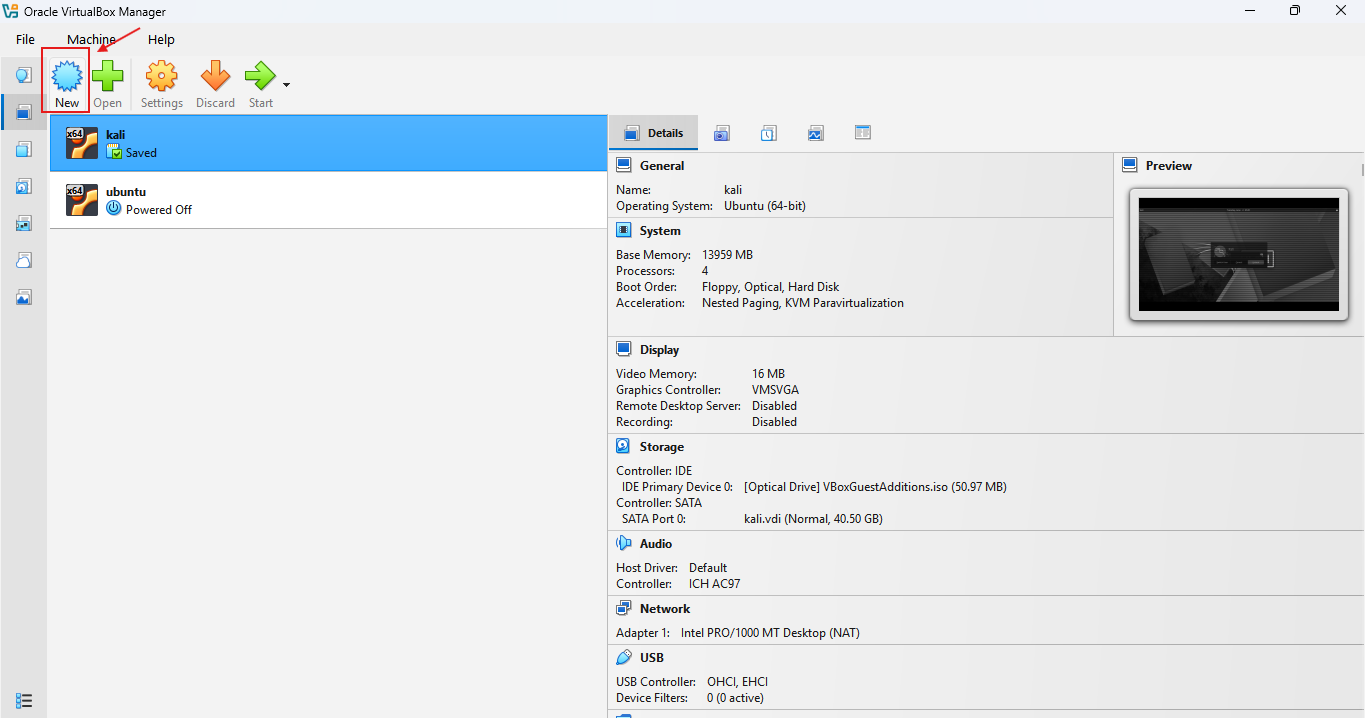
Open VirtualBox and click the New button to start creating a new virtual machine. This launches the virtual machine creation wizard where you’ll configure the server settings.
Step 3: Configure the Virtual Machine
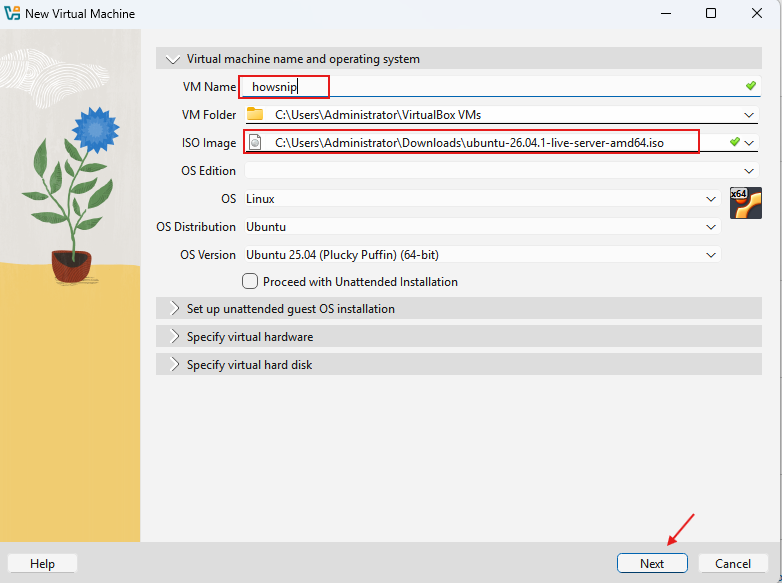
In the VM creation window:
- Enter a name for the virtual machine.
- Example: ubuntu-server
- Choose the location where the VM files will be stored.
- Select the downloaded Ubuntu Server ISO file.
After completing these fields, click Next. This step prepares VirtualBox to install Ubuntu Server from the selected ISO image.
Step 4: Configure User Information
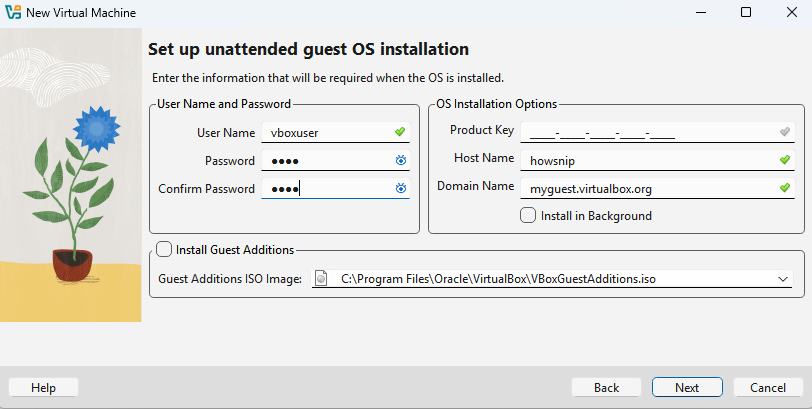
Enter the required account information:
- Username
- Password
- Hostname
- Domain name (optional)
Example values:
- Username: vboxuser
- Hostname: localhost
These credentials will be used to log in to the Ubuntu Server after installation.
Step 5: Allocate Hardware Resources
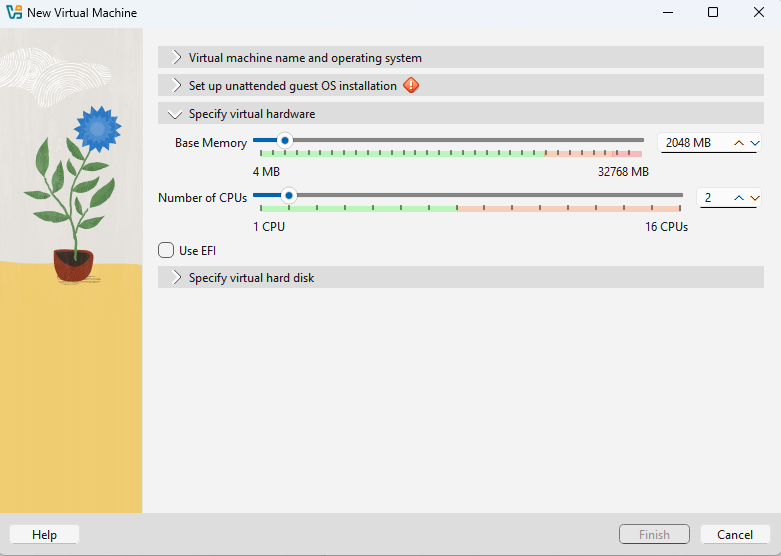
Choose the amount of RAM and CPU resources for the virtual machine.
Example configuration:
- RAM: 2048 MB (2 GB)
- Processors: 2 CPUs
Adjust these values according to your computer’s available resources. Allocating sufficient memory and CPU power helps ensure smooth server performance.
Click Next to continue.
Step 6: Create a Virtual Hard Disk
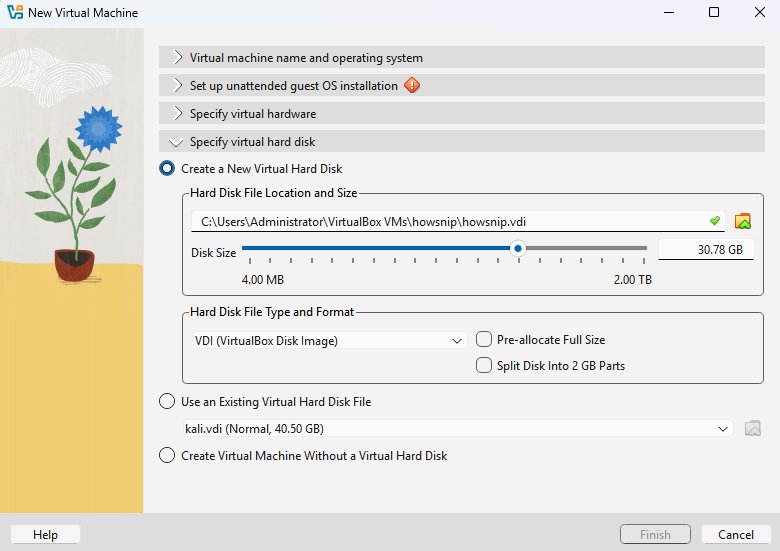
Specify the storage size for the Ubuntu Server virtual machine.
Example:
- Virtual Disk Size: 30 GB
This virtual disk will store the operating system, applications, and server data. After entering the desired size, click Next.
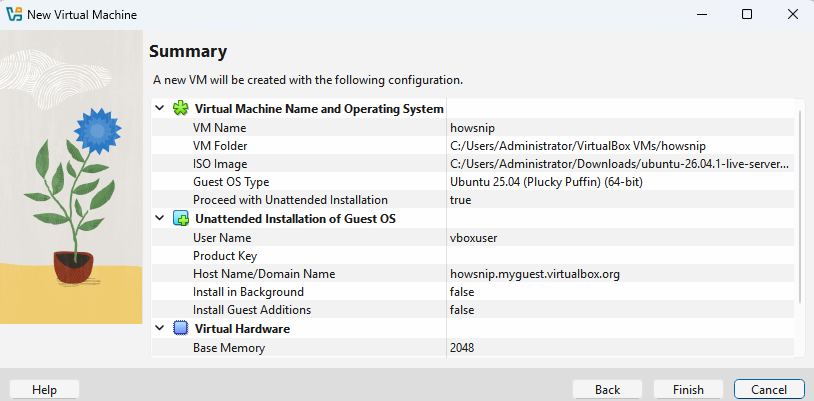
Step 7: Review the Configuration
VirtualBox will display a summary of all selected settings. Review the configuration carefully and click Finish to create the virtual machine.
This completes the VM creation process.
Step 8: Configure Bridged Networking
To allow the Ubuntu Server VM to communicate on the same network as your host machine, configure a bridged network adapter.
Navigate to:
- vm → Settings → Network → Adapter 1
Then:
- Enable Network Adapter
- Select Bridged Adapter
- Click OK
This network mode allows the server to obtain its own IP address on your network.
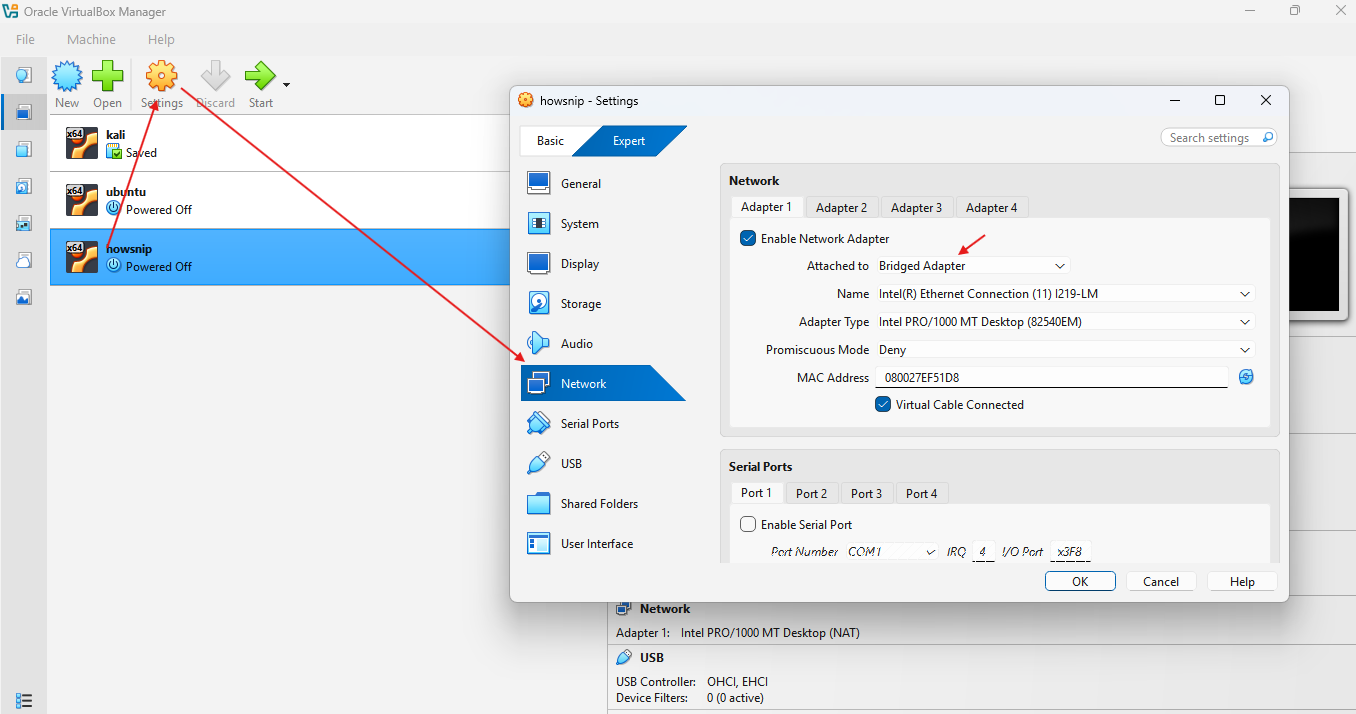
Important: If you only need the VM for local testing, other network modes may work. This tutorial uses Bridged Adapter to allow external network access.
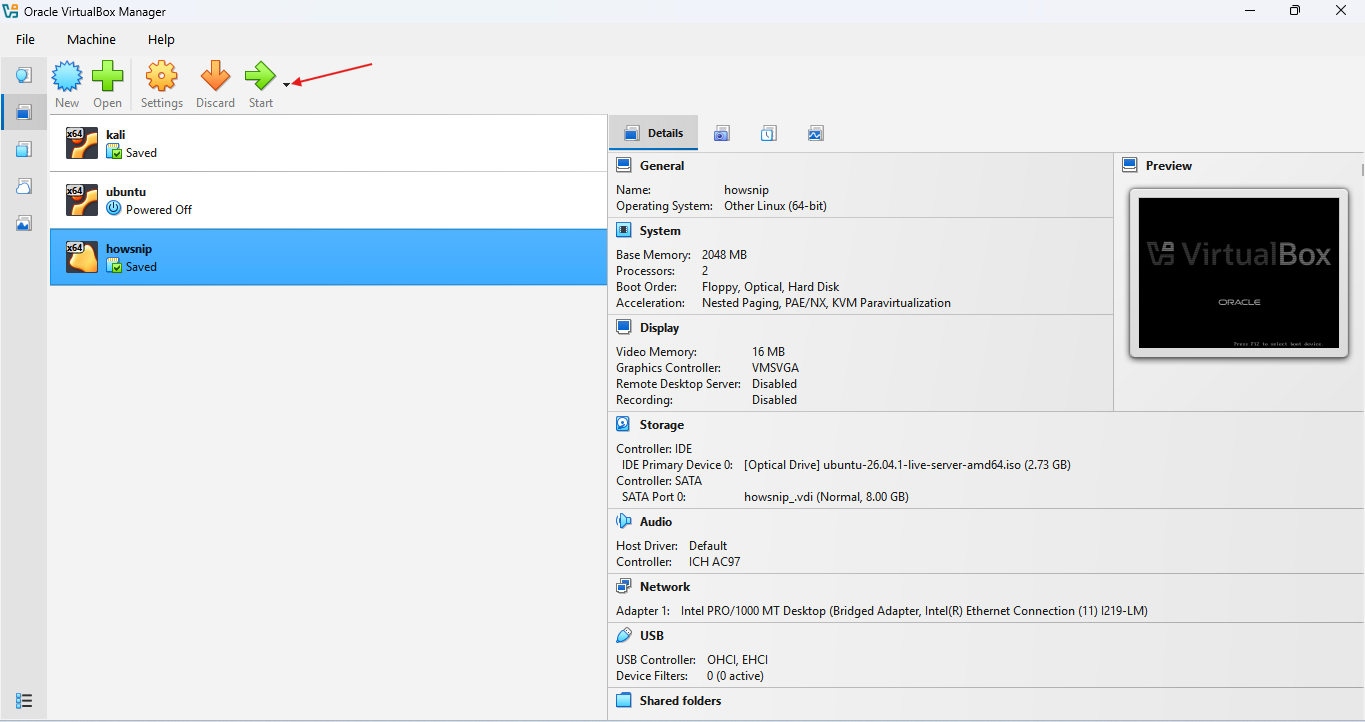
Step 9: Start the Virtual Machine
Select the newly created VM and click Start. The system will boot from the Ubuntu Server ISO and begin the installation process.
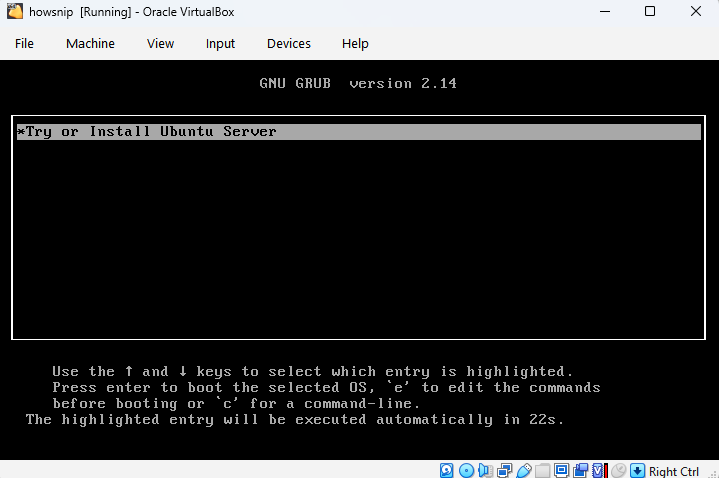
Step 10: Launch the Ubuntu Server Installer
When the installer menu appears, select:
- Try or Install Ubuntu Server
- Press Enter to continue.
This launches the Ubuntu Server installation wizard.
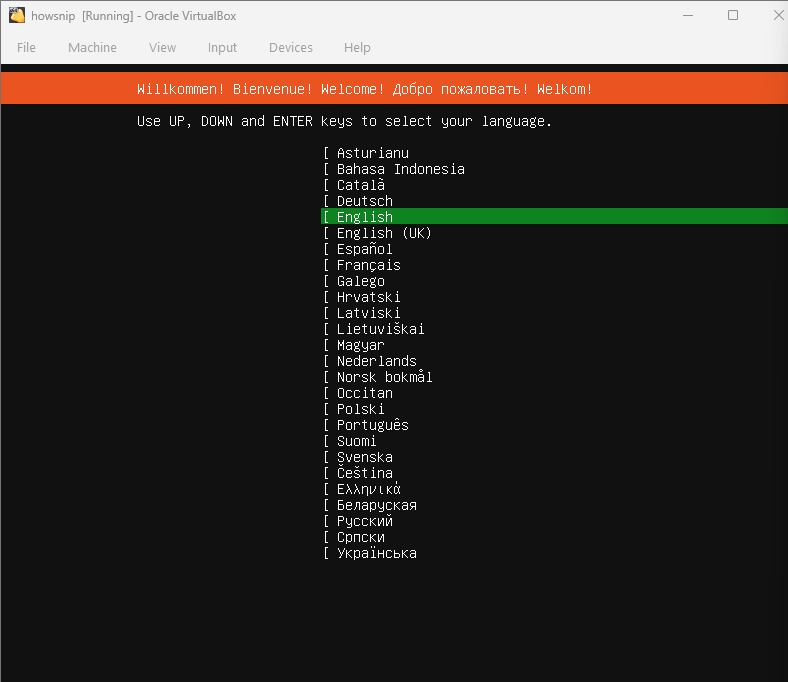
Step 11: Select Your Language
Choose your preferred language.
Example:
- English
- Press Enter.
The selected language will be used during installation.
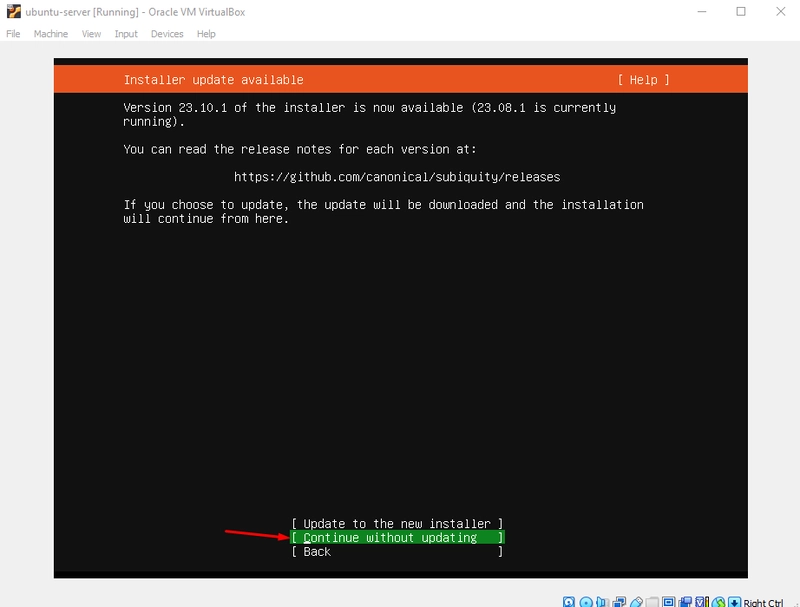
Step 12: Continue Without Updating
When prompted, select: Continue without updating
Use the arrow keys to highlight the option and press Enter. This proceeds with the installation using the current installation media.
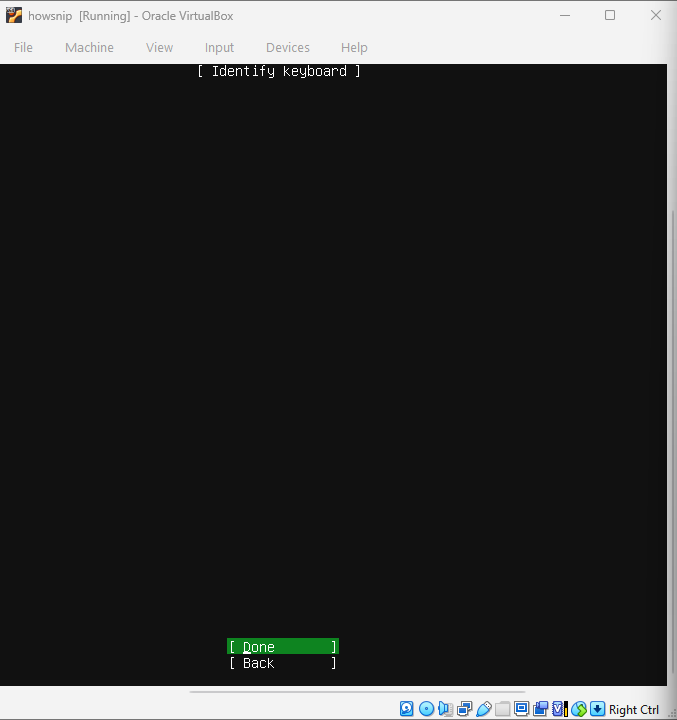
Step 13: Configure Keyboard Layout
The installer will display the keyboard configuration screen. If the default layout is correct:
- Select Done
- Press Enter
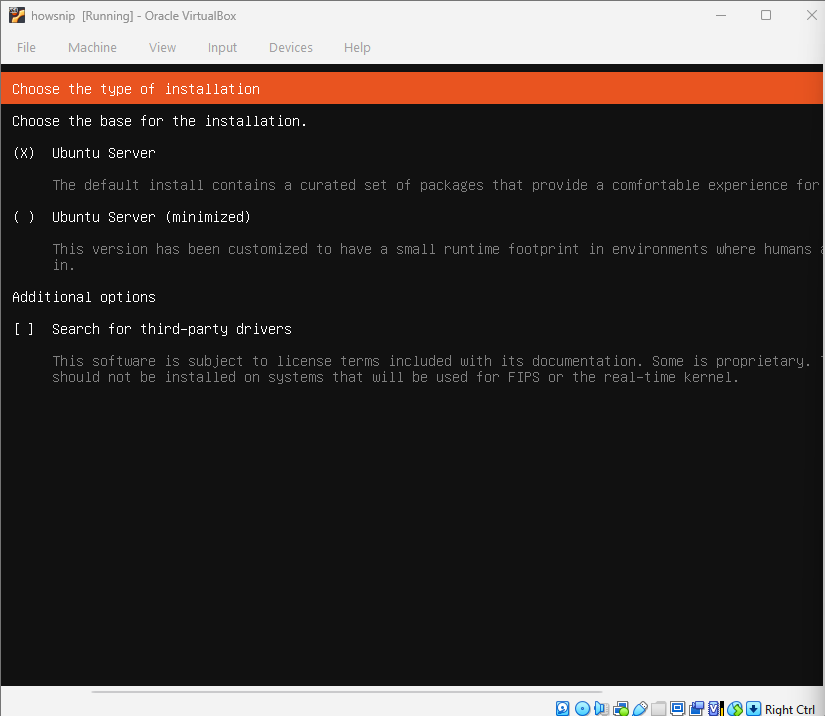
Step 14: Choose the Installation Type
On the Choose Type of Install screen:
- Select Ubuntu Server by pressing the Spacebar
- Confirm that an X appears in the selection box
- Move to Done
- Press Enter
This installs the standard Ubuntu Server environment.
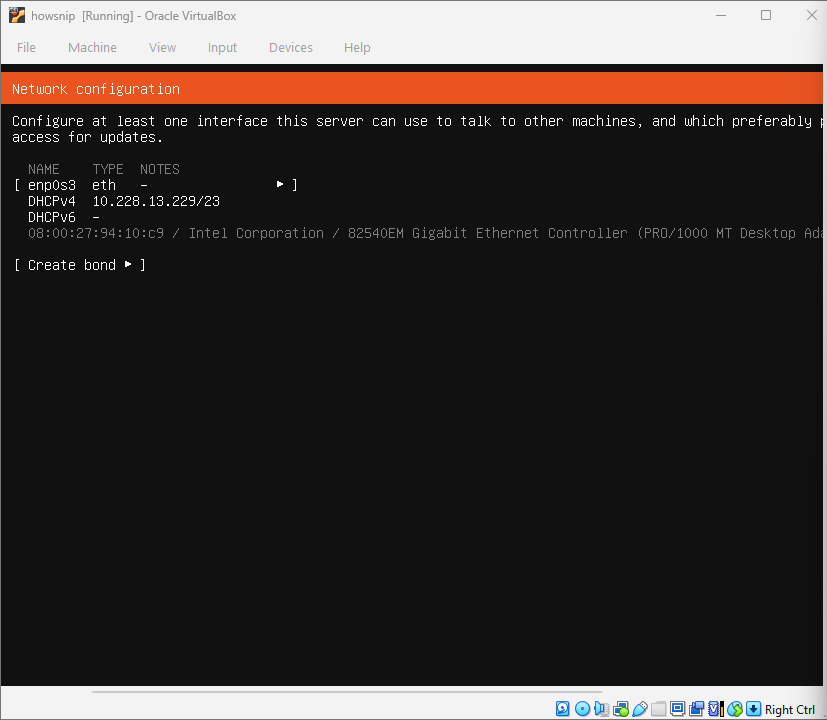
Step 15: Review Network Configuration
On the Network Connections screen:
- Leave the default settings unchanged
- Select Done
- Press Enter
The installer will automatically configure the detected network interface.
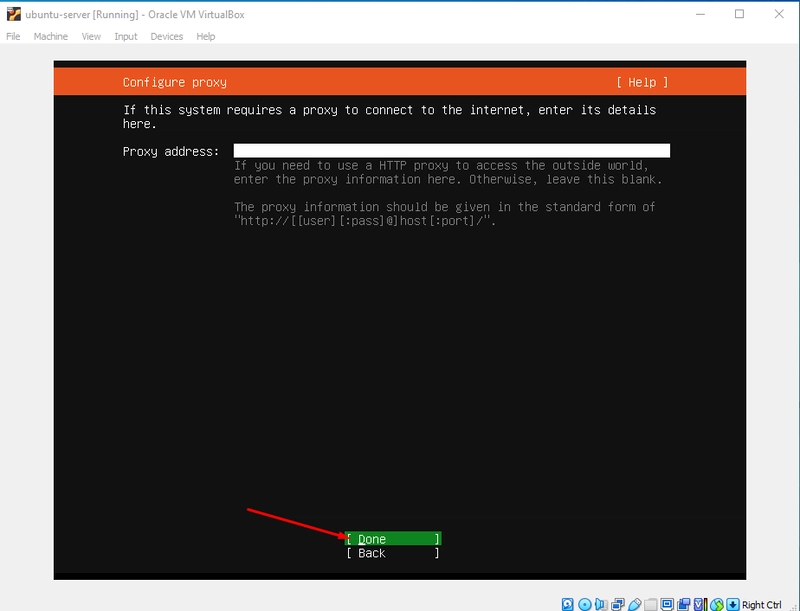
Step 16: Configure Proxy Settings
If you do not use a proxy server:
- Leave the fields empty
- Select Done
- Press Enter
Most home and lab environments do not require proxy configuration.
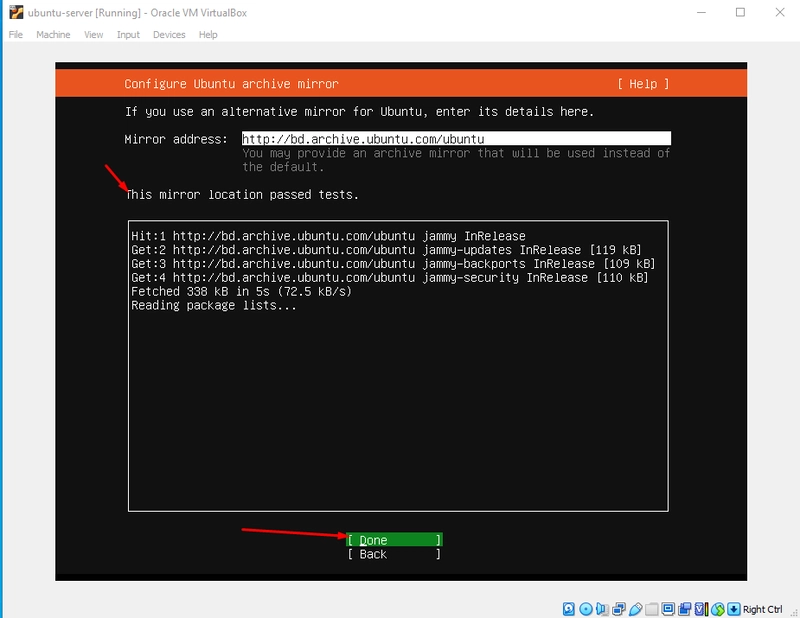
Step 17: Configure the Ubuntu Archive Mirror
The installer will test the default Ubuntu package mirror.
After the checks complete:
- Leave the default mirror settings unchanged
- Select Done
- Press Enter
This mirror will be used for software installation and updates.
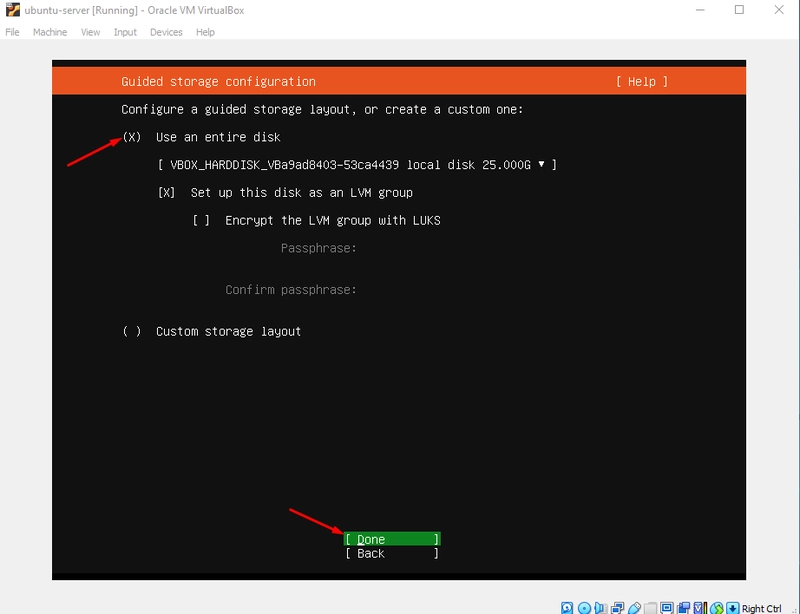
Step 18: Select Guided Storage Configuration
On the Guided Storage Configuration screen:
- Review the settings
- Move to Done
- Press Enter
This allows Ubuntu to automatically manage disk partitioning.
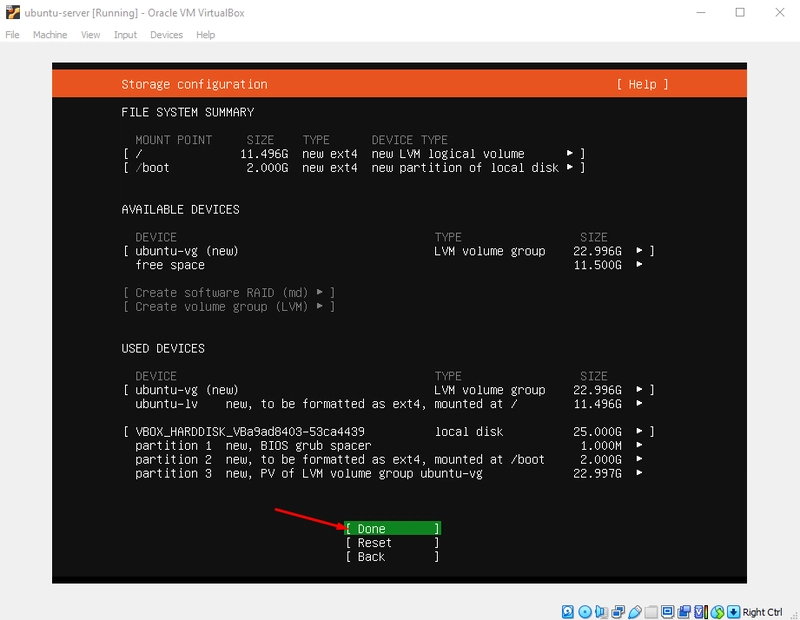
Step 19: Confirm Storage Layout
Review the storage configuration generated by the installer. When satisfied:
- Select Done
- Press Enter
Step 20: Apply Disk Changes
A confirmation prompt will appear. Select:
- Continue
- Then press Enter.
This writes the partitioning changes to the virtual disk.
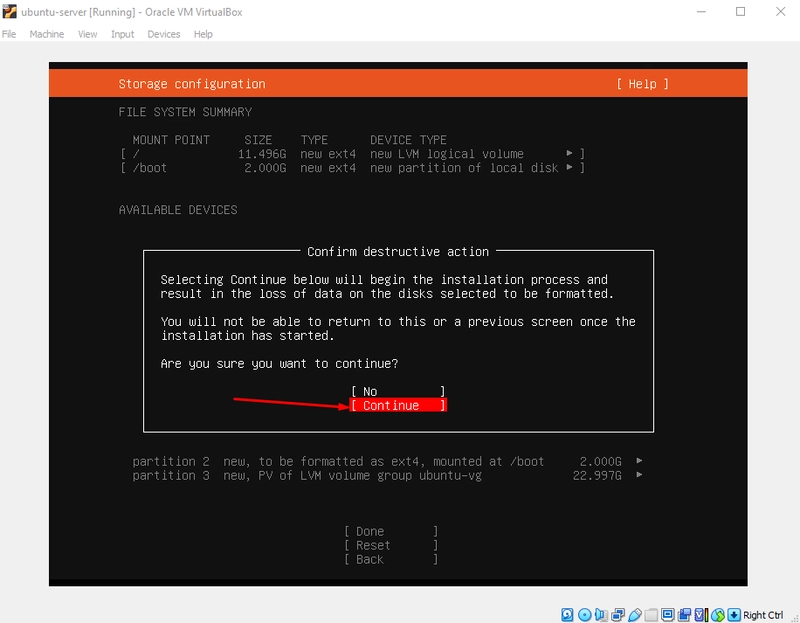
Warning: This action modifies the virtual disk layout. Ensure the disk configuration is correct before continuing.
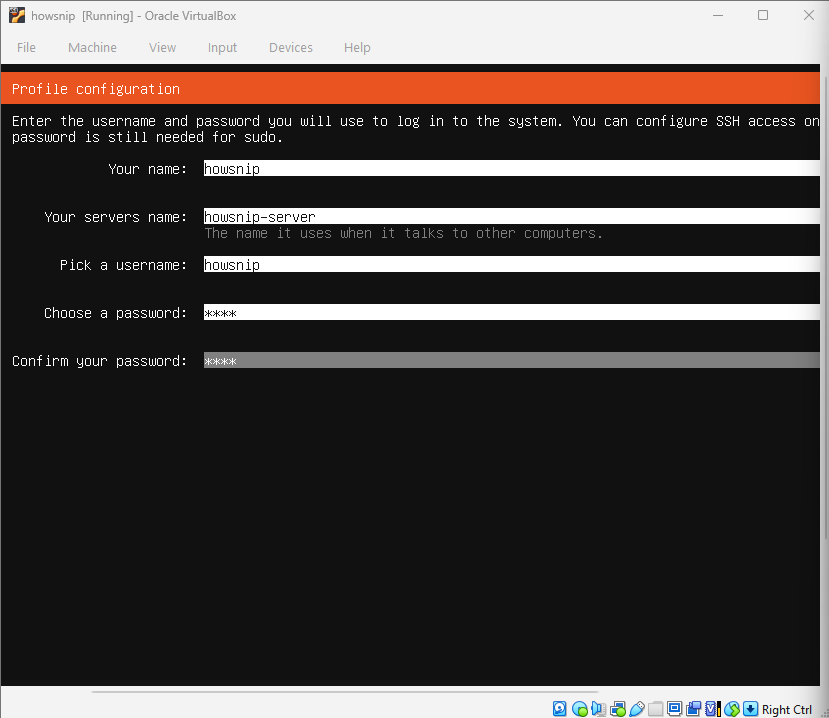
Step 21: Complete Profile Setup
Provide the following information:
- Your name
- Server name
- Username
- Password
After entering the details:
- Select Done
- Press Enter
These credentials will be required to log in to the Ubuntu Server.
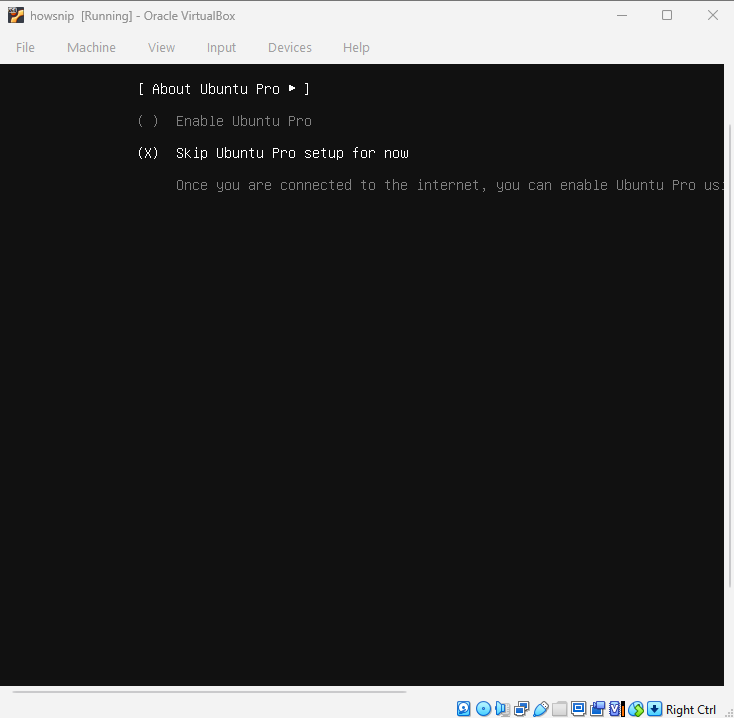
Step 22: Skip Ubuntu Pro
When prompted to upgrade to Ubuntu Pro:
- Select Skip for now
- Choose Continue
- Press Enter
You can enable Ubuntu Pro later if needed.
Step 23: Install OpenSSH Server
On the SSH Setup screen:
- Select Install OpenSSH Server
- Move to Done
- Press Enter
Installing OpenSSH allows remote access to the server through SSH after installation.
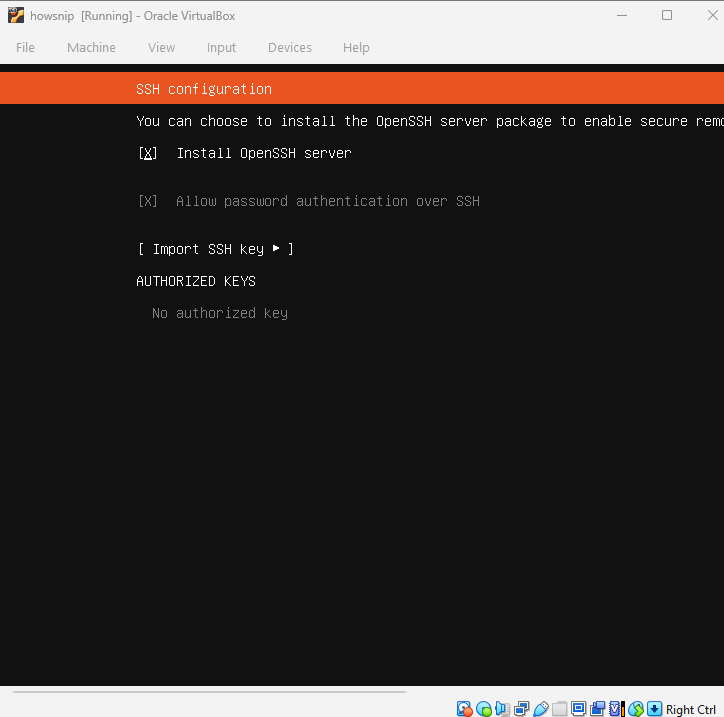
Important: OpenSSH is highly recommended if you plan to manage the server remotely.
Step 24: Skip Featured Server Snaps
On the Featured Server Snaps page:
- Do not select any additional packages
- Move to Done
- Press Enter
Additional software can always be installed later.
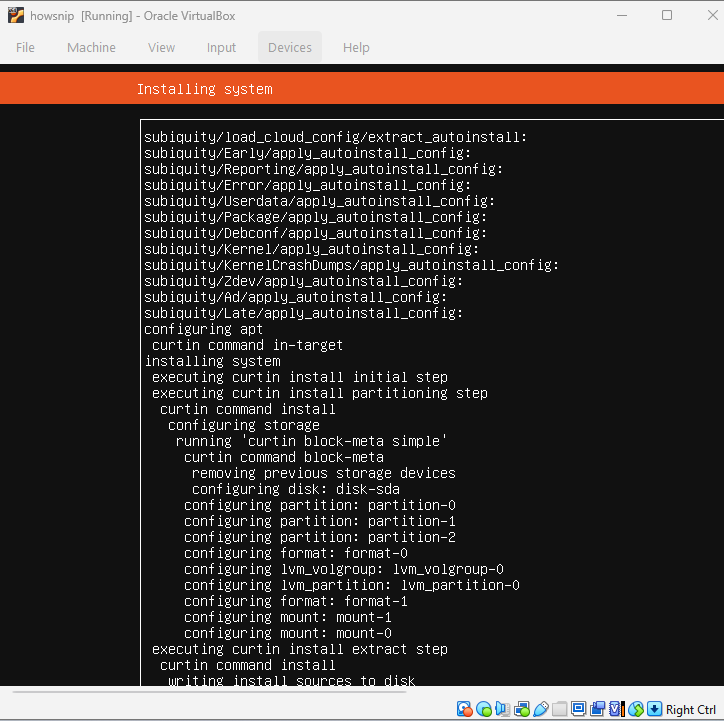
Step 25: Wait for Installation to Complete
Ubuntu Server will now install all required system files. This process may take several minutes depending on your system performance.
Wait until the Reboot Now option appears.
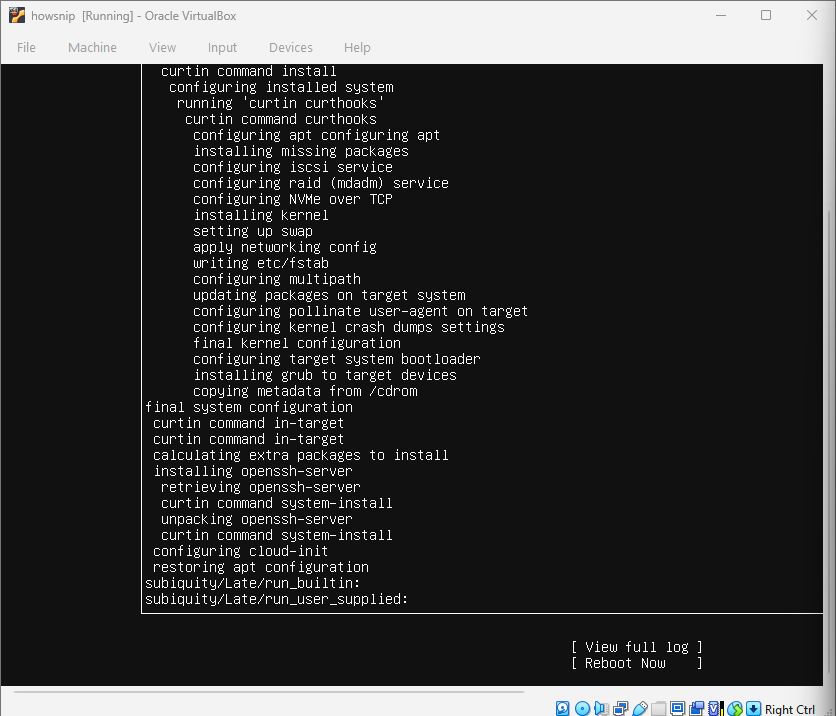
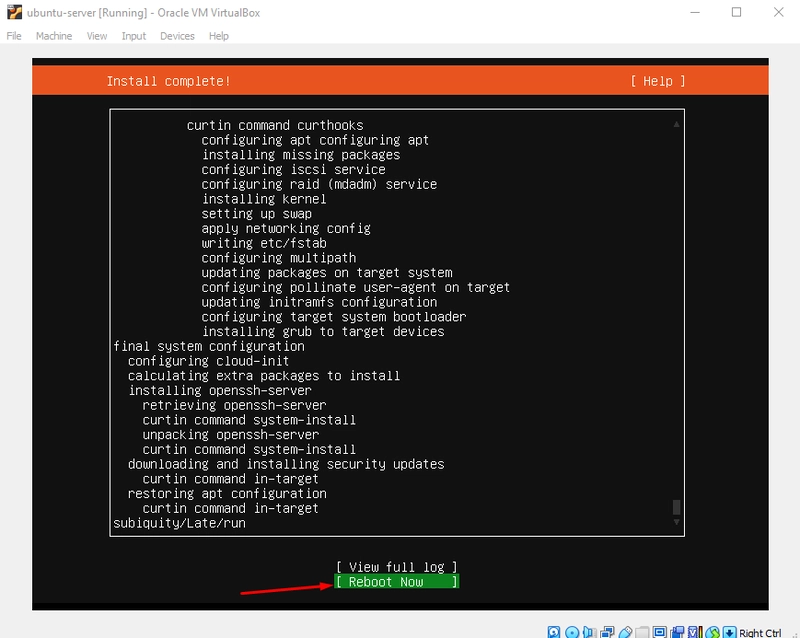
Step 26: Reboot the Server
When installation finishes:
- Select Reboot Now
- Press Enter
The virtual machine will restart and boot into the newly installed Ubuntu Server.
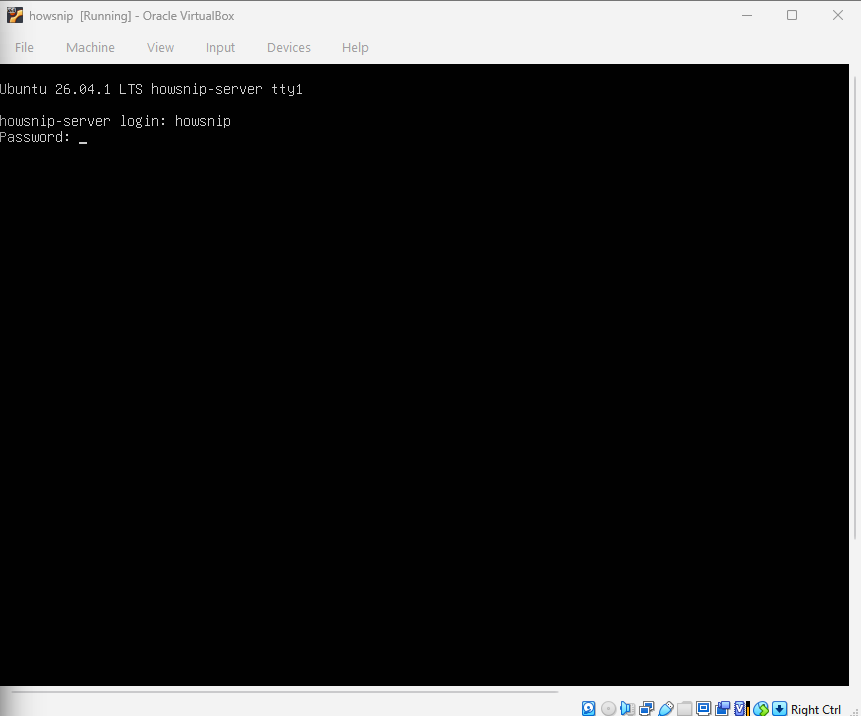
Step 27: Log In to Ubuntu Server
After rebooting, you’ll see the login prompt.
Enter:
- Username
- Password
If authentication is successful, you’ll be logged in to your Ubuntu Server.
Step 28: Verify the Installation
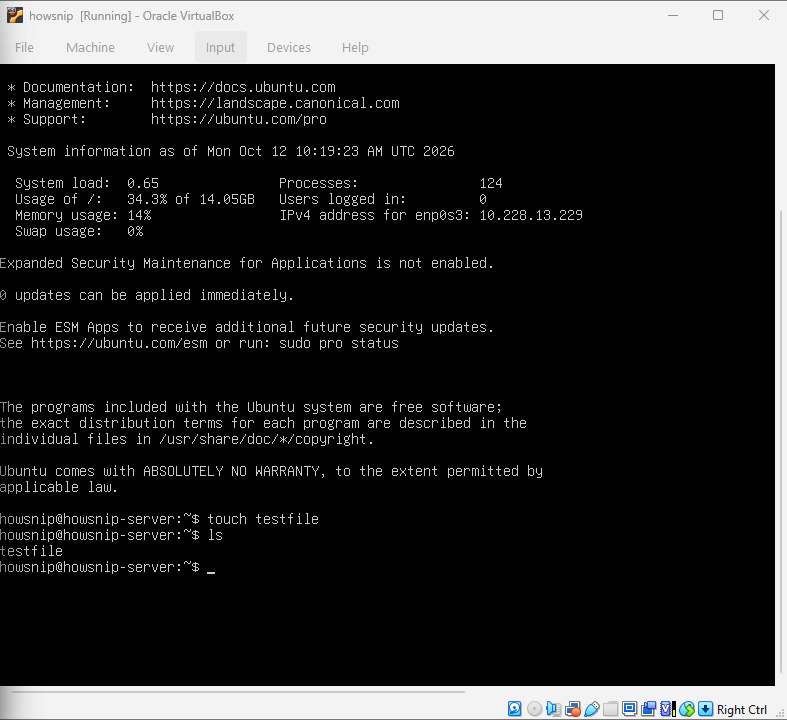
Once logged in, perform a simple test to confirm the server is functioning correctly.
Create a test file:
touch testfileIt creates an empty file named testfile in the current directory.
List files in the directory:
lsThe above command displays files and directories in the current location. If the installation is working correctly, you should see testfile in the output.
Conclusion
You have successfully installed Ubuntu Server on VirtualBox and completed the initial configuration. The virtual machine is now ready for learning Linux administration, testing server applications, configuring services, or building a development lab environment.
As a final check, verify that you can log in successfully and run basic Linux commands before moving on to additional server configuration and software installation.