If you’ve recently updated Kali Linux inside VMware Workstation or VMware Player and suddenly found that your mouse cursor has disappeared, you’re not alone. This issue has affected many users after running a routine system update.
The good news is that the problem is usually not caused by Kali Linux itself. Instead, it is often related to VMware’s virtual hardware compatibility settings.
In this article, we’ll explain why the cursor becomes invisible and the simple fix that restores it immediately.
Why Does the Cursor Disappear in Kali Linux?
Many users encounter this issue after running:
sudo apt update && sudo apt upgradeDuring the update process, Kali Linux installs newer graphics and input drivers. If your virtual machine is configured with older VMware virtual hardware compatibility settings, these newer drivers may not work correctly with the outdated virtual hardware.
As a result, the mouse cursor becomes invisible, mouse movement may still work even though the pointer cannot be seen, reinstalling VMware Tools often does not solve the problem and restarting Kali Linux typically has no effect.
Fortunately, there is a quick and permanent fix.
The Working Solution: Update VMware Hardware Compatibility
The most effective solution is to upgrade the virtual machine’s hardware compatibility level within VMware.
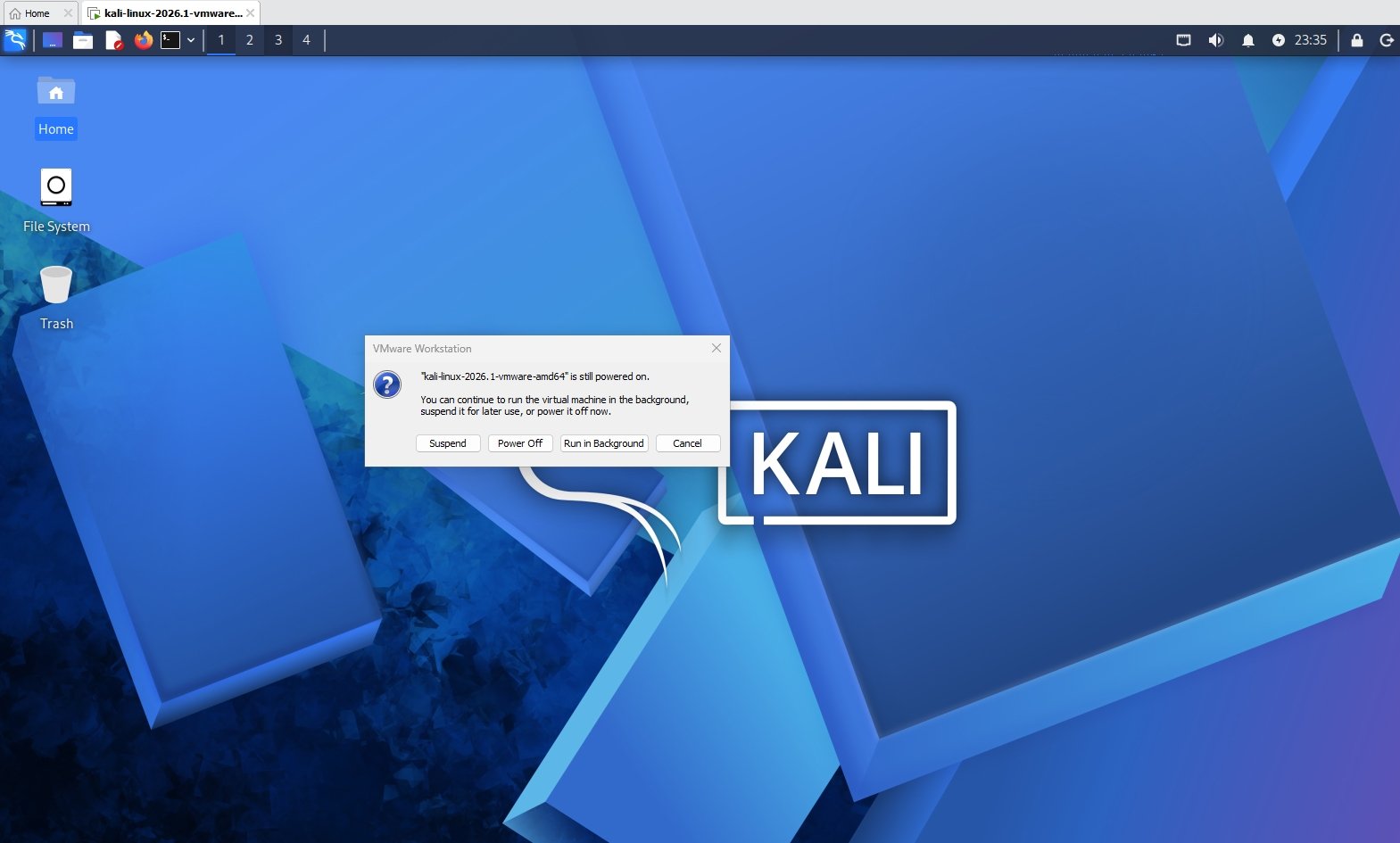
Step 1: Power Off the Virtual Machine
Before making any changes, completely shut down your Kali Linux virtual machine.
Do not suspend the VM. Ensure it is fully powered off.
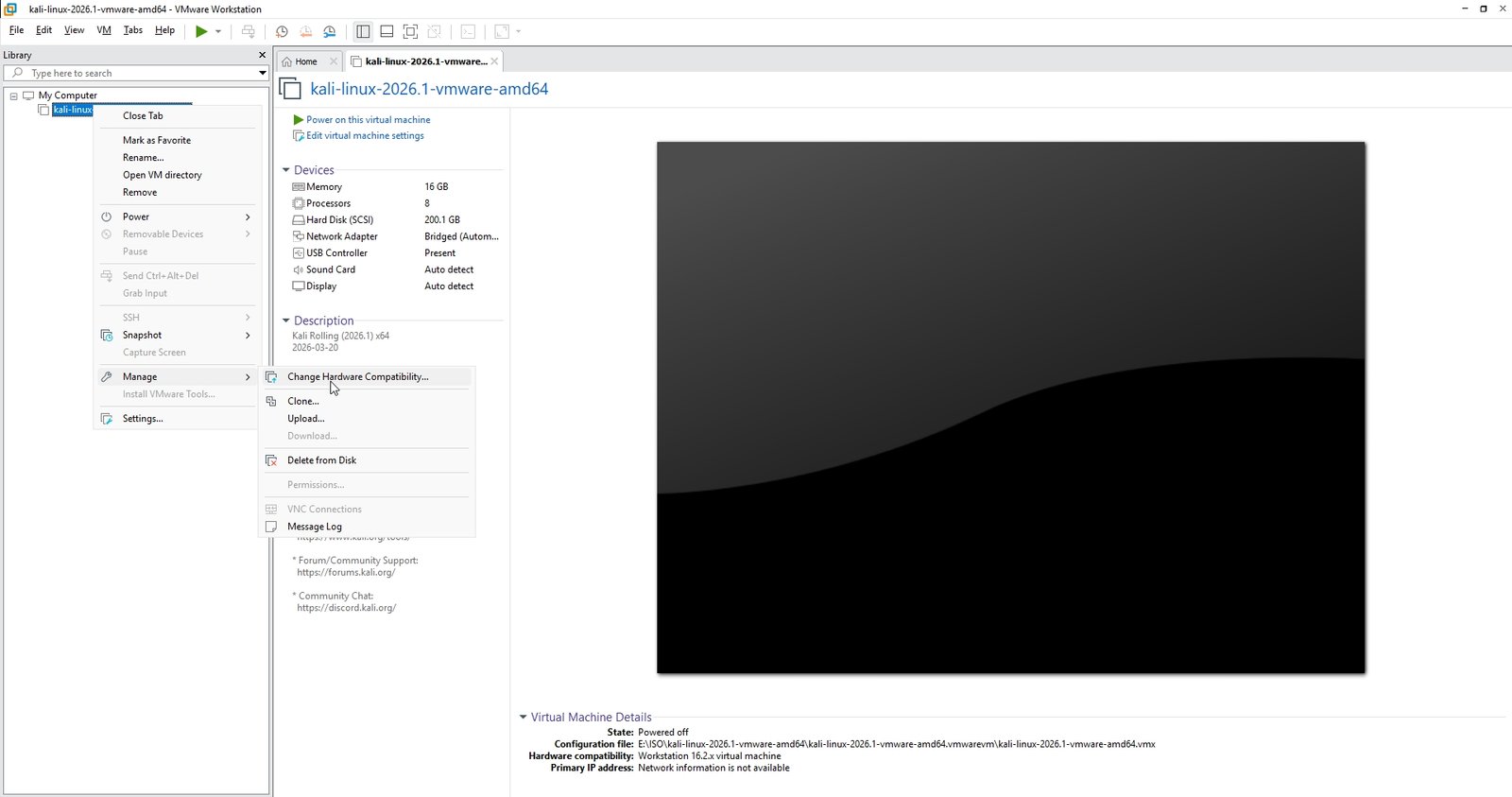
Step 2: Open VMware Hardware Compatibility Settings
From the VMware menu, navigate to:
VM → Manage → Change Hardware CompatibilityThis will launch the Hardware Compatibility Wizard.

Step 3: Select a Newer VMware Version
Click Next. Choose a newer compatibility version, such as:
- VMware Workstation 16.x
- VMware Workstation 16 Pro
- Or any later version available in your installation
Using a more recent hardware compatibility level allows the virtual machine to properly support the updated Kali Linux drivers.
Step 4: Update the Existing Virtual Machine
Select: Alter this virtual machine
Then click Next and Finish.
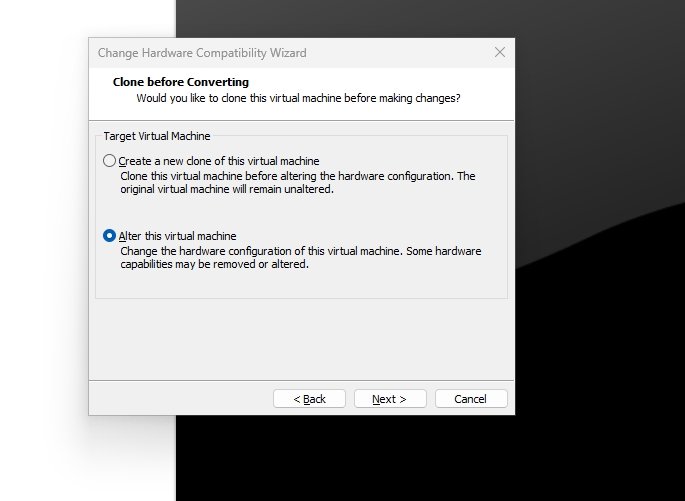
VMware will update the virtual hardware configuration.
Step 5: Start Kali Linux
Power on the virtual machine again.
In most cases, the mouse cursor immediately reappears and functions normally without any additional troubleshooting. When Kali Linux updates its graphics stack and VMware-related drivers, older virtual hardware definitions may become incompatible.
Updating the VM’s hardware compatibility level provides better graphics support, improved input device handling, enhanced compatibility with newer Linux kernels and support for updated VMware drivers.
This allows VMware and Kali Linux to communicate correctly, restoring the missing cursor.
Final Thoughts
If your mouse cursor disappeared in Kali Linux after running an update inside VMware Workstation or VMware Player, the issue is most likely caused by outdated virtual hardware compatibility settings.
Rather than reinstalling drivers or modifying desktop settings, simply updating the VM’s hardware compatibility to a newer VMware Workstation version is often all that’s needed. The process takes only a few minutes and has proven to be the most reliable fix for this problem.
If you’ve been struggling with an invisible cursor after a Kali Linux update, try upgrading your VMware hardware compatibility first, it may solve the issue instantly.