

Monitoring user login activity is an important part of Linux system administration. Whether you’re troubleshooting access issues, auditing user activity, or simply checking who is using a server, Linux provides several built-in tools that make the job easy.
In this tutorial, you’ll learn how to track user logins and review login history using the who, last, ac, lslogins, and lastlog commands. These tools provide insights into current sessions, historical login records, user connection times, and account activity.
Prerequisites
Before you begin, ensure that:
- You have access to a Linux system.
- You can open a terminal session.
- You have sufficient privileges to view system login records where required.
Check Currently Logged-In Users with the who Command
The who command displays users who are currently logged in to the system. In addition to showing active users, it provides information such as:
- Username
- Login time
- Terminal session
- Remote login source or IP address (when applicable)
Run the following command:
who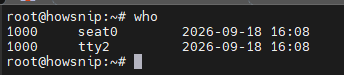
This command reads current login session information and displays all users who are actively connected to the system.
View Login History with the last Command
While who only shows active sessions, the last command lets you review historical login records. It displays logins in reverse chronological order, starting with the most recent entries.
Run:
last | head -6
What this command does
- last reads login records from the system’s login database.
- head -6 limits the output to the first six lines, making the results easier to read.
Make the Output Easier to Read
If the output contains multiple spaces, you can compress them into single spaces for cleaner formatting:
last | head -7 | tr -s " "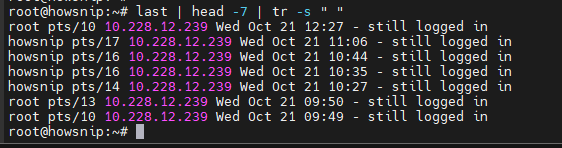
What this command does
- last retrieves login history.
- head -7 displays the first seven lines.
- tr -s ” ” squeezes repeated spaces into a single space.
This can be useful when copying output into reports or logs.
Check Login Records Stored in the wtmp File
Linux stores login history in the /var/log/wtmp file. This file contains login and logout records that tools such as last use to display historical activity.
Important: /var/log/wtmp is a binary file. You cannot inspect it directly using commands such as cat, more, or grep.
Count User Logins from the Current wtmp File
The following script counts login entries for users with home directories under /home.
for user in `ls /home`
do
echo -n "$user: "
who /var/log/wtmp | grep "^$user " | wc -l
done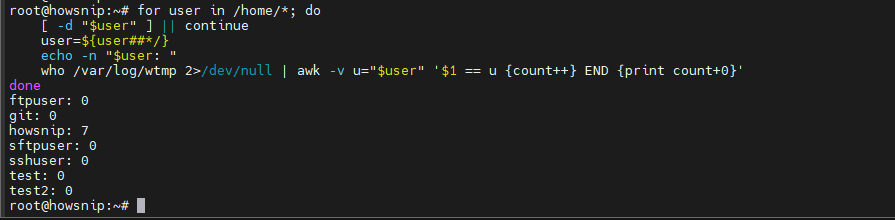
What this command does
- ls /home lists regular users with home directories.
- The loop processes each user individually.
- who /var/log/wtmp reads login records from the wtmp file.
- grep “^$user ” filters entries matching the current username.
- wc -l counts the number of matching logins.
The result is a login count for each user.
Check the Oldest Record in the wtmp File
To see how far back your login records go, display the oldest entry:
who /var/log/wtmp | head -1
What this command does
- Reads login records from the wtmp file.
- Displays the first entry, which is typically the oldest available record.
This can help determine the retention period of your login history.
View wtmp File Start Information
You can also view login information for a specific user:
last howsnip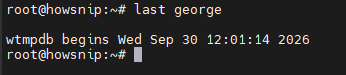
What this command does
- Displays the login history for user howsnip.
- Shows available records stored in the current login database.
- Includes information about the beginning of the available wtmp history.
Replace howsnip with the username you want to investigate.
Analyze User Connection Time with the ac Command
The ac command reports how long users have been connected to the system.
This is useful for auditing usage patterns and login activity.
a) Display Daily Login Totals
Run:
ac -d | tail -5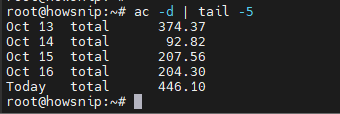
This provides a quick overview of recent login activity.
b) Display User Connection Totals
To view connection totals by user:
ac -p
This is helpful when reviewing overall system usage.
Review User Accounts with the lslogins Command
The lslogins command provides detailed information about system and user accounts. By default, it displays both regular user accounts and system accounts.
Run:
lslogins | head -5
What this command does
- Lists account information from system databases.
- Displays login-related details, including the last login time when available.
You may notice many system accounts without login information because they typically do not log in interactively.
Show Only Regular User Accounts
To hide system accounts and display only user accounts:
lslogins -u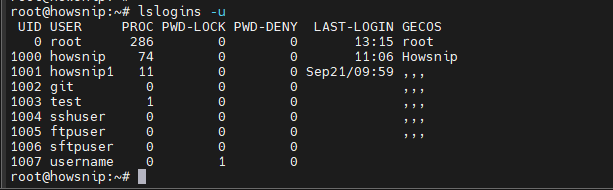
What this command does
- The -u option filters the output to regular users.
- Makes login information easier to review.
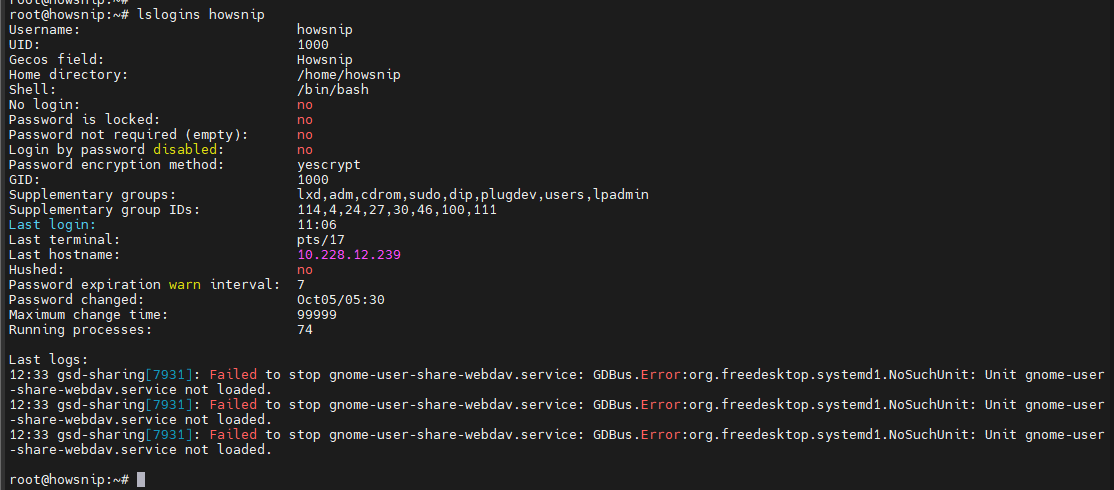
- Display Detailed Information for a Specific User
To view detailed account information for a user:
lslogins howsnipThis command gathers information from account-related system files and displays details such as:
- User ID (UID)
- Login information
- Default shell
- Account-related settings
Replace howsnip with the username you want to inspect.
Check the Most Recent Login with lastlog
The lastlog command displays the most recent login information for users.
To check a specific user:
lastlog -u howsnip
What this command does
- Shows the user’s most recent login.
- Displays login time, terminal, and remote source information when available.
Replace howsnip with the appropriate username.
Conclusion
Linux includes several powerful utilities for tracking user logins and account activity. The who command shows current sessions, last provides login history, ac reports connection times, lslogins displays account details, and lastlog reveals the most recent user login.
By combining these tools, you can quickly audit user access, investigate activity, and gain better visibility into how your Linux systems are being used.