

The ps command is one of the most useful Linux utilities for viewing and analyzing running processes. Whether you’re troubleshooting high CPU usage, checking which programs are running under a specific user account, or investigating a process hierarchy, ps provides detailed information about system activity.
In this tutorial, you’ll learn how to use common ps command options with practical examples. The steps are beginner-friendly while also providing useful commands for system administrators and advanced Linux users.
Prerequisites
Before you begin, make sure you have:
- Access to a Linux system or terminal.
- Basic familiarity with running commands from the command line.
- Appropriate permissions to view process information.
Note: Most ps commands can be run by regular users, but some process details may require elevated privileges depending on the system configuration.
Understanding the PS Command
The ps (Process Status) command displays information about currently running processes. It can show process IDs (PIDs), users, CPU usage, memory consumption, parent-child relationships, and more.
1. List Every Process on the System
Use the following command to display all running processes on the system:
ps aux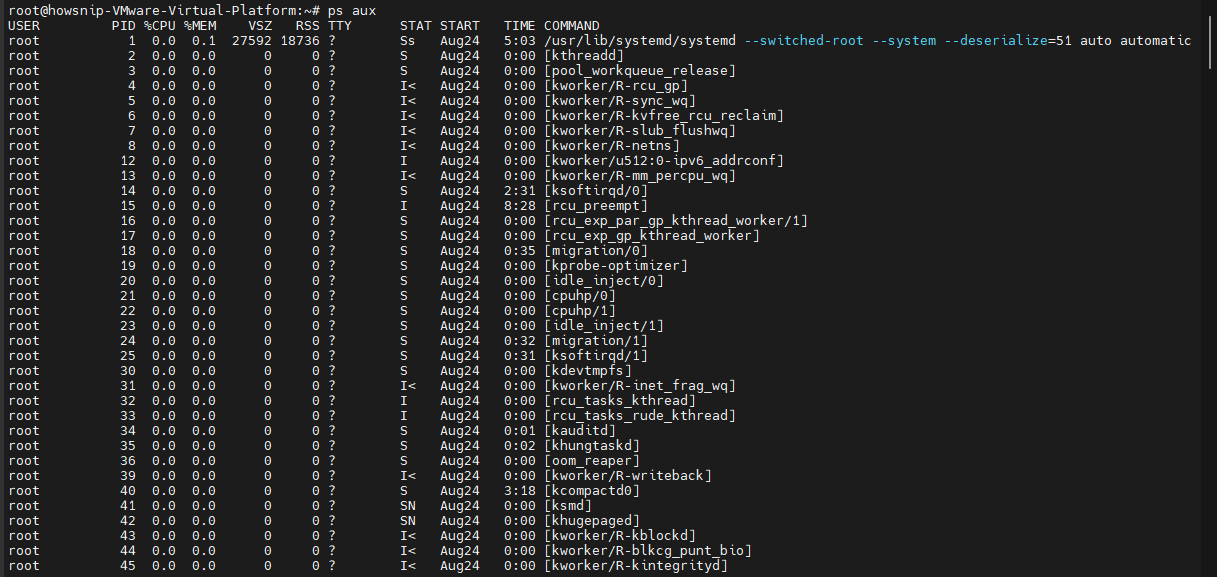
What This Command Does
- a shows processes for all users.
- u displays detailed user-oriented information.
- x includes processes not attached to a terminal.
This command is commonly used when troubleshooting system performance or identifying running applications.
2. Display the Process Tree
To view processes in a hierarchical tree structure, run:
ps axjf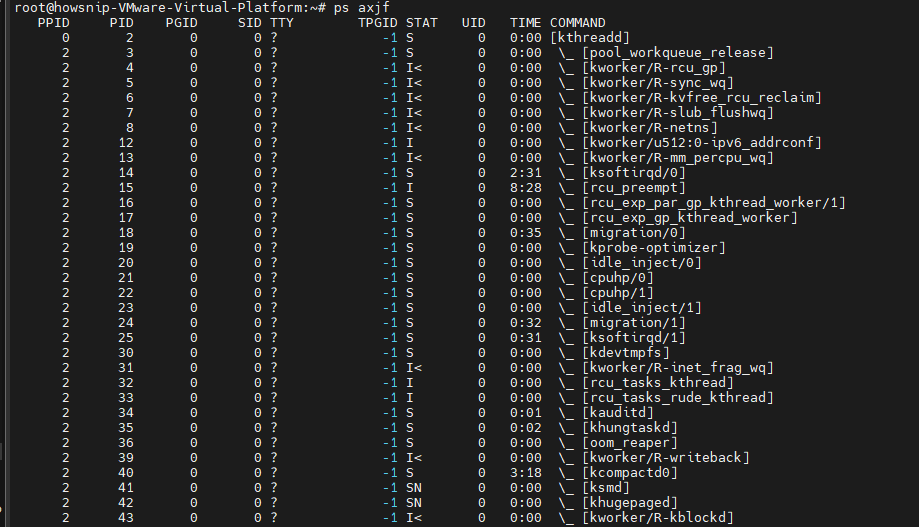
This view helps you understand parent-child process relationships.
- Shows how processes were spawned.
- Makes it easier to trace background services and subprocesses.
- Useful when troubleshooting applications that create multiple child processes.
3. List Processes Owned by a Specific User
To display all processes owned by a particular user, use:
ps -au foouser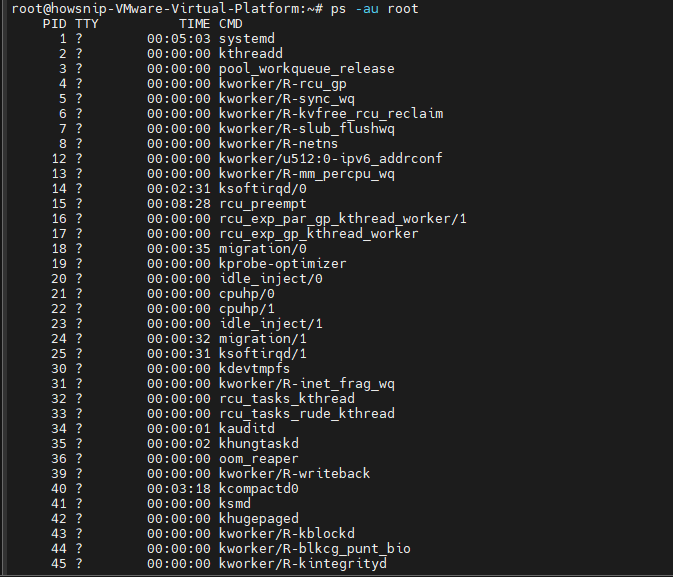
Replace foouser with the desired username.
This command helps you:
- Monitor user activity.
- Check resource usage for a specific account.
- Troubleshoot user-specific applications.
4. Display Processes Using a Custom Output Format
You can define exactly which columns are displayed:
ps -eo pid,user,command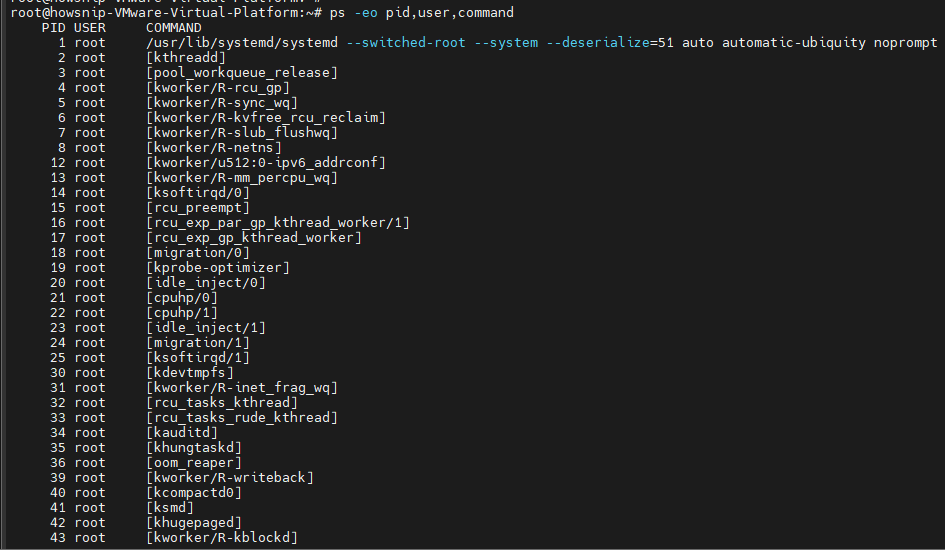
The output includes:
- pid – Process ID.
- user – Process owner.
- command – Command used to start the process.
Custom formatting makes the output easier to read and is especially useful when scripting or generating reports.
5. View Processes for Multiple Users
To display processes belonging to multiple users, run:
ps -f -u username1,username2,...,usernameN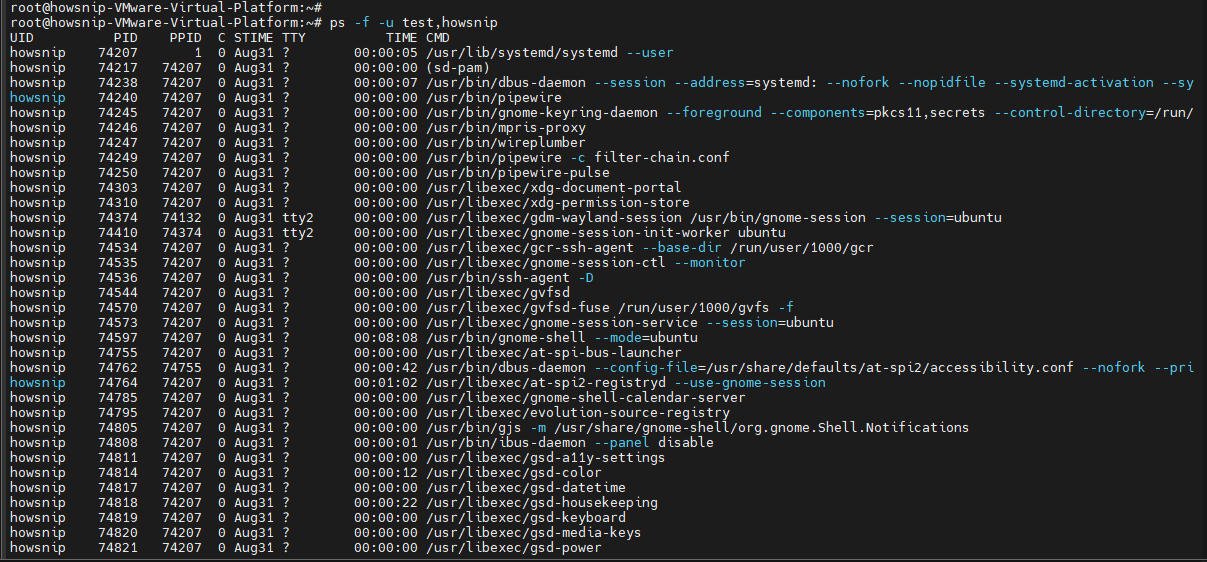
What This Command Does
- -f displays a full-format listing.
- -u filters results by username.
This command is useful on multi-user systems where you need to review activity for several accounts simultaneously.
6. Display Processes by Parent Process ID (PPID)
To view all processes associated with a specific parent process ID:
ps -f --ppid 5589
A process often creates one or more child processes during execution.
Using a Parent Process ID (PPID) allows you to:
- Identify child processes.
- Troubleshoot services that spawn multiple tasks.
- Analyze application process structures.
Important: Child processes inherit the parent relationship, making PPID filtering valuable when investigating application behavior.
7. Display Processes by Process ID (PID)
To show information for specific process IDs:
ps -f -p 25001,4567,789
What This Command Does
- -p specifies one or more PIDs.
- -f displays detailed information.
Use this option when you already know the process IDs you want to inspect. This is especially useful when troubleshooting applications referenced in logs or monitoring tools.
8. Show Processes Owned by the Current User
To display all processes owned by the currently logged-in user:
ps -U $USER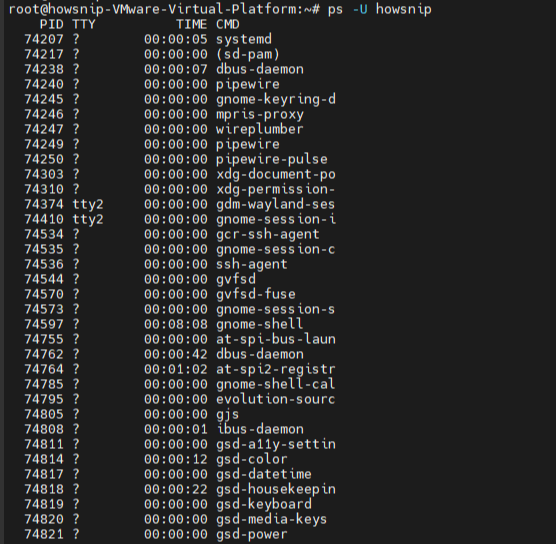
The $USER environment variable automatically references your current username. This command provides a quick way to view your active processes without manually entering your username.
9. Sort Processes by Memory Usage
To sort processes by memory consumption:
ps aux --sort pmem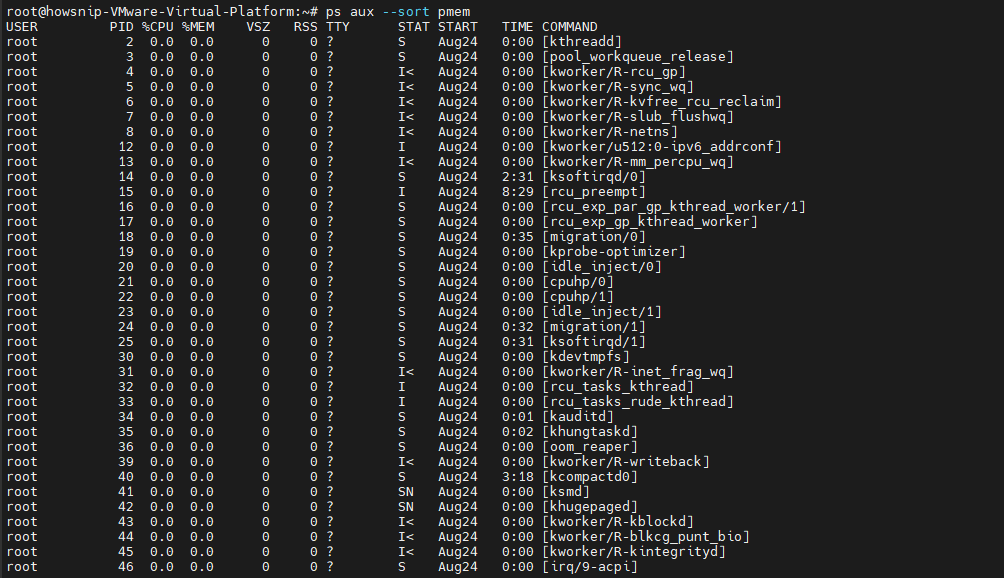
This command helps identify processes consuming significant system memory.
Common use cases include:
- Finding memory-hungry applications.
- Investigating performance issues.
- Detecting potential memory leaks.
Reviewing memory usage regularly can help maintain system stability and optimize resource allocation.
Warning: High memory consumption does not always indicate a problem. Some applications intentionally cache data to improve performance.
Conclusion
The Linux ps command is an essential tool for monitoring and troubleshooting running processes.
By learning how to list processes, view process hierarchies, filter results by user, inspect specific PIDs and PPIDs, and sort by memory usage, you can gain valuable insight into system activity and manage Linux environments more effectively.