

Processing text files, log files, and structured data is a common task in Linux and Unix environments. The AWK command is one of the most powerful tools available for this purpose. Whether you need to extract columns from a file, analyze server logs, calculate totals, or generate quick reports, AWK can help you do it efficiently with just a few commands.
In this tutorial, you’ll learn the fundamentals of AWK, understand its syntax, and explore practical examples that can be used in real-world Linux, system administration, and DevOps workflows.
Prerequisites
- A Linux, macOS, or BSD system with AWK installed
- Basic familiarity with the command line
- Sample text, CSV, or log files for testing
What Is the AWK Command?
AWK is a pattern-driven text processing language available on most Unix-like operating systems, including Linux, macOS, and BSD.
The name AWK comes from its creators:
- Alfred Aho
- Peter Weinberger
- Brian Kernighan
AWK reads input one line at a time, splits each line into fields, and performs actions when specified patterns match. It is commonly used for:
- Extracting columns from files
- Filtering records
- Calculating sums and averages
- Generating reports
- Processing logs and CSV files
Unlike grep and sed, AWK understands structured data and fields natively, making it ideal for working with tabular information.
Understanding AWK Syntax
The basic AWK syntax follows a simple pattern:
awk 'pattern { action }' fileAWK executes the action only when the pattern matches.
Print Every Line
awk '{ print $0 }' file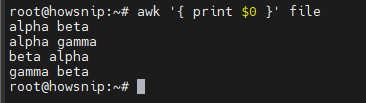
$0 represents the entire line.
Print Lines Matching a Pattern
awk '/error/' file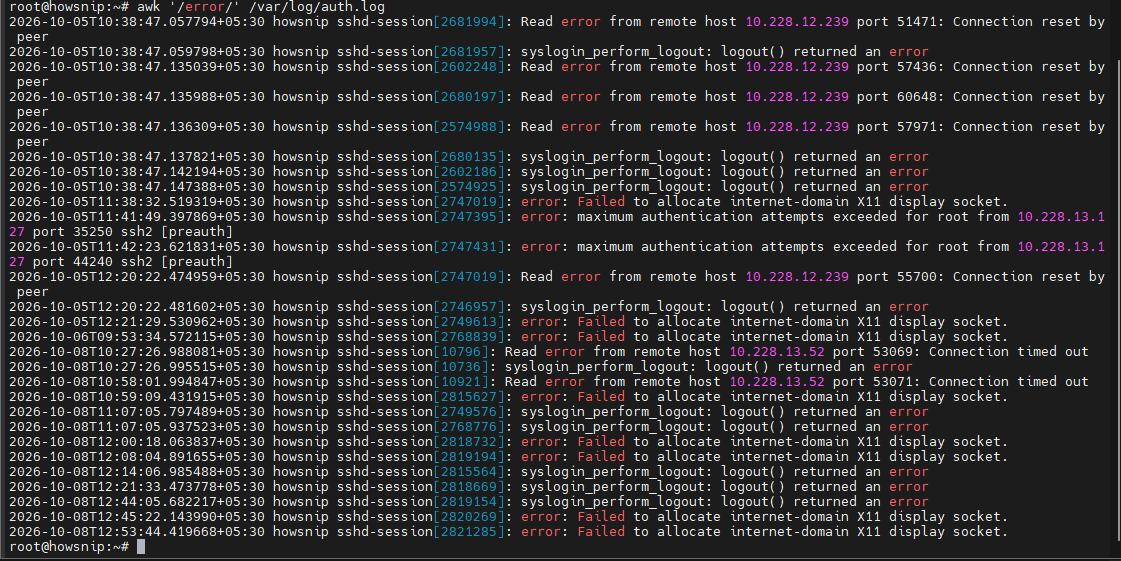
This command prints all lines containing the word error.
Understanding Fields, Records, and Delimiters
AWK processes input as:
- Records = Lines
- Fields = Individual values within a line
By default, fields are separated by whitespace.
Print Specific Fields
awk '{ print $1, $3 }' data.txt
This prints the first and third fields from each line.
Work with CSV Files
For comma-separated data, specify a delimiter using -F.
awk -F, '{ print $1, $3 }' data.csv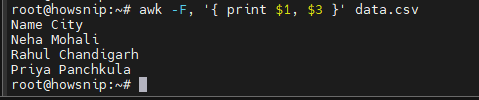
Set an Output Delimiter
awk -F, 'BEGIN { OFS="\t" } { print $1, $3 }' data.csv
This outputs the selected fields separated by tabs.
Useful Built-In AWK Variables
AWK provides several built-in variables that simplify data processing.
- NR – Current line number
- FNR – Line number within current file
- NF – Number of fields in current line
- FS – Input field separator
- OFS – Output field separator
- RS – Input record separator
- ORS – Output record separator
- $0 – Entire line
- $1…$NF – Individual fields
Print Line Numbers
awk '{ print NR, $1 }' file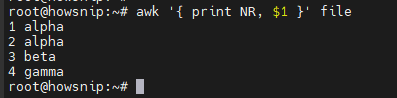
Print the Last Field
awk '{ print $NF }' file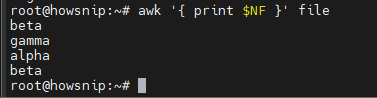
$NF always refers to the last field in the current record.
Essential AWK Examples
Print and Reorder Columns
You can rearrange fields during output.
awk '{ print $3 "-" $1 }' access.log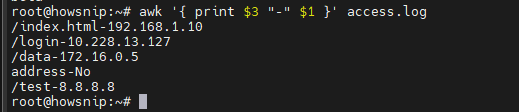
This prints the third field, followed by a dash, and then the first field.
Extract Data from Command Output
top -b -n1 | awk 'NR>7 { print $1, $9, $12 }'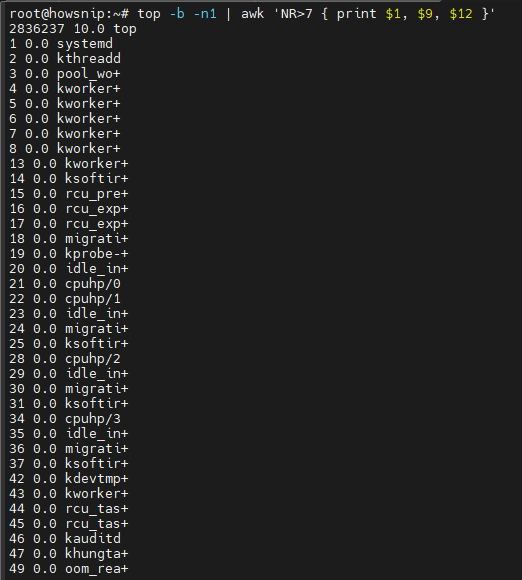
This example skips the header section of the top command and displays selected columns.
Filter Rows by Value or Pattern
Filtering data is one of the most common AWK tasks.
Match an Exact Value
awk '$3=="sudo:"' auth.log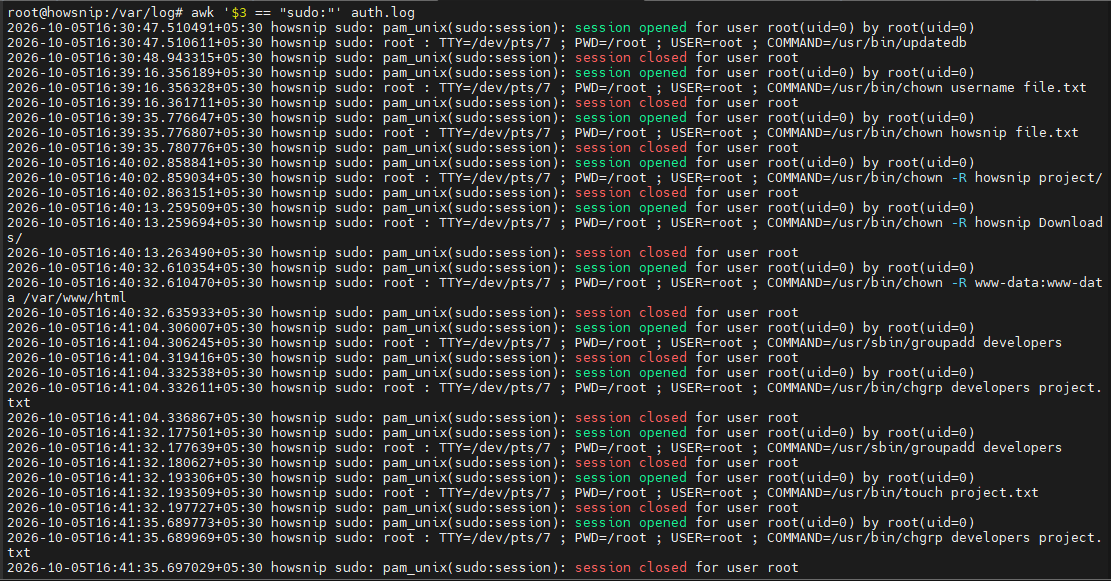
Displays lines where the third field contains FAILED.
Find HTTP 500 Errors
awk '$9==500' /var/log/nginx/access.logThis example assumes the HTTP status code is stored in field 9.
Note: Log formats vary. Verify field positions in your environment.
Case-Insensitive Search
awk 'tolower($0) ~ /timeout/' app.log
Finds occurrences of the word timeout regardless of capitalization.
Calculate Sums, Averages, and Statistics
Sum a Column
awk '{ sum += $2 } END { print sum }' metrics.txtCalculate an Average
awk '$0 !~ /^#/ { n++; total += $4 } END { if (n>0) print total/n }' data.txt
This ignores lines beginning with #.
Find Minimum and Maximum Values
awk ' NR==1 { min=max=$2 } { if ($2 < min) min=$2 if ($2 > max) max=$2 } END { print "min", min, "max", max }' stats.txt
Count Unique Values and Frequencies
AWK’s associative arrays make grouping simple.
Count Requests Per IP Address
awk '{ hits[$1]++ } END { for (ip in hits) print hits[ip], ip }' access.log | sort -nr | head
This displays the most active IP addresses first.
Working with CSV Files and Custom Delimiters
Extract CSV Columns
awk -F, 'BEGIN { OFS="," } { print $1, $3 }' users.csv
Handle Quoted CSV Fields with Gawk
gawk ' BEGIN { FPAT = "([^,]*)|(\"[^\"]+\")" OFS="," } { print $1, $3 }' users.csv
Important: -F, works well for simple CSV files. Complex CSV files containing quoted commas may require gawk and FPAT.
Using BEGIN and END Blocks
AWK provides special processing blocks:
- BEGIN runs before reading input
- END runs after processing all records
Generate a Simple Report
awk ' BEGIN { print "Service,Count" } { c[$1]++ } END { for (u in c) print u, c[u] }' log.txt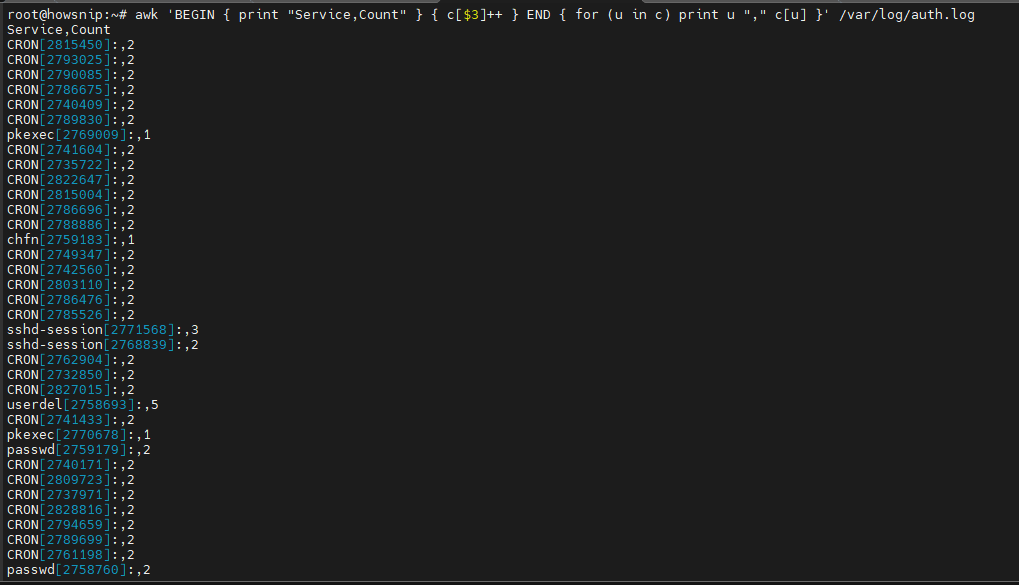
This adds a header and prints a summary at the end.
Practical AWK Use Cases
Analyze Apache and Nginx Logs
Top 10 IP Addresses
awk '{ ip=$1; hits[ip]++ } END { for (ip in hits) print hits[ip], ip }' access.log | sort -nr | head -10 Most Requested URLs
awk '{ path=$7; c[path]++ } END { for (p in c) print c[p], p }' access.log | sort -nr | head -10
HTTP Status Distribution
awk '{ sc=$9; c[sc]++ } END { for (s in c) print s, c[s] }' access.log | sort -k1,1
Calculate Total Bytes Transferred
awk '$10 ~ /^[0-9]+$/ { bytes += $10 } END { print "Total bytes:", bytes }' access.log
Monitor System and Application Metrics
CPU Usage from mpstat
mpstat 1 5 | awk '/Average/ { print "CPU %usr+%sys:", $3 + $5 }'
Memory Usage
awk ' /MemTotal/ { t=$2 } /MemAvailable/ { a=$2 } END { printf "Mem Used: %.2f%%\n", (t-a)/t*100 }' /proc/meminfo
Find Slow Queries
awk '$6+0 > 2 { print }' app.log
This prints log entries where field 6 contains a duration greater than two seconds.
Clean and Transform Data
Convert Text to Lowercase and Remove Extra Spaces
awk '{ gsub(/^ +| +$/, "") $0 = tolower($0) print }' raw.txt
Convert TSV to CSV
awk ' BEGIN { OFS="," FS="\t" } { print $1, $2, $3 }' input.tsv > output.csv
Combining AWK with Other Linux Tools
AWK works especially well in shell pipelines.
Common combinations include:
- grep for filtering
- sort for ordering
- uniq for deduplication
- sed for text replacement
A typical workflow might use:
grep "ERROR" app.log | awk '{ print $1, $5 }' | sortThis approach keeps commands simple, readable, and efficient.
Advanced AWK Techniques
Group and Aggregate Data
Calculate revenue by customer:
awk -F, ' { rev[$1] += $3 } END { for (id in rev) printf "%s,%.2f\n", id, rev[id] }' sales.csv | sort -t, -k2,2nr | head
Use Range Patterns
Print everything between two markers:
awk '/BEGIN_REPORT/,/END_REPORT/' app.log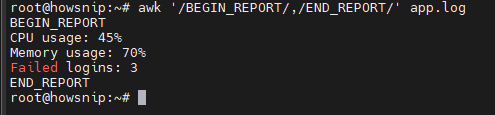
This is useful for extracting report sections from logs or configuration files.
Process Multiple Files
Remember:
- NR counts lines across all files
- FNR resets for each file
This distinction becomes important when comparing multiple inputs.
Compare corresponding lines across files
awk 'FNR==NR { a[1]=2; next } { print 0,a[1] }' left.txt right.txt
Conditionals, Functions, and Arrays
AWK supports programming features such as variables and conditional logic.
awk ' { score=$2 if (score >= 90) grade="A" else if (score >= 80) grade="B" else grade="C" print toupper($1), grade, length($1) }' grades.txt
Performance Tips and Best Practices
For better performance and portability:
- Keep pattern matching simple on very large files.
- Avoid excessive gsub() operations when possible.
- Use numeric comparisons such as $3+0 >= 100.
- Define FS and OFS in a BEGIN block for consistency.
- Use external tools like sort when handling large datasets.
- Prefer POSIX-compliant AWK features unless you specifically need GNU AWK extensions.
Common AWK Mistakes to Avoid
Incorrect Quoting
Always wrap AWK programs in single quotes:
awk '{ print $1 }' file.txtThis prevents unwanted shell expansion.
Assuming Field Numbers
Log formats differ between environments. Always verify which column contains the required value.
Using Simple CSV Logic on Complex Files
Files with embedded commas, quotes, or multi-line fields often need specialized CSV handling.
Ignoring Locale Differences
Sorting and case conversion may vary depending on system locale settings.
Testing on Production Data First
Start with a small sample:
head access.log | awk '{ print $1 }'Then expand your command as needed.
AWK vs Sed vs Grep
Choosing the right tool saves time.
- Use grep When:
- Finding matching lines
- Fast text filtering
- Use sed When:
- Replacing text
- Editing streams
- Use awk When:
- Processing columns
- Calculating values
- Creating summaries and reports
A common command-line strategy is:
grep → awk → sed
Filter first, process data second, and clean output last.
Useful AWK One-Liners
Remove Duplicate Lines
awk '!seen[$0]++' file.txt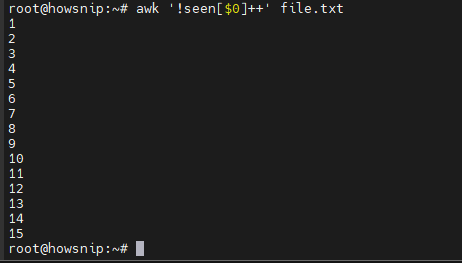
Find Lines with Too Many Fields
awk 'NF > 10' data.txt
Create a Status Report
awk ' BEGIN { print "status,count" } { c[$9]++ } END { for (s in c) print s "," c[s] }' access.log
Count Records Per Day
awk ' { d=$1 gsub(/[|]/, "", d) day=substr(d, 1, 11) hits[day]++ } END { for (k in hits) print hits[k], k }' access.log | sort -nr
Conclusion
The AWK command is one of the most versatile tools available in Linux and Unix environments. From extracting fields and filtering records to analyzing logs and generating reports, AWK allows you to process structured text quickly and efficiently without writing full-scale scripts.
Start with simple field extraction and filtering, then gradually explore arrays, aggregations, and advanced pattern matching. Once you become comfortable with AWK, it can dramatically simplify everyday system administration, DevOps, and data-processing tasks.