
Wireshark is one of the most widely used network protocol analyzers for monitoring, troubleshooting, and investigating network traffic. Whether you’re a beginner learning packet analysis or an IT professional performing security investigations, Wireshark’s filtering capabilities make it much easier to find relevant data within large packet captures.
In this tutorial, you’ll learn how to install and launch Wireshark on Ubuntu, capture or load network traffic, apply display filters, use advanced filtering techniques, and perform basic security-focused traffic analysis.
Prerequisites
- Ubuntu system (LTS)
- Terminal access
- Permissions to install software
- Internet connectivity (if downloading the sample capture file)
Install Wireshark on Ubuntu
Before analyzing network traffic, you need to install Wireshark. Open a terminal and update the package repository information:
sudo apt update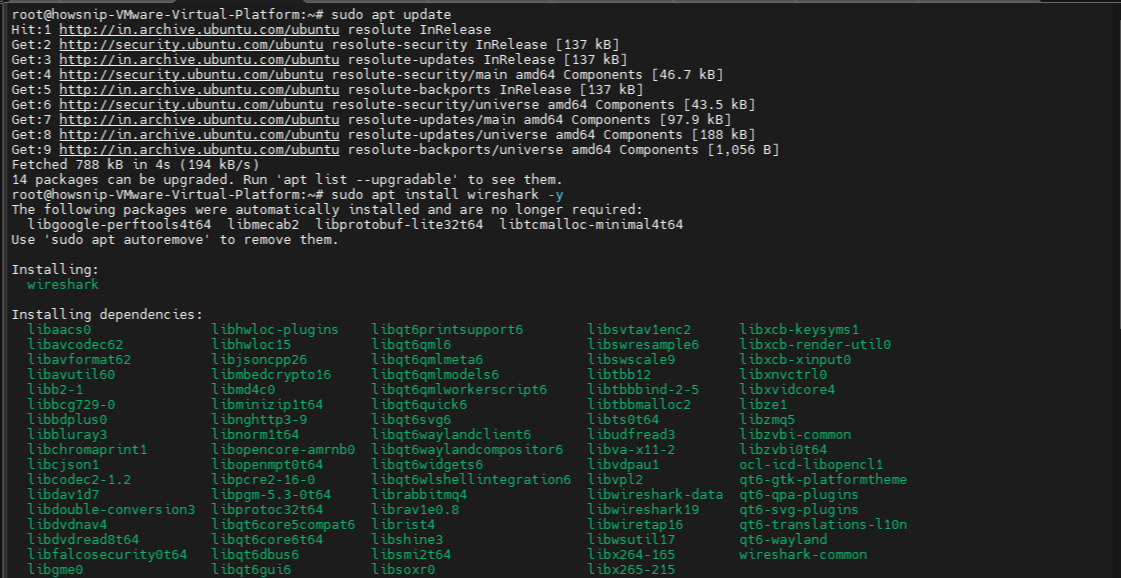
This command refreshes the system’s package index to ensure you’re installing the latest available package versions.
Next, install Wireshark:
sudo apt install wireshark -y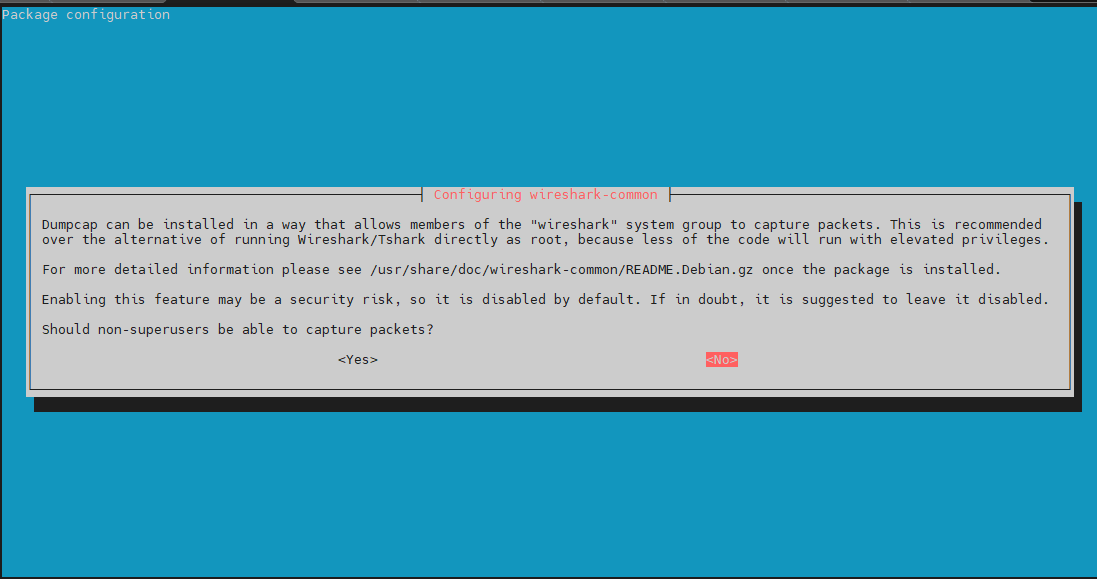
The command installs Wireshark and automatically accepts the installation prompts.
Launch Wireshark
After installation, start Wireshark from the terminal. Open a terminal window and run:
wireshark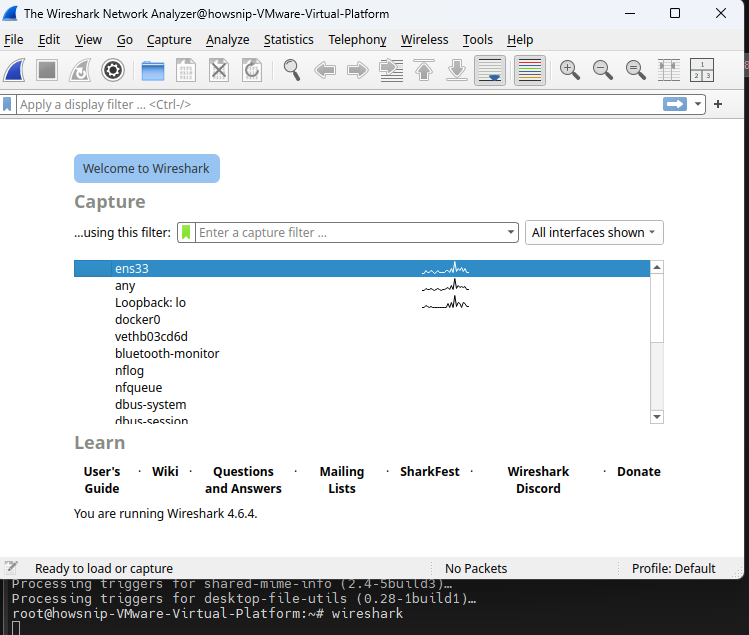
This command launches the Wireshark graphical interface. Once the application opens, you’ll see the main dashboard with available network interfaces and packet analysis tools.
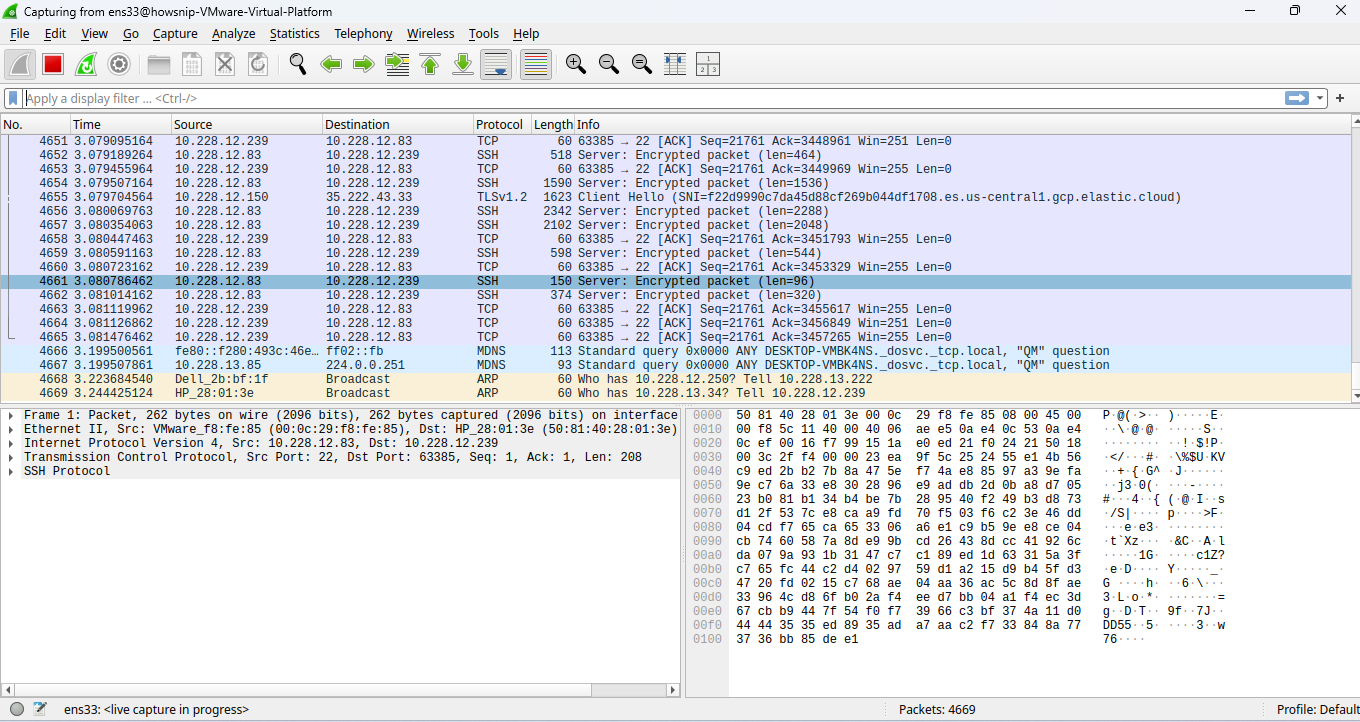
Load or Capture Network Traffic
To begin analyzing packets, you can either open a sample capture file or collect your own network traffic.
Option 1: Open the Sample Capture File
Download the provided packet capture file:
wget -q https://s3.amazonaws.com/tcpreplay-pcap-files/smallFlows.pcap -O /home/labex/project/sample.pcapng
This command downloads a sample packet capture containing various types of network traffic.
Grant read access to the file:
chmod 644 /home/labex/project/sample.pcapngThis ensures the file can be accessed for analysis.
Open the File in Wireshark
Click File > Open.
Browse to:
/home/labex/project/sample.pcapng
Click Open.
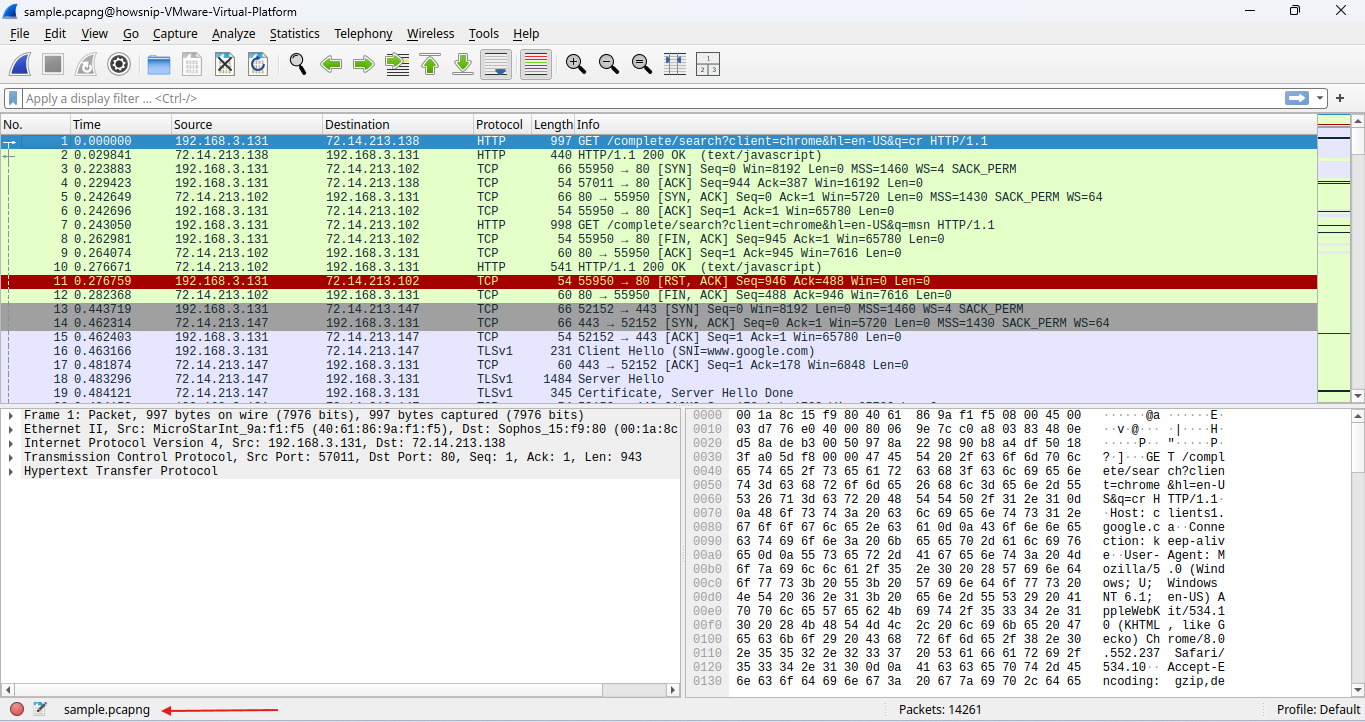
Wireshark will display all packets stored in the capture file.
Option 2: Capture Live Network Traffic
If you’d rather work with live traffic:
- Review the available network interfaces.
- Locate eth1.
- Double-click eth1 to begin packet capture.
- Generate traffic from another terminal:
- curl www.google.com
This creates network activity that Wireshark can capture. After collecting approximately 20-30 packets, click the red Stop button in the toolbar.
Understand the Wireshark Interface
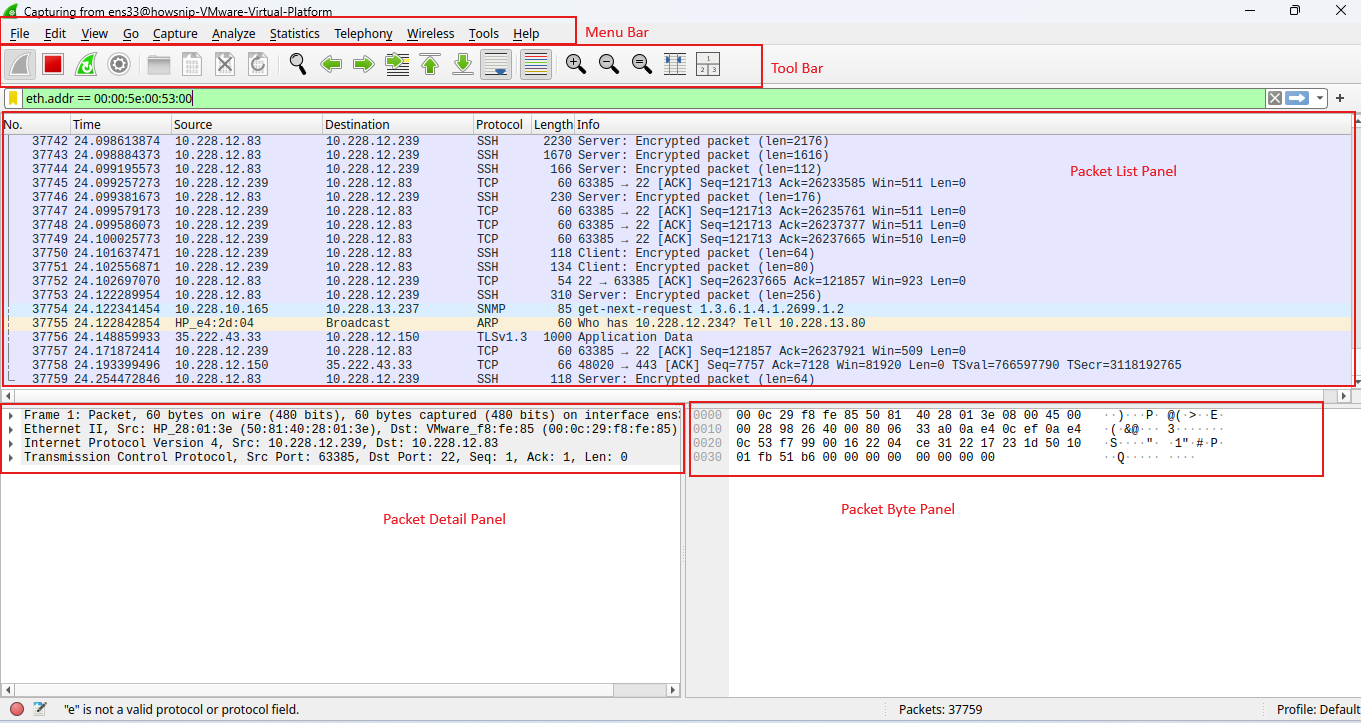
Wireshark organizes packet data into three primary sections.
Packet List Pane
Located at the top of the window, this panel displays all captured packets in chronological order. Information commonly displayed includes:
- Packet number
- Source address
- Destination address
- Protocol
- Packet length
Packet Details Pane
The middle pane displays decoded protocol information for the selected packet. You can expand protocol layers to inspect:
- Ethernet headers
- IP information
- TCP or UDP data
- Application layer details
Packet Bytes Pane
The bottom pane shows the raw packet data in hexadecimal and ASCII format. This view is useful for low-level analysis and troubleshooting.
Understanding Wireshark Display Filters
Display filters allow you to focus on specific traffic and hide irrelevant packets.
Without filters, packet captures can quickly become difficult to analyze. Display filters help isolate traffic based on protocols, IP addresses, ports, packet content, and other attributes.
Locate the Filter Bar
At the top of the Wireshark window, you’ll find the display filter field labeled:
Apply a display filter…
Enter filter expressions here and press Enter to apply them. A valid filter typically turns the filter bar green.

Apply Basic Wireshark Filters
a) Filter HTTP Traffic
To view only HTTP packets:
http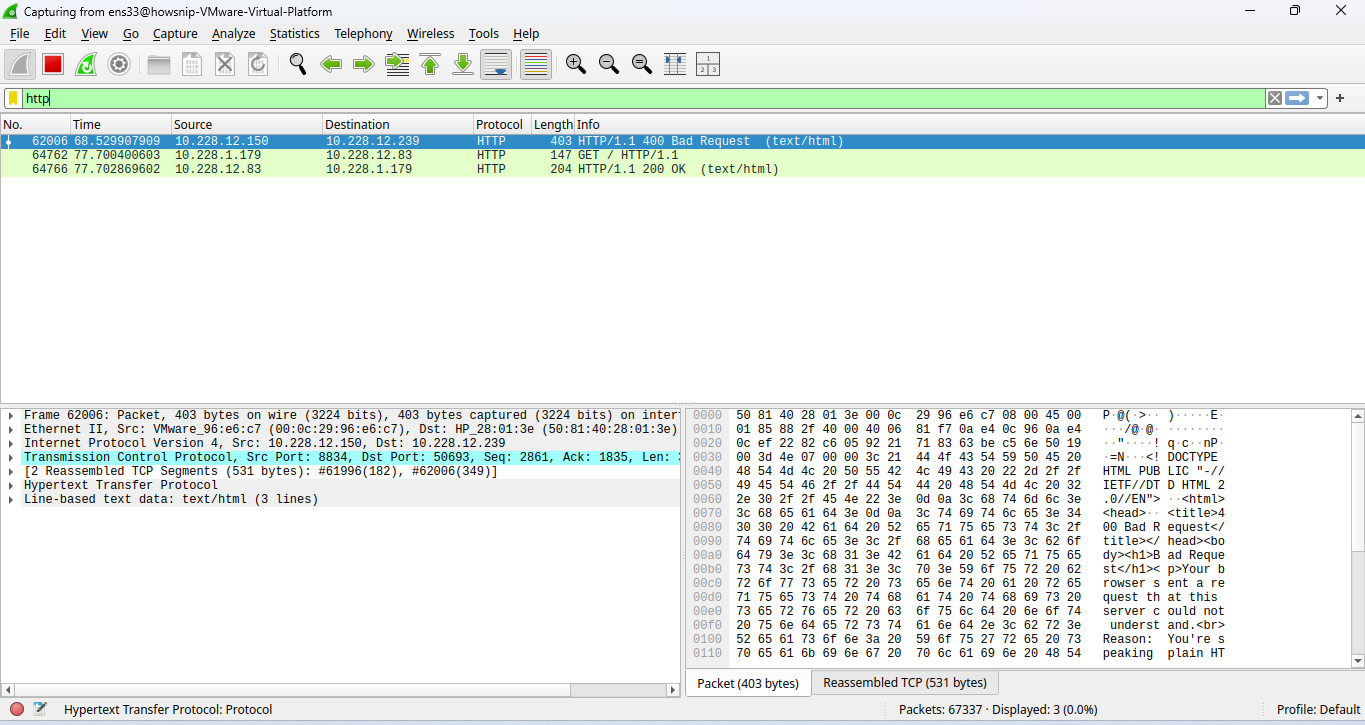
This filter hides all traffic except HTTP requests and responses.
If no HTTP traffic exists in the capture, try:
tcpor generate additional traffic:
curl www.google.com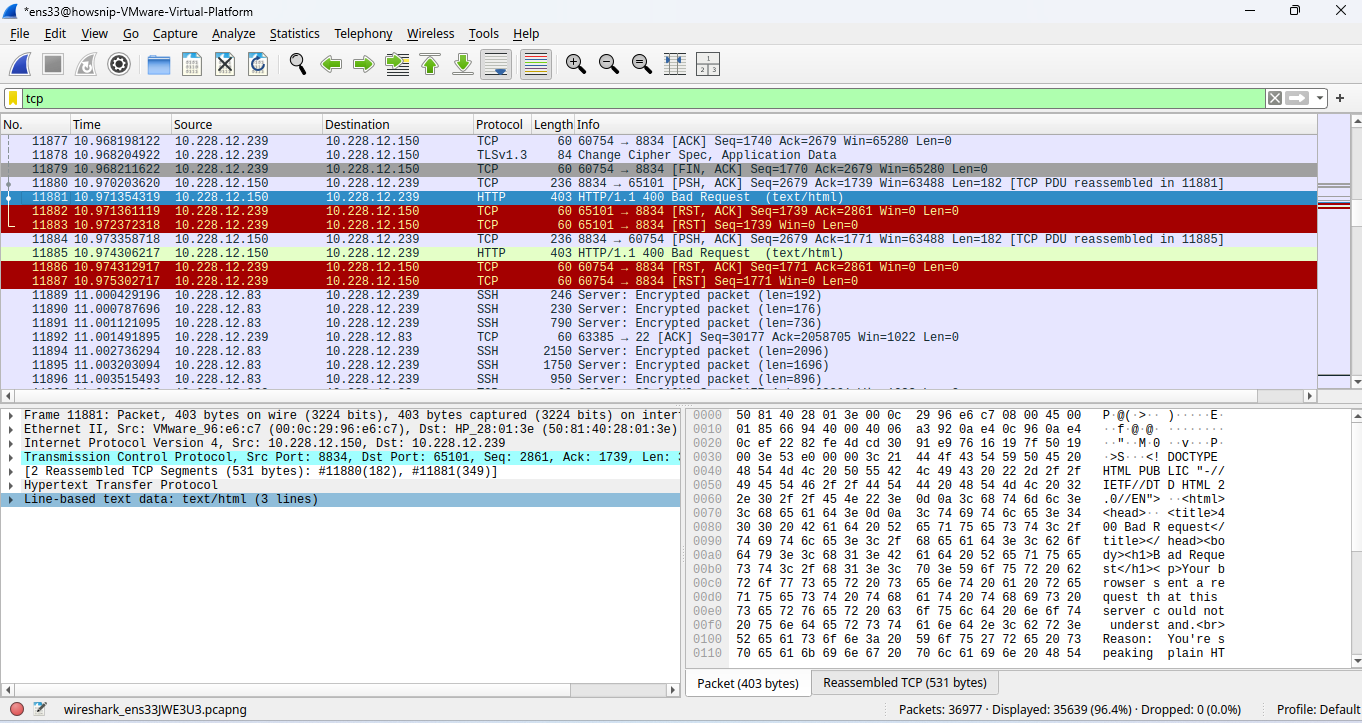
b) Filter by Source IP Address
To display packets from a specific source address:
ip.src == 10.228.1.179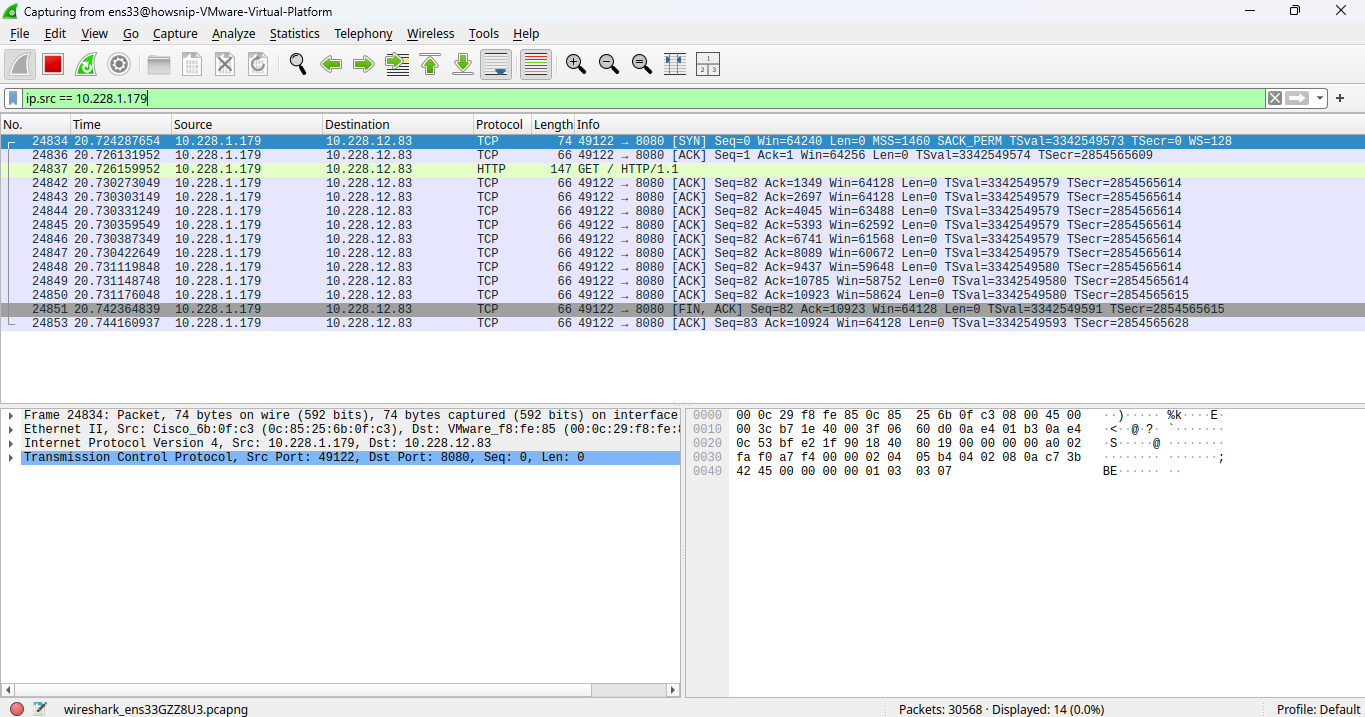
Replace the IP address with one that appears in your capture. This filter displays only packets originating from the specified system.
c) Filter by Port Number
To display traffic using TCP port 80:
tcp.port == 80This shows packets where port 80 is used as either the source or destination port. You can modify the filter for other common ports such as:
- 443 (HTTPS)
- 53 (DNS)
d) Combine Multiple Filters
Wireshark supports logical operators such as and and or.
Example:
http and tcp.port == 80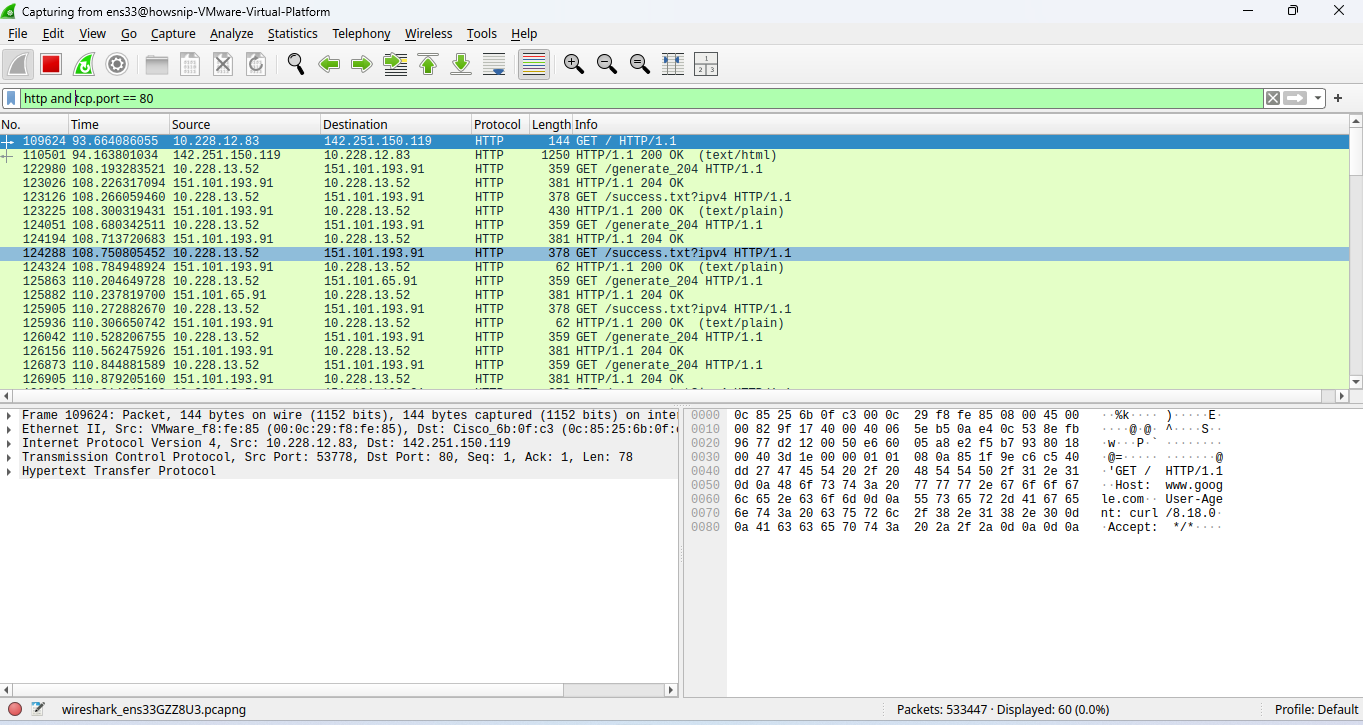
This displays only HTTP traffic that uses TCP port 80.
Use Advanced Wireshark Filters
For large packet captures, advanced filters provide more precise results.
a) Find HTTP GET Requests
Display only HTTP GET requests:
http.request.method == "GET"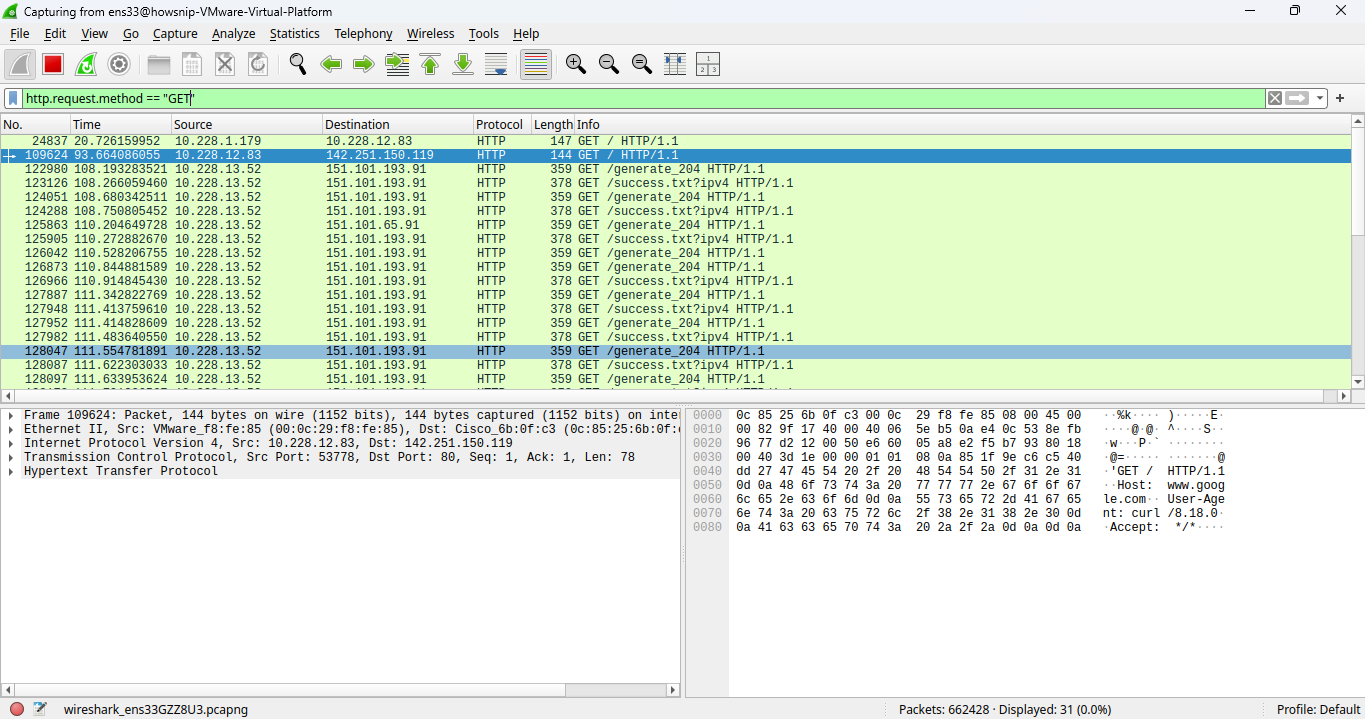
This is useful when examining web requests sent from clients to servers.
If your capture does not contain HTTP GET traffic, try:
tcp.flags.syn == 1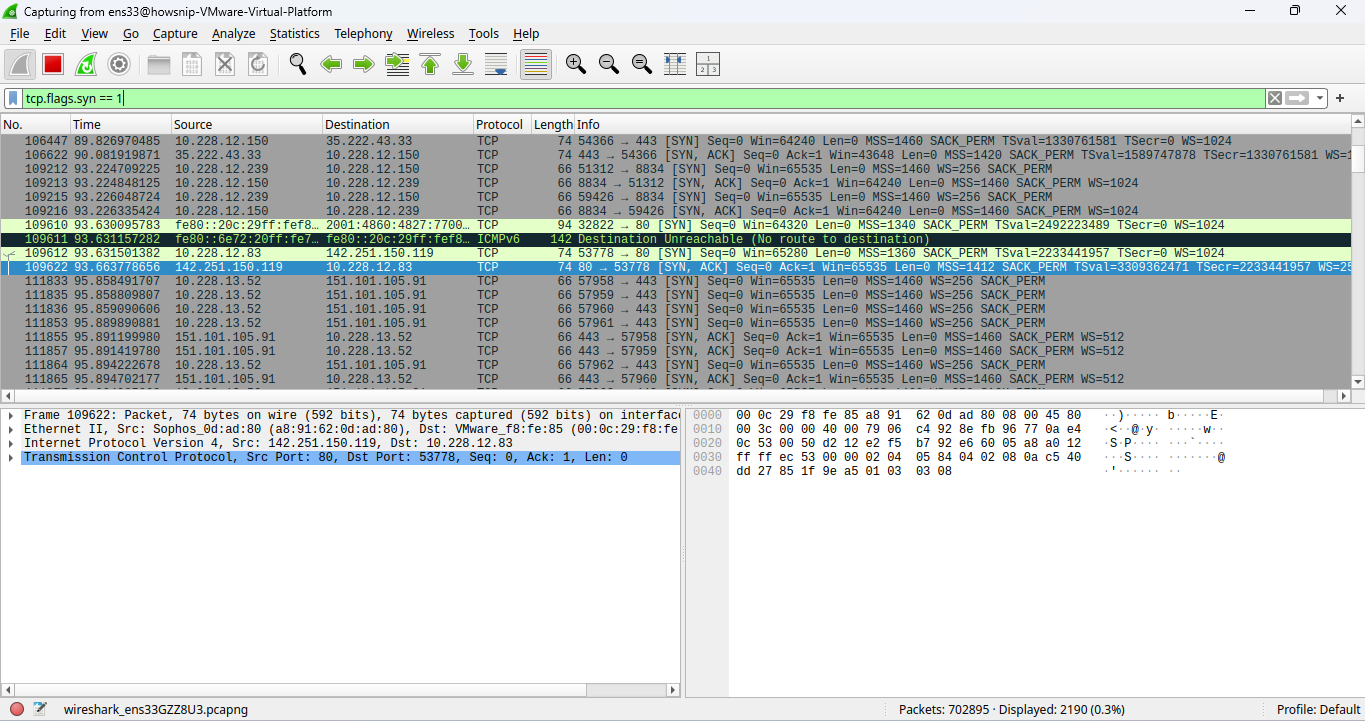
This displays TCP SYN packets used to initiate connections.
b) Filter HTTP GET Requests on Port 80
Combine filtering conditions:
tcp.port == 80 and http.request.method == "GET"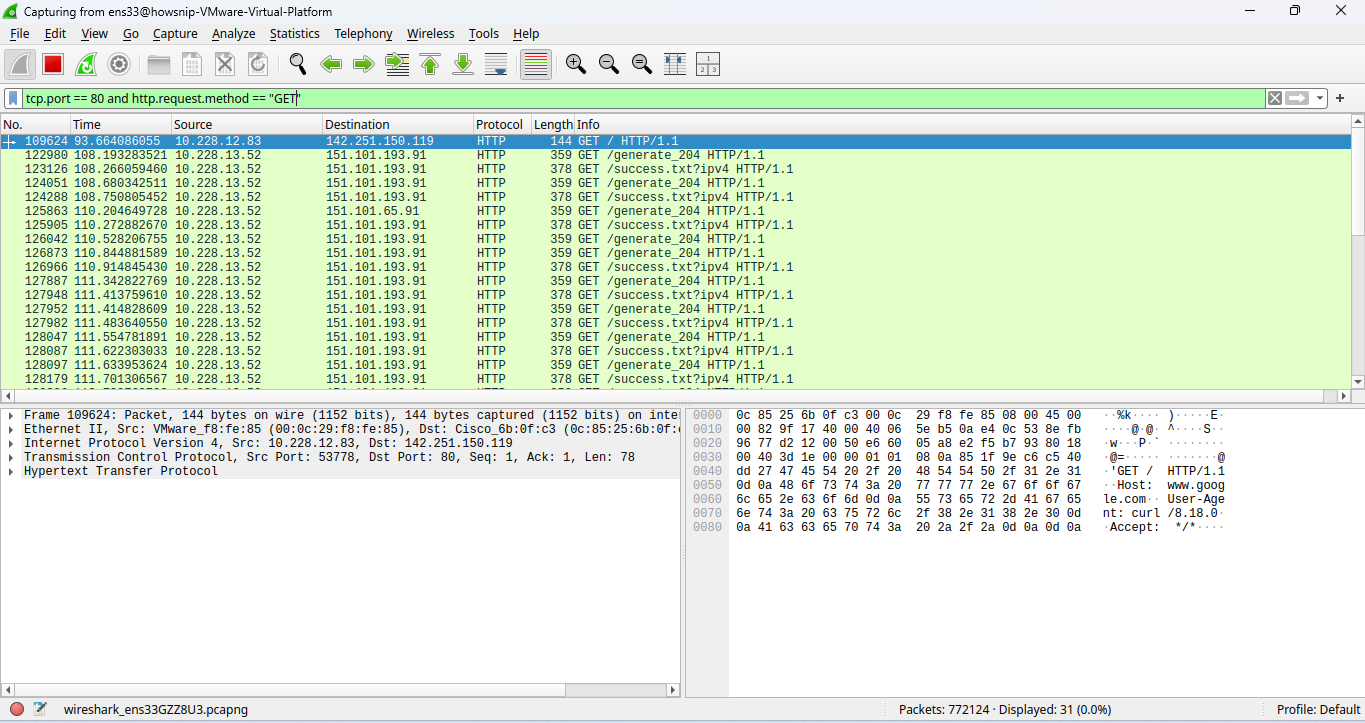
This narrows the results to GET requests occurring on the standard HTTP port.
c) Filter by Packet Size
To display TCP packets with payload lengths between 100 and 500 bytes:
tcp.len >= 100 and tcp.len <= 500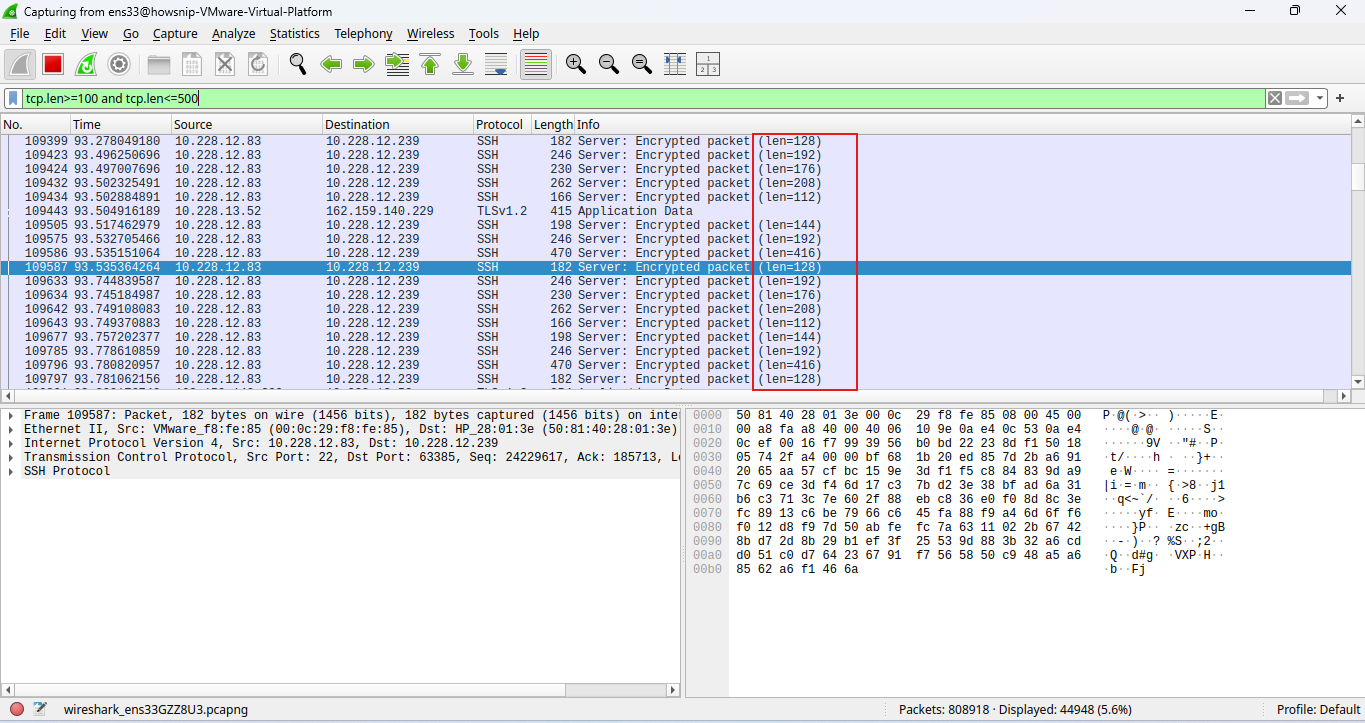
This can help identify unusual traffic patterns and investigate application behavior.
d) Search for Traffic Related to a Website
To locate HTTP traffic for a specific domain:
http.host contains "google"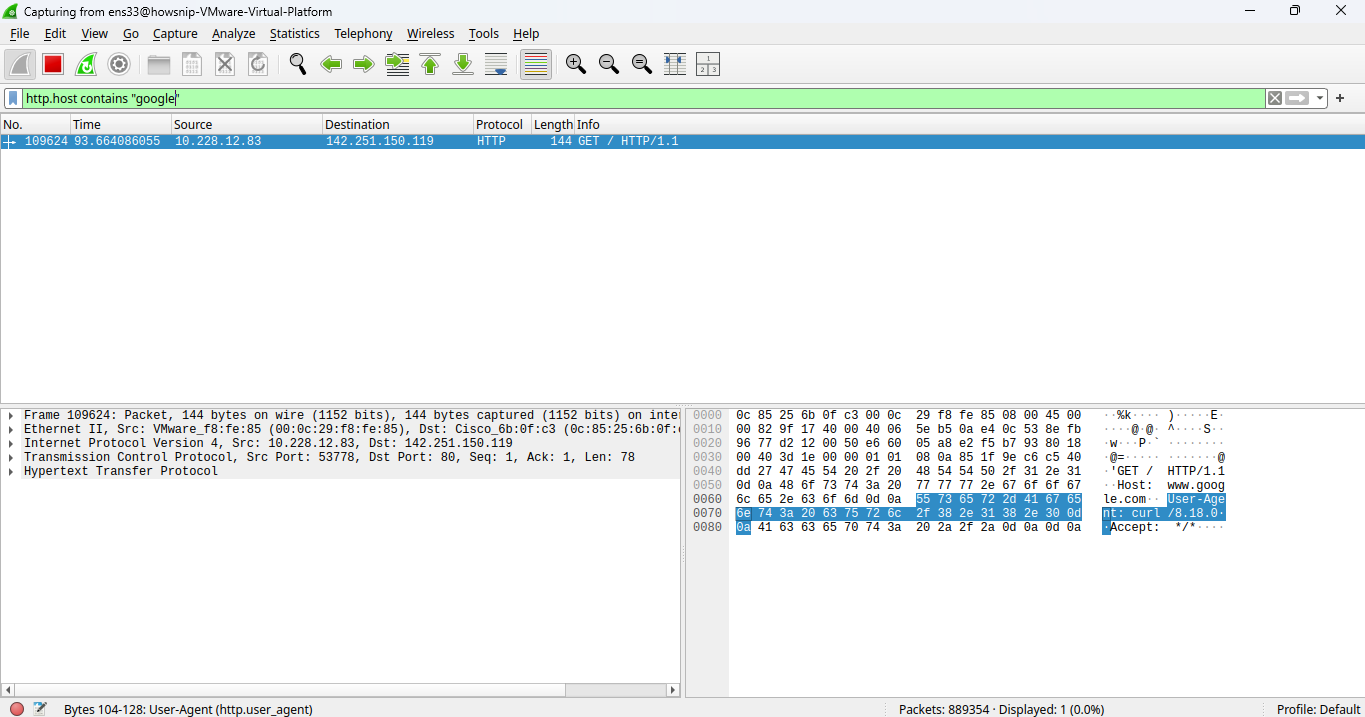
Replace “google” with the domain you want to investigate.
If host headers are unavailable, use:
frame contains "http"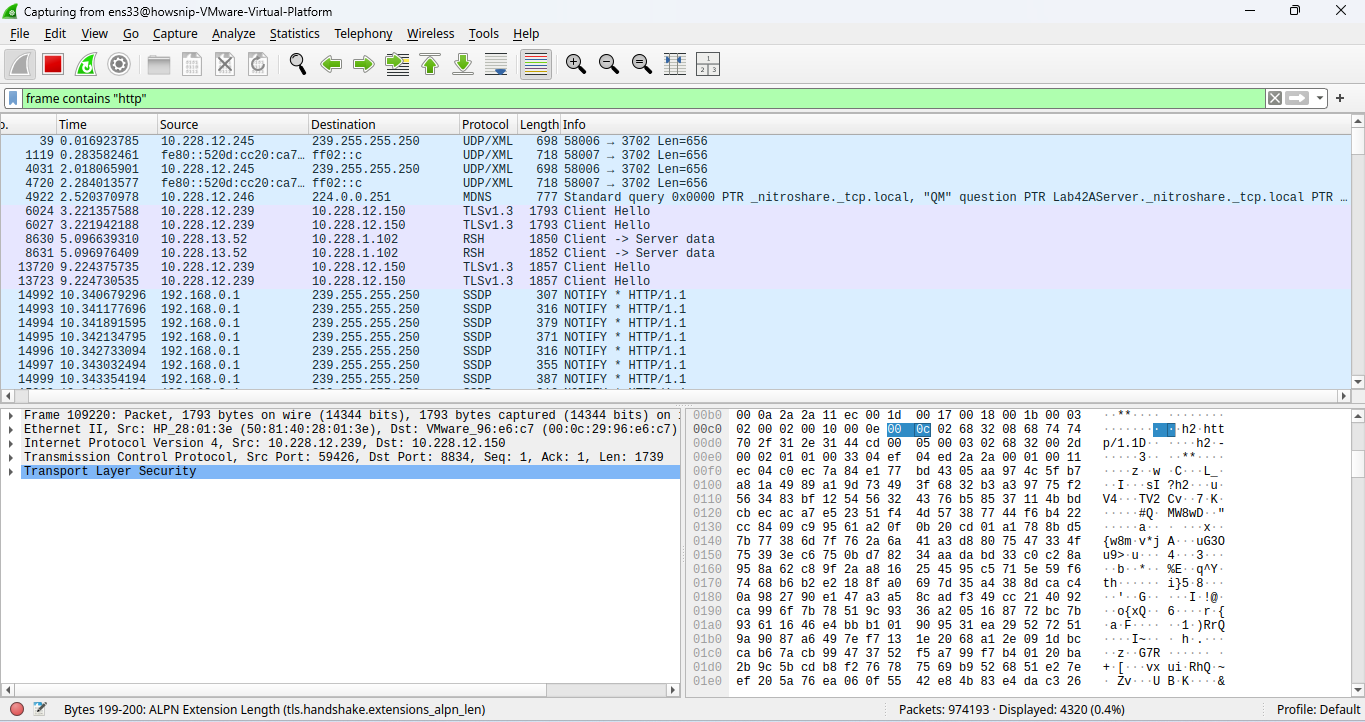
e) Search Packet Contents
To find packets containing specific text:
frame contains "password"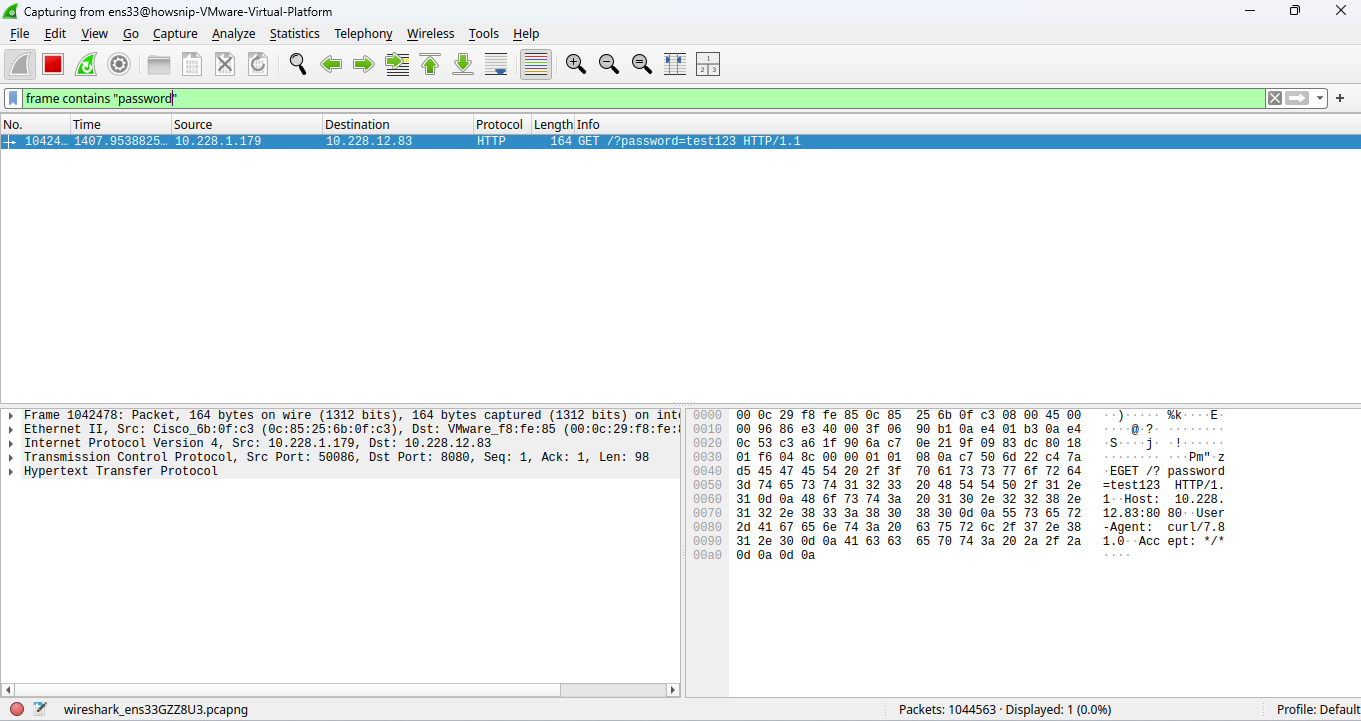
Or:
frame contains "login"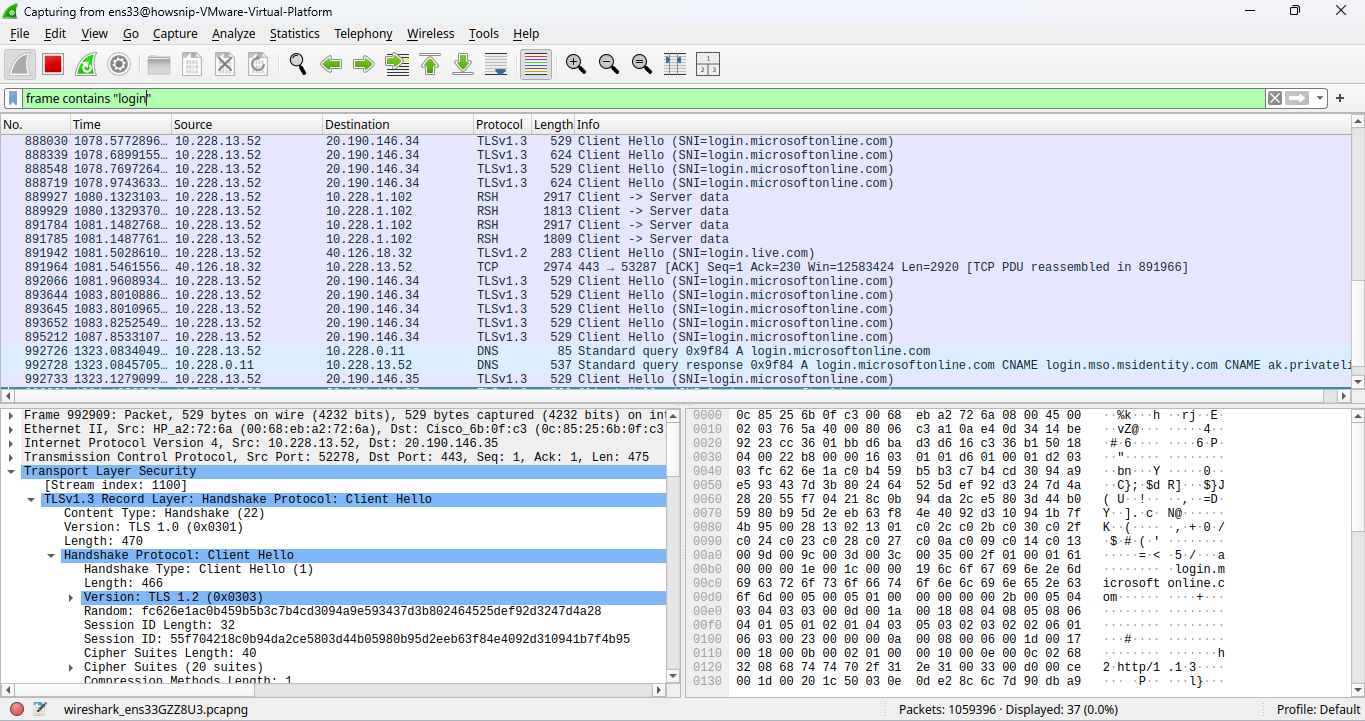
Content-based filtering can help locate application activity or sensitive information within packet data.
Warning: Carefully review any findings involving credentials and ensure analysis complies with your organization’s security policies.
f) Exclude Protocols from Results
To hide ARP traffic:
not arp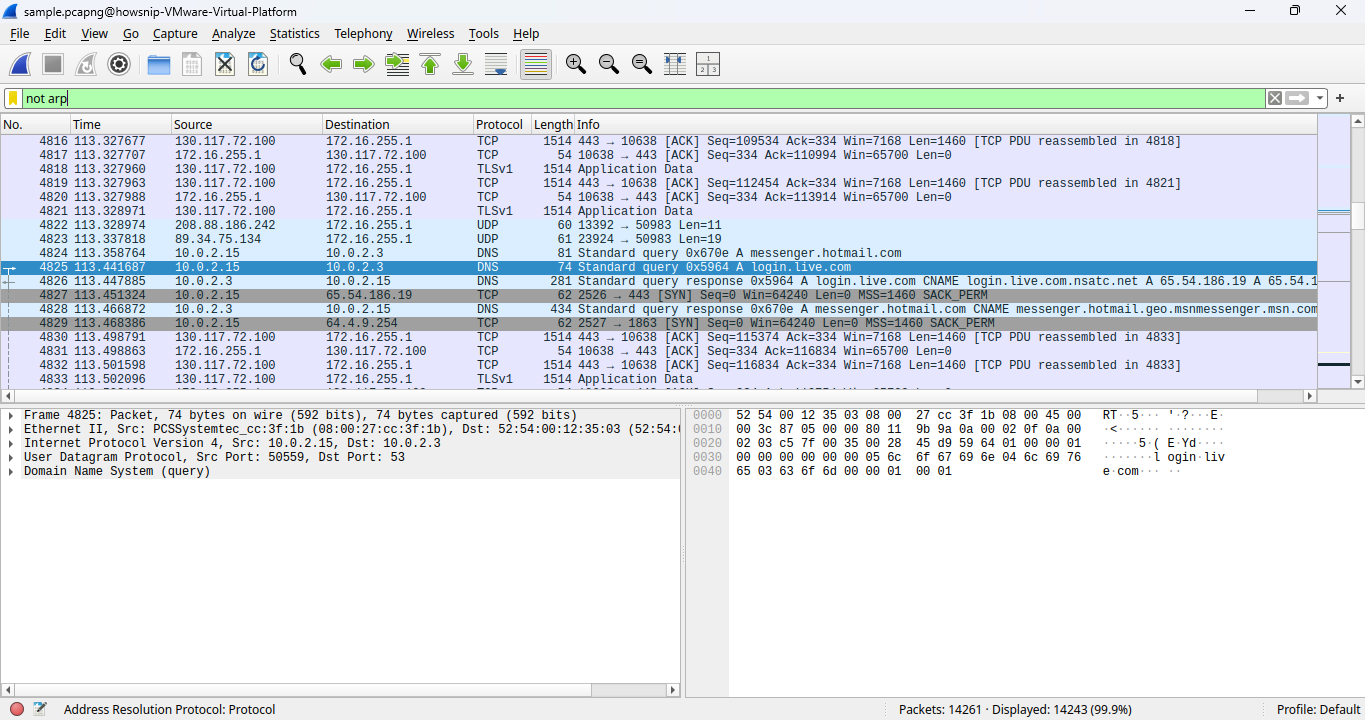
This filter removes ARP packets from the display, making other traffic easier to review.
g) Save Frequently Used Filters
If you regularly use the same filters:
- Enter the filter in the filter bar.
- Click the + button beside the filter field.
- Assign a name to the filter.
- Click OK.
The saved filter can later be selected from the filter dropdown menu.
h) Export Filtered Packets
After isolating relevant traffic, you can save only the displayed packets.
- Apply your desired filter.
- Select File > Export Specified Packets.
- Choose Displayed under Packet Range.
- Select a file name and location.
- Click Save.
The exported capture will contain only packets matching the active filter.
Use Wireshark Filters for Security Analysis
Wireshark filters are commonly used during incident response and security investigations.
a) Detect Possible Port Scanning
To display initial TCP connection attempts:
tcp.flags.syn == 1 and tcp.flags.ack == 0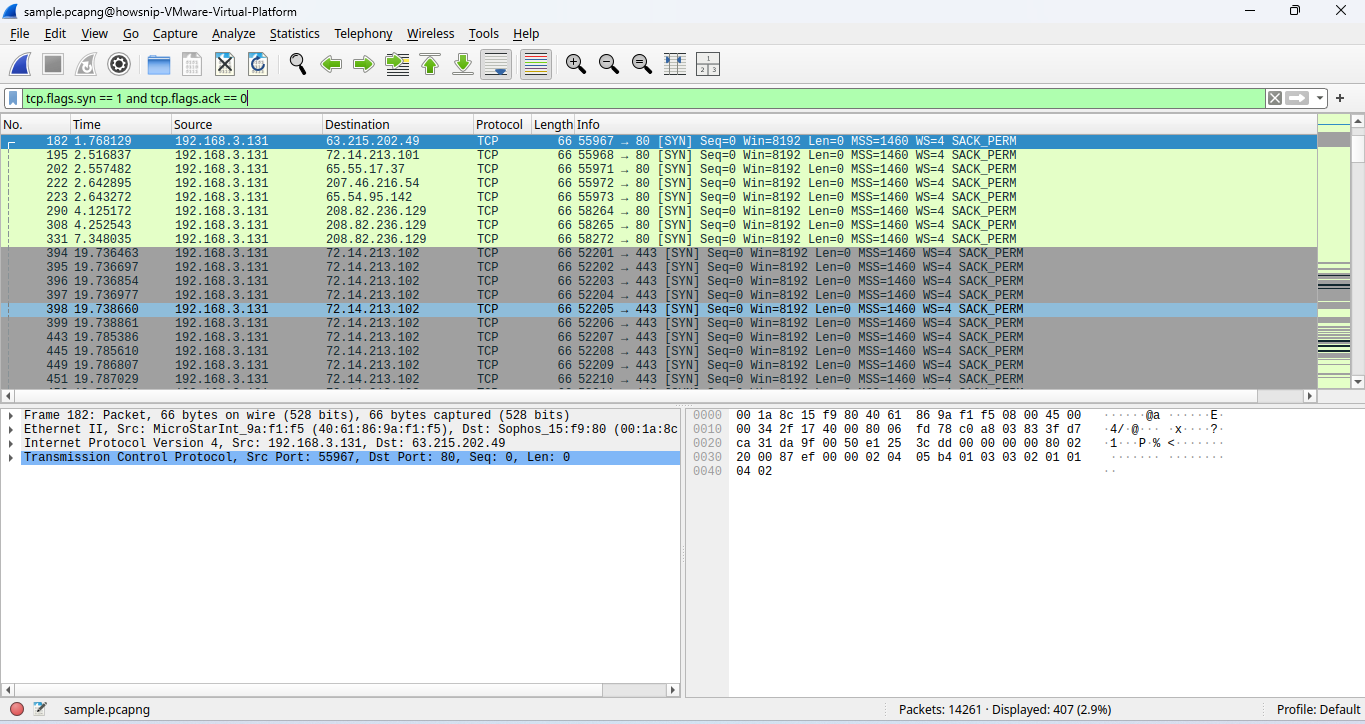
This filter shows SYN packets without ACK responses. A high volume of such packets to multiple ports may indicate scanning activity.
b) Review DNS Traffic
Display DNS traffic:
dns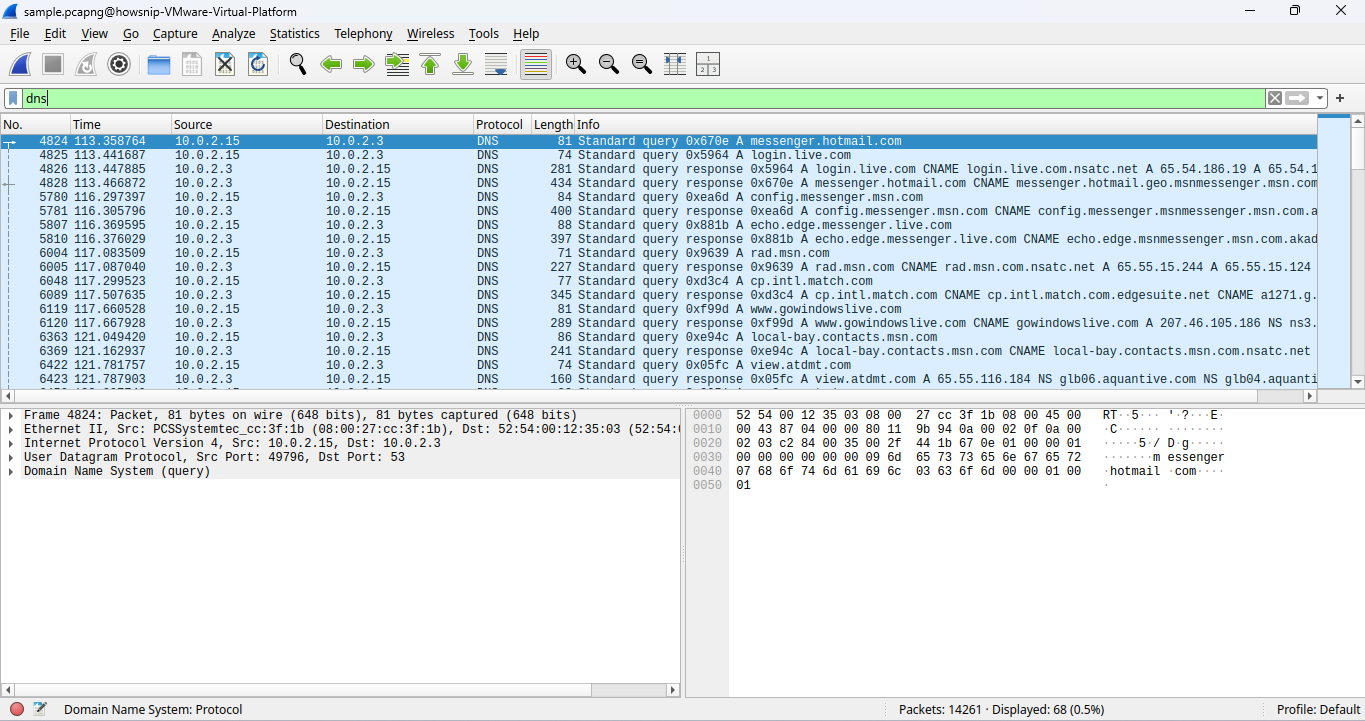
When reviewing results, check for:
- Excessive DNS requests
- Repeated queries to the same domain
- Unusually long domain names
These patterns may warrant further investigation.
c) Look for Failed Login Attempts
To identify potential authentication failures:
ftp contains "530" or ssh contains "Failed"Repeated failures from the same system may indicate brute-force attempts.
d) Find HTTP Error Responses
Display HTTP responses with error status codes:
http.response.code >= 400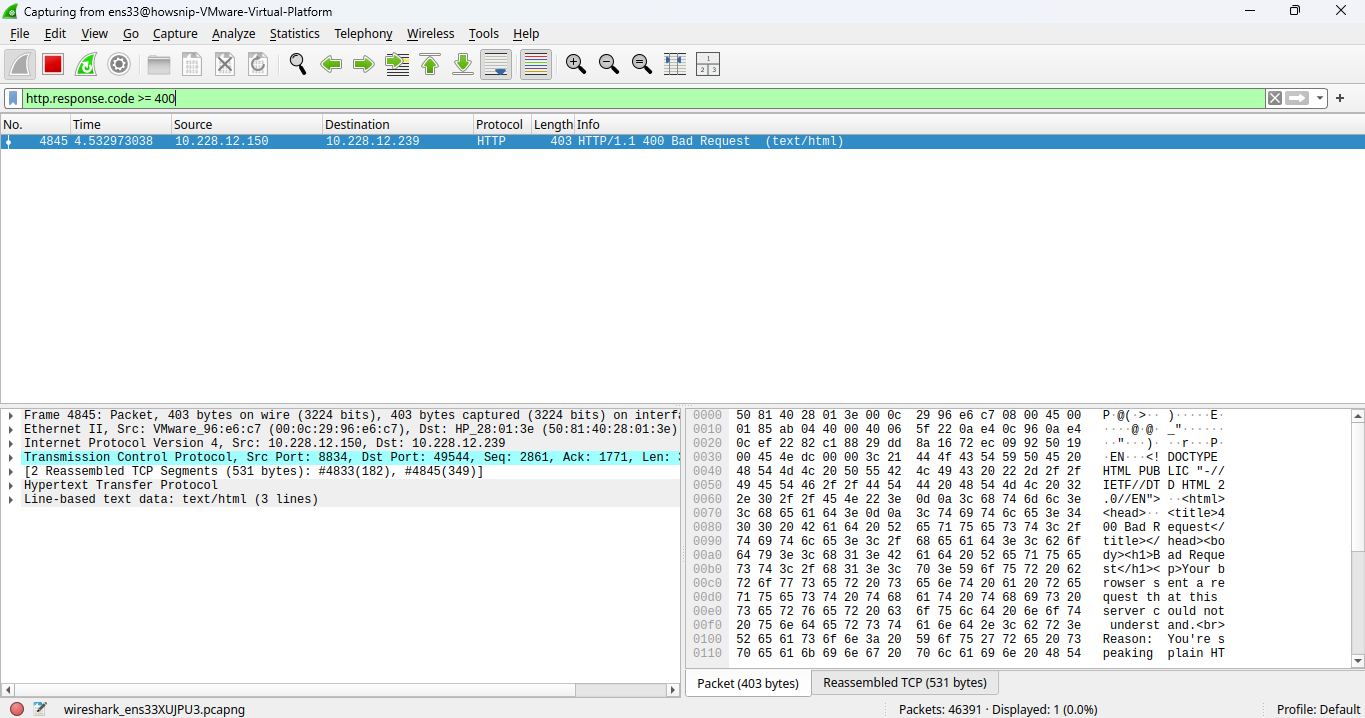
This filter helps identify failed requests and potential web application issues.
e) Search for Potential Clear-Text Credentials
To locate HTTP traffic containing common login-related terms:
http contains "user" or http contains "pass" or http contains "login"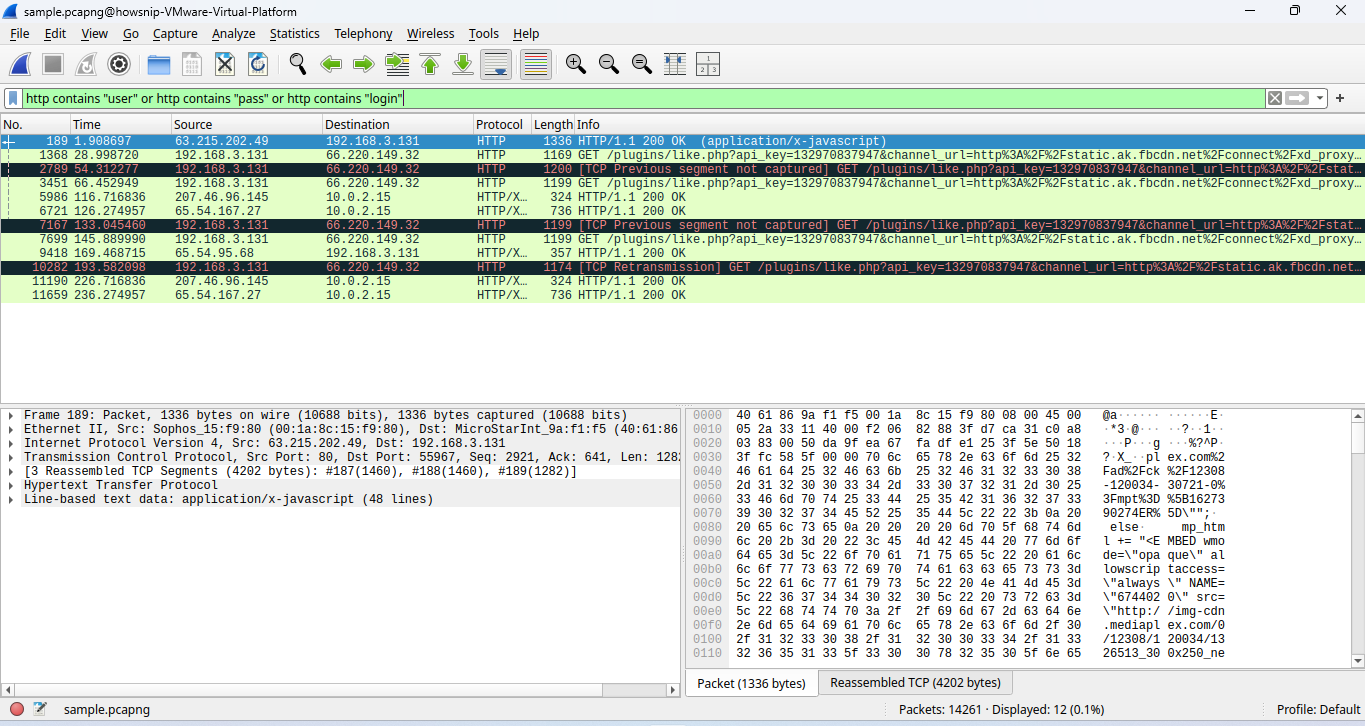
Review matching packets carefully to determine whether sensitive data is being transmitted insecurely.
Important: The presence of these terms does not automatically indicate exposed credentials. Always validate findings by examining the packet contents.
Practice with Traffic Analysis
a) Analyze the Sample Capture
Apply the following filter:
tcp.flags.syn == 1 and tcp.flags.ack == 0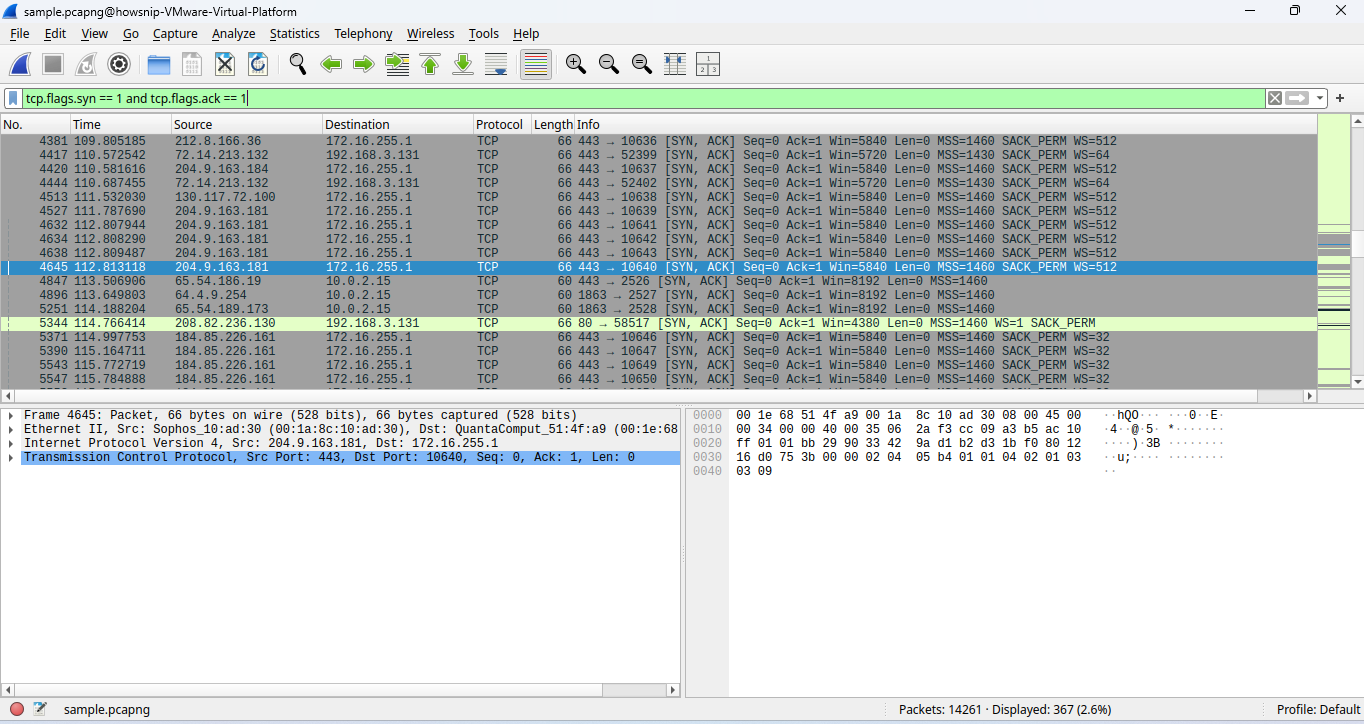
Review the results and look for repeated connection attempts, unusual hosts, or suspicious communication patterns.
b) Generate Additional Test Traffic
Open a new terminal and run:
for i in {1..5}; do
curl -I www.google.com
sleep 1
done
This command sends five HTTP HEAD requests with a one-second pause between each request.
Return to Wireshark and filter for HTTP requests:
http.request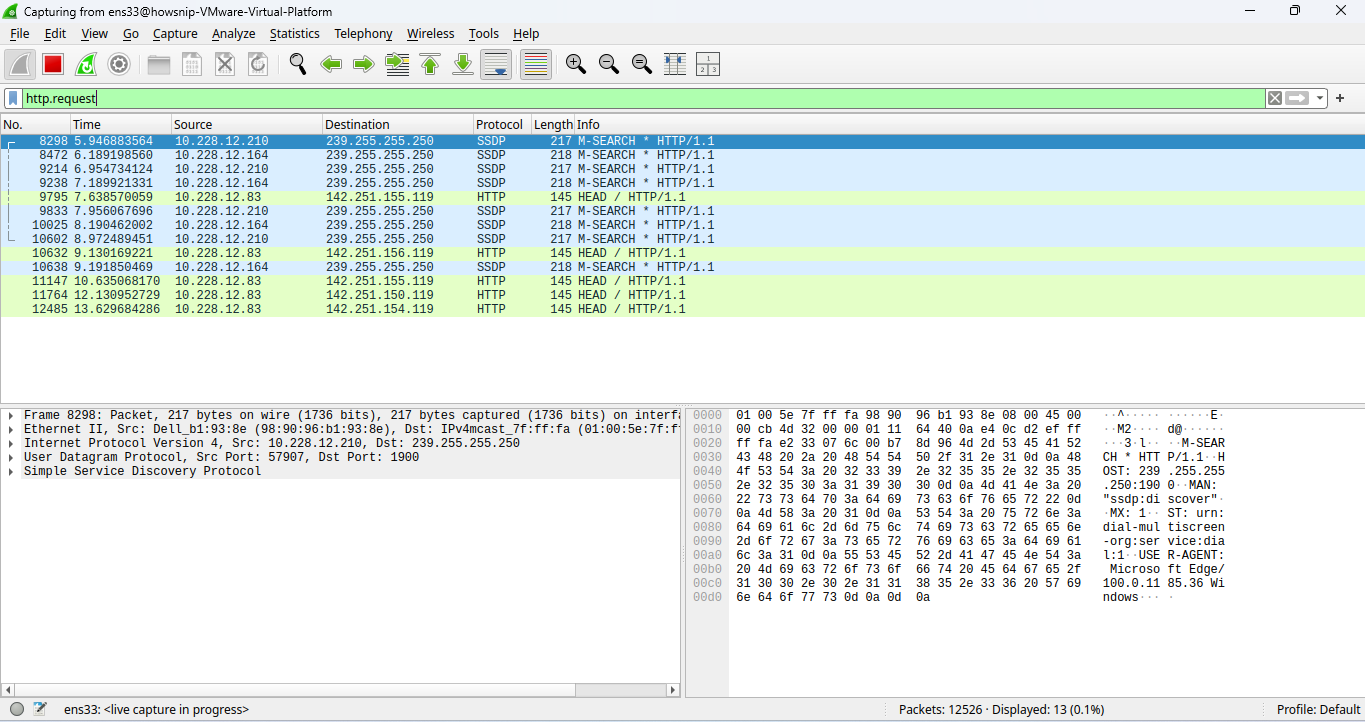
Examine the request frequency, headers, and destinations.
Differentiate Automated Tools from Normal Browsing
Try the following filter:
http.request and !(http.user_agent contains "Mozilla")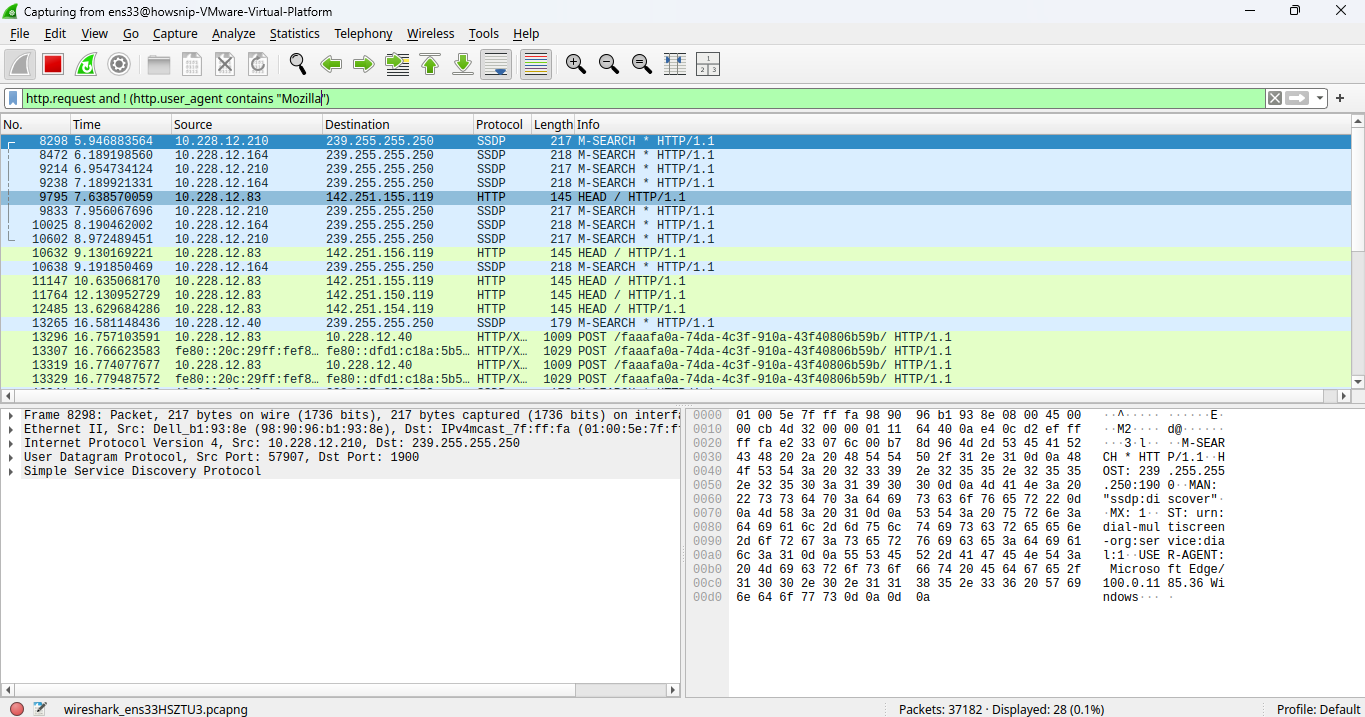
This filter displays HTTP requests that do not contain a browser-style Mozilla user agent, which can sometimes help identify automated tools or scripts.
Conclusion
Wireshark display filters make network analysis significantly easier by helping you isolate relevant traffic from large packet captures.
In this tutorial, you learned how to install and launch Wireshark, load or capture traffic, apply basic and advanced display filters, export filtered packets, and perform security-focused analysis.
By practicing with different filter combinations, you’ll become more efficient at troubleshooting networks and identifying suspicious activity.